---
id: brandmark
category: Brand
title: Brandmark
description: Logos/Brandmarks for Optum brands.
pagination_prev: null
---
```jsx
import { Brandmark } from '@uhg-abyss/web/ui/Brandmark';
```
```jsx sandbox
{
component: 'Brandmark',
inputs: [
{
prop: 'size',
type: 'string',
},
{
prop: 'affiliate',
type: 'select',
options: [
{ label: 'optum', value: 'optum' },
{ label: 'optum_financial', value: 'optum_financial' },
{ label: 'optum_frontier_therapies', value: 'optum_frontier_therapies' },
{ label: 'optum_health-education', value: 'optum_health_education' },
{ label: 'optum_now', value: 'optum_now' },
{ label: 'optum_perks', value: 'optum_perks' },
{ label: 'optum_prescription', value: 'optum_prescription' },
{ label: 'optum_serve', value: 'optum_serve' },
{ label: 'optum_store', value: 'optum_store' },
],
},
{
prop: 'variant',
type: 'select',
options: [
{ label: 'lockup', value: 'lockup' },
]
},
{
prop: 'color',
type: 'select',
options: [
{ label: 'white', value: 'white' },
{ label: 'black', value: 'black' },
{ label: 'orange', value: 'orange' },
]
},
]
}
```
## Brand
Use the `brand` property to adjust which brand is being selected.
```jsx live
```
## Size
Use the `size` property to adjust the size of the brandmark.
The size property sets the _width_ of the image. It can be a number of pixels, like `200px`, or a percent value, like `100%`.
It can also be a string such as `$sm`, `$md`, or `$lg` to choose from a menu of pre-defined sizes.
The `sizes` property controls this menu of pre-defined sizes. By default, it is set to this:
```
{
sm: '100px',
md: '150px',
lg: '200px',
}
```
```jsx live
```
## Affiliate
Use the `affiliate` property to select the required brandmark affiliates.
```jsx live
```
## Variant
Use the `variant` property to select the required brandmark variants.
```jsx live
```
## Color
Use the `color` property to select available brandmark colors.
```jsx live
```
```jsx render
```
```jsx render
```
```jsx render
Brandmarks
```
The source for these brandmarks can be found in the Brandmark Library.
You can use the search functionality to find the required brandmark. Brandmarks can be searched using their affiliates, variants or colors.
---
id: icon-brand
slug: /web/brand/optum/icon-brand
category: Brand
title: IconBrand
description: Used to implement Brand icons and adapt their properties.
design: https://www.figma.com/design/TlKDpeSY68pCS8OyghIiCM/Docs---Web-Global?node-id=3-15099
SourceIsTS: true
---
```jsx
import { IconBrand } from '@uhg-abyss/web/ui/IconBrand';
```
```jsx sandbox
{
component: 'IconBrand',
inputs: [
{
prop: 'size',
type: 'string',
},
{
prop: 'icon',
type: 'string',
},
]
}
```
## Usage
Use `Icon` to implement custom SVG icons.
Use `IconSymbol` to implement Google's Material Design based icons.
Use `IconBrand` to implement Optum brand icons and adopt their properties.
An icon is a graphical representation of an object, place or idea. Whereas, an IconBrand clearly communicate a brand's personality and identity.
## Icons
Use the `icon` property to adjust which icon is being selected.
**Note:** When using TypeScript, the `icon` property only accepts valid icon names. If an invalid icon name is provided, an error will be thrown. To verify that a given value is a valid icon name, use the [isValidAssetName tool](/web/tools/is-valid-asset-name) or use the `ValidIconBrandName` type:
```ts
import { ValidIconBrandName } from '@uhg-abyss/web/ui/IconBrand';
let iconName: ValidIconBrandName;
```
```jsx live
```
## Size
Use the `size` property to adjust the size of an icon by setting it to a specific number. The default size is set to 24.
```jsx live
```
## Use deprecated icons
Use the `useDeprecated` property to use the old version of the icon on a per-component basis. The default value is set to false. To use the old version of the icons across your application with `deprecatedOptumIcons`, see the documentation for the [`createTheme` tool](/web/tools/create-theme-optum#important-optum-icons-deprecation).
```jsx live
```
## Brand icon variants
Use the `variant` property to change the style of Brand icons. Available variants are `twotonedarkcircle`, `twotonelightcircle`, `twotone`, `onetonedarkcircle`, and `onetone`. The default variant is `twotonedarkcircle`.
**Note:** The `variant` prop is ignored if `useDeprecated` is set to false or if the `deprecatedOptumIcons` override is set in `createTheme`, as the new icons only have one variant.
```jsx live
onetonedarkcircle
twotonedarkcircle
twotonelightcircle
onetone
twotone
```
```jsx render
```
```jsx render
```
Meaningful or Control Icons
If the icon is being used in a setting where it is the only element providing meaning, then that same meaning should be conveyed to screen reader users. The below implementation provides examples of situations in which the property `isScreenReadable` should be set to true and the `title` property is required and should describe the purpose of the image.
Example 1: An alert icon is used to convey a sense of urgency; there is adjacent text (“There is a data outage”) but the text doesn't include any words that convey urgency. So, in this case, the icon should have a text alternative such as “Alert” or “Warning”.
```jsx live
There is a data outage
```
Example 2: An “X” material icon is used as a close button on a modal dialog. There
is no adjacent text, so the icon should have a text alternative of “close” or “close
window”.
```jsx live
```
Decorative Icons
If the icon is being used in a setting in which it just a decorative element (which is the default case for icons), then the icon should be ignored by screen readers. The below implementation provides example of which situations would be classified as decorative. Since the default of `isScreenReadable` is set to false no specific changes need to be made for decorative icons.
Example 1: An alert icon is used next to an urgent message and the word “Alert” is included in the adjacent text. In this case, the icon becomes decorative in nature and should be ignored by screen readers.
```jsx live
Alert: There is a data outage
```
Example 2: An “X” material icon is used as a close button on a modal dialog; the
word “Close” appears to the right of the button. In this case, the icon should be
considered decorative and ignored by screen readers.
```jsx live
Close
```
Useful Resources for Image Accessibility
-
Image accessibility
Icon, IconBrand, and IconSymbol examples
Samples of all three icon components with and without titles (alt text):
```jsx live
Decorative: No titleIcons that duplicate or reinforce text content
<>
Github source
<>
Alert: Issues found!
<>
Close window
Icon-only: Require title (alt text)
Icons conveying information that is not part of the text (if any).
<>
Source
<>
Issues found!
```
Brand Icons
Abyss uses Brand's branded iconography that is designed to aid wayfinding, draw attention and support messaging.
The source for these design icons can be found in the Brand Icons Library.
---
id: illustrated-icon-brand
slug: /web/brand/optum/illustrated-icon-brand
category: Brand
title: IllustratedIconBrand
description: Used to implement UHC brand illustrated icons and adapt their properties.
design: https://www.figma.com/design/TlKDpeSY68pCS8OyghIiCM/Docs---Web-Global?node-id=3-15099
sourceIsTS: true
---
## Unavailable
Illustrated icons for Optum are currently unavailable. Please see the docs for [UHC](/web/brand/uhc/illustrated-icon-brand) for available illustrated icons.
---
id: illustration-brand
slug: /web/brand/optum/illustration-brand
category: Brand
title: IllustrationBrand
description: Used to implement Brand illustrations and adapt their properties.
sourceIsTS: true
design: https://www.figma.com/design/TlKDpeSY68pCS8OyghIiCM/Docs---Web-Global?node-id=3-15099
pagination_next: null
---
```jsx
import { IllustrationBrand } from '@uhg-abyss/web/ui/IllustrationBrand';
```
```tsx sandbox
{
component: 'IllustrationBrand',
inputs: [
{
prop: 'brand',
type: 'select',
options: [
{ label: 'optum', value: 'optum' },
{ label: 'uhc', value: 'uhc' },
],
},
{
prop: 'illustration',
type: 'string',
},
{
prop: 'size',
type: 'string',
},
{
prop: 'color',
type: 'select',
options: [
{ label: 'primary', value: 'primary' },
{ label: 'pacific', value: 'pacific' },
{ label: 'white', value: 'white' },
]
},
{
prop: 'variant',
type: 'select',
options: [
{ label: '1', value: '1' },
{ label: '2', value: '2' },
],
},
{
prop: 'altText',
type: 'string',
},
],
}
// Disclaimer: The color and variant props are only applicable to UHC illustrations
```
## Illustration
Use the `illustration` prop to select the illustration to display.
**Note:** When using TypeScript, the `icon` property only accepts valid icon names. If an invalid icon name is provided, an error will be thrown. To verify that a given value is a valid icon name, use the [isValidAssetName tool](/web/tools/is-valid-asset-name) or use the `ValidIllustrationBrandName` type:
```ts
import { ValidIllustrationBrandName } from '@uhg-abyss/web/ui/IllustrationBrand';
let illustrationName: ValidIllustrationBrandName;
```
```tsx live
```
## Brand
Use the `brand` prop to adjust which brand is selected. By default, the brand is set to the same brand as the brand used in the `ThemeProvider`.
```tsx live
{/* This will change based on the theme selected in the navbar */}
```
## Size
Use the `size` property to adjust the width of the illustration. This can be either a number (i.e. a pixel value) or a string. The default value is `"100%"`. The height of the illustration will scale proportionally to the width.
```tsx live
```
## Alt text
Use the `altText` property to provide an accessible description of the illustration. This text should be descriptive enough to convey the meaning of the illustration. See the [Accessibility tab](/web/brand/optum/illustration-brand?tab=accessibility) for more information.
```tsx live
```
```jsx render
```
```jsx render
```
Screen Reader Support
Brand illustrations are intended to be used as decorative images and as such, are ignored by screen readers by default. However, should a case arise in which an illustration needs to be accessible, use the `altText` prop to provide accessible alt text to the image. This text should be descriptive enough to convey the meaning of the illustration.
```tsx live
```
Illustration Source
The source for these illustrations can be found in the brand libraries.
UnitedHealthCare Library
Optum Library
---
id: tokens
category: Brand
title: Tokens
---
## Overview
Design tokens are the visual sub-atom variables of a design system. They contain UI data such as colors, border width, elevation, and even motion.
They are used in the place of hard-coded values such as hex codes or pixels to maintain scalability and consistency.
Think about them as recipe ingredients - you could add chocolate to a salad, but it won't be very tasty.
You would only consider what is a standard salad ingredient - it's the same with tokens, they are a limited set of options that make sense for our product.
**Further reading:**
[Nathan Curtis on Tokens in design systems](https://medium.com/eightshapes-llc/tokens-in-design-systems-25dd82d58421).
### Token hierarchy
Abyss uses a 3-tier token system:
- Core tier - the WHAT or the OPTIONS: contains primitive values, with no specific meaning - the name of the token and its raw value (HEX code for colors, and numbers for borders, corner radius, opacity, etc.)
- Semantic tier - the HOW or the DECISIONS: communicates design decisions on the exact usage of a Core token system-wide.
- Brand tokens - shorthand tokens to define common colors used throughout Abyss.
### Using tokens
Before you can consume Abyss tokens, your project must be configured with our [ThemeProvider](/web/ui/theme-provider). This will allow you to access the tokens in your project.
Tokens are used in place of hard-coded values such as hex codes or pixels. To use a token, you can reference it in your code using the `$` symbol followed by the token name.
All Abyss components can accept tokens, when they are passed in using the [styled function](/web/tools/styled) or the [useToken hook](/web/hooks/use-token). Non-Abyss components can use the [styled](/web/tools/styled) function to accept tokens.
#### Styled function
To create a `div` component with a background color of `$core.color.brand.100`, you can leverage our [styled function](/web/tools/styled) and do the following:
```jsx sandbox
() => {
const Example = styled('div', {
backgroundColor: '$core.color.brand.100',
height: 100,
width: 100,
});
return ;
};
```
#### useToken hook
Alternatively, you can use our [useToken Hook](/web/hooks/use-token) to directly access the value of a token. This is useful when you need the value of multiple tokens.
Additionally, brand tokens are useful for quickly defining the color of components.
```jsx sandbox
() => {
const getColorToken = useToken('colors');
const green = getColorToken('$core.color.green.100');
const red = getColorToken('$core.color.red.120');
const interactive = getColorToken('$interactive1');
return (
<>
);
};
```
#### Useful links
- [Custom Theme Tutorial](/web/developers/tutorials/custom-themes/): This tutorial will guide you through creating a custom Abyss theme for your project.
-
createTheme tool
: This tool allows you to create and modify themes to fit your design needs.
- [Theme Provider](/web/ui/theme-provider): Provider that passes the theme object down the component tree giving your project access to Abyss tokens.
- [styled Function](/web/tools/styled): Tool that allows you to create styled components.
- [useToken Hook](/web/hooks/use-token): Hook that allows you to access the value of a token in your project.
Core Tokens
Below is a list of core tokens used throughout Abyss, these are split into the categories `color`, `border-radius`, `spacing`, `sizing`.
_**Note:** Click on the token row to copy the token to your clipboard._
Border Radius Tokens
`border-radius` tokens are used to define the `borderRadius` on components.
```jsx
const Example = styled('div', {
borderRadius: '$core.border-radius.md',
});
```
```jsx render
```
---
Spacing Tokens
`spacing` tokens define the space between components. Generally, these are used for the `padding`, `margin`, or `gap` of components.
```jsx
const Example = styled('div', {
padding: '$core.spacing.50',
});
```
```jsx render
```
---
Sizing Tokens
`sizing` tokens define the size of components. Generally, these will be used to define the `width` or `height`.
_**Note:** These tokens correspond to the default screen size breakpoints._
```jsx
const Example = styled('div', {
width: '$core.sizing.300',
height: '$core.sizing.300',
});
```
```jsx render
```
---
Color Tokens
`color` tokens are used to define the color of components.
```jsx
const Example = styled('div', {
backgroundColor: '$core.color.brand.100',
});
```
```jsx render
```
Semantic Tokens
_**Note:** Click on the desired token to copy it to your clipboard._
```jsx render
```
Brand Tokens
Brand tokens are useful for quickly defining the color of components.
_**Note:** Click on the token row to copy the token to your clipboard._
Colors
Below is a list of brand tokens and their intended use cases.
```jsx
const Example = styled('div', {
backgroundColor: '$primary1',
});
```
```jsx render
```
---
Spacing
`spacing` tokens define the space between components. Generally, these will be used to define the `padding`, `margin`, or `gap` of components.
```jsx
const Example = styled('div', {
padding: '$md',
});
```
```jsx render
```
---
Accessibility
Color choices that are accessible ensure everyone can not only see every element on a page but also understand a specific, intended meaning. You want everyone to be able to see the difference between two colors right next to or on top of each other.
Contrast refers to the perceived difference between foreground and background colors. People with low vision or color blindness and those with difficulty seeing the differences between colors can have trouble seeing where one element ends and another begins. As we age, the shape of our eyes changes and affects how we perceive color and how well we can distinguish color variations. If the contrast between different elements is too low, people may not be able to see them at all.
Contrast is expressed as a ratio with the first number representing the foreground color and the second representing the background color. For example, 3:1 means the foreground item color is three times more intense or visible than the background value. Contrast rules apply to text as well as any content that conveys meaning, including icons, graphics, and form elements. Tools such as Colour Contrast Analyzer or WebAIM's online color contrast tool are useful for verifying contrast ratios.
Color and contrast choices within a digital experience are accessible when people can:
- See UI elements and content
- Understand and interpret information
- Take action
We aim to provide a contrast ratio perceivable by all users. For this reason, UnitedHealthcare has embraced a minimum contrast ratio of 4.5:1 (foreground vs background) for UI elements and content that conveys meaning.
Recommendations
- Include color combinations, good contrast and poor contrast, in design documentation
- Communicate meaning with more than just color, such as with color and descriptive text
- Give focus indicators a unique presentation that meets contrast requirements on all backgrounds
Test for a minimum contrast ratio of 4.5 to 1 for:
- Non-bolded text smaller than 24 pixels (18 points)
- Bold text smaller than 18 pixels (14 points)
- Essential icons that are close to the body text size
Test that non-text elements that communicate information meet a minimum
contrast ratio of 3 to 1 for all states:
- Icons
- Data visualizations
- Focus indicators
- Controls, including their borders or boundaries
- Non-bolded text at or above 24 pixels (18 points)
- Bold text at or above 18 pixels (14 points)
Don't worry about contrast for logos and disabled elements. Watch out for using color alone to communicate meaning. People who are color blind or blind cannot perceive the meaning by color alone.
---
id: colors-v1
title: Colors
category: Brand
description: Colors of the Optum brand
design: https://www.figma.com/design/tk08Md4NBBVUPNHQYthmqp/Abyss-Web?node-id=35230-117928&t=kLzKghKorCS3ltJX-0
pagination_prev: web/brand/optum/tokens
pagination_next: web/brand/optum/typography-v2
customProps: { versionDefault: false }
---
## Overview
Color differentiates our brands and helps create consistent experiences across our digital products. We use color to help our users know exactly what they need to focus on.
We are committed to complying with the Web Content Accessibility Guidelines AA standard contrast ratios. To do this, choose primary, secondary, and extended colors that support usability by ensuring sufficient color contrast between elements.
```jsx render
```
---
## Primary
Our bold primary palette is used in logical ways throughout our products, marketing and sales to guide the eye and highlight important features. Utilizing our softer secondary colors, we bring warmth to the user experience to impart optimism and confidence.
We use blue ($primary1) for primary actions, buttons, text links, for indicating progress and representing authentication. These colors are used in combination wherever a color theme may be desired. The Abyss theme can be adjusted on a case by case basis to allow for custom color components.
```jsx render
Primary typography, navigation bar, button background, and component
headers. This is the most common occurring blue, and should be used the
most often.
Used as the secondary color of our components. Primarily used for
backgrounds or to contrast with $primary1.
```
---
## Accent
The accent color is used to keep things fresh and interesting. We lean on this color more frequently when brand awareness is high, or on our own properties where we control the surrounding environment.
```jsx render
Use in communications, but can vary in amount from larger floods of color
to small details in brand elements.
```
---
## Interactive
Our interactive palette contains a variety of colors make every moment feel on-brand and every interaction informative. Each color is selected intentionally to provide meaningful feedback within our products.
```jsx render
Use for elements the user can interact with such as links or icons.
Use when implementing hover for an $interactive1 element.
Use when implementing hover for a secondary button.
```
---
### Tint
Tints are reserved for containing boxes to highlight information. Tints are used for background fills, visual sectioning, and callouts. They appear behind scrollable content to add visual sectioning and accents.
```jsx render
Use in background colors for layouts, illustrations, product and
portraiture photography.
Use in background colors for layouts, illustrations, product and
portraiture photography.
```
---
## Data visualization
Our Data Viz color palette contains a variety of colors with different categories.
### Primary palette
Data Viz primary color palette.
```jsx render
Use for data viz background and border.
Use when implementing lighter background.
```
---
### Secondary palette
Data Viz secondary color palette.
```jsx render
<>
Use for data viz background and border.
Use when implementing lighter background.
Use for data viz background and border.
Use when implementing lighter background.
Use for data viz background and border.
Use when implementing lighter background.
Use for data viz background and border.
Use when implementing lighter background.
```
---
### Secondary status
Data Viz status color palette.
```jsx render
<>
Use for data viz background and border status of graph.
Use when implementing lighter background.
Use for data viz background and border status of graph.
Use when implementing lighter background.
```
---
## Supporting
Supporting colors are primarily used for infographics and data visualizations.
```jsx render
Use in digital spaces, for infographic and data visualizations.
Use in digital spaces, for infographic and data visualizations.
Use in digital spaces, for infographic and data visualizations.
Use in digital spaces, for infographic and data visualizations.
Use in digital spaces, for infographic and data visualizations.
Use in digital spaces, for infographic and data visualizations.
```
### Status
```jsx render
Use to indicate success to the user such as upon completion of a form.
Use for a hover or unfocused version of success.
Use to indicate an error to the user such as when a form submission fails.
Use for a hover or unfocused version of error.
Use to indicate a warning to the user such as when a form submission goes
through but may be inaccurate.
Use for a hover or unfocused version of warning.
Use to indicate information to the user such as after a form is submitted
and important information needs to be conveyed.
Use for a hover or unfocused version of info.
```
### Neutrals
Neutrals have varying degrees of saturation that allow for the appropriate level of warmth across marketing and product. Typically they are used for text and subtle backgrounds when we don't want to draw too much attention to a particular touchpoint or convey information such as "disabled". Gray tints are limited to print when black is the only color option.
```jsx render
Use White as a background or to contrast with darker colors. Implement
white where it will never be necessary for the color theme to change.
Use as a background color for delineation in Layouts.
Use as a background color for delineation in Layouts.
Use as a background color for delineation in Layouts.
Use for additional delineation in Layouts.
Use for disabled text only.
Use for paragraph text.
Use for labels and borders. When used on white background it may be used
for legal copy.
Use for headings h4-h6, body text and dark accents such as outlines, and
actions.
Use for headings, body text and dark accents such as outlines, and
actions.
Use for headings, body text and dark accents such as outlines, and
actions.
```
---
## Accessibility
Color choices that are accessible ensure everyone can not only see every element on a page, but also understand a specific, intended meaning. You want everyone to be able to see the difference between two colors right next to or on top of each other.
Contrast refers to the perceived difference between foreground and background colors. People with low vision or color blindness, and those who have difficulty seeing the differences between colors all can have trouble seeing where one element ends and another begins. As we age, the shape of our eyes changes and that affects both how we perceive color and how well we can distinguish variations in color. If the contrast between different elements is too low, people may not be able to see them at all.
Contrast is expressed as a ratio with the first number representing the foreground color and the second representing the background color. For example, 3:1 means the foreground item color is three times more intense or visible than the background value. Contrast rules apply to text as well as any content that conveys meaning, including icons, graphics and form elements. Tools such as Colour Contrast Analyser or WebAIM's online color contrast tool are useful for verifying contrast ratios.
Color and contrast choices within a digital experience are accessible when people can:
- See UI elements and content
- Understand and interpret information
- Take action
Our aim is to provide a contrast ratio that can be perceived by all users. For this reason, UnitedHealthcare has embraced a minimum contrast ratio of 4.5:1 (foreground vs background) for UI elements and content that convey meaning.
Recommendations
- Include color combinations, good contrast and poor contrast, in design documentation
- Communicate meaning with more than just color, such as with color and descriptive text
- Give focus indicators a unique presentation that meets contrast requirements on all backgrounds
Test for a minimum contrast ratio 4.5 to 1 for:
- Non-bolded text smaller than 24 pixels (18 points)
- Bold text smaller than 18 pixels (14 points)
- Essential icons that are close to body text size
Test that non-text elements that communicate information meet a minimum
contrast ratio of 3 to 1 for all states:
- Icons
- Data visualizations
- Focus indicators
- Controls, including their borders or boundaries
- Non-bolded text at or above 24 pixels (18 points)
- Bold text at or above 18 pixels (14 points) in size
Don't worry about contrast for logos and disabled elements. Watch out for using color alone to communicate meaning. People who are color blind or blind cannot perceive the meaning by color alone.
Useful Resources for Color Accessibility
-
Color and contrast accessibility
-
Accessibility testing for color contrast
---
id: colors-v2
title: Colors
category: Brand
description: Colors of the Optum brand
design: https://www.figma.com/design/TlKDpeSY68pCS8OyghIiCM/Docs---Web-Global?node-id=1-16&node-type=canvas&t=9Oze02yWZcioUONN-0
pagination_prev: web/brand/optum/tokens
pagination_next: web/brand/optum/typography-v2
customProps: { versionDefault: true }
---
## Overview
Color differentiates our brands and helps create consistent experiences across our digital products. We use color to help our users know exactly what they need to focus on.
We are committed to complying with the Web Content Accessibility Guidelines AA standard contrast ratios. To do this, choose primary, secondary, and extended colors that support usability by ensuring sufficient color contrast between elements.
```jsx render
```
---
## Brand
Primary colors communicate brand identity, widely used across interactive elements and is sparingly used for text - cta labels and headings.
```jsx render
```
---
## Neutral
Use neutrals for text, borders and backgrounds.
```jsx render
```
---
## Semantic
Communicates status and urgency.
Use saturated colors for both text and high emphasis backgrounds.
Use tint variations for backgrounds only.
```jsx render
```
---
## Accent
Use for emphasis and to communicate function. Does not have hierarchy.
```jsx render
```
## Data visualization
Used in our Data Visualization components.
```jsx render
```
---
## Accessibility
Color choices that are accessible ensure everyone can not only see every element on a page, but also understand a specific, intended meaning. You want everyone to be able to see the difference between two colors right next to or on top of each other.
Contrast refers to the perceived difference between foreground and background colors. People with low vision or color blindness, and those who have difficulty seeing the differences between colors all can have trouble seeing where one element ends and another begins. As we age, the shape of our eyes changes and that affects both how we perceive color and how well we can distinguish variations in color. If the contrast between different elements is too low, people may not be able to see them at all.
Contrast is expressed as a ratio with the first number representing the foreground color and the second representing the background color. For example, 3:1 means the foreground item color is three times more intense or visible than the background value. Contrast rules apply to text as well as any content that conveys meaning, including icons, graphics and form elements. Tools such as Colour Contrast Analyser or WebAIM's online color contrast tool are useful for verifying contrast ratios.
Color and contrast choices within a digital experience are accessible when people can:
- See UI elements and content
- Understand and interpret information
- Take action
Our aim is to provide a contrast ratio that can be perceived by all users. For this reason, UnitedHealthcare has embraced a minimum contrast ratio of 4.5:1 (foreground vs background) for UI elements and content that convey meaning.
Recommendations
- Include color combinations, good contrast and poor contrast, in design documentation
- Communicate meaning with more than just color, such as with color and descriptive text
- Give focus indicators a unique presentation that meets contrast requirements on all backgrounds
Test for a minimum contrast ratio 4.5 to 1 for:
- Non-bolded text smaller than 24 pixels (18 points)
- Bold text smaller than 18 pixels (14 points)
- Essential icons that are close to body text size
Test that non-text elements that communicate information meet a minimum
contrast ratio of 3 to 1 for all states:
- Icons
- Data visualizations
- Focus indicators
- Controls, including their borders or boundaries
- Non-bolded text at or above 24 pixels (18 points)
- Bold text at or above 18 pixels (14 points) in size
Don't worry about contrast for logos and disabled elements. Watch out for using color alone to communicate meaning. People who are color blind or blind cannot perceive the meaning by color alone.
Useful Resources for Color Accessibility
-
Color and contrast accessibility
-
Accessibility testing for color contrast
---
id: get-started
category: Brand
title: Brand
description: Abyss partners closely with the Optum Brand and Design Standards to create a unified brand experience in the digital world.
hideHeaderActions: true
isHidden: true
---
## Latest updates
## Brand assets
---
id: typography-v1
title: Typography
category: Brand
description: Typography for Optum brands
pagination_prev: web/brand/optum/colors-v2
pagination_next: web/brand/optum/icon-brand
customProps: { versionDefault: false }
---
## Overview
Typography is the art and technique of arranging type to make written language legible. In the Abyss library, [Heading](/web/ui/heading) and [Text](/web/ui/text) dive into the detail behind text formatting for Optum branding. More in depth guidance on typography can be found below and in the Optum Brand Page.
```jsx render
```
---
## Headings
Headings identify chunks of related content on a page and establish the hierarchy showing how those chunks of content relate to each other. If someone reads only the headings on a page, they will get a general understanding of the information presented.
HTML defines six heading levels: H1 to H6.
H1 identifies an entire page, or overall topic, and is the most important level. There should only be 1 H1 per page.
Find further documentation in the [Heading](/web/ui/heading) component.
**Note**: The term "Abyss" prefixes fonts such as "Enterprise Sans VF" in the documentation
under Font Family. This is because from a code perspective, Abyss hosts the font
files that are provided directly from Brand on our own CDN.
---
```jsx render
H1 | BoldH2 | BoldH3 | Bold H4 | Bold
H5 | Bold
H6 | Bold
```
---
## Headings (responsive/mobile)
We lower the size of the heading elements to better fit smaller/mobile screens. The examples below are responsive with the viewport, so the mobile stylings will only appear if the viewport is 743px or lower.
```jsx render
H1 | BoldH2 | BoldH3 | Bold H4 | Bold
H5 | Bold
{' '}
H6 | Bold
```
---
## Display
Display sizes are headers with H1 tags that have a greater size than a regular H1.
```jsx render
Display 1Display 2Display 3
```
---
## Display (responsive/mobile)
We lower the size of the display elements to better fit smaller/mobile screens. The examples below are responsive with the viewport, so the mobile stylings will only appear if the viewport is 743px or lower.
```jsx render
Display 1Display 2Display 3
```
#### Recommendations
Always have an H1 heading for the page title
Keep headings scannable
Headings are always sentence-case
Do not use punctuation in headings
IMPORTANT: For way-finding, every page must have an H1 available (especially
for screen readers) that describes the main purpose of the page such as
“Claims & Benefits”
---
## Body copy text
Enterprise Sans VF is the primary typeface for body copy. It is available in 3 weights — Bold, Medium, and Regular. All weights are available in italics.
Regular copy is the default style for the majority of text on pages. Small copy is the secondary style for context on pages and is used for secondary text styles, as well as footnotes and legal messaging or less important content. Find further documentation in the [Text Component](/web/ui/text).
```jsx render
P | LG | Bold
P | LG | Medium
P | LG | Regular
P | MD | Bold
P | MD | Medium
P | MD | Regular
P | SM | Bold
P | SM | Medium
P | SM | Regular
P | XS | Bold
P | XS | Medium
P | XS | Regular
P | 2XS | Bold
P | 2XS | Medium
P | 2XS | Regular
```
---
#### Recommendations
- Italics are used only when referencing books, movies, albums or publication
titles
- Optum Sans xBold is used only when reversing type out of Optum Orange or
on some photography for the sake of legibility. For this use, Brand approval is
required through a Help Desk request.
- Optum Sans Condensed is used for special cases only, such as legal and disclaimer copy.
- People read 25% slower onscreen, and they skim rather than read
- Web text should be short and scannable
- Write no more than 50% of the text you would have used in a hardcopy publication
- Write for scannability: don't require users to read long continuous blocks of text
---
## Accessibility
It is best to have just one H1 on a page. Headings H2 through H6 help people understand the structure of the page and how content is organized. Headings also help people who use assistive technology move through the page content.
Define page structure:
- Describe the topic or purpose of a page in the document title
- Start titles for browser tabs and windows with the page title and end them with the site name
- Define sections of a page using headings and ARIA landmarks, including how sections should reflow for responsive breakpoints
- If a page has a complex layout, it can be helpful to illustrate the tab order and reading order in design documentation
- Group related items using a list structure
- When text is used as a heading, assign appropriate heading tags (h1 to h6)
- Follow heading hierarchy on every page: A single H1 and others in sequence
Headings chosen for visual style rather than following hierarchy semantics. Doing so can make it difficult for people using assistive technology to navigate a page.
---
Things to avoid or watch out for:
Avoid using heading tags for visual effect alone. Heading tags convey meaning to assistive technology that helps people understand relationships in the page content.
Always use HTML heading tags to style headings. A tag gives special meaning to the text that cannot be conveyed using visual formatting or CSS. People who use screen readers need to hear the information called out explicitly as a heading to be able to understand the purpose of the text.
Be cautious about using heading tags in page footers, headers or to describe site navigation. Some U.S. states require heading tags to be used only within the main content area of a page.
Review the page to confirm that an H1 is present and:
- Visible whenever possible (not hidden using CSS unless the scenario requires it)
- Appears as the first heading on the page
Inspect the code and confirm that heading tags:
- Are used in numerical order without gaps
- Are used for headings (preferred); in cases where use of heading tags is not feasible, ARIA is used to indicate heading roles
- Review the page with a screen reader to confirm that headings are presented in the order expected
Specify type (and container) size using root em (rem) units.
Rem units are sized relative to the base type size for the document, the base browser type size, rather than the size used within their containing element. Rems are preferred over ems, pixels or points. Em unit sizes can be challenging to manage due to parent-child relationship complexities. Points and pixels are static measurements that do not allow for a flexible presentation.
Use rem units in CSS to specify type and container sizes. For reliable and flexible sizing, use rem units instead of pixels for media queries as well.
Avoid specifying a fixed container height. Allowing the type size and padding
to set the height of a container ensures the text is always visible and readable.
It helps to avoid weird overflow or clipping issues.
- Change the browser setting for text (font) size to anything larger than the default size and review the page. If is unreadable or unusable, then the text is not using rem units.
---
id: typography-v2
title: Typography
category: Brand
description: Typography for Optum brands
design: https://www.figma.com/design/TlKDpeSY68pCS8OyghIiCM/Docs---Web-Global?node-id=3-16201&node-type=canvas&t=5TzFMfWfzXM0XMmI-0
pagination_prev: web/brand/optum/colors-v2
pagination_next: web/brand/optum/icon-brand
customProps: { versionDefault: true }
---
## Overview
Typography is the art and technique of arranging type to make written language legible. In the Abyss library, [Heading](/web/ui/heading), [Text](/web/ui/text), and [V2Link](/web/ui/link-v2) dive into the detail behind text formatting for Optum branding. More in-depth guidance on typography can be found below and on the Optum Brand Page.
```jsx render
```
---
**Note**: `Heading` and `Text` do not have V2 implemented yet. Some customization
may be required to match current typography standards.
---
## Principles
**Readability**: Ensure readability by keeping it simple with two typefaces that complement and contrast with one another.
**Scalability**: Define and apply a typography scale that works in different platforms, no matter the screen size.
**Hierarchy**: Creating a strong hierarchy is paramount to helping users identify where to look first, guiding them to the most important elements of the screen.
Abyss typography uses minor 3rd scaling. The base is 16px for desktop and 14px for mobile.
## Sans-serif headings
**Note**: The term "Abyss" prefixes fonts such as "Enterprise Sans VF" in the documentation
under Font Family. This is because from a code perspective, Abyss hosts the font
files that are provided directly from Brand on our own CDN.
### Display
```jsx render
Display LG
Display MD
Display SM
```
### Desktop
```jsx render
XXL | Bold
XL | Bold
LG | Bold{' '}
MD | Bold
SM | Bold
{' '}
XS | Bold
{' '}
XXS | Bold
```
### Mobile
```jsx render
XXL | Bold
XL | Bold
LG | Bold{' '}
MD | Bold
SM | Bold
{' '}
XS | Bold
XXS | Bold
```
## Paragraph
Size is the same in both desktop and mobile.
```jsx render
LG | Bold
LG | Med
LG | Reg
MD | Bold
MD | Med
MD | Reg
SM | Bold
SM | Med
SM | Reg
XS | Bold
XS | Med
XS | Reg
```
## Links
Size is the same in both desktop and mobile.
```jsx render
LG | Underlined
MD | Underlined
SM | Underlined
LG | Med
MD | Med
SM | Med
```
---
id: brandmark
category: Brand
title: Brandmark
description: Logos/Brandmarks for UHC brands.
pagination_prev: web/brand/uhc/get-started
---
**Disclaimer:** Not all affiliate variant/color combinations are applicable, and some may not be available. Inapplicable combinations will render as empty.
```jsx
import { Brandmark } from '@uhg-abyss/web/ui/Brandmark';
```
```jsx sandbox
{
component: 'Brandmark',
inputs: [
{
prop: 'size',
type: 'string',
},
{
prop: 'affiliate',
type: 'select',
options: [
{ label: 'aarp_extra_assurance_benefits', value: 'aarp_extra_assurance_benefits' },
{ label: 'aarp_medicare_advantage_walgreens', value: 'aarp_medicare_advantage_walgreens' },
{ label: 'aarp_medicare_advantage', value: 'aarp_medicare_advantage' },
{ label: 'aarp_medicare_plans', value: 'aarp_medicare_plans' },
{ label: 'aarp_medicare_prescription', value: 'aarp_medicare_prescription' },
{ label: 'aarp_medicare_prescription_walgreens', value: 'aarp_medicare_prescription_walgreens' },
{ label: 'aarp_medicare_supplement', value: 'aarp_medicare_supplement' },
{ label: 'aarp_supplemental_personal_health', value: 'aarp_supplemental_personal_health' },
{ label: 'community_plan', value: 'community_plan' },
{ label: 'dental', value: 'dental' },
{ label: 'dual_complete', value: 'dual_complete' },
{ label: 'global', value: 'global' },
{ label: 'hearing', value: 'hearing' },
{ label: 'medicare_advantage', value: 'medicare_advantage' },
{ label: 'group_medicare_advantage', value: 'group_medicare_advantage' },
{ label: 'medicare_plans', value: 'medicare_plans' },
{ label: 'medicare_solutions', value: 'medicare_solutions' },
{ label: 'oxford', value: 'oxford' },
{ label: 'student_resources', value: 'student_resources' },
{ label: 'uhc', value: 'uhc' },
{ label: 'vision', value: 'vision' },
],
},
{
prop: 'variant',
type: 'select',
options: [
{ label: 'lockup', value: 'lockup' },
{ label: 'lockup_horizontal', value: 'lockup_horizontal' },
{ label: 'u_mark', value: 'u_mark' },
{ label: 'u_mark_horizontal', value: 'u_mark_horizontal' },
{ label: 'monogram', value: 'monogram' },
{ label: 'stacked_wordmark', value: 'stacked_wordmark' },
{ label: 'wordmark', value: 'wordmark' },
]
},
{
prop: 'color',
type: 'select',
options: [
{ label: 'red', value: 'red' },
{ label: 'white', value: 'white' },
{ label: 'black', value: 'black' },
{ label: 'blue', value: 'blue' },
{ label: 'full', value: 'full' },
]
},
]
}
```
## Brand
Use the `brand` property to adjust which brand is being selected.
```jsx live
```
## Size
Use the `size` property to adjust the size of the brandmark.
The size property sets the _width_ of the image. It can be a number of pixels, like `200px`, or a percent value, like `100%`.
It can also be a string such as `$sm`, `$md`, or `$lg` to choose from a menu of pre-defined sizes.
The `sizes` property controls this menu of pre-defined sizes. By default, it is set to this:
```
{
sm: '100px',
md: '150px',
lg: '200px',
}
```
```jsx live
```
## Affiliate
Use the `affiliate` property to select the required brandmark affiliates.
```jsx live
```
## Variant
Use the `variant` property to select the required brandmark variants.
```jsx live
```
## Color
Use the `color` property to select available brandmark colors.
```jsx live
```
```jsx render
```
```jsx render
```
```jsx render
Brandmarks
```
The source for these brandmarks can be found in the Brandmark Library.
You can use the search functionality to find the required brandmark. Brandmarks can be searched using their affiliates, variants or colors.
---
id: icon-brand
slug: /web/brand/uhc/icon-brand
category: Brand
title: IconBrand
description: Used to implement Brand icons and adapt their properties.
design: https://www.figma.com/design/TlKDpeSY68pCS8OyghIiCM/Docs---Web-Global?node-id=3-15099
SourceIsTS: true
---
```jsx
import { IconBrand } from '@uhg-abyss/web/ui/IconBrand';
```
```jsx sandbox
{
component: 'IconBrand',
inputs: [
{
prop: 'size',
type: 'string',
},
{
prop: 'variant',
type: 'select',
options: [
{ label: 'one tone', value: 'onetone' },
{ label: 'two tone', value: 'twotone' },
{ label: 'one tone w/ dark circle', value: 'onetonedarkcircle' },
{ label: 'two tone w/ dark circle', value: 'twotonedarkcircle' },
{ label: 'two tone w/ light circle', value: 'twotonelightcircle' },
],
},
{
prop: 'icon',
type: 'string',
},
]
}
```
## Usage
Use `Icon` to implement custom SVG icons.
Use `IconSymbol` to implement Google's Material Design based icons.
Use `IconBrand` to implement UHC brand icons and adopt their properties.
An icon is a graphical representation of an object, place or idea. Whereas, an IconBrand clearly communicate a brand's personality and identity.
## Icons
Use the `icon` property to adjust which icon is being selected.
**Note:** When using TypeScript, the `icon` property only accepts valid icon names. If an invalid icon name is provided, an error will be thrown. To verify that a given value is a valid icon name, use the [isValidAssetName tool](/web/tools/is-valid-asset-name) or use the `ValidIconBrandName` type:
```ts
import { ValidIconBrandName } from '@uhg-abyss/web/ui/IconBrand';
let iconName: ValidIconBrandName;
```
```jsx live
```
## Size
Use the `size` property to adjust the size of an icon by setting it to a specific number. The default size is set to 24.
```jsx live
```
## Brand icon variants
Use the `variant` property to change the style of Brand icons. Available variants are `twotonedarkcircle`, `twotonelightcircle`, `twotone`, `onetonedarkcircle`, and `onetone`. The default variant is `twotonedarkcircle`.
```jsx live
onetonedarkcircle
twotonedarkcircle
twotonelightcircle
onetone
twotone
```
```jsx render
```
```jsx render
```
Meaningful or Control Icons
If the icon is being used in a setting where it is the only element providing meaning, then that same meaning should be conveyed to screen reader users. The below implementation provides examples of situations in which the property `isScreenReadable` should be set to true and the `title` property is required and should describe the purpose of the image.
Example 1: An alert icon is used to convey a sense of urgency; there is adjacent text (“There is a data outage”) but the text doesn't include any words that convey urgency. So, in this case, the icon should have a text alternative such as “Alert” or “Warning”.
```jsx live
There is a data outage
```
Example 2: An “X” material icon is used as a close button on a modal dialog. There
is no adjacent text, so the icon should have a text alternative of “close” or “close
window”.
```jsx live
```
Decorative Icons
If the icon is being used in a setting in which it just a decorative element (which is the default case for icons), then the icon should be ignored by screen readers. The below implementation provides example of which situations would be classified as decorative. Since the default of `isScreenReadable` is set to false no specific changes need to be made for decorative icons.
Example 1: An alert icon is used next to an urgent message and the word “Alert” is included in the adjacent text. In this case, the icon becomes decorative in nature and should be ignored by screen readers.
```jsx live
Alert: There is a data outage
```
Example 2: An “X” material icon is used as a close button on a modal dialog; the
word “Close” appears to the right of the button. In this case, the icon should be
considered decorative and ignored by screen readers.
```jsx live
Close
```
Useful Resources for Image Accessibility
-
Image accessibility
Icon, IconBrand, and IconSymbol examples
Samples of all three icon components with and without titles (alt text):
```jsx live
Decorative: No titleIcons that duplicate or reinforce text content
<>
Github source
<>
Alert: Issues found!
<>
Close window
Icon-only: Require title (alt text)
Icons conveying information that is not part of the text (if any).
<>
Source
<>
Issues found!
```
Brand Icons
Abyss uses Brand's branded iconography that is designed to aid wayfinding, draw attention,
and support messaging.
The source for these design icons can be found in the Brand Icons Library.
---
id: illustrated-icon-brand
slug: /web/brand/uhc/illustrated-icon-brand
category: Brand
title: IllustratedIconBrand
description: Used to implement UHC brand illustrated icons and adapt their properties.
design: https://www.figma.com/design/TlKDpeSY68pCS8OyghIiCM/Docs---Web-Global?node-id=3-15099
sourceIsTS: true
---
```jsx
import { IllustratedIconBrand } from '@uhg-abyss/web/ui/IllustratedIconBrand';
```
```tsx sandbox
{
component: 'IllustratedIconBrand',
inputs: [
{
prop: 'icon',
type: 'string',
},
{
prop: 'size',
type: 'string',
},
{
prop: 'color',
type: 'select',
options: [
{ label: 'none', value: undefined },
{ label: 'gold', value: 'gold' },
{ label: 'orange', value: 'orange' },
{ label: 'multicolor', value: 'multicolor' },
]
},
{
prop: 'altText',
type: 'string',
},
],
}
// Disclaimer: Not all icon/color combinations are applicable; inapplicable combinations will display as empty
```
## Icon
Use the `icon` prop to select the illustration to display.
**Note:** When using TypeScript, the `icon` property only accepts valid icon names. If an invalid icon name is provided, an error will be thrown. To verify that a given value is a valid icon name, use the [isValidAssetName tool](/web/tools/is-valid-asset-name) or use the `ValidIllustratedIconBrandName` type:
```ts
import { ValidIllustratedIconBrandName } from '@uhg-abyss/web/ui/IllustratedIconBrand';
let iconName: ValidIllustratedIconBrandName;
```
```tsx live
```
## Size
Use the `size` property to adjust the width of the illustrated icon. This can be either a number (i.e. a pixel value) or a string. The default value is `"100%"`. The height of the illustration will scale proportionally to the width.
```tsx live
```
## Color
Use the `color` property to select available illustrated icon colors. The available colors are `"gold"`, `"orange"`, and `"multicolor"`.
**Note:** Not all illustrated icons have any color variants. In such cases, omit the `color` prop; otherwise, the icon will not display.
```tsx live
```
## Alt text
Use the `altText` property to provide an accessible description of the illustrated icon. This text should be descriptive enough to convey the meaning of the icon. See the [Accessibility tab](/web/brand/uhc/illustrated-icon-brand?tab=accessibility) for more information.
```tsx live
```
```jsx render
```
```jsx render
```
Screen Reader Support
Illustrated icons are intended to be used as decorative images and as such, are ignored by screen readers by default. However, should a case arise in which an illustrated icon needs to be accessible, use the `altText` prop to provide accessible alt text to the image. This text should be descriptive enough to convey the meaning of the illustrated icon.
```tsx live
```
Illustrated Icon Source
The source for these illustrated icons can be found in the brand libraries.
UnitedHealthCare Library
You can use the search functionality to find the required illustrated icons. Icons can be searched using their title or colors.
---
id: illustration-brand
slug: /web/brand/uhc/illustration-brand
category: Brand
title: IllustrationBrand
description: Used to implement Brand illustrations and adapt their properties.
sourceIsTS: true
design: https://www.figma.com/design/TlKDpeSY68pCS8OyghIiCM/Docs---Web-Global?node-id=3-15099
pagination_next: null
---
```jsx
import { IllustrationBrand } from '@uhg-abyss/web/ui/IllustrationBrand';
```
```tsx sandbox
{
component: 'IllustrationBrand',
inputs: [
{
prop: 'brand',
type: 'select',
options: [
{ label: 'optum', value: 'optum' },
{ label: 'uhc', value: 'uhc' },
],
},
{
prop: 'illustration',
type: 'string',
},
{
prop: 'size',
type: 'string',
},
{
prop: 'color',
type: 'select',
options: [
{ label: 'primary', value: 'primary' },
{ label: 'pacific', value: 'pacific' },
{ label: 'white', value: 'white' },
]
},
{
prop: 'variant',
type: 'select',
options: [
{ label: '1', value: '1' },
{ label: '2', value: '2' },
],
},
{
prop: 'altText',
type: 'string',
},
],
}
// Disclaimer: Not all brand/color combinations are applicable; inapplicable combinations will display as empty
```
## Illustration
Use the `illustration` prop to select the illustration to display.
**Note:** When using TypeScript, the `icon` property only accepts valid icon names. If an invalid icon name is provided, an error will be thrown. To verify that a given value is a valid icon name, use the [isValidAssetName tool](/web/tools/is-valid-asset-name) or use the `ValidIllustrationBrandName` type:
```ts
import { ValidIllustrationBrandName } from '@uhg-abyss/web/ui/IllustrationBrand';
let illustrationName: ValidIllustrationBrandName;
```
```tsx live
```
## Brand
Use the `brand` prop to adjust which brand is selected. By default, the brand is set to the same brand as the brand used in the `ThemeProvider`.
```tsx live
{/* This will change based on the theme selected in the navbar */}
```
## Size
Use the `size` property to adjust the width of the illustration. This can be either a number (i.e. a pixel value) or a string. The default value is `"100%"`. The height of the illustration will scale proportionally to the width.
```tsx live
```
## Color
Use the `color` property to select available illustration colors. The available colors are `"primary"`, `"pacific"`, and `"white"`. The default color is `"white""`.
```tsx live
```
## Variant
Some UHC illustrations have multiple variants of accent colors on the same background color. Use the `variant` prop to select the color combination. Valid values are `1` and `2`.
```tsx live
```
## Alt text
Use the `altText` property to provide an accessible description of the illustration. This text should be descriptive enough to convey the meaning of the illustration. See the [Accessibility tab](/web/brand/uhc/illustration-brand?tab=accessibility) for more information.
```tsx live
```
```jsx render
```
```jsx render
```
Screen Reader Support
Brand illustrations are intended to be used as decorative images and as such, are ignored by screen readers by default. However, should a case arise in which an illustration needs to be accessible, use the `altText` prop to provide accessible alt text to the image. This text should be descriptive enough to convey the meaning of the illustration.
```tsx live
```
Illustration Source
The source for these illustrations can be found in the brand libraries.
UnitedHealthCare Library
Optum Library
You can use the search functionality to find the required illustration. Illustrations can be searched using their title, variants or colors.
---
id: tokens
category: Brand
title: Tokens
---
## Overview
Design tokens are the visual sub-atom variables of a design system. They contain UI data such as colors, border width, elevation, and even motion.
They are used in the place of hard-coded values such as hex codes or pixels to maintain scalability and consistency.
Think about them as recipe ingredients - you could add chocolate to a salad, but it won't be very tasty.
You would only consider what is a standard salad ingredient - it's the same with tokens, they are a limited set of options that make sense for our product.
**Further reading:**
[Nathan Curtis on Tokens in design systems](https://medium.com/eightshapes-llc/tokens-in-design-systems-25dd82d58421).
### Token hierarchy
Abyss uses a 3-tier token system:
- Core tier - the WHAT or the OPTIONS: contains primitive values, with no specific meaning - the name of the token and its raw value (HEX code for colors, and numbers for borders, corner radius, opacity, etc.)
- Semantic tier - the HOW or the DECISIONS: communicates design decisions on the exact usage of a Core token system-wide.
- Brand tokens - shorthand tokens to define common colors used throughout Abyss.
### Using tokens
Before you can consume Abyss tokens, your project must be configured with our [ThemeProvider](/web/ui/theme-provider). This will allow you to access the tokens in your project.
Tokens are used in place of hard-coded values such as hex codes or pixels. To use a token, you can reference it in your code using the `$` symbol followed by the token name.
All Abyss components can accept tokens, when they are passed in using the [styled function](/web/tools/styled) or the [useToken hook](/web/hooks/use-token). Non-Abyss components can use the [styled](/web/tools/styled) function to accept tokens.
#### Styled function
To create a `div` component with a background color of `$core.color.brand.100`, you can leverage our [styled function](/web/tools/styled) and do the following:
```jsx sandbox
() => {
const Example = styled('div', {
backgroundColor: '$core.color.brand.100',
height: 100,
width: 100,
});
return ;
};
```
#### useToken hook
Alternatively, you can use our [useToken Hook](/web/hooks/use-token) to directly access the value of a token. This is useful when you need the value of multiple tokens.
Additionally, brand tokens are useful for quickly defining the color of components.
```jsx sandbox
() => {
const getColorToken = useToken('colors');
const green = getColorToken('$core.color.green.100');
const red = getColorToken('$core.color.red.120');
const interactive = getColorToken('$interactive1');
return (
<>
);
};
```
#### Useful links
- [Custom Theme Tutorial](/web/developers/tutorials/custom-themes/): This tutorial will guide you through creating a custom Abyss theme for your project.
-
createTheme tool
: This tool allows you to create and modify themes to fit your design needs.
- [Theme Provider](/web/ui/theme-provider): Provider that passes the theme object down the component tree giving your project access to Abyss tokens.
- [styled Function](/web/tools/styled): Tool that allows you to create styled components.
- [useToken Hook](/web/hooks/use-token): Hook that allows you to access the value of a token in your project.
Core Tokens
Below is a list of core tokens used throughout Abyss, these are split into the categories `color`, `border-radius`, `spacing`, `sizing`.
_**Note:** Click on the token row to copy the token to your clipboard._
Border Radius Tokens
`border-radius` tokens are used to define the `borderRadius` on components.
```jsx
const Example = styled('div', {
borderRadius: '$core.border-radius.md',
});
```
```jsx render
```
---
Spacing Tokens
`spacing` tokens define the space between components. Generally, these are used for the `padding`, `margin`, or `gap` of components.
```jsx
const Example = styled('div', {
padding: '$core.spacing.50',
});
```
```jsx render
```
---
Sizing Tokens
`sizing` tokens define the size of components. Generally, these will be used to define the `width` or `height`.
_**Note:** These tokens correspond to the default screen size breakpoints._
```jsx
const Example = styled('div', {
width: '$core.sizing.300',
height: '$core.sizing.300',
});
```
```jsx render
```
---
```jsx render
```
Color Tokens
`color` tokens are used to define the color of components.
```jsx
const Example = styled('div', {
backgroundColor: '$core.color.brand.100',
});
```
```jsx render
```
Semantic Tokens
_**Note:** Click on the desired token to copy it to your clipboard._
```jsx render
```
Brand Tokens
Brand tokens are useful for quickly defining the color of components.
_**Note:** Click on the token row to copy the token to your clipboard._
Colors
Below is a list of brand tokens and their intended use cases.
```jsx
const Example = styled('div', {
backgroundColor: '$primary1',
});
```
```jsx render
```
---
Space
`space` tokens define the space between components. Generally, these will be used to define the `padding`, `margin`, or `gap` of components.
```jsx
const Example = styled('div', {
padding: '$md',
});
```
```jsx render
```
---
Accessibility
Color choices that are accessible ensure everyone can not only see every element on a page but also understand a specific, intended meaning. You want everyone to be able to see the difference between two colors right next to or on top of each other.
Contrast refers to the perceived difference between foreground and background colors. People with low vision or color blindness and those with difficulty seeing the differences between colors can have trouble seeing where one element ends and another begins. As we age, the shape of our eyes changes and affects how we perceive color and how well we can distinguish color variations. If the contrast between different elements is too low, people may not be able to see them at all.
Contrast is expressed as a ratio with the first number representing the foreground color and the second representing the background color. For example, 3:1 means the foreground item color is three times more intense or visible than the background value. Contrast rules apply to text as well as any content that conveys meaning, including icons, graphics, and form elements. Tools such as Colour Contrast Analyzer or WebAIM's online color contrast tool are useful for verifying contrast ratios.
Color and contrast choices within a digital experience are accessible when people can:
- See UI elements and content
- Understand and interpret information
- Take action
We aim to provide a contrast ratio perceivable by all users. For this reason, UnitedHealthcare has embraced a minimum contrast ratio of 4.5:1 (foreground vs background) for UI elements and content that conveys meaning.
Recommendations
- Include color combinations, good contrast and poor contrast, in design documentation
- Communicate meaning with more than just color, such as with color and descriptive text
- Give focus indicators a unique presentation that meets contrast requirements on all backgrounds
Test for a minimum contrast ratio of 4.5 to 1 for:
- Non-bolded text smaller than 24 pixels (18 points)
- Bold text smaller than 18 pixels (14 points)
- Essential icons that are close to the body text size
Test that non-text elements that communicate information meet a minimum
contrast ratio of 3 to 1 for all states:
- Icons
- Data visualizations
- Focus indicators
- Controls, including their borders or boundaries
- Non-bolded text at or above 24 pixels (18 points)
- Bold text at or above 18 pixels (14 points)
Don't worry about contrast for logos and disabled elements. Watch out for using color alone to communicate meaning. People who are color blind or blind cannot perceive the meaning by color alone.
---
id: colors-v1
title: Colors
category: Brand
description: Colors of the UHC brand
design: https://www.figma.com/design/tk08Md4NBBVUPNHQYthmqp/Abyss-Web?node-id=31937-113757&t=XUaEpQqeA2lOTxOM-0
pagination_prev: web/brand/uhc/tokens
pagination_next: web/brand/uhc/typography-v1
customProps: { versionDefault: false }
---
## Overview
Color differentiates our brands and helps create consistent experiences across our digital products. We use color to help our users know exactly what they need to focus on.
We are committed to complying with the Web Content Accessibility Guidelines AA standard contrast ratios. To do this, choose primary, secondary, and extended colors that support usability by ensuring sufficient color contrast between elements.
```jsx render
```
---
## Primary palette
Our bold primary palette includes blues, neutrals and white and is used in logical ways throughout our products, marketing and sales to guide the eye and highlight important features. Utilizing our softer secondary colors, we bring warmth to the user experience to impart optimism and confidence.
We use blue ($primary1) for primary actions, buttons, text links, for indicating progress and representing authentication. Neutral ($gray8) is used primarily for body text and headings, and white ($primary2) is used for page backgrounds. These colors are used in combination wherever a color theme may be desired. The Abyss theme can be adjusted on a case by case basis to allow for custom color components.
```jsx render
Used as the main color of our components. Primarily used as the color that
fills, outlines, or as the most prominent color.
Used as the secondary color of our components. Primarily used for
backgrounds or to contrast with $primary1.
```
---
## Secondary
Secondary colors are mostly used when a designer uses one or more of the brand's illustrated assets within a digital solution.
```jsx render
Use as accents to bring warmth and lightness to our imagery and graphic
treatments.
Use as accents to bring warmth and lightness to our imagery and graphic
treatments.
Use as accents to bring warmth and lightness to our imagery and graphic
treatments.
```
---
## Accent
The accent color is used to keep things fresh and interesting. We lean on this color more frequently when brand awareness is high, or on our own properties where we control the surrounding environment.
```jsx render
Use in small details in brand elements.
```
---
## Interactive
Our interactive palette contains a variety of colors make every moment feel on-brand and every interaction informative. Each color is selected intentionally to provide meaningful feedback within our products.
```jsx render
Use for elements the user can interact with such as links or icons.
Use when implementing hover for an $interactive1 element.
Use when implementing hover for a secondary button.
Use for elements that have a high impact or that is highly stressed.
```
---
### Tint
Tints are reserved for containing boxes to highlight information. Tints are used for background fills, visual sectioning, and callouts. They appear behind scrollable content to add visual sectioning and accents.
```jsx render
(Extra Light Blue)
Use as a background color for delineation in layouts.
Use in most cases where a tint is needed.
Use for delineation in charts where Bright Blue 20% is already in use.
```
---
## Data visualization
Our Data Viz color palette contains a variety of colors with different categories.
### Primary palette
Data Viz primary color palette.
```jsx render
Use for data viz background and border.
Use when implementing hover for an graph background.
Use when implementing lighter background.
```
---
### Secondary palette
Data Viz secondary color palette.
```jsx render
<>
Use for data viz background and border.
Use when implementing lighter background.
Use for data viz background and border.
Use when implementing lighter background.
Use for data viz background and border.
Use when implementing lighter background.
Use for data viz background and border.
Use when implementing lighter background.
```
---
### Secondary status
Data Viz status color palette.
```jsx render
<>
Use for data viz background and border status of graph.
Use when implementing lighter background.
Use for data viz background and border status of graph.
Use when implementing lighter background.
```
---
## Pastels
Background Pastels appear in cards, cells and other smaller components adding visual sectioning and accents. They are used for small background fills, visual sectioning, and callouts.
```jsx render
Use for small background fills, visual sectioning, and callouts.
Use for small background fills, visual sectioning, and callouts.
Use for small background fills, visual sectioning, and callouts.
Use for small background fills, visual sectioning, and callouts.
```
### Status
```jsx render
Use to indicate success to the user such as upon completion of a form.
Use for a hover or unfocused version of success.
Use to indicate an error to the user such as when a form submission fails.
Use for a hover or unfocused version of error.
Use to indicate an error to the user such as when a form submission fails.
Use to indicate a warning to the user such as when a form submission goes
through but may be inaccurate.
Use for a hover or unfocused version of warning.
Use to indicate information to the user such as after a form is submitted
and important information needs to be conveyed.
Use for a hover or unfocused version of info.
```
### Neutrals
Neutrals have varying degrees of saturation that allow for the appropriate level of warmth across marketing and product. Typically they are used for text and subtle backgrounds when we don't want to draw too much attention to a particular touchpoint or convey information such as "disabled". Gray tints are limited to print when black is the only color option.
```jsx render
Use White as a background or to contrast with darker colors. Implement
white where it will never be necessary for the color theme to change.
Use as a background color for delineation in Layouts.
Use as a background color for delineation in Layouts.
Use as a background color for delineation in Layouts.
Use for additional delineation in Layouts.
Use for disabled text only.
Use for paragraph text.
Use for labels and borders. When used on white background it may be used
for legal copy.
Use for headings h4-h6, body text and dark accents such as outlines, and
actions.
Use for headings, body text and dark accents such as outlines, and
actions.
Use for headings, body text and dark accents such as outlines, and
actions.
```
---
## Accessibility
Color choices that are accessible ensure everyone can not only see every element on a page, but also understand a specific, intended meaning. You want everyone to be able to see the difference between two colors right next to or on top of each other.
Contrast refers to the perceived difference between foreground and background colors. People with low vision or color blindness, and those who have difficulty seeing the differences between colors all can have trouble seeing where one element ends and another begins. As we age, the shape of our eyes changes and that affects both how we perceive color and how well we can distinguish variations in color. If the contrast between different elements is too low, people may not be able to see them at all.
Contrast is expressed as a ratio with the first number representing the foreground color and the second representing the background color. For example, 3:1 means the foreground item color is three times more intense or visible than the background value. Contrast rules apply to text as well as any content that conveys meaning, including icons, graphics and form elements. Tools such as Colour Contrast Analyser or WebAIM's online color contrast tool are useful for verifying contrast ratios.
Color and contrast choices within a digital experience are accessible when people can:
- See UI elements and content
- Understand and interpret information
- Take action
Our aim is to provide a contrast ratio that can be perceived by all users. For this reason, UnitedHealthcare has embraced a minimum contrast ratio of 4.5:1 (foreground vs background) for UI elements and content that convey meaning.
Recommendations
- Include color combinations, good contrast and poor contrast, in design documentation
- Communicate meaning with more than just color, such as with color and descriptive text
- Give focus indicators a unique presentation that meets contrast requirements on all backgrounds
Test for a minimum contrast ratio 4.5 to 1 for:
- Non-bolded text smaller than 24 pixels (18 points)
- Bold text smaller than 18 pixels (14 points)
- Essential icons that are close to body text size
Test that non-text elements that communicate information meet a minimum
contrast ratio of 3 to 1 for all states:
- Icons
- Data visualizations
- Focus indicators
- Controls, including their borders or boundaries
- Non-bolded text at or above 24 pixels (18 points)
- Bold text at or above 18 pixels (14 points) in size
Don't worry about contrast for logos and disabled elements. Watch out for using color alone to communicate meaning. People who are color blind or blind cannot perceive the meaning by color alone.
Useful Resources for Color Accessibility
-
Color and contrast accessibility
-
Accessibility testing for color contrast
---
id: colors-v2
title: Colors
category: Brand
description: Colors of the UHC brand
design: https://www.figma.com/design/TlKDpeSY68pCS8OyghIiCM/Docs---Web-Global?node-id=1-16&node-type=canvas&t=9Oze02yWZcioUONN-0
pagination_prev: web/brand/uhc/tokens
pagination_next: web/brand/uhc/typography-v2
customProps: { versionDefault: true }
---
## Overview
Color differentiates our brands and helps create consistent experiences across our digital products. We use color to help our users know exactly what they need to focus on.
We are committed to complying with the Web Content Accessibility Guidelines AA standard contrast ratios. To do this, choose primary, secondary, and extended colors that support usability by ensuring sufficient color contrast between elements.
```jsx render
```
---
## Brand palette
Primary colors communicate brand identity, widely used across interactive elements and is sparingly used for text - cta labels and headings.
```jsx render
```
---
## Neutral palette
Use neutrals for text, borders and backgrounds.
```jsx render
```
---
## Semantic palette
Communicates status and urgency.
Use saturated colors for both text and high emphasis backgrounds.
Use tint variations for backgrounds only.
```jsx render
```
---
## Accent palette
Use for emphasis and to communicate function. Does not have hierarchy.
```jsx render
```
## Data visualization
Used in our Data Visualization components.
```jsx render
```
---
## Accessibility
Color choices that are accessible ensure everyone can not only see every element on a page, but also understand a specific, intended meaning. You want everyone to be able to see the difference between two colors right next to or on top of each other.
Contrast refers to the perceived difference between foreground and background colors. People with low vision or color blindness, and those who have difficulty seeing the differences between colors all can have trouble seeing where one element ends and another begins. As we age, the shape of our eyes changes and that affects both how we perceive color and how well we can distinguish variations in color. If the contrast between different elements is too low, people may not be able to see them at all.
Contrast is expressed as a ratio with the first number representing the foreground color and the second representing the background color. For example, 3:1 means the foreground item color is three times more intense or visible than the background value. Contrast rules apply to text as well as any content that conveys meaning, including icons, graphics and form elements. Tools such as Colour Contrast Analyser or WebAIM's online color contrast tool are useful for verifying contrast ratios.
Color and contrast choices within a digital experience are accessible when people can:
- See UI elements and content
- Understand and interpret information
- Take action
Our aim is to provide a contrast ratio that can be perceived by all users. For this reason, UnitedHealthcare has embraced a minimum contrast ratio of 4.5:1 (foreground vs background) for UI elements and content that convey meaning.
Recommendations
- Include color combinations, good contrast and poor contrast, in design documentation
- Communicate meaning with more than just color, such as with color and descriptive text
- Give focus indicators a unique presentation that meets contrast requirements on all backgrounds
Test for a minimum contrast ratio 4.5 to 1 for:
- Non-bolded text smaller than 24 pixels (18 points)
- Bold text smaller than 18 pixels (14 points)
- Essential icons that are close to body text size
Test that non-text elements that communicate information meet a minimum
contrast ratio of 3 to 1 for all states:
- Icons
- Data visualizations
- Focus indicators
- Controls, including their borders or boundaries
- Non-bolded text at or above 24 pixels (18 points)
- Bold text at or above 18 pixels (14 points) in size
Don't worry about contrast for logos and disabled elements. Watch out for using color alone to communicate meaning. People who are color blind or blind cannot perceive the meaning by color alone.
Useful Resources for Color Accessibility
-
Color and contrast accessibility
-
Accessibility testing for color contrast
---
id: get-started
category: Brand
title: Brand
description: The partnership with the UHC brand team solidifies the foundation of Abyss digital assets which unify our brand experience.
hideHeaderActions: true
pagination_prev: null
pagination_next: web/brand/uhc/brandmark
---
## Latest updates
**Note:** Abyss supports both Enterprise Sans and UHC Sans. The default font is UHC Sans. To use Enterprise Sans, refer to this [link](/web/tools/create-theme-uhc).
## Brand assets
---
id: typography-v1
title: Typography
category: Brand
description: Typography for UHC brands
pagination_prev: web/brand/uhc/colors-v2
pagination_next: web/brand/uhc/icon-brand
customProps: { versionDefault: false }
---
## Overview
Typography is the art and technique of arranging type to make written language legible. In the Abyss library, [Heading](/web/ui/heading) and [Text](/web/ui/text) dive into the detail behind text formatting for UHC branding. More in depth guidance on typography can be found below and in the UHC Brand Page.
```jsx render
```
---
## Headings
Headings identify chunks of related content on a page and establish the hierarchy showing how those chunks of content relate to each other. If someone reads only the headings on a page, they will get a general understanding of the information presented.
HTML defines six heading levels: H1 to H6.
H1 identifies an entire page, or overall topic, and is the most important level. There should only be 1 H1 per page.
Find further documentation in the [Heading](/web/ui/heading) component.
**Note**: The term "Abyss" prefixes fonts such as "Enterprise Sans VF" in the documentation
under Font Family. This is because from a code perspective, Abyss hosts the font
files that are provided directly from Brand on our own CDN.
```jsx render
H1 | SemiBoldH2 | SemiBoldH3 | SemiBold H4 | BoldH5 | Bold H6 | Bold
```
---
## Headings (responsive/mobile)
We lower the size of the heading elements to better fit smaller/mobile screens. The examples below are responsive with the viewport, so the stylings will only appear if the viewport is 743px or lower.
```jsx render
H1 | SemiBoldH2 | SemiBoldH3 | SemiBold H4 | BoldH5 | Bold H6 | Bold
```
---
## Display
Display sizes are headers with H1 tags that have a greater size than a regular H1.
```jsx render
Display 1Display 2Display 3
```
---
## Display (responsive/mobile)
We lower the size of the display elements to better fit smaller/mobile screens. The examples below are responsive with the viewport, so the mobile stylings will only appear if the viewport is 743px or lower.
```jsx render
Display 1Display 2Display 3
```
#### Recommendations
Always have an H1 heading for the page title
Keep headings scannable
Headings are always sentence-case
Do not use punctuation in headings
IMPORTANT: For way-finding, every page must have an H1 available (especially
for screen readers) that describes the main purpose of the page such as
“Claims & Benefits”
---
## Body copy text
Enterprise Sans VF is our primary typeface for body copy. It is available in 3 weights — Bold, Medium, and Regular. All weights are available in italics.
Regular copy is the default style for the majority of text on pages. Small copy is the secondary style for context on pages and is used for secondary text styles, as well as footnotes and legal messaging or less important content. Find further documentation in the [Text Component](/web/ui/text).
```jsx render
P | LG | Bold
P | LG | Medium
P | LG | Regular
P | MD | Bold
P | MD | Medium
P | MD | Regular
P | SM | Bold
P | SM | Medium
P | SM | Regular
P | XS | Bold
P | XS | Medium
P | XS | Regular
P | 2XS | Bold
P | 2XS | Medium
P | 2XS | Regular
```
---
#### Recommendations
- Italics are used only when referencing books, movies, albums or publication
titles
- People read 25% slower onscreen, and they skim rather than read
- Web text should be short and scannable
- Write no more than 50% of the text you would have used in a hardcopy publication
- Write for scannability: don't require users to read long continuous blocks of text
---
## Accessibility
It is best to have just one H1 on a page. Headings H2 through H6 help people understand the structure of the page and how content is organized. Headings also help people who use assistive technology move through the page content.
Define page structure:
- Describe the topic or purpose of a page in the document title
- Start titles for browser tabs and windows with the page title and end them with the site name
- Define sections of a page using headings and ARIA landmarks, including how sections should reflow for responsive breakpoints
- If a page has a complex layout, it can be helpful to illustrate the tab order and reading order in design documentation
- Group related items using a list structure
- When text is used as a heading, assign appropriate heading tags (h1 to h6)
- Follow heading hierarchy on every page: A single H1 and others in sequence
Headings chosen for visual style rather than following hierarchy semantics. Doing so can make it difficult for people using assistive technology to navigate a page.
---
Things to avoid or watch out for:
Avoid using heading tags for visual effect alone. Heading tags convey meaning to assistive technology that helps people understand relationships in the page content.
Always use HTML heading tags to style headings. A tag gives special meaning to the text that cannot be conveyed using visual formatting or CSS. People who use screen readers need to hear the information called out explicitly as a heading to be able to understand the purpose of the text.
Be cautious about using heading tags in page footers, headers or to describe site navigation. Some U.S. states require heading tags to be used only within the main content area of a page.
Review the page to confirm that an H1 is present and:
- Visible whenever possible (not hidden using CSS unless the scenario requires it)
- Appears as the first heading on the page
Inspect the code and confirm that heading tags:
- Are used in numerical order without gaps
- Are used for headings (preferred); in cases where use of heading tags is not feasible, ARIA is used to indicate heading roles
- Review the page with a screen reader to confirm that headings are presented in the order expected
Specify type (and container) size using root em (rem) units.
Rem units are sized relative to the base type size for the document, the base browser type size, rather than the size used within their containing element. Rems are preferred over ems, pixels or points. Em unit sizes can be challenging to manage due to parent-child relationship complexities. Points and pixels are static measurements that do not allow for a flexible presentation.
Use rem units in CSS to specify type and container sizes. For reliable and flexible sizing, use rem units instead of pixels for media queries as well.
Avoid specifying a fixed container height. Allowing the type size and padding
to set the height of a container ensures the text is always visible and readable.
It helps to avoid weird overflow or clipping issues.
- Change the browser setting for text (font) size to anything larger than the default size and review the page. If is unreadable or unusable, then the text is not using rem units.
---
id: typography-v2
title: Typography
category: Brand
description: Typography for UHC brands
design: https://www.figma.com/design/TlKDpeSY68pCS8OyghIiCM/Docs---Web-Global?node-id=3-16201&node-type=canvas&t=5TzFMfWfzXM0XMmI-0
pagination_prev: web/brand/uhc/colors-v2
pagination_next: web/brand/uhc/icon-brand
customProps: { versionDefault: true }
---
## Overview
Typography is the art and technique of arranging type to make written language legible. In the Abyss library, [Heading](/web/ui/heading), [Text](/web/ui/text), and [V2Link](/web/ui/link-v2) dive into the detail behind text formatting for UHC branding. More in-depth guidance on typography can be found below and on the UHC Brand Page.
```jsx render
```
---
**Note**: `Heading` and `Text` do not have V2 implemented yet. Some customization
may be required to match current typography standards.
## Principles
**Readability**: Ensure readability by keeping it simple with two typefaces that complement and contrast with one another.
**Scalability**: Define and apply a typography scale that works in different platforms, no matter the screen size.
**Hierarchy**: Creating a strong hierarchy is paramount to helping users identify where to look first, guiding them to the most important elements of the screen.
Abyss typography uses minor 3rd scaling. The base is 16px for desktop and 14px for mobile.
## Serif headings (UHC only)
**Note**: The term "Abyss" prefixes fonts such as "Enterprise Sans VF" in the documentation
under Font Family. This is because from a code perspective, Abyss hosts the font
files that are provided directly from Brand on our own CDN.
### Desktop
```jsx render
() => {
const fontFamily = 'AbyssUHCSerif, Georgia Bold, serif';
const themeOverride = {
theme: {
fonts: { heading: fontFamily, primary: fontFamily },
},
};
const theme = createTheme('uhc', themeOverride);
return (
XL | Semibold
LG | Semibold
MD | Semibold
SM | Semibold
XS | Semibold
);
};
```
### Mobile
```jsx render
() => {
const fontFamily = 'AbyssUHCSerif, Georgia Bold, serif';
const themeOverride = {
theme: {
fonts: { heading: fontFamily, primary: fontFamily },
},
};
const theme = createTheme('uhc', themeOverride);
return (
XL | Semibold
LG | Semibold
MD | Semibold
SM | Semibold
XS | Semibold
);
};
```
## Sans-serif headings
### Display
```jsx render
() => {
const abyssTheme = useAbyssTheme();
const fontFamily = abyssTheme.fonts.primary;
const themeOverride = {
theme: {
fonts: { heading: fontFamily },
},
};
const theme = createTheme('uhc', themeOverride);
return (
Display LG
Display MD
Display SM
);
};
```
### Desktop
```jsx render
() => {
const abyssTheme = useAbyssTheme();
const fontFamily = abyssTheme.fonts.primary;
const themeOverride = {
theme: {
fonts: { heading: fontFamily },
},
};
const theme = createTheme('uhc', themeOverride);
return (
XXL | Bold
XL | Bold
LG | Bold{' '}
MD | Bold
SM | Bold
{' '}
XS | Bold
{' '}
XXS | Bold
);
};
```
### Mobile
```jsx render
() => {
const abyssTheme = useAbyssTheme();
const fontFamily = abyssTheme.fonts.primary;
const themeOverride = {
theme: {
fonts: { heading: fontFamily },
},
};
const theme = createTheme('uhc', themeOverride);
return (
XXL | Bold
XL | Bold
LG | Bold{' '}
MD | Bold
SM | Bold
{' '}
XS | Bold
XXS | Bold
);
};
```
## Paragraph
Size is the same in both desktop and mobile.
```jsx render
LG | Bold
LG | Med
LG | Reg
MD | Bold
MD | Med
MD | Reg
SM | Bold
SM | Med
SM | Reg
XS | Bold
XS | Med
XS | Reg
```
## Links
Size is the same in both desktop and mobile.
```jsx render
LG | Underlined
MD | Underlined
SM | Underlined
LG | Med
MD | Med
SM | Med
```
---
id: brandmark
category: Brand
title: Brandmark
description: Logos/Brandmarks for UHG brands.
pagination_prev: web/brand/uhg/get-started
---
```jsx
import { Brandmark } from '@uhg-abyss/web/ui/Brandmark';
```
```jsx sandbox
{
component: 'Brandmark',
inputs: [
{
prop: 'size',
type: 'string',
},
{
prop: 'affiliate',
type: 'select',
options: [
{ label: 'uhg', value: 'uhg' },
],
},
{
prop: 'variant',
type: 'select',
options: [
{ label: 'lockup', value: 'lockup' },
]
},
{
prop: 'color',
type: 'select',
options: [
{ label: 'blue', value: 'blue' },
{ label: 'black', value: 'black' },
{ label: 'white', value: 'white' },
]
},
]
}
```
## Brand
Use the `brand` property to adjust which brand is being selected.
```jsx live
```
## Size
Use the `size` property to adjust the size of the brandmark.
The size property sets the _width_ of the image. It can be a number of pixels, like `200px`, or a percent value, like `100%`.
It can also be a string such as `$sm`, `$md`, or `$lg` to choose from a menu of pre-defined sizes.
The `sizes` property controls this menu of pre-defined sizes. By default, it is set to this:
```
{
sm: '100px',
md: '150px',
lg: '200px',
}
```
```jsx live
```
## Variant
Use the `variant` property to select the required brandmark variants.
```jsx live
```
## Color
Use the `color` property to select available brandmark colors.
```jsx live
```
```jsx render
```
```jsx render
```
Brandmarks uses the image name describes the content in the image.
```jsx render
Brandmarks
```
You can use the search functionality to find the required brandmark. Brandmarks can be searched using their affiliates, variants or colors.
---
id: icon-brand
slug: /web/brand/uhg/icon-brand
category: Brand
title: IconBrand
description: Used to implement Brand icons and adapt their properties.
SourceIsTS: true
---
```jsx
import { IconBrand } from '@uhg-abyss/web/ui/IconBrand';
```
```jsx sandbox
{
component: 'IconBrand',
inputs: [
{
prop: 'size',
type: 'string',
},
{
prop: 'variant',
type: 'select',
options: [
{ label: 'one tone', value: 'onetone' },
{ label: 'two tone', value: 'twotone' },
{ label: 'one tone w/ dark circle', value: 'onetonedarkcircle' },
{ label: 'two tone w/ dark circle', value: 'twotonedarkcircle' },
{ label: 'two tone w/ light circle', value: 'twotonelightcircle' },
],
},
{
prop: 'icon',
type: 'string',
},
]
}
```
## Usage
Use `Icon` to implement custom SVG icons.
Use `IconSymbol` to implement Google's Material Design based icons.
Use `IconBrand` to implement UHG brand icons and adopt their properties.
An icon is a graphical representation of an object, place or idea. Whereas, an IconBrand clearly communicate a brand's personality and identity.
## Icons
Use the `icon` property to adjust which icon is being selected.
**Note:** When using TypeScript, the `icon` property only accepts valid icon names. If an invalid icon name is provided, an error will be thrown. To verify that a given value is a valid icon name, use the [isValidAssetName tool](/web/tools/is-valid-asset-name) or use the `ValidIconBrandName` type:
```ts
import { ValidIconBrandName } from '@uhg-abyss/web/ui/IconBrand';
let iconName: ValidIconBrandName;
```
```jsx live
```
## Size
Use the `size` property to adjust the size of an icon by setting it to a specific number. The default size is set to 24.
```jsx live
```
## Brand icon variants
Use the `variant` property to change the style of Brand icons. Available variants are `twotonedarkcircle`, `twotonelightcircle`, `twotone`, `onetonedarkcircle`, and `onetone`. The default variant is `twotonedarkcircle`.
```jsx live
onetonedarkcircle
twotonedarkcircle
twotonelightcircle
onetone
twotone
```
```jsx render
```
```jsx render
```
Meaningful or Control Icons
If the icon is being used in a setting where it is the only element providing meaning, then that same meaning should be conveyed to screen reader users. The below implementation provides examples of situations in which the property `isScreenReadable` should be set to true and the `title` property is required and should describe the purpose of the image.
Example 1: An alert icon is used to convey a sense of urgency; there is adjacent text (“There is a data outage”) but the text doesn't include any words that convey urgency. So, in this case, the icon should have a text alternative such as “Alert” or “Warning”.
```jsx live
There is a data outage
```
Example 2: An “X” material icon is used as a close button on a modal dialog. There
is no adjacent text, so the icon should have a text alternative of “close” or “close
window”.
```jsx live
```
Decorative Icons
If the icon is being used in a setting in which it just a decorative element (which is the default case for icons), then the icon should be ignored by screen readers. The below implementation provides example of which situations would be classified as decorative. Since the default of `isScreenReadable` is set to false no specific changes need to be made for decorative icons.
Example 1: An alert icon is used next to an urgent message and the word “Alert” is included in the adjacent text. In this case, the icon becomes decorative in nature and should be ignored by screen readers.
```jsx live
Alert: There is a data outage
```
Example 2: An “X” material icon is used as a close button on a modal dialog; the
word “Close” appears to the right of the button. In this case, the icon should be
considered decorative and ignored by screen readers.
```jsx live
Close
```
Useful Resources for Image Accessibility
-
Image accessibility
Icon, IconBrand, and IconSymbol examples
Samples of all three icon components with and without titles (alt text):
```jsx live
Decorative: No titleIcons that duplicate or reinforce text content
<>
Github source
<>
Alert: Issues found!
<>
Close window
Icon-only: Require title (alt text)
Icons conveying information that is not part of the text (if any).
<>
Source
<>
Issues found!
```
Brand Icons
Abyss uses Brand's branded iconography that is designed to aid wayfinding, draw attention and support messaging.
The source for these design icons can be found in the UHG Brand Icons Library.
---
id: illustrated-icon-brand
slug: /web/brand/uhg/illustrated-icon-brand
category: Brand
title: IllustratedIconBrand
description: Used to implement UHC brand illustrated icons and adapt their properties.
design: https://www.figma.com/design/TlKDpeSY68pCS8OyghIiCM/Docs---Web-Global?node-id=3-15099
sourceIsTS: true
---
## Unavailable
Illustrated icons for UHG are currently unavailable. Please see the docs for [UHC](/web/brand/uhc/illustrated-icon-brand) for available illustrated icons.
---
id: illustration-brand
slug: /web/brand/uhg/illustration-brand
category: Brand
title: IllustrationBrand
description: Used to implement Brand illustrations and adapt their properties.
design: https://www.figma.com/design/TlKDpeSY68pCS8OyghIiCM/Docs---Web-Global?node-id=3-15099
pagination_next: null
---
## Unavailable
Brand illustrations for UHG are currently unavailable. Please see the docs for [UHC](/web/brand/uhc/illustration-brand) or [Optum](/web/brand/optum/illustration-brand) for available illustrations.
---
id: colors
title: Colors
category: Brand
description: Colors of the UHG brand
design: https://www.figma.com/design/tk08Md4NBBVUPNHQYthmqp/Abyss-Web?node-id=35091-117338&t=XUaEpQqeA2lOTxOM-0
pagination_prev: web/brand/uhg/brandmark
pagination_next: web/brand/uhg/typography
---
## Overview
Color differentiates our brands and helps create consistent experiences across our digital products. We use color to help our users know exactly what they need to focus on.
We are committed to complying with the Web Content Accessibility Guidelines AA standard contrast ratios. To do this, choose primary, secondary, and extended colors that support usability by ensuring sufficient color contrast between elements.
---
## Primary
Our bold primary palette is used in logical ways throughout our products, marketing and sales to guide the eye and highlight important features. Utilizing our softer secondary colors, we bring warmth to the user experience to impart optimism and confidence.
We use blue ($primary1) for primary actions, buttons, text links, for indicating progress and representing authentication. These colors are used in combination wherever a color theme may be desired. The Abyss theme can be adjusted on a case by case basis to allow for custom color components.
```jsx render
Primary typography, navigation bar, button background, and component
headers. This is the most common occuring blue, and should be used the
most often.
Used as the secondary color of our components. Primarily used for
backgrounds or to contrast with $primary1.
```
---
## Secondary
Secondary colors are mostly used when a designer uses one or more of the brand's illustrated assets within a digital solution.
```jsx render
Use as accents to bring warmth and lightness to our imagery and graphic
treatments.
Use as accents to bring warmth and lightness to our imagery and graphic
treatments.
Use as accents to bring warmth and lightness to our imagery and graphic
treatments.
```
---
## Accent
The accent color is used to keep things fresh and interesting. We lean on this color more frequently when brand awareness is high, or on our own properties where we control the surrounding environment.
```jsx render
Use in communications, but can vary in amount from larger floods of color
to small details in brand elements.
Use in communications, but can vary in amount from larger floods of color
to small details in brand elements.
```
---
## Interactive
Our interactive palette contains a variety of colors make every moment feel on-brand and every interaction informative. Each color is selected intentionally to provide meaningful feedback within our products.
```jsx render
Use for elements the user can interact with such as links or icons.
Use when implementing hover for an $interactive1 element.
Use when implementing hover for a secondary button.
```
---
### Tint
Tints are reserved for containing boxes to highlight information. Tints are used for background fills, visual sectioning, and callouts. They appear behind scrollable content to add visual sectioning and accents.
```jsx render
(Extra Light Blue)
Use as a background color for delineation in layouts.
Use in most cases where a tint is needed.
Use for delineation in charts where Bright Blue 20% is already in use.
```
---
## Data visualization
Our Data Viz color palette contains a variety of colors with different categories.
### Primary palette
Data Viz primary color palette.
```jsx render
Use for data viz background and border.
Use when implementing hover for an graph background.
Use when implementing lighter background.
```
---
### Secondary palette
Data Viz secondary color palette.
```jsx render
<>
Use for data viz background and border.
Use when implementing hover for an graph background.
Use when implementing lighter background.
Use for data viz background and border.
Use when implementing hover for an graph background.
Use when implementing lighter background.
Use for data viz background and border.
Use when implementing hover for an graph background.
Use when implementing lighter background.
Use for data viz background and border.
Use when implementing hover for an graph background.
Use when implementing lighter background.
```
---
### Secondary status
Data Viz status color palette.
```jsx render
<>
Use for data viz background and border status of graph.
Use when implementing hover for an graph background status.
Use when implementing lighter background.
Use for data viz background and border status of graph.
Use when implementing hover for an graph background status.
Use when implementing lighter background.
```
---
## Supporting
Supporting colors are primarily used for infographics and data visualizations.
```jsx render
Use in digital spaces, for infographic and data visualizations.
Use in digital spaces, for infographic and data visualizations.
Use in digital spaces, for infographic and data visualizations.
Use in digital spaces, for infographic and data visualizations.
Use in digital spaces, for infographic and data visualizations.
Use in digital spaces, for infographic and data visualizations.
```
### Status
```jsx render
Use to indicate success to the user such as upon completion of a form.
Use for a hover or unfocused version of success.
Use to indicate an error to the user such as when a form submission fails.
Use for a hover or unfocused version of error.
Use to indicate a warning to the user such as when a form submission goes
through but may be inaccurate.
Use for a hover or unfocused version of warning.
Use to indicate information to the user such as after a form is submitted
and important information needs to be conveyed.
Use for a hover or unfocused version of info.
```
### Neutrals
Neutrals have varying degrees of saturation that allow for the appropriate level of warmth across marketing and product. Typically they are used for text and subtle backgrounds when we don't want to draw too much attention to a particular touchpoint or convey information such as "disabled". Gray tints are limited to print when black is the only color option.
```jsx render
Use White as a background or to contrast with darker colors. Implement
white where it will never be necessary for the color theme to change.
Use as a background color for delineation in Layouts.
Use as a background color for delineation in Layouts.
Use as a background color for delineation in Layouts.
Use for additional delineation in Layouts.
Use for disabled text only.
Use for paragraph text.
Use for labels and borders. When used on white background it may be used
for legal copy.
Use for headings h4-h6, body text and dark accents such as outlines, and
actions
Use for headings, body text and dark accents such as outlines, and
actions.
Use for headings, body text and dark accents such as outlines, and
actions.
```
---
## Accessibility
Color choices that are accessible ensure everyone can not only see every element on a page, but also understand a specific, intended meaning. You want everyone to be able to see the difference between two colors right next to or on top of each other.
Contrast refers to the perceived difference between foreground and background colors. People with low vision or color blindness, and those who have difficulty seeing the differences between colors all can have trouble seeing where one element ends and another begins. As we age, the shape of our eyes changes and that affects both how we perceive color and how well we can distinguish variations in color. If the contrast between different elements is too low, people may not be able to see them at all.
Contrast is expressed as a ratio with the first number representing the foreground color and the second representing the background color. For example, 3:1 means the foreground item color is three times more intense or visible than the background value. Contrast rules apply to text as well as any content that conveys meaning, including icons, graphics and form elements. Tools such as Colour Contrast Analyser or WebAIM's online color contrast tool are useful for verifying contrast ratios.
Color and contrast choices within a digital experience are accessible when people can:
- See UI elements and content
- Understand and interpret information
- Take action
Our aim is to provide a contrast ratio that can be perceived by all users. For this reason, UnitedHealthcare has embraced a minimum contrast ratio of 4.5:1 (foreground vs background) for UI elements and content that convey meaning.
Recommendations
- Include color combinations, good contrast and poor contrast, in design documentation
- Communicate meaning with more than just color, such as with color and descriptive text
- Give focus indicators a unique presentation that meets contrast requirements on all backgrounds
Test for a minimum contrast ratio 4.5 to 1 for:
- Non-bolded text smaller than 24 pixels (18 points)
- Bold text smaller than 18 pixels (14 points)
- Essential icons that are close to body text size
Test that non-text elements that communicate information meet a minimum
contrast ratio of 3 to 1 for all states:
- Icons
- Data visualizations
- Focus indicators
- Controls, including their borders or boundaries
- Non-bolded text at or above 24 pixels (18 points)
- Bold text at or above 18 pixels (14 points) in size
Don't worry about contrast for logos and disabled elements. Watch out for using color alone to communicate meaning. People who are color blind or blind cannot perceive the meaning by color alone.
Useful Resources for Color Accessibility
-
Color and contrast accessibility
-
Accessibility testing for color contrast
---
id: get-started
category: Brand
title: Brand
description: The partnership with the UHG brand team solidifies the foundation of Abyss digital assets which unify our brand experience.
hideHeaderActions: true
pagination_prev: null
pagination_next: web/brand/uhg/brandmark
---
## Latest updates
## Brand assets
---
id: typography
title: Typography
category: Brand
description: Typography for UHG brands
pagination_prev: web/brand/uhg/colors
pagination_next: web/brand/uhg/icon-brand
---
## Overview
Typography is the art and technique of arranging type to make written language legible. In the Abyss library, [Heading](/web/ui/heading) and [Text](/web/ui/text) dive into the detail behind text formatting for UHG branding. More in depth guidance on typography can be found below and in the UHG Brand Resources Sharepoint.
---
## Headings
Headings identify chunks of related content on a page and establish the hierarchy showing how those chunks of content relate to each other. If someone reads only the headings on a page, they will get a general understanding of the information presented.
HTML defines six heading levels: H1 to H6.
H1 identifies an entire page, or overall topic, and is the most important level. There should only be 1 H1 per page.
Find further documentation in the [Heading](/web/ui/heading) component.
**Note**: The term "Abyss" prefixes fonts such as "Enterprise Sans VF" in the documentation
under Font Family. This is because from a code perspective, Abyss hosts the font
files that are provided directly from Brand on our own CDN.
```jsx render
H1 | BoldH2 | BoldH3 | Bold H4 | BoldH5 | Bold H6 | Bold
```
---
## Headings (responsive/mobile)
We lower the size of the heading elements to better fit smaller/mobile screens. The examples below are responsive with the viewport, so the mobile stylings will only appear if the viewport is 743px or lower.
```jsx render
H1 | BoldH2 | BoldH3 | Bold H4 | BoldH5 | Bold H6 | Bold
```
---
## Display
Display sizes are headers with H1 tags that have a greater size than a regular H1.
```jsx render
Display 1Display 2Display 3
```
---
## Display (responsive/mobile)
We lower the size of the display elements to better fit smaller/mobile screens. The examples below are responsive with the viewport, so the mobile stylings will only appear if the viewport is 743px or lower.
```jsx render
Display 1Display 2Display 3
```
#### Recommendations
Always have an H1 heading for the page tile
Keep headings scannable
Headings are always sentence-case
Do not use punctuation in headings
IMPORTANT: For way-finding, every page must have an H1 available (especially
for screen readers) that describes the main purpose of the page such as
“Claims & Benefits”
---
## Body copy text
Enterprise Sans VF is the primary typeface for body copy. It is available in 3 weights — Bold, Medium, and Regular. All weights are available in italics.
Regular copy is the default style for the majority of text on pages. Small copy is the secondary style for context on pages and is used for secondary text styles, as well as footnotes and legal messaging or less important content. Find further documentation in the [Text Component](/web/ui/text).
```jsx render
P | LG | Bold
P | LG | Medium
P | LG | Regular
P | MD | Bold
P | MD | Medium
P | MD | Regular
P | SM | Bold
P | SM | Medium
P | SM | Regular
P | XS | Bold
P | XS | Medium
P | XS | Regular
P | 2XS | Bold
P | 2XS | Medium
P | 2XS | Regular
```
---
#### Recommendations
- Italics are used only when referencing books, movies, albums or publication
tiles
- People read 25% slower onscreen, and they skim rather than read
- Web text should be short and scannable
- Write no more than 50% of the text you would have used in a hardcopy publication
- Write for scannability: don't require users to read long continuous blocks of text
---
## Accessibility
It is best to have just one H1 on a page. Headings H2 through H6 help people understand the structure of the page and how content is organized. Headings also help people who use assistive technology move through the page content.
Define page structure:
- Describe the topic or purpose of a page in the document tile
- Start tiles for browser tabs and windows with the page tile and end them with the site name
- Define sections of a page using headings and ARIA landmarks, including how sections should reflow for responsive breakpoints
- If a page has a complex layout, it can be helpful to illustrate the tab order and reading order in design documentation
- Group related items using a list structure
- When text is used as a heading, assign appropriate heading tags (h1 to h6)
- Follow heading hierarchy on every page: A single H1 and others in sequence
Headings chosen for visual style rather than following hierarchy semantics. Doing so can make it difficult for people using assistive technology to navigate a page.
---
Things to avoid or wach out for:
Avoid using heading tags for visual effect alone. Heading tags convey meaning to assistive technology that helps people understand relationships in the page content.
Always use HTML heading tags to style headings. A tag gives special meaning to the text that cannot be conveyed using visual formatting or CSS. People who use screen readers need to hear the information called out explicily as a heading to be able to understand the purpose of the text.
Be cautious about using heading tags in page footers, headers or to describe site navigation. Some U.S. states require heading tags to be used only within the main content area of a page.
Review the page to confirm that an H1 is present and:
- Visible whenever possible (not hidden using CSS unless the scenario requires it)
- Appears as the first heading on the page
Inspect the code and confirm that heading tags:
- Are used in numerical order without gaps
- Are used for headings (preferred); in cases where use of heading tags is not feasible, ARIA is used to indicate heading roles
- Review the page with a screen reader to confirm that headings are presented in the order expected
Specify type (and container) size using root em (rem) units.
Rem units are sized relative to the base type size for the document, the base browser type size, rather than the size used within their containing element. Rems are preferred over ems, pixels or points. Em unit sizes can be challenging to manage due to parent-child relationship complexities. Points and pixels are static measurements that do not allow for a flexible presentation.
Use rem units in CSS to specify type and container sizes. For reliable and flexible sizing, use rem units instead of pixels for media queries as well.
Avoid specifying a fixed container height. Allowing the type size and padding
to set the height of a container ensures the text is always visible and readable.
It helps to avoid weird overflow or clipping issues.
- Change the browser setting for text (font) size to anything larger than the default size and review the page. If is unreadable or unusable, then the text is not using rem units.
---
id: design-admirals
title: Abyss Admirals
---
## What is an Abyss Design Admiral?
The "Abyss Admirals" program was established in 2022, successfully piloted throughout the year, and is still ongoing. Given the success and level of contributions seen in the development space, our team is expanding this program to include Design Admirals.
Contributing to a design system involves actively participating in the development and maintenance of a shared set of design standards, guidelines, and components used by teams across an organization. Contribution can involve providing feedback on existing components, suggesting new ones, and contributing to the overall design system documentation. Designers can also contribute to the design system by ensuring that their work and final products align with established design patterns and guidelines.
```jsx render
() => {
const admiralSteps = [
{
image: 'design-contributor-step-one.svg',
title: 'Introduce yourself',
description:
'Express your interest in becoming the Design Admiral for your team.',
alt: '',
seqNo: 1,
},
{
image: 'design-contributor-step-two.svg',
title: 'Attend meetings',
description:
'Attend weekly meetings and grooming to discuss upcoming tickets and share capacity for the upcoming sprint.',
alt: '',
seqNo: 2,
},
{
image: 'design-contributor-step-three.svg',
title: 'Get started',
description:
"When you're ready, the Abyss Core Designers will create a branch for your contribution.",
alt: '',
seqNo: 3,
},
{
image: 'design-contributor-step-four.svg',
title: 'Design review',
description:
"After the work is completed on the Admiral's branch, it will be reviewed by the Abyss Core Design team or Library Lead.",
alt: '',
seqNo: 4,
},
{
image: 'design-contributor-step-five.svg',
title: 'Wait for applause',
description:
'A successful branch merge is equal to a successful contribution.',
alt: '',
seqNo: 5,
},
];
return (
Becoming a Contributor
{admiralSteps.map((step) => {
const src = utils.useBaseUrl(`img/graphics/${step.image}`);
return (
{step.seqNo}
{step.title}
{step.description}
);
})}
);
};
```
## Benefits of contributing to a design system
Product managers will be able to capitalize on the efficiencies gained by leveraging the collective knowledge and shared solutions that are accessible through the broader Abyss community. The benefits of staffing a dedicated Admiral on your delivery team include:
```jsx render
() => {
const StyledHead = styled(Heading, {
fontWeight: '$bold !important',
fontSize: '$md !important',
display: 'inline-block',
lineHeight: '20px !important',
fontFamily: '$primary !important',
});
const StyledList = styled('li', {
marginBottom: '15px',
});
const admiralExpectations = [
{
title: 'Reduced Design Fragmentation:',
description:
"When individual teams are designing within disconnected, siloed environments, they'll often discover multiple different approaches to solving the same problem. Admirals can act as advisors to prevent this additional overhead from occurring by raising awareness of pre-existing solutions. Contributing to the design system helps ensure that all products or services for providers and consumers within the enterprise have a consistent look and feel, which improves the user experience and helps establish a strong brand identity.",
},
{
title: 'Promote Design Growth:',
description:
'For a designer who is eager to progress further along their career path, the Admirals program offers an elevated set of responsibilities for overseeing projects. Since this role is both highly technical and relationship-oriented, coupled with a sense of personal accountability, Admirals can leverage this experience to explore their interest in management or leadership roles. Track your contributions and retain them for your annual reviews!',
},
{
title: 'Accountability for Essential Tasks:',
description:
'Product teams are often overburdened with upkeep and maintenance-related chores because they are given a lower priority than feature work. By assigning an Admiral to each project, teams can verify that quality, versioning, accessibility, and peer review processes are being observed.',
},
{
title: 'Optimized Outcomes:',
description:
'Admirals reduce the time and cost of design through specialization and economies of scale. By tapping into a centralized community of knowledge, skills, and experience, the Admirals program can streamline access to those scarce capabilities while also facilitating balanced, cohesive design teams.',
},
{
title: 'Scalability:',
description:
'A well-designed enterprise design system can accommodate growth and change, making adapting to new technologies, products, and services easier.',
},
{
title: 'Accessibility:',
description:
'A design system can help ensure that products and services are accessible to all users, including those with disabilities, by providing guidelines and components that meet accessibility standards.',
},
{
title: 'Innovation:',
description:
'By contributing to a design system, designers and developers can explore new ideas and approaches, leading to innovative solutions that benefit the enterprise and its customers.',
},
];
return (
{admiralExpectations.map((ele) => {
return (
{ele.title}
{' '}
{ele.description}
);
})}
);
};
```
```jsx render
() => {
const admiralMeets = [
{
title: 'Weekly Check-In',
duration: '2x per sprint, 30 minutes',
purpose:
'For Admirals who are assigned tickets in the current sprint, this meeting is set up to discuss any blockers and ticket updates.',
borderColor: '#00BED5',
},
{
title: 'Design Grooming',
duration: '1x per sprint, 15-30 minutes',
purpose:
'To discuss incoming tickets, capacity allowance for the next sprint, and any final updates from the current sprint.',
borderColor: '#FF6814',
},
{
title: 'Abyss Refinement',
duration: '1x per sprint, 60 minutes',
purpose:
'To hand off current projects to the engineering team. This is the deadline for all current tickets. Components and documentation should be ready to be discussed in detail with the engineering team.',
borderColor: '#F5B700',
},
];
return (
When Do Admirals Meet?
Admirals meet numerous times during a sprint
The Abyss Admiral team hosts a series of three meetings throughout a
sprint to connect with designers, discuss updates, and provide support
for any blockers.
{admiralMeets.map((meet) => {
return (
{meet.title}
Duration: {meet.duration}Purpose: {meet.purpose}
);
})}
);
};
```
## Admiral expectations
An Admiral is a voluntary position with many benefits for the Admiral, the product teams, and the Abyss team. To ensure that this position is the right fit, Abyss has some general expectations for Admirals to make the best use of everyone's time.
```jsx render
() => {
const StyledHead = styled(Heading, {
fontWeight: '$bold !important',
fontSize: '$md !important',
display: 'inline-block',
lineHeight: '20px !important',
fontFamily: '$primary !important',
});
const StyledList = styled('li', {
marginBottom: '15px',
});
const admiralExpectations = [
{
title: 'Time commitment',
description:
"There may be sprints where you are unable to contribute, and that's just fine. We expect there to be fluctuation between your regular product team work and the Admiral work. To maintain the status of Admiral, we ask for a minimum of one contribution per quarter (or 6 sprints). Thus, we recommend that Admirals contribute 10-30% of their sprint to Abyss (8-24 hours).",
},
{
title: 'Timelines',
description:
"Abyss has deadlines, just like product teams. To meet these, we ask that Admirals complete their tickets by the due date of the ticket and request help from a Design Lead when needed. We're happy to help!",
},
{
title: 'Attend required meetings',
description:
"If you have allotted time to contribute in the current sprint, there are required meetings that you will need to attend in order to complete the ticket. Of the capacity you allot, make sure to account for roughly 2.5 hours of meetings over the two-week sprint. If you allotted 10% (8 hours) of your sprint, that's already almost one third of your Admiral sprint time. So, if your time commitment is less than 10%, consider passing over the sprint.",
},
];
return (
{admiralExpectations.map((ele, i) => {
return (
{`${i + 1}. `}{' '}
{`${ele.title}:`}
{' '}
{ele.description}
);
})}
);
};
```
---
id: design-checklist
title: Design Checklist
---
## Overview
Welcome to Abyss! If you’re just starting out designing with Abyss, you’re in the right place. Here’s a checklist of everything you need to get up and running. Abyss design kit is available in Figma through our enterprise account (Optum/UHG)
## Create Figma account
## Using the designer toolkit
## Review updates
---
id: design-kit
title: Design Kit
---
## Overview
## Designer toolkit
## Guidance
## Accessibility
## Contact us
---
id: overview
title: Overview
---
Welcome to the `create-abyss-app` landing page! This powerful tool is designed to streamline the development of complex applications by utilizing a monorepo structure to manage both frontend and backend projects seamlessly.
Whether you're building a dynamic web application or a robust API, `create-abyss-app` equips you with the tools necessary for modern, scalable, and efficient development.
## Advantages
- **Zero Configuration Setup**
- All tools are already configured that are essential for React development. Tools like Webpack (for bundling your code) and Babel (for using modern JavaScript features).
- **Easy To Use**
- You can start developing and see those results immediately.
- **Optimized Build Output**
- Provides optimized production builds out of the box, including minification, concatenation, and efficient loading (e.g., code splitting).
- **Community and Support:**
- Many team are already using the `create-abyss-app`, it offers significant support, regular updates, and a large number of resources for troubleshooting.
## Project structure
An Abyss application is divided into two primary products: a frontend and a backend. This is represented as two JavaScript projects within a single monorepo. A monorepo is a software development strategy where code for many projects is stored in the same repository. We use NPM Workspaces to make it easy to operate across both projects while keeping them in a single Git repository.
The frontend project is called `web` and the backend project is called `api`. They are independent projects; the code on the web side will end up running in the user's browser while code on the API side will run on a server somewhere. The API source includes a NodeJS server which manages your business logic through GraphQL and REST endpoints. The web source includes a NextJS server which invokes your API and renders components through a React UI.
By separating these two development paradigms, you can build applications that are well-organized and able to scale to meet the needs of your business.
In addition to the `web` and `api` projects, the Abyss monorepo includes a third product called `workshop`. This is where [Parcels](/foundations/parcels/overview/) are developed. Parcels are framework-agnostic components that can be seamlessly integrated as standalone features into any web application. They're constructed using React and compiled into web components, making them universally deployable.
For mobile applications, the Abyss monorepo includes a `mobile` product. This product is designed to be used with React Native, allowing you to build cross-platform mobile applications using the same codebase.
```txt
└── products
├── api
| ├── .abyss
│ | ├── environments.json
│ | └── settings.json
│ ├── src
│ | ├── routes
| │ | ├── graphql
│ | | | ├── schema
│ | | | ├── index.ts
│ | | | └── resolvers.ts
│ | | ├── index.ts
│ | | └── routes.ts
│ | ├── services
│ | └── server.ts
| └── package.json
├── mobile
| ├── android
| ├── ios
| ├── App.tsx
| ├── index.js
| └── package.json
├── web
| ├── .abyss
| | ├── environments.json
| | └── settings.json
| ├── src
| | ├── common
| | ├── routes
| | | ├── index.ts
| | | └── Routes.tsx
| | ├── browser.tsx
| | └── document.tsx
| └── package.json
└── workshop
├── .abyss
| ├── environments.json
| └── settings.json
├── src
| ├── common
| ├── parcels
| | ├── ReactLogo
| | | ├── index.ts
| | | ├── ParcelApp.tsx
| | └─────└── ParcelApp.stories.tsx
| ├── decorator.tsx
└── package.json
```
### Removing products
While the default template application includes these four products, you can remove any of them if they are not needed for your application. To do this, simply delete the corresponding directory from the `products` folder. For example, if you want to remove the `mobile/` product, delete the `products/mobile/` directory. This will have no impact on the other products in the monorepo, allowing you to customize your application to fit your specific needs.
---
id: installation
title: Installation
---
## Create an app
Now, let's get started! Run the following command to create a new Abyss application using the `create-abyss-app` CLI tool:
```bash
npx create-abyss-app my-new-app
```
## Run Abyss
Navigate into the **my-new-app** project directory and run the `web` product using the following commands:
```bash
cd my-new-app
npm run web
```
Once you see the screen shown below, you are now up and running with Abyss!
```jsx render
const Home = () => {
return (
Welcome to Abyss
);
};
render(() => {
return ;
});
```
Great job, your Abyss app is running!
Looking to learn more? Checkout our other [Abyss tutorials](/web/developers/tutorials/intro/). These are **exclusive** to projects created using the `create-abyss-app` tool.
---
id: running
title: Running
---
## Running an Abyss application
** Note: [Abyss App Starter-Kit](/web/developers/abyss-app/installation/) Only **
### Local development
To run an Abyss application locally, use the following command:
```bash
npm run dev
```
This command starts the local development server an run all three products in the starter app:
- `web` runs on `localhost:3000`
- `api` runs on `localhost:4000`
- `workshop` ([Parcels](/foundations/parcels/overview/)) runs on `localhost:5000`
To run each product separately, you can use the following commands:
- For the `web` product:
```bash
npm run web
```
- For the `api` product:
```bash
npm run api
```
- For the `workshop` product:
```bash
npm run workshop
```
**Note:** The `npm run dev` command should _not_ be used to run the application in production. It is intended for local development only and includes features like hot module replacement, which are not suitable for production environments.
### Web
#### Production build
To build the Abyss web application for production, use the following command in the `products/web` directory:
```bash
npm run build
```
This command compiles the application into an optimized build that can be deployed to a production environment. To learn more about the possible configuration options for the production build, see our [Abyss configuration docs](/foundations/configuration/web/web-settings/).
The build can be run locally using the following command in the `products/web` directory:
```bash
npm run preview
```
This runs the production build locally on the same port as listed above.
#### Running in production
How you run the Abyss application in production depends on the application's build type. By default, Abyss applications are built as Next.js applications (`"buildType": "browser-node"`), which can be run by executing the `build/server.js` file. For example:
```bash
node server.js
```
This command starts the Next.js server, which serves the application in production mode. Ensure that you have set the [environment variables](/web/developers/abyss-app/environments) and configurations required for production before running this command.
When using `"buildType": "browser-static"`, the application is built as a static site. In this case, there will be a version for each environment in the `build/` directory. You can serve the `index.html` file however you'd like.
### API
#### Production build
To build the Abyss API application for production, use the following command in the `products/api` directory:
```bash
npm run build
```
This command compiles the API application into an optimized build that can be deployed to a production environment.
#### Running in production
To run the Abyss API application in production, execute the `build/server.js` file. For example:
```bash
node server.js
```
### Workshop (Parcels)
To learn more about Abyss Parcels, see our [Parcels documentation](/foundations/parcels/overview/).
---
id: upgrading
title: Upgrading
---
## Upgrading Abyss
Abyss releases [New Versions](/web/releases/) on a biweekly basis. For further details, refer to our [Versioning Guide](/web/developers/migration/versioning-guide/).
Benefits to staying current with the latest version of Abyss include:
- **Adhering to Brand Guidelines**
- Align with the latest branding guidelines, ensuring your application maintains a consistent look and feel with the overall brand identity.
- **Enhanced Security**
- Address vulnerabilities and security enhancements to protect your application against emerging threats.
- **Improved Accessibility**
- As accessibility standards evolve, Abyss updates provide enhancements and fixes that help ensure your application is accessible to all users, including those with disabilities.
- **Access to New Components Features**
- Gain access to new components and features that can enrich the user experience and offer new functionality for your application.
- **Bug Fixes**
- Addresses defects that improve the stability and performance of your application.
- **Efficient Upgrades and Minimal Regression Testing**
- Staying updated with the latest version simplifies the upgrade process and minimizes related regression testing efforts.
## How to upgrade Abyss
You can upgrade Abyss by running the following command in the root of your directory.
** Note: ** This command will update all Abyss packages to their latest versions.
```bash
npm run upgrade
```
---
id: environments
title: Environments
---
## Overview
** Note: [Abyss App Starter-Kit](/web/developers/abyss-app/installation/) Only **
Environments allow us to create different workspaces to develop our applications in. Each of these workspaces may require different variables depending on what stage of the development lifecycle they are in. To accomplish this Abyss utilizes a environments config file called `environments.json` under the `.abyss` config directory.
```txt
├── .abyss
| ├── environments.json
| └── settings.json
```
## Abyss configuration
The `environments.json` file is setup to help you designate your various environments including their desired name and associated variables. Below is a standard setup for the environment config.
```json
{
"env": {
// Global variables
"APP_NAME": "Create Abyss App - Micro Frontend"
},
"env.dev": {
// Env specific variables
"ENV_VAR": "dev-only"
},
"env.test": {
"ENV_VAR": "test-only"
},
"env.stage": {
"ENV_VAR": "stage-only"
},
"env.prod": {
"ENV_VAR": "prod-only"
}
}
```
The `env` field allows you to define global variables that are applied to all environments. Environment variable names should follow the snake case standard.
To create a new environment you must first define the environment with `env.` followed by the name you wish to give the environment (i.e `"env.prod"`). Once defined, anything you add to the field can be accessed by that environment only.
## Local
You may also need to have environment variables when you are running and developing your application locally. To accomplish this you can add the common `.env` file to the root of your project. Anything you add to this file can be accessed when running your application locally.
```txt
# Environment variables.
STATUS=production
API_KEY=secret
# Development port
DEV_PORT=7000
```
## Abyss config tool
You can leverage the Abyss `config()` method to access both your `.env` and `environments.json` configurations inside your application. To learn more head to the [config](/web/tools/config) documentation.
---
id: eslint
title: Eslint
---
## Overview
** Note: [Abyss App Starter-Kit](/web/developers/abyss-app/installation/) Only **
Abyss has built-in lint tooling that is set up to help you maintain a consistent code style across your project. The configuration is very minimal and it is _recommended_ that for teams looking for more advanced linting to utilize their own ESLint configuration.
CLI examples of running the Linter:
- `npm run lint -- --fix` from the `web` directory.
- `npm run lint` from the `root` directory _(runs across all products, i.e. web, api, parcels/workshop)_.
### Supported options
- `--fix` - Uses the eslint fix option to fix as many issues as possible.
- `--ci` - Will trigger a process exit 1 whenever any lint errors are found.
- `--format` - Uses the eslint format option to specify the output format for the console (defaults to usage of eslint-formatter.js)
**Important:** Teams requiring more advanced linting should implement their own ESLint configurations rather than requesting additional features.
If you'd like to utilize any Eslint CLI options beyond the [supported options](#supported-options) listed above, please run the `eslint` command directly rather than using `abyss lint`.
## Migrating
** Please note that this is only applicable for teams that created an abyss app project prior to version `1.61.0`**.
Due to ESLint 7 being EOL and the need to upgrade to ESLint 9, we have made the necessary changes to the linting configuration.
**Step 1:** Make sure you're upgraded to Abyss core version `1.61.0` or above.
- All versions below `1.61.0` can continue to use the existing linting configuration.
**Step 2:** Update your `eslint` package to the latest version in your root `package.json`.
```json
"eslint": "^9.15.0",
```
**Step 3:** Remove `eslintConfig` from your `package.json` inside the `web`, `api` and `parcels`/`workshop` directories.
**Step 4:** Create a `eslint.config.js` file in the root of your project and add the following configuration:
```json
module.exports = require('@uhg-abyss/core/eslint-config');
```
**Step 5:** Remove the `.eslintignore` file from the root directory.
**Step 6:** If present, remove the following from your `.vscode/settings.json` file:
```json
"eslint.options": {
"resolvePluginsRelativeTo": "node_modules/@uhg-abyss/core"
}
```
**Note:** Teams should upgrade to `"typescript": "4.9.4",` in their root `package.json` to ensure compatibility with the latest ESLint configuration.
---
id: code-connect
title: Code Connect
---
## Figma Code Connect for Web
Figma Code Connect is a Design-to-Code tool that aims to scaffold out the code required to implement a Figma Design.
**Note:** Code Connect is currently in alpha and availability for components is changing. We invite you to discuss any enhancements or limitations in our Github Discussion Topic.
**Note:** Only available for V2 components.
## Instructions
This Demo Video
contains an overview of how to use Abyss with Code Connect.
- Open the Figma file with the component you want to use and select the component. In dev mode, the Code Connect will be viewable in the side bar under "Recommended Code".
- The button "Explore component behavior" will allow you to see the component in a preview mode. You can change available props and variants from this panel.
_Due to Figma limitations, not all possible combinations will be available through here. Check Abyss documentation._
```jsx render
```
#### Slot limitations
At this time, code connect does not support slots. If you need to use a slot, you will need to manually add it to the code after copying it from Code Connect.
The reccomended code section does not show the actual slot element's code.
```jsx render
```
### Supported components
```jsx render
```
---
id: abyss-admirals
title: Abyss Admirals
pagination_prev: null
isHidden: true
---
## Who are Abyss Admirals?
An Abyss Admiral is a highly specialized role for a
software engineer who is a dedicated member of a product delivery team.
The most basic and essential function of an Admiral is to act as a bridge
between the core Abyss ecosystem and the product team leveraging the
framework.
Acting as representatives or ambassadors for their products, Admirals
enable the adoption of a{' '}
scalable, federated software development model by sharing
the Abyss community's best practices with their teams. As subject matter
experts for Abyss, Admirals are encouraged to guide and mentor their
engineering teams, empowering them to take advantage of the benefits of
working in a collaborative enterprise environment.
## Benefits for Product Stakeholders
It's very important for product stakeholders to understand that an Admiral's involvement in their new responsibilities will reduce their capacity for delivering sprint work as a standard individual contributor. However, by allocating enough time for the role, Admirals will enable engineering scrum teams to measurably improve both quality and delivery metrics. It's recommended to dedicate between **30% - 50%** of an Admiral's capacity for this role, but could be up to 100% depending on the size and scope of the project.
Product stakeholders will be able to capitalize on the efficiencies gained by leveraging the collective knowledge and shared solutions that are accessible through the broader Abyss community. The benefits of staffing a dedicated Admiral on your product include:
- **Accelerated Solution Development:**
When delivery teams are asked to identify and create solutions to common problems, they’ll need to do so in between developing new features which can result in delays. An Admiral assists their product teams at critical moments by eliminating these bottlenecks and offering proven solutions, which in turn increases the speed of delivery.
- **Minimized Duplication of Work:**
The Abyss team facilitates the creation of reusable digital assets such that, when the business makes a new request, an Admiral can utilize a similar solution that was built previously for another team rather than building a new one from scratch, greatly minimizing cost and time to value.
- **Consistent Product Quality:**
It’s reasonable to assume that most teams will not be evenly balanced when it comes to experience and skill levels, resulting in products being built with different techniques and standards. Admirals can ensure that the quality of development is both consistent and in accordance with the established standards of other products built with Abyss.
- **Expansive Specialist Network:**
When working with an Abyss Admiral, product stakeholders obtain access to a network of highly experienced and qualified specialists including software architects, lead engineers, UX designers, accessibility experts who are motivated to craft the best product experiences possible.
## Benefits for Engineering Managers
It's very important for engineering managers to understand that an Admiral's involvement in their new responsibilities will reduce their capacity for delivering sprint work as a standard individual contributor. However, by allocating enough time for the role, Admirals will enable engineering scrum teams to measurably improve both quality and delivery metrics. It's recommended to dedicate between **30% - 50%** of an Admiral's capacity for this role, but could be up to 100% depending on the size and scope of the project.
Engineering managers will be able to capitalize on the efficiencies gained by leveraging the collective knowledge and shared solutions that are accessible through the broader Abyss community. The benefits of staffing a dedicated Admiral on your delivery team include:
- **Reduced Software Fragmentation:**
When individual teams are developing within disconnected, siloed environments, they’ll often discover multiple different approaches to solve the same problem. Admirals can act as advisors to prevent this additional overhead from occuring by raising awareness of pre-existing solutions.
- **Promote Engineering Growth:**
For an engineer who is eager to progress further along their career path, the Admirals program offers an elevated set of responsibilities for overseeing software projects. Since this role is both highly technical and relationship-oriented, coupled with a sense of personal accountability, Admirals can leverage this experience to explore their interest in management or technology leadership roles.
- **Accountability for Essential Tasks:**
Engineering teams are often overburdened with upkeep and maintenance related chores because they are given a lower priority than feature work. By assigning an Admiral to each project, engineering managers can verify that code quality, versioning, and peer review processes are being observed.
- **Optimized Outcomes:**
Admirals reduce the time and cost of development through specialization and economies of scale. By tapping into a centralized community of knowledge, skills, and experience, the Admirals program is able to streamline access to those scarce capabilities while also facilitating balanced, cohesive engineering teams.
## Admiral Assignments
- **Upgrade Abyss Versions:**
It's highly beneficial to keep your product up-to-date with the newest versions of Abyss. Inform your engineering team and product stakeholders of any new components, tools, or patterns your application can leverage.
- **Review the [release notes](/web/releases/) after a release** to determine the level of effort for upgrading to the latest version.
- **Run the command "npm run abyss"** to automatically upgrade all Abyss packages in your project.
- **Support for new features and defects** will only be included in new versions.
- **Monitor Code Quality:**
As an Admiral, the accountability of maintaining high standards for code quality starts with you. Become well-versed in JavaScript, React, ESLint, and SonarQube anti-patterns and shepherd your team away from these pitfalls, reducing the burden of unrestrained technical debt and extending the lifespan of your codebase.
- **Remediate runtime errors & warnings** observed in the browser's developer console for your product.
- **Inspect problems reported by [ESLint](https://eslint.org/docs/latest/rules)** and discuss rule modifications with other Admirals.
- **Triage issues identified by [Sonar](https://sonar.optum.com)** to ensure your product meets code quality benchmarks.
- **Manage Pull Requests:**
Within the GitHub repository for your product, you should encourage your team to open pull requests regularly. By consulting with other Admirals, you are in the most well-suited position to act as a code reviewer for your team.
- **Open draft PR's early** in the sprint to give you and your team enough time to review and offer feedback on the approach.
- **Offer comments and conduct reviews** for each PR before approving.
- **Merge PR's in a timely manner** to improve time-to-build metrics for your product.
- **Leverage Assets:**
Admirals should strive to identify all of the usuable assets that exist within Abyss, as well as the network of individuals involved. Becoming familiar with the abstract concepts of a framework will elevate the engineering maturity of your team.
- **Research code developed for Abyss** to understand the patterns for consistent, repeatable software practices.
- **Review and update documentation** which demonstrates guidance for best practices, guidelines, and considerations.
- **Foster relationships with key experts** who possess very specific and unique skill-sets who can influence the growth of your product.
- **Continous Learning:**
To be successful, Admirals should provide thought leadership, direction, and appropriate recommendations for their teams and the Admiral community. The ability to both absorb and transfer knowledge is essential.
- **Have a self-starter attitude** and a passion for growing your career by being surrounded by like-minded engineers.
- **Seek opportunities for learning** by reading developer blogs, attending tech conferences, and networking with other Admirals.
- **Familiarize yourself with industry trends** by researching and recommending techniques for application development.
- **Sustainable Software:**
When left unchecked, the sustainability of an application can continuously deteriorate. Admirals are able to counteract this by taking appropriate measures to establish a healthy development environment and extend the lifespan of a product.
- **Maintain a log of tech debt** and track the ongoing scope of maintenance tasks incurred from past sprints.
- **Conduct frequent pair programming** sessions with your team to guide current feature development.
- **Discuss upcoming requirements** with architects to establish a clear path for future stories in your product pipeline.
- **Abyss Contributions:**
With the Admiral contribution process, the development process for new assets can be accelerated by building the solution yourself as the need arises; rather than waiting for your idea to reach the top of the Abyss core backlog.
- **Determine the priority** for framework enhancements based on your product delivery schedule.
- **Discuss new ideas in [Office Hours](#abyss-office-hours)** with the core team and other Admirals.
- **Follow the [Contribution Workflow](#contribution-workflow)** shown below to share your proposals with the framework.
## Admiral Developers Guide
If an existing Abyss component doesn't meet your product's requirements, you can follow this guide for building and testing changes within your application's codebase. Start by cloning the package structure of abyss within your product, such as **'src/abyss/web/ui/Badge'** demonstrated below. If you are creating a new component, you can start with a similar one as a template, otherwise cloning the existing component is the recommended approach.
```txt
└── products
└── web
├── .abyss
├── src
| ├── abyss
| | └── web
| | └── ui
| | └── Badge
| | ├── index.js
| | └── Badge.jsx
| ├── common
| ├── routes
| ├── client.jsx
| └── document.jsx
└── package.json
```
Next, replace the relative imports with absolute paths to **@uhg-abyss/web**. You can use any combination of Abyss package imports, open source libraries, and custom JavaScript dependencies to build your component.
```jsx
import React from 'react';
import PropTypes from 'prop-types';
import { styled } from '../../tools/styled';
import { useAbyssProps } from '../../hooks/useAbyssProps';
import { useVisuallyHidden } from '../../hooks/useVisuallyHidden';
```
Replace with:
```jsx
import React from 'react';
import PropTypes from 'prop-types';
import { styled } from '@uhg-abyss/web/tools/styled';
import { useAbyssProps } from '@uhg-abyss/web/hooks/useAbyssProps';
import { useVisuallyHidden } from '@uhg-abyss/web/hooks/useVisuallyHidden';
```
Finally, to test your component changes, modify your import path by changing **'@uhg-abyss/web/ui/Badge'** to **'@src/abyss/web/ui/Badge'** which will use your local Abyss component. Once you have fully verified your changes, you can submit a new Pull Request back to [Abyss](https://github.com/uhc-tech/abyss/pulls) and showcase your updates in the Abyss office hours. Once merged, your contributions will be available in the next release!
## Contribution Workflow
As an Abyss Admiral the workflow for a contribution goes as follows:
1. Office Hours: Discuss proposal for new components, designs, architecture, and tools with other Admirals.
1. Abyss Contact us: If idea can be re-used, submit a new request with Abyss "Contact Us" form.
1. Develop Locally: Follow the steps in Admiral developers guide to create re-usable asset locally in your product.
1. Abyss GitHub: Before opening a new Pull Request, ensure that all requirements are met for UX, branding, and accessibility guidelines.
1. Abyss Office Hours: Demo proposed feature with Abyss core team and other Admirals.
1. Abyss Github: Pull Request undergoes modifications from feedback, acceptance, quality checks and merge.
The contribution will end with the finalized abyss packages
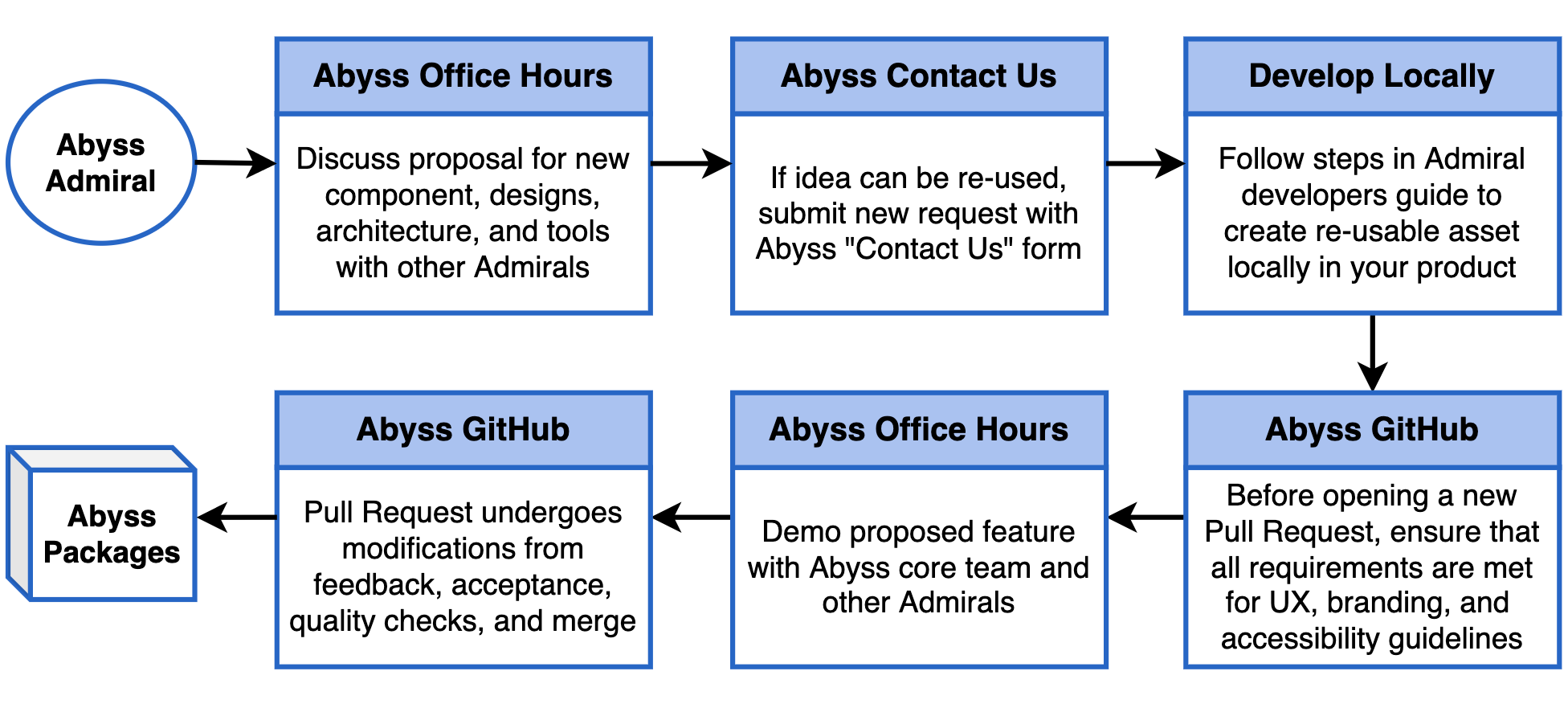
## Abyss Office Hours
| Day | Time | Meeting |
| -------------------- | ---------------------- | ------------------------------------------------------------------------------------------------------------------------------------------------------------------------------------------------------------------------------------------------------------------------- |
| Tuesdays & Thursdays | 8:30 - 9:30 AM **CST** | [Join Teams Meeting](https://teams.microsoft.com/l/meetup-join/19%3ameeting_MTdkODUwYzQtZTNiZS00M2EyLWJmOTMtOGJjMTU4YTYyNWU5%40thread.v2/0?context=%7b%22Tid%22%3a%22db05faca-c82a-4b9d-b9c5-0f64b6755421%22%2c%22Oid%22%3a%22d5140f05-c25a-491a-8c4f-ad6da5e23bad%22%7d) |
---
id: abyss-contributors
title: Abyss Contributors
---
## Overview
First of all, thank you for your interest in contributing to Abyss. All of your contributions are valuable to the project! There are several ways you can get involved in the Abyss community and become a contributor:
- **Share Abyss:** Share the link to [Abyss](https://abyss.uhc.com) with members of your product team, and we'd be happy to discuss how we can help support your application.
- **Improve documentation:** Help us improve the Abyss Docs by fixing incomplete or missing sections, examples, and explanations.
- **Provide feedback:** The team at Abyss are constantly working to make the project better, please let us know what features you would like to see with the [Contact Us](/web/contact-us/) form.
## Abyss code repo
```jsx render
() => {
const customIcon = (
);
return (
The Abyss source code monorepo contains both core packages and
products:
Packages:
api
core
desktop
ext
infra
mobile
parcels
utility
web
Products:
assets
docs
ext
scaffold
storybook
{customIcon}
}
>
Visit
);
};
```
### Setting up project locally
For the essential system tools to get Abyss running on your local development environment, visit our [workplace setup](/web/developers/workplace-setup) guide.
To set up, clone the abyss repository:
```bash
# Make the abyss-projects directory
mkdir abyss-projects && cd abyss-projects
# Clone the abyss repository
git clone https://github.com/uhc-tech/abyss.git
```
Afterwards, install the dependencies for `abyss` on your machine:
```bash
# Go into the abyss directory
cd abyss
# Install abyss dependencies
npm i
```
Then you are ready to start `abyss-docs` on your machine:
```bash
npm run docs
```
### Commit conventions
Head to the Abyss source code for updates and additions to our Abyss NPM packages and documentation. With several contributors working in these repos daily, it's important to write your commit messages to be as descriptive as possible.
Commit Convention:
```
[area] Optional title: Message
```
Examples:
```
[docs] Button: Edit accessibility section
[@uhg-abyss/ui] useLoadingOverlay: Add remove handler
[@uhg-abyss/core] Fix non-prod deployment scripts
[@uhg-abyss/ui] Carousel: New feature added
[docs] Doc scripts: Fix docs deployment script
```
### Git branch names
Naming the branch you're working on helps repository maintainers understand the changes being made when the PR is opened. Using consistent branch name prefixes also allows build tools to automatically categorize the branches using labels. Branch names should be all lowercase (with the exception of US and DE) and include hyphens between words. All branches are divided into four groups:
- **story/#######** - Changes associated with a User Story, use the unique 7-digit number from Rally followed by a task description.
- **defect/#######** - Changes associated with a Defect, use the unique 7-digit number from Rally followed by a task description.
- **refactor/** - Changes to the repo that aren't documented in Rally are considered refactors, so use the task portion to add detail to your branch name.
- **release/** - Used specifically by build tools, this branch name is exclusive to release notes and documentation leading up to a new release.
Examples:
```
git checkout -b story/US2434515-developer-toolkit
git checkout -b defect/DE308703-button-accessibility
git checkout -b refactor/select-list-multi-docs
git checkout -b story/US1533842-use-loading-overlay
```
Branch Name Rules:
- Branch prefix must start with **story**, **defect**, **refactor**, or **release**
- Branch name must be only **lowercase letters, numbers, and hypens**
- **US###** and **DE###** are valid character exceptions
## Secure groups
Visit secure.uhc.com to request permissions groups:
- **abyss_contributors**: For write access to abyss code repositories
## Developer tools
Abyss is built using a list of trusted resources. Below are links to what makes up the framework of Abyss.
```jsx render
() => {
const devLinks = [
{
id: 1,
name: 'ReactJS',
href: 'https://reactjs.org/',
},
{
id: 2,
name: 'Docusaurus',
href: 'https://docusaurus.io/',
},
{
id: 3,
name: 'Stitches',
href: 'https://stitches.dev/',
},
{
id: 4,
name: 'React Hook Form',
href: 'https://react-hook-form.com/',
},
{
id: 5,
name: 'React Router',
href: 'https://reactrouter.com/',
},
{
id: 6,
name: 'npm',
href: 'https://docs.npmjs.com/about-npm',
},
];
return (
{devLinks.map((link) => {
return (
}
linkText={link.name}
>
{link.name}
);
})}
);
};
```
If you're ready to get started with Abyss on your own, checkout the Abyss StarterKit (coming soon) to get started.
## Design tools
Abyss has a dedicated team of designers creating a Design Kit on Figma. Below are some resources to help developers navigate these tools:
```jsx render
() => {
const designLinks = [
{
id: 1,
name: 'Abyss Design Kit',
href: 'https://www.figma.com/design/tk08Md4NBBVUPNHQYthmqp/Abyss-Web?m=auto&node-id=0-367&t=myRGGrhQUPbwh0Zk-1',
},
{
id: 2,
name: 'Figma for developers',
href: 'https://www.figma.com/best-practices/tips-on-developer-handoff/an-overview-of-figma-for-developers/',
},
{
id: 3,
name: 'UHC branding',
href: 'https://brand.uhc.com/design-with-care',
},
{
id: 4,
name: 'Optum branding',
href: 'https://brand.optum.com/',
},
];
return (
{designLinks.map((link) => {
return (
}
>
{link.name}
);
})}
);
};
```
If you're a designer and want to dive deeper into the Abyss Design Kit, visit our Designer Getting Started (coming soon) page to learn more.
---
id: documentation-guide
title: Documentation Guide
---
## Overview
The documentation pages are organized under the **docs** directory shown below. When adding a new component, tool, or guide to Abyss Docs, create a new markdown.md file under the associated folder.
```txt
abyss-docs-web
└── docs
├── api
└── web
├── brand
├── developers
├── hooks
├── overview
├── tools
└── ui
```
## Markdown structure
Each markdown file should begin with the following metadata, as an example:
```md
---
id: carousel
category: Content
title: Carousel
description: Displays information through a series of slides.
design: https://www.figma.com/file/tk08Md4NBBVUPNHQYthmqp/Abyss-Design-System?node-id=3578%3A23477
pagination_prev: web/ui/card
pagination_next: web/ui/step-indicator
---
```
Every doc page is divided into three tabs: Overview, Integration and Accessibility. Within the body of the markdown file, use these tabs to group sections of information.
```
**Overview Content**
**Integration Content**
**Accesibility Content**
```
## Overview Tab
###### Import statement
Add the import statement for the feature like such:
```jsx
import { Alert } from '@uhg-abyss/web/ui/Alert';
```
###### Component Sandbox
Add Sandbox after the import statement for any components that make sense
to have a sandbox. Inputs are controlled props that can be adjusted by the user using the Sandbox features. Organize the inputs alphabetically when possible, starting with the simple properties first. Each input contains `prop`, `type` and optionally: `options` and, `defaultValue`.
To create a Sandbox, use the convention below:
````
```jsx sandbox
{
component: 'Alert',
inputs: [
{
prop: 'title',
type: 'string',
},
{
prop: 'children',
type: 'string',
},
{
prop: 'inlineText',
type: 'string',
},
{
prop: 'variant',
type: 'select',
options: [
{ label: 'error', value: 'error' },
{ label: 'success', value: 'success' },
{ label: 'info', value: 'info' },
{ label: 'warning', value: 'warning' },
],
},
{
prop: 'hideIcon',
type: 'boolean',
defaultValue: 'false',
},
]
}
Alert Sandbox Content
````
###### Property examples
Following the Sandbox, it's important to show the ability of each property separate of the others. We break each one down, giving it a title, description and jsx example showing variants of that specific property. For example, if you wanted to show the three sizes for Button, you'd write:
```
```
Since there are two visual variants of Button, `primary` and `outline`, which use the same sizing convention (`$sm`, `$md`, `$lg`) we can combine the two visuals under the one size example by organizing them utilizing the built-in Layout component from the Abyss library. Here's what the combined example looks like:
```
```
To follow the complexity of each prop example, use the following rules to properly document the feature:
- **When organizing the list of examples,** they should be ordered from simple to complex starting with size or width
- **Start each example case** with "Use the `prop-name` property to..." followed by an explanation
- **For props with a pre-set list of variants,** add a sentence listing out the variant options "Variants include `variant-1`, `variant-2`", and so on
- **For props with a default value,** add "The default value is set to `value`"
- **For the customization example section,** include the sentence “If further customization is needed, most styles of `component-name` can be overridden using `css`”
- **Size and width examples** should include the list of Abyss style sizes (including the conversion of size to units in the label/text like $md = 16px), followed by percent, and px
- **Examples may include:** size, width, isDisabled, controlled, uncontrolled, loading, and customization. Take a look at other doc pages for examples of how to best format the component you're documenting
## Integration Tab
Implementing a props table and classes table for the component, and any sub-components gives users an in-depth view of the component without having to visit the code. (The below example is modified for this template. Please refer to the Alert component for a full list of props and classes).
Follow these rules when creating a Props Table:
- **Prop name** is lowercase
- **Type** is one of the following: boolean, function, array, shape, number, string, number | string
- **Default value** is the default value from the defaultProps list, or null
- **Description** first word is uppercase, followed by a brief description of the props use
Follow these rules when creating a Classes Table:
- **Class name** starts with a period (.), is lowercase and uses dashes to separate words
- **Description** first word is uppercase, followed by a brief description of the class
#### Example of Integration Tab
```jsx render
```
```jsx render
```
## Accessibility Tab
This tab is important to be as thorough and in-detail as possible, adhering to the WAI-ARIA design guidelines.
Follow this pattern when creating the Accessibility tab:
- **Brief description** write a description about the component, and link to the WAI-ARIA website page referring to the component
- **Sandbox** allows our A11Y partners to practice assistive technology on the component in a dedicated field
- **Keyboard interactions table** referring to the WAI-ARIA keyboard interactions, create a table with all interactions usable for the specific component
- **Additional guidance** note any additional guidance features of the component, including (but not limited to) Decorative Icons, Loading State, etc.
#### Example of Accessibility Tab
An alert is an element that displays a brief, important message in a way that attracts the user's attention without interrupting the user's task. Dynamically rendered alerts are automatically announced by most screen readers, and in some operating systems, they may trigger an alert sound. It is important to note that, at this time, screen readers do not inform users of alerts that are present on the page before page load completes.
Adheres to the Alert WAI-ARIA design pattern.
```jsx live
{}} />
{}} />
{}} />
{}} />
```
```jsx render
```
###### Decorative Icons
In the alert below, since the word “Warning” appears next to the icon, the icon is considered decorative and must be ignored by assistive technology. The icon does not need to meet the 3:1 minimum contrast requirement against its adjacent color.
```jsx live
```
###### Close Button Guidance
Keyboard operation: if the “close” button is used on the alert, it must be keyboard accessible. A keyboard only user must be able to tab to the button, and activate it with the space bar and the enter key.
```jsx live
{}} />
```
Note: per the WAI ARIA specification, when the “alert” role is used, the user should not be required to close the alert. In this case, it is assumed that the close button is provided as a convenience and the user is not explicitly required to close the alert.
---
id: overview
title: Overview
---
This guide is designed to help teams seamlessly integrate Abyss into their existing applications, enhancing their development capabilities with our robust suite of tools and features.
Whether you're looking to improve your app's scalability, performance, or developer experience, Abyss is the right choice to elevate your project.
**Note:** The recommended way to get started with Abyss is by using `create-abyss-app`.
Go to our [Create Abyss App Guide](/web/developers/abyss-app/overview/) to get started!
---
id: installation
title: Installation
---
## Peer dependencies
Please note that react and react-dom are peer dependencies, meaning you should ensure they are installed before installing Abyss.
```jsx
"peerDependencies": {
"react": "^16.0.0 || ^17.0.0 || ^18.0.0 || ^19.0.0",
"react-dom": "^16.0.0 || ^17.0.0 || ^18.0.0 || ^19.0.0"
},
```
## Install Abyss Web
To add Abyss web to an existing application, first install the Abyss dependencies:
```jsx
npm install @uhg-abyss/web
```
Then, wrap your application root component with [`ThemeProvider`](/web/ui/theme-provider).
The `ThemeProvider` enables global theming for your application, with the option to customize or rely on the default styles of Abyss components. Utilizing React's context, it distributes your theme to all nested components.
```jsx
import { ThemeProvider } from '@uhg-abyss/web/ui/ThemeProvider';
const theme = createTheme('uhc');
function Demo() {
return (
);
}
```
## Importing components
Abyss documents give detailed directions for the importation and use of all components within the Abyss library. Simply seach Abyss docs for the component you would like to use and follow the guide. Below is an example of how to import the `Button` component into your file.
```jsx
import { Button } from '@uhg-abyss/web/ui/Button';
```
---
id: upgrading
title: Upgrading
---
## Upgrading Abyss
Abyss releases [New Versions](/web/releases/) on a biweekly basis. For further details, refer to our [Versioning Guide](/web/developers/migration/versioning-guide/).
Benefits to staying current with the latest version of Abyss include:
- **Adhering to Brand Guidelines**
- Align with the latest branding guidelines, ensuring your application maintains a consistent look and feel with the overall brand identity.
- **Enhanced Security**
- Address vulnerabilities and security enhancements to protect your application against emerging threats.
- **Improved Accessibility**
- As accessibility standards evolve, Abyss updates provide enhancements and fixes that help ensure your application is accessible to all users, including those with disabilities.
- **Access to New Components Features**
- Gain access to new components and features that can enrich the user experience and offer new functionality for your application.
- **Bug Fixes**
- Addresses defects that improve the stability and performance of your application.
- **Efficient Upgrades and Minimal Regression Testing**
- Staying updated with the latest version simplifies the upgrade process and minimizes related regression testing efforts.
## How to upgrade Abyss
You can upgrade Abyss by running the following command in the root of your application:
```bash
npm install @uhg-abyss/web@latest
```
```bash
yarn add @uhg-abyss/web@latest
```
---
id: nextjs
title: NextJS
---
## Recommendations for Abyss in Next 13+
If you are OK with only client-side rendering, put your pages under `/app`, and add the `"use client";` to those pages. This disables SSR and RSC streaming for those pages. \*
If you require SSR for some or all pages, put those pages under `/pages`, where you can use the old SSR model.
## Abyss SSR support in NextJS
| NextJS Version | /pages | /app |
| -------------- | ------ | ----------- |
| 12 | ✅ | N/A |
| 13,14,15 | ✅ | Client-only |
_\* Note: In some cases, the presence of the `"use client"` directive does NOT prevent the server from generating the HTML markup of the component! However, since the NextJS documentation contradicts this, your mileage may vary._
## Background
In NextJS versions 12 and lower, routes are defined under the `/pages` directory, and have options to render on the server (SSR), or on the client. SSR is one way to speed up a user's experience, by providing them HTML before loading and running JavaScript in the browser.
In NextJS 13, an alternate way of speeding up requests was designed - React Server Components (RSC) - which allows the server to send its results bit-by-bit. This allows the faster parts of rendering server HTML to be seen by the user sooner, as parts of the page are streamed.
This new behavior is the default for pages under `/app`. However, the streaming aspect of RSC limits what kind of functionality can be rendered and streamed. In particular, Context and Provider, can not be used, as shown in the error:
> `Error: createContext only works in Client Components.`
This happens because Abyss theming and other features are implemented using React Context - a practice which is recommended by the React team, and typical of 3rd party components.
### SSR lifecycle
The lifecycle of a typical `/pages` SSR request is:
- Page renders on the server, sending HTML to the browser
- The browser downloads the JS chunks for the page
- The browser executes the chunks, re-rendering the page in the 'hydration' process
- When hydration is complete, the static markup is now under control of React, and the page will behave as a Single-Page App, or SPA.
## References
- [NextJS: Server and Client Composition Patterns](https://nextjs.org/docs/app/building-your-application/rendering/composition-patterns)
- [NextJS: App Router](https://nextjs.org/docs/app)
- [Vercel: Context and server components](https://vercel.com/guides/react-context-state-management-nextjs)
- [Reddit: Do context providers force all child components to use client rendering?](https://www.reddit.com/r/nextjs/comments/1442a6y/do_context_providers_force_all_child_components/)
## Sample applications
A sample NextJS 14 app, with usage of `/pages` and `/app`, is located in the Abyss repo at the path:
[`/products/abyss-nextjs-14`](https://github.com/uhc-tech/abyss/tree/main/products/abyss-nextjs-14)
A sample NextJS 15 app, with usage of `/pages` and `/app`, is located in the Abyss repo at the path:
[`/products/abyss-nextjs-15`](https://github.com/uhc-tech/abyss/tree/main/products/abyss-nextjs-15)
Note: The NextJS 15 example uses React v19 and requires Abyss version 1.70.0 or higher.
---
id: faq
title: FAQ's
---
## Next.js app/page routing vs. react-router-dom in Abyss Starter Kit
The Abyss Starter Kit will only support react-router-dom for the following reasons:
- **Integration with Abyss Web Components**: Our Abyss UI components are intrinsically built around `react-router-dom`. Leveraging it would ensure seamless compatibility and potentially smoother development process, leveraging the full potential of the UI components we have crafted.
- **Flexibility and Customization**: While next.js does offer a structured approach to routing, `react-router-dom` stands out in terms of the flexibility it offers. `react-router-dom` also includes compatibility with [Abyss Parcels](/foundations/parcels/overview/).
- **Independence from Next.js**: Although next.js is a vibrant and continually evolving framework, it often undergoes frequent updates, requiring developers to constantly adapt and update their codebase to stay aligned with the latest versions. By using `react-router-dom`, you can maintain a stable codebase that isn’t affected by the frequent updates in next.js, hence saving time and resources in the long run.
- **Focused Usage of Next.js**: In our starter kit, we have employed next.js primarily as a build tool rather than a foundational framework for the entire application.
- **Community Support and Resources**: `react-router-dom` has a vast community and a wealth of resources available. Its wide adoption in the industry means that you can find a robust ecosystem of tools, tutorials, and community expertise to leverage during your development process.
- **Limited Support for next.js**: It is important to note that we do not plan on extending support for next.js app or page routing in our future roadmap. Our developmental efforts and updates will be squarely focused on enhancing the capabilities and functionalities woven around `react-router-dom`. Hence, to ensure that you have the best support and resources available for your project in the long term, we recommend aligning with our core focus on `react-router-dom`.
Check out our [Abyss Routing](/web/developers/routing) documentation for more details.
## Version Conflict: react-router-dom
Sometimes you're application will have various versions of `react-router-dom`. If the version you are using elsewhere is higher than the version of Abyss you must override the version in Abyss via the root package.json. Add the following:
```json
{
...,
"overrides": {
"@uhg-abyss/web": {
"react-router-dom": "6.13.0" // Match the version used in your application
}
}
}
```
Once you've added the override you will need to delete every node_module folder as well as the package-lock.json and run `npm install`.
**Note: This will only work with version 6 of react-router-dom and it's minor versions**
## TypeError: Cannot read properties of undefined (reading 'default') at Object.interopDefault
To address the changes made in the next.js framework you must update the files in the `pages` directory inside your application. See below:
```txt
└── products
└── web
├── .abyss
├── pages
| ├── _app.js
| ├── _document.js
| └── index.js
├── src
└── package.json
```
Update the following files with the updated exports:
\_app.js
```jsx
export { default } from '@uhg-abyss/core/next-app';
```
\_document.js
```jsx
export { document as default } from '../src/document';
```
index.js
```jsx
export { browser as default } from '../src/browser';
```
## Create React App - Uncaught TypeError: (0 , react.createStitches) is not a function at createStyled
If you are seeing this error you are most likely running a create-react-app application. To fix this error we need to override the base react-scripts using a library called Craco.
** 1. ** Follow the getting started documentation
- https://craco.js.org/docs/getting-started/
** 2. ** Add a craco.config.js file to the root of your application and include the following:
```jsx
module.exports = {
webpack: {
configure: (webpackConfig) => {
const newConfig = webpackConfig;
newConfig.module.rules[1].oneOf[4].test = /\.(js|mjs|cjs)$/;
return newConfig;
},
},
};
```
---
id: ai-code-gen-how-to
title: How to use AI to perform code generation "CodeGen" with Abyss
sidebar_label: AI Code Generation
searchSiteWide: true
---
## Design-to-Code
## Prompt-to-Code
---
id: installation
title: Installation
---
There are two ways to go about installing Abyss - either by creating a new Abyss app or by adding Abyss to an existing application.
### Create Abyss App (recommended)
The recommended way to get started with Abyss is by using `create-abyss-app`.
Go to our [Create Abyss App Guide](/web/developers/abyss-app/overview/) to get started!
#### Advantages
- **Zero Configuration Setup**
- All tools are already configured that are essential for React development. Tools like Webpack (for bundling your code) and Babel (for using modern JavaScript features).
- **Easy To Use**
- You can start developing and see those results immediately.
- **Optimized Build Output**
- Provides optimized production builds out of the box, including minification, concatenation, and efficient loading (e.g., code splitting).
- **Community and Support:**
- Many team are already using the `create-abyss-app`, it offers significant support, regular updates, and a large number of resources for troubleshooting.
### Existing application
For teams that want to use Abyss web within an existing React framework (i.e. NextJs) or are unable to migrate their existing application to a create-abyss-app you can still use Abyss within your application. Learn more about adding Abyss to your [Existing application](/web/developers/existing-application/overview/).
## Upgrading Abyss
Abyss releases [New Versions](/web/releases/) on a biweekly basis. For further details, refer to our [Versioning Guide](/web/developers/migration/versioning-guide/).
Benefits to staying current with the latest version of Abyss include:
- **Adhering to Brand Guidelines**
- Align with the latest branding guidelines, ensuring your application maintains a consistent look and feel with the overall brand identity.
- **Enhanced Security**
- Address vulnerabilities and security enhancements to protect your application against emerging threats.
- **Improved Accessibility**
- As accessibility standards evolve, Abyss updates provide enhancements and fixes that help ensure your application is accessible to all users, including those with disabilities.
- **Access to New Components Features**
- Gain access to new components and features that can enrich the user experience and offer new functionality for your application.
- **Bug Fixes**
- Addresses defects that improve the stability and performance of your application.
- **Efficient Upgrades and Minimal Regression Testing**
- Staying updated with the latest version simplifies the upgrade process and minimizes related regression testing efforts.
### How to upgrade Abyss
- [Create Abyss App Upgrade Guide](/web/developers/abyss-app/upgrading/)
- [Existing Application Upgrade Guide](/web/developers/existing-application/upgrading/)
---
id: version-1
title: Migrating From v1 to v2
pagination_prev: null
isHidden: true
---
This guide is intended for teams looking to upgrade from Abyss v1 to v2 of Abyss.
Various components are now deprecated.
```jsx render
() => {
const columns = [
{ name: 'Abyss V1.0', key: 'old' },
{ name: 'Abyss V2.0', key: 'new' },
];
const rows = [
{
id: 1,
old: 'ContentEditor',
new: 'Deprecated',
},
{
id: 2,
old: 'FormBuilder',
new: 'Deprecated',
},
];
return (
);
};
```
## Lagoon
```jsx render
() => {
const columns = [
{ name: 'Abyss V1.0', key: 'old' },
{ name: 'Abyss V2.0', key: 'new' },
];
const rows = [
{
id: 1,
old: 'LagoonProvider',
new: 'Deprecated in Abyss / Refer to the Lagoon documentation for more details.',
},
{
id: 2,
old: 'useLagoon',
new: 'Deprecated in Abyss / Refer to the Lagoon documentation for more details.',
},
{
id: 3,
old: 'LagoonForm',
new: 'Deprecated in Abyss / Refer to the Lagoon documentation for more details.',
},
];
return (
);
};
```
---
id: v0-to-v1-guide
title: V0 to V1 Guide
pagination_prev: null
---
This guide is intended for teams looking to upgrade from Abyss v0 to the latest release of Abyss.
Among the changes are some major architectural changes and updates, including consolidated packages, a new foundational UHC theme, new hooks and components, Figma integration, an upgraded CSS styling tool, and refactored form inputs and validation. We have also improved accessibility compliance, upgraded our application router, and made many performance updates across all areas.
When you install our newest package dependencies, you'll automatically be up to date with the latest version. Abyss takes care of maintaining a robust product development framework so your team can focus on shipping a better product faster.
## Version overview
With Abyss v1.0, we have consolidated the primary areas of application development into three main NPM packages - `@uhg-abyss/web`, `@uhg-abyss/api`, and `@uhg-abyss/core`.
- `@uhg-abyss/web` represents the client-side packages, React components, hooks, and tools.
- `@uhg-abyss/api` represents the server-side packages, including the GraphQL server, Express middleware, and other libraries.
- `@uhg-abyss/core` includes the configurations for ESLint and Babel, which have been consolidated along with the dev and build scripts. This package will be shared with both client and server projects built on Abyss.
```jsx render
() => {
const columns = [
{ name: 'Legacy Abyss', key: 'old' },
{ name: 'Abyss V1.0', key: 'new' },
];
const rows = [
{
id: 1,
old: '@abyss/ui',
new: '@uhg-abyss/api',
},
{
id: 2,
old: '@abyss/ui',
new: '@uhg-abyss/web',
},
{
id: 3,
old: '@abyss/core',
new: '@uhg-abyss/web',
},
{
id: 4,
old: '@abyss/scripts',
new: '@uhg-abyss/core',
},
{
id: 5,
old: '@abyss/eslint-config',
new: '@uhg-abyss/core',
},
{
id: 6,
old: '@abyss/babel-preset',
new: '@uhg-abyss/core',
},
{
id: 7,
old: '@abyss/test',
new: 'Deprecated',
},
{
id: 8,
old: '@abyss/widgets',
new: 'Deprecated',
},
];
return
;
};
```
## Component changes
Some common UI components have changed for consistency. Below is a table comparing noticeable differences from legacy versions of Abyss to Abyss v1. This is a non-exhaustive list, and components that are not included could likely have styling updates.
Our Brand and Design teams have made strong headway to update our standards since v0. We recommend following theme defaults, but if it is necessary to maintain the exact same design for your product, external styling or theme overrides can be done.
```jsx render
() => {
const columns = [
{ name: 'Legacy Abyss', key: 'old' },
{ name: 'Abyss V1', key: 'new' },
];
const rows = [
{
id: 1,
old: 'Alert, AlertBanner',
new: 'Component Name: Alert. AlertBanner deprecated.',
},
{
id: 2,
old: 'Button',
new: 'Component Props: link variant is now tertiary, theme and width props are deprecated.',
},
{
id: 3,
old: 'Card',
new: 'Component Props: width prop deprecated, many new props and classes for increased flexibility and functionality.',
},
{
id: 4,
old: 'ExternalLink',
new: 'Component Name: Link',
},
{
id: 5,
old: 'Flex',
new: 'Component Props: No longer need to use classes Flex.Flex and Flex.Content. Alignment and behavior can simply be applied directly with props such as justify, alignContent, direction, etc.',
},
{
id: 6,
old: 'Icon',
new: 'Component Name: Icon, IconMaterial, IconBrand',
},
{
id: 7,
old: 'Link',
new: 'In some cases, Link components would be wrapped with a Button component, mostly for styling purposes. This is no longer needed, can simply create a Button component with a href prop. The Link component still exists.',
},
{
id: 8,
old: 'MaterialIcon',
new: 'Component Name: IconMaterial',
},
{
id: 9,
old: 'Modal',
new: 'Component Props: New title and footer props (can still use Modal.Footer), scrollableFocus. onRequestClose is now called onClose. Modal.Scroll and Modal.Actions deprecated classes.',
},
{
id: 10,
old: 'MultiSelectList',
new: 'Component Name: SelectInputMulti',
},
{
id: 11,
old: 'RadioGroup',
new: 'Component Props: Use label prop for the title.',
},
{
id: 12,
old: 'SelectList',
new: 'Component Name: SelectInput',
},
{
id: 13,
old: 'Switch',
new: 'Component Name: Router. For Switch, use class Router.Routes.',
},
{
id: 14,
old: 'TextArea',
new: 'Component Name: TextInputArea',
},
{
id: 15,
old: 'Toggle',
new: 'Component Name: ToggleSwitch',
},
{
id: 16,
old: 'Tooltip',
new: 'Component Name: Tooltip and Popover',
},
];
return
;
};
```
## Components unavailable
The following components are not available in v1.0. Those marked "To Be Implemented" will be part of upcoming releases.
```jsx render
() => {
const columns = [
{ name: 'Legacy Abyss', key: 'old' },
{ name: 'Abyss V1.0', key: 'new' },
];
const rows = [
{
id: 1,
old: 'ErrorMessage',
new: 'To Be Implemented',
},
{
id: 2,
old: 'ReadMore',
new: 'To Be Implemented',
},
{
id: 3,
old: 'DataViz',
new: 'To Be Implemented',
},
{
id: 4,
old: 'FormControl',
new: 'Deprecated',
},
{
id: 5,
old: 'AppProvider',
new: 'Deprecated',
},
];
return (
);
};
```
## Branding
The Abyss Design System now supports branding at a foundational level, with complete UHC, UHG, and Optum themes.
A theme is comprised of several core parts that create the building blocks of the design system. See the Brand section of our docsite for brand colors, fonts and typography settings, icon libraries, and several brand-associated logos. Simply by using Abyss as a launch point for your project, you will be fully aligned with all enterprise digital brand standards and assets, with no additional setup required.
**Note:**
- Enterprise Sans is replacing UHC Sans. It is mandatory that all current and future work be updated to use new Enterprise Sans. Upgrade your Abyss version to v1.52.0 or above to begin leveraging the new font.
## Design integration
To help teams quickly build and adapt a beautiful user interface, we've streamlined design and development for the Abyss Design System. We’re excited to announce the addition of a dedicated design team implementing best practices on components and tools for the [Abyss Design System in Figma](https://www.figma.com/file/tk08Md4NBBVUPNHQYthmqp/Abyss-Design-System?node-id=0%3A1).
With this addition, your entire product team has the power to make updates and adjustments with ease, utilizing both developer docs and design guidelines that now live in one place. On each docs page, simply press the “View Design” button in the header that links directly to the ADS in Figma. Even more so now, design and development collaboration provides an on-brand, elevated, cohesive experience.
## CSS/styling tools
There are multiple approaches teams can take for styling. Styling can be supported inline with the `css` prop on components, which allows for targeting classes that we have mentioned in the integration tab of any docs page. While we do not explicitly support external stylesheets,
teams who already use this approach can continue doing so by applying through a `className`.
These style customizations are described further here: https://abyss.uhc.com/web/developers/theming-styling/. However, our own components
are built using the [styled](https://abyss.uhc.com/web/tools/styled/) tool via Stitches.
### Stitches
We have updated our CSS-in-JS library from Styled Components to [Stitches](https://stitches.dev/). CSS-in-JS libraries have significant advantages over traditional CSS strategies by leveraging reusable variables, functions, and static code analysis.
The Stitches API shares many similarities with Styled Components; however, only object literal syntax is supported. The main benefit of Stitches over all other React CSS strategies is that nearly all CSS is generated at build time rather than runtime. This avoids unnecessary prop interpolations during the render phase, which can add up quickly when building large applications with a dynamic, theme-driven design system.
For detailed examples, review the docs for [@uhg-abyss/web/tools/styled](https://abyss.uhc.com/web/tools/styled/). To see a full migration guide, please read [migrating from Styled Components to Stitches](https://stitches.dev/blog/migrating-from-styled-components-to-stitches).
**Note:**
- In a future release of Abyss, we will be switching from Stitches to [Emotion](https://emotion.sh/docs/introduction).
## Routing
We base our routing off of `react-router-dom`. Check out their [migration guide](https://reactrouter.com/en/main/upgrading/v5) from v5 to v6, or our own [routing overview](https://abyss.uhc.com/web/developers/routing/).
- router.push() should now be router.navigate()
- If deploying on AWS look at this [stack overflow post](https://stackoverflow.com/questions/51218979/react-router-doesnt-work-in-aws-s3-bucket) with deployment issues with routing
- Use the baseRoute in `.abyss/settings.json` if needed
```json
"baseRoute": "/YOURBASEPATH"
```
## State management
Redux is no longer built into any of our products. It can still be used alongside our products by any consuming team, but we also recommend using [Zustand](https://docs.pmnd.rs/zustand/getting-started/introduction). See our own guide at https://abyss.uhc.com/web/tools/create-store/.
## Forms fefactor
Our new forms integration is entirely built on top of the [react-hook-form](https://react-hook-form.com/docs/useform) library. We have upgraded from the previous Redux implementation to a new [FormProvider](https://abyss.uhc.com/web/ui/form-provider/), which allows child form inputs to consume the form context and methods returned from the upgraded [useForm hook](https://abyss.uhc.com/web/hooks/use-form/). With the addition of useForm functionality, most of our hooks for form management have now been deprecated.
This means form components and their state management could be a large portion of a team's migration efforts. We have not only expanded the collection of form inputs that are supported, but we have also consulted with accessibility experts to create first-class [WCAG](https://www.w3.org/WAI/standards-guidelines/wcag/) compliant interactions.
## Build
Teams that are using AWS will need to use `browser-static` in `.abyss/settings.json`:
```json
"buildType": "browser-static".
```
This is instead of the default `browser-node`.
## Abyss Scripts migration guide
This guide is to help migrate from the old `@abyss/scripts` package to the new `@uhg-abyss/core` package. If a team is looking to use Parcels, see [our guides](https://abyss.uhc.com/foundations/parcels/overview/) for additional information. It is recommended to integrate Parcels by using Path One.
### Path one (recommended)
Lift and shift the application into a new `create-abyss-app` (Recommended)
- This will provide a more up-to-date foundation that will improve development and compatibility in the long run.
- You can leverage additional Abyss tools like API and Parcels.
---
**1.** Create a new Abyss application
- Follow the [Getting Started instructions](/web/developers/abyss-app/installation/) to scaffold a new project.
**2.** Bring over the old codebase
- When bringing over the code, start small and fix errors as they appear.
**3.** Migrate imports from `@abyss/ui` web components to `@uhg-abyss/web` components
- You can still use the old `@abyss/ui`, but you may encounter issues. (Support for `@abyss/ui` has ended)
- When installing the old `@abyss/ui`, you must force installation due to React version conflicts.
**Notes:**
- `@uhg-abyss/web` only supports `react-router-dom` v6.
- `@uhg-abyss/web` does not support Redux.
- Use Zustand instead: [https://abyss.uhc.com/web/tools/create-store/](https://abyss.uhc.com/web/tools/create-store/)
### Path two
Migrate `@abyss/scripts` to `@uhg-abyss/core`
- This option will keep you on an outdated tech stack.
---
**1.** Install packages
- `npm install @uhg-abyss/core`
- `npm install typescript`
**2.** Remove unused `@abyss` packages:
- `@abyss/babel-preset`
- `@abyss/eslint-config`
- `@abyss/scripts`
**3.** Add `prettier`, `eslintConfig`, and `bundleDependencies` configs to `package.json` (You may have to update paths):
- [https://github.com/uhc-tech/abyss-app/blob/main/products/web/package.json#L5C2-L8](https://github.com/uhc-tech/abyss-app/blob/main/products/web/package.json#L5C2-L8)
- [https://github.com/uhc-tech/abyss-app/blob/main/products/web/package.json#L23-L25](https://github.com/uhc-tech/abyss-app/blob/main/products/web/package.json#L23-L25)
**4.** Add `tsconfig.json` file to the web app root (You may have to update the `"include"` path or add additional configurations):
- [https://github.com/uhc-tech/abyss-app/blob/main/products/web/tsconfig.json](https://github.com/uhc-tech/abyss-app/blob/main/products/web/tsconfig.json)
**5.** Add `next.config.js` file to the web app root:
- [https://github.com/uhc-tech/abyss-app/blob/main/products/web/next.config.js](https://github.com/uhc-tech/abyss-app/blob/main/products/web/next.config.js)
**6.** Add the `pages/` directory to the web root:
- [https://github.com/uhc-tech/abyss-app/tree/main/products/web/pages](https://github.com/uhc-tech/abyss-app/tree/main/products/web/pages)
**7.** Add the `.abyss/` directory to the web root:
- [https://github.com/uhc-tech/abyss-app/tree/main/products/web/.abyss](https://github.com/uhc-tech/abyss-app/tree/main/products/web/.abyss)
- You can add environment variables to the `.environments.json` file: [https://abyss.uhc.com/web/developers/environments/](https://abyss.uhc.com/web/developers/environments/)
## Future steps
Now that your application/product has completed the migration to V1, here are next steps for planning and executing version updates to keep your product current and leverage new functionality released by Abyss.
For more information on Abyss' release strategy, review our [Versioning Guide](https://abyss.uhc.com/web/developers/versioning-guide/).
Abyss deploys biweekly minor version releases to improve our products and address any defects. It is recommended to keep up with the latest release of Abyss for the best experience.
- `npm i @uhg-abyss/web@latest` to upgrade to the latest release
- `npm i @uhg-abyss/web@1.XX.X` to upgrade to a specific version of Abyss
---
id: v2-prepping-guide
title: Prepping for V2
---
```jsx render
```
## Prepping for V2 of Abyss
This is a prepping guide for ways teams can prepare for the
upgrade from Abyss V1 to V2 before V2 is officially released.
**What is the difference between a prepping guide and a migration guide?**
This prepping guide is different from the migration guide that will be released with Abyss V2. Understanding these differences will help you plan your approach:
| Prepping Guide (Current) | Migration Guide (Future) |
| ----------------------------------------------- | ------------------------------------------------------------ |
| Available **before** V2 release | Will be available **after** V2 release |
| Focuses on **gradual preparation** | Provides comprehensive instructions for full migration to V2 |
| Helps distribute workload across sprints | Will be a one-time migration effort |
| Identifies components to start replacing now | |
| Allows teams to adopt V2 patterns incrementally | |
| **Reduces** migration complexity later | |
By following this prepping guide now, you'll significantly reduce the effort required
when the full migration guide is released with Abyss V2.
## Dependencies
### React peer dependencies
In Abyss V2, we are updating our peer dependencies for React and React DOM. The supported versions are changing:
```jsx
// from:
- "react": "^16.0.0 || ^17.0.0 || ^18.0.0 || ^19.0.0"
- "react-dom": "^16.0.0 || ^17.0.0 || ^18.0.0 || ^19.0.0"
// to:
+ "react": "^18.0.0 || ^19.0.0"
+ "react-dom": "^18.0.0 || ^19.0.0"
```
This means that **React 16 and 17 will no longer be supported** in Abyss V2. You should ensure your application is running on React 18 or 19 before migrating to Abyss V2.
## CSS styling - Emotion
In Abyss V2, we're replacing `Stitches` with `Emotion` for our CSS-in-JS solution. Both libraries have similar APIs, so most applications won't be significantly affected, but some breaking changes are possible depending on your current usage.
**Why are we migrating to Emotion?**
- Stitches is no longer actively maintained, and we want to use a library that is actively supported and has a strong community.
- Abyss/mobile has already migrated to Emotion, and we want to maintain consistency across our products.
- Emotion provides better performance and a more flexible API for our use cases.
- Emotion has better support for server-side rendering, which is important for our applications.
- Shadow DOM support
To read more please refer to our [ADR](https://github.com/uhc-tech/abyss/blob/main/products/abyss-docs-web/docs/adrs/decisions/adr-013-stitches-replacement.md).
To prepare for this change we have given teams the following npm package `"@uhg-abyss/web": "N/A-emotion".` that the only difference is that it uses `Emotion` instead of `Stitches` for the styling engine.
This will be our default styling solution in Abyss V2, so you should start using this package in your application **now** to prepare for the migration.
## Components
With the migration to Abyss V2 we are making several changes to our components. This includes:
- **Prop changes**: Some props have been removed, modified, or renamed.
- **Component deprecations**: Some components will be deprecated and replaced with new ones.
- **Component breaking changes**: Some components will have breaking changes that may affect how they are used in your application.
### Deprecations
Here is a list of tools/hooks/components that will no longer be available in Abyss V2:
**Note:** This list is not exhaustive and may change as we finalize the migration.
Teams should start replacing these components with their new counterparts or alternative
solutions **now**, rather than waiting for the V2 release. By proactively doing this
now, you can:
- Reduce the refactoring effort required when V2 is officially released
- Migrate in smaller, more manageable increments
- Identify and resolve integration issues earlier
- Ensure a smoother and quicker transition to V2
To help identify these deprecated components in your codebase, we've created a [codemod detection tool](#detect-deprecated-imports---codemod) that scans your project for deprecated Abyss imports. See the [Detect deprecated imports - Codemod](#detect-deprecated-imports---codemod) section below for instructions on how to use this tool.
### Component breaking changes
We've documented all component changes to help with migration planning. For details, see the [Component Changes](/web/developers/migration-v2/components/) section.
Many V2 components are already available with a "V2" prefix (e.g., `V2Button`). Start using these now to ease migration.
**Note:** When V2 is officially released, the "V2" prefix will be removed and these components will replace their V1 counterparts. For example, `V2Button` will become `Button`.
:::tip AI-Powered Component Migration
Need help with component
migration? Use our [AI-Powered Migration Copilot](/web/developers/migration-v2/v2-prepping-guide/#ai-powered-migration-copilot) to help convert V1 components to their V2 equivalents with proper prop mapping.
:::
**Why should I use the V2 components now?**
- Familiarize yourself with the new APIs and features
- Identify any potential issues or changes in behavior early
- Ensure your codebase is ready for the V2 release without needing a complete overhaul
- Many of these components were completely rewritten to improve performance, accessibility, and usability
- These components have many added features and improvements that are not available in the V1 components (e.g., tokens, design improvements, etc.)
**Note:** These V2 components may change before the official V2 release. However, they are stable for production use and can be safely integrated into your application.
## Codemods / AI tools
Abyss will provide codemods to help with the migration process. These codemods will help reduce the amount of manual work required to update your codebase.
**Note:** Since this is not the official migration guide, future codemods may not be available yet
### AI-Powered Migration Copilot
To help with component migration, we provide an AI context package that works with tools like GitHub Copilot, ChatGPT, or other AI code assistants. This context enables the AI to understand V1 to V2 changes and provide accurate migration assistance.
#### Using the Migration Copilot
- [Download the this zip folder](/migration/ai-migration-context.zip)
- Extract the zip to your project root directory:
```
your-project-root/
├── abyss-migration-ai-context/
│ ├── ABYSS-MIGRATION-ASSISTANT.md
| └── MigrationData.json
├── package.json
└── src/
└── ... (your project files)
```
Add the context to your AI tool of choice (e.g., Copilot, ChatGPT, etc.) referencing the folder location.
Next you can prompt the AI tool with questions like:
```bash
Migrate this file from V1 to V2 of Abyss
Migrate the `Button` component from V1 to V2 of Abyss
```
Here is an example showcasing migrating a file from V1 to V2 of Abyss using the AI tool:
```bash
Migrate #file:HelloAbyss.tsx from V1 to V2 of Abyss
```
**Note:** This is the result after using the one prompt above. No additional prompts were needed to get the correct result
```jsx render
```
### Detect deprecated imports - Codemod
To help with identifying deprecated components, we provide a script that scans your codebase for deprecated Abyss imports. This script will help you identify which components need to be replaced before migrating to v2.
**Note:** Abyss imports show deprecation warnings. This tool is used scan your codebase for all deprecated imports at once.
```jsx render
```
#### How to use the script
- [Download this zip folder](/migration/detect-deprecated-imports.zip)
- Move the folder to your project root directory. The structure should look like this:
```
your-project-root/
├── abyss-migration-tools/
│ ├── scan-imports.sh
│ ├── detect-deprecated-imports.js
| └── deprecated-imports.json
├── package.json
└── src/
└── ... (your project files)
```
- Run the following commands to make the script executable and scan your codebase:
```bash
# Make the script executable
chmod +x abyss-migration-tools/scan-imports.sh
# Run the script to scan your entire codebase
./abyss-migration-tools/scan-imports.sh
# Or specify a specific directory to scan
./abyss-migration-tools/scan-imports.sh src/components
```
The script will scan your codebase for deprecated Abyss imports and report any findings. For example, running the script might show output like this:
```jsx render
```
After identifying deprecated imports, refer to the [Deprecation Table](#component-deprecations) above for specific migration advice for each component or utility. For example, the table shows that `createStore` should be replaced with Zustand directly.
---
id: v1-to-v2-guide
title: V1 to V2 Guide
isHidden: true
---
```jsx render
```
---
id: components
title: Component Changes
---
```jsx render
```
## Overview
This guide focuses on breaking prop changes to be aware of when migrating from Abyss V1 to V2. These include:
- Props that have been removed
- Props whose behavior or typings have been updated
- Props whose names have been changed but whose functionality remains the same.
This guide does **not** cover:
- New props added in V2, or
- Additional features and enhancements.
For complete documentation of all available props, including new features added, refer to each component's dedicated documentation page.
:::tip AI-Powered Component Migration
Need help with component migration? Use our [AI-powered migration tool](/web/developers/migration-v2/v2-prepping-guide/#ai-powered-migration-copilot) to help convert V1 components to their V2 equivalents with proper prop mapping.
:::
## Accordion
## Alert
## Avatar
## Badge
## Breadcrumbs
## Button
## Card
## Carousel
### Slide
## Checkbox
## CheckboxGroup
## Chip
## DateInput
## Drawer
## DropdownMenu
## FormProvider
## Fullscreen
## Indicator
## Link
## LoadingSpinner
## Modal
## NavMenuPrimitives
## NumberInput
## PageBodyIntro
## PageFooter
## PageHeaderPrimitives
## Pagination
### ResultCount
## Popover
## ProgressBar
## RadioGroup
## Rating
## RichTextEditor
## SearchInput
## SelectInput
## SelectInputMulti
## Skeleton
## Slider
## StepIndicator
## Tabs
## TextInput
## TextInputArea
## TimeInput
## Timeline
## Toast
## ToggleSwitch
## Tooltip
---
id: overview
title: Overview
---
Abyss is a full-stack web application framework that enables you to build products faster and easier than ever. It features a comprehensive set of tools that weaves together the best parts of React and GraphQL. By taking common patterns and modularizing them into accessible and reusable packages, Abyss is designed to accelerate the development of production-ready React web applications.
The framework handles all heavy lifting behind the scenes, allowing you to focus on core business logic specific to your product. Automated code quality tools analyze, identify, and correct errors in the code, giving developers real-time feedback and training to standardize programming styles. With improvements in project maintainability, scalability, and source code quality, Abyss aims to deliver the best overall development experience.
Developers looking to use Abyss must have, or obtain access via Secure, to Artifactory (repo1.uhc.com)
## Advantages of Abyss
- **Adhering to Brand Guidelines**
- Align with the latest branding guidelines across Optum, UHG, and UHC.
- **Deliver Faster**
- Don't need to reinvent the wheel we got your UI covered!
- **Improved Accessibility**
- As accessibility standards evolve, Abyss follow the four principles of the WCAG Guidelines
## Learning React
Just starting your journey with React? Abyss is a framework built on top of the popular React library. Visit the React Quick Start docs to learn most of what you ned to know to get started.
## Developer tools
Abyss is built using a list of trusted resources. Below are links to the documentation for the tools that make up the framework of Abyss.
```jsx render
() => {
const devLinks = [
{
id: 1,
name: 'React',
href: 'https://react.dev/',
},
{
id: 3,
name: 'Stitches',
href: 'https://stitches.dev/',
},
{
id: 4,
name: 'React Hook Form',
href: 'https://react-hook-form.com/',
},
{
id: 5,
name: 'React Router',
href: 'https://reactrouter.com/',
},
{
id: 6,
name: 'npm ',
href: 'https://docs.npmjs.com/about-npm',
},
];
return (
{devLinks.map((link) => {
return (
}
>
{link.name}
);
})}
);
};
```
## Support
If you're ready to get started with Abyss for your next project, check out our [Contact Us page](/web/contact-us). Submit a new support request and let us know how we can help your team. If you found Abyss to be helpful, please give us a star on GitHub!
---
id: routing
title: Routing
---
## Overview
When developing with Abyss, we highly recommend utilizing React Router Dom to handle routing within your application. Many useful Abyss components, such as [Link](/web/ui/link) and [Breadcrumbs](/web/ui/breadcrumbs), are integrated seamlessly with version 6 and above of **react-router-dom**. You can find examples of how to establish routing within your application using our collection of Abyss routing components and tools in the following sections.
Although it is technically possible to use NextJS page and app routing, this is not recommended for best results.
## Laying the foundation
To start off, wrap the base of your application with the [RouterProvider](/web/ui/router-provider) to enable react-router navigation.
Next up is generating a browser router which contains all the routes and enables client side routing for your web application. The Abyss **createRouter** tool can assist with this; import `createRouter` and provide it your `Routes` component which will hold all the individual routes for your application (more on this in the next section - [Creating Routes](#creating-routes)). `createRouter` will return a router that should then be passed into the `RouterProvider`.
```jsx
import { RouterProvider } from '@uhg-abyss/web/ui/RouterProvider';
import { createRouter } from '@uhg-abyss/web/tools/createRouter';
const router = createRouter(Routes);
export const App = ({ children }) => {
return {children};
};
```
- [Abyss - RouterProvider](/web/ui/router-provider)
## Creating routes
Before using routes in an application, they need to be defined, which is typically done within a component name, **Routes**. Into this newly created Routes component, begin by importing the [Router](/web/ui/router) component along with any page components you want to associate with a particular route. Next, add a single instance of `Router.Routes`, then define individual routes using `Router.Route` (leverages react-router-dom Route). Whenever the URL changes, react-router will reference the `path` value defined within your `Router.Route` components to find a match. If a match is found, react-router will render the associated component within the `element` prop.
```jsx
import React from 'react';
import { Router } from '@uhg-abyss/web/ui/Router';
import { Home } from './Home';
import { Albums } from './Album';
export const Routes = () => {
return (
} />
} />
);
};
```
- [Abyss - Router](/web/ui/router)
-
React Router DOM - Route
## Dynamic routing
Dynamic segments are parts of the URL path that start with ":". When the route matches the URL, dynamic segments are parsed from it and provided as params to other router APIs. In this example, any values after "/album/:" in the URL will be supplied to `params.albumId`. More information on accessing these parameters can be found in the next section, [Routing with Parameters](#routing-with-parameters).
```jsx
import React from 'react';
import { Router } from '@uhg-abyss/web/ui/Router';
import { Home } from './Home';
import { Albums } from './Album';
export const Routes = () => {
return (
} />
} />
} />
);
};
```
-
React Router DOM - Dynamic Segments
## Routing with parameters
To access route params you'll need to first import [useRouter](/web/hooks/use-router). **useRouter** provides several methods that allow users to manage and interact with routing and navigation, including [getRouteParams](/web/hooks/use-router#getrouteparams). When **getRouteParams** is called, it returns an object of key/value pairs of the dynamic params available from the current URL.
```jsx
import React from 'react';
import { useRouter } from '@uhg-abyss/web/hooks/useRouter';
const Album = () => {
const { getRouteParams } = useRouter();
const { albumId } = getRouteParams();
console.log(albumId); // "thriller"
};
```
- [Abyss - getRouteParams](/web/hooks/use-router#getrouteparams)
-
React Router DOM - Dynamic Segments
## Nested routing
Nested routing couples segments of the URL to component hierarchy and data. In this example, we have a parent route with the path of "artist" wrapping two child routes, with a path of "albums" and "about". When the URL path matches "/artist/albums" or "/artist/about", the components associated with these child routes are rendered within the Artist component using `Router.Outlet` (leverages react-router-dom Outlet).
```jsx
import React from 'react';
import { Router } from '@uhg-abyss/web/ui/Router';
import { Artist } from './Artist';
import { Albums } from './Albums';
import { About } from './About';
export const Routes = () => {
return (
}>
} />
} />
);
};
```
Utilize `Router.Outlet` in order to render the components from the matching child routes.
```jsx
import React from 'react';
import { Router } from '@uhg-abyss/web/ui/Router';
export const Artist = () => {
return (
<>
Artist Page
// If the path matches "/artist/albums", the Albums component will be
rendered; if it matches "/artist/about", the About component will be
rendered.
);
};
```
-
React Router DOM - Nested Routing
-
React Router DOM - Outlet
## Additional links
- [Abyss RouterProvider](/web/ui/router-provider)
- [Abyss Router](/web/ui/router)
- [Abyss useRouter](/web/hooks/use-router)
- [Abyss Developer Tutorials - Page Routing](/web/developers/tutorials/page-routing)
- [React Router Documentation](https://reactrouter.com/en/main)
- [React Router Tutorials](https://reactrouter.com/en/main/start/tutorial)
---
id: quality-engineering
title: Quality Engineering
description: QE Testing Overview
---
## Dedication to quality
## Test plan
## Automation testing
Automation testing of Abyss components is a top priority. Currently, our automation tests consist of the following:
### Web
### Mobile
### Unit testing
## Manual testing
## FAQ
---
id: end-user-spec
title: End User Specifications
description: Abyss Spec
tags: [browser, os, operating system, safari, chrome, edge, ios, andriod]
---
## Version requirements
## Testing and review
## How are these numbers calculated?
## Abyss Web
## Abyss Mobile
\* Last updated December 2023. To ensure this document is kept up to date and relevant, it should be revisited and revised with the latest metrics information on a set schedule, such as quarterly or bi-annually.
---
id: component-testing
title: Component Testing
description: Guide on how to facilitate testing of Abyss components.
---
## data-testid
To facilitate the usage of component testing libraries such as **React Testing Library** you have the option of adding a `data-testid` attribute to a component's corresponding elements. By passing `data-testid` in as a prop with a value of the desired string ID, this attribute will be appended to all component elements that include a unique Abyss class name. Please see the Integration tab and the Classes sub-heading for each component to determine which elements will receive this test ID. The resulting `data-testid` value will be a concatenated string that combines the value passed in with the prop and the element's unique class name.
For example, the following code:
```jsx live
() => {
const form = useForm();
return (
);
};
```
will render the following HTML:
```html
```
---
id: accessibility-testing
title: Accessibility Testing
---
export const links = {
a11y: 'https://en.wiktionary.org/wiki/a11y',
wcag: 'https://www.w3.org/WAI/intro/wcag',
axeDevTools: 'https://www.deque.com/axe',
chromeExtension:
'https://chromewebstore.google.com/detail/axe-devtools-web-accessib/lhdoppojpmngadmnindnejefpokejbdd',
htmlValidator: 'https://validator.w3.org/nu/#textarea',
wcagParsing: 'https://cdpn.io/pen/debug/VRZdGJ',
};
## Overview
Web accessibility, also known as a11y, is the design and creation of websites that can be used by everyone. Accessibility support is necessary to allow assistive technology to interpret web pages. Abyss fully supports building accessible websites and follows the WCAG accessibility standards and guidelines.
The list below are steps to take as a developer to ensure accessibility compliance. Please take a minute to read through the following testing resources and familiarize yourself with how to utilize them for best practices.
## Keyboard navigation
Use only a keyboard to navigate the page. Don't use your mouse or touchbar at all to test this. See if you notice any keyboard traps or anything that seems difficult. Expected keyboard behavior for custom components is typically the following, but there are exceptions:
- **Tab** to get into the component
- Use **arrow keys** to navigate within the component
- **Tab** to get out of the component
## Axe DevTools
Axe DevTools enable developers to rapidly
fix accessibility issues using built-in references and solution patterns without
requiring deep knowledge of accessibility standards. Axe can be installed as a Chrome
extension. On Mac, it can be installed directly from the
Chrome App Store. On PC, you
have to submit a AppStore request to install it.
## HTML validation
For the HTML Validator, use the WCAG Parsing bookmarklet on top of it after submitting. To install the bookmarklet, drag the "WCAG parsing only" link at the top of the page to your browser bookmarks bar.
## Mac VoiceOver shortcuts
- **On/off** Command + F5 (or go to System Preferences > Accessibility > VoiceOver)
- **Mute/pause** Control
- **VO** Control + Option
- **Navigate focusable elements** tab
- **Navigate all content** VO + arrow keys
- **Quick nav on/off** press and hold left and right arrow keys at same time (This allows you to navigate all elements using just the left and right arrow keys without the VO keys.)
- **Open Rotor** VO + U
- **Close Rotor** Esc
- **Navigate rotor menus** left and right arrow keys
- **Navigate within existing rotor menu** up and down arrow keys
If using a PC, request Secure access to NVDA.
## NPM packages
Most NPM packages rely on axe-core. Set an impact level, and start with critical issues then work down. Remember to allow time to fix critical issues in the User Story. Otherwise, the product developers will get frustrated and learn to ignore the errors, which defeats the purpose and doesn't help anyone.
## Linting
For linting rules, work with an a11y engineer to determine what to include.
## Summary
Remember, the tools and processes mentioned above don't catch all a11y issues, but they serve as a great start to empowering the team to do some of your own testing. For further information, reach out to an a11y engineer!
## Accessibility tools
If you're looking for an in-depth overview of what accessibility standards Abyss is working towards, visit our [Accessibility page](/web/accessibility).
```jsx render
() => {
const accessibilityLinks = [
{
id: 1,
name: 'WCAG 2.1',
href: 'https://www.w3.org/WAI/WCAG21/Understanding/',
},
{
id: 2,
name: 'Color Contrast Analyser (CCA)',
href: 'https://webaim.org/resources/contrastchecker/',
},
{
id: 3,
name: 'W3 Validator',
href: 'https://validator.w3.org/favelets.html',
},
{
id: 4,
name: 'Digital A11y',
href: 'https://www.digitala11y.com/accessibility-bookmarklets-testing/',
},
];
return (
);
};
```
---
id: sandbox
title: Sandbox
---
import { Button } from '@uhg-abyss/web/ui/Button';
The Sandbox page is stripped down to the essentials, without extra text or elements, for a clean coding experience.
Click the button to go to the Sandbox page.
---
id: theming-styling
title: Theming/Styling
description: Guide to theming and styling Abyss components.
---
# Overview
This document provides a high-level overview on how to apply theming and style customization to Abyss components. Each component/tool mentioned below has its own dedicated documentation page, which we encourage you to visit and explore to better understand the full capabilities.
We do our best to support flexibility when applying style customizations to Abyss components but we do recommend utilizing the [Designer Toolkit](/web/designers/design-kit/#designer-toolkit) and keeping customizations to a minimum, as the Abyss components are designed to create a standard across all UHG affiliated products.
## Theming setup
To ensure a consistent look and feel across your application and for proper styling customization to take effect, you must first set up theming in your application by using the `ThemeProvider` component and `createTheme` tool.
```jsx
import { ThemeProvider } from '@uhg-abyss/web/ui/theme-provider';
import { createTheme } from '@uhg-abyss/web/tools/theme';
// Brand themes available are 'uhc', 'optum', 'uhg', 'abyss'
const theme = createTheme('uhc', {
// optional override object
});
const App = () => {
return ...;
};
```
### Apply ThemeProvider
As shown above, begin by wrapping your application with the `ThemeProvider`. This will enable all Abyss child components to recieve the theme context. For details on available props and configurations, please visit the [ThemeProvider](/web/ui/theme-provider) documentation.
### Create a theme
Use the `createTheme` function to generate the base theme configuration and token values for your desired brand theme. As the first argument, this function takes in one of four brand themes, `'uhc | 'optum' | 'uhg' | 'abyss'` and an optional theme override object as a second argument.
Once created, provide the theme object into the `theme` prop on `ThemeProvider` as shown above.
For more details, see the createTheme documentation.
## Style customization options
Now that you've laid the foundation for the theme, you can apply style customizations to Abyss components using the following methods:
### Theme token overrides
As mentioned above the `createTheme` function takes in an override object as a second argument. This enables you to adjust theme configurations and apply overrides to the theme tokens.
For details on how to implement these token overrides please visit the Theme Overrides section within the `createTheme` documentation.
### Styled tool
The `styled` function allows you to create styled components using an object syntax. This provides performance benefits and better developer experience with type checks and autocomplete suggestions. It is also compatible with all theme tokens.
```jsx
import { styled } from '@uhg-abyss/web/tools/styled';
const Button = styled('button', {
color: 'red',
fontSize: '14px',
'&:hover': {
color: 'black',
},
});
```
For more details, see the [styled](/web/tools/styled) documentation.
### CSS prop
You can use the `css` prop to apply styles directly to components. This is useful for quick, minor customizations without creating a separate styled component. It is also compatible with all theme tokens.
#### Button example
```jsx live
```
To customize the `Button` component, you can target specific abyss static class names to change the styles.
To find the list of available styles, go to the [Integration](/web/ui/button/?tab=integration#integration) tab located on each component's documentation page and find the "Classes" table. Or you can simply inspect the component in the browser to find the abyss class name for the element you'd like to target.
```jsx render
```
```jsx
```
```jsx live
```
_Note: Please visit the [accessibility](/web/ui/button?tab=accessibility) tab on each the component's documentation page to read more on designing an accessible component._
## Other styling options
### Static class names
Apart from the customization methods listed above, you can use each components abyss static classes to apply overrides using your style sheets.
```jsx
.abyss-box-root {
color: lightblue;
background-color: verdana;
border: 3px solid red;
box-shadow: 2px 2px 7px 1px grey;
}
.abyss-text-input-label {
color: white;
text-align: center;
}
```
## Related links
- [ThemeProvider Documentation](/web/ui/theme-provider)
-
createTheme Documentation
-
Theme Token Overrides
- [Styling with styled tool](/web/tools/styled)
- [Styling with CSS Prop](#css-prop)
---
id: intro
title: Introduction
pagination_prev: web/developers/faq
hide_table_of_contents: true
---
### Hello!
Welcome to Abyss Tutorials! We will take you through a step-by-step guide on the following:
```jsx render
Create Abyss App
Import Components
Page Routing
Form Building
Theme Customization
Style Components
Create GraphQL API
Connect GraphQL API
State Management
```
We would appreciate any feedback on our tutorial guide. If you are stuck at any time, make sure to contact the Abyss Admiral assigned to your team. If they cannot help, send a help request on our [Contact Page](/web/contact-us/).
Before starting, be sure to complete the [Workplace Setup](/web/developers/workplace-setup/) guide.
Your first tutorial will be [Create Abyss App](/web/developers/tutorials/create-abyss-app/). Make sure you have this completed before attempting any other tutorial. We hope to spark your creativity for any projects you decide to pursue. Enjoy!
---
id: create-abyss-app
title: Create Abyss App
---
---
**Note:** We would appreciate any feedback on our tutorial guide. If you are stuck at any time, make sure to contact the Abyss Admiral assigned to your team. If they cannot help, send a help request on our [Contact Page](/web/contact-us/).
---
Before starting, be sure to complete the [Workplace Setup](/web/developers/workplace-setup/) guide.
### Step 1: Create an App
Now, let's get started. Navigate to your terminal in order to create a new project named **"my-new-app"**. Once there, run the following command:
```bash
npx create-abyss-app my-new-app
```
### Step 2: Navigate to Project Directory
Next, navigate into the **my-new-app** project directory by running the command below:
```bash
cd my-new-app
```
### Step 3: Run Abyss
Finally, run the following command in order to get localhost running:
```bash
npm run web
```
Once you see the screen shown below, you are now up and running with Abyss!
```jsx render
const Home = () => {
return (
Welcome to Abyss
);
};
render(() => {
return ;
});
```
Great job, you have successfully created an abyss app!
---
id: import-components
title: Import Components
---
---
**Note:** We would appreciate any feedback on our tutorial guide. If you are stuck at any time, make sure to contact the Abyss Admiral assigned to your team. If they cannot help, send a help request on our [Contact Page](/web/contact-us/).
---
Before starting, be sure to complete the [Create Abyss App](/web/developers/tutorials/create-abyss-app/) tutorial.
### Step 1: Open Home.tsx
In Visual Studio Code, open **my-new-app** project. From here, navigate into **products/web/src/routes/Home**, and open the **Home.tsx** file.
```txt
└── products
└── web
├── src
| ├── routes
| | └── Home
| | ├── index.ts
| | └── Home.tsx
| ├── browser.tsx
| └── document.tsx
└── package.json
```
### Step 2: Import React
Anytime you’re using a react component, make sure to import the following dependency at the top:
```jsx
import React from 'react';
```
### Step 3: Importing Component
Depending on the project requirements, the **@uhg-abyss/web/ui**, **@uhg-abyss/web/hooks**, and **@uhg-abyss/web/tools** libraries have different components in order to assemble products quickly.
There are multiple ways to customize and integrate components into your project. Let's start with the **Card** component. A Card acts as a container used to display content related to a single subject.
You can access the documentation for the [Card](/web/ui/card/) through the Abyss Portal. The import statement for a card should look like this:
```jsx
import { Card } from '@uhg-abyss/web/ui/Card';
```
In **Home.tsx**, within the tsx of **Home** functional component, insert the following code:
```jsx
Hello tutorialWe did it!
```
### Step 4: Verifying Your Code
Your code in **Home.tsx** should now look like this:
```jsx
import React from 'react';
import { Router } from '@uhg-abyss/web/ui/Router';
import { Layout } from '@uhg-abyss/web/ui/Layout';
import { Button } from '@uhg-abyss/web/ui/Button';
import { Card } from '@uhg-abyss/web/ui/Card';
export const Home = () => {
return (
Hello tutorialWe did it!
);
};
```
```jsx render
const Home = () => {
const HeaderContainer = styled('header', {
backgroundColor: '$primary1',
padding: '$md',
textAlign: 'center',
});
const ContentContainer = styled('main', {
padding: '$md',
});
return (
Welcome to Abyss
Hello tutorialWe did it!
);
};
render(() => {
return ;
});
```
Great job, you have successfully imported components!
---
id: page-routing
title: Page Routing
---
---
**Note:** We would appreciate any feedback on our tutorial guide. If you are stuck at any time, make sure to contact the Abyss Admiral assigned to your team. If they cannot help, send a help request on our [Contact Page](/web/contact-us/).
---
Before starting, be sure to complete the [Create Abyss App](/web/developers/tutorials/create-abyss-app/) tutorial.
### Step 1: Create A New Page
In Visual Studio Code, open **my-new-app** project. From here, navigate into **products/web/src/routes**, and create a new folder, name **"NewPage"**. Within this new folder, we'll be creating two new files, named **"index.ts”** and **"NewPage.tsx"**.
```txt
└── products
└── web
├── src
| ├── routes
| | ├── Home
| | ├── NewPage
| | | ├── index.ts
| | | └── NewPage.tsx
| ├── browser.tsx
| └── document.tsx
└── package.json
```
### Step 2: Add a Component to your New Page
In **NewPage.tsx**, insert the following code:
```jsx
// Import PageHeader enables us to use headers in our program
import { PageHeader } from '@uhg-abyss/web/ui/PageHeader';
// Export const allows us to use NewPage outside of the file (as an import somewhere else)
export const NewPage = () => {
return ;
};
```
In **index.js**, insert the following export command:
```jsx
// Export NewPage allows us to import and use NewPage in Routes
export { NewPage } from './NewPage';
```
Export NewPage allows us to import and use NewPage in Routes
### Step 3: Connecting a Page to the Router
Now, in order to run and access our page, we need to connect to the router.
In **src/routes/Routes.tsx**, insert the following import command:
```jsx
import { NewPage } from './NewPage';
```
In your Routes function, add the following route within your `` tag:
```jsx
} />
```
### Note
Some routing will require parameters, below is an example of what this would look like:
```jsx
} />
```
This example could be used for social media, here path "handle" would be a placeholder for an element "Profile".
Path's URL for 'mySocialMedia' would look like the following:
```jsx
mySocialMedia.com / handle;
```
Once the profile element receives a value, the URL would become:
```jsx
mySocialMedia.com / myNewProfile;
```
### Step 4: Accessing New Page
Open the page by navigating to [http://localhost:3000/new-page](http://localhost:3000/new-page).
Your page should look like this:
```jsx render
const NewPage = () => {
return (
);
};
render(() => {
return ;
});
```
### Step 5: Create a Link to New Page
Using the **Link** or **Button** components, you can navigate between your router's pages. Navigate to the **src/routes/Home/Home.tsx** file, then insert the following import statements:
```tsx
import { Link } from '@uhg-abyss/web/ui/Link';
```
Insert the following **Card.Section** snippets at the bottom of your **Card** component:
```jsx
Hello tutorialWe did it!
Go to New Page
```
In your browser, go back to [http://localhost:3000](http://localhost:3000), and your page should look like this:
```jsx render
const Home = () => {
const HeaderContainer = styled('header', {
backgroundColor: '$primary1',
padding: '$md',
textAlign: 'center',
});
const ContentContainer = styled('main', {
padding: '$md',
});
return (
Welcome to Abyss
Hello tutorialWe did it!
Go to New Page
);
};
render(() => {
return ;
});
```
Great job, you have successfully completed page routing!
---
id: form-building
title: Form Building
---
---
**Note:** We would appreciate any feedback on our tutorial guide. If you are stuck at any time, make sure to contact the Abyss Admiral assigned to your team. If they cannot help, send a help request on our [Contact Page](/web/contact-us/).
---
Before starting, be sure to complete the [Create Abyss App](/web/developers/tutorials/create-abyss-app/) tutorial.
### Step 1: Create a Form Page
In Visual Studio Code, open **my-new-app** project. From here, navigate into **products/web/src/routes**, and create a new folder, name **"FormPage"**. Within this new folder, we'll be creating two new files, named **"index.ts"** and **"FormPage.tsx"**.
Connect your page to the router in **products/web/src/routes/Routes.tsx** by including a new Route shown below:
```jsx
} />
```
You may reference the [Page Routing](/web/developers/tutorials/page-routing/) tutorial for more information on creating pages.
### Step 2: Building A Form
Within **FormPage.tsx** we'll be adding the [FormProvider](/web/ui/form-provider) and [TextInput](/web/ui/text-input) components to create a sample form. At the top of your file, copy and paste the following import statements:
```jsx
import React from 'react';
import { useForm } from '@uhg-abyss/web/hooks/useForm';
import { FormProvider } from '@uhg-abyss/web/ui/FormProvider';
import { TextInput } from '@uhg-abyss/web/ui/TextInput';
```
A form can consist of many types of input components. In this form, we are using **TextInput** to populate the user's first name, middle name, and last name. Make sure all inputs are children of the **FormProvider** component.
Also be sure to provide default values for each field to the `defaultValues` prop within `useForm`. This ensures the form will properly reset to these default values whenever calling the `reset` method.
```jsx live
const FormPage = () => {
const emptyDefaultValues = {
firstName: '',
lastName: '',
middleName: '',
};
const form = useForm({
defaultValues: emptyDefaultValues,
});
return (
);
};
render(() => {
return ;
});
```
We can also include a **SelectInput** component as another alternative to collecting user input. Import your **SelectInput** component, and then add the following code after the last **TextInput** component:
```jsx
```
```jsx live
const FormPage = () => {
const emptyDefaultValues = {
firstName: '',
lastName: '',
middleName: '',
favoriteFruit: '',
};
const form = useForm({
defaultValues: emptyDefaultValues,
});
return (
);
};
render(() => {
return ;
});
```
Lastly, we will create buttons in order to submit and clear the form inputs. The **Layout** component will be utilized in order to format the page. Import the **Button** and **Layout** components, and then after the last **SelectInput** that you added above, within the body of **FormProvider**, insert the following code:
```jsx
```
Let's add handlers for our submit and clear functions. Below the **useForm()** hook, add the two functions below for **handleSubmit** and **handleClear**.
```jsx
const emptyDefaultValues = {
firstName: '',
lastName: '',
middleName: '',
favoriteFruit: '',
};
const form = useForm({
defaultValues: emptyDefaultValues,
});
const handleSubmit = (data) => {
console.log('Form Data', data);
alert('Submitted!');
};
const handleClear = () => {
form.reset();
};
```
Finally, attach the **handleSubmit** function by adding an **onSubmit** prop to your **FormProvider**.
```jsx
```
```jsx live
const FormPage = () => {
const emptyDefaultValues = {
firstName: '',
lastName: '',
middleName: '',
favoriteFruit: '',
};
const form = useForm({
defaultValues: emptyDefaultValues,
});
const handleSubmit = (data) => {
console.log('Form Data', data);
alert('Submitted!');
};
const handleClear = () => {
form.reset();
};
return (
);
};
render(() => {
return ;
});
```
### Step 3: Testing your Form
At the end of creating a form & submitting the data, your code in **FormPage.tsx** should look like this:
```jsx
import React from 'react';
import { useForm } from '@uhg-abyss/web/hooks/useForm';
import { FormProvider } from '@uhg-abyss/web/ui/FormProvider';
import { TextInput } from '@uhg-abyss/web/ui/TextInput';
import { SelectInput } from '@uhg-abyss/web/ui/SelectInput';
import { Button } from '@uhg-abyss/web/ui/Button';
import { Layout } from '@uhg-abyss/web/ui/Layout';
export const FormPage = () => {
const emptyDefaultValues = {
firstName: '',
lastName: '',
middleName: '',
favoriteFruit: '',
};
const form = useForm({
defaultValues: emptyDefaultValues,
});
const handleSubmit = (data) => {
console.log('Form Data', data);
alert('Submitted!');
};
const handleClear = () => {
form.reset();
};
return (
);
};
```
Great job, you have successfully built a form!
---
id: state-management
title: State Management
---
---
**Note:** We would appreciate any feedback on our tutorial guide. If you are stuck at any time, make sure to contact the Abyss Admiral assigned to your team. If they cannot help, send a help request on our [Contact Page](/web/contact-us/).
---
Before starting, be sure to complete the [Create Abyss App](/web/developers/tutorials/create-abyss-app/) tutorial.
### Step 1: Creating a Store
Navigate to **products/web/src/hooks**. Create a folder named **"useStore"** in the **hooks** folder. In your newly created **useStore** folder, create a file called **"useStore.ts"**.
Within **useStore.ts**, first begin by importing the [createStore](/web/tools/create-store) tool. This tool allows you to leverage the zustand library and provides access to its full list of features. Add the following code below to **useStore.ts**. Within this block of code, there are the properties `formOne` and `formTwo`, which will hold the current state of the field values for the two forms, along with `setForms`, which will be used in combination with the createStore `set` function to update and immutably merge state. For a more in-depth overview of the **createStore** tool please visit the following [page](/web/tools/create-store). Now let's move on to updating **FormPage.tsx** to access our newly created store.
```jsx
import { createStore } from '@uhg-abyss/web/tools/createStore';
export const useStore = createStore((set) => {
return {
formOne: null,
formTwo: null,
setForms: (formValues) => {
return set(() => {
return { ...formValues };
});
},
};
});
```
### Step 2: Add Store to Form Page One
As part of this tutorial, we're going to utilize a set of forms to demonstrate the use of state management within your application. To begin, we will be leveraging the form we created earlier during the [Form Building](/web/developers/tutorials/form-building) section of the tutorials. If you have yet to complete this step, please navigate to this [page](/web/developers/tutorials/form-building) and finish before continuing.
Navigate to the **FormPage** folder and open **FormPage.tsx**.
Next, import the `useStore` hook we just created, along with the React `useEffect` hook.
```jsx
import React, { useEffect } from 'react';
import { useStore } from '../../hooks/useStore/useStore';
```
Add the code below inside **FormPage** to connect to our store and retrieve the current form values and `setForms` method:
```jsx
const { formOne: currentStoreValues, setForms } = useStore();
```
Modify `useForm` to set the default values on load to either the current store values if present, otherwise supply the empty defaults:
```jsx
const emptyDefaultValues = {
firstName: '',
lastName: '',
middleName: '',
favoriteFruit: '',
};
const form = useForm({
defaultValues: currentStoreValues || emptyDefaultValues,
});
```
Add a `useEffect` with a return statement that will write the current form values to our store whenever leaving the page:
```jsx
useEffect(() => {
return () => {
const currentFormValues = form.getValues();
setForms({ formOne: currentFormValues });
};
}, []);
```
Lastly, add a button that will navigate to **FormPageTwo** which we will be creating in the next step of this tutorial. Your updated **FormPage.tsx** should look like this:
```jsx
import React, { useEffect } from 'react';
import { useForm } from '@uhg-abyss/web/hooks/useForm';
import { FormProvider } from '@uhg-abyss/web/ui/FormProvider';
import { TextInput } from '@uhg-abyss/web/ui/TextInput';
import { SelectInput } from '@uhg-abyss/web/ui/SelectInput';
import { Button } from '@uhg-abyss/web/ui/Button';
import { Layout } from '@uhg-abyss/web/ui/Layout';
import { styled } from '@uhg-abyss/web/tools/styled';
import { useStore } from '../../hooks/useStore/useStore';
const ButtonsContainer = styled('div', {
display: 'flex',
});
export const FormPage = () => {
const emptyDefaultValues = {
firstName: '',
lastName: '',
middleName: '',
favoriteFruit: '',
};
const { formOne: currentStoreValues, setForms } = useStore();
const form = useForm({
defaultValues: currentStoreValues || emptyDefaultValues,
});
useEffect(() => {
return () => {
const currentFormValues = form.getValues();
setForms({ formOne: currentFormValues });
};
}, []);
const handleSubmit = (data) => {
console.log('Form Data', data);
alert('Submitted!');
};
const handleClear = () => {
form.reset(emptyDefaultValues);
};
return (
);
};
```
### Step 3: Creating Form Page Two
Now that we have updated our first form page, we'll move on to creating the second. In Visual Studio Code, open the **my-new-app** project. From here, navigate into **products/web/src/routes** and create a new folder named **"FormPageTwo"**. Within this new folder, we'll be creating two new files named **"index.ts"** and **"FormPageTwo.tsx"**.
Remember to connect your page to the router in **products/web/src/routes/Routes.tsx** by including a new Route shown below:
```jsx
} />
```
You may refer to the [Page Routing](/web/developers/tutorials/page-routing/) tutorial for more information on creating pages.
Navigate to the **FormPageTwo** folder and insert the following code in the **index.ts** file:
```jsx
export { FormPageTwo } from './FormPageTwo';
```
Now within **FormPageTwo.tsx**, add the following imports:
```jsx
import React, { useEffect } from 'react';
import { useStore } from '../../hooks/useStore/useStore';
import { useForm } from '@uhg-abyss/web/hooks/useForm';
import { FormProvider } from '@uhg-abyss/web/ui/FormProvider';
import { DateInput } from '@uhg-abyss/web/ui/DateInput';
import { TimeInput } from '@uhg-abyss/web/ui/TimeInput';
import { Button } from '@uhg-abyss/web/ui/Button';
import { Layout } from '@uhg-abyss/web/ui/Layout';
```
Next, similar to **FormPage**, add the following code below to connect our form to our store:
```jsx
export const FormPageTwo = () => {
const emptyDefaultValues = {
date: '',
time: '',
};
const { formTwo: currentStoreValues, setForms } = useStore(); // retrieve the current state from our store
const form = useForm({
defaultValues: currentStoreValues || emptyDefaultValues, // on page load supply our form default values with the currentStoreValues if present, otherwise supply the empty defaults
});
// ensure that whenever leaving the page our store is always updated with the current form values
useEffect(() => {
return () => {
const updatedFormValues = form.getValues(); // retrieve current form field values
setForms({ formTwo: updatedFormValues }); // call setForms and pass in the formTwo current values
};
}, []);
const handleSubmit = (data) => {
console.log('Form Data', data);
alert('Submitted!');
};
const handleClear = () => {
form.reset(emptyDefaultValues);
};
};
```
Lastly, add the components to construct our form UI:
```jsx
return (
);
```
Your **FormPageTwo.tsx** should look like this:
```jsx
import React, { useEffect } from 'react';
import { useStore } from '../../hooks/useStore/useStore';
import { useForm } from '@uhg-abyss/web/hooks/useForm';
import { FormProvider } from '@uhg-abyss/web/ui/FormProvider';
import { DateInput } from '@uhg-abyss/web/ui/DateInput';
import { TimeInput } from '@uhg-abyss/web/ui/TimeInput';
import { Button } from '@uhg-abyss/web/ui/Button';
import { Layout } from '@uhg-abyss/web/ui/Layout';
import { styled } from '@uhg-abyss/web/tools/styled';
const ButtonsContainer = styled('div', {
display: 'flex',
});
export const FormPageTwo = () => {
const emptyDefaultValues = {
date: '',
time: '',
};
const { formTwo: currentStoreValues, setForms } = useStore();
const form = useForm({
defaultValues: currentStoreValues || emptyDefaultValues,
});
useEffect(() => {
return () => {
const currentFormValues = form.getValues();
setForms({ formTwo: currentFormValues });
};
}, []);
const handleSubmit = (data) => {
console.log('Form Data', data);
alert('Submitted!');
};
const handleClear = () => {
form.reset(emptyDefaultValues);
};
return (
);
};
```
### Step 4: Testing your Store
At the end of this tutorial, your output should look similar to what's below. As you interact with the forms and navigate between the pages, you should see that the values persist and always represent the latest state.
```jsx render
() => {
const [showPageOne, setShowPageOne] = useState(true);
const ButtonsContainer = styled('div', {
display: 'flex',
});
const PageOneForm = React.memo(() => {
const defaultValues = {
firstName: '',
lastName: '',
middleName: '',
favoriteFruit: '',
};
const { formOne: currentStoreValues, setForms } = utils.useStore();
const form = useForm({
defaultValues: currentStoreValues || defaultValues,
});
useEffect(() => {
return () => {
const currentFormValues = form.getValues();
setForms({ formOne: currentFormValues });
};
}, []);
const handleClear = () => {
form.reset(defaultValues);
};
const handleSubmit = (data) => {
console.log('Form Data', data);
alert('Submitted!');
};
return (
Page One Form
);
});
const PageTwoForm = React.memo(() => {
const defaultValues = {
date: '',
time: '',
};
const { formTwo: currentStoreValues, setForms } = utils.useStore();
const form = useForm({
defaultValues: currentStoreValues || defaultValues,
});
useEffect(() => {
return () => {
const currentFormValues = form.getValues();
setForms({ formTwo: currentFormValues });
};
}, []);
const handleClear = () => {
form.reset(defaultValues);
};
const handleSubmit = (data) => {
console.log('Form Data', data);
alert('Submitted!');
};
return (
Page Two Form
);
});
return showPageOne ? : ;
};
```
Great job, you have successfully created a store!
---
id: custom-themes
title: Custom Themes
---
---
**Note:** We would appreciate any feedback on our tutorial guide. If you are stuck at any time, make sure to contact the Abyss Admiral assigned to your team. If they cannot help, send a help request on our [Contact Page](/web/contact-us/).
---
Before starting, be sure to complete the [Create Abyss App](/web/developers/tutorials/create-abyss-app/) tutorial.
### Step 1: Create a Theme Page
In Visual Studio Code, open **my-new-app** project. From here, navigate into **products/web/src/routes**, and create a new folder, name **"ThemePage"**. Within this new folder, we'll be creating two new files, named **"index.ts"** and **"ThemePage.tsx"**.
Remember to connect your page to the router in **products/web/src/routes/Routes.tsx** by including a new Route shown below:
```jsx
} />
```
You may reference the [Page Routing](/web/developers/tutorials/page-routing/) tutorial for more information on creating pages.
### Step 2: Choosing A Theme
Abyss currently has pre-defined themes for Optum, UHC, and UHG brands.
In **products/web/src/browser.tsx**, you will see `const theme = createTheme('uhg');`. Within this **createTheme** function, you can choose between these different brands demonstrated below:
[Optum Theme](/web/brand/optum/brandmark/)
```jsx
const theme = createTheme('optum');
```
[UHC Theme](/web/brand/uhc/brandmark/)
```jsx
const theme = createTheme('uhc');
```
[UHG Theme](/web/brand/uhg/brandmark/)
```jsx
const theme = createTheme('uhg');
```
### Step 3: Customizing your Theme
If you need to customize these default themes to meet your product's branding, you can include a configuration to override variables within the theme that are used to style Abyss components.
There are many ways to customize and style your application. For now, we will be focusing on color and font customization. If you are curious to learn more about other options, check out [ThemeProvider](/web/ui/theme-provider/).
The code below shows how to customize a theme to your preferences. In **browser.tsx**, add the following configurations to your theme:
```jsx
const theme = createTheme('uhg', {
theme: {
colors: {
primary1: 'hotpink',
interactive1: 'purple',
},
fonts: {
primary: 'Monospace',
heading: 'Monaco',
},
},
});
```
### Step 4: Viewing Theme
To view some of your theme updates, import some Abyss components into your **ThemePage.tsx** and see how they look!
```jsx
import React from 'react';
import { Heading } from '@uhg-abyss/web/ui/Heading';
import { Button } from '@uhg-abyss/web/ui/Button';
export const ThemePage = () => {
return (
Themed Heading
);
};
```
In your browser, your ThemePage should look like this:
```jsx render
const ThemePage = () => {
const theme = createTheme('uhg', {
theme: {
colors: {
primary1: 'hotpink',
interactive1: 'purple',
},
fonts: {
primary: 'Monospace',
heading: 'Monaco',
},
},
});
return (
Themed Heading
);
};
render(() => {
return ;
});
```
Great job, you have successfully customized a theme!
---
id: styled-components
title: Styled Components
---
---
**Note:** We would appreciate any feedback on our tutorial guide. If you are stuck at any time, make sure to contact the Abyss Admiral assigned to your team. If they cannot help, send a help request on our [Contact Page](/web/contact-us/).
---
Before starting, be sure to complete the [Create Abyss App](/web/developers/tutorials/create-abyss-app/) tutorial.
### Step 1: Create a Styled Page
In Visual Studio Code, open **my-new-app** project. From here, navigate into **products/web/src/routes**, and create a new folder, name **"StyledPage"**. Within this new folder, we'll be creating two new files, named **"index.ts"** and **"StyledPage.tsx"**.
Remember to connect your page to the router in **products/web/src/routes/Routes.tsx** by including a new Route shown below:
```jsx
} />
```
You may reference the [Page Routing](/web/developers/tutorials/page-routing/) tutorial for more information on creating pages.
### Step 2: Creating Styled Components
You can use the **styled** tool to style html elements. It uses JSS to create CSS classes within JavaScript. Styling can consist of changing a component's font, color, size, padding, and spacing, etc. If you are curious to learn more about other options, check out [styled](/web/tools/styled/).
In your **StyledPage.tsx** file, add the following import statements:
```jsx
import React from 'react';
import { styled } from '@uhg-abyss/web/tools/styled';
import { Text } from '@uhg-abyss/web/ui/Text';
import { Layout } from '@uhg-abyss/web/ui/Layout';
import { IconBrand } from '@uhg-abyss/web/ui/IconBrand';
```
We will create an information box to demonstrate how to use **styled**.
After your import statements, insert the following code:
```jsx
const StyledContainer = styled('div', {
padding: '$lg',
});
const StyledBox = styled('div', {
display: 'inline-block',
border: '1px solid $gray4',
borderRadius: 8,
padding: '0 $md',
backgroundColor: '$info2',
});
const StyledIcon = styled(IconBrand, {
border: '1px solid $gray4',
borderRadius: '50%',
});
```
### Step 3: Rendering Styled Components
In your **StyledPage.tsx** file, add following code below to your **StyledPage** component:
```jsx
export const StyledPage = () => {
return (
Average cost in your area: $980
);
};
```
This component uses the **StyledBox** and **StyledContainer** components we created previously. There are other features on the [styled](/web/tools/styled/) page to customize and edit your components to best fit your product's custom designs.
### Step 4: Viewing Styled Components
At the end of this tutorial, your code in your **StyledPage.tsx** file should look like this:
```jsx
import React from 'react';
import { styled } from '@uhg-abyss/web/tools/styled';
import { Text } from '@uhg-abyss/web/ui/Text';
import { Layout } from '@uhg-abyss/web/ui/Layout';
import { IconBrand } from '@uhg-abyss/web/ui/IconBrand';
const StyledContainer = styled('div', {
padding: '$lg',
});
const StyledBox = styled('div', {
display: 'inline-block',
border: '1px solid $gray4',
borderRadius: 8,
padding: '$xs $md',
backgroundColor: '$info2',
});
const StyledIcon = styled(IconBrand, {
border: '1px solid $gray4',
borderRadius: '50%',
});
export const StyledPage = () => {
return (
Average cost in your area: $980
);
};
```
In your browser, your StyledPage should look like this:
```jsx live
const StyledContainer = styled('div', {
padding: '$lg',
});
const StyledBox = styled('div', {
display: 'inline-block',
border: '1px solid $gray4',
borderRadius: 8,
padding: '$xs $md',
backgroundColor: '$info2',
});
const StyledIcon = styled(IconBrand, {
border: '1px solid $gray4',
borderRadius: '50%',
});
const StyledPage = () => {
return (
Average cost in your area: $980
);
};
render(() => {
return ;
});
```
Great job, you have successfully styled components!
---
id: graphql-endpoints
title: GraphQL Endpoints
---
---
**Note:** We would appreciate any feedback on our tutorial guide. If you are stuck at any time, make sure to contact the Abyss Admiral assigned to your team. If they cannot help, send a help request on our [Contact Page](/web/contact-us/).
---
Before starting, be sure to complete the [Create Abyss App](/web/developers/tutorials/create-abyss-app/) tutorial.
### Step 1: Running Your API Server
Make sure you have completed all previous tutorial pages and ran them successfully. We will now be shifting our focus from the front-end of the application to the back-end API.
In your Terminal, navigate into the **my-new-app** directory. Once there, run the following command:
```bash
npm run api
```
Once you see the screen shown below, your API server is now up and running!
### Step 2: Adding Mock Data & Service
Navigate to **products/api/src/services**. Within the **services** folder, create a folder named **"person"**. Within this **person** folder, create an **"index.ts"** file.
```txt
└── products
└── api
├── src
| ├── routes
| | └── graphql
| ├── services
| | └── person
| | └── index.ts
| └── server.ts
└── package.json
```
Add the following code in **index.ts**:
```js
// this is a mock database with name, email, company and location properties for each person
const personDB = {
dolphin: {
name: 'Danny Dolphin',
email: 'danny@optum.com',
company: 'Optum',
location: 'Atlantic Ocean',
},
whale: {
name: 'Willy Whale',
email: 'willy@uhg.com',
company: 'UHG',
location: 'Pacific Ocean',
},
penguin: {
name: 'Penny Penguin',
email: 'penny@uhc.com',
company: 'UHC',
location: 'Arctic Ocean',
},
};
export const personServices = {
getPerson: async (args) => {
const data = personDB[args.msid];
return data;
},
};
```
### Step 3: Adding A GraphQL Schema
A GraphQL schema allows you to receive specific data from the database based on the request call. The schema allows the data to be used and displayed in the GraphQL sandbox.
Navigate to **products/api/src/routes/graphql/schema**. Within the **schema** folder, create a file named **"Person.graphql"**.
Add the following code in your **Person.graphql** file:
```jsx
# ID is a type, similar to a String. The exclamation(!) makes it a required field
extend type Query {
person(msid: ID!): Person
}
# type Person contains the information we want from the database
type Person {
name: String
email: String
company: String
location: String
}
```
### Step 4: Adding A GraphQL Resolver
We will now be adding a resolver, which acts as a GraphQL query handler.
Navigate to **products/api/src/routes/graphql/resolvers.ts**
Import the following statement:
```js
import { personServices } from '../../services/person';
```
Insert the following code within the export query statement:
```js
person: (_, args) => {
return personServices.getPerson(args);
},
```
This is how your code should look like in your **resolvers.ts** file:
```js
import { githubServices } from '../../services/github';
import { personServices } from '../../services/person';
export const resolvers = {
Query: {
user: (_, args) => {
return githubServices.getUser(args);
},
person: (_, args) => {
return personServices.getPerson(args);
},
},
};
```
### Step 5: Accessing GraphQL API
Make sure you are running `npm run api` in your terminal.
To check if you successfully created a GraphQL API, click the following link in your browser:
[GraphQL Sandbox Explorer](http://localhost:4000/graphql)
Once you launch your GraphQL webpage, follow the instructions in the following images:
{' '}
{' '}
{' '}
{' '}
### Step 6: Swapping Mock Data for Live DataSource
Navigate to **products/api/src/services/person/index.ts**.
Replace the current code in **index.ts** with the following code:
```js
import { dataSource } from '@uhg-abyss/api/tools/dataSource/rest';
// create a connection to the GitHub API
const personAPI = dataSource({
url: 'https://github.optum.com/api/v3',
});
export const personServices = {
getPerson: async (args) => {
const { data } = await personAPI({
method: 'GET',
path: `/users/${args.msid}`,
});
return data;
},
};
```
You can try inserting your msid in the variable section and click the query button to see a corresponding query response. If yours doesn't work use someone elses MSID - example: "jhollow6"
Great job, you have successfully created a GraphQL API!
---
id: graphql-requests
title: GraphQL Requests
pagination_next: null
---
---
**Note:** We would appreciate any feedback on our tutorial guide. If you are stuck at any time, make sure to contact the Abyss Admiral assigned to your team. If they cannot help, send a help request on our [Contact Page](/web/contact-us/).
---
Before starting, be sure to complete the [Create Abyss App](/web/developers/tutorials/create-abyss-app/) tutorial.
### Step 1: Running Your Full-Stack Application
Make sure you have completed all previous tutorial pages successfully. [GraphQL Endpoints](/web/developers/tutorials/graphql-endpoints/) is a prerequisite to this tutorial and must be completed beforehand.
In your Terminal, navigate into the **my-new-app** folder. Once there, run the following command:
```bash
npm run dev
```
This command will start parallel servers for both the Web & API products on your localhost.
### Step 2: Create a Query Page
In Visual Studio Code, open **my-new-app** project. From here, navigate into **products/web/src/routes**, and create a new folder, name **"QueryPage"**. Within this new folder, we'll be creating two new files, named **"index.js"** and **"QueryPage.jsx"**.
Remember to connect your page to the router in **products/web/src/routes/Routes.jsx** by including a new Route shown below:
```jsx
} />
```
You may reference the [Page Routing](/web/developers/tutorials/page-routing/) tutorial for more information on creating pages.
### Step 2: Creating A Client Query
A query fetches requested data from the API server. In order to receive information on certain data we want from our GraphQL API, we must create a query from our web client.
In this step, we are using the previous built query from our Apollo sandbox in order to search and receive the data being requested. By using the **msid** as an ID variable for our query, we should be able to retrieve a person's name, email, company, and location.
Navigate to **products/web/src**. Create a folder named **"hooks"** in the **src** folder. In your newly created **hooks** folder, create a folder called **"usePersonSearch"**. In the **usePersonSearch** folder, create the following files: **"GetPerson.gql"**, **"index.js"** and **"usePersonSearch.js"**.
Insert the following code in the **GetPerson.gql** file:
```jsx
query Person($personId: ID!) {
person(msid: $personId) {
name
email
company
location
}
}
```
Insert the following code in the **index.js** file:
```js
export { usePersonSearch } from './usePersonSearch';
```
Insert the following code in the **usePersonSearch.js** file:
```js
import { useQuery } from '@uhg-abyss/web/hooks/useQuery';
import GetPerson from './GetPerson.gql';
export const usePersonSearch = (options) => {
return useQuery(GetPerson, {
...options,
url: '/api/graphql',
accessor: 'person',
initialState: {
name: '',
email: '',
company: '',
location: '',
},
});
};
```
### Step 4: Querying From Your App
Now, we will be calling the query from within our application. We will be integrating a submit button and search box to run our query search.
Navigate to **products/web/src/routes/QueryPage/QueryPage.jsx**. Replace the current code in **QueryPage.jsx** with the following code:
```jsx
import React, { useState } from 'react';
import { Button } from '@uhg-abyss/web/ui/Button';
import { TextInput } from '@uhg-abyss/web/ui/TextInput';
import { usePersonSearch } from '@src/hooks/usePersonSearch';
export const QueryPage = () => {
const [searchValue, setSearchValue] = useState();
const [personSearchResult, getPersonSearch] = usePersonSearch();
const { person } = personSearchResult.data;
const handleSearch = () => {
getPersonSearch({
variables: {
personId: searchValue,
},
});
};
const handleChange = (e) => {
setSearchValue(e.target.value);
};
return (
Name: {person?.name}
Email: {person?.email}
Company: {person?.company}
Location: {person?.location}
);
};
```
### Step 5: Running Query On Webpage
Your page should look like this. Insert your **msid** in the text input box, then click the **Search** button to run the query and get the relevant data.
{' '}
Great job, you have successfully connected to a GraphQL API!
---
**Congratulations! You have completed all the tutorials and are an Abyss expert. You are ready to venture off on your own Abyss path and start your journey!**
---
---
id: versioning-guide
title: Versioning Guide
---
## Overview
Stability ensures that reusable components and libraries, tutorials, tools, and learned practices don't become obsolete unexpectedly. Stability is essential for the ecosystem around Abyss to thrive.
This document contains the practices that are followed to provide you with a leading-edge UI library, balanced with stability, ensuring that future changes are always introduced in a predictable way.
## Semantic versioning
Abyss follows Semantic Versioning 2.0.0. Abyss version numbers have three parts: major.minor.patch. The version number is incremented based on the level of change included in the release.
- **Major releases** contain significant new features, some but minimal developer assistance is expected during the update. When updating to a new major release, you may need to run update scripts, refactor code, run additional tests, and learn new APIs.
- **Minor releases** contain important new features. Minor releases should be fully backward-compatible; no developer assistance is expected during update, but you can optionally modify your apps and libraries to begin using new APIs, features, and capabilities that were added in the release.
- **Patch releases** are low risk, contain bug fixes and small new features. No developer assistance is expected during update.
## Release frequency
A regular schedule of releases helps you plan and coordinate your updates with the continuing evolution of Abyss. In general, you can expect the following release cycle:
- A **major** release typically every year for major changes.
- A **minor** releases every two weeks after each sprint.
- A **patch** release at any time for urgent bugfixes.
## Deprecation practices
Sometimes **"breaking changes"**, such as the removal of support for select APIs and features, are necessary.
To make these transitions as easy as possible:
- The number of breaking changes is minimized, and migration tools provided when possible.
- The deprecation policy described below is followed, so that you have time to update your apps to the latest APIs and best practices.
## Deprecation policy
- Deprecated features are announced in the changelog, and when possible, with warnings at runtime.
- When a deprecation is announced, recommended update path is provided.
- Existing use of a stable API during the deprecation period is supported, so your code will keep working during that period.
- Peer dependency updates (React) that require changes to your apps are only made in a major release.
---
id: workplace-setup
title: Workplace Setup
---
## Overview
Developing modern JavaScript applications requires efficient, powerful, and extensible tooling. Consistency across developer machines is a priority when collaborating across highly distributed teams. The following is a guide for installing the preferred environment for JS development.

## Secure groups
Visit secure.uhc.com to request permissions groups:
- **github_users**: To access github.com
- **Mac_Admin**: To install software for macOS users only
## VSCode Editor
To write code for UI projects, it is **highly recommended** that you download and install Visual Studio Code.
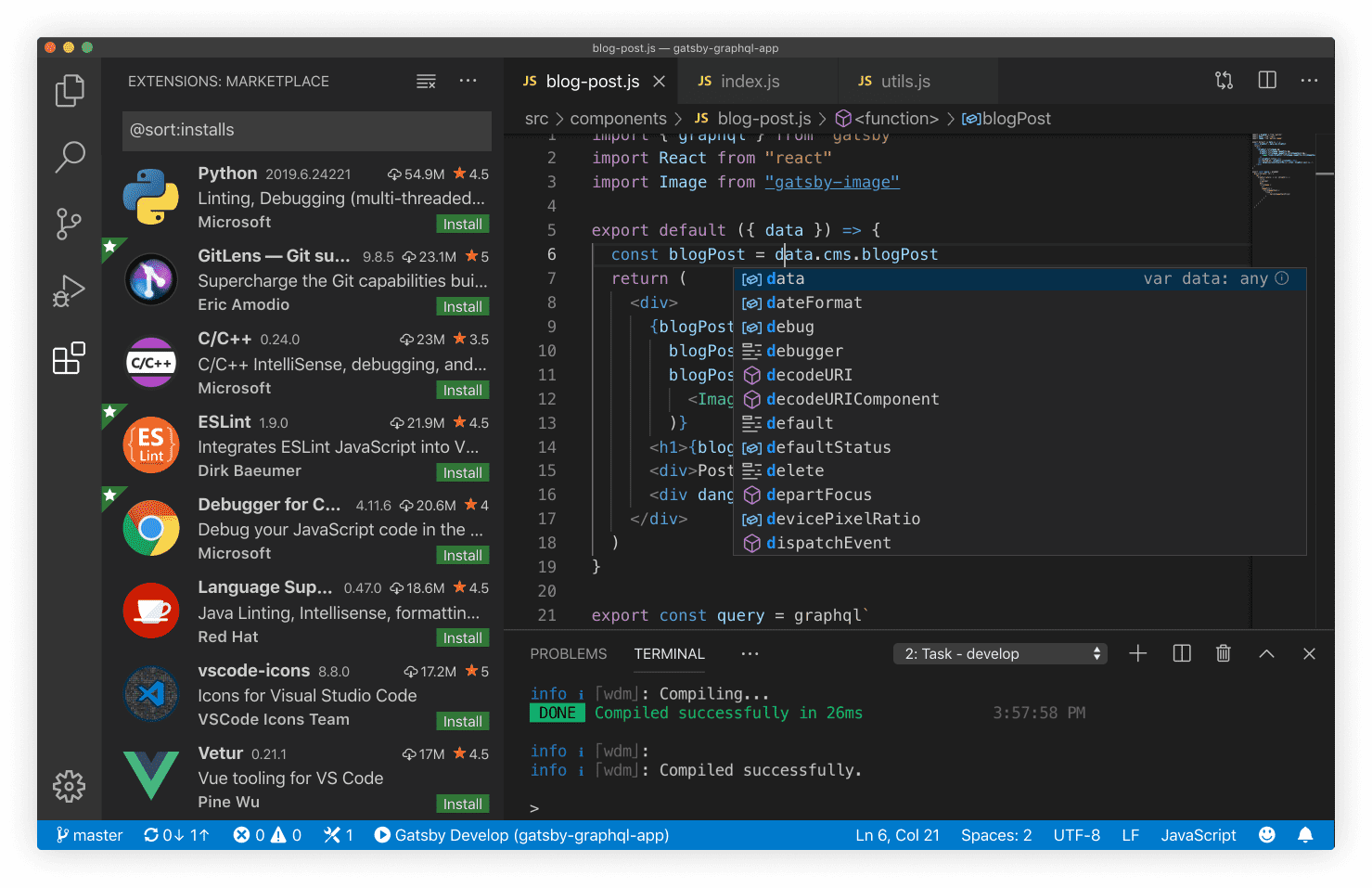
## VSCode extensions
Recommended extensions will be suggested to you when you visit the VSCode Marketplace.
-
ESLint
: code syntax validator
ESLint is a JavaScript linting tool which is used for automatically detecting incorrect patterns found in ECMAScript/JavaScript code. It is used with the purpose of improving code quality, making code more consistent, and avoiding bugs. Rules can be configured to look for all kinds of discrepancies due to discouraged code patterns or formatting. Running a Linting tool over the source code helps to improve the quality and readability of the code.
-
Prettier
: code formatter
Prettier is very popular because it improves code readability and makes the coding style consistent for teams. Developers are more likely to adopt a standard rather than writing their own code style from scratch, so tools like Prettier will make your code look good without you ever having to dabble in the formatting.
## Chrome browser
To install Google Chrome, use the "Self Service" application on your desktop.
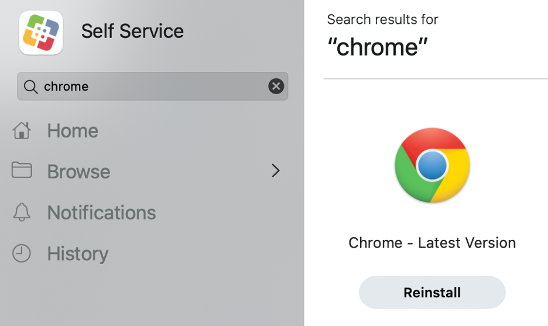
## Chrome browser extensions
In Chrome, you may install the following recommended extensions:
-
React Developer Tools
-
Google Lighthouse
-
axe DevTools
## System essentials
To run all JS-based applications, it is **highly recommended** to have these tools installed:
-
Xcode Command Line Tools
(Mac Only)
`xcode-select` contains necessary utilities for software development on macOS.
```bash
xcode-select --install
```
**_After install, exit and restart Terminal (CMD + Q)_**
```
xcode-select --version
```
---
- oh-my-zsh >= 5.3.0 (optional)
`zsh` is an optional upgrade to the native shell which provides a delightful terminal experience.
```bash
sh -c "$(curl -fsSL https://raw.githubusercontent.com/robbyrussell/oh-my-zsh/master/tools/install.sh)"
```
**_After install, exit and restart Terminal (CMD + Q)_**
```bash
omz version
```
---
- node >= 16.0.0
`nvm` is a great tool for installing and upgrading versions of Node on your system.
```bash
curl -o- https://raw.githubusercontent.com/nvm-sh/nvm/v0.35.1/install.sh | bash
```
**_After install, exit and restart Terminal (CMD + Q)_**
```bash
nvm --version
nvm install 16 && nvm use 16 && nvm alias default 16
```
**_After install, exit and restart Terminal (CMD + Q)_**
```
npm --version
npm config set registry https://repo1.uhc.com/artifactory/api/npm/npm-virtual
```
---
export const gitLink =
'https://git-scm.com/book/en/v2/Getting-Started-Installing-Git';
- git >= 2.0.0
`git` is a universal version control system for working collaboratively and efficiently.
```bash
git config --global user.id "YOUR_MS_ID"
git config --global user.email "YOUR_EMAIL@optum.com"
```
---
id: use-collapse
category: UI & DOM
title: useCollapse
description: Show or hide associated section of content.
pagination_prev: web/hooks/use-router
pagination_next: web/hooks/use-fuse
---
```jsx
import { useCollapse } from '@uhg-abyss/web/hooks/useCollapse';
```
## Usage
Use the `defaultIsOpen` prop to set the initial state for collapse container. The `duration` prop is defaulted to `300ms`, we can pass custom values to vary the transition time.
```jsx live
() => {
const { collapseProps, buttonProps, isOpen } = useCollapse();
return (
{isOpen ? 'Collapse' : 'Expand'}
Aliquam non felis convallis, tempus eros vel, sagittis augue.
Praesent hendrerit ipsum viverra, facilisis risus et, sollicitudin
massa.
Morbi tincidunt metus vitae quam semper hendrerit.
Fusce accumsan mi ut risus molestie, pretium fringilla risus
consectetur.
Nullam vel mi gravida, eleifend est vitae, semper mauris.
);
};
```
## Maximum duration
The `duration` prop allows Maximum value of `1500ms` for the transition timing to show and hide content. If developer enters the duration greater than max duration value(1500ms) we will assign duration to `1500ms`. default value is `300ms`.
For users who have `prefers-reduced-motion` set to `reduced` for accessibility reasons, the duration is overridden to `0ms` to prevent the animation transition.
```jsx live
() => {
const { collapseProps, buttonProps, isOpen } = useCollapse({
duration: 1500,
});
return (
{isOpen ? 'Collapse' : 'Expand'}
Showing Content Based on Duration
Aliquam non felis convallis, tempus eros vel, sagittis augue.
Praesent hendrerit ipsum viverra, facilisis risus et, sollicitudin
massa.
Morbi tincidunt metus vitae quam semper hendrerit.
Fusce accumsan mi ut risus molestie, pretium fringilla risus
consectetur.
Nullam vel mi gravida, eleifend est vitae, semper mauris.
);
};
```
## Collapsing multiple
To control the expand/collapse functionality of multiple collapsible containers utilize the `CollapseProvider`. Visit the [CollapseProvider](/web/ui/collapse-provider) page for more details and examples on implementation.
```jsx live
() => {
const CollapseList = ({ defaultIsOpen }) => {
const { collapseProps, buttonProps, isOpen } = useCollapse({
defaultIsOpen,
});
return (
{isOpen ? 'Collapse' : 'Expand'}
Aliquam non felis convallis, tempus eros vel, sagittis augue.
Praesent hendrerit ipsum viverra, facilisis risus et, sollicitudin
massa.
Morbi tincidunt metus vitae quam semper hendrerit.
Fusce accumsan mi ut risus molestie, pretium fringilla risus
consectetur.
Nullam vel mi gravida, eleifend est vitae, semper mauris.
);
};
return (
);
};
```
## Properties
```typescript
useCollapse(
defaultIsOpen?: boolean,
ref?: object,
duration?: number,
): object;
```
---
id: use-countdown
category: Utilities
title: useCountdown
description: The useCountdown is a custom hook for countdown capility.
pagination_prev: web/hooks/use-scroll-trigger
pagination_next: web/hooks/use-token
---
```jsx
import { useCountdown } from '@uhg-abyss/web/hooks/useCountdown';
```
```jsx live
() => {
const { formattedTime } = useCountdown({ time: 10 * 60 * 1000 });
return {formattedTime};
};
```
## Callback function
You can specify a callback function that will be executed every time the countdown reaches zero.
```jsx live
() => {
const [isComplete, setComplete] = useState(false);
const onCompleted = () => setComplete(true);
const { formattedTime } = useCountdown({ time: 15 * 1000, onCompleted });
if (isComplete) {
return (
Time's Up!
);
}
return {formattedTime};
};
```
## Reset countdown time
Use the `resetCountdown` function returned by the hook to reset the countdown back to its starting value.
```jsx live
() => {
const [isComplete, setComplete] = useState(false);
const onCompleted = () => setComplete(true);
const { formattedTime, resetCountdown } = useCountdown({
time: 5 * 1000,
onCompleted,
});
if (isComplete) {
return (
Time's Up!
);
}
return (
{formattedTime}
);
};
```
## Set countdown time
Use the `setCountdownTme` function returned by the hook to set the countdown to a new time.
```jsx live
() => {
const [isComplete, setComplete] = useState(true);
const onCompleted = () => setComplete(true);
const { formattedTime, setCountdownTime } = useCountdown({
time: 0,
onCompleted,
});
if (isComplete) {
return (
Time's Up!
);
}
return {formattedTime};
};
```
## Output
```jsx live
() => {
const countdown = useCountdown({ time: 31556952000 });
return
{JSON.stringify(countdown, null, 2)}
;
};
```
---
id: use-form-v2
category: State Management
title: useFormV2
description: useForm is a hook for defining, validating and submitting forms.
subDirectory: useForm/v2
sourceIsTS: true
---
```jsx
import { useFormV2 } from '@uhg-abyss/web/hooks/useForm';
```
```jsx render
```
## Usage
```jsx live
() => {
const FormSpacing = React.useMemo(
() =>
styled('div', {
display: 'flex',
flexDirection: 'column',
gap: '$web.semantic.spacing.scale.sm',
}),
[]
);
const form = useFormV2();
const onSubmit = (data) => {
// Do something on submit
alert(`FormData: ${JSON.stringify(data)}`);
};
return (
Submit
);
};
```
## Default values
The defaultValues prop populates the entire form with default values. It supports both synchronous and asynchronous assignments of default values.
```jsx live
() => {
const FormSpacing = React.useMemo(
() =>
styled('div', {
display: 'flex',
flexDirection: 'column',
gap: '$web.semantic.spacing.scale.sm',
}),
[]
);
// Default Values Passed into useForm
const form = useFormV2({
defaultValues: {
firstName: 'John',
lastName: 'Doe',
},
});
const onSubmit = (data) => {
alert(`FormData: ${JSON.stringify(data)}`);
};
return (
Submit
);
};
```
## Values
The values props will react to changes and update the form values, which is useful when your form needs to be updated by external state or server data.
```jsx
// set default value sync
function App({ values }) {
useFormV2({
values, // will get updated when values props updates
});
}
function App() {
const values = useFetch('/api');
useFormV2({
defaultValues: {
firstName: '',
lastName: '',
},
values, // will get updated once values returns
});
}
```
## Form state
This object contains information about the form state. If you want to subscribe to formState via useEffect, make sure that you place the entire formState in the optional array.
```jsx
const form = useFormV2();
const {
errors, // An object with field errors
isDirty, // Set to true after the user modifies any of the inputs.
isValid, // Set to true if the form doesn't have any errors.
isValidating, // Set to true during validation.
isSubmitting, // true if the form is currently being submitted; false if otherwise.
isSubmitted, // Set to true after the form is submitted.
isSubmitSuccessful, // Indicate the form was successfully submitted without any Promise rejection or Error being thrown within the handleSubmit callback.
submitCount, // Number of times the form was submitted.
touchedFields, // An object containing all the inputs the user has interacted with.
dirtyFields, // An object with the user-modified fields.
} = form.formState;
```
## Watch
This will watch specified inputs and return their values. It is useful for determining what to render.
```jsx live
() => {
const FormSpacing = React.useMemo(
() =>
styled('div', {
display: 'flex',
flexDirection: 'column',
gap: '$web.semantic.spacing.scale.sm',
}),
[]
);
const form = useFormV2();
const onSubmit = (data) => {
alert(`FormData: ${JSON.stringify(data)}`);
};
// Watch one field
const WatchField = form.watch('firstName');
// Target specific fields by their names
const WatchFields = form.watch(['firstName', 'lastName']);
// Watch everything by passing no arguments
const WatchAllFields = form.watch();
return (
Submit
);
})}
Submit
);
};
```
## Autofill off
```jsx live
() => {
const form = useFormV2();
const handleSubmit = (data) => {
console.log('data', data);
};
return (
Submit
);
};
```
## Additional documentation
`@uhg-abyss/web/hooks/useFormV2` is a built on top of the `useForm` hook from React Form Hook.
Teams that already leverage or want to use React Hook Form in other spots in your application can use the `@uhg-abyss/web/tools/reactHookFormTools` package.
This package can ensure you are using the same version of React Hook Form across your application and can also be used to grab type information directly. Here is an example below:
**Note: ** You should be using Abyss's `useFormV2` hook when using Abyss componenets and **not** react hook forms.
```tsx
import { SubmitHandler } from '@uhg-abyss/web/tools/reactHookFormTools';
interface FormData {
firstName: string;
}
///...
const handleSubmit: SubmitHandler = (data) => {
console.log('data', data);
};
///...
```
Using TypeScript with `useFormV2` gives you strong type checking for your form data structure. Here's a example:
```tsx
interface FormData {
firstName: string;
lastName: string;
}
const form = useFormV2({
defaultValues: {
firstName: '',
lastName: '',
pizza: 'cheese', // Throws TS error since pizza is not a field in FormData
},
});
// Throws TS error since pizza is not a field in FormData
const WatchField = form.watch('pizza');
// Doesn't throw TS error since firstName and lastName are fields in FormData
const WatchFields = form.watch(['firstName', 'lastName']);
```
---
id: use-form
category: State Management
title: useForm
description: useForm is a hook for defining, validating and submitting forms.
pagination_prev: web/hooks/use-form-v2
pagination_next: web/hooks/use-form-field-Array
subDirectory: useForm/v1
---
```jsx
import { useForm } from '@uhg-abyss/web/hooks/useForm';
```
## Usage
```jsx live
() => {
const form = useForm();
const onSubmit = (data) => {
// Do something on submit
alert(`FormData: ${JSON.stringify(data)}`);
};
return (
);
};
```
## Default values
The defaultValues prop populates the entire form with default values. It supports both synchronous and asynchronous assignments of default values.
```jsx live
() => {
// Default Values Passed into useForm
const form = useForm({
defaultValues: {
firstName: 'John',
lastName: 'Doe',
},
});
const onSubmit = (data) => {
alert(`FormData: ${JSON.stringify(data)}`);
};
return (
);
};
```
## Values
The values props will react to changes and update the form values, which is useful when your form needs to be updated by external state or server data.
```jsx
// set default value sync
function App({ values }) {
useForm({
values, // will get updated when values props updates
});
}
function App() {
const values = useFetch('/api');
useForm({
defaultValues: {
firstName: '',
lastName: '',
},
values, // will get updated once values returns
});
}
```
## Form state
This object contains information about the form state. If you want to subscribe to formState via useEffect, make sure that you place the entire formState in the optional array.
```jsx
const form = useForm();
const {
errors, // An object with field errors
isDirty, // Set to true after the user modifies any of the inputs.
isValid, // Set to true if the form doesn't have any errors.
isValidating, // Set to true during validation.
isSubmitting, // true if the form is currently being submitted; false if otherwise.
isSubmitted, // Set to true after the form is submitted.
isSubmitSuccessful, // Indicate the form was successfully submitted without any Promise rejection or Error being thrown within the handleSubmit callback.
submitCount, // Number of times the form was submitted.
touchedFields, // An object containing all the inputs the user has interacted with.
dirtyFields, // An object with the user-modified fields.
} = form.formState;
```
## Watch
This will watch specified inputs and return their values. It is useful for determining what to render.
```jsx live
() => {
const form = useForm();
const onSubmit = (data) => {
alert(`FormData: ${JSON.stringify(data)}`);
};
// Watch one field
const WatchField = form.watch('firstName');
// Target specific fields by their names
const WatchFields = form.watch(['firstName', 'lastName']);
// Watch everything by passing no arguments
const WatchAllFields = form.watch();
return (
);
})}
);
};
```
## Autofill off
```jsx live
() => {
const form = useForm();
const handleSubmit = (data) => {
console.log('data', data);
};
return (
);
};
```
## Additional documentation
`@uhg-abyss/web/hooks/useForm` is a built on top of the `useForm` hook from React Form Hook.
Teams that already leverage or want to use React Hook Form in other spots in your application can use the `@uhg-abyss/web/tools/reactHookFormTools` package.
This package can ensure you are using the same version of React Hook Form across your application and can also be used to grab type information directly. Here is an example below:
**Note: ** You should be using Abyss's `useForm` hook when using Abyss componenets and **not** react hook forms.
```tsx
import { SubmitHandler } from '@uhg-abyss/web/tools/reactHookFormTools';
interface FormData {
firstName: string;
}
///...
const handleSubmit: SubmitHandler = (data) => {
console.log('data', data);
};
///...
```
---
id: use-form-field-Array
category: State Management
title: useFormFieldArray
description: The useFormFieldArray is custom hook for working with uncontrolled Field Arrays (dynamic inputs). This hook supplies you with functions for manipulating the array/list of fields.
pagination_prev: web/hooks/use-form
pagination_next: web/hooks/use-overlay
---
```jsx
import { useFormFieldArray } from '@uhg-abyss/web/hooks/useFormFieldArray';
```
## Usage
```jsx live
() => {
const defaultFormValues = {
data: [{ firstName: 'Bill', lastName: 'Lou' }],
};
const replaceFormValues = [
{ firstName: 'replaceBill', lastName: 'replaceLou' },
{ firstName: 'replaceBill-2', lastName: 'replaceLou-2' },
];
const form = useForm({
defaultValues: defaultFormValues,
});
const { fields, append, prepend, insert, swap, move, replace, remove } =
useFormFieldArray({
control: form.control,
name: 'data',
});
const handleSubmit = (data) => {
console.log('Submitted', data);
};
return (
{fields.map((field, index) => {
return (
Row #{index + 1}
);
})}
);
};
```
## Fields
This object contains the defaultValue and key for all your inputs. It's important to assign defaultValue to the inputs.
- The field.id (and not index) must be added as the component key to prevent re-renders breaking the fields.
```jsx
// ✅ correct:
{fields.map((field, index) => (
))}
// ✅ correct:
{fields.map((field, index) => )}
// ❌ incorrect:
{fields.map((field, index) => )}
```
- useFieldArray automatically generates a unique identifier named id which is used for key prop. For more information why this is required: React lists and keys.
When your array field contains objects with the key name id, useFieldArray
will overwrite and remove it. If you want to keep the id field in your array
of objects, you must use keyName prop to change to other name. Refer to the
following example:
```jsx
const { fields } = useFieldArray({
keyName: 'key', // by default key name is id, and input value with name id will be omitted
});
{
fields.map((field, index) => (
// key name changed
// input value id will be retained
));
}
```
- When you append, prepend, insert and update the field array, the obj can't be empty object rather need to supply all your input's defaultValues.
```jsx
append(); ❌
append({}); ❌
append({ firstName: 'bill', lastName: 'luo' }); ✅
```
## Append
Use the `append()` function to append input/inputs to the end of your fields and focus.
```jsx live
() => {
const defaultFormValues = {
append: [{ firstName: 'Bill', lastName: 'Lou' }],
};
const form = useForm({
defaultValues: defaultFormValues,
});
const { fields, append } = useFormFieldArray({
control: form.control,
name: 'append',
});
const handleSubmit = (data) => {
console.log('Submitted', data);
};
return (
{fields.map((field, index) => {
return (
Row #{index + 1}
);
})}
);
};
```
## Prepend
Use the `prepend()` function to prepend input/inputs to the start of your fields and focus.
```jsx live
() => {
const defaultFormValues = {
prepend: [{ firstName: 'Bill', lastName: 'Lou' }],
};
const form = useForm({
defaultValues: defaultFormValues,
});
const { fields, prepend } = useFormFieldArray({
control: form.control,
name: 'prepend',
});
const handleSubmit = (data) => {
console.log('Submitted', data);
};
return (
{fields.map((field, index) => {
return (
Row #{index + 1}
);
})}
);
};
```
## Insert
Use the `insert()` function to insert input/inputs at particular position and focus.
```jsx live
() => {
const defaultFormValues = {
insert: [
{ firstName: 'Bill', lastName: 'Lou' },
{ firstName: 'Bill-2', lastName: 'Lou-2' },
],
};
const form = useForm({
defaultValues: defaultFormValues,
});
const { fields, insert, remove } = useFormFieldArray({
control: form.control,
name: 'insert',
});
const handleSubmit = (data) => {
console.log('Submitted', data);
};
return (
{fields.map((field, index) => {
return (
);
})}
);
};
```
## Move
Use the `move()` function to move input/inputs to another position.
```jsx live
() => {
const defaultFormValues = {
move: [
{ firstName: 'Bill', lastName: 'Lou' },
{ firstName: 'moveBill', lastName: 'moveLou' },
],
};
const form = useForm({
defaultValues: defaultFormValues,
});
const { fields, move } = useFormFieldArray({
control: form.control,
name: 'move',
});
const handleSubmit = (data) => {
console.log('Submitted', data);
};
return (
{fields.map((field, index) => {
return (
Row #{index + 1}
);
})}
);
};
```
## Replace
Use the `replace()` function to replace the entire field array values with a custom list of objects.
```jsx live
() => {
const replaceFormValues = [
{ firstName: 'replaceBill', lastName: 'replaceLou' },
{ firstName: 'replaceBill-2', lastName: 'replaceLou-2' },
];
const defaultFormValues = {
data: [
{ firstName: 'Bill', lastName: 'Lou' },
{ firstName: 'Bill-2', lastName: 'Lou-2' },
],
};
const form = useForm({
defaultValues: defaultFormValues,
});
const { fields, replace } = useFormFieldArray({
control: form.control,
name: 'data',
});
const handleSubmit = (data) => {
console.log('Submitted', data);
};
return (
{fields.map((field, index) => {
return (
Row #{index + 1}
);
})}
);
};
```
## Remove
Use the `remove()` function to remove elements at a particular position (or positions) in the list, or remove all of them when no index is provided.
```jsx live
() => {
const defaultFormValues = {
remove: [
{ firstName: 'removeBill', lastName: 'removeLou' },
{ firstName: 'removeBill-2', lastName: 'removeLou-2' },
{ firstName: 'removeBill-3', lastName: 'removeLou-3' },
],
};
const form = useForm({
defaultValues: defaultFormValues,
});
const { fields, remove } = useFormFieldArray({
control: form.control,
name: 'remove',
});
const handleSubmit = (data) => {
console.log('Submitted', data);
};
return (
{fields.map((field, index) => {
return (
Row #{index + 1}
);
})}
);
};
```
## Additional documentation
This hook is a renaming of the useFieldArray hook from React Form Hook. If you would like to see a more detailed description for the usage of this hook, you can view the documentation here.
---
id: use-fuse
category: UI & DOM
title: useFuse
description: The useFuse hook is used to help with fuzzy search, also known as approximate string matching.
pagination_prev: web/hooks/use-collapse
pagination_next: web/hooks/use-horizontal-scroll
---
```jsx
import { useFuse } from '@uhg-abyss/web/hooks/useFuse';
```
## Usage
The `useFuse` hook uses the Fuse.js library to help with fuzzy searching (more formally known as approximate string matching), which is the technique of finding strings that are approximately equal to a given pattern (rather than exactly).
## Example with TextInput component
```jsx live
() => {
const [value, setValue] = useState('');
const keys = ['title', 'author'];
const totalList = [
{
title: "Old Man's War",
author: 'John Scalzi',
},
{
title: 'The Lock Artist',
author: ' Steve Hamilton',
},
{
title: 'HTML5',
author: 'Remy Sharp',
},
{
title: 'Right Ho Jeeves',
author: 'P.D Woodhouse',
},
{
title: 'The Code of the Wooster',
author: 'P.D Woodhouse',
},
{
title: 'Thank You Jeeves',
author: 'P.D Woodhouse',
},
{
title: 'The DaVinci Code',
author: 'Dan Brown',
},
{
title: 'Angels & Demons',
author: 'Dan Brown',
},
{
title: 'The Silmarillion',
author: 'J.R. Tolkien',
},
{
title: 'Syrup',
author: 'Max Barry',
},
{
title: 'The Lost Symbol',
author: 'Dan Brown',
},
{
title: 'The Book of Lies',
author: 'Brad Meltzer',
},
{
title: 'Lamb',
author: 'Christopher Moore',
},
];
const fuse = useFuse({
list: totalList,
config: {
threshold: 0.4,
},
keys,
});
return (
setValue(e.target.value)}
onClear={() => setValue('')}
placeholder="Enter search value"
/>
Search Results:
{JSON.stringify(fuse.search(value), null, 2)}
);
};
```
## Fuse keys
Fuse Keys are a list of keys that will be searched. Keys can be used to search in an object array, a nested search, as well as a weighted search. When a weight isn't provided, it will default to 1.
## Fuse config options
Listed below are options that can be added to the config provided by the Fuse.js library
### Basic options
- **isCaseSensitive**: type boolean, default set to false
- **includeScore**: type boolean, default set to false
- **includeMatches**: type boolean, default set to false
- **minMatchCharLength**: type number, default set to 1
- **shouldSort**: type boolean, default set to true
- **findAllMatches**: type boolean, default set to false
- **keys**: type Array, default set to empty array
### Fuzzy matching options
- **location**: type number, default is set to 0
- **threshold**: type number, default is set to 0.6
- **distance**: type number, default is set to 100
- **ignoreLocation**: type boolean, default is set to false
### Advanced options
- **getFn**: type Function, default (obj: T, path: string | string[]) => string | string[]
## Search object array example
```jsx
const list = [
{
title: "Old Man's War",
author: 'John Scalzi',
tags: ['fiction'],
},
{
title: 'The Lock Artist',
author: 'Steve',
tags: ['thriller'],
},
];
const config = {
includeScore: true,
};
const keys= ['author', 'tags'],
const fuse = useFuse({list, config, keys});
const result = fuse.search('tion');
```
Expected Output:
```jsx
[
{
item: {
title: "Old Man's War",
author: 'John Scalzi',
tags: ['fiction'],
},
refIndex: 0,
score: 0.03,
},
];
```
## Nested search example
You can search through nested values using dot notation, array notation, or by defining a per-key `getFN` function. It is important to note that the path has to point to a string, otherwise you will not get any results.
Example with Dot Notation:
```jsx
const list = [
{
title: "Old Man's War",
author: {
name: 'John Scalzi',
tags: [
{
value: 'American',
},
],
},
},
{
title: 'The Lock Artist',
author: {
name: 'Steve Hamilton',
tags: [
{
value: 'English',
},
],
},
},
];
const config = {
includeScore: true,
};
const keys = ['author.tags.value'];
const fuse = useFuse({ list, config, keys });
const result = fuse.search('engsh');
```
Using getFN:
```jsx
const config = {
includeScore: true,
};
const keys = [
{ name: 'title', getFn: (book) => book.title },
{ name: 'authorName', getFn: (book) => book.author.name },
];
const fuse = useFuse({ list, config, keys });
const result = fuse.search({ authorName: 'Steve' });
```
Expected output for both:
```jsx
[
{
item: {
title: 'The Lock Artist',
author: {
name: 'Steve Hamilton',
tags: [
{
value: 'English',
},
],
},
},
refIndex: 1,
score: 0.4,
},
];
```
## Properties
```typescript
useFuse({ list, config, keys });
```
---
id: use-horizontal-scroll
category: UI & DOM
title: useHorizontalScroll
description: Custom management of responsive horizontal scroll compatible components.
pagination_prev: web/hooks/use-fuse
pagination_next: web/hooks/use-media-query
---
```jsx
import { useHorizontalScroll } from '@uhg-abyss/web/hooks/useHorizontalScroll';
```
## Overview
`useHorizontalScroll` provides the ability to apply custom configurations to the responsive horizontal scroll handling of compatible components. See the following links for examples on how to implement horizontal scroll within compatible components:
- [NavMenuPrimitives](#nav-menu-primitives)
- [StepIndicator](#step-indicator)
NOTE: The name of the component utilizing this hook must be provided to the `component` prop for built in accessibility features to be applied (see examples below).
## Scroll buttons
Use the `leftButton` and `rightButton` props to apply the following custom configurations to the default supplied scroll buttons:
- **displayThreshold**: percentage of left or right most item that needs to be in view before button displays; default is `.75`
- **offset**: adjust the alignment of items after clicking the right or left scroll button
- **useButtonOffset**: uses the button width for aligning scroll items; should only be used when buttons are positioned over the top of the scroll container
- **icon**: apply a custom [material icon](/web/ui/icon-material?tab=material+icons); default is set per component
- **ariaLabel**: supply custom aria-label to button; default is "Scroll Left" / "Scroll Right"
### Scroll duration
Use the `scrollDuration` prop to set the scrolling speed in ms. The default value is `900`.
### Scroll threshold
Use the `scrollThreshold` prop to determine what percentage of the left or right-most item must be in view before it will scroll to the previous or next item. Default is `.75`. If the percentage of the item in view is under the threshold, clicking the scroll button will scroll that item fully into view.
## Usage examples
### Step indicator
To enable horizontal scroll, pass the `horizontalScroll` prop to `` and supply to it your custom configuration returned from useHorizontalScroll. If horizontalScroll is applied and no configuartion is supplied it will utilize the default scroll design and behavior.
```jsx live
() => {
const [isChecked, setChecked] = useState(false);
const commonStyles = {
'abyss-step-indicator-root': {
'.abyss-step-indicator-step-root': { minWidth: '150px' },
},
};
const StepIndicatorDefault = () => {
return (
);
};
const StepIndicatorCustom = () => {
const commonOverlayStyles = {
content: '',
position: 'absolute',
zIndex: 5,
height: '60px',
width: '60px',
};
const scrollConfig = useHorizontalScroll({
component: 'StepIndicator', // must be provided for built in accessibility features to be applied
scrollDuration: 1200,
scrollThreshold: 0.5,
leftButton: {
displayThreshold: 1, // displays immediately once scrolled
icon: 'arrow_circle_left',
offset: 50, // shifts 50px to the left of step item after clicking scroll button
ariaLabel: 'Scroll to previous step',
},
rightButton: {
displayThreshold: 1, // displays immediately once scrolled
icon: 'arrow_circle_right',
offset: 50, // shifts 50px to the right of step item after clicking scroll button
ariaLabel: 'Scroll to next step',
},
css: {
'abyss-step-indicator-scroll-button-left': {
position: 'relative',
'&:before': {
...commonOverlayStyles,
left: '30px',
background: 'linear-gradient(to right, $white, transparent)',
},
},
'abyss-step-indicator-scroll-button-right': {
position: 'relative',
'&:before': {
...commonOverlayStyles,
right: '30px',
background: 'linear-gradient(to left, $white, transparent)',
},
},
},
});
return (
);
};
return (
{isChecked ? : }
setChecked(e.target.checked)}
/>
);
};
```
### Nav Menu Primitives
To enable horizontal scroll, you must wrap your Nav Menu Primitive components with `NavMenuPrimitives.Provider`. Add the `scrollState` prop to supply your custom configuration returned from useHorizontalScroll.
```jsx live
() => {
const [isChecked, setChecked] = useState(false);
const DropdownMenuContent = (
CSS-in-JS with best-in-class developer experience.
);
const NavMenu = (
Sample Link console.log('Sample onClick clicked')}
>
Sample onClick
{DropdownMenuContent}
Dropdown Menu 1Dropdown Menu 2
{DropdownMenuContent}
Dropdown Menu 3
{DropdownMenuContent}
);
const NavMenuDefault = () => {
return {NavMenu};
};
const NavMenuCustom = () => {
const scrollState = useHorizontalScroll({
component: 'NavMenuPrimitives', // must be provided for built in accessibility features to be applied
scrollDuration: 1200,
scrollThreshold: 0.5,
leftButton: {
displayThreshold: 1, // displays immediately once scrolled
icon: 'arrow_circle_left',
offset: 50, // shifts 50px to the left of menu item after clicking scroll button
ariaLabel: 'Scroll to previous menu item',
},
rightButton: {
displayThreshold: 0.5, // displays once only 50% of right most item is in view
icon: 'arrow_circle_right',
offset: 50, // shifts 50px to the right of menu item after clicking scroll button
ariaLabel: 'Scroll to next menu item',
},
css: {
'abyss-nav-menu-scroll-button-left-icon': {
height: '28px',
width: '28px',
},
'abyss-nav-menu-scroll-button-right-icon': {
height: '28px',
width: '28px',
},
},
});
return (
{NavMenu}
);
};
return (
{isChecked ? : }
setChecked(e.target.checked)}
/>
);
};
```
---
id: use-media-query
category: UI & DOM
title: useMediaQuery
description: Subscribe to media queries with window.matchMedia
pagination_prev: web/hooks/use-horizontal-scroll
pagination_next: web/hooks/use-scroll-trigger
---
```jsx
import { useMediaQuery } from '@uhg-abyss/web/hooks/useMediaQuery';
```
## Usage
The `useMediaQuery` hook leverages the window.matchMedia() API and will return false if api is not available unless initial value is provided in the second argument.
Resize browser window to trigger window.matchMedia event:
```jsx live
() => {
const matches = useMediaQuery('(min-width: 900px)');
return (
Breakpoint {matches ? 'matches' : 'does not match'}
);
};
```
## Server side rendering
If you are using server side rendering the `useMediaQuery` hook will always return false as the window.matchMedia api is not available. To overcome this, you can override the initial value.
```javascript
const matches = useMediaQuery('(max-width: 700px)', true, {
getInitialValueInEffect: false,
});
```
## Properties
```typescript
useMediaQuery(
query: string,
initialValue?: boolean,
options?: {
getInitialValueInEffect: boolean;
}
): boolean;
```
---
id: use-overlay
category: State Management
title: useOverlay
description: A custom hook for managing overlays like Modal and Drawer with ease.
sourceIsTS: true
---
```jsx
import { useOverlay } from '@uhg-abyss/web/hooks/useOverlay';
```
## Usage
Use the `useOverlay` hook to handle the state of any overlay like [V2ModalDialog](/web/ui/modal-dialog-v2) and [Drawer](/web/ui/drawer). Each overlay must have a unique `model` value to identify it, which must also be passed to the `useOverlay` hook.
`useOverlay` returns an object with the following methods:
- `open(data?: any)`: Opens the overlay. You can pass data to be injected into the overlay state.
- `close(data?: any)`: Closes the overlay. You can pass data to be injected into the overlay state.
- `toggle(data?: any)`: Toggles the overlay. You can pass data to be injected into the overlay state.
- `getState()`: Returns the current state of the overlay.
TypeScript users can provide a type for the state `data` to the `useOverlay` hook like so:
```ts
interface ModalData {
firstName: string;
lastName: string;
}
const modal = useOverlay('data-modal');
modal.open({ firstName: 'John', lastName: 'Doe' }); // data parameter is now typed as ModalData
```
```jsx live
() => {
const StateOutput = styled('pre', {
marginTop: '8px',
});
const model = 'data-modal';
const modal = useOverlay(model);
const { isOpen, data } = modal.getState();
return (
modal.open({ firstName: 'John', lastName: 'Doe' })}
aria-haspopup="dialog"
>
Open Modal Dialog
{JSON.stringify({ isOpen, data }, null, 2)}
First Name: {data && data.firstName}
Last Name: {data && data.lastName}
);
};
```
## OverlayProvider
Applications must be wrapped in an [OverlayProvider](/web/ui/overlay-provider) in order to use `useOverlay`.
```jsx
{children}
```
---
id: use-pagination-v2
category: State Management
title: usePaginationV2
description: The usePagination is a custom hook for pagination capability.
pagination_prev: web/hooks/use-overlay
pagination_next: web/hooks/use-pagination
subDirectory: usePagination/v2
sourceIsTS: true
---
```jsx
import { usePaginationV2 } from '@uhg-abyss/web/hooks/usePagination';
```
```jsx live
() => {
const paginationProps = usePaginationV2({ pages: 6 });
return (
Page: {paginationProps.state.currentPage}
Previous
Next
{JSON.stringify(paginationProps, null, 2)}
);
};
```
## usePaginationV2 props
```jsx
const pagination = usePaginationV2({ pages: 10 });
const {
canNextPage, // Boolean to check if next page can be accessed
canPreviousPage, // Boolean to check if previous page can be accessed
goToPage, // Method to go to a certain page
nextPage, // Method to go to next page
lastPage, // Method to go to last page
firstPage, // Method to go to first page
pageCount, // Method to go to a certain page
pageIndex, // Index of current page
previousPage, // Method to go to a previous page
setData, // Function to set active data
state, // Includes currentPage, pageIndex, pageCount, rows, rowCount
} = pagination;
```
## Methods
`previousPage`, `goToPage`, and `nextPage` are methods to let pagination know how to navigate to certain pages.
```jsx live
() => {
const { goToPage, previousPage, nextPage, state, ...paginationProps } =
usePaginationV2({
pages: 10,
});
const { currentPage } = state;
return (
Page {currentPage}
);
};
```
## Boolean checks
`canPreviousPage` and `canNextPage` are used to check if the previous or next page is accessible given the current page index.
```jsx live
() => {
const { canPreviousPage, canNextPage, state, ...paginationProps } =
usePaginationV2({ pages: 10 });
const { currentPage, pageCount } = state;
return (
Page {currentPage}
);
};
```
## Step tracker use case
Use the `usePaginationV2` hook to handle the state and props of pagination. Methods returned include `setData`, `goToPage`, `previousPage`, and `nextPage`.
Find additional resources on how usePaginationV2 can be used to support Step Tracker in the [Step Tracker](/web/ui/step-tracker-v2) page.
```jsx live
() => {
const paginationProps = usePaginationV2({ pages: 7, start: 2 });
return (
<>
{JSON.stringify(paginationProps, null, 2)}
Previous
Next
);
};
```
---
id: use-pagination
category: State Management
title: usePagination
description: The usePagination is a custom hook for pagination capability.
pagination_prev: web/hooks/use-pagination-v2
pagination_next: web/hooks/use-print
subDirectory: usePagination/v1
---
```jsx
import { usePagination } from '@uhg-abyss/web/hooks/usePagination';
```
```jsx live
() => {
const paginationProps = usePagination({ pages: 6 });
return (
Page: {paginationProps.state.currentPage}
{JSON.stringify(paginationProps, null, 2)}
);
};
```
## usePagination props
```jsx
const pagination = usePagination({ pages: 10 });
const {
canNextPage, // Boolean to check if next page can be accessed
canPreviousPage, // Boolean to check if previous page can be accessed
gotoPage, // Method to go to a certain page
nextPage, // Method to go to next page
lastPage, // Method to go to last page
firstPage, // Method to go to first page
pageCount, // Method to go to a certain page
pageIndex, // Index of current page
previousPage, // Method to go to a previous page
setData, // Function to set active data
state, // Includes currentPage, pageIndex, pageCount, rows, rowCount
} = pagination;
```
## Step indicator use case
Use the `usePagination` hook to handle the state and props of pagination. Methods returned include `setData`, `gotoPage`, `previousPage`, and `nextPage`.
Find additional resources on how usePagination can be used to support Step Indicator in the [Step Indicator](/web/ui/step-indicator) page.
```jsx live
() => {
const paginationProps = usePagination({ pages: 7, start: 2 });
return (
<>
{JSON.stringify(paginationProps, null, 2)}
);
};
```
---
id: use-print
category: State Management
title: usePrint
description: The usePrint is a custom hook for managing how people can print your pages/save them to pdfs.
pagination_prev: web/hooks/use-pagination
pagination_next: web/hooks/use-query
---
```jsx
import { usePrint } from '@uhg-abyss/web/hooks/usePrint';
```
```jsx render
```
## Usage
- `printPage()` is a function provided by usePrint that will open the print window and takes in two optional arguments, which are a callback function as the first argument and an object as the second with the `openNewWindow` prop.
- `openNewWindow` prop can either be a boolean or a string
- When set to `true` it will open a new blank window.
- Alternatively you can pass in a string indicating the URL or path of the resource to be loaded within the new window. When providing a url it must share the same origin as the parent window.
- The default value is `false`.
```jsx
const callback = () => {
console.log('print is complete');
};
printPage(callback, {
openNewWindow: true, // default value is false
});
```
- `savePDF()` is a function provided by usePrint that will save your page as a PDF to your device and takes in two optional arguments, which are a callback function as the first argument that returns the PDF file object and an object as the second with the `config` prop. Please visit here to see PDF configuration options that can be passed into the `config` prop.
```jsx
const callback = (pdf) => {
console.log('pdf', pdf);
};
savePDF(callback, {
config: {
margin: [2, 0], // default margin
filename: `${document.title.split(' ').join('')}.pdf`, // default filename
},
});
```
- `createPDF()` is a function provided by usePrint that will create a PDF file object. It takes in two arguments, which are a callback function as the first argument that returns the PDF file object and an object as the second with the `config` prop. Please visit here to see PDF configuration options that can be passed into the `config` prop.
```jsx
const callback = (pdf) => {
console.log('pdf', pdf);
};
createPDF(callback, {
config: {
margin: [2, 0], // default margin
filename: `${document.title.split(' ').join('')}.pdf`, // default filename
},
});
```
## Examples
Refer to [PrintProvider](../ui/print-provider) for example usage of `usePrint` and the three functions provided.
---
id: use-query
category: State Management
title: useQuery
description: Hook for making GraphQL queries.
pagination_prev: web/hooks/use-print
pagination_next: web/hooks/use-router
---
## Usage
The `useQuery` hook allows you to turn your GraphQL queries into custom hooks. This functions similarly to the popular GraphQL library Apollo. `useQuery` helps keep your API logic in line with React methodology and best practices.
## Getting started
First, create your GQL query file. The example below queries for a person and is named **GetPerson.gql**
```jsx
query Person($personId: ID!) {
person(msid: $personId) {
name
email
company
location
}
}
```
Next, insert the following code in the **index.js**
```js
export { usePersonSearch } from './usePersonSearch';
```
Then create a custom hook for your query. This example is named **usePersonSearch.js**
```js
import { useQuery } from '@uhg-abyss/web/hooks/useQuery';
import GetPerson from './GetPerson.gql';
export const usePersonSearch = (options) => {
return useQuery(GetPerson, {
...options,
url: '/api/graphql',
accessor: 'person',
initialState: {
name: '',
email: '',
company: '',
location: '',
},
});
};
```
Now, you can call the query from within your application. This example uses a submit button and search box to run the query search. This example component is named **QueryPage.jsx**
```jsx
import React, { useState } from 'react';
import { Button } from '@uhg-abyss/web/ui/Button';
import { TextInput } from '@uhg-abyss/web/ui/TextInput';
import { usePersonSearch } from '@src/hooks/usePersonSearch';
export const QueryPage = () => {
const [searchValue, setSearchValue] = useState();
const [personSearchResult, getPersonSearch] = usePersonSearch();
const { person } = personSearchResult.data;
const handleSearch = () => {
getPersonSearch({
variables: {
personId: searchValue,
},
});
};
const handleChange = (e) => {
setSearchValue(e.target.value);
};
return (
Name: {person?.name}
Email: {person?.email}
Company: {person?.company}
Location: {person?.location}
);
};
```
## Query provider
Wrap your code in the `QueryProvider` to access all calls made from components within the provider
```jsx
import { QueryProvider } from '@uhg-abyss/web/ui/QueryProvider';
export const ReactComponentWithQueryProvider = ({ ...props }) => {
return {/* all components you wish to wrap */};
};
```
Access query data through `QueryContext`. The `queryState` property will contain your data categorized by GQL query name.
```jsx
import React, { useContext } from 'react';
import { QueryContext } from '@uhg-abyss/web/hooks/useQuery';
export const ComponentToReadQueryProvider = ({ ...props }) => {
const queryContext = useContext(QueryContext);
return (
{
queryContext?.queryState?.['nameOfYourQuery']?.data?.[
'propertyYouWishToAccess'
]
}
);
};
```
## Option arguments
Below is a list of available option arguments and their uses.
```jsx
const options = {
url: 'example/api/graphql', // URL endpoint
requestPolicy: 'no-cache' // set to 'no-cache' to disable data cache
headers:{
"Content-Type": 'application/json',
"Authorization": "bearer_token_here"
}, // header object
initialState: {} // object that holds the initial state of data being queried
onCalled: console.log('onCalled'), // function that runs when request is called
onCompleted: console.log('onCompleted'), // function that runs when request is completed
onError: console.log('onError'), // function that runs when request fails
onCache: console.log('onCache'), // function that runs when data is cached
clearCache: [''], // array of keys to clear from cache
}
```
---
id: use-router
category: State Management
title: useRouter
description: Hook for using browser information and navigation.
pagination_prev: web/hooks/use-query
pagination_next: web/hooks/use-collapse
---
## Usage
The `useRouter` hook is based on the React Router Dom Library. This hook provides several methods that allow users to manage and interact with routing and navigation.
`useRouter` should be used within the context of a [RouterProvider](/web/ui/router-provider).
```jsx
import { useRouter } from '@uhg-abyss/web/hooks/useRouter';
```
## matchPath
`matchPath` matches a path with a set of given parameters. The first argument is a path string. The second is a JSON object with a path variable and optional arguments. `matchPath` will return a JSON object if paths match or `null` if they do not.
```jsx
const { matchPath } = useRouter();
const match = matchPath('/users/123', {
path: '/users/:id', // either a single string or an array of strings
exact: true, // optional, defaults to false
strict: false, // optional, defaults to false
});
// returns object if true and null if false
// {
// isExact: true
// params: {
// id: "2"
// }
// path: "/users/:id"
// url: "/users/2"
// }
```
## navigate
The `navigate` hook returns a function that lets you navigate programmatically. Below is an example of a button component that will navigate to the getting started page when clicked.
```jsx
const NavigationButton = () => {
const { navigate } = useRouter();
return (
);
};
```
## getLocation
`getLocation` returns a JSON object with information about current router location. It is commonly used to trigger useEffect logic when location changes.
It can return one of three values:
- **React Router location object** — when inside a RouterProvider context.
- **Native browser location object** — when outside Router context in a browser.
- **null** — when no location is available (for example, in server-side rendering, certain test environments, or before the router has initialized).
```jsx
const { getLocation } = useRouter();
let location = getLocation();
React.useEffect(() => {
console.log(location);
}, [location]);
// location variable Value example
// {
// pathname: '/',
// search: '',
// hash: '',
// state: null,
// key: 'zflihx26'
// }
```
**Note on TypeScript:**
Due to TypeScript limitations in distinguishing between `RRLocation` and `Location`, the return type of `getLocation()` is `any`. You can manually cast the type before accessing type-specific properties like `state` or `href`.
```jsx
import { useRouter } from '@uhg-abyss/web/hooks/useRouter';
import { Location as RRLocation, useInRouterContext }
from '@uhg-abyss/web/tools/reactRouterTools/reactRouterDom';
//...
const { getLocation } = useRouter();
let location = getLocation();
let inRouterContext = false;
if (useInRouterContext) {
inRouterContext = useInRouterContext();
}
if (inRouterContext && location) {
const rrLoc = location as RRLocation;
console.log('React Router location state:', rrLoc.state);
} else if (location) {
const browserLoc = location as Location;
console.log('Browser location href:', browserLoc.href);
} else {
console.log('No location available (Null)');
}
```
## getRouteParams
`getRouteParams` returns an object of key/value pairs of the dynamic params from the current URL. Pass a path variable to return params specific to that path.
```jsx
const { getRouteParams } = useRouter();
const params = getRouteParams();
const paramsOnPath = getRouteParams('/pathExample');
```
## getSearchParams
`getSearchParams` is used to read the query string in the URL for the current location and returns all search parameters.
```jsx
const { getSearchParams } = useRouter();
const [searchParams] = getSearchParams();
```
## usePathComparison
`usePathComparison` is not part of `useRouter`, but functions on similar logic. It can be used to compare a given URL with the current url. Returns `true` if both paths match or `false` if they do not
```jsx
import { usePathComparison } from '../usePathComparison';
```
```jsx
const urlIsSameAsCurrent = usePathComparison('url');
```
## Additional documentation
Teams wanting to use React Router (v6) directly can import from these paths to ensure consistent versions across your application:
```tsx
import {
useLocation,
useParams,
} from '@uhg-abyss/web/tools/reactRouterTools/reactRouter';
```
```tsx
import {
Link,
useNavigate,
} from '@uhg-abyss/web/tools/reactRouterTools/reactRouterDom';
```
---
id: use-scroll-trigger
category: UI & DOM
title: useScrollTrigger
description: The useScrollTrigger is a custom hook for handling scroll behavior for any scrollable element.
pagination_prev: web/hooks/use-media-query
pagination_next: web/hooks/use-countdown
---
```jsx
import { useScrollTrigger } from '@uhg-abyss/web/hooks/useScrollTrigger';
```
## Usage
`useScrollTrigger` handles scroll behavior for any scrollable element. Basic usage works the same way as element.scrollIntoView(). Hook adjusts scrolling animation with respect to the `reduced-motion` user preference.
```jsx live
() => {
const { scrollIntoView, targetRef, scrollableRef } = useScrollTrigger({
offset: 60,
});
return (
Hello there
);
};
```
## Api
Hook is configured with settings object:
- `onScrollFinish` - function that will be called after scroll animation
- `easing` - custom math easing function
- `duration` - duration of scroll animation in milliseconds, default is `1250`
- `axis` - axis of scroll, default is `y`
- `cancelable` - indicator if animation may be interrupted by user scrolling. Default is `true`
- `offset` - additional distance between nearest edge and element. Default is `0`
- `isList` - indicator that prevents content jumping in scrolling lists with multiple targets, e.g. Select, Carousel. Default is `false`
Hook returns an object with:
- `scrollIntoView` - function that starts scroll animation
- `scrollStop` - function that stops scroll animation
- `targetRef` - ref of target HTML node
- `scrollableRef` - ref of scrollable parent HTML element. If not used, document element will be used
Returned `scrollIntoView` function accepts single optional argument `alignment` - optional target element alignment relatively to parent based on current axis. Default value of `alignment` is `start`.
```jsx
scrollIntoView({ alignment: 'center' });
```
## Easing
Hook accept custom `easing` math function to control the flow of animation. It takes `t` argument, which is a number between `0` and `1`.
Default easing is `easeInOutQuad` - more info here . You can find other popular examples on easings.net.
```jsx
default value of easeInOutQuad
useScrollTrigger({
easing: (t) => (t < 0.5 ? 2 * t * t : -1 + (4 - 2 * t) * t)
});
```
## Parent node
```jsx live
() => {
const { scrollIntoView, targetRef, scrollableRef } = useScrollTrigger();
return (
);
};
```
## Properties
```typescript
useScrollTrigger({
onScrollFinish?: () => {};
duration?: number;
axis?: 'x' | 'y';
easing?: (t: number) => number;
offset?: number;
cancelable?: boolean;
isList?: boolean;
sRef?: MutableRefObject
tRef?: MutableRefObject
}): {
targetRef: MutableRefObject;
scrollableRef: MutableRefObject;
scrollIntoView: ({
alignment?: 'start' | 'end' | 'center';
}) => {};
scrollStop: () => {};
};
```
---
id: use-token
category: Utilities
title: useToken
description: Used to get values mapped to tokens.
---
```jsx
import { useToken } from '@uhg-abyss/web/hooks/useToken';
```
This hook returns a function that is used to get the style value associated with a token defined in the theme. Use this whenever you want to pass in a prop with the value of a token string instead of the associated token value.
## Properties
```typescript
type TokenKey = 'colors' | 'space' | 'sizes' | 'fontSizes' | 'lineHeights' | 'fontWeights' | 'fonts' | 'radii' | 'borderWidths' | 'shadows' | 'letterSpacings' | 'borderStyles' | 'opacities';
interface TokenConfig {
retain?: boolean;
};
useToken(key: TokenKey, config?: TokenConfig)
```
## Usage
The `key` argument corresponds to the upper level category inside the theme. Start with defining a function and passing it the string of the token key. You can then use that function to pass in your token element and get the associated value.
A hex value can also be passed in as a `token` and it will be returned as-is, unless set not to using the `retain` configuration option.
```jsx
const theme = {
theme: {
colors: {...},
space: {...},
fontSizes: {...},
fonts: {...},
},
};
const getColorToken = useToken('colors');
const color = getColorToken('$primary1');
```
## Example
```jsx live
() => {
const getColorToken = useToken('colors');
const color = getColorToken('$interactive3');
const getSpaceToken = useToken('space');
const space = getSpaceToken('$md');
return (
Abyss Design System
);
};
```
### Defaults
By default, the `useToken` hook uses the passed in value if the token is not found/is invalid. This
allows it to take hex and string values and return them as given.
Using the `config` parameter, you can pass in `{retain: false}` to require tokenized values.
```jsx live
() => {
const getSpaceToken = useToken('space');
const space = getSpaceToken('$md');
const getColorToken = useToken('colors');
const color = getColorToken('#D9E9FA');
const color2 = getColorToken('gray');
const getColorToken2 = useToken('colors', { retain: false });
const color3 = getColorToken2('#D9E9FA');
return (
Abyss Design System
Abyss Design System
Abyss Design System
);
};
```
---
id: use-translate
category: Utilities
title: useTranslate
description: Used to retrieve translated strings from the Abyss i18n object and supply values to the placeholders.
sourceIsTS: true
---
```jsx
import { useTranslate } from '@uhg-abyss/web/hooks/useTranslate';
```
## Usage
```ts
interface I18nTranslate {
t: (key: string, replacements?: object) => string;
i18n: object;
}
useTranslate(key: string, replacements?: object): I18nTranslate
```
The `key` argument corresponds to the key in the `i18n` object. The `replacements` argument is an object that contains the value(s) to replace in the translated string.
## Example
Let's use an example to illustrate how the `useTranslate` hook works. The [ResultCount](/web/ui/pagination#resultcount) component displays the currently visible results and the total number of results. We can get the value of this text with the key `'ResultCount.multipleResults'`.
```jsx live-expanded
() => {
const { t } = useTranslate();
return {t('ResultCount.multipleResults')};
};
```
Notice the values in double curly braces (`{{ }}`). These are placeholder values. If we want to manually replace these, we can pass in the `replacements` object with the keys `resultFrom`, `resultTo`, and `resultsTotalCount`.
```jsx live-expanded
() => {
const { t } = useTranslate();
return (
{t('ResultCount.multipleResults', {
resultFrom: 1,
resultTo: 5,
resultsTotalCount: 10,
})}
);
};
```
**Note:** In regular usage of Abyss components, passing these replacements in manually is unnecessary. All components will automatically replace these placeholders with the correct values.
We can also use the `useTranslate` hook to get the translated string from the `i18n` object. Note that this method does not provide a built-in way to supply values to the placeholders.
```jsx live-expanded
() => {
const { i18n } = useTranslate();
return {i18n.ResultCount.multipleResults};
};
```
## Related links
- [I18nProvider](/web/ui/i18n-provider)
- [Translate](/web/ui/translate)
---
id: use-visually-hidden
category: Accessibility
title: useVisuallyHidden
description: The useVisuallyHidden is a custom hook for visually hiding content.
pagination_prev: null
---
```jsx
import { useVisuallyHidden } from '@uhg-abyss/web/hooks/useVisuallyHidden';
```
## Usage
```jsx
export const useVisuallyHidden = () => {
const visuallyHiddenProps = {
style: {
border: 0,
clip: 'rect(0 0 0 0)',
clipPath: 'inset(50%)',
height: 1,
margin: '0 -1px -1px 0',
overflow: 'hidden',
padding: 0,
position: 'absolute',
width: 1,
whiteSpace: 'nowrap',
},
};
return { visuallyHiddenProps };
};
```
---
id: about
slug: /web/about
title: About Abyss
---
## What is Abyss?
## How Abyss works
## We support adoption
## Guiding principles
## We maintain assets
## The Abyss team
---
id: contact-us
slug: /web/contact-us
title: Contact Us
hide_table_of_contents: true
---
## Support
## Requests
---
id: overview
slug: /web/overview
title: Overview
hide_table_of_contents: true
---
##
---
id: product-roadmap
slug: /web/product-roadmap
title: Product Roadmap
---
For 2024, please see details below that outline the Goals/Themes, Solutions Capabilities, and PI Plans for the Abyss Design System.
Please note, this page will be updated at the beginning of each PI.
## Abyss business objectives for 2024
## Solution capabilities
To achieve greater adoption and consistency, below are the overarching Solution Capabilities for Abyss that outline some more specific initiatives the team is working toward. For additional details, check out our Aha Board on Solution Capabilities.
## Abyss Web Development
### PI plan
- Further breaking down our Solution Capabilities, below is our outline for current, upcoming PI Plans and the key features being addressed in each of the 5 sprints.
- For additional details on items that will fall under each of these Solution Capabilities, check out our Aha Feature board
** Note: items below are subject to change as priorities shift throughout each sprint. **
## Abyss Web Design
### PI plan
- Further breaking down our Solution Capabilities, below is our outline for current, upcoming PI Plans and the key features being addressed in each of the 5 sprints.
** Note: items below are subject to change as priorities shift throughout each sprint. **
---
id: releases
slug: /web/releases
title: Releases
---
---
id: accessibility
title: Accessibility
---
## Overview
## Interactive components
```jsx sandbox
{
component: 'Button',
inputs: [
{
prop: 'variant',
type: 'select',
options: [
{ label: 'solid', value: 'solid' },
{ label: 'outline', value: 'outline' },
{ label: 'ghost', value: 'ghost' },
],
},
{
prop: 'size',
type: 'string',
},
{
prop: 'children',
type: 'string',
},
{
prop: 'isDisabled',
type: 'boolean'
},
],
}
```
```jsx render
```
## Color contrast
```jsx render
```
## Visually hidden content
Visually hidden content refers to content that is visually hidden, but remains accessible to assistive technology. This content can be styled using the [useVisuallyHidden hook](/web/hooks/use-visually-hidden/) from the Abyss library.
This can be useful in situations where additional visual information or cues need to be conveyed to non-visual users, or in interactive control situations where the component is focusable.
## Icons
### Meaningful or control icons
If the icon is being used in a setting where it is the only element providing meaning, then that same meaning should be conveyed to screen reader users. The below implementation provides examples of situations in which the property `isScreenReadable` should be set to true and the `title` property is required and should describe the purpose of the image.
Example 1: An alert icon is used to convey a sense of urgency; there is adjacent text (“There is a data outage”) but the text doesn't include any words that convey urgency. So, in this case, the icon should have a text alternative such as “Alert” or “Warning”.
```jsx live
There is a data outage
```
Example 2: An “X” material icon is used as a close button on a modal dialog. There
is no adjacent text, so the icon should have a text alternative of “close” or “close
window”.
```jsx live
```
### Decorative icons
If the icon is being used in a setting in which it is just a decorative element (which is the default case for icons), then the icon should be ignored by screen readers. The below implementation provides example of which situations would be classified as decorative. Since the default of `isScreenReadable` is set to false no specific changes need to be made for decorative icons.
Example 1: An alert icon is used next to an urgent message and the word “Alert” is included in the adjacent text. In this case, the icon becomes decorative in nature and should be ignored by screen readers.
```jsx live
Alert: There is a data outage
```
Example 2: An “X” material icon is used as a close button on a modal dialog; the
word “Close” appears to the right of the button. In this case, the icon should be
considered decorative and ignored by screen readers.
```jsx live
Close
```
## Additional resources
---
id: product-inclusion
title: Product Inclusion
---
## Mission statement
## Product inclusion principles
## Product inclusion checklist
## Product inclusion audit tool
## Contact us
---
id: product-resources
title: Product Resources
---
## Overview
## How does Abyss work?
## Versioning
## Branding
## Accessibility
## Support
---
id: adobe-analytics
title: adobe analytics
category: Util
---
```jsx render
```
## Register events
The first step for setting up `Adobe Analytics` in the project is by registering the Adobe event listener on initial load.
Below is the code snippet for registering Adobe event listener. `registerEvents` function will be called in the root of the project folder.
```jsx
import { event } from '@uhg-abyss/web/tools/event';
import { adobeAnalytics } from '@uhg-abyss/web/tools/event/listeners/adobeAnalytics';
const adobeTags = {
PRINT_START: () => {
return {
event: 'print',
data: {},
};
},
};
export const registerEvents = (metaData) => {
let isLocalhost = false;
if (typeof window !== 'undefined') {
isLocalhost = window.location.hostname === 'localhost';
window.onbeforeprint = () => {
return event('PRINT_START');
};
}
event.listener(
adobeAnalytics({
id: 'adobe-analytics-abyss',
enabled: true,
logging: true,
events: adobeTags,
metadata: metaData,
})
);
};
```
## Data layer key
If your launch script uses a different data layer then `appEventDataLayer` you can use the prop `dataLayerKey` to override it.
Please consult with the Adobe team if you are unsure of what data layer is used in your launch script.
Most teams will be using `appEventDataLayer` so there will be no need to use this prop.
```jsx
adobeAnalytics({
dataLayerKey: 'string', // only use if your data layer key is different from the default (appEventDataLayer)
});
```
## Adobe tags
`Adobe Tags` is the object of event functions, where each event returns the type of event and data need to be displayed.
`Adobe tags` were passed as `events` to the `adobeAnalytics` listener as shown in above code snippet.
Below is the code snippet example for `PRINT_START` event function.
```jsx
export const adobeTags = {
PRINT_START: () => {
return {
event: 'print',
data: {},
};
},
};
```
---
id: config
category: Util
title: config
description: Tool to access environment variables.
---
```jsx
import { config } from '@uhg-abyss/web/tools/config';
```
## Dev env config example
** Note: [Abyss App Starter-Kit](/web/developers/abyss-app/installation/) Only **
In the example below we are running the config tool in the `dev` environment. Running `config` without passing it a value will return the available config including the global variables and environment specific variables. The `config` method also can accept a variable name and returns it's value.
### Environment variables
Below is a standard setup for the environment config. Read more about Abyss environment configurations [here](/web/developers/abyss-app/environments).
```json
{
"env": {
// Global variables
"APP_NAME": "Create Abyss App - Micro Frontend"
},
"env.dev": {
// Env specific variables
"ENV_VAR": "dev-only"
},
"env.test": {
"ENV_VAR": "test-only"
},
"env.stage": {
"ENV_VAR": "stage-only"
},
"env.prod": {
"ENV_VAR": "prod-only"
}
}
```
### Config
Example config uses:
```jsx
const allConfigVariables = config();
// {
// APP_NAME: 'Create Abyss App - Micro Frontend',
// ENV_VAR: 'dev-only',
// }
const appName = config('APP_NAME');
// "Create Abyss App - Micro Frontend"
const appEnv = config('ENV_VAR');
// "dev-only"
```
---
id: create-script
category: Util
title: createScript
description: Tool for create and add scripts
---
```jsx
import { createScript } from '@uhg-abyss/web/tools/script';
```
## Overview
The `createScript` tool simplifies creating and adding scripts to the document head. It takes in an id, src, and callback.
## Usage
Example of setting a script link to a variable, and passing it into createScript. The script will then get added to the document head.
```jsx
const scriptLink = 'https://examplescriptlink.com/script';
const callback = () => {
// Do something
};
createScript('unique-id', scriptLink, callback);
```
## Properties
```jsx
createScript(
id: string,
src: string || function,
callback: callback function
)
```
---
id: create-store
category: Util
title: createStore
description: Tool for state-management
---
```jsx
import { createStore } from '@uhg-abyss/web/tools/createStore';
```
```jsx render
Moving forward, please install{' '}
zustand within
your application.
```
## Overview
The `createStore` tool leverages zustand, a lightweight React state-management alternative to Redux and Context and deals with common pitfalls such as the zombie child problem, react concurrency and context loss between mixed renderers.
**Why zustand over redux**
- Simple and un-opinionated
- Makes hooks the primary means of consuming state
- Doesn't wrap your app in context providers
- Can inform components without causing render
**Why zustand over context**
- Less Boilerplate
- Renders components only on changes
- Centralized, action-based state management
## Usage
The `createStore` tool integrates the zustand library into Abyss and allows for its usage without additional installation. Simply import `createStore` into your application, and you have access to the full list of features that zustand has to offer. See the usage example below on how to create a basic store and utilize it throughout your application to persist data between pages. For further details and implementation of this tool, please see the proceeding sections below.
```jsx
import { createStore } from '@uhg-abyss/web/tools/createStore';
export const useStore = createStore((set) => {
return {
formOne: null,
formTwo: null,
setForms: (formValues) => {
return set(() => {
return { ...formValues };
});
},
};
});
```
Fill out the forms below and use the buttons to navigate between the page components to see how the state of the form on each page persists between changes.
```jsx live
() => {
const [showPageOne, setShowPageOne] = useState(true);
const PageOneForm = React.memo(() => {
const emptyDefaultValues = {
firstName: '',
lastName: '',
};
const { formOne: currentStoreValues, setForms } = utils.useStore();
const form = useForm({
defaultValues: currentStoreValues || emptyDefaultValues,
});
useEffect(() => {
return () => {
const currentFormValues = form.getValues();
setForms({ formOne: currentFormValues });
};
}, []);
return (
Page One Form
);
});
const PageTwoForm = React.memo(() => {
const emptyDefaultValues = {
acceptTerms: false,
selectList: '',
};
const { formTwo: currentStoreValues, setForms } = utils.useStore();
const form = useForm({
defaultValues: currentStoreValues || emptyDefaultValues,
});
useEffect(() => {
return () => {
const currentFormValues = form.getValues();
setForms({ formTwo: currentFormValues });
};
}, []);
return (
Page Two Form
e.preventDefault()}
/>
);
});
return showPageOne ? : ;
};
```
## Create store
To start, you can create a store. The store is the hook, where you can put anything essentially in it: primitives, objects, and functions. State has to be updated immutably, and to assist with this, the `set` function merges state.
```jsx
const useStore = createStore((set) => ({
count: 1,
inc: () => set((state) => ({ count: state.count + 1 })),
}));
```
## Binding components
You can use the hook anywhere without providers. To select a specific state, pass in a string selector with the name of the state property as the first argument in the hook. The component will re-render on changes.
```jsx
const Controls = () => {
const inc = useStore('inc');
return ;
};
const Counter = () => {
const count = useStore('count');
return
Count: {count}
;
};
```
```jsx live
() => {
const useStore = createStore((set) => ({
count: 1,
inc: () => set((state) => ({ count: state.count + 1 })),
}));
const Controls = () => {
const inc = useStore('inc');
return ;
};
const Counter = () => {
const count = useStore('count');
return Count: {count};
};
return (
);
};
```
## Fetching everything
Zustand does have the ability to fetch everything, but please note that it will cause the component to update on every state change.
```jsx
const state = useStore();
```
## Multiple state slices
By default, zustand detects changes with strict equality when comparing (old === new).
```jsx
const count = useStore('count');
const countTwo = useStore('countTwo');
```
If you'd like to construct a single object with multiple state-picks inside, similar to redux's mapStateToProps, you can tell zustand that you'd like the object to be diffed shallowly. This will automatically be implemented whenever a [Custom Equality Function](#custom-equality-function) is NOT passed in as a second argument to the store hook.
If a new Array or Object is returned, this will always be considered a change even if the content is the same. Thus, if returning an Object or Array, use the shallow comparison. -->
```jsx
//Object pick, uses shallow comparison and re-renders component when count or countTwo change
const { count, countTwo } = useStore((state) => { count: state.count, countTwo: state.countTwo });
// Array pick, uses shallow comparison and re-renders the component when either count or countTwo change
const [count, countTwo] = useStore((state) => [ state.count, state.countTwo ]);
// Mapped picks, uses shallow comparison and re-renders the component when state.allCounts changes in order, count or keys
const allCounts = useStore((state) => Object.keys(state.allCounts));
```
### Custom equality function
You can provide a custom equality function for more control over re-rendering.
```jsx
const allCounts = useStore(
(state) => state.allCounts,
(newCount, oldCount) => compare(newCount, oldCount)
);
```
## Overwriting state
The `set` function has a second argument that is by default set to `false`. Instead of merging, it replaces the state model. Be careful not to delete parts like actions that you rely on.
```jsx
import omit from 'lodash-es/omit';
const useStore = create((set) => ({
count: 1,
countTwo: 2,
deleteEverything: () => set({}, true), // clears the entire store, actions included
deleteCountTwo: () => set((state) => omit(state, ['countTwo']), true), // removes countTwo from state model
}));
```
## Async actions
It does not matter to zustand if your actions are async or not; you just have to call `set` when ready.
```jsx
const useStore = createStore((set) => ({
totalCount: 0,
fetch: async (totalCount) => {
const response = await fetch(totalCount);
set({ totalCount: await response });
},
}));
```
## Read from state in actions
`set` allows fn-updates `set(state => result)`. However, you can still access the state outside of it through `get`.
```jsx
const useStore = createStore((set, get) => ({
count: 100,
action: () => {
const count = get().count;
// ...
},
}));
```
## Reading/writing state and reacting to changes outside components
Sometimes you need to access state in a non-reactive way, or act upon the store. For these cases the resulting hook has utility functions attached to its prototype.
```jsx
const useTeamStore = createStore(() => ({
tshirts: true,
jerseys: true,
shoes: true,
}));
// Getting non-reactive fresh state
const tshirts = useTeamStore.getState().tshirts;
// Listening to all changes, fires synchronously on every change
const unsub1 = useTeamStore.subscribe(console.log);
// Updating state, will trigger listeners
useTeamStore.setState({ tshirts: false });
// Unsubscribe listeners
unsub1();
```
## Transient updates (for often occurring state-changes)
The subscribe function allows components to bind to a state-portion without forcing re-render on changes. Combine it with useEffect for automatic unsubscribe on unmount. This can make a drastic performance impact when you are allowed to mutate the view directly.
```jsx
const useStore = createStore((set) => ({ count: 0, ... }))
const Component = () => {
// Fetch initial state
const countRef = useRef(useStore.getState().count)
// Connect to the store on mount, disconnect on unmount, catch state-changes in a reference
useEffect(() => useStore.subscribe(
state => (countRef.current = state.count)
), [])
}
```
---
id: create-theme-optum
category: Styling
title: createTheme
description: Tool to create and modify Optum themes
customProps: { brand: optum }
sourcePath: tools/theme/createTheme/createTheme.js
---
**Note:** This page is specific to the `optum` theme. For other themes, please switch to the appropriate theme in the top right corner of the page.
```jsx
import { createTheme } from '@uhg-abyss/web/tools/theme';
```
The tool `createTheme` allows for the creation of preset themes and allows you to override those themes to fit your design needs. `createTheme` is used in conjunction with [ThemeProvider](/web/ui/theme-provider).
## Properties
```typescript
createTheme(
theme: string,
override?: object,
): object;
```
## Usage
`createTheme` takes in two arguments. The first argument is the choice of a default theme. There are currently 4 themes available `'optum | 'uhc' | 'uhg' | 'abyss'`. If no theme is chosen, it will fall back to the default `'abyss'` theme. The second argument is any [overrides](#theme-overrides) you wish to apply to the base theme you've chosen. Abyss theming leverages Stitches, to see more about theme configuration, head [here](https://stitches.dev/docs/tokens).
See the next section on how to apply theme overrides.
## Theme overrides
As mentioned previously there is an optional second argument that can be passed into the `createTheme` function to override the default [theme tokens](#abyss-theme-tokens) and/or create your own custom tokens that can be utlized using our [styled](/web/tools/styled) tool or the available [css](/web/developers/theming-styling/#css-prop) prop on each component. This is useful when you want to customize the theme for a specific project or brand.
```jsx
import { ThemeProvider } from '@uhg-abyss/web/ui/ThemeProvider';
import { createTheme } from '@uhg-abyss/web/tools/theme';
const themeOverride = {
theme: {
colors: {
// primary
primary1: '#002677',
primary2: '#FFFFFF',
// interactive
interactive1: '#196ECF',
interactive2: '#0C55B8',
},
space: {...},
fontSizes: {...},
fonts: {...},
fontWeights: {...},
lineHeights: {...},
letterSpacings: {...},
sizes: {...},
borderWidths: {...},
borderStyles: {...},
radii: {...},
shadows: {...},
zIndices: {...},
transitions: {...},
},
css: { // provide custom css
h1: {
fontSize: '32px',
fontWeight: '700',
},
},
deprecatedFont: boolean, // added in v1.52.0 - see below for details
deprecatedOptumIcons: boolean, // add in v1.54.0 - see below for details
};
const theme = createTheme('optum', themeOverride);
const App = () => {
return ...;
};
ReactDOM.render(, document.getElementById('root'));
```
## Abyss theme tokens
You can create your own themes and override the default tokens by following one of the two current paths:
- **V1 Components** - override the [Legacy tokens](#legacy-tokens) referenced below, which are utlized within V1 instances of our components.
_**Note**: these legacy tokens will be replaced with official Figma designed, component, semantic and core level tokens in future major releases._
- **V2 Components** - utilize the [flattenTokens](/web/tools/flatten-tokens) tool to apply custom theme overrides to our currently available, core and semantic level tokens for all V2 components.
### Legacy tokens
## Important: font deprecation
The built-in fonts for each brand theme have changed as of [Abyss v1.52.0](https://github.com/uhc-tech/abyss/releases/tag/v1.52.0). The Optum Sans font is being decommissioned in favor of the new Enterprise Sans font. For more information on the new font, please see the following Brand documentation.
The existing legacy, Optum Sans, font will remain available for the time being and can be enabled by setting the `deprecatedFont` property to `true` in the `themeOverride` object:
```jsx
const themeOverride = {
deprecatedFont: true,
};
const theme = createTheme('optum', themeOverride);
```
Note: Any customization to the `fonts` field in the `theme` object will still override the `deprecatedFont` setting.
## Important: Optum icons deprecation
The Optum icons used in `IconBrand` have been updated in [Abyss v1.54.0](https://github.com/uhc-tech/abyss/releases/tag/v1.54.0). The new icons correspond to the icons available on the Optum Brand website.
The old icons will remain available for the time being and can be enabled by setting the `deprecatedOptumIcons` property to `true` in the `themeOverride` object.
```jsx
const themeOverride = {
deprecatedOptumIcons: true,
};
```
---
id: create-theme-uhc
category: Styling
title: createTheme
description: Tool to create and modify UHC themes
customProps: { brand: uhc }
sourcePath: tools/theme/createTheme/createTheme.js
---
**Note:** This page is specific to the `uhc` theme. For other themes, please switch to the appropriate theme in the top right corner of the page.
```jsx
import { createTheme } from '@uhg-abyss/web/tools/theme';
```
The tool `createTheme` allows for the creation of preset themes and allows you to override those themes to fit your design needs. `createTheme` is used in conjunction with [ThemeProvider](/web/ui/theme-provider).
## Properties
```typescript
createTheme(
theme: string,
override?: object,
): object;
```
## Usage
`createTheme` takes in two arguments. The first argument is the choice of a default theme. There are currently 4 themes available `'uhc | 'optum' | 'uhg' | 'abyss'`. If no theme is chosen, it will fall back to the default `'abyss'` theme. The second argument is any [overrides](#theme-overrides) you wish to apply to the base theme you've chosen. Abyss theming leverages Stitches, to see more about theme configuration, head [here](https://stitches.dev/docs/tokens).
See the next section on how to apply theme overrides.
## Theme overrides
As mentioned previously there is an optional second argument that can be passed into the `createTheme` function to override the default [theme tokens](#abyss-theme-tokens) and/or create your own custom tokens that can be utlized using our [styled](/web/tools/styled) tool or the available [css](/web/developers/theming-styling/#css-prop) prop on each component. This is useful when you want to customize the theme for a specific project or brand.
```jsx
import { ThemeProvider } from '@uhg-abyss/web/ui/ThemeProvider';
import { createTheme } from '@uhg-abyss/web/tools/theme';
const themeOverride = {
theme: {
colors: {
// primary
primary1: '#002677',
primary2: '#FFFFFF',
// interactive
interactive1: '#196ECF',
interactive2: '#0C55B8',
},
space: {...},
fontSizes: {...},
fonts: {...},
fontWeights: {...},
lineHeights: {...},
letterSpacings: {...},
sizes: {...},
borderWidths: {...},
borderStyles: {...},
radii: {...},
shadows: {...},
zIndices: {...},
transitions: {...},
},
css: { // provide custom css
h1: {
fontSize: '32px',
fontWeight: '700',
},
},
enterpriseFont: boolean, // added in v1.59.0 - see below for details
deprecatedFont: boolean, // deprecated in v1.59.0+ - see below for details
};
const theme = createTheme('uhc', themeOverride);
const App = () => {
return ...;
};
ReactDOM.render(, document.getElementById('root'));
```
## Abyss theme tokens
You can create your own themes and override the default tokens by following one of the two current paths:
- **V1 Components** - override the [Legacy tokens](#legacy-tokens) referenced below, which are utlized within V1 instances of our components.
_**Note**: these legacy tokens will be replaced with official Figma designed, component, semantic and core level tokens in future major releases._
- **V2 Components** - utilize the [flattenTokens](/web/tools/flatten-tokens) tool to apply custom theme overrides to our currently available, core and semantic level tokens for all V2 components.
### Legacy tokens
## IMPORTANT: font updates
- [Abyss versions [v1.59.0] and above](#abyss-versions-v1590-and-above)
- [Abyss versions [v1.52.0] to [v1.58.0]](#abyss-versions-v1520-to-v1580)
### Abyss versions [v1.59.0] and above
Following brand's directive, Abyss is reverting the default font back to **UHC Sans**.
For teams, this means the **Enterprise Sans** font will no longer be the default font for the `uhc` theme.
The `deprecatedFont` flag will no longer be available. Instead, teams looking to utilize **Enterprise Sans** can do so by setting the `enterpriseFont` property to `true` in the `themeOverride` object.
For example, to use the Enterprise Sans font, you could create the theme like this:
```jsx
const themeOverride = {
enterpriseFont: true, // only use this flag for UHC theme
};
const theme = createTheme('uhc', themeOverride);
```
### Abyss versions [v1.52.0] to [v1.58.0]
The built-in default font for UHC was changed to **Enterprise Sans** in version [Abyss v1.52.0](https://github.com/uhc-tech/abyss/releases/tag/v1.52.0) and remains so through version 1.58.0.
We recommend upgrading to the latest version of Abyss, but if you decide to remain on versions `1.52.0` - `1.58.0` and want to utilize **UHC Sans** you must set the `deprecatedFont` property to `true` in the `themeOverride` object:
```jsx
const themeOverride = {
deprecatedFont: true,
};
const theme = createTheme('uhc', themeOverride);
Note: Any customization to the `fonts` field in the `theme` object will still override the `deprecatedFont` setting.
```
**Note:** As detailed in the [previous section](#abyss-versions-v1590-and-above) the `deprecatedFont` flag is longer available for the `uhc` theme in Abyss versions [v1.59.0] and later.
For more information on fonts and other brand related information, please see the following Brand documentation.
---
id: create-theme-uhg
category: Styling
title: createTheme
description: Tool to create and modify UHG themes
customProps: { brand: uhg }
sourcePath: tools/theme/createTheme/createTheme.js
---
**Note:** This page is specific to the `uhg` theme. For other themes, please switch to the appropriate theme in the top right corner of the page.
```jsx
import { createTheme } from '@uhg-abyss/web/tools/theme';
```
The tool `createTheme` allows for the creation of preset themes and allows you to override those themes to fit your design needs. `createTheme` is used in conjunction with [ThemeProvider](/web/ui/theme-provider).
## Properties
```typescript
createTheme(
theme: string,
override?: object,
): object;
```
## Usage
`createTheme` takes in two arguments. The first argument is the choice of a default theme. There are currently 4 themes available `'uhg | 'uhc' | 'optum' | 'abyss'`. If no theme is chosen, it will fall back to the default `'abyss'` theme. The second argument is any [overrides](#theme-overrides) you wish to apply to the base theme you've chosen. Abyss theming leverages Stitches, to see more about theme configuration, head [here](https://stitches.dev/docs/tokens).
See the next section on how to apply theme overrides.
## Theme overrides
As mentioned previously there is an optional second argument that can be passed into the `createTheme` function to override the default [theme tokens](#abyss-theme-tokens) and/or create your own custom tokens that can be utlized using our [styled](/web/tools/styled) tool or the available [css](/web/developers/theming-styling/#css-prop) prop on each component. This is useful when you want to customize the theme for a specific project or brand.
```jsx
import { ThemeProvider } from '@uhg-abyss/web/ui/ThemeProvider';
import { createTheme } from '@uhg-abyss/web/tools/theme';
const themeOverride = {
theme: {
colors: {
// primary
primary1: '#002677',
primary2: '#FFFFFF',
// interactive
interactive1: '#196ECF',
interactive2: '#0C55B8',
},
space: {...},
fontSizes: {...},
fonts: {...},
fontWeights: {...},
lineHeights: {...},
letterSpacings: {...},
sizes: {...},
borderWidths: {...},
borderStyles: {...},
radii: {...},
shadows: {...},
zIndices: {...},
transitions: {...},
},
css: { // provide custom css
h1: {
fontSize: '32px',
fontWeight: '700',
},
},
deprecatedFont: boolean, // added in v1.52.0 - see below for details
};
const theme = createTheme('uhg', themeOverride);
const App = () => {
return ...;
};
ReactDOM.render(, document.getElementById('root'));
```
## Abyss theme tokens
You can create your own themes by overriding the [Legacy tokens](#legacy-tokens) referenced below.
_**Note**: These legacy tokens will be replaced with official Figma designed, component, semantic and core level tokens in future major releases._
### Legacy tokens
## Important: font deprecation
The built-in fonts for each brand theme have changed as of [Abyss v1.52.0](https://github.com/uhc-tech/abyss/releases/tag/v1.52.0). The Graphik font is being decommissioned in favor of the new Enterprise Sans font. For more information on the new font, please see the following Brand documentation.
The existing legacy, Graphik, font will remain available for the time being and can be enabled by setting the `deprecatedFont` property to `true` in the `themeOverride` object:
```jsx
const themeOverride = {
deprecatedFont: true,
};
const theme = createTheme('uhg', themeOverride);
```
Note: Any customization to the `fonts` field in the `theme` object will still override the `deprecatedFont` setting.
---
id: dayjs
category: Util
title: dayjs
description: Library for parsing, validation, and manipulation of Date objects.
---
## Usage
Abyss tools include the Day.js library, which can be used in your own components. Day.js is a minimalist JavaScript library that parses, validates, manipulates, and displays dates and times for modern browsers with a largely Moment.js-compatible API.
### Import Day.js
```jsx
import { dayjs } from '@uhg-abyss/web/tools/dayjs';
```
### Usage examples
Below are some common examples of how to use Day.js:
```jsx
const currentDate = dayjs();
const dateFromIsoString = dayjs('2018-04-04T16:00:00.000Z');
const dateFromUnix = dayjs(1318781876406);
const dateFromString = dayjs('07/01/2025', 'MM/DD/YYYY');
const dateInCurrentMonth = dayjs().date();
const sevenDaysFromCurrentDate = dayjs().add(7, 'day');
const millisecondsBetweenTwoDates = dayjs('2019-01-25').diff(
dayjs('2018-06-05')
);
```
## Installation recommendation
While Abyss provides Day.js and several common plugins out of the box, we recommend installing Day.js separately in your project if you:
- Need plugins that aren't included in Abyss
- Want to control your own Day.js version
- Have specific date/time manipulation requirements
If you only need the basic plugins we provide, you can continue using the Abyss-provided version.
## Abyss default plugins
The following [Day.js plugins](https://day.js.org/docs/en/plugin/plugin) are available in Abyss:
- `isSameOrBefore`
- `isSameOrAfter`
- `isYesterday`
- `isLeapYear`
- `isTomorrow`
- `isBetween`
- `duration`
- `toObject`
- `isToday`
- `customParseFormat`
Example usage:
```jsx
// Check if a date is between two other dates
dayjs('2019-01-25').isBetween('2019-01-01', '2019-02-01');
// Convert to object
dayjs('2019-01-25').toObject();
// Check if it's today
dayjs().isToday();
// duration
dayjs.duration(100);
// isBetween
dayjs('2010-10-20').isBetween('2010-10-19', dayjs('2010-10-25'), 'year');
// isTomorrow
dayjs().add(1, 'day').isTomorrow();
// isLeapYear
dayjs('2000-01-01').isLeapYear();
// isYesterday
dayjs().add(-1, 'day').isYesterday();
// isSameOrAfter
dayjs('2010-10-20').isSameOrAfter('2010-10-19', 'year');
// isSameOrBefore
dayjs('2010-10-20').isSameOrBefore('2010-10-19', 'year');
```
---
id: event
category: Util
title: event
description: Tool for storing, retrieving and triggering events based on the event type.
---
```jsx
import { event } from '@uhg-abyss/web/tools/event';
```
## Overview
The `event` tool provides various functions for storing, retrieving, adding listeners to the window storage and also triggers custom events to track the analytics of the application.
## Triggering event
The `event` function provided by the tool accepts `eventId` and `data` as parameters and performs the required action based on the event id passed which are defined in the events of listeners and gives the update data.
```jsx
event('HOME_PAGE_LOAD', { message: 'page loaded successfully' });
```
## Get data
The event tool provides `getData` function to get the data from window storage.
```jsx
event.getData();
```
## Set data
The event tool provides `setData` function to set the data in window storage.
```jsx
event.setData({ message: 'set data' });
```
## Add listener
The event tool provides `listener` function which accepts event listener as a parameter which will be added to window storage.
Abyss provides three different event listeners `adobeAnalytics`, `newRelicAnalytics`, `qualtrics`
Below is the code snippet of Adding Adobe listener to window storage.
```jsx
import { adobeAnalytics } from '@uhg-abyss/web/tools/event/listeners/adobeAnalytics';
event.listener(
adobeAnalytics({
id: 'adobe-analytics-abyss',
enabled: true,
logging: true,
events: {},
metadata: {},
})
);
```
---
id: flatten-tokens
category: Styling
title: flattenTokens
description: Tool to combine tokens from multiple sources into a single object.
customProps: { brand: [optum, uhc] }
sourcePath: tools/theme/flattenTokens/flattenTokens.ts
---
```jsx
import { flattenTokens } from '@uhg-abyss/web/tools/theme';
```
## Properties
```typescript
flattenTokens(...themes: TokenTheme[])
```
## Usage
_**NOTE:** This tool is only compatible with V2 versions of web components, which are officially designed with core and semantic tokens._
The `flattenTokens` function is designed to flatten and merge tokens from multiple JSON structures, to support a layered system where tokens from different themes can override core and semantic level tokens.
The Abyss theme accepts an object with the following style category keys to define the theme:
`sizing`, `spacing`, `color`, `borderRadius`, `borderWidth`, `boxShadow`, `fontFamilies`, `fontWeights`,
`fontSizes`, `lineHeights`, `letterSpacing`, `border`, and `opacity`.
This function will return a single object in this format that can be used to create a theme object via createTheme for later use in the [ThemeProvider](/web/ui/theme-provider).
## Overriding Abyss token theme
In this example, we use `flattenTokens` and `createTheme` to create a new theme object, which is then passed
into `ThemeProvider` to override the Abyss theme and customize the [V2Button](/web/ui/button-v2) and [V2Accordion](/web/ui/accordion-v2) components.
```jsx live
const extractDescriptions = (coreTheme, semanticTheme) => {
const descriptions = [];
const extractFromTheme = (theme, path = '') => {
Object.entries(theme).forEach(([key, item]) => {
const currentPath = path ? `${path}.${key}` : key;
if (item.description) {
let updatedDescription = item.description.replace(
'core token',
`$${currentPath}`
);
updatedDescription = updatedDescription.replace(
'semantic token',
`$${currentPath}`
);
descriptions.push(updatedDescription);
}
if (typeof item === 'object' && !Array.isArray(item)) {
extractFromTheme(item, currentPath);
}
});
};
extractFromTheme(coreTheme);
extractFromTheme(semanticTheme);
return descriptions;
};
const coreTheme = {
core: {
color: {
brand: {
100: {
value: '#0071e3',
type: 'color',
description:
'Overrides core token used to define, primary Button background color, secondary Button text and outline color and Accordion trigger text',
},
},
},
spacing: {
200: {
value: '24px',
type: 'spacing',
description:
'Overrides core token used to define $sm Button padding and Accordion trigger padding',
},
300: {
value: '32px',
type: 'spacing',
description:
'Overrides core token used to define $md/$lg Button padding',
},
},
},
};
const semanticTheme = {
web: {
semantic: {
color: {
surface: {
interactive: {
standards: {
hover: {
default: {
primary: {
value: '#0053A6',
type: 'color',
description:
'Overrides semantic token used to define primary Button hover color',
},
},
},
},
buttons: {
hover: {
cta: {
value: '{core.color.brand.10}',
type: 'color',
description:
'Overrides semantic token used to define secondary Button hover color',
},
},
},
},
},
},
sizing: {
icon: {
utility: {
md: {
value: '32px',
type: 'sizing',
description:
'Overrides semantic token used to define Accordion collapse chevron icon size and the Button icon size',
},
},
},
width: {
sm: {
value: '36px',
type: 'sizing',
description:
'Overrides semantic token used to define $sm Button height',
},
md: {
value: '42px',
type: 'sizing',
description:
'Overrides semantic token used to define $md Button height',
},
},
},
},
},
};
const Buttons = () => {
return (
Home
Home
Home
SmallMediumLarge
Small
Medium
Large
);
};
const Accordions = () => {
return (
Sandbox Accordion 1Sandbox Accordion 1 ContentSandbox Accordion 2Sandbox Accordion 2 ContentSandbox Accordion 3Sandbox Accordion 3 Content
);
};
const overrideCode = { ...coreTheme, ...semanticTheme };
const flattenedTokens = flattenTokens(coreTheme, semanticTheme);
render(() => {
const currentTheme = useAbyssTheme();
const theme = createTheme(currentTheme.themeName, { theme: flattenedTokens });
const descriptions = useMemo(
() => extractDescriptions(coreTheme, semanticTheme),
[]
);
const StyledList = styled('ul', {
padding: '$sm',
margin: '$sm',
backgroundColor: '$core.color.neutral.0',
listStyle: 'disc',
});
return (
Original Theme
Custom Theme
Override Summary
{descriptions.map((desc, index) => (
))}
);
});
```
## Related links
- [Theming/Styling Overview](/web/developers/theming-styling)
- Token Documentation
- [ThemeProvider Documentation](/web/ui/theme-provider)
-
createTheme Documentation
---
id: is-valid-asset-name
category: Util
title: isValidAssetName
description: Tool to verify the validity of an asset name.
---
```jsx
import { isValidAssetName } from '@uhg-abyss/web/tools/isValidAssetName';
```
The `isValidAssetName` tool is used to check if a given string is a valid asset name for a given component. Using this tool is only necessary when using TypeScript, as it provides type safety for asset names. The function has the following signature:
```ts
type Component =
| 'IconBrand'
| 'IconMaterial'
| 'IconSymbol'
| 'IllustratedIconBrand'
| 'IllustrationBrand';
const isValidAssetName: (name: string, component: Component) => boolean;
```
## Usage
`isValidAssetName` is primarily used as a way to contitionally render components if the asset name is valid. Try providing a value of `home` or `star` below to see this in action!
```jsx live
() => {
const [assetName, setAssetName] = React.useState('');
return (
{
setAssetName(event.target.value);
}}
isClearable
/>
{isValidAssetName(assetName, 'IconSymbol') ? (
) : (
'Invalid IconSymbol Name'
)}
);
};
```
---
id: styled
category: Styling
title: styled
description: Tool to style elements.
pagination_prev: null
pagination_next: web/tools/config
---
```jsx
import { styled } from '@uhg-abyss/web/tools/styled';
```
## Object syntax only
Write CSS using the object style syntax. The reasons for this are: performance, bundle size and developer experience (type checks and autocomplete suggestions for both properties and values).
```jsx
const Button = styled('button', {
color: 'red',
fontSize: '14px';
'&:hover': {
color: 'black',
fontSize: '14px';
},
});
```
## Chaining selectors
All chained selectors require the `&` sign.
```jsx
const Button = styled('button', {
// all chained
'&:hover': {},
'&::before': {},
'&.class': {},
});
```
## Prop interpolation vs variants
You can conditionally apply variants at the consumption level, including at different breakpoints.
```jsx
const Button = styled('button', {
variants: {
color: {
violet: { backgroundColor: 'blueviolet' },
gray: { backgroundColor: 'gainsboro' },
},
},
});
() => ;
```
## Tokens and themes
You can define tokens in the createTheme config file and seamlessly consume and access them directly in the Style Object.
See the Tokens documentation page for more information.
```jsx
const Example = styled('div', {
backgroundColor: '$core.color.brand.100',
height: 100,
width: 100,
});
```
## Responsive styles
You can access breakpoint tokens directly in the Style Object.
```jsx
const Box = styled('div', {
padding: '12px',
'@screen >= $md': {
padding: '24px',
},
});
```
## Global styles
You can add global styles with the globalStyles API.
```jsx
import { globalCss } from '@uhg-abyss/web/tools/styled';
const globalStyles = globalCss({
body: {
margin: '0',
},
});
export function App() => {
globalStyles();
return
Your app
}
```
## Animations
You can use the keyframes function to add animations
```jsx
import { keyframes } from '@uhg-abyss/web/tools/styled';
const fadeIn = keyframes({
'0%': { opacity: '0' },
'100%': { opacity: '1' },
});
const Box = styled('div', {
animationName: fadeIn,
});
```
## Dynamic/static
When Stitches variants won't work and the css you need is variable you can use the `static` and `dynamic` config in the `styled` tool. Place all of your static css along with variants, compoundVariants, and defaultVariants in the `static` config. The `dynamic` config takes in a function that returns any properties that are passed to the component. You can then use those props to handle dynamic styles like sizing and colors.
For the best results and performance it is recommended to use variants when possible.
```jsx live
const StyledDiv = styled('div', {
static: {
display: 'flex',
alignItems: 'center',
justifyContent: 'center',
borderRadius: '10px',
variants: {
variant: {
solid: {
color: '$primary2',
backgroundColor: '$primary1',
border: 'solid 2px $primary1',
},
outline: {
color: '$primary1',
backgroundColor: '$white',
border: 'solid 2px $primary1',
},
},
isDisabled: {
true: {
backgroundColor: '$gray3',
color: '$gray5',
borderColor: '$gray3',
},
},
defaultVariants: {
variant: 'solid',
},
},
compoundVariants: [
{
variant: 'solid',
isDisabled: true,
css: {
backgroundColor: '$gray3',
color: '$gray5',
borderColor: '$gray3',
cursor: 'not-allowed',
},
},
],
},
dynamic: ({ cssProps }) => {
const { size, fontSize } = cssProps;
return {
paddingTop: size + 6,
paddingBottom: size + 6,
paddingRight: size + 8,
paddingLeft: size + 8,
fontSize,
};
},
});
render(() => {
return (
Styled Div Component
);
});
```
## Related links
- [Theming/Styling Overview](/web/developers/theming-styling)
-
createTheme Documentation
-
Theme Token Overrides
- [Styling with CSS Prop](/web/developers/theming-styling/#css-prop)
---
id: accordion-v2
category: Content
title: V2Accordion
description: A vertically stacked list of headers that reveal or hide associated sections of content.
design: https://www.figma.com/design/TlKDpeSY68pCS8OyghIiCM/Docs---Web-Global?node-id=24-313
subDirectory: Accordion/v2
sourceIsTS: true
pagination_prev: null
---
```jsx render
```
```jsx
import { V2Accordion } from '@uhg-abyss/web/ui/Accordion';
```
```jsx sandbox
{
component: 'V2Accordion',
inputs: [
{
prop: 'type',
type: 'select',
options: [
{ label: 'single', value: 'single' },
{ label: 'multiple', value: 'multiple' },
],
},
{
prop: 'defaultValue',
type: 'select',
options: [
{ label: 'none', value: '' },
{ label: 'sandbox-1', value: 'sandbox-1' },
{ label: 'sandbox-2', value: 'sandbox-2' },
{ label: 'sandbox-3', value: 'sandbox-3' },
],
},
{
prop: 'isCollapsible',
type: 'boolean',
},
{
prop: 'isDisabled',
type: 'boolean',
},
]
}
Sandbox Accordion 1
SURPRISE - Sandbox Accordion 1
Sandbox Accordion 2
SURPRISE - Sandbox Accordion 2
Sandbox Accordion 3
SURPRISE - Sandbox Accordion 3
```
## Definitions
(The terms in parentheses are the official names used by the WAI-ARIA)
### Accordion heading
On `V2Accordion` use the `heading` prop to set a heading for the entire accordion component. Use the `headingLevel` prop to set the heading level. The default is set to `2` which renders the heading element as an `
`.
It also holds the optional "Expand all / Collapse all" button, which is further defined in the section [Controlled expanded state](#controlled-expanded-state).
```jsx live
() => {
const accordionConfig = [
{ value: 'sandbox-1', label: 'Sandbox Accordion 1' },
{ value: 'sandbox-2', label: 'Sandbox Accordion 2' },
{ value: 'sandbox-3', label: 'Sandbox Accordion 3' },
];
return (
value)}
>
{accordionConfig.map(({ value, label }) => {
return (
{label}SURPRISE - {label}
);
})}
);
};
```
### Accordion header
- Label or thumbnail representing a section of content that also serves as a control for showing and, in some implementations, hiding the section of content.
- Use the `headingLevel` prop available on `V2Accordion.Header` to set the heading level of the accordion item. The default is set to `3` which renders the heading element as an `
`.
- Use the `icon` prop to add an [IconSymbol](/web/ui/icon-symbol) to the header. `icon` accepts a string (the name of the IconSymbol to use) or an object of the following type:
```ts
{
icon: string;
variant: 'filled' | 'outlined';
}
```
```jsx live
Heading Level 2 Example
The heading for this accordion item is set to level 2.
Heading Level 3 Example (Default)
The heading for this accordion item is set to level 3.
Header with Icon
This accordion header has an icon.
```
#### Nesting heading level correctly
Whether the first heading of the V2Accordion is the main (group) heading or accordion header, make sure the component nests correctly in your main content. The `
` default for the (group) heading assumes it is a "top" level item that is one level below the primary `
` heading. The accordion headings default to `
` since it's assumed it will be part of a content section starting with `
` which can be the main content without a group heading.
If these assumptions do not apply to where V2Accordion is nested in main page content, be sure to adjust the `headingLevel` prop to nest the (group) heading - if used - or the accordion header (if heading is not included).
### Accordion content (accordion panel)
Section of content associated with an accordion header.
Use prop `subheading` on `V2Accordion.Content` to add a subheading to the content area.
```jsx live
Sandbox Accordion 1
SURPRISE - Sandbox Accordion 1
Sandbox Accordion 2SURPRISE - Sandbox Accordion 2Sandbox Accordion 3SURPRISE - Sandbox Accordion 3
```
## Type and default value
Use the `type` property to control whether the accordion can have one or multiple items open at a time. The possible values are `'single'` and `'multiple'`. The default is set to `'single'`.
Use the `defaultValue` property to set which item or items are open by default. The value of `defaultValue` depends on the value of `type`.
### Single
When `type` is set to `'single'`, `defaultValue` accepts a string.
```jsx live
Is it accessible?
Yes. It adheres to the WAI-ARIA design pattern.
Is it unstyled?
Yes. It's unstyled by default, giving you freedom over the look and feel.
Can it be animated?
Yes! You can animate the Accordion with CSS or JavaScript.
```
### Multiple
When `type` is set to `'multiple'`, `defaultValue` accepts an array of strings.
```jsx live
Is it accessible?
Yes. It adheres to the WAI-ARIA design pattern.
Is it unstyled?
Yes. It's unstyled by default, giving you freedom over the look and feel.
Can it be animated?
Yes! You can animate the Accordion with CSS or JavaScript.
```
## Collapsible
The `isCollapsible` property allows closing content when clicking the trigger for an open item when `type` is `'single'`. When `true`, all items can be collapsed. When `false`, one item will always remain open. The default is set to `false`.
**Note:** When `type` is `'multiple'`, `isCollapsible` does not apply and is `undefined`.
```jsx live
Is it accessible?Accordion Content 1Is it unstyled?Accordion Content 2Default Accordion Item 1Accordion Content 1Can it be animated?Accordion Content Item 2
```
## Trigger position
Use the `triggerPosition` prop on `V2Accordion` to set the position of the trigger to the left or right of the accordion header. The default value is `'right'`.
```jsx live
Left Position Item 1Trigger position is on the leftLeft Position Item 2Trigger position is on the leftLeft Position Item 3Trigger position is on the leftRight Position Item 1
Trigger position is on the right
Right Position Item 2
Trigger position is on the right
Right Position Item 3
Trigger position is on the right
```
## Disabled
Use the `isDisabled` property to disable the entire `V2Accordion` or individual items. The default is set to `false`.
```jsx live
Item is not disabled
Not disabled
Item disabledDisabledItem is not disabledNot disabledEntire accordion is disabledDisabledEntire accordion is disabledDisabled
```
## onValueChange
The `onValueChange` property is an event handler that is called when the expanded state of any item changes.
```jsx live
() => {
const [multiValue, setMultiValue] = useState([]);
const [singleValue, setSingleValue] = useState('');
const onValueChangeMulti = (e) => {
console.log('Multi Value', e);
setMultiValue(e);
};
const onValueChangeSingle = (e) => {
console.log('Single Value', e);
setSingleValue(e);
};
return (
Single Accordion Item 1Accordion Content 1Single Accordion Item 2Accordion Content 2Single Accordion Item 3Accordion Content 3Multiple Accordion Item 1Accordion Content 1Multiple Accordion Item 2Accordion Content 2Multiple Accordion Item 3Accordion Content 3
);
};
```
## Controlled expanded state
### Expand all button
When the accordion has `type` `'multiple'` and the `expandValues` prop is provided, an "Expand all / Collapse all" button will appear in the accordion heading.
`expandValues` accepts an array of strings that correspond to the `value` of each `V2Accordion.Item` that should be expanded or collapsed when "Expand all / Collapse all" is clicked. For the optimal user experience, it is recommended you provide the values for all accordion items.
```jsx live
() => {
const accordionConfig = [
{ value: 'sandbox-1', label: 'Sandbox Accordion 1' },
{ value: 'sandbox-2', label: 'Sandbox Accordion 2' },
{ value: 'sandbox-3', label: 'Sandbox Accordion 3' },
];
return (
value)}
>
{accordionConfig.map(({ value, label }) => {
return (
{label}SURPRISE - {label}
);
})}
);
};
```
### Custom controlled expanded state
You can additionally control the expanded state of the accordion by using the `value` prop in combination with `onValueChange`. This allows you to programmatically control which items are expanded.
```jsx live
() => {
[expandedValues, setExpandedValues] = useState([]);
const accordionConfig = [
{ value: 'sandbox-1', label: 'Sandbox Accordion 1' },
{ value: 'sandbox-2', label: 'Sandbox Accordion 2' },
{ value: 'sandbox-3', label: 'Sandbox Accordion 3' },
];
const isAllExpanded = useMemo(() => {
return accordionConfig.every(({ value }) => {
return expandedValues.includes(value);
});
}, [expandedValues]);
const handleExpandAll = () => {
setExpandedValues(
isAllExpanded ? [] : accordionConfig.map(({ value }) => value)
);
};
return (
{isAllExpanded ? 'Collapse All' : 'Expand All'}
{accordionConfig.map(({ value, label }) => {
return (
{label}SURPRISE - {label}
);
})}
);
};
```
```jsx render
```
```jsx render
```
```jsx render
```
```jsx render
```
```jsx render
```
```jsx render
```
```jsx render
```
```jsx render
```
An accordion is a vertically stacked set of interactive headings that each contain a title, content snippet, or thumbnail representing a section of content. The headings function as controls that enable users to reveal or hide their associated sections of content. Accordions are commonly used to reduce the need to scroll when presenting multiple sections of content on a single page.
Adheres to the Accordion WAI-ARIA design pattern.
Example
.
```jsx live
Is it accessible?
Yes. It adheres to the WAI-ARIA design pattern.
Is it unstyled?
Yes. It's unstyled by default, giving you freedom over the look and feel.
Can it be animated?
Yes! You can animate the Accordion with CSS or JavaScript.
```
Reduced Motion
For users who have `prefers-reduced-motion` set to `reduced`, the animation of the spinning caret and expand/collapse is disabled.
```jsx render
```
Component Tokens
**Note:** Click on the token row to copy the token to your clipboard.
```jsx render
```
---
id: accordion
category: Content
title: Accordion
description: A vertically stacked list of headers that reveal or hide associated sections of content.
design: https://www.figma.com/design/tk08Md4NBBVUPNHQYthmqp/Abyss-Web-1.0?node-id=0-1188
subDirectory: Accordion/v1
---
```jsx render
```
```jsx
import { Accordion } from '@uhg-abyss/web/ui/Accordion';
```
```jsx sandbox
{
component: 'Accordion',
inputs: [
{
prop: 'type',
type: 'select',
options: [
{ label: 'single', value: 'single' },
{ label: 'multiple', value: 'multiple' },
],
},
{
prop: 'defaultValue',
type: 'select',
options: [
{ label: 'none', value: '' },
{ label: 'sandbox-1', value: 'sandbox-1' },
{ label: 'sandbox-2', value: 'sandbox-2' },
{ label: 'sandbox-3', value: 'sandbox-3' },
],
},
{
prop: 'isCollapsible',
type: 'boolean',
},
{
prop: 'isDisabled',
type: 'boolean',
},
]
}
Sandbox Accordion 1
SUPRISE - Sandbox Accordion 1
Sandbox Accordion 2
SURPRISE - Sandbox Accordion 2
Sandbox Accordion 3
SURPRISE - Sandbox Accordion 3
```
## Definitions
(The terms in parentheses are the official names used by the WAI-ARIA)
### Accordion trigger (accordion header)
- Label or thumbnail representing a section of content that also serves as a control for showing and, in some implementations, hiding the section of content.
- Use the `headingLevel` prop available on `Accordion.Trigger` to set the heading level of the accordion item. The default is set to `3` which renders the heading element as an `
`.
```jsx live
Heading Level 2 Example
The heading for this accordion item is set to level 2.
Heading Level 3 Example (Default)
The heading for this accordion item is set to level 3.
```
### Accordion content (accordion panel)
- Section of content associated with an accordion header.
## Type
Use the `type` property to set the accordion to either have `single` or `multiple` open items. The default is set to `single`.
```jsx live
Is it accessible?
Yes. It adheres to the WAI-ARIA design pattern.
Is it unstyled?
Yes. It's unstyled by default, giving you freedom over the look and feel.
Can it be animated
Yes! You can animate the Accordion with CSS or JavaScript.
```
## Default value - single
Use the `defaultValue` property to set an initial accordion to be open based on its `value` property. When type is set to `single` pass in a string.
```jsx live
Is it accessible?
Yes. It adheres to the WAI-ARIA design pattern.
Is it unstyled?
Yes. It's unstyled by default, giving you freedom over the look and feel.
Can it be animated?
Yes! You can animate the Accordion with CSS or JavaScript.
```
## Default value - multiple
When the accordion `type` is set to `multiple`, pass in a string array.
```jsx live
Is it accessible?
Yes. It adheres to the WAI-ARIA design pattern.
Is it unstyled?
Yes. It's unstyled by default, giving you freedom over the look and feel.
Can it be animated?
Yes! You can animate the Accordion with CSS or JavaScript.
```
## Collapsible
The `isCollapsible` property allows closing content when clicking the trigger for an open item when the type is "single".
When `true`, you are allowed to collapse all items. When `false`, one item will always remain open. The default is set to `false`.
NOTE: When the type is "multiple", `isCollapsible` does not apply and is `undefined`.
```jsx live
Is it accessible?Accordion Content 1Is it unstyled?Accordion Content 2Default Accordion Item 1Accordion Content 1Can it be animated?Accordion Content Item 2
```
## Disabled
Use the `isDisabled` property to disable the entire `Accordion` or individual levels. The default is set to `false`.
```jsx live
Item is not disabled
Not disabledItem disabledDisabled
Item is not disabled
Not disabled
Entire accordion is disabled
Disabled
Entire accordion is disabled
Disabled
```
## onValueChange
The `onValueChange` property is an event handler that is called when the expanded state of any item changes.
```jsx live
() => {
const [multiValue, setMultiValue] = useState([]);
const [singleValue, setSingleValue] = useState('');
const onValueChangeMulti = (e) => {
console.log('Multi Value', e);
setMultiValue(e);
};
const onValueChangeSingle = (e) => {
console.log('Single Value', e);
setSingleValue(e);
};
return (
Single Accordion Item 1Accordion Content 1Single Accordion Item 2Accordion Content 2Single Accordion Item 3Accordion Content 3Multiple Accordion Item 1Accordion Content 1Multiple Accordion Item 2Accordion Content 2Multiple Accordion Item 3Accordion Content 3
);
};
```
## Controlled expanded state
You can control the expanded state of the accordion by using the `value` prop in combination with `onValueChange`. This allows you to programmatically control which items are expanded.
```jsx live
() => {
[expandedValues, setExpandedValues] = useState([]);
const accordionConfig = [
{ value: 'sandbox-1', label: 'Sandbox Accordion 1' },
{ value: 'sandbox-2', label: 'Sandbox Accordion 2' },
{ value: 'sandbox-3', label: 'Sandbox Accordion 3' },
];
const isAllExpanded = useMemo(() => {
return accordionConfig.every(({ value }) => {
return expandedValues.includes(value);
});
}, [expandedValues]);
const handleExpandAll = () => {
setExpandedValues(
isAllExpanded ? [] : accordionConfig.map(({ value }) => value)
);
};
return (
{accordionConfig.map(({ value, label }) => {
return (
{label}SUPRISE - {label}
);
})}
);
};
```
```jsx render
```
```jsx render
```
```jsx render
```
```jsx render
```
```jsx render
```
```jsx render
```
```jsx render
```
```jsx render
```
```jsx render
```
```jsx render
```
An accordion is a vertically stacked set of interactive headings that each contain a title, content snippet, or thumbnail representing a section of content. The headings function as controls that enable users to reveal or hide their associated sections of content. Accordions are commonly used to reduce the need to scroll when presenting multiple sections of content on a single page.
Adheres to the Accordion WAI-ARIA design pattern.
Example
.
```jsx live
Is it accessible?
Yes. It adheres to the WAI-ARIA design pattern.
Is it unstyled?
Yes. It's unstyled by default, giving you freedom over the look and feel.
Can it be animated?
Yes! You can animate the Accordion with CSS or JavaScript.
```
Reduced Motion
For users who have `prefers-reduced-motion` set to `reduced`, the animation of the spinning caret and expand/collapse is disabled.
```jsx render
```
---
id: accumulator-v2
category: Overlay
title: V2Accumulator
description: Accumulates and displays multiple loading states.
design: https://www.figma.com/design/TlKDpeSY68pCS8OyghIiCM/Docs---Web-Global?node-id=13339-1325
sourceIsTS: true
subDirectory: Accumulator
---
```jsx
import { V2Accumulator } from '@uhg-abyss/web/ui/Accumulator';
```
## Overview
The `V2Accumulator` component is designed to accumulate and display multiple loading states in a visually appealing manner. It provides a progress bar, summary information, and optional metadata, making it suitable for various use cases where tracking progress is essential.
```jsx live
```
## Label and subText
The `label` prop is used to display the main title of the accumulator, while the `subText` (optional) prop provides additional context or information related to the accumulator's state.
Note: The `label` is rendered as an `h3` element by default, but you can change the heading level using the `headingLevel` prop.
```jsx live
```
## Popover
The `popover` (optional) prop allows you to provide additional information in a popover format. It includes a title and content, which can be used to give context or details about the accumulator's state.
```jsx live
```
## Summary
The `summary` prop is used to display a summary of the accumulator's state. It can include information such as the current value and target value, providing a quick overview of progress.
**Note:** Even though both fields are open fields, it is recommended to use the `current` field to represent the current value and the `target` field to represent the target value as it helps maintain consistency across different accumulators. The example below shows how to use the `summary` prop effectively.
```jsx live
```
## Percentage and showEndpoint
- The `percentage` prop is used to indicate the progress of the accumulator. It should be a number between 0 and 100, representing the percentage of completion.
- The `showEndpoint` prop, when set to `true`, displays the endpoint of the progress bar, providing a visual cue for the completion point.
```jsx live
```
## Paragraph and metadata
The `paragraph` (optional) prop allows you to add additional descriptive text to the accumulator, while the `metadata` (optional) prop can be used to display information such as the last updated date or other relevant details.
```jsx live
```
## Badge
- The `badge` (optional) prop allows you to display a badge under the progress bar. This uses our `V2Badge` component, which can be customized with different options (you can read more about it in the [V2Badge documentation](/web/ui/badge-v2)).
**Note:** The badge will only be displayed if the `percentage` is 100.
```jsx live
```
## Call to action (cta)
The `cta` (optional) prop allows you to add a call to action button or link. It uses our [V2Link](/web/ui/link-v2) and [V2Button](/web/ui/button-v2) components. You need to pass a `type` prop with a value of `button` or `link`, and then provide the appropriate props for each type.
```jsx live
alert('Button clicked!'),
variant: 'outline',
}}
summary={{
current: '$100 spent of $100',
target: '$100 remaining',
}}
percentage={100}
/>
```
```jsx render
```
```jsx render
```
The `V2Accumulator` component is designed with accessibility in mind. It uses the `label` and `subText` props to provide clear context for screen readers.
```jsx live
alert('More to learn!'),
}}
/>
```
Component Tokens
**Note:** Click on the token row to copy the token to your clipboard.
```jsx render
```
---
id: action-nav
category: Navigation
title: ActionNav
description: Used to keep track of tasks as well as for navigation.
design: https://www.figma.com/design/tk08Md4NBBVUPNHQYthmqp/Abyss-Web-1.0?node-id=2540-21341
---
```jsx
import { ActionNav } from '@uhg-abyss/web/ui/ActionNav';
```
```jsx render
```
## ActionNav
- The `title` prop can be used to change the title of the header card
- The `subText` prop can be used to change the subText of the header card
- The `headingLevel` prop can be used to change the headingLevel of the header card title.
```jsx live
{
console.log('onClick triggered');
}}
actionText="5 Tasks Left"
variant="warning"
/>
```
## Height
Use the `height` prop to adjust the height of the ActionNav. The default size is set to 48px.
```jsx live
{
console.log('onClick triggered');
}}
actionText="5 Tasks Left"
variant="warning"
/>
{
console.log('onClick triggered');
}}
actionText="5 Tasks Left"
variant="warning"
/>
{
console.log('onClick triggered');
}}
actionText="5 Tasks Left"
variant="warning"
/>
```
## ActionNav.Item
Use the `title` prop to set the title of the action item.
```jsx live
{
console.log('onClick triggered');
}}
actionText="5 Tasks Left"
variant="warning"
/>
```
```jsx live
{
console.log('onClick triggered');
}}
actionText="1 Complete"
variant="success"
/>
{
console.log('onClick triggered');
}}
actionText="1 Pending"
variant="info"
/>
{
console.log('onClick triggered');
}}
actionText="1 Required Action"
variant="warning"
/>
```
## Link
### ActionText
Use the `actionText` prop to set the description for the action.
```jsx live
{
console.log('onClick triggered');
}}
/>
Task 2
}
onClick={() => {
console.log('onClick triggered');
}}
actionText={
2 Tasks Left
These expire within 5 days.
}
variant="error"
/>
```
### Href
- Use the `href` prop to set the link to a separate page.
- Use the `openNewWindow` prop to open the link in a new window.
```jsx live
```
### onClick
Use the `onClick` prop to trigger a custom function when the actionText is clicked
```jsx live
{
console.log('onClick triggered');
}}
actionText="5 Tasks Left"
variant="warning"
/>
```
## Icons
### Custom icon
Use the `icon` prop to pass in a specific `Icon` component. Find further guidance on material icons in the [Material Icons Tab](/web/ui/icon-material) and on accessibility within the [Accessibility Icons Section](/accessibility/#icons).
```jsx live
}
/>
}
/>
```
### Hiding icon
Use the `hideIcon` prop to disable the `Template`. The default is set to `false`.
```jsx live
```
### Variants
Use the `variant` prop to change the style of the type of icon that appears next to the `actionText`. Available variants include `'error'`, `'success'`, `'warning'` and `'info'`. The default is set to `'error'`
```jsx live
```
## Icon title
Use the `iconTitle` prop whenever additional meaning must be conveyed beyond what's provided by the action description. When used the icon is accessible by screen readers. For further guidance please see the [Accessibility Icons Section](/accessibility/#icons).
```jsx live
{
console.log('onClick triggered');
}}
actionText="3 Tasks Left"
variant="warning"
iconTitle="Task includes warnings."
/>
```
```jsx render
```
```jsx render
```
```jsx render
```
```jsx render
```
ActionNav is a navigation tool that is used to keep track of tasks and navigate users to their tasks.
ActionNav.Item
ActionNav.Item is an item in the ActionNav. In order for the ActionNav items to be accessible by screen readers, each ActionNav.Item should have a unique title. If an icon is included the `iconTitle` prop should be used whenever additional meaning must be conveyed beyond what's provided by the action description. For further guidance please see the [Accessibility Icons Section](/accessibility/#icons).
```jsx live
```
Reduced Motion
Animations and transitions that have been changed when a user has `prefers-reduced-motion` set to `reduced`:
- Animation of `Link` underline is removed
```jsx render
```
---
id: activity-tracker-v2
category: Data Display
title: V2ActivityTracker
description: Non-interactive visual component that displays activity progress over time.
design: https://www.figma.com/design/TlKDpeSY68pCS8OyghIiCM/Docs---Web-Global?node-id=12519-1306
sourceIsTS: true
subDirectory: ActivityTracker/v2
---
```jsx
import { V2ActivityTracker } from '@uhg-abyss/web/ui/ActivityTracker';
```
## Overview
The `ActivityTracker` is designed to visually represent the completion of activities over a period of time, such as a week or two weeks. It displays a series of circles representing each day, with filled circles indicating completed days.
```jsx live
() => {
const completedDays = ['MON', 'TUE'];
return (
);
};
```
## Variants
Use the `variant` prop to determine which type of tracker you want to display. Depending on the variant, the component will accept different formats of `completedDays`.
- `oneweek`:
- The `completedDays` prop should be an array of strings representing the days of the week.
- Accepted values for the `completedDays` prop are: `"SUN" | "MON" | "TUE" | "WED" | "THU" | "FRI" | "SAT"`.
- `twoweek`:
- The `completedDays` prop should be an array of strings representing the days of the 14-day period.
- Accepted values for the `completedDays` prop are strings of numbers from `"1" to "14"`.
```jsx live
() => {
const completedOneWeek = ['MON', 'SUN'];
const completedTwoWeeks = ['1', '2', '4', '9', '14'];
return (
);
};
```
## Show today
Use the `showToday` prop to display the indicator for today's date.
**Note:** This prop only applies for the `oneweek` variant. The default is set to `true`.
```jsx live
() => {
return (
);
};
```
## Sizing
Day visuals are evenly distributed in the main container. When the container resizes, the gap between elements grows or shrinks, and the visuals have a static size. It is recommended to use a container with a minimum size of `304px`.
```jsx live
() => {
const completedOneWeek = ['MON', 'SUN'];
return (
);
};
```
## Heading
The `title` prop is used to display a heading for the activity tracker. It is rendered as an `h3` element by default, but you can change the heading level using the `headingLevel` prop.
```jsx live
() => {
const completedDays = ['MON', 'TUE'];
return (
);
};
```
```jsx render
```
```jsx render
```
V2ActivityTracker is a non-interactive visual representation of an activity over time that helps people monitor progress and patterns.
ARIA Labels
Incomplete days have different ARIA labels depending on if the day is in the past
or in the future:
In the past, the ARIA label would announce the name of the day and followed
with “incomplete”
In the future, the ARIA label will announce only the name of the day
This only applies to the weekly tracker
#
```jsx live
() => {
const completedDays = ['MON', 'TUE'];
const completedLastWeek = ['SUN', 'MON', 'TUE', 'FRI', 'SAT'];
const completedTwoWeeks = ['1', '2', '4', '9', '14'];
return (
);
};
```
Known BrAT Issues
- **MacOS: VoiceOver and Safari (WebKit)**
- Ignores `aria-hidden` setting for entries
- Announces offscreen content for:
- Status icon
- 3-letter day abbreviation (1-week variant)
- Number (2-week variant)
- New line
- Appears to be a known issue with older versions of VoiceOver (See: Known issues | a11y-dialog)
- VoiceOver and Chrome announce correctly
Component Tokens
**Note:** Click on the token row to copy the token to your clipboard.
```jsx render
```
---
id: activity-tracker
category: Data Display
title: ActivityTracker
sourceIsTS: true
description: Non-interactive visual component that displays activity progress over time.
design: https://www.figma.com/design/tk08Md4NBBVUPNHQYthmqp/Abyss-Web-1.0?node-id=71940-1160
subDirectory: ActivityTracker/v1
---
```jsx
import { ActivityTracker } from '@uhg-abyss/web/ui/ActivityTracker';
```
## Usage
```jsx live
() => {
const completedDays = ['MON', 'TUE'];
return (
);
};
```
## Variants
Use the `variant` prop to determine the variant of the activity tracker. The `oneweek` variant tracks weekly progress, while the `twoweeks` variant tracks 14-day progress. The `oneweek` variant is the default.
Depending on the variant, the component will accept different formats of `completedDays`.
- For the `oneweek` variant:
- The `completedDays` prop should be an array of strings representing the days of the week.
- Accepted values for the `completedDays` prop are: "SUN", "MON", "TUE", "WED", "THU", "FRI", and "SAT".
- For the `twoweek` variant:
- The `completedDays` prop should be an array of strings representing the days of the 14-day period.
- Accepted values for the `completedDays` prop are strings of numbers from "1" to "14".
```jsx live
() => {
const completedOneWeek = ['MON', 'SUN'];
const completedTwoWeeks = ['1', '2', '4', '9', '14'];
return (
);
};
```
## showToday
Use the `showToday` prop to display the indicator for today's date. This prop does not apply for the `twoweeks` variant. The default is set to `true`.
```jsx live
() => {
return (
);
};
```
## Resizing
Day visuals are evenly distributed in the main container. When the container resizes, the gap between elements grows or shrinks, and the visuals have a static size. It is recommended to use a container with a minimum size of `380px`.
```jsx live
() => {
const completedOneWeek = ['MON', 'SUN'];
return (
);
};
```
```jsx render
```
```jsx render
```
ActivityTracker is a non-interactive visual representation of an activity over time, that helps people monitor progress and patterns.
ARIA Labels
Incomplete days have different ARIA labels depending on if the day is in the past
or in the future:
In the past, the ARIA label will announce the name of the day and follows
with “incomplete”
In the future, the ARIA label will announce only the name of the day
This only applies to the weekly tracker
#
```jsx live
() => {
const completedDays = ['MON', 'TUE'];
const completedLastWeek = ['SUN', 'MON', 'TUE', 'FRI', 'SAT'];
const completedTwoWeeks = ['1', '2', '4', '9', '14'];
return (
);
};
```
Known BrAT Issues
- **MacOS: VoiceOver and Safari (WebKit)**
- Ignores `aria-hidden` setting for entries
- Announces offscreen content for:
- Status icon
- 3-letter day abbreviation (1-week variant)
- Number (2-week variant)
- New line
- Appears to be a known issue with older version of VoiceOver (See: Known issues | a11y-dialog)
- VoiceOver and Chrome announce correctly
---
id: alert-v2
category: Feedback
title: V2Alert
description: Provides a brief application status message.
design: https://www.figma.com/design/TlKDpeSY68pCS8OyghIiCM/Docs---Web-Global?node-id=10548-3914
subDirectory: Alert/v2
sourceIsTS: true
---
```jsx render
```
```jsx
import { V2Alert } from '@uhg-abyss/web/ui/Alert';
```
```jsx sandbox
{
component: 'V2Alert',
inputs: [
{
prop: 'title',
type: 'string',
},
{
prop: 'children',
type: 'string',
},
{
prop: 'status',
type: 'select',
options: [
{ label: 'error', value: 'error' },
{ label: 'info', value: 'info' },
{ label: 'success', value: 'success' },
{ label: 'warning', value: 'warning' },
],
},
{
prop: 'dismissible',
type: 'boolean',
},
{
prop: 'showDivider',
type: 'boolean',
},
{
prop: 'inline',
type: 'boolean',
},
]
}
Lorem ipsum odor amet, consectetuer adipiscing elit. Ipsum rhoncus duis vestibulum fringilla mollis.
```
## Title
Use the `title` prop to set the title of the Alert. A `title` is not required. By default, the title is rendered as an `
`, but this can be configured using the `headingLevel` prop.
```jsx live
() => {
const [visibleAlerts, setVisibleAlerts] = useState([true, true, true]);
const resetButtonRef = useRef(null);
return (
{
setVisibleAlerts([true, true, true]);
}}
>
Reset Alerts
{
setVisibleAlerts([false, visibleAlerts[1], visibleAlerts[2]]);
resetButtonRef.current?.focus();
}}
>
Lorem ipsum odor amet, consectetuer adipiscing elit. Ipsum rhoncus duis
vestibulum fringilla mollis.
{
setVisibleAlerts([visibleAlerts[0], false, visibleAlerts[2]]);
resetButtonRef.current?.focus();
}}
>
Lorem ipsum odor amet, consectetuer adipiscing elit. Ipsum rhoncus duis
vestibulum fringilla mollis.
{
setVisibleAlerts([visibleAlerts[0], visibleAlerts[1], false]);
resetButtonRef.current?.focus();
}}
>
This Alert has no title.
);
};
```
## Content
The children of the Alert will be displayed as the main content. The content can only be a string and is limited to 100 characters in length.
```jsx live
() => {
const [isVisible, setIsVisible] = useState(true);
const resetButtonRef = useRef(null);
return (
{
setIsVisible(true);
}}
>
Reset Alert
{
setIsVisible(false);
resetButtonRef.current?.focus();
}}
>
Text is placed here.
);
};
```
## Status
Use the `status` prop to change the style of the Alert. The available options are `'error'`, `'info'`, `'success'`, and `'warning'`. The default value is `'error'`.
```jsx live
() => {
const [visibleAlerts, setVisibleAlerts] = useState([true, true, true, true]);
const resetButtonRef = useRef(null);
return (
{
setVisibleAlerts([true, true, true, true]);
}}
>
Reset Alerts
{
setVisibleAlerts([
false,
visibleAlerts[1],
visibleAlerts[2],
visibleAlerts[3],
]);
resetButtonRef.current?.focus();
}}
>
Lorem ipsum odor amet, consectetuer adipiscing elit. Ipsum rhoncus duis
vestibulum fringilla mollis.
{
setVisibleAlerts([
visibleAlerts[0],
false,
visibleAlerts[2],
visibleAlerts[3],
]);
resetButtonRef.current?.focus();
}}
>
Lorem ipsum odor amet, consectetuer adipiscing elit. Ipsum rhoncus duis
vestibulum fringilla mollis.
{
setVisibleAlerts([
visibleAlerts[0],
visibleAlerts[1],
false,
visibleAlerts[3],
]);
resetButtonRef.current?.focus();
}}
>
Lorem ipsum odor amet, consectetuer adipiscing elit. Ipsum rhoncus duis
vestibulum fringilla mollis.
{
setVisibleAlerts([
visibleAlerts[0],
visibleAlerts[1],
visibleAlerts[2],
false,
]);
resetButtonRef.current?.focus();
}}
>
Lorem ipsum odor amet, consectetuer adipiscing elit. Ipsum rhoncus duis
vestibulum fringilla mollis.
);
};
```
## CTA
Use the `cta` prop to add a call to action to the Alert. The `cta` prop accepts an object of the following type:
```ts
{
type: 'button' | 'link',
props: V2ButtonProps | V2LinkProps,
}
```
`V2ButtonProps` and `V2LinkProps` are objects that accept most props of the [V2Button](/web/ui/button-v2) and [V2Link](/web/ui/link-v2) components, respectively, except for `size`, which is set by the Alert and cannot be altered.
```jsx live
() => {
const [visibleAlerts, setVisibleAlerts] = useState([true, true]);
const resetButtonRef = useRef(null);
return (
{
setVisibleAlerts([true, true]);
}}
>
Reset Alerts
{
setVisibleAlerts([false, visibleAlerts[1]]);
resetButtonRef.current?.focus();
}}
cta={{
type: 'button',
props: {
children: 'Button',
onClick: () => {
console.log('CTA button clicked');
},
},
}}
>
Lorem ipsum odor amet, consectetuer adipiscing elit. Ipsum rhoncus duis
vestibulum fringilla mollis.
{
setVisibleAlerts([visibleAlerts[0], false]);
resetButtonRef.current?.focus();
}}
cta={{
type: 'link',
props: {
children: 'Link',
href: '#cta',
onClick: () => {
console.log('CTA link clicked');
},
},
}}
>
Lorem ipsum odor amet, consectetuer adipiscing elit. Ipsum rhoncus duis
vestibulum fringilla mollis.
);
};
```
## Programmatically displaying alerts
Use the `isVisible` prop to control whether the Alert is displayed. The default value is `true`.
```jsx live
() => {
const [isVisible, setIsVisible] = useState(true);
const toggleButtonRef = useRef(null);
const toggleVisibility = () => {
setIsVisible(!isVisible);
};
return (
Toggle Alert
{
setIsVisible(false);
toggleButtonRef.current?.focus();
}}
>
Lorem ipsum odor amet, consectetuer adipiscing elit. Ipsum rhoncus duis
vestibulum fringilla mollis.
);
};
```
## Dismissible
Use the `dismissible` prop to control whether the Alert can be closed manually. The default value is `true`. This prop must be used in conjunction with `isVisible` and `onClose` to work properly.
```jsx live
() => {
const [visibleAlerts, setVisibleAlerts] = useState([true, true]);
const resetButtonRef = useRef(null);
return (
{
setVisibleAlerts([visibleAlerts[0], !visibleAlerts[1]]);
}}
>
Toggle Non-Dismissible Alert
{
setVisibleAlerts([true, true]);
}}
>
Reset Alerts
{
setVisibleAlerts([false, visibleAlerts[1]]);
resetButtonRef.current?.focus();
}}
>
This Alert can be dismissed manually.
This Alert cannot be dismissed manually.
);
};
```
## onClose
Use the `onClose` prop to execute a custom callback when the Alert is closed.
**Note:** `onClose` is only executed when the close button is clicked (i.e., when `dismissible` is `true`). It is not executed when the Alert is closed programmatically.
```jsx live
() => {
const [isVisible, setIsVisible] = useState(true);
const toggleButtonRef = useRef(null);
const toggleVisibility = () => {
setIsVisible(!isVisible);
};
return (
Toggle Alert
{
console.log('Alert closed');
setIsVisible(false);
toggleButtonRef.current?.focus();
}}
>
Lorem ipsum odor amet, consectetuer adipiscing elit. Ipsum rhoncus duis
vestibulum fringilla mollis.
);
};
```
## Show divider
Use the `showDivider` prop to control whether a divider is shown before the close button. The default value is `true`. This prop is only used when `dismissible` is `true`.
**Note**: Since the [inline variant](#inline) does not use a divider, this prop has no effect when `inline` is `true`.
```jsx live
() => {
const [visibleAlerts, setVisibleAlerts] = useState([true, true]);
const resetButtonRef = useRef(null);
return (
{
setVisibleAlerts([true, true]);
}}
>
Reset Alerts
{
setVisibleAlerts([false, visibleAlerts[1]]);
resetButtonRef.current?.focus();
}}
showDivider={false}
>
Lorem ipsum odor amet, consectetuer adipiscing elit. Ipsum rhoncus duis
vestibulum fringilla mollis.
{
setVisibleAlerts([visibleAlerts[0], false]);
resetButtonRef.current?.focus();
}}
>
Lorem ipsum odor amet, consectetuer adipiscing elit. Ipsum rhoncus duis
vestibulum fringilla mollis.
);
};
```
## Timestamp
Use the `timestamp` prop to display a timestamp below the content of the Alert.
**Note:** This example uses the [Day.js library](/web/tools/dayjs/) to format the timestamp, but you're free to use any method you like. We recommend using Day.js, though, as it is easy to use, very readable, and already included with Abyss. Timestamps can automatically be formatted based on the user's locale using the `LocalizedFormat` plugin.
```jsx live
() => {
const [isVisible, setIsVisible] = useState(true);
const toggleButtonRef = useRef(null);
return (
{
setIsVisible(!isVisible);
}}
>
Toggle Alert
{
setIsVisible(false);
toggleButtonRef.current?.focus();
}}
>
Lorem ipsum odor amet, consectetuer adipiscing elit. Ipsum rhoncus duis
vestibulum fringilla mollis.
);
};
```
## Inline
Use the `inline` prop to display Alert as an inline element instead of as a banner. The default value is `false`.
```jsx live
() => {
const [visibleAlerts, setVisibleAlerts] = useState([true, true]);
const resetButtonRef = useRef(null);
return (
{
setVisibleAlerts([true, true]);
}}
>
Reset Alerts
{
setVisibleAlerts([false, visibleAlerts[1]]);
resetButtonRef.current?.focus();
}}
cta={{
type: 'button',
props: {
children: 'Button',
onClick: () => {
console.log('CTA button clicked');
},
},
}}
>
Lorem ipsum odor amet, consectetuer adipiscing elit. Ipsum rhoncus duis
vestibulum fringilla mollis.
{
setVisibleAlerts([visibleAlerts[0], false]);
resetButtonRef.current?.focus();
}}
cta={{
type: 'button',
props: {
children: 'Button',
onClick: () => {
console.log('CTA button clicked');
},
},
}}
>
Lorem ipsum odor amet, consectetuer adipiscing elit. Ipsum rhoncus duis
vestibulum fringilla mollis.
);
};
```
## Accessibility
Use the `ariaText` prop to provide additional information denoted by the color/status. This will be announced before visible text. For more information, visit the [Accessibility tab](/web/ui/alert-v2?tab=accessibility).
```jsx live
() => {
const [isVisible, setIsVisible] = useState(true);
const resetButtonRef = useRef(null);
return (
{
setIsVisible(true);
}}
>
Reset Alert
{
setIsVisible(false);
resetButtonRef.current?.focus();
}}
>
Lorem ipsum odor amet, consectetuer adipiscing elit. Ipsum rhoncus duis
vestibulum fringilla mollis.
);
};
```
## Responsiveness
On screens less than 744px wide, the Alert will adjust its layout. Resize the window to see the change!
```jsx live
() => {
const [isVisible, setIsVisible] = useState(true);
const toggleButtonRef = useRef(null);
return (
{
setIsVisible(!isVisible);
}}
>
Toggle Alert
{
setIsVisible(false);
toggleButtonRef.current?.focus();
}}
cta={{
type: 'button',
props: {
children: 'Button',
onClick: () => {
console.log('CTA button clicked');
},
},
}}
>
Lorem ipsum odor amet, consectetuer adipiscing elit. Ipsum rhoncus duis
vestibulum fringilla mollis.
);
};
```
```jsx render
```
```jsx render
```
An alert is an element that displays a brief, important message in a way that attracts the user's attention without interrupting the user's task. Dynamically rendered alerts are automatically announced by most screen readers, and in some operating systems, they may trigger an alert sound. It is important to note that, at this time, screen readers do not inform users of alerts that are present on the page before the page load completes.
Adheres to the WAI-ARIA Alert design pattern.
The Alert Example provided by W3.org demonstrates the Alert Pattern.
```jsx live
() => {
const [visibleAlerts, setVisibleAlerts] = useState([true, true, true, true]);
const resetButtonRef = useRef(null);
return (
{
setVisibleAlerts([true, true, true, true]);
}}
>
Reset Alerts
{
setVisibleAlerts([
visibleAlerts[0],
!visibleAlerts[1],
visibleAlerts[2],
visibleAlerts[3],
]);
resetButtonRef.current?.focus();
}}
>
Toggle Info Alert
{
setVisibleAlerts([
false,
visibleAlerts[1],
visibleAlerts[2],
visibleAlerts[3],
]);
resetButtonRef.current?.focus();
}}
>
We are working to restore site operations and should be back soon.
{
setVisibleAlerts([
visibleAlerts[0],
false,
visibleAlerts[2],
visibleAlerts[3],
]);
resetButtonRef.current?.focus();
}}
>
Regular business hours are 8:00AM to 8:00PM Central Time (USA).
{
setVisibleAlerts([
visibleAlerts[0],
visibleAlerts[1],
false,
visibleAlerts[3],
]);
resetButtonRef.current?.focus();
}}
cta={{
type: 'button',
props: {
children: 'Receive notifications',
onClick: () => {
console.log('CTA button clicked');
},
},
}}
>
All information successfully received. We will contact you when your
claim is updated
{
setVisibleAlerts([
visibleAlerts[0],
visibleAlerts[1],
visibleAlerts[2],
false,
]);
resetButtonRef.current?.focus();
}}
cta={{
type: 'link',
props: {
children: 'Live support',
href: '#cta',
onClick: () => {
console.log('CTA link clicked');
},
},
}}
>
Due to technical difficulties responses may be delay one to two working
days. Live support options can help get your answers sooner.
);
};
```
```jsx render
```
Decorative Icons
The brand icon in the Emphasis Banner is considered decorative and does not require a text alternative, though one can be provided if desired.
Close Button Guidance
If the close button is present—which it is by default—it must be keyboard accessible. A keyboard-only user must be able to tab to the button and activate it with the space bar and the enter key. When the Alert is closed, focus must be placed back where it previously was on the page.
ARIA Properties
If `status` is `'success'` or `'info'`, `V2Alert` has the following ARIA properties:
- `role="status"`
- `aria-live="polite"`
If `status` is `'warning'` or `'error'`, `V2Alert` has the following ARIA properties:
- `role="alert"`
BrAT Variant Behaviors
- **JAWS**
- Only announces text
- Does not announce actions or close button
- **NVDA, VoiceOver**
- Both announce all contents, though not roles (link, button)
Component Tokens
**Note:** Click on the token row to copy the token to your clipboard.
```jsx render
```
---
id: alert
category: Feedback
title: Alert
description: Provides a brief message about the app processes.
design: https://www.figma.com/design/tk08Md4NBBVUPNHQYthmqp/Abyss-Web-1.0?node-id=0-985
subDirectory: Alert/v1
---
```jsx render
```
```jsx
import { Alert } from '@uhg-abyss/web/ui/Alert';
```
```jsx sandbox
{
component: 'Alert',
inputs: [
{
prop: 'title',
type: 'string',
},
{
prop: 'children',
type: 'string',
},
{
prop: 'variant',
type: 'select',
options: [
{ label: 'error', value: 'error' },
{ label: 'success', value: 'success' },
{ label: 'info', value: 'info' },
{ label: 'warning', value: 'warning' },
],
},
{
prop: 'hideIcon',
type: 'boolean',
},
]
}
Alert Sandbox Content
```
## Children
Add Children to the `Alert` component by simply placing elements between the `Alert` tags. Children should be used for adding description text or any additional content you'd like to display below the title.
```jsx live
() => {
const [isVisible, setIsVisible] = useState(true);
const buttonRef = useRef();
const toggleVisibility = () => {
setIsVisible(!isVisible);
};
return (
{
setIsVisible(false);
if (buttonRef.current) {
buttonRef.current.focus();
}
}}
>
Description text or whatever additional content you’d like to display
below the title goes here.
);
};
```
## Variants
Use the `variant` property to change the style of the `Alert`. Available variants include `'error'`, `'success'`, `'warning'` and `'info'`. The default is set to `'error'`
```jsx live
() => {
const [isVisible, setIsVisible] = useState(true);
const buttonRef = useRef();
const toggleVisibility = () => {
setIsVisible(!isVisible);
};
return (
{
setIsVisible(false);
if (buttonRef.current) {
buttonRef.current.focus();
}
}}
/>
{
setIsVisible(false);
if (buttonRef.current) {
buttonRef.current.focus();
}
}}
/>
{
setIsVisible(false);
if (buttonRef.current) {
buttonRef.current.focus();
}
}}
/>
{
setIsVisible(false);
if (buttonRef.current) {
buttonRef.current.focus();
}
}}
/>
);
};
```
## Change icon
Use the `icon` property to pass in a specific `Icon` component.
If the icon is being used in a setting in which it is just a decorative element (which is the default case for icons), then the icon should be ignored by screen readers. The implementation below provides an example of a situation that would be classified as decorative. Since the default of `isScreenReadable` is set to false no specific changes need to be made for decorative icons. Find further guidance on material icons in the [Material Icons Tab](/web/ui/icon-material).
```jsx live
() => {
const [isVisible, setIsVisible] = useState(true);
const buttonRef = useRef();
const toggleVisibility = () => {
setIsVisible(!isVisible);
};
return (
}
title="Search Information"
variant="info"
isVisible={isVisible}
onClose={() => {
setIsVisible(false);
if (buttonRef.current) {
buttonRef.current.focus();
}
}}
/>
);
};
```
If the icon is being used in a setting where it is the only element providing meaning, then that same meaning should be conveyed to screen reader users. The implementation below provides an example in which the property `isScreenReadable` should be set to true and the `title` property is required and should describe the purpose of the image. Find further guidance on material icons in the [Material Icons Tab](/web/ui/icon-material).
```jsx live
() => {
const [isVisible, setIsVisible] = useState(true);
const buttonRef = useRef();
const toggleVisibility = () => {
setIsVisible(!isVisible);
};
return (
}
title="Text"
variant="info"
isVisible={isVisible}
onClose={() => {
setIsVisible(false);
if (buttonRef.current) {
buttonRef.current.focus();
}
}}
/>
);
};
```
## Hide icon
Use the `hideIcon` property to disable the `Template`. The default is set to `false`.
```jsx live
() => {
const [isVisible, setIsVisible] = useState(true);
const buttonRef = useRef();
const toggleVisibility = () => {
setIsVisible(!isVisible);
};
return (
{
setIsVisible(false);
if (buttonRef.current) {
buttonRef.current.focus();
}
}}
/>
);
};
```
## Title
Use the `title` property to set the title for the alert.
```jsx live
() => {
const [isVisible, setIsVisible] = useState(true);
const buttonRef = useRef();
const toggleVisibility = () => {
setIsVisible(!isVisible);
};
return (
{
setIsVisible(false);
if (buttonRef.current) {
buttonRef.current.focus();
}
}}
/>
);
};
```
## Icon screen readable and icon title
Use the `isIconScreenReadable` property to make the alert variant icon discoverable by assistive technology. The `isIconScreenReable` property should be used if the meaning of the alert is not given using adjacent text, and the decorative variant icon becomes meaningful.
If the variant icon becomes meaningful, use the `iconTitle` property to set a title for the variant icon that conveys the meaning or content that is displayed visually.
For more information on meaningful and decorative icons can be found under the accessibility tab.
```jsx live
() => {
const [isVisible, setIsVisible] = useState(true);
const buttonRef = useRef();
const toggleVisibility = () => {
setIsVisible(!isVisible);
};
return (
{
setIsVisible(false);
if (buttonRef.current) {
buttonRef.current.focus();
}
}}
/>
{
setIsVisible(false);
if (buttonRef.current) {
buttonRef.current.focus();
}
}}
/>
);
};
```
## onClose
Use the `onClose` property to handle the action when close button is triggered. The `onClose` property is always required.
```jsx live
() => {
const [isVisible, setIsVisible] = useState(true);
const buttonRef = useRef();
const toggleVisibility = () => {
setIsVisible(!isVisible);
};
return (
{
setIsVisible(false);
if (buttonRef.current) {
buttonRef.current.focus();
}
}}
/>
);
};
```
## onAction
Use the `onAction` property to handle a custom event when the action button is triggered. Use the `actionText` property to set the text inside the action button.
```jsx live
() => {
const [isVisible, setIsVisible] = useState(true);
const buttonRef = useRef();
const toggleVisibility = () => {
setIsVisible(!isVisible);
};
return (
{
console.log('Action Triggered');
}}
actionText="Custom Action"
isVisible={isVisible}
variant="warning"
onClose={() => {
setIsVisible(false);
if (buttonRef.current) {
buttonRef.current.focus();
}
}}
>
Action button with custom event
);
};
```
## actionHref
Use the `actionHref` property to link away to another page when it is clicked. Use the `actionText` property to set the text inside the action link. When using an href if the link is external or the `openNewWindow` prop is set to true the action link will open in a new window.
```jsx live
() => {
const [isVisible, setIsVisible] = useState(true);
const buttonRef = useRef();
const toggleVisibility = () => {
setIsVisible(!isVisible);
};
return (
{
setIsVisible(false);
if (buttonRef.current) {
buttonRef.current.focus();
}
}}
>
Action button with link
{
setIsVisible(false);
if (buttonRef.current) {
buttonRef.current.focus();
}
}}
>
Action button with link open in new window
);
};
```
## Error code
Use the `errorCode` property to display an error code that is appended with the current date/time.
```jsx live
() => {
const [isVisible, setIsVisible] = useState(true);
const buttonRef = useRef();
const toggleVisibility = () => {
setIsVisible(!isVisible);
};
return (
{
setIsVisible(false);
if (buttonRef.current) {
buttonRef.current.focus();
}
}}
/>
);
};
```
## Timezone
Use the `timezone` property to change the timezone of the alert timestamp. The default is set to `'America/Chicago'`. A comprehensive list of valid timezones can be found here.
```jsx live
() => {
const [isVisible, setIsVisible] = useState(true);
const buttonRef = useRef();
const toggleVisibility = () => {
setIsVisible(!isVisible);
};
return (
{
setIsVisible(false);
if (buttonRef.current) {
buttonRef.current.focus();
}
}}
/>
{
setIsVisible(false);
if (buttonRef.current) {
buttonRef.current.focus();
}
}}
/>
{
setIsVisible(false);
if (buttonRef.current) {
buttonRef.current.focus();
}
}}
/>
);
};
```
```jsx render
```
```jsx render
```
```jsx render
```
```jsx render
```
```jsx render
```
```jsx render
```
An alert is an element that displays a brief, important message in a way that attracts the user's attention without interrupting the user's task. Dynamically rendered alerts are automatically announced by most screen readers, and in some operating systems, they may trigger an alert sound. It is important to note that, at this time, screen readers do not inform users of alerts that are present on the page before page load completes.
Adheres to the Alert WAI-ARIA design pattern.
The Alert Example provided by W3.org demonstrates the Alert Pattern.
```jsx render
```
**Note: Warning color currently does not meeting 3:1 contrast**
#### Meaningful or Control Icons
If an alert with an icon conveys information that is not conveyed by title text, the icon is considered meaningful (not decorative) and must have a text alternative.
#### Decorative Icons
In alerts with sufficient text next to the icon, the icon is considered decorative and and does not need to be exposed to assistive technology.
#### Close Button Guidance
Keyboard operation: if the “close” button is used on the alert, it must be keyboard accessible. A keyboard only user must be able to tab to the button, and activate it with the space bar and the enter key. When the alert is closed, focus must be placed back to the element that caused it to open or where it previously was on the page.
Note: per the WAI ARIA specification, when the “alert” role is used, the user should not be required to close the alert. In this case, it is assumed that the close button is provided as a convenience and the user is not explicitly required to close the alert.
#### Alert Variants
For the success and info variants, we want `role = "status"` and `aria-live = "polite"`. For the warning and error variants, we want `role="alert"` with no aria-live or explicitly assertive (`aria-live="assertive"`)
#### Accepted BrAT Variant Behaviors
- **JAWS**
- Only announces text
- Does not announce actions or close button
- **NVDA, VoiceOver**
- Both announce all contents though not roles (link, button)
---
id: avatar-v2
category: Data Display
title: V2Avatar
description: The Avatar component is used to represent a user, and displays the profile picture or the user initials as content.
design: https://www.figma.com/design/TlKDpeSY68pCS8OyghIiCM/Docs---Web-Global?node-id=12465-505
subDirectory: Avatar/v2
sourceIsTS: true
---
```jsx render
```
```jsx
import { V2Avatar } from '@uhg-abyss/web/ui/Avatar';
```
```jsx sandbox
{
component: 'V2Avatar',
inputs: [
{
prop: 'children',
type: 'string',
},
{
prop: 'variant',
type: 'select',
options: [
{ label: '1', value: 1 },
{ label: '2', value: 2 },
{ label: '3', value: 3 },
{ label: '4', value: 4 },
{ label: '5', value: 5 },
]
},
]
}
JA
```
## Clicking the avatar
By default, the Avatar component is read-only, but can be made interactive by configuring it as a button or link.
Use the `href` prop to create a link avatar (renders as an anchor tag) and the `onClick` prop to
create a button avatar (renders as a button element). The `type` prop can be used to specify the button type
when using `onClick`. When interactive, the Avatar receives focus styles and proper keyboard navigation support.
```jsx live
TB
Tony Braasch
As Link console.log('avatar was clicked!')}>
EP
Esteban Palacio
As Button
```
## Avatar image and children
Use the `src` and `alt` props to set the Avatar image source and alternate name. If the image cannot be loaded or is not provided, the Avatar will display a placeholder instead. By default, the placeholder is the `IconSymbol` "person" icon.
Children for the Avatar accepts either a React node or a string. If a string is provided, it will be modified to display the first two characters in uppercase.
```jsx live
JA
```
## Color variants
Use the `variant` prop to set the color of the Avatar. The available variants are `1`, `2`, `3`, `4`, and `5`. Each variant has a different color scheme.
```jsx live
JAJAJAJAJA
```
## Notification
Use the [V2Indicator](/web/ui/indicator-v2) component in combination with the Avatar to display a notification.
When an indicator is used on a focusable Avatar, make sure to use the `ariaLabel` prop to provide context to screen readers.
```jsx live
() => {
const [notifications, setNotification] = useState(1);
return (
console.log('there is a notification')}
ariaLabel={`avatar with ${notifications} notification(s) indicated`}
/>
JA
);
};
```
## Aria label
Use the `ariaLabel` prop to provide an accessible name. If an `ariaLabel` is not provided, by default it will read as `avatar` for images and icons, and `X Y avatar` for lettered avatars.
```jsx live
JA
```
```jsx render
```
```jsx render
```
Avatars are not focusable, use the `ariaLabel` prop for providing an accessible name. If an `ariaLabel` is not provided, by default it will read as `avatar` for images and icons. For initial lettered avatars it will read as `X Y avatar`.
#### Aria Label
Below is an example usage of passing `ariaLabel` to different avatar types.
```jsx live
() => {
return (
JA
JA
console.log('there is a notification')}
ariaLabel={'Your avatar'}
variant={4}
size="60px"
>
);
};
```
Component Tokens
**Note:** Click on the token row to copy the token to your clipboard.
```jsx render
```
---
id: avatar
category: Data Display
title: Avatar
description: The Avatar component is used to represent a user, and displays the profile picture or the user initials as content.
design: https://www.figma.com/design/tk08Md4NBBVUPNHQYthmqp/Abyss-Web-1.0?node-id=36878-120337
subDirectory: Avatar/v1
---
```jsx
import { Avatar } from '@uhg-abyss/web/ui/Avatar';
```
```jsx sandbox
{
component: 'Avatar',
inputs: [
{
prop: 'children',
type: 'string',
},
{
prop: 'size',
type: 'string',
},
{
prop: 'variant',
type: 'select',
options: [
{ label: 'outline', value: 'outline' },
{ label: 'solid', value: 'solid' },
],
},
{
prop: 'colorTheme',
type: 'select',
options: [
{ label: 'aqua', value: 'aqua' },
{ label: 'mint', value: 'mint' },
{ label: 'peach', value: 'peach' },
{ label: 'skyBlue', value: 'skyBlue' },
]
},
]
}
JA
```
## Variants
Use the `variant` prop to change the variant of the Avatar. The options are `outline`, `solid`. The default value is `outline`.
- Outline: Best utilized against dark backgrounds
- Solid: Best utilized against light backgrounds
```jsx live
JA
John Adams
Home
JA
John Adams
Home
```
## Avatar image
Use the `src` and `alt` props to set the Avatar image source and alternate name. If the image cannot be loaded or is not provided, the Avatar will display a placeholder instead. By default, the placeholder is the IconSymbol "account_circle" icon, but it can be changed to any React node.
```jsx live
```
## Color theme
Use the `colorTheme` prop to set the color of the Avatar. The options are `aqua`, `mint`, `peach`, and `skyBlue`. The default is `aqua`. The `colorTheme` prop only effects the `outline` variant.
```jsx live
JA
JA
JA
JA
```
## Size
Use the `size` prop to change the size of the Avatar. The default is set to `40px` || `$md`. The size prop can take in px, rem, em and the Abyss standardized $sm, $md, and $lg tokens.
```jsx live
JA
JA
JA
JA
JA
JA
JA
JA
```
## Children
Children for the Avatar accepts either a React node or a string. If a string is provided, it will be modified to display the first two characters in uppercase.
```jsx live
JA
```
## Notification
Use the [Indicator](/web/ui/indicator) component in combination with the Avatar to display a notification.
```jsx live
JA
```
## Aria label
Use the `ariaLabel` prop to provide an accessible name. If an `ariaLabel` is not provided, by default it will read as `avatar` for images and icons, and `X Y avatar` for lettered avatars.
```jsx live
JA
```
```jsx render
```
```jsx render
```
Avatars are not focusable, use the `ariaLabel` prop for providing an accessible name. If an `ariaLabel` is not provided, by default it will read as `avatar` for images and icons. For initial lettered avatars it will read as `X Y avatar`.
#### Aria Label
Below is an example usage of passing `ariaLabel` to different avatar types.
```jsx live
JA
```
---
id: badge-v2
category: Data Display
title: V2Badge
description: Provides a small descriptor for UI elements.
design: https://www.figma.com/design/TlKDpeSY68pCS8OyghIiCM/Docs---Web-Global?node-id=3-21872
subDirectory: Badge/v2
sourceIsTS: true
---
```jsx render
```
```jsx
import { V2Badge } from '@uhg-abyss/web/ui/Badge';
```
```jsx sandbox
{
component: 'V2Badge',
inputs: [
{
prop: 'children',
type: 'string',
},
{
prop: 'variant',
type: 'select',
options: [
{ label: 'success', value: 'success' },
{ label: 'warning', value: 'warning' },
{ label: 'error', value: 'error' },
{ label: 'info', value: 'info' },
{ label: 'neutral', value: 'neutral' },
]
},
{
prop: 'outline',
type: 'boolean',
},
]
}
V2Badge Sandbox
```
## Variants
Use the `variant` property to set the color of the `V2Badge`. The options are `'success'`, `'warning'`, `'error'`, `'info'`, and `'neutral'`. The default is `'success'`.
```jsx live
Success BadgeWarning BadgeError BadgeInfo BadgeNeutral Badge
Success Badge
Warning Badge
Error Badge
Info Badge
Neutral Badge
```
## Outline
Use the `outline` property to turn on the outline of the `V2Badge`. The default is `false`.
```jsx live
Badge
Outline Badge
```
## Icons
To insert an [IconSymbol](/web/ui/icon-symbol) into the `V2Badge`, use the `icon` property. The `icon` prop accepts either a string (the name of the IconSymbol to use) or an object of the following type:
```ts
{
icon: string;
variant: 'filled' | 'outlined';
}
```
See the [IconSymbol](/web/ui/icon-symbol#symbol-icon-variants) docs for more info on the possible variants.
```jsx live
Error
Warning
Success
Info
Neutral
```
## Width
The `V2Badge` component has a max width of 200px. Excess text will truncate.
```jsx live
Max width of 200 pixels. Excess text will truncate.
```
## Accessibility
Use the `ariaText` prop to provide additional information denoted by the color. This will be announced before visible text. For more information, visit the [Accessibility tab](/web/ui/badge-v2?tab=accessibility).
```jsx live
Password validation
12+ characters
Upper & lower case
Number(s)
Special character(s)
```
```jsx render
```
```jsx render
```
Badges are not focusable, visual text elements used to show a status for quick recognition. Avoid using badge for text truncated beyond 200 pixels, because it will not be accessible.
#### Decorative Icons
In the badge below, since there is sufficient text next to the icon, the icon is considered decorative and and does not need to be exposed to assistive technology.
```jsx live
Warning
```
#### Meaningful Colors
Conveying Meaning Via Color Alone: Color must not used as the only means of conveying information, actions, prompting a response, or distinguishing elements. Using color to add meaning only provides a visual indication, which will not be conveyed to users of assistive technologies – such as screen readers. Ensure that information denoted by the color is either obvious from the content itself (e.g. the visible text), or is included through alternative means, such as additional text hidden with the .sr-only class. This can also be done by using the ariaText prop.
```jsx live
Password validation
12+ characters
Upper & lower case
Number(s)
Special character(s)
```
Component Tokens
**Note:** Click on the token row to copy the token to your clipboard.
```jsx render
```
---
id: badge
category: Data Display
title: Badge
description: Provides a small descriptor for UI elements.
design: https://www.figma.com/design/tk08Md4NBBVUPNHQYthmqp/Abyss-Web-1.0?node-id=8892-42895
subDirectory: Badge/v1
---
```jsx render
```
```jsx
import { Badge } from '@uhg-abyss/web/ui/Badge';
```
```jsx sandbox
{
component: 'Badge',
inputs: [
{
prop: 'children',
type: 'string',
},
{
prop: 'variant',
type: 'select',
options: [
{ label: 'success', value: 'success' },
{ label: 'warning', value: 'warning' },
{ label: 'error', value: 'error' },
{ label: 'info', value: 'info' },
{ label: 'neutral', value: 'neutral' },
]
},
{
prop: 'rounded',
type: 'boolean',
},
{
prop: 'outline',
type: 'boolean',
},
]
}
Badge Sandbox
```
## Variants
Use the `variant` property to set the color of the `Badge`.
The options are `success`, `warning`, `error`, `info`, and `neutral`. The default is `success`.
```jsx live
Success BadgeWarning BadgeError BadgeInfo BadgeNeutral Badge
Success Badge
Warning Badge
Error Badge
Info Badge
Neutral Badge
```
## Rounded
Use the `rounded` property to change the style of the `Badge` from rounded or squared. The default is `false`.
```jsx live
Squared Badge
Rounded Badge
```
## Outline
Use the `outline` property to turn on the outline of the `Badge`. The default is `false`.
```jsx live
Badge
Outline Badge
```
## Icons
Use the `icon` property to set the icon of the `Badge`.
```jsx live
}
variant="success"
>
Complete
}
variant="error"
>
Incomplete
```
## Width
The `Badge` component has a max width of 200px. Excess text will truncate.
```jsx live
}
variant="info"
>
Max width of 200 pixels. excess text will truncate.
```
## Accessibility
Use the `ariaText` prop to provide additional information denoted by the color. This will be announced before visible text. For more information visit the accessibility tab.
```jsx live
Password validation
}
ariaText="Passed"
variant="success"
>
12+ characters
}
ariaText="Passed"
variant="success"
>
Upper & lower case
}
ariaText="Missing"
variant="error"
>
Number(s)
}
ariaText="Missing"
variant="error"
>
Special character(s)
```
```jsx render
```
```jsx render
```
Badges are not focusable, visual text elements used to show a status for quick recognition. Avoid using badge for text truncated beyond 200 pixels, because it will not be accessible.
#### Decorative Icons
In the badge below, since there is sufficient text next to the icon, the icon is considered decorative and and does not need to be exposed to assistive technology.
```jsx live
}
variant="warning"
outline
>
Warning
```
#### Meaningful Colors
Conveying Meaning Via Color Alone: Color must not used as the only means of conveying information, actions, prompting a response, or distinguishing elements. Using color to add meaning only provides a visual indication, which will not be conveyed to users of assistive technologies – such as screen readers. Ensure that information denoted by the color is either obvious from the content itself (e.g. the visible text), or is included through alternative means, such as additional text hidden with the .sr-only class. This can also be done by using the ariaText prop.
```jsx live
Password validation
}
ariaText="Passed"
variant="success"
>
12+ characters
}
ariaText="Passed"
variant="success"
>
Upper & lower case
}
ariaText="Missing"
variant="error"
>
Number(s)
}
ariaText="Missing"
variant="error"
>
Special character(s)
```
---
id: bar
category: Data Visualization
title: Bar
slug: /web/ui/charts/bar
description: A graphical representation of data in a bar-shaped graph.
design: https://www.figma.com/design/NnKHAtlU3Q0Xq3RzN9PJe1/Abyss-Data-Visualization?node-id=3-22732
---
**Note**: JPG and PNG download options are not compatible with Safari. As an alternative, please use
the PDF option or take a screenshot.
```jsx
import { Charts } from '@uhg-abyss/web/ui/Charts';
```
## Bar chart
Simple bar chart with `title` and `subtitle` props passed. `xAxisLabel` and `yAxisLabel` are required props for chart.
```jsx live
() => {
const labels = [
'January',
'February',
'March',
'April',
'May',
'June',
'July',
];
const data = {
labels,
datasets: [
{
label: 'Dataset 1',
data: [65, 59, 80, 81, 56, 55, 40],
borderColor: '$primaryDvz1',
backgroundColor: '$primaryDvz1',
},
],
};
return (
);
};
```
## Border radius
Bar chart example showing different border radius by passing `borderRadius` property to each dataset.
```jsx live
() => {
const labels = [
'January',
'February',
'March',
'April',
'May',
'June',
'July',
];
const data = {
labels,
datasets: [
{
label: 'Fully Rounded',
data: [-30, -7, -31, 26, -69, -93, -7],
borderColor: '$primaryDvz1',
backgroundColor: '$primaryDvz3',
borderWidth: 2,
borderRadius: Number.MAX_VALUE,
borderSkipped: false,
},
{
label: 'Small Radius',
data: [-66, -3, -65, 67, -91, -80, 1],
borderColor: '$secondaryDvz1',
backgroundColor: Charts.pattern.draw('diagonal', '$secondaryDvz1'),
borderWidth: 2,
borderRadius: 5,
borderSkipped: false,
},
],
};
return (
);
};
```
## Floating bar chart
Using [number, number][] as the type for data to define the beginning and end value for each bar. This is instead of having every bar start at 0.
```jsx live
() => {
const labels = [
'January',
'February',
'March',
'April',
'May',
'June',
'July',
];
const data = {
labels,
datasets: [
{
label: 'Dataset 1',
data: labels.map(() => {
return [Math.random().toFixed(3), Math.random().toFixed(3)];
}),
backgroundColor: '$primaryDvz1',
},
{
label: 'Dataset 2',
data: labels.map(() => {
return [Math.random().toFixed(3), Math.random().toFixed(3)];
}),
backgroundColor: Charts.pattern.draw('dot', '$secondaryDvz1'),
},
],
};
return (
);
};
```
## Horizontal bar chart
Pass `indexAxis` property as `y` to chart options to show chart horizontal. Configuration for the options can be found in the Chart Js docs.
```jsx live
() => {
const labels = [
'January',
'February',
'March',
'April',
'May',
'June',
'July',
];
const data = {
labels,
datasets: [
{
label: 'Dataset 1',
data: [-32, -61, 57, 89, 59, 6, 75],
backgroundColor: '$primaryDvz1',
},
{
label: 'Dataset 2',
data: [-66, -67, -7, 28, -99, -91, 10],
backgroundColor: Charts.pattern.draw('line-vertical', '$secondaryDvz1'),
},
],
};
return (
);
};
```
## Stacked bar chart
Pass `stacked` property as `true` in scales for both x and y axises.
```jsx live
() => {
const labels = [
'January',
'February',
'March',
'April',
'May',
'June',
'July',
];
const data = {
labels,
datasets: [
{
label: 'Dataset 1',
data: [-21, 89, -54, 31, 1, -98, -72],
backgroundColor: '$primaryDvz1',
},
{
label: 'Dataset 2',
data: [-88, -55, -66, 86, -58, -85, -6],
backgroundColor: Charts.pattern.draw('square', '$secondaryDvz1'),
},
{
label: 'Dataset 3',
data: [-41, -61, 97, 62, 71, 67, -79],
backgroundColor: Charts.pattern.draw('cross', '$purpleDvz1'),
},
],
};
return (
);
};
```
## Stacked bar with groups
Pass `stacked` property as `true` in scales for both x and y axises and pass `stack` property to each dataset to group the stacks.
```jsx live
() => {
const labels = [
'January',
'February',
'March',
'April',
'May',
'June',
'July',
];
const data = {
labels,
datasets: [
{
label: 'Dataset 1',
data: [-21, 89, -54, 31, 1, -98, -72],
backgroundColor: '$primaryDvz1',
stack: 'Stack 0',
},
{
label: 'Dataset 2',
data: [-88, -55, -66, 86, -58, -85, -6],
backgroundColor: '$secondaryDvz1',
stack: 'Stack 0',
},
{
label: 'Dataset 3',
data: [-41, -61, 97, 62, 71, 67, -79],
backgroundColor: '$purpleDvz1',
stack: 'Stack 1',
},
],
};
return (
);
};
```
## Zoom
Use `enableZoom` prop to toggle zooming of chart. The default value is `false`. Configuration for the zoom options can be found in the Zoom Options docs.
```jsx live
() => {
const labels = [
'January',
'February',
'March',
'April',
'May',
'June',
'July',
];
const data = {
labels,
datasets: [
{
label: 'Dataset',
data: [65, 59, 80, 81, 56, 55, 40],
borderColor: '$sapphireDvz1',
backgroundColor: '$sapphireDvz1',
},
],
};
return (
);
};
```
## Data structure
Data in the datasets can be different structures and can be found in the Data Structures docs.
```jsx live
() => {
const data = {
datasets: [
{
label: 'Dataset',
data: [
{ x: '2016-12-25', y: 20 },
{ x: '2016-12-26', y: 10 },
{ x: '2016-12-27', y: 25 },
{ x: '2016-12-28', y: 30 },
{ x: '2016-12-29', y: 50 },
],
borderColor: '$primaryDvz1',
backgroundColor: '$primaryDvz1',
},
],
};
return (
);
};
```
## Options
Use `options` prop to customize the chart level and dataset level. Configuration for the options can be found in the Options docs.
```jsx live
() => {
const labels = [
'January',
'February',
'March',
'April',
'May',
'June',
'July',
];
const data = {
labels,
datasets: [
{
label: 'Dataset 1',
data: [65, 59, 80, 81, 56, 55, 40],
borderColor: '$primaryDvz1',
backgroundColor: '$primaryDvz1',
hoverBorderWidth: 2,
hoverBorderColor: 'black',
},
{
label: 'Dataset 2',
data: [22, 65, 75, 85, 34, 23, 54],
borderColor: '$secondaryDvz1',
backgroundColor: Charts.pattern.draw('diagonal', '$secondaryDvz1'),
},
],
};
return (
);
};
```
## Chart description
Use `chartDescription` prop to describe the chart and will be shown in chart description accordion below the view data table accordion. The default value of `chartDescription` is `null`. Whether displayed or not, the chart description accordion, including its content, are announced as the “long description” for the chart.
```jsx live
() => {
const labels = [
'January',
'February',
'March',
'April',
'May',
'June',
'July',
];
const data = {
labels,
datasets: [
{
label: 'Optum',
data: [65, 59, 80, 81, 56, 55, 40],
borderColor: '$primaryDvz1',
backgroundColor: '$primaryDvz1',
},
{
label: 'Uhg',
data: [22, 65, 75, 85, 34, 23, 54],
borderColor: '$secondaryDvz1',
backgroundColor: Charts.pattern.draw('diagonal', '$secondaryDvz1'),
},
],
};
return (
);
};
```
## Chart type
Use `chartType` prop to describe the type of Bar chart. The default value is `Bar Chart`.
```jsx live
() => {
const labels = [
'January',
'February',
'March',
'April',
'May',
'June',
'July',
];
const data = {
labels,
datasets: [
{
label: 'Dataset 1',
data: labels.map(() => {
return [Math.random().toFixed(3), Math.random().toFixed(3)];
}),
backgroundColor: '$primaryDvz1',
},
{
label: 'Dataset 2',
data: labels.map(() => {
return [Math.random().toFixed(3), Math.random().toFixed(3)];
}),
backgroundColor: Charts.pattern.draw('diagonal', '$secondaryDvz1'),
},
],
};
return (
);
};
```
## Pattern bar chart
Use `Charts.pattern` prop in dataset to make patterns in the bar chart which helps viewers with vision deficiencies. Refer Patternomaly library to generate patterns to fill datasets.
```jsx live
() => {
const labels = [
'January',
'February',
'March',
'April',
'May',
'June',
'July',
];
const data = {
labels,
datasets: [
{
label: 'Dataset 1',
data: [65, 59, 80, 81, 56, 55, 40],
backgroundColor: Charts.pattern.draw('circle', '$secondaryDvz1'),
},
],
};
return (
);
};
```
## Title offset
Use `titleOffset` prop to change the heading level of graph title in a page. The default value is `1`. You can use titleOffset={1|2|3|4|5}.
```jsx live
() => {
const labels = [
'January',
'February',
'March',
'April',
'May',
'June',
'July',
];
const data = {
labels,
datasets: [
{
label: 'Dataset',
data: [65, 59, 80, 81, 56, 55, 40],
borderColor: '$primaryDvz1',
backgroundColor: '$primaryDvz1',
},
],
};
return (
);
};
```
## Hiding dropdowns
Use the `hideDataTable` prop to remove the "View Data Table" accordion dropdown below the chart.
Use the `hideDownloadDropdown` prop to remove the download options dropdown in the upper right corner of the chart.
The default setting for both options is `false`.
```jsx live
() => {
const labels = [
'January',
'February',
'March',
'April',
'May',
'June',
'July',
];
const data = {
labels,
datasets: [
{
label: 'Dataset 1',
data: [65, 59, 80, 81, 56, 55, 40],
borderColor: '$primaryDvz1',
backgroundColor: '$primaryDvz1',
},
],
};
return (
);
};
```
## Showing dropdowns
Use the `openDataTable` prop to expand the "View Data Table" accordion dropdown below the chart by default.
The default is `false`. Setting to `true` expands the accordion by default, while setting it to `'always'` prevents the accordion from being collapsible, and is thus always open.
```jsx live
() => {
const labels = [
'January',
'February',
'March',
'April',
'May',
'June',
'July',
];
const data = {
labels,
datasets: [
{
label: 'Dataset 1',
data: [65, 59, 80, 81, 56, 55, 40],
borderColor: '$primaryDvz1',
backgroundColor: '$primaryDvz1',
},
],
};
return (
);
};
```
```jsx render
```
```jsx render
```
Chart accessibility requirements
- Text contrast must be 4.5:1 or greater
- Single chart bar color contrast must be 3:1 or greater
- Multiple dataset must be more than a difference in color
- For bar charts: use patterns
Chart “long description”
- Whether displayed or not, the chart description accordion, including its content, are announced as the “long description” for the chart.
```jsx live
() => {
const labels = [
'January',
'February',
'March',
'April',
'May',
'June',
'July',
];
const data = {
labels,
datasets: [
{
label: 'Dataset',
data: [65, 59, 80, 81, 56, 55, 40],
borderColor: '$primaryDvz1',
backgroundColor: '$primaryDvz1',
},
],
};
return (
);
};
```
Reduced Motion
Animations and transitions that have been changed when a user has `prefers-reduced-motion` set to `reduced` for all Data Visualizations:
- No inflation of bars, sections or lines upon initial data rendering
- Data point tooltip navigation has animation removed
- View Data Table Accordion has transitions removed
```jsx render
```
Known screen reader issues
NVDA and JAWS
Datapoint navigation announce tooltip content twice
- The second time includes chart name
---
id: box
category: Layout
title: Box
description: Used as a blanket filler to surround just about any component(s) with color or create a box of predefined size.
design: https://www.figma.com/design/tk08Md4NBBVUPNHQYthmqp/Abyss-Web-1.0?node-id=20234-77414
---
```jsx
import { Box } from '@uhg-abyss/web/ui/Box';
```
```jsx sandbox
{
component: 'Box',
inputs: [
{
prop: 'children',
type: 'string',
},
{
prop: 'color',
type: 'string',
},
{
prop: 'padding',
type: 'string',
},
{
prop: 'height',
type: 'string',
},
{
prop: 'width',
type: 'string',
},
{
prop: 'align',
type: 'select',
options: [
{ label: 'start', value: 'start' },
{ label: 'center', value: 'center' },
{ label: 'end', value: 'end' },
],
},
]
}
Box Sandbox
```
## Padding
Use the `padding` property to adjust the ammount of padding around the contents of the `Box`. The padding prop can take in px, rem, em and the Abyss standardized sizes. The default is set to `$md`.
```jsx live
Small Padding Medium Padding - Default Large Padding
```
## Color
Use the `color` property to set the color of the `Box`. The default is set to `$gray2`.
```jsx live
Gray2 - Default
```
## Align
Use the `align` property to adjust the alignment of children within the `Box`. The default is set to `start`.
```jsx live
Start - Default Center End
```
## Width
Use the `width` property to adjust the width of the `Box`. The default is set to `100%`.
```jsx live
Lorem ipsum dolor sit amet, consectetur adipiscing elit. Pellentesque
elementum dignissim ultricies. Fusce rhoncus ipsum tempor eros aliquam
consequat. Lorem ipsum dolor sit amet
Lorem ipsum dolor sit amet, consectetur adipiscing elit. Pellentesque
elementum dignissim ultricies. Fusce rhoncus ipsum tempor eros aliquam
consequat. Lorem ipsum dolor sit amet
Lorem ipsum dolor sit amet, consectetur adipiscing elit. Pellentesque
elementum dignissim ultricies. Fusce rhoncus ipsum tempor eros aliquam
consequat. Lorem ipsum dolor sit amet
```
## Height
Use the `height` property to adjust the height of the `Box`. The default is set to `100%`.
```jsx live
Lorem ipsum dolor sit amet, consectetur adipiscing elit. Pellentesque
elementum dignissim ultricies. Fusce rhoncus ipsum tempor eros aliquam
consequat. Lorem ipsum dolor sit amet
Lorem ipsum dolor sit amet, consectetur adipiscing elit. Pellentesque
elementum dignissim ultricies. Fusce rhoncus ipsum tempor eros aliquam
consequat. Lorem ipsum dolor sit amet
```
## Multi component usage
Use `Box` surround groups of components and provides customized colored background.
```jsx live
```
## Containers
```jsx live
Check out this text inside a box container inside a card container
```
```jsx render
```
```jsx render
```
---
id: breadcrumbs-v2
category: Navigation
title: V2Breadcrumbs
description: Used to separate nodes and assist navigation.
design: https://www.figma.com/design/TlKDpeSY68pCS8OyghIiCM/Docs---Web-Global?node-id=3-23123
subDirectory: Breadcrumbs/v2
sourceIsTS: true
---
```jsx render
```
```jsx
import { V2Breadcrumbs } from '@uhg-abyss/web/ui/Breadcrumbs';
```
## Usage
Integrate V2Breadcrumbs with [Router](/web/ui/router) by using [Links](/web/ui/link-v2) and Router routes. The V2Breadcrumbs component displays breadcrumbs based on the URL of the current location. Breadcrumbs are used for navigation through multi-level pages. The example below simluates this behavior.
```jsx live
() => {
const Page = ({ title }) => {
return (
{title}
{title} Page
);
};
return (
} />
}
/>
}
/>
Click on these links to mimic the use of breadcrumb navigation
Home Page
Getting Started
Breadcrumbs
);
};
```
## Title
The `title` prop accepts either a string or a function. For static titles, use a string. For dynamic titles, provide a function that accepts the router URL parameters and returns a string.
To use URL parameters, utilize React Router's dynamic path segments syntax in the `path` prop of the `Router.Route` and the `href` prop of the breadcrumb.
**Note**: The use of dynamic titles using dynamic path segments requires React Router v6. As such, the example below is not a live example, as our docs site is using v5.
```jsx
() => {
return (
{
return `Component: ${component || 'None'}`;
},
href: '/web/ui/:component',
},
]}
/>
} />
} />
);
};
```
## Variant
Use the `variant` prop to change the styling of the V2Breadcrumbs. The possible options are `'default'`, and `'alt'`. The default is set to `'default'`.
```jsx live
() => {
return (
);
};
```
## Comparator
The `comparator` prop takes in a custom callback function to directly handle the determination of which breadcrumbs are displayed. This function must match the following interface:
```ts
comparator?: (href: string, location: Location) => boolean;
```
`href` is the href of the breadcrumb to compare and `location` is the current location object.
If no function is specified, the default comparison is between the breadcrumb item href and the current location pathname.
```jsx live
() => {
const Page = ({ title }) => {
return (
{title}
{title} Page
);
};
const customComparator = (href, location) => {
console.log('breadcrumb item href', href);
console.log('current location object', location);
return href.includes(location.hash) && href.includes(location.pathname);
};
return (
} />
}
/>
}
/>
Click on these links to mimic the use of breadcrumb navigation
Home Page
Getting Started
Breadcrumbs
);
};
```
## Mobile width
On screens less than 744px wide, the V2Breadcrumbs will only display the previous page title. Resize the window to see the change!
```jsx live
() => {
return (
);
};
```
## onClick
Use the `onClick` prop to provide a function that is called when a breadcrumb is clicked. The function receives two arguments: the event and the data of the clicked breadcrumb.
```jsx live
() => {
return (
{
// These two functions are only here for demonstration purposes to prevent the page from navigating
e.stopPropagation();
e.preventDefault();
console.log({ e, data });
}}
/>
);
};
```
```jsx render
```
```jsx render
```
A breadcrumb trail consists of a list of links to the parent pages of the current page in hierarchical order. It helps users find their place within a website or web application. Breadcrumbs are often placed horizontally before a page's main content. Useful links to learn more about the WAI-ARIA design pattern for breadcrumbs: Breadcrumb WAI-ARIA example | ARIA Current.
Adheres to the Breadcrumb WAI-ARIA design pattern.
```jsx live
() => {
return (
);
};
```
Component Tokens
**Note:** Click on the token row to copy the token to your clipboard.
```jsx render
```
---
id: breadcrumbs
category: Navigation
title: Breadcrumbs
description: Used to separate nodes and assist navigation.
design: https://www.figma.com/design/tk08Md4NBBVUPNHQYthmqp/Abyss-Web-1.0?node-id=0-999
subDirectory: Breadcrumbs/v1
---
```jsx render
```
```jsx
import { Breadcrumbs } from '@uhg-abyss/web/ui/Breadcrumbs';
```
## Usage
Integrate Breadcrumbs with Router by using Links and Router Routes. The breadcrumbs will know what breadcrumb items to display based on the URL of the current location. Breadcrumbs are used for navigation through multi-level pages. Clicking through the links below updates breadcrumbs using router.
```jsx live
() => {
const Page = ({ title }) => {
return (
{title}
{title} Page
);
};
return (
} />
}
/>
}
/>
Click on these links to mimic the use of breadcrumb navigation{' '}
Home Page
Getting Started
Breadcrumbs
);
};
```
## Title
The `title` prop accepts either a string or a function. For static titles, use a string. For dynamic titles, provide a function that accepts the router URL parameters and returns a string.
To use URL parameters, utilize React Router's dynamic path segments syntax in the `path` prop of the `Router.Route` and the `href` prop of the breadcrumb.
**Note**: The use of dynamic titles using dynamic path segments requires React Router v6. As such, the example below is not a live example, as our docs site is using v5.
```jsx
() => {
return (
{
return `Component: ${component || 'None'}`;
},
href: '/web/ui/:component',
},
]}
/>
} />
} />
);
};
```
## Comparator
The `comparator` prop takes in a custom callback function to directly handle the determination of what breadcrumbs are displayed. This function is called as part of a `findIndex()` loop through the breadcrumb items and includes two arguments, the breadcrumb item href and current location object. This function must return a value of `true` or `false`.
Note: if this prop is not utilized the default comparison is between the breadcrumb item href and the current location pathname.
```jsx live
() => {
const Page = ({ title }) => {
return (
{title}
{title} Page
);
};
const customComparator = (href, location) => {
console.log('breadcrumb item href', href);
console.log('current location object', location);
return href.includes(location.hash) && href.includes(location.pathname);
};
return (
} />
}
/>
}
/>
Click on these links to mimic the use of breadcrumb navigation{' '}
Home Page
Getting Started
Breadcrumbs
);
};
```
## Size
Use the `size` prop to change the overall size of the breadcrumb.
```jsx live
() => {
return (
);
};
```
## Space
Use the `space` prop to add space between the nodes and divider.
```jsx live
```
## Leading icon
Use the `leadingIcon` prop to add an icon proceeding your breadcrumbs. `leadingIcon` can either be a string from the Material Icon list, or a React component.
```jsx live
}
items={[
{ title: 'Home', href: '/' },
{ title: 'Getting Started', href: '/web/developers/overview/' },
{ title: 'Breadcrumbs', href: '/web/ui/Breadcrumbs/' },
]}
/>
```
## Dark mode
Use the `isDarkMode` prop to change the color scheme of breadcrumbs.
```jsx live
```
## onClick
Use the `onClick` prop to provide a function that is called when a breadcrumb is clicked. The function receives two arguments: the event and the data of the clicked breadcrumb.
```jsx live
() => {
return (
{
// These two functions are only here for demonstration purposes to prevent the page from navigating
e.stopPropagation();
e.preventDefault();
console.log({ e, data });
}}
/>
);
};
```
## Divider
Use the `divider` prop to change the divider elements between the breadcrumbs.
The recommended usage is for inserting icons.
```jsx live
}
items={[
{ title: 'Home', href: '/' },
{ title: 'Getting Started', href: '/web/developers/overview/' },
{ title: 'Breadcrumbs', href: '/web/ui/Breadcrumbs/' },
]}
/>
```
```jsx render
```
```jsx render
```
A breadcrumb trail consists of a list of links to the parent pages of the current page in hierarchical order. It helps users find their place within a website or web application. Breadcrumbs are often placed horizontally before a page's main content.
Useful links to learn more about the WAI-ARIA design pattern for breadcrumbs: Breadcrumb WAI-ARIA example | ARIA Current.
Adheres to the Breadcrumb WAI-ARIA design pattern.
```jsx live
() => {
return (
);
};
```
It is recommended that a screen reader be provided with a reason for a button being in a disabled state. For example if a form submit button is disabled because all fields must have valid inputs before the user is allowed to submit the form, it can be helpful to convey this information, so the user understands why the button is disabled. Target the disabled button state with the prop `isDisabled`, and use the `aria-describedby` attribute and the `VisuallyHidden` component to point to off-screen content that conveys the reason for the disabled state.
```jsx live
Submit
The submit button is disabled because form fields have invalid input.
```
Loading State Button
For a loading state, button pulls in the Loading Spinner component and renders a status message to convey the action of loading without taking focus.
Loading Spinner is programmed through the `ariaLoadingLabel` property, and has been tested using a screen reader to present a status message to assistive technology without receiving focus.
Following the requirements of WAI-ARIA, Loading Spinner follows the requirements 4.1.3: Status Messages. Status messages are defined by WCAG as messages that provide information on the success or results of a user action, but do not change the users context (i.e. take focus).
The Toggle Loading button below can be used to toggle the loading state of the Submit button for screen readers.
```jsx live
() => {
const [isLoading, setIsLoading] = useState(false);
const toggleLoading = () => {
setIsLoading(!isLoading);
};
const onSubmit = () => {
console.log('Submit Clicked');
};
return (
Toggle Loading
Submit
);
};
```
Triggering Elements
Use the aria-haspopup attribute on buttons or other triggering elements that open content like dialogs, listboxes, trees, menus, grids, etc. Use a corresponding value that indicates what kind of popup will be displayed when the trigger element is activated. In turn, the element that pops up must be of the role indicated. For example use aria-haspop="dialog" on buttons that open modal dialogs. Be sure to include role="dialog" on the containing element of the dialog itself, too.
See the docs on 'haspop' for more details:https://developer.mozilla.org/en-US/docs/Web/Accessibility/ARIA/Attributes/aria-haspopup
aria-haspopup - Accessibility | MDN
The aria-haspopup attribute indicates the availability and type of interactive popup element that can be triggered by the element on which the attribute is set.
Component Tokens
**Note:** Click on the token row to copy the token to your clipboard.
```jsx render
```
---
id: button
category: Navigation
title: Button
description: Used to trigger an action or event, such as submitting a form, opening a dialog, cancelling an action, or performing a delete operation.
design: https://www.figma.com/design/tk08Md4NBBVUPNHQYthmqp/Abyss-Web-1.0?node-id=0-1006
subDirectory: Button/v1
---
```jsx render
```
```jsx
import { Button } from '@uhg-abyss/web/ui/Button';
```
```jsx sandbox
{
component: 'Button',
inputs: [
{
prop: 'variant',
type: 'select',
options: [
{ label: 'solid', value: 'solid' },
{ label: 'outline', value: 'outline' },
{ label: 'tertiary', value: 'tertiary' },
{ label: 'destructive', value: 'destructive' },
{ label: 'alternate', value: 'alternate' },
{ label: 'ghost', value: 'ghost' },
],
},
{
prop: 'size',
type: 'string',
},
{
prop: 'children',
type: 'string',
},
{
prop: 'isDisabled',
type: 'boolean'
},
],
}
```
## Size
Use the `size` prop to change the size of the button. The default is set to `16px` || `$md`. The size prop can take in px, rem, em and the Abyss standardized $sm, $md, and $lg.
```jsx live
```
## Variant
Use the `variant` prop to change the visual style of the Button. You can set the value to `solid`, `outline`,`tertiary`,`destructive`, `alternate`, or `ghost`.
The `solid` variant is for the principal call to action on the page.
Primary buttons should only appear once per screen (not including the application header, modal dialog, or side panel). The default value is `solid`.
Additionally, you can set the prop 'isScreenReadable' to true when using icons with buttons to add an accessible option for all variants.
```jsx live
span': {
marginTop: '4px',
},
},
}}
>
```
## Inserting elements
Insert elements into the Button component using the `before` and `after` props.
```jsx live
() => {
const [isDisabled, setIsDisabled] = useState(true);
return (
}>
Previous
}>Next
}
>
Previous
}>
Next
);
};
```
## useForm (recommended)
Using the `useForm` hook lets the DOM handle form data.
```jsx live
() => {
const form = useForm({});
const onSubmit = (data) => {
console.log('Submitted');
};
return (
);
};
```
## useState
Using the `useState` hook gets values from the component state.
```jsx live
() => {
const onSubmit = () => {
console.log('Submitted');
};
return ;
};
```
## Href
Use the `href` prop to change have the button link away to another page when it is clicked. For an accessible and user friendly site, it is recommended to keep buttons to just actions and using text links for navigating to other pages.
Additionally, you can set the `openNewWindow` prop to true if you want the link to open in a new window. **Note:** The `after` prop will be overridden with an icon indicating the link opens in a new window.
```jsx live
```
## Loading
Pass the `isLoading` prop to show its loading state.
```jsx live
```
## Disabled guidance
It is recommended that a screen reader is provided a reason for a button being in a disabled state. For example if a form submit button is disabled because all fields must have valid inputs before the user is allowed to submit the form, it can be helpful to convey this information so the user understands why the button is disabled. Target the disabled button state with the prop `isDisabled`, and use the `aria-describedby` attribute and the `VisuallyHidden` component to point to off-screen content that conveys the reason for the disabled state.
```jsx live
The submit button is disabled because form fields have invalid input.
```
## Loading
A UI concept which merges the loading spinner indicator into the action that invokes it. Primarily intended for use with forms where it gives users immediate feedback upon pressing submit.
To use the Loading Spinner, the `ariaLoadingLabel` prop is required. Be as descriptive as possible when coming up with a description. Common labels are 'Submitting Form', 'Downloading Files', 'Content is loading', etc.
When button is passed the `ariaLoadingLabel` prop, it also takes in the `isLoading` attribute to dynamically toggle the Loading Spinner to populate after the text within button.
```jsx
```
With this feature, the accessibility of spinner changes so when being read by a screen reader, the live region of the button will be read. Visit the [Loading Spinner](/web/ui/loading-spinner) documentation to learn more about this accessibility feature.
```jsx live
() => {
const [isLoading, setIsLoading] = useState(false);
const toggleLoading = () => {
setIsLoading(!isLoading);
};
const onSubmit = () => {
console.log('Submit Clicked');
};
return (
);
};
```
```jsx render
```
```jsx render
```
A button is a widget that enables users to trigger an action or event, such as submitting a form, opening a dialog, canceling an action, or performing a delete operation. A common convention for informing users that a button launches a dialog is to append "…" (ellipsis) to the button label, e.g., "Save as…".
Adheres to the Button WAI-ARIA design pattern.
```jsx sandbox
{
component: 'Button',
inputs: [
{
prop: 'variant',
type: 'select',
options: [
{ label: 'solid', value: 'solid' },
{ label: 'outline', value: 'outline' },
{ label: 'tertiary', value: 'tertiary' },
{ label: 'destructive', value: 'destructive' },
{ label: 'alternate', value: 'alternate' },
{ label: 'ghost', value: 'ghost' },
],
},
{
prop: 'size',
type: 'string',
},
{
prop: 'children',
type: 'string',
},
{
prop: 'isDisabled',
type: 'boolean'
},
],
}
```
```jsx render
```
Disabled Accessibility Guidance
It is recommended that a screen reader be provided with a reason for a button being in a disabled state. For example if a form submit button is disabled because all fields must have valid inputs before the user is allowed to submit the form, it can be helpful to convey this information, so the user understands why the button is disabled. Target the disabled button state with the prop `isDisabled`, and use the `aria-describedby` attribute and the `VisuallyHidden` component to point to off-screen content that conveys the reason for the disabled state.
```jsx live
The submit button is disabled because form fields have invalid input.
```
Loading State Button
For a loading state, button pulls in the Loading Spinner component and renders a status message to convey the action of loading without taking focus.
Loading Spinner is programmed through the `ariaLoadingLabel` property, and has been tested using a screen reader to present a status message to assistive technology without receiving focus.
Following the requirements of WAI-ARIA, Loading Spinner follows the requirements 4.1.3: Status Messages. Status messages are defined by WCAG as messages that provide information on the success or results of a user action, but do not change the users context (i.e. take focus).
The Toggle Loading button below can be used to toggle the loading state of the Submit button for screen readers.
```jsx live
() => {
const [isLoading, setIsLoading] = useState(false);
const toggleLoading = () => {
setIsLoading(!isLoading);
};
const onSubmit = () => {
console.log('Submit Clicked');
};
return (
);
};
```
Reduced Motion
For users who have `prefers-reduced-motion` set to `reduced`, the animation of the loading symbol is disabled, as well as the ripple effect on click.
Triggering Elements
Use the aria-haspopup attribute on buttons or other triggering elements that open content like dialogs, listboxes, trees, menus, grids, etc. Use a corresponding value that indicates what kind of popup will be displayed when the trigger element is activated. In turn, the element that pops up must be of the role indicated. For example use aria-haspop="dialog" on buttons that open modal dialogs. Be sure to include role="dialog" on the containing element of the dialog itself, too.
See the docs on 'haspop' for more details:https://developer.mozilla.org/en-US/docs/Web/Accessibility/ARIA/Attributes/aria-haspopup
aria-haspopup - Accessibility | MDN
The aria-haspopup attribute indicates the availability and type of interactive popup element that can be triggered by the element on which the attribute is set.
---
id: calendar-v2
category: Content
title: V2Calendar
description: Displays a calendar for users to select a date or date range.
design: https://www.figma.com/design/TlKDpeSY68pCS8OyghIiCM/Docs---Web-Global?node-id=10742-8733
subDirectory: Calendar
sourceIsTS: true
---
```jsx
import { useCalendar } from '@uhg-abyss/web/hooks/useCalendar';
import { V2Calendar } from '@uhg-abyss/web/ui/Calendar';
```
## Day.js
`V2Calendar` relies on the Day.js library to handle date operations. All date inputs to the `V2Calendar` are `Dayjs` objects and the `selectedDates` value returned by the [useCalendar hook](#usecalendar) is also a `Dayjs` object.
Abyss includes a [Day.js tool](/web/tools/dayjs), which includes a number of preset Day.js plugins, but you can also install Day.js separately.
```jsx
import { dayjs } from '@uhg-abyss/web/tools/dayjs';
```
## useCalendar
Using the `V2Calendar` requires the `useCalendar` hook to manage the calendar's date selection logic.
The `useCalendar` hook accepts two optional parameters:
- `selectedDates`: The initial selected date(s) in the calendar.
- `isDateRange`: A boolean that indicates whether the calendar is in date range mode. The default is `false`. See [Date range selection](#date-range-selection) for more information.
The `useCalendar` hook returns an object with the following properties:
- `selectedDates`: The currently selected date(s) in the calendar.
- `onDateClick`: A callback function executed when a date is clicked.
`V2Calendar` needs both of these values to function correctly, but the returned `selectedDates` can be used in your own logic as well.
```jsx live
() => {
const { selectedDates, onDateClick } = useCalendar({
selectedDates: dayjs(),
});
return (
Selected date: {selectedDates?.format('MMMM D, YYYY') || 'None'}
);
};
```
## Navigating the calendar
The `V2Calendar` header contains buttons to navigate between months and years. The outermost buttons navigate to the same month of the previous/next year, while the inner buttons navigate to the previous/next month.
See the [Accessibility tab](?tab=accessibility) for more information on keyboard navigation.
## Initial active month
By default, when `V2Calendar` first renders, it will display the real-world current month. Use the `initialActiveMonth` prop to override this and display a different month on initial render. This prop accepts a `Dayjs` object.
```jsx live
() => {
const { ...calendarProps } = useCalendar({});
return (
);
};
```
## Month/year picker
Clicking on the month or year displayed at the top of the calendar will open the respective picker, allowing users to quickly change the displayed month or year.
```jsx live
() => {
const { ...calendarProps } = useCalendar({});
return ;
};
```
## onMonthChange
Use the `onMonthChange` prop to provide a callback function that will be executed whenever the active month changes. The callback function receives the new active month as a `Dayjs` object.
```jsx live
() => {
const { ...calendarProps } = useCalendar({});
return (
{
console.log('Active month changed to:', newMonth.format('YYYY-MM'));
}}
/>
);
};
```
## Minimum and maximum dates
Use the `minDate` and `maxDate` props to only allow dates within a given range to be selected. Both props accept a `Dayjs` object. These values are inclusive endpoints, meaning that the date(s) provided can be selected.
When using `minDate` and/or `maxDate`, the options in the [month or year picker(s)](#monthyear-picker) will be restricted to the range provided. If the range is entirely within a single year, the year picker button will be removed. The same is true for the month picker button with a range within a single month.
In the example below, only the dates from one month before today's date to one month after can be selected.
```jsx live
() => {
const { ...calendarProps } = useCalendar({});
return (
);
};
```
## Exclude dates
Use the `excludeDate` prop to prevent certain dates from being selected. `excludeDate` accepts a predicate function and checks each date in the current month against it. If the function returns `true`, the matching date will be disabled.
In the example below, the `excludeDate` function disables all Sundays and Saturdays.
```jsx live
() => {
const { ...calendarProps } = useCalendar({});
return (
{
return date.day() === 0 || date.day() === 6;
}}
/>
);
};
```
## Footer
Use the `footer` prop to add a footer to the calendar. The `footer` prop accepts an object of the following type:
```ts
interface CalendarFooter {
filledButton?: CalendarFooterButton;
outlineButton?: CalendarFooterButton;
}
```
`CalendarFooterButton` is an object that accepts most props of the [V2Button](/web/ui/button-v2) component, with the exception of `variant`, `size`, and `color`, which are set by the Calendar and cannot be altered.
```jsx live
() => {
const { ...calendarProps } = useCalendar({});
return (
{
console.log('Filled button clicked');
},
},
outlineButton: {
children: 'Outline',
onClick: () => {
console.log('Outline button clicked');
},
},
}}
/>
);
};
```
## Date range selection
Set the `isDateRange` parameter of the `useCalendar` hook to `true` to enable date range selection. The `selectedDates` property will return an object with `start` and `end` properties, both of which are `Dayjs` objects.
**Note:** Ranges consisting of a single date are valid.
```jsx live
() => {
const { selectedDates, onDateClick } = useCalendar({
isDateRange: true,
});
const formatSelection = () => {
if (!selectedDates) {
return 'None';
}
if (selectedDates.start && !selectedDates.end) {
return `${selectedDates.start.format('MMMM D, YYYY')}`;
}
return `${selectedDates.start.format(
'MMMM D, YYYY'
)} through ${selectedDates.end.format('MMMM D, YYYY')}`;
};
return (
{`Selected dates: ${formatSelection()}`}
);
};
```
## ARIA label
Use the `ariaLabel` prop to provide extra screen reader text for the Calendar.
```jsx live
() => {
const { ...calendarProps } = useCalendar({});
return ;
};
```
```jsx render
```
```jsx render
```
```jsx live
() => {
const { selectedDates, onDateClick } = useCalendar({
isDateRange: true,
});
const formatSelection = () => {
if (!selectedDates) {
return 'None';
}
if (selectedDates.start && !selectedDates.end) {
return `${selectedDates.start.format('MMMM D, YYYY')}`;
}
return `${selectedDates.start.format(
'MMMM D, YYYY'
)} through ${selectedDates.end.format('MMMM D, YYYY')}`;
};
return (
{`Selected dates: ${formatSelection()}`}
{
return date.day() === 0 || date.day() === 6;
}}
onDateClick={onDateClick}
footer={{
filledButton: {
children: 'Save',
onClick: () => {
console.log('Filled button clicked');
},
},
outlineButton: {
children: 'Cancel',
onClick: () => {
console.log('Outline button clicked');
},
},
}}
/>
);
};
```
```jsx render
```
```jsx render
```
Known screen reader issues
- JAWS+Chrome - Works as designed
- NVDA+Chrome - Works "mostly" as designed in pass-through (forms) mode
- Browse mode does not announce all settings
- VO+Safari - Works "partially" as designed
- Does not announce:
- Grouping (ariaLabel)
- Selected dates (single or range)
Component Tokens
**Note:** Click on the token row to copy the token to your clipboard.
```jsx render
```
---
id: card-v2
category: Content
title: V2Card
description: A container used to display content related to a single subject.
design: https://www.figma.com/design/TlKDpeSY68pCS8OyghIiCM/Docs---Web-Global?node-id=24-8026
subDirectory: Card/v2
sourceIsTS: true
---
```jsx render
```
```jsx
import { V2Card } from '@uhg-abyss/web/ui/Card';
```
## Usage
```jsx live
Wrapping any component
```
## V1 replication
If teams previously used `Card.Header` and `Card.Section`, a similar look can be created with css overrides.
```jsx live
Here's a Header
Here's a Section
```
## Custom examples
Customize a card by adding components inside the base. Any css can be targeted with 'abyss-card-root'.
```jsx live
() => {
return (
be-nev-o-lent
Adjective well meaning and kindly. "a benevolent smile"
Learn More
);
};
```
Default padding within the `V2Card` is 16px. This can be overridden, as can the width, etc.
```jsx live
() => {
return (
}
menuItems={menuItems}
/>
{
console.log('Delete Section!');
}}
>
);
};
```
```jsx render
```
```jsx render
```
Headings are commonly used within the `V2Card`. The following examples are accessible and have passed Evinced WFA testing.
```jsx live
() => {
return (
be-nev-o-lent
Adjective well meaning and kindly. "a benevolent smile"
**Note:** Click on the token row to copy the token to your clipboard.
```jsx render
```
---
id: card
category: Content
title: Card
description: A single or multi-section container used to display content related to a single subject.
design: https://www.figma.com/design/tk08Md4NBBVUPNHQYthmqp/Abyss-Web-1.0?node-id=0-1181
subDirectory: Card/v1
---
```jsx render
```
```jsx
import { Card } from '@uhg-abyss/web/ui/Card';
```
```jsx sandbox
{
component: 'Card',
inputs: [
{
prop: 'header',
type: 'string',
},
{
prop: 'size',
type: 'select',
options: [
{ label: 'medium', value: 'medium' },
{ label: 'small', value: 'small' },
],
},
{
prop: 'collapse',
type: 'boolean',
},
]
}
Hello section
```
## Usage
```jsx live
Wrapping any component
```
## Section
Card can be implemented with any combination of sections.
```jsx live
() => {
return (
Hello sectionHello section
);
};
```
## Size
Use the `size` property to make the card size smaller, The default value is `medium`.
```jsx live
() => {
return (
A card can be used to display content related to a single subject. The
content can consist of multiple elements of varying types and sizes.
A card can be used to display content related to a single subject. The
content can consist of multiple elements of varying types and sizes.
);
};
```
## Collapse
Use `collapse` prop to make card component collapsible. The default value is `false`. See [CollapseProvider](/web/ui/collapse-provider) for collapsing and expanding multiple cards in unison.
The `collapseOnClick` prop will receive a callback whenever the collapse/expand button is clicked, which will return the event and a boolean with the open state.
```jsx live
() => {
const handleCollapseOnClick = (e, state) => {
console.log('click event', e);
console.log('open state', state);
};
return (
A card can be used to display content related to a single subject. The
content can consist of multiple elements of varying types and sizes.
);
};
```
## Heading level
The `headingLevel` prop allows you to set the heading level of the card header. The default value is `3` and renders the heading element as an `
`.
```jsx live
Card section content
```
## Inner card
Cards can be nesting within one another to further break down the content.
```jsx live
() => {
return (
A card can be used to display content related to a single subject.
The content can consist of multiple elements of varying types and
sizes.
A card can be used to display content related to a single subject.
The content can consist of multiple elements of varying types and
sizes.
);
};
```
## Sticky
You can use the `FloatingSection` component to create a sticky section. Sticky sections will not work when `collapse` is active.
```jsx live
() => {
const menuItems = [
{
title: 'New Window',
onClick: () => {
console.log('Clicked New Window!');
},
},
{
title: 'Open New Tab',
onClick: () => {
console.log('Open New Tab!');
},
},
{
title: 'Save As...',
onClick: () => {
console.log('Save As...');
},
icon: ,
},
];
const form = useForm({});
const onSubmit = (data) => {
console.log('data', data);
};
const options = [
{ value: 'react', label: 'React' },
{ value: 'ng', label: 'Angular' },
{ value: 'svelte', label: 'Svelte' },
{ value: 'vue', label: 'Vue' },
{ value: 'alpine', label: 'Alpine' },
{ value: 'ember', label: 'Ember' },
{ value: 'stimulus', label: 'Stimulus' },
{ value: 'preact', label: 'Preact' },
];
const Header = (
Fill Out Form
}
menuItems={menuItems}
/>
);
return (
}
menuItems={menuItems}
/>
{
console.log('Delete Section!');
}}
>
);
};
```
## Custom examples
Customize a card by adding components inside of a section.
```jsx live
() => {
return (
be-nev-o-lent
Adjective well meaning and kindly. "a benevolent smile"
Learn More
);
};
```
```jsx live
() => {
return (
Card Title
Card Description
{
console.log('Bookmark Section!');
}}
>
{
console.log('Delete Section!');
}}
>
{
console.log('Edit Section!');
}}
>
);
};
```
```jsx render
```
```jsx render
```
```jsx render
```
```jsx render
```
```jsx render
```
```jsx render
```
#### Heading Level Nesting
- Card headings must be set manually to correctly nest in page content
- They do not support the `` used in the Heading component to do this automatically
```jsx live
() => {
return (
A card can be used to display content related to a single subject.
The content can consist of multiple elements of varying types and
sizes.
A card can be used to display content related to a single subject.
The content can consist of multiple elements of varying types and
sizes.
);
};
```
Reduced Motion
For users who have `prefers-reduced-motion` set to `reduced`, when the `Card` is collapsible the animation of the spinning caret and expand/collapse is disabled.
---
id: carousel-v2
category: Content
title: V2Carousel
description: Displays information through a series of slides.
design: https://www.figma.com/design/TlKDpeSY68pCS8OyghIiCM/Docs---Web-Global?node-id=10472-46992
subDirectory: Carousel/v2
sourceIsTS: true
---
```jsx render
```
```jsx
import { V2Carousel, V2Slide } from '@uhg-abyss/web/ui/Carousel';
```
## Usage
```jsx live
() => {
const content =
'Lorem ipsum dolor sit amet, consectetur adipiscing elit, sed do eiusmod tempor incididunt ut labore et dolore magna aliqua. Ut enim ad minim veniam. ';
const src = utils.useBaseUrl('img/graphics/1_1.jpg');
const slides = Array.from(Array(4).keys()).map((i) => {
return (
Slide {i + 1}
{content}
);
});
return (
{
console.log('previous slide button clicked');
}}
slideIndexOnClick={(index) => {
console.log('moved to slide ', index);
}}
nextSlideOnClick={() => {
console.log('next slide button clicked');
}}
/>
);
};
```
## Label
Use the `label` prop to provide the title of the carousel. This is required for accessibility and, if no label is provided, will default to `'Carousel'`.
By default, `label` is displayed as an `'h2'`. This can be customized with the `headingLevel` prop.
```jsx live
() => {
const content =
'Lorem ipsum dolor sit amet, consectetur adipiscing elit, sed do eiusmod tempor incididunt ut labore et dolore magna aliqua. Ut enim ad minim veniam, quis nostrud exercitation ullamco laboris nisi ut aliquip ex ea commodo consequat. Lorem ipsum dolor sit amet, consectetur adipiscing elit, sed do eiusmod tempor incididunt ut labore et dolore magna aliqua. Ut enim ad minim veniam, quis nostrud exercitation ullamco laboris nisi ut aliquip ex ea commodo consequat.';
const slides = Array.from(Array(4).keys()).map((i) => {
return (
Slide {i + 1}
{content}
);
});
return ;
};
```
## SubText
Use the optional prop `subText` to provide more contextual information about the carousel.
```jsx live
() => {
const content =
'Lorem ipsum dolor sit amet, consectetur adipiscing elit, sed do eiusmod tempor incididunt ut labore et dolore magna aliqua. Ut enim ad minim veniam, quis nostrud exercitation ullamco laboris nisi ut aliquip ex ea commodo consequat. Lorem ipsum dolor sit amet, consectetur adipiscing elit, sed do eiusmod tempor incididunt ut labore et dolore magna aliqua. Ut enim ad minim veniam, quis nostrud exercitation ullamco laboris nisi ut aliquip ex ea commodo consequat.';
const slides = Array.from(Array(4).keys()).map((i) => {
return (
Slide {i + 1}
{content}
);
});
return (
);
};
```
## View all
Use the optional `onViewAll` prop to provide a custom method to showcase all the carousel slides. If provided, `onViewAll` will be assigned to the `onClick` event of the "View all" link.
The example below demonstrates how to use the `onViewAll` prop to display all the slides using the `Fullscreen` component.
```jsx live
() => {
const [isOpen, setIsOpen] = useState(false);
const onViewAll = () => {
console.log('Implement your own custom method');
setIsOpen(true);
};
const content =
'Lorem ipsum dolor sit amet, consectetur adipiscing elit, sed do eiusmod tempor incididunt ut labore et dolore magna aliqua. Ut enim ad minim veniam, quis nostrud exercitation ullamco laboris nisi ut aliquip ex ea commodo consequat. Lorem ipsum dolor sit amet, consectetur adipiscing elit, sed do eiusmod tempor incididunt ut labore et dolore magna aliqua. Ut enim ad minim veniam, quis nostrud exercitation ullamco laboris nisi ut aliquip ex ea commodo consequat.';
const slides = Array.from(Array(4).keys()).map((i) => {
return (
Slide {i + 1}
{content}
);
});
return (
setIsOpen(false)}
>
{slides}
);
};
```
## Slides
To define a slide of the carousel, wrap your contents in our `V2Slide` sub-component. Use the `slides` prop to pass an array of `V2Slide`s to the carousel.
```jsx live
() => {
const content =
'Lorem ipsum dolor sit amet, consectetur adipiscing elit, sed do eiusmod tempor incididunt ut labore et dolore magna aliqua. Ut enim ad minim veniam. ';
const src = utils.useBaseUrl('img/graphics/3_4.jpg');
const slides = Array.from(Array(4).keys()).map((i) => {
return (
Slide {i + 1}
{content}
);
});
return ;
};
```
## SlidesPerView
Use `slidesPerView` to change how many full slides are viewed at one time. Width of the slides is dynamically adjusted to properly fit the number of `slidesPerView`, while always providing a 32px peek of the next slide. This is to indicate that there are more slides to view. The default is set to `1`.
```jsx live
() => {
const slides = Array.from(Array(10).keys()).map((i) => {
return Card {i + 1};
});
return (
);
};
```
## SlidesPerScroll
Use `slidesPerScroll` to define how far the carousel should move per scroll. If no value is provided, it will default to match the value of `slidesPerView`.
```jsx live
() => {
const slides = Array.from(Array(10).keys()).map((i) => {
return Card {i + 1};
});
return (
);
};
```
## Programatic slide navigation
The `V2Carousel` component offers three external ref functions to programatically navigate through it:
- `goToPrevSlide` to navigate to the previous slide.
- `goToNextSlide` to navigate to the next slide.
- `goToSlide` to navigate to a desired slide by passing the slide's index. **Note:** This function is zero-based index.
```jsx live
() => {
/**
* Typescript Note:
* When using the V2Carousel's external ref, you can obtain and implement its types the following way:
* import { V2CarouselHandle } from '@uhg-abyss/web/ui/Carousel';
* const carouselRef = useRef(null);
*/
const carouselRef = useRef(null);
const slides = Array.from(Array(10).keys()).map((i) => {
return Card {i + 1};
});
return (
carouselRef.current.goToPrevSlide()}>
Previous
carouselRef.current.goToNextSlide()}>
Next
carouselRef.current.goToSlide(4)}>
Go to slide 5
);
};
```
## EmblaOverrides
`V2Carousel` uses the library `'embla-carousel-react'`. For further customization, you can use prop `emblaOverrides` to pass in additional options. For more information, look here: https://www.embla-carousel.com/api/options/.
**Note:** We do not support all overrides. Teams who wish to do so may need further individual customization.
```jsx live
() => {
const slides = Array.from(Array(10).keys()).map((i) => {
return Card {i + 1};
});
return (
);
};
```
```jsx render
```
```jsx render
```
```jsx render
```
```jsx render
```
```jsx render
```
A carousel presents a set of items, referred to as slides, by sequentially displaying a subset of one or more slides. Typically, one slide is displayed at a time, and users can activate a next or previous slide control that hides the current slide and "rotates" the next or previous slide into view. In some implementations, rotation automatically starts when the page loads, and it may also automatically stop once all the slides have been displayed. While a slide may contain any type of content, image carousels where each slide contains nothing more than a single image are common.
Adheres to the Carousel WAI-ARIA design pattern, in particular, the Carousel with tabs for slide control.
```jsx live
() => {
const content =
'Carousels allow multiple pieces of content to occupy a single, coveted space. This may placate corporate infighting, but on large or small viewports, people often scroll past carousels. A static hero or integrating content in the UI may be better solutions. But if a carousel is your hero, good navigation and content can help make it effective.';
const src = utils.useBaseUrl('img/graphics/carousel/pillsMd.png');
const slides = Array.from(Array(7).keys()).map((i) => {
return (
Topic #{i + 1}
{content}
Source: Nielsen/Norman Group:
Carousel Usability: Designing an Effective UI for Websites with
Content Overload
);
});
return (
);
};
```
```jsx render
```
Component Tokens
**Note:** Click on the token row to copy the token to your clipboard.
```jsx render
```
---
id: carousel
category: Content
title: Carousel
description: Displays information through a series of slides.
design: https://www.figma.com/design/tk08Md4NBBVUPNHQYthmqp/Abyss-Web-1.0?node-id=3578-23477
subDirectory: Carousel/v1
---
```jsx render
```
```jsx
import { Carousel, Slide } from '@uhg-abyss/web/ui/Carousel';
```
## Usage
```jsx live
() => {
const content =
'Lorem ipsum dolor sit amet, consectetur adipiscing elit, sed do eiusmod tempor incididunt ut labore et dolore magna aliqua. Ut enim ad minim veniam, quis nostrud exercitation ullamco laboris nisi ut aliquip ex ea commodo consequat. Lorem ipsum dolor sit amet, consectetur adipiscing elit, sed do eiusmod tempor incididunt ut labore et dolore magna aliqua. Ut enim ad minim veniam, quis nostrud exercitation ullamco laboris nisi ut aliquip ex ea commodo consequat.';
const src = utils.useBaseUrl('img/graphics/carousel/pillsMd.png');
const slides = Array.from(Array(4).keys()).map((i) => {
return (
Title {i + 1}{content}Primary
);
});
return (
{
console.log('previous slide button clicked');
}}
slideIndexOnClick={(index) => {
console.log('moved to slide ', index);
}}
nextSlideOnClick={() => {
console.log('next slide button clicked');
}}
/>
);
};
```
## No loop
Use the `noLoop` property to set whether the slides should loop to the start. The default is set to `false`. This also disables looping for arrow key navigation.
```jsx live
() => {
const content =
'Lorem ipsum dolor sit amet, consectetur adipiscing elit, sed do eiusmod tempor incididunt ut labore et dolore magna aliqua. Ut enim ad minim veniam, quis nostrud exercitation ullamco laboris nisi ut aliquip ex ea commodo consequat. Lorem ipsum dolor sit amet, consectetur adipiscing elit, sed do eiusmod tempor incididunt ut labore et dolore magna aliqua. Ut enim ad minim veniam, quis nostrud exercitation ullamco laboris nisi ut aliquip ex ea commodo consequat.';
const src = utils.useBaseUrl('img/graphics/carousel/pillsMd.png');
const slides = Array.from(Array(4).keys()).map((i) => {
return (
Title {i + 1}{content}Primary
);
});
return ;
};
```
## Programatic slide navigation
The `Carousel` component offers three external ref functions to programatically navigate through it:
- `goToPrevSlide` to navigate to the previous slide.
- `goToNextSlide` to navigate to the next slide.
- `goToSlide` to navigate to a desired slide by passing the slide's index. **Note:** This function is zero-based index.
```jsx live
() => {
const content =
'Lorem ipsum dolor sit amet, consectetur adipiscing elit, sed do eiusmod tempor incididunt ut labore et dolore magna aliqua. Ut enim ad minim veniam, quis nostrud exercitation ullamco laboris nisi ut aliquip ex ea commodo consequat. Lorem ipsum dolor sit amet, consectetur adipiscing elit, sed do eiusmod tempor incididunt ut labore et dolore magna aliqua. Ut enim ad minim veniam, quis nostrud exercitation ullamco laboris nisi ut aliquip ex ea commodo consequat.';
const src = utils.useBaseUrl('img/graphics/carousel/pillsMd.png');
/**
* Typescript Note:
* When using the Carousel's external ref, you can obtain and implement its types the following way:
* import { CarouselHandle } from '@uhg-abyss/web/ui/Carousel';
* const carouselRef = useRef(null);
*/
const carouselRef = useRef(null);
const slides = Array.from(Array(10).keys()).map((i) => {
return (
Title {i + 1}{content}Primary
);
});
return (
<>
);
};
```
## Autoplay
Use the `autoplay` property to initialize the carousel's autoplay. The slides will cycle at a consistent pace until paused. The default is set to `false`.
```jsx live
() => {
const content =
'Lorem ipsum dolor sit amet, consectetur adipiscing elit, sed do eiusmod tempor incididunt ut labore et dolore magna aliqua. Ut enim ad minim veniam, quis nostrud exercitation ullamco laboris nisi ut aliquip ex ea commodo consequat. Lorem ipsum dolor sit amet, consectetur adipiscing elit, sed do eiusmod tempor incididunt ut labore et dolore magna aliqua. Ut enim ad minim veniam, quis nostrud exercitation ullamco laboris nisi ut aliquip ex ea commodo consequat.';
const src = utils.useBaseUrl('img/graphics/carousel/pillsMd.png');
const slides = Array.from(Array(4).keys()).map((i) => {
return (
Title {i + 1}{content}Primary
);
});
return ;
};
```
### Autoplay delay
Use the `autoplayDelay` property to set the delay between slide transitions when `autoplay` is on. The default is set to `3000` ms. For accessibility purposes the minimum value allowed is 3 seconds.
```jsx live
() => {
const content =
'Lorem ipsum dolor sit amet, consectetur adipiscing elit, sed do eiusmod tempor incididunt ut labore et dolore magna aliqua. Ut enim ad minim veniam, quis nostrud exercitation ullamco laboris nisi ut aliquip ex ea commodo consequat. Lorem ipsum dolor sit amet, consectetur adipiscing elit, sed do eiusmod tempor incididunt ut labore et dolore magna aliqua. Ut enim ad minim veniam, quis nostrud exercitation ullamco laboris nisi ut aliquip ex ea commodo consequat.';
const src = utils.useBaseUrl('img/graphics/carousel/pillsMd.png');
const slides = Array.from(Array(4).keys()).map((i) => {
return (
Title {i + 1}{content}Primary
);
});
return ;
};
```
## SlidesPerView
Use the `slidesPerView` property to change how many slides are viewed at one time. The default is set to `1`.
```jsx live
() => {
const content =
'Lorem ipsum dolor sit amet, consectetur adipiscing elit, sed do eiusmod tempor incididunt ut labore et dolore magna aliqua. Ut enim ad minim veniam.';
const slides = Array.from(Array(6).keys()).map((i) => {
return (
Title {i + 1}{content}Primary
);
});
return ;
};
```
## Compact
Use the `compact` property to make the carousel smaller. The default value is `false`.
```jsx live
() => {
const content =
'Lorem ipsum dolor sit amet, consectetur adipiscing elit, sed do eiusmod tempor incididunt ut labore et dolore magna aliqua. Ut enim ad minim veniam.';
const slides = Array.from(Array(2).keys()).map((i) => {
return (
Title {i + 1}{content}Primary
);
});
return ;
};
```
## Color variants
Use the `variant` property to set the color variant of the carousel. The options are `default`, `white`, `primary`, and `secondary`. The default value is `default`.
```jsx live
() => {
const content =
'Lorem ipsum dolor sit amet, consectetur adipiscing elit, sed do eiusmod tempor incididunt ut labore et dolore.';
const variants = ['default', 'white', 'primary', 'secondary'];
const slides = variants.map((variant) => {
return Array.from(Array(2).keys()).map((i) => {
return (
Title {i + 1}{content}Primary
);
});
});
return (
);
};
```
## Heading level
You can set the heading level of the title by using the `headingLevel` prop. The default value is `h3`.
```jsx live
() => {
const content =
'Lorem ipsum dolor sit amet, consectetur adipiscing elit, sed do eiusmod tempor incididunt ut labore et dolore magna aliqua. Ut enim ad minim veniam, quis nostrud exercitation ullamco laboris nisi ut aliquip ex ea commodo consequat. Lorem ipsum dolor sit amet, consectetur adipiscing elit, sed do eiusmod tempor incididunt ut labore et dolore magna aliqua. Ut enim ad minim veniam, quis nostrud exercitation ullamco laboris nisi ut aliquip ex ea commodo consequat.';
const src = utils.useBaseUrl('img/graphics/carousel/pillsMd.png');
const slides = Array.from(Array(4).keys()).map((i) => {
return (
Title {i + 1}{content}Primary
);
});
return ;
};
```
## Rounded
Use the `rounded` prop to change the style of navigation buttons.
```jsx live
() => {
const content =
'Lorem ipsum dolor sit amet, consectetur adipiscing elit, sed do eiusmod tempor incididunt ut labore et dolore magna aliqua. Ut enim ad minim veniam, quis nostrud exercitation ullamco laboris nisi ut aliquip ex ea commodo consequat. Lorem ipsum dolor sit amet, consectetur adipiscing elit, sed do eiusmod tempor incididunt ut labore et dolore magna aliqua. Ut enim ad minim veniam, quis nostrud exercitation ullamco laboris nisi ut aliquip ex ea commodo consequat.';
const src = utils.useBaseUrl('img/graphics/carousel/pillsMd.png');
const slides = Array.from(Array(4).keys()).map((i) => {
return (
Title {i + 1}{content}Primary
);
});
return ;
};
```
## Minimal
Use the `minimal` prop to display the navigation buttons as dots.
```jsx live
() => {
const content =
'Lorem ipsum dolor sit amet, consectetur adipiscing elit, sed do eiusmod tempor incididunt ut labore et dolore magna aliqua. Ut enim ad minim veniam, quis nostrud exercitation ullamco laboris nisi ut aliquip ex ea commodo consequat. Lorem ipsum dolor sit amet, consectetur adipiscing elit, sed do eiusmod tempor incididunt ut labore et dolore magna aliqua. Ut enim ad minim veniam, quis nostrud exercitation ullamco laboris nisi ut aliquip ex ea commodo consequat.';
const src = utils.useBaseUrl('img/graphics/carousel/pillsMd.png');
const slides = Array.from(Array(4).keys()).map((i) => {
return (
Title {i + 1}{content}Primary
);
});
return ;
};
```
```jsx live
() => {
const matches = useMediaQuery('(max-width: 880px)');
const slides = Array.from(Array(10).keys()).map((i) => {
return (
A card can be used to display content related to a single subject.
The content can consist of multiple elements of varying types and
sizes.
);
});
return (
);
};
```
## Slides
Use the `slides` prop to set custom slides for the carousel.
```jsx live
() => {
const data = [
{
title: 'Go Paperless!',
content:
'Get most commercial claim letters online and stop receiving paper....',
link: 'Watch',
to: 'https://www.google.com',
icon: 'clipboard',
},
{
title: 'Provider Relief Funding',
content:
'As part of the CARES Act, UnitedHealth Group is helping HHS distribute $3 billion in immediate relief funding...',
link: 'Get More Information',
to: 'https://www.google.com',
icon: 'cost',
},
];
const SlideWrapper = styled(Slide, {
display: 'flex',
flexDirection: 'row',
width: '100%',
height: 225,
overflow: 'hidden',
borderWidth: 1,
borderStyle: 'solid',
borderColor: '$gray4',
});
const ImageContent = styled('div', {
flex: '0 0 35%',
maxWidth: '35%',
display: 'block',
boxSizing: 'border-box',
position: 'relative',
backgroundColor: 'white',
});
const ImageWrapper = styled('div', {
position: 'absolute',
top: '50%',
left: '50%',
transform: 'translate(-50%, -50%)',
});
const ContentWrapper = styled('div', {
flex: '1 1 0%',
display: 'block',
boxSizing: 'border-box',
padding: 25,
borderLeftWidth: 1,
borderStyle: 'solid',
borderColor: '$gray4',
backgroundColor: '$tint2',
alignContent: 'flex-start',
});
const Title = styled('h3', {
paddingBottom: 10,
fontSize: 26,
lineHeight: '26px',
color: '$primary1',
fontWeight: 'bold',
});
const Content = styled('div', {
paddingBottom: 10,
paddingRight: 30,
fontSize: 15,
lineHeight: 1.5,
maxHeight: 100,
overflow: 'hidden',
});
const slides = data.map((item, index) => {
return (
{item.title}{item.content}
{item.link}
);
});
return ;
};
```
## ARIA label
Use the `ariaLabel` prop to provide a decriptive ARIA label for the carousel.
```jsx live
() => {
const content =
'Lorem ipsum dolor sit amet, consectetur adipiscing elit, sed do eiusmod tempor incididunt ut labore et dolore magna aliqua. Ut enim ad minim veniam, quis nostrud exercitation ullamco laboris nisi ut aliquip ex ea commodo consequat. Lorem ipsum dolor sit amet, consectetur adipiscing elit, sed do eiusmod tempor incididunt ut labore et dolore magna aliqua. Ut enim ad minim veniam, quis nostrud exercitation ullamco laboris nisi ut aliquip ex ea commodo consequat.';
const src = utils.useBaseUrl('img/graphics/carousel/pillsMd.png');
const slides = Array.from(Array(4).keys()).map((i) => {
return (
Title {i + 1}{content}Primary
);
});
return (
);
};
```
```jsx render
```
```jsx render
```
```jsx render
```
```jsx render
```
```jsx render
```
```jsx render
```
```jsx render
```
```jsx render
```
```jsx render
```
```jsx render
```
```jsx render
```
```jsx render
```
A carousel presents a set of items, referred to as slides, by sequentially displaying a subset of one or more slides. Typically, one slide is displayed at a time, and users can activate a next or previous slide control that hides the current slide and "rotates" the next or previous slide into view. In some implementations, rotation automatically starts when the page loads, and it may also automatically stop once all the slides have been displayed. While a slide may contain any type of content, image carousels where each slide contains nothing more than a single image are common.
Adheres to the Carousel WAI-ARIA design pattern, in particular, the Carousel with tabs for slide control.
```jsx live
() => {
const content = `Lorem ipsum dolor sit amet, consectetur adipiscing elit, sed do eiusmod tempor incididunt ut labore et dolore magna aliqua. Ut enim ad minim veniam, quis nostrud exercitation ullamco laboris nisi ut aliquip ex ea commodo consequat. Lorem ipsum dolor sit amet, consectetur adipiscing elit, sed do eiusmod tempor incididunt ut labore et dolore magna aliqua. Ut enim ad minim veniam, quis nostrud exercitation ullamco laboris nisi ut aliquip ex ea commodo consequat.`;
const src = utils.useBaseUrl('img/graphics/carousel/pillsMd.png');
const slides = Array.from(Array(4).keys()).map((i) => {
return (
Title {i + 1}{content}Primary
);
});
return ;
};
```
# Autoplay Delay
Use the `autoplayDelay` property to set the delay between slide transitions when `autoplay` is on. The default is set to `3000` ms. For accessibility purposes the minimum value allowed is 3 seconds.
```jsx live
() => {
const content = `Lorem ipsum dolor sit amet, consectetur adipiscing elit, sed do eiusmod tempor incididunt ut labore et dolore magna aliqua. Ut enim ad minim veniam, quis nostrud exercitation ullamco laboris nisi ut aliquip ex ea commodo consequat. Lorem ipsum dolor sit amet, consectetur adipiscing elit, sed do eiusmod tempor incididunt ut labore et dolore magna aliqua. Ut enim ad minim veniam, quis nostrud exercitation ullamco laboris nisi ut aliquip ex ea commodo consequat.`;
const src = utils.useBaseUrl('img/graphics/carousel/pillsMd.png');
const slides = Array.from(Array(4).keys()).map((i) => {
return (
Title {i + 1}{content}Primary
);
});
return ;
};
```
# Autoplay Pausing
All motion must pause as soon as a user hovers over the carousel with their pointer OR any part of the carousel receives focus via keyboard/tab or pointer.
```jsx live
() => {
const content = `Lorem ipsum dolor sit amet, consectetur adipiscing elit, sed do eiusmod tempor incididunt ut labore et dolore magna aliqua. Ut enim ad minim veniam, quis nostrud exercitation ullamco laboris nisi ut aliquip ex ea commodo consequat. Lorem ipsum dolor sit amet, consectetur adipiscing elit, sed do eiusmod tempor incididunt ut labore et dolore magna aliqua. Ut enim ad minim veniam, quis nostrud exercitation ullamco laboris nisi ut aliquip ex ea commodo consequat.`;
const src = utils.useBaseUrl('img/graphics/carousel/pillsMd.png');
const slides = Array.from(Array(4).keys()).map((i) => {
return (
Title {i + 1}{content}Primary
);
});
return ;
};
```
Reduced Motion
Animations and transitions that have been changed when a user has `prefers-reduced-motion` set to `reduced`:
- `autoplay` is turned off by default
```jsx render
```
---
id: checkbox-v2
category: Forms
title: V2Checkbox
description: Used to mark an option as true/checked or false/not checked.
design: https://www.figma.com/design/TlKDpeSY68pCS8OyghIiCM/Docs---Web-Global?node-id=3386-4417
subDirectory: Checkbox/v2
sourceIsTS: true
---
```jsx render
```
```jsx
import { V2Checkbox } from '@uhg-abyss/web/ui/Checkbox';
```
```jsx sandbox
{
component: 'V2Checkbox',
inputs: [
{
prop: 'label',
type: 'string',
},
{
prop: 'isDisabled',
type: 'boolean',
},
]
}
() => {
const [isChecked, setChecked] = useState(true);
return (
setChecked(e.target.checked)}
/>
);
};
```
## States
- **Default** - The default checkbox is unchecked.
- **Checked** - Use the `isChecked` prop to mark a checkbox as checked.
- **Disabled** - Use the `isDisabled` prop to disable a checkbox. A disabled checkbox is unusable and unclickable.
- **Error Message** - Use the `errorMessage` prop to display a custom error message below the checkbox.
- **Success Message** - Use the `successMessage` prop to display a custom success message below the checkbox.
- **Hidden Label** - Use the `hideLabel` prop to hide the label but retain screen reader accessibility.
- **Indeterminate** - Use the `isIndeterminate` prop to set the checkbox as indeterminate, which overrides the `checked` prop. Do note, the `isIndeterminate` prop is part of a tri-state property that is unique to checkbox inputs. The indeterminate state _should only be used_ in conjunction with a set of checkboxes like in [V2CheckboxGroup](/web/ui/checkbox-group-v2/).
```jsx live
() => {
const FormSpacing = React.useMemo(
() =>
styled('div', {
display: 'flex',
flexDirection: 'column',
gap: '$web.semantic.spacing.scale.sm',
}),
[]
);
const form = useFormV2({
defaultValues: {
indeterminate: true,
'indeterminate-disabled': true,
disabledchecked: true,
},
});
const [isChecked, setChecked] = useState(true);
return (
setChecked(e.target.checked)}
/>
);
};
```
## useFormV2 (recommended)
**Disclaimer**: `V2FormProvider` and `useFormV2` are to only be used with V2 form input components. Do **NOT** intermix the versions of form input components, providers and hooks together.
Example case of what **NOT** to do: Use the `V2FormProvider` with `V2Checkbox` and `SelectInput`. This will cause unexpected behavior and is not supported. In this scenario, stay on the V1 version until all the V2 components you need are available.
If you're using form input components for which the V2 versions are already available, you can begin integrating `V2FormProvider` and `useFormV2` as well as the V2 versions of the components into your project. This allows you to benefit from the latest features and improvements of the V2 components without waiting for the full V2 suite to be released.
Using the `useFormV2` hook for handling Checkbox lets the DOM handle form data.
**Note:** The default error message when `required` is `true` is minimally acceptable for accessibility. It is highly recommended to customize it to be more specific to the use of the field and form.
```jsx live
() => {
const form = useFormV2();
const onSubmit = (data) => {
console.log('submitted', data);
};
return (
Submit
);
};
```
## useState
Using the `useState` hook gets values from the component state.
```jsx live
() => {
const [isChecked, setChecked] = useState(true);
return (
setChecked(e.target.checked)}
/>
);
};
```
## Helper
Use the `helper` prop to display a help icon next to the label. Simply passing a string value will render the default helper, a [Tooltip](/web/ui/tooltip) containing that string. The helper can be customized by passing in a node. It is recommended to use either a [Tooltip](/web/ui/tooltip) or a [Popover](/web/ui/popover). See [When should I use a Tooltip vs. a Popover?](/web/ui/tooltip/#when-should-i-use-a-tooltip-vs-a-popover) for more information on best practices regarding the two.
**Note:** `helper` is right aligned to the parent container. The gap between `label` and `helper` is defined by `space-between`.
```jsx live
() => {
const FormSpacing = React.useMemo(
() =>
styled('div', {
display: 'flex',
flexDirection: 'column',
gap: '$web.semantic.spacing.scale.sm',
}),
[]
);
const form = useFormV2();
return (
}
model="helper-custom"
validators={{ required: true }}
/>
);
};
```
```jsx render
```
```jsx render
```
Checkbox Types
Adheres to the Checkbox WAI-ARIA design pattern.
The component's input wrapper has a `role="radiogroup"` attribute, which is essential for screen readers to identify the group of radio buttons and further allow the usage of `aria-required` and `aria-invalid` inside the component. For more details, please visit the following:
Although we've added role="radioGroup" to the checkbox wrapper, it serves the same purpose of allowing the usage of `aria-required` and `aria-invalid` attributes inside the component.
- [TPGi's Required Groups](https://www.tpgi.com/everythings-more-complicated-in-groups-required-groups/)
- [Marking Support](https://adrianroselli.com/2022/02/support-for-marking-radio-buttons-required-invalid.html)
WAI-ARIA supports two types of checkbox widgets:
Dual-State Checkbox
The most common type of checkbox, allows the user to toggle between two choices: checked and not checked.
```jsx live
() => {
const FormSpacing = styled('div', {
display: 'flex',
flexDirection: 'column',
gap: '$web.semantic.spacing.scale.sm',
});
const form = useFormV2({
defaultValues: {
standard: false,
'pre-selected': true,
indeterminate: true,
disabled: false,
'disabled-checked': true,
'disabled-indeterminate': true,
'form-checkbox': false,
'hidden-label': false,
},
});
const onSubmit = (data) => {
console.log('submitted', data);
};
return (
Submit
);
};
```
For more information, see the WAI-ARIA mixed checkbox example.
Component Tokens
**Note:** Click on the token row to copy the token to your clipboard.
```jsx render
```
---
id: checkbox
category: Forms
title: Checkbox
description: Used to mark an option as true/checked or false/not checked.
design: https://www.figma.com/design/tk08Md4NBBVUPNHQYthmqp/Abyss-Web-1.0?node-id=506-11843
subDirectory: Checkbox/v1
---
```jsx render
```
```jsx
import { Checkbox } from '@uhg-abyss/web/ui/Checkbox';
```
```jsx sandbox
{
component: 'Checkbox',
inputs: [
{
prop: 'label',
type: 'string',
},
{
prop: 'size',
type: 'string',
},
{
prop: 'isDisabled',
type: 'boolean',
},
]
}
() => {
const [isChecked, setChecked] = useState(true);
return (
setChecked(e.target.checked)}
/>
);
};
```
## States
- **Default** - The default checkbox is unchecked.
- **isChecked** - Use the `isChecked` prop to mark a checkbox as checked.
- **Disabled** - Use the `isDisabled` prop to disable a checkbox. A disabled checkbox
is unusable and un-clickable.
- **Subtext** - Use the `subText` prop to insert helpful text below the checkbox.
- **Error Message** - Use the `errorMessage` prop to display a custom error message
below the checkbox.
- **Hidden Label** - Use the `hideLabel` prop to hide the label but retain screen
reader accessibility.
- **Indeterminate** - Use the `isIndeterminate` prop to set the checkbox as indeterminate, which overrides the `checked` prop. Do note, the `isIndeterminate` prop is part of a tri-state property that is unique to checkbox inputs. The indeterminate state _should only be used_ in conjunction with a set of checkboxes like in [CheckboxTree](/web/ui/checkbox-tree) or [CheckboxGroup](/web/ui/checkbox-group).
```jsx live
() => {
const form = useForm({
defaultValues: {
indeterminate: true,
'indeterminate-disabled': true,
disabledchecked: true,
},
});
const [isChecked, setChecked] = useState(true);
return (
);
};
```
## useForm (recommended)
Using the `useForm` hook lets the DOM handle form data.
```jsx live
() => {
const form = useForm();
const onSubmit = (data) => {
console.log('submitted', data);
};
return (
);
};
```
## useState
Using the `useState` hook gets values from the component state.
```jsx live
() => {
const [isChecked, setChecked] = useState(true);
return (
setChecked(e.target.checked)}
/>
);
};
```
## Helper
Use the `helper` prop to display a help icon next to the label. Simply passing a string value will render the default helper, a [Tooltip](/web/ui/tooltip) containing that string. The helper can be customized by passing in a node. It is recommended to use either a [Tooltip](/web/ui/tooltip) or a [Popover](/web/ui/popover). See [When should I use a Tooltip vs. a Popover?](/web/ui/tooltip/#when-should-i-use-a-tooltip-vs-a-popover) for more information on best practices regarding the two.
```jsx live
() => {
const form = useForm();
return (
}
model="helper-custom"
validators={{ required: true }}
/>
);
};
```
## Size
Use the `size` prop to set the height/width of the checkbox, default is set to `md`. Can use predefined sizes or custom number to set size.
```jsx live
() => {
const form = useForm();
return (
);
};
```
## Descriptors display
Use the `descriptorsDisplay` prop to set the orientation of the error message and subtext descriptor content. Available variants include 'column' and 'row'. The default is set to 'row'.
Use the [FormProvider](/web/ui/form-provider#descriptors-display) and `descriptorsDisplay` to set the descriptors orientation across an entire form.
**Note:** The errorMessage prop does not work with useForm and is only applicable within our form input components when useState is being utilized. See the [useForm Docs](/web/hooks/use-form#set-error) for example use cases with useForm.
```jsx live
() => {
const [isChecked, setChecked] = React.useState(false);
return (
setChecked(e.target.checked)}
label="Descriptors Display"
subText="Subtext Message"
errorMessage="Error Message"
descriptorsDisplay="column"
/>
);
};
```
```jsx render
```
```jsx render
```
Checkbox Types
Adheres to the Checkbox WAI-ARIA design pattern.
WAI-ARIA supports two types of checkbox widgets:
Dual-State Checkbox
The most common type of checkbox, it allows the user to toggle between two choices: checked and not checked.
```jsx live
() => {
const form = useForm({
defaultValues: {
standard: false,
'pre-selected': true,
indeterminate: true,
disabled: false,
'disabled-checked': true,
'disabled-indeterminate': true,
subtext: false,
'form-checkbox': false,
'hidden-label': false,
},
});
const onSubmit = (data) => {
console.log('submitted', data);
};
return (
);
};
```
Tri-State Checkbox
This type of checkbox supports an additional third state known as "partially checked". One common use of a tri-state checkbox can be found in software installers where a single tri-state checkbox is used to represent and control the state of an entire group of installation options.
Each option in the group can be individually turned on or off with a dual-state checkbox:
- If all options in the group are checked, the overall state is represented by the tri-state checkbox displaying as checked.
- If some options in the group are checked, the overall state is represented with the tri-state checkbox displaying as partially checked.
- If no options in the group are checked, the overall state is represented with the tri-state checkbox displaying as not checked.
The user can use the tri-state checkbox to change all options in the group with a single action:
- Checking the overall checkbox checks all options in the group.
- Unchecking the overall checkbox will uncheck all options in the group.
In some implementations, the system may remember which options were checked the last time the overall status was partially checked. If this feature is provided, activating the overall checkbox a third time recreates that partially checked state where only some options in the group are checked.
Tri-state checkboxes will announce differently on different screen readers:
- **JAWS**: "partially checked"
- **NVDA**: "half-checked"
- **VoiceOver**: "mixed"
For tri-state checkboxes, we recommend using the [CheckboxTree](/web/ui/checkbox-tree) component, such as shown below:
```jsx live
() => {
const form = useForm({
defaultValues: {
'checkbox-form': [],
},
});
const onSubmit = (data) => {
console.log('submitted', data);
};
const nodes = [
{
value: '/web',
label: 'Web',
children: [
{
value: '/web/ui',
label: 'UI',
children: [
{
value: '/web/ui/forms',
label: 'Forms',
children: [
{
value: '/web/ui/Checkbox',
label: 'Checkbox',
},
{
value: '/web/ui/CheckboxTree',
label: 'CheckboxTree',
},
],
},
{
value: '/web/ui/layout',
label: 'Layout',
children: [
{
value: '/web/ui/Box',
label: 'Box',
},
{
value: '/web/ui/Divider',
label: 'Divider',
},
],
},
],
},
],
},
];
return (
);
};
```
For more information, see the WAI-ARIA mixed checkbox example.
---
id: checkbox-group-v2
category: Forms
title: V2CheckboxGroup
description: Allows a user to select one or multiple items from a list.
design: https://www.figma.com/design/TlKDpeSY68pCS8OyghIiCM/Docs---Web-Global?node-id=3386-4418
sourceIsTS: true
subDirectory: CheckboxGroup/v2
---
```jsx render
```
```jsx
import { V2CheckboxGroup } from '@uhg-abyss/web/ui/CheckboxGroup';
```
## useFormV2 (recommended)
Using the `useFormV2` hook lets the DOM handle form data.
**Disclaimer**: `V2FormProvider` and `useFormV2` are to only be used with V2 form input components. Do **NOT** intermix the versions of form input components, providers and hooks together.
Example case of what **NOT** to do: Use the `V2FormProvider` with `V2CheckboxGroup` and V1 `Checkbox`. This will cause unexpected behavior and is not supported. In this scenario, stay on the V1 version until all the V2 components you need are available.
If you're using form input components for which the V2 versions are already available, you can begin integrating `V2FormProvider` and `useFormV2` as well as the V2 versions of the components into your project. This allows you to benefit from the latest features and improvements of the V2 components without waiting for the full V2 suite to be released.
```jsx live
() => {
const form = useFormV2({
defaultValues: {
'checkbox-form': ['two'],
},
});
const onSubmit = (data) => {
console.log('submitted', data);
};
return (
Submit
);
};
```
## useState
Using the `useState` hook gets values from the component state.
```jsx live
() => {
const [value, setValue] = React.useState(['1']);
const onSubmit = () => {
console.log('submitted', value);
};
return (
{
setValue(e);
}}
>
Submit
);
};
```
## V2CheckboxGroup.Column
The checkbox group is organized into `V2CheckboxGroup.Column` subcomponents. Each `V2Checkbox` is required to be wrapped in a `V2CheckboxGroup.Column` when using `V2CheckboxGroup`.
```jsx live
() => {
const FormSpacing = React.useMemo(
() =>
styled('div', {
display: 'flex',
flexDirection: 'column',
gap: '$web.semantic.spacing.scale.sm',
variants: {
direction: {
row: {
flexDirection: 'row',
},
},
},
}),
[]
);
const form = useFormV2({});
return (
);
};
```
## V2CheckboxGroup.SelectAll
Use the `CheckboxGroup.SelectAll` component to create a checkbox for selecting all options. It must live as a child of `CheckboxGroup.Column`.
```jsx live
() => {
const form = useFormV2({
defaultValues: {
'checkbox-form': ['two'],
},
});
const onSubmit = (data) => {
console.log('submitted', data);
};
return (
Submit
);
};
```
```jsx live
() => {
const [value, setValue] = React.useState(['one']);
const onSubmit = () => {
console.log('submitted', value);
};
return (
{
setValue(e);
}}
>
Submit
);
};
```
## Validation
```jsx render
```
Use the `validators` prop to pass in required or custom validations like minimum selection amount.
**Note:** The default error message when `required` is `true` is minimally acceptable for accessibility. It is highly recommended to customize it to be more specific to the use of the field and form.
```jsx live
() => {
const form = useFormV2();
const onSubmit = (data) => {
console.log('submitted', data);
};
return (
(value && value.length >= 2) || 'Select At Least 2 Options',
}}
>
Submit
);
};
```
## Label
Use the `label` prop to add a custom checkbox group label. If you do not want to display any label, use prop `hideLabel`.
```jsx live
() => {
const form = useFormV2();
const onSubmit = (data) => {
console.log('submitted', data);
};
return (
Submit
);
};
```
```jsx live
() => {
const form = useFormV2();
const onSubmit = (data) => {
console.log('submitted', data);
};
return (
Submit
);
};
```
## Helper
Use the `helper` prop to display a help icon next to the label. Simply passing a string value will render the default helper, a [Tooltip](/web/ui/tooltip-v2) containing that string. The helper can be customized by passing in a node. It is recommended to use either a [Tooltip](/web/ui/tooltip-v2) or a [Popover](/web/ui/popover-v2). See [When should I use a Tooltip vs. a Popover?](/web/ui/tooltip-v2#when-should-i-use-a-tooltip-vs-a-popover) for more information on best practices regarding the two.
```jsx live
() => {
const FormSpacing = React.useMemo(
() =>
styled('div', {
display: 'flex',
flexDirection: 'column',
gap: '$web.semantic.spacing.scale.sm',
}),
[]
);
const form = useFormV2();
const onSubmit = (data) => {
console.log('submitted', data);
};
return (
}
model="helper-custom"
validators={{ required: true }}
>
Submit
);
};
```
## Disabled
Use the `isDisabled` prop to disable the entire group.
```jsx live
() => {
const form = useFormV2();
return (
);
};
```
## Multi-line wrapping
The `label` for each checkbox button, has a maximum width of `743px`. After that, the text will wrap.
```jsx live
() => {
const form = useFormV2();
return (
);
};
```
## Subtext
Use the `subText` prop to display helpful information related to the input field. The prop can take a string or an object in the form of `{text: string; position: 'above' | 'below'}` which allows you to decide if you want to place the `subText` above or below the input field.
```jsx live
() => {
const FormSpacing = React.useMemo(
() =>
styled('div', {
display: 'flex',
flexDirection: 'column',
gap: '$web.semantic.spacing.scale.sm',
}),
[]
);
const form = useFormV2();
const onSubmit = (data) => {
console.log('submitted', data);
};
return (
Submit
);
};
```
## Error message
```jsx render
```
Use the `errorMessage` prop to insert a custom error message below the checkbox group.
**Note:** The errorMessage prop does not work with useFormV2 and is only applicable within our form input components when useState is being utilized. See the [useFormV2 Docs](/web/hooks/use-form-v2#set-error) for example use cases with useFormV2.
```jsx live
() => {
const [value, setValue] = React.useState(['one']);
const onSubmit = () => {
console.log('submitted', value);
};
return (
{
setValue(e);
}}
>
Submit
);
};
```
## Success message
```jsx render
```
Use the `successMessage` prop to insert a custom success message below the checkbox group that will display when the form submission is successful.
```jsx live
() => {
const form = useFormV2({
defaultValues: {
'checkbox-form': ['two'],
},
});
const onSubmit = (data) => {
console.log('submitted', data);
};
return (
Submit
);
};
```
```jsx render
```
```jsx render
```
```jsx render
```
```jsx render
```
```jsx render
```
```jsx render
```
```jsx live
() => {
const form = useFormV2({});
const onSubmit = (data) => {
console.log('submitted', data);
};
return (
}
validators={{ required: true }}
>
Submit
);
};
```
#### ARIA settings on <fieldset>
The V2CheckboxGroup component applies the following ARIA attributes to the <fieldset> element:
- **aria-labelledby**: Added since `
Component Tokens
**Note:** Click on the token row to copy the token to your clipboard.
```jsx render
```
---
id: checkbox-group
category: Forms
title: CheckboxGroup
description: Allows a user to select one or multiple items from a list.
design: https://www.figma.com/design/tk08Md4NBBVUPNHQYthmqp/Abyss-Web-1.0?node-id=3585-23398
subDirectory: CheckboxGroup/v1
---
```jsx render
```
```jsx
import { CheckboxGroup } from '@uhg-abyss/web/ui/CheckboxGroup';
```
## useForm (recommended)
Using the `useForm` hook lets the DOM handle form data.
```jsx live
() => {
const form = useForm({
defaultValues: {
'checkbox-form': ['two'],
},
});
const onSubmit = (data) => {
console.log('submitted', data);
};
return (
);
};
```
## useState
Using the `useState` hook gets values from the component state.
```jsx live
() => {
const [value, setValue] = React.useState(['1']);
const onSubmit = () => {
console.log('submitted', value);
};
return (
{
setValue(e);
}}
>
);
};
```
## Validation
Use the `validators` prop to pass in required or custom validations like minimum selection amount.
```jsx live
() => {
const form = useForm();
const onSubmit = (data) => {
console.log('submitted', data);
};
return (
(value && value.length >= 2) || 'Select At Least 2 Options',
}}
>
);
};
```
## Label
Use the `label` prop to add a custom checkbox group label.
```jsx live
() => {
const form = useForm();
const onSubmit = (data) => {
console.log('submitted', data);
};
return (
);
};
```
## Helper
Use the `helper` prop to display a help icon next to the label. Simply passing a string value will render the default helper, a [Tooltip](/web/ui/tooltip) containing that string. The helper can be customized by passing in a node. It is recommended to use either a [Tooltip](/web/ui/tooltip) or a [Popover](/web/ui/popover). See [When should I use a Tooltip vs. a Popover?](/web/ui/tooltip/#when-should-i-use-a-tooltip-vs-a-popover) for more information on best practices regarding the two.
```jsx live
() => {
const form = useForm();
const onSubmit = (data) => {
console.log('submitted', data);
};
return (
}
model="helper-custom"
validators={{ required: true }}
>
);
};
```
## Disabled
Use the `isDisabled` prop to disable the entire group.
```jsx live
() => {
const form = useForm();
return (
);
};
```
## Subtext
Use the `subText` prop to insert helpful text below the checkbox group.
```jsx live
() => {
const form = useForm();
const onSubmit = (data) => {
console.log('submitted', data);
};
return (
);
};
```
## Error message
Use the `errorMessage` prop to insert a custom error message below the checkbox group.
**Note:** The errorMessage prop does not work with useForm and is only applicable within our form input components when useState is being utilized. See the [useForm Docs](/web/hooks/use-form#set-error) for example use cases with useForm.
```jsx live
() => {
const [value, setValue] = React.useState(['1']);
const onSubmit = () => {
console.log('submitted', value);
};
return (
{
setValue(e);
}}
>
);
};
```
## Descriptors display
Use the `descriptorsDisplay` prop to set the orientation of the error message and subtext descriptor content. Available variants include 'column' and 'row'. The default is set to 'row'.
Use the [FormProvider](/web/ui/form-provider#descriptors-display) and `descriptorsDisplay` to set the descriptors orientation across an entire form.
```jsx live
() => {
const [value, setValue] = React.useState(['1']);
return (
{
setValue(e);
}}
label="Descriptors Display"
subText="Subtext Message"
errorMessage="Error Message"
descriptorsDisplay="column"
>
);
};
```
## Size
Use the `size` prop to set the height/width of the checkbox. Can use predefined sizes or custom number to set size.
```jsx live
() => {
const form = useForm({
defaultValues: {
'size-sm': ['one', 'two'],
'size-lg': ['one', 'two'],
},
});
return (
);
};
```
## Display
Use the `display` prop to set the orientation of the checkboxes. Available variants include `'column'` and `'row'`. The default is set to `'column'`.
```jsx live
() => {
const form = useForm();
const onSubmit = (data) => {
console.log('submitted', data);
};
return (
);
};
```
## CheckboxGroup.SelectAll
Use the `CheckboxGroup.SelectAll` component to create a checkbox for selecting all options.
```jsx live
() => {
const form = useForm({
defaultValues: {
'checkbox-form': ['two'],
},
});
const onSubmit = (data) => {
console.log('submitted', data);
};
return (
);
};
```
```jsx live
() => {
const [value, setValue] = React.useState(['1']);
const onSubmit = () => {
console.log('submitted', value);
};
return (
{
setValue(e);
}}
>
);
};
```
```jsx render
```
```jsx render
```
#### ARIA settings on <fieldset>
The CheckboxGroup component applies the following ARIA attributes to the <fieldset> element:
- **aria-labelledby**: Added since `
---
id: checkbox-tree
category: Forms
title: CheckboxTree
description: Allows a user to select one or multiple items from an expandable/collapsible tree
design: https://www.figma.com/design/tk08Md4NBBVUPNHQYthmqp/Abyss-Web-1.0?node-id=25786-98174
---
**Note: Please check Accessibility Tab for known issues with VoiceOver**
```jsx
import { CheckboxTree } from '@uhg-abyss/web/ui/CheckboxTree';
```
```jsx render
```
```jsx sandbox
{
component: 'CheckboxTree',
inputs: [
{
prop: 'label',
type: 'string',
},
{
prop: 'subText',
type: 'string',
},
{
prop: 'id',
type: 'string',
},
{
prop: 'size',
type: 'string',
},
{
prop: 'disabled',
type: 'boolean',
},
{
prop: 'onlyLeafCheckboxes',
type: 'boolean',
},
{
prop: 'showExpandAll',
type: 'boolean',
},
{
prop: 'allExpanded',
type: 'boolean',
},
]
}
() => {
const nodes = [
{
value: '/app',
label: 'app',
children: [
{
value: '/app/Http',
label: 'Http',
children: [
{
value: '/app/Http/Controllers',
label: 'Controllers',
children: [
{
value: '/app/Http/Controllers/WelcomeController.js',
label: 'WelcomeController.js',
},
],
},
{
value: '/app/Http/routes.js',
label: 'routes.js',
},
],
},
{
value: '/app/Providers',
label: 'Providers',
children: [
{
value: '/app/Providers/EventServiceProvider.js',
label: 'EventServiceProvider.js',
},
],
},
],
},
{
value: '/config',
label: 'config',
children: [
{
value: '/config/app.js',
label: 'app.js',
},
{
value: '/config/database.js',
label: 'database.js',
},
],
},
{
value: '/public',
label: 'public',
children: [
{
value: '/public/assets/',
label: 'assets',
children: [
{
value: '/public/assets/style.css',
label: 'style.css',
},
],
},
{
value: '/public/index.html',
label: 'index.html',
},
],
},
{
value: '/.env',
label: '.env',
},
{
value: '/.gitignore',
label: '.gitignore',
},
{
value: '/README.md',
label: 'README.md',
},
];
const [checked, setChecked] = useState([]);
return (
setChecked(e)}
/>
);
};
```
## Usage
The list of which nodes are currently checked can be managed in two ways, the `useForm` hook and the `useState` hook:
### useForm (recommended)
Using the `useForm` hook lets the DOM handle form data.
```jsx live
() => {
const form = useForm({
defaultValues: {
'checkbox-form': ['/app/Http/Controllers/WelcomeController.js'],
},
});
const onSubmit = (data) => {
console.log('submitted', data);
};
const nodes = [
{
value: '/app',
label: 'app',
children: [
{
value: '/app/Http',
label: 'Http',
children: [
{
value: '/app/Http/Controllers',
label: 'Controllers',
},
{
value: '/app/Http/Controllers/WelcomeController.js',
label: 'WelcomeController.js',
},
],
},
],
},
];
return (
);
};
```
### useState
Using the `useState` hook gets values from the component state.
```jsx live
() => {
const nodes = [
{
value: '/app',
label: 'app',
children: [
{
value: '/app/Http',
label: 'Http',
children: [
{
value: '/app/Http/Controllers',
label: 'Controllers',
},
{
value: '/app/Http/Controllers/WelcomeController.js',
label: 'WelcomeController.js',
},
],
},
],
},
];
const [checked, setChecked] = useState([
'/app/Http/Controllers/WelcomeController.js',
]);
const onSubmit = () => {
console.log('Submitted', checked);
};
return (
{
setChecked(e);
}}
allExpanded
/>
);
};
```
### Manage other props with useState
Note that whether you use `useForm` or `useState` to manage the list of checked nodes, you can use `useState` to modify the other props. For example:
```jsx live
() => {
const form = useForm({
defaultValues: {
'checkbox-form': ['/app/Http/Controllers/WelcomeController.js'],
},
});
const onSubmit = (data) => {
console.log('submitted', data);
};
const initialNodes = [
{
value: '/app',
label: 'app',
children: [
{
value: '/app/Http',
label: 'Http',
children: [
{
value: '/app/Http/Controllers',
label: 'Controllers',
},
{
value: '/app/Http/Controllers/WelcomeController.js',
label: 'WelcomeController.js',
},
],
},
],
},
];
const [nodes, setNodes] = useState(initialNodes);
const [disabled, setDisabled] = useState(false);
return (
);
};
```
## Nodes
The CheckboxTree is made up of nodes, which are specified by passing a list of the node objects into the `nodes` prop. This property is required. Each node has the following properties:
### Label
Use the `label` prop to set what will appear on the tree for this node. This does not need to match the node's `value` property. This property is required.
```jsx live
() => {
const nodes = [
{
label: 'This is the label prop',
value: 'This value can be different than the label',
},
];
return ;
};
```
### Value
Use the `value` prop to set a unique identifier for the node. No two nodes in the tree can have the same `value`. This property is required.
```jsx live
() => {
const nodes = [
{
value: 'Readme 1',
label: '/README.md',
},
{
value: 'Readme 2',
label: '/README.md',
},
];
return (
);
};
```
### Children
Use the `children` prop to create an array of child nodes.
```jsx live
() => {
const nodes = [
{
value: '/app',
label: 'app',
children: [
{
value: '/app/Http',
label: 'Http',
children: [
{
value: '/app/Http/Controllers',
label: 'Controllers',
},
{
value: '/app/Http/Controllers/WelcomeController.js',
label: 'WelcomeController.js',
},
],
},
],
},
];
return ;
};
```
### Disabled
Use the `disabled` prop to disable a node, preventing it from being checked or clicked on. Its default value is `false`.
```jsx live
() => {
const nodes = [
{
value: '/app',
label: 'app',
children: [
{
value: '/app/Http',
label: 'Http',
children: [
{
value: '/app/Http/Controllers',
label: 'Controllers',
disabled: true,
},
{
value: '/app/Http/Controllers/WelcomeController.js',
label: 'WelcomeController.js',
},
],
},
],
},
];
return (
);
};
```
### Show checkbox
Use the `showCheckbox` prop to show or hide a checkbox. Its default value is `true`.
```jsx live
() => {
const nodes = [
{
value: '/app',
label: 'app',
children: [
{
value: '/app/Http',
label: 'Http',
children: [
{
value: '/app/Http/Controllers',
label: 'This node has showCheckbox set to false',
showCheckbox: false,
},
{
value: '/app/Http/Controllers/WelcomeController.js',
label: 'This node has showCheckbox as its default (true)',
},
],
},
],
},
];
return (
);
};
```
### Title
Use the `title` prop to a custom title attribute for the node.
```jsx live
() => {
const nodes = [
{
value: '/app',
label: 'Custom title prop',
title: 'This is the title prop',
},
];
return ;
};
```
## Checked
Use the `checked` prop to specify which nodes are checked. If you are using `useForm` to manage checked nodes, you do not need to pass a value for this property; if you are using `useState` for checked nodes, make sure to update your `checked` prop when nodes are checked (using the `onCheck` prop), or else the tree will not update properly.
```jsx live
() => {
const nodes = [
{
value: '/app',
label: 'app',
children: [
{
value: '/app/Http',
label: 'Http',
},
],
},
{
value: '/README.md',
label: 'README.md',
},
];
const [checked, setChecked] = useState([]);
return (
setChecked(e)}
/>
);
};
```
## onCheck
Use the `onCheck` function to trigger a custom function when a checkbox is checked. You can use this to update your checked state from useState, or to do something else entirely.
```jsx live
() => {
const nodes = [
{
value: '/app',
label: 'app',
children: [
{
value: '/app/Http',
label: 'Http',
children: [
{
value: '/app/Http/Controllers',
label: 'Controllers',
children: [
{
value: '/app/Http/Controllers/WelcomeController.js',
label: 'WelcomeController.js',
},
],
},
{
value: '/app/Http/routes.js',
label: 'routes.js',
},
],
},
{
value: '/app/Providers',
label: 'Providers',
children: [
{
value: '/app/Providers/EventServiceProvider.js',
label: 'EventServiceProvider.js',
},
],
},
],
},
{
value: '/config',
label: 'config',
children: [
{
value: '/config/app.js',
label: 'app.js',
},
{
value: '/config/database.js',
label: 'database.js',
},
],
},
{
value: '/public',
label: 'public',
children: [
{
value: '/public/assets/',
label: 'assets',
children: [
{
value: '/public/assets/style.css',
label: 'style.css',
},
],
},
{
value: '/public/index.html',
label: 'index.html',
},
],
},
{
value: '/.env',
label: '.env',
},
{
value: '/.gitignore',
label: '.gitignore',
},
{
value: '/README.md',
label: 'README.md',
},
];
const [checked, setChecked] = useState([]);
return (
{
setChecked(e);
console.log('A node was just checked. Now the checked nodes are: ', e);
}}
/>
);
};
```
## Validation
Use the `validators` prop to specify 1) if at least one option is required to be checked, and 2) custom validations, specified by a callback function that is passed in the selected nodes.
```jsx live
() => {
const form = useForm({
defaultValues: {
'checkbox-form': ['/README.md'],
},
});
const onSubmit = (data) => {
console.log('submitted', data);
};
const nodes = [
{
value: '/.env',
label: '.env',
},
{
value: '/.gitignore',
label: '.gitignore',
},
{
value: '/README.md',
label: 'README.md',
},
];
return (
(value && value.length >= 2) || 'Select At Least 2 Options',
}}
/>
);
};
```
## Label
Use the `label` prop to add a display label that will appear above the tree.
```jsx live
() => {
const nodes = [
{
value: '/README.md',
label: '/README.md',
},
];
return ;
};
```
## Helper
Use the `helper` prop to display a help icon next to the label. Simply passing a string value will render the default helper, a [Tooltip](/web/ui/tooltip) containing that string. The helper can be customized by passing in a node. It is recommended to use either a [Tooltip](/web/ui/tooltip) or a [Popover](/web/ui/popover). See [When should I use a Tooltip vs. a Popover?](/web/ui/tooltip/#when-should-i-use-a-tooltip-vs-a-popover) for more information on best practices regarding the two.
```jsx live
() => {
const form = useForm({
defaultValues: {
'helper-tooltip': [],
'helper-popover': [],
'helper-custom': [],
},
});
const onSubmit = (data) => {
console.log('submitted', data);
};
const nodes = [
{
value: '/.env',
label: '.env',
},
{
value: '/.gitignore',
label: '.gitignore',
},
{
value: '/README.md',
label: 'README.md',
},
];
return (
}
nodes={nodes}
model="helper-custom"
validators={{ required: true }}
/>
);
};
```
## Subtext
Use the `subText` prop to insert helpful text below the label.
```jsx live
() => {
const nodes = [
{
value: '/app',
label: 'app',
},
];
return (
);
};
```
## Descriptors display
Use the `descriptorsDisplay` prop to set the orientation of the error message and subtext descriptor content. Available variants include 'column' and 'row'. The default is set to 'row'.
Use the [FormProvider](/web/ui/form-provider#descriptors-display) and `descriptorsDisplay` to set the descriptors orientation across an entire form.
**Note:** The errorMessage prop does not work with useForm and is only applicable within our form input components when useState is being utilized. See the [useForm Docs](/web/hooks/use-form#set-error) for example use cases with useForm.
```jsx live
() => {
const nodes = [
{
value: '/app',
label: 'app',
},
];
return (
);
};
```
## Size
Use the `size` prop to set the height/width of the checkboxes. The default is set to `md`. Can use predefined sizes or a custom number to set size.
```jsx live
() => {
const nodes = [
{
value: '/app',
label: 'app',
children: [
{
value: '/app/Http',
label: 'Http',
children: [
{
value: '/app/Http/Controllers',
label: 'Controllers',
},
{
value: '/app/Http/Controllers/WelcomeController.js',
label: 'WelcomeController.js',
},
],
},
],
},
];
const [checked, setChecked] = useState([]);
return (
);
};
```
```jsx live
() => {
const nodes = [
{
value: '/app',
label: 'app',
children: [
{
value: '/app/Http',
label: 'Http',
children: [
{
value: '/app/Http/Controllers',
label: 'Controllers',
},
{
value: '/app/Http/Controllers/WelcomeController.js',
label: 'WelcomeController.js',
},
],
},
],
},
];
return (
);
};
```
```jsx live
() => {
const nodes = [
{
value: '/app',
label: 'app',
children: [
{
value: '/app/Http',
label: 'Http',
children: [
{
value: '/app/Http/Controllers',
label: 'Controllers',
},
{
value: '/app/Http/Controllers/WelcomeController.js',
label: 'WelcomeController.js',
},
],
},
],
},
];
const [checked, setChecked] = useState([]);
return (
);
};
```
## Disabled
Use `disabled` prop to disable all nodes. The default value is `false`.
```jsx live
() => {
const nodes = [
{
value: '/app',
label: 'app',
children: [
{
value: '/app/Http',
label: 'Http',
children: [
{
value: '/app/Http/Controllers',
label: 'Controllers',
},
{
value: '/app/Http/Controllers/WelcomeController.js',
label: 'WelcomeController.js',
},
],
},
],
},
];
return (
);
};
```
## No cascade
Use the `noCascade` prop to set whether a parent node cascades its check state to its children.
```jsx live
() => {
const nodes = [
{
value: '/app',
label: 'Click me to see that the check is not cascaded below',
children: [
{
value: '/app/Http',
label: 'Http',
children: [
{
value: '/app/Http/Controllers',
label: 'Controllers',
children: [
{
value: '/app/Http/Controllers/WelcomeController.js',
label: 'WelcomeController.js',
},
],
},
{
value: '/app/Http/routes.js',
label: 'routes.js',
},
],
},
{
value: '/app/Providers',
label: 'Providers',
children: [
{
value: '/app/Providers/EventServiceProvider.js',
label: 'EventServiceProvider.js',
},
],
},
],
},
];
return (
);
};
```
```jsx live
() => {
const nodes = [
{
value: '/app',
label: 'Click me to see that the check is cascaded below',
children: [
{
value: '/app/Http',
label: 'Http',
children: [
{
value: '/app/Http/Controllers',
label: 'Controllers',
children: [
{
value: '/app/Http/Controllers/WelcomeController.js',
label: 'WelcomeController.js',
},
],
},
{
value: '/app/Http/routes.js',
label: 'routes.js',
},
],
},
{
value: '/app/Providers',
label: 'Providers',
children: [
{
value: '/app/Providers/EventServiceProvider.js',
label: 'EventServiceProvider.js',
},
],
},
],
},
];
return (
);
};
```
## showExpandAll
Use the `showExpandAll` prop to show two buttons for expanding and collapsing all nodes. The default value is `false`.
```jsx live
() => {
const nodes = [
{
value: '/app',
label: 'app',
children: [
{
value: '/app/Http',
label: 'Http',
children: [
{
value: '/app/Http/Controllers',
label: 'Controllers',
children: [
{
value: '/app/Http/Controllers/WelcomeController.js',
label: 'WelcomeController.js',
},
],
},
{
value: '/app/Http/routes.js',
label: 'routes.js',
},
],
},
{
value: '/app/Providers',
label: 'Providers',
children: [
{
value: '/app/Providers/EventServiceProvider.js',
label: 'EventServiceProvider.js',
},
],
},
],
},
{
value: '/config',
label: 'config',
children: [
{
value: '/config/app.js',
label: 'app.js',
},
{
value: '/config/database.js',
label: 'database.js',
},
],
},
{
value: '/public',
label: 'public',
children: [
{
value: '/public/assets/',
label: 'assets',
children: [
{
value: '/public/assets/style.css',
label: 'style.css',
},
],
},
{
value: '/public/index.html',
label: 'index.html',
},
],
},
{
value: '/.env',
label: '.env',
},
{
value: '/.gitignore',
label: '.gitignore',
},
{
value: '/README.md',
label: 'README.md',
},
];
return (
);
};
```
## Only leaf checkboxes
Use the `onlyLeafCheckboxes` prop to alter the tree such that checkboxes only show for leaf nodes. The default value is `false`.
```jsx live
() => {
const nodes = [
{
value: '/app',
label: 'app',
children: [
{
value: '/app/Http',
label: 'Http',
children: [
{
value: '/app/Http/Controllers',
label: 'Controllers',
children: [
{
value: '/app/Http/Controllers/WelcomeController.js',
label: 'WelcomeController.js',
},
],
},
{
value: '/app/Http/routes.js',
label: 'routes.js',
},
],
},
{
value: '/app/Providers',
label: 'Providers',
children: [
{
value: '/app/Providers/EventServiceProvider.js',
label: 'EventServiceProvider.js',
},
],
},
],
},
{
value: '/config',
label: 'config',
children: [
{
value: '/config/app.js',
label: 'app.js',
},
{
value: '/config/database.js',
label: 'database.js',
},
],
},
{
value: '/public',
label: 'public',
children: [
{
value: '/public/assets/',
label: 'assets',
children: [
{
value: '/public/assets/style.css',
label: 'style.css',
},
],
},
{
value: '/public/index.html',
label: 'index.html',
},
],
},
{
value: '/.env',
label: '.env',
},
{
value: '/.gitignore',
label: '.gitignore',
},
{
value: '/README.md',
label: 'README.md',
},
];
const [checked, setChecked] = useState([]);
return (
);
};
```
## Check model
Use the `checkModel` prop to specify which checked nodes should be stored in the `checked` array. The possible values are:
- `'leaf'`: Only leaf nodes will be stored in the array
- `'all'`: All checked nodes will be stored in the array
The default value is `'leaf'`.
**Note:** When using `'all'`, indeterminate checkboxes—parent nodes whose children are not all checked—are not added to the `checked` array.
```jsx live
() => {
const nodes = [
{
value: '/app',
label: 'app - Click me to see that only leaf nodes are printed below',
children: [
{
value: '/app/Http',
label: 'Http',
children: [
{
value: '/app/Http/Controllers',
label: 'Controllers',
},
{
value: '/app/Http/Controllers/WelcomeController.js',
label: 'WelcomeController.js',
},
],
},
],
},
];
const [checked, setChecked] = useState([]);
return (
setChecked(checked)}
allExpanded
/>
Checked nodes: {checked.join(', ')}
);
};
```
```jsx live
() => {
const nodes = [
{
value: '/app',
label: 'app - Click me to see that all nodes are printed below',
children: [
{
value: '/app/Http',
label: 'Http',
children: [
{
value: '/app/Http/Controllers',
label: 'Controllers',
},
{
value: '/app/Http/Controllers/WelcomeController.js',
label: 'WelcomeController.js',
},
],
},
],
},
];
const [checked, setChecked] = useState([]);
return (
setChecked(checked)}
checkModel="all"
allExpanded
/>
Checked nodes: {checked.join(', ')}
);
};
```
```jsx render
```
```jsx render
```
```jsx render
```
```jsx render
```
```jsx render
CheckBoxTree is a WAI-ARIA Tree View pattern that follows the Navigation Treeview Example and Checkbox Example (Mixed-State)
Known limitations of "mixed" state checkbox announcement
The current implementation of this component does not correctly announce the "mixed" (or "half-checked") status checkbox parents with mixed sub-selections. This is due to the underlying use of `` which overrides aria-checked. This is a common issue with the Abyss Checkbox and should be addressed across all components in a future release.
Known Macintosh limitations
##### Inaccessible using VoiceOver
VoiceOver continues to have extremely poor support for basic WAI-ARIA tree view. These support issues are well documented (for example: (Not so) Simple ARIA Tree Views and Screen Readers for WAI-ARIA 1.0)
and extend into this component. They include not announcing:
- Presence of tree structure, level and current position in level
- Collapsed state of checkbox nodes or updates when toggled
- Any checkboxes below top level
Previous versions of this component were "somewhat more" accessible using VoiceOver. They allowed tabbing through all elements, including separate expansion buttons and checkboxes. But the net result was **poor operation for all keyboard users** by having to tab through ALL buttons.
Since these issues are limitations of VoiceOver it was decided to **provide the best solution for most keyboard and screen reader users** (BrAT combinations). We hope that Apple will work to correct the many known issues supporting tree views in browsers.
##### VoiceOver keyboard operation using ⌘
With a screen reader (NVDA, JAWS) running, Windows keyboard navigation still works with simple arrow keys. With VoiceOver running, it is necessary to use the ⌘ (Command) key with arrows to perform the same operations.
```jsx live
() => {
const form = useForm({
defaultValues: {
'checkbox-form': ['/drinks/soft'],
},
});
const onSubmit = (data) => {
console.log('submitted', data);
};
const nodes = [
{
value: '/apps',
label: 'Appetizers',
children: [
{
value: '/apps/hot/',
label: 'Hot',
},
{
value: '/apps/cold/',
label: 'Cold',
},
],
},
{
value: '/dinner/',
label: 'Dinner entrees',
children: [
{
value: '/dinner/wiches/',
label: 'Sandwiches',
children: [
{
value: '/dinner/wiches/burgers/',
label: 'Burgers',
},
{
value: '/dinner/wiches/hot/',
label: 'Hot sandwiches',
},
{
value: '/dinner/wiches/cold/',
label: 'Cold sandwiches',
},
],
},
{
value: '/dinner/pizzas/',
label: 'Pizzas',
children: [
{
value: '/dinner/pizzas/thin/',
label: 'Thin crust',
},
{
value: '/dinner/pizzas/deep/',
label: 'Deep dish',
},
{
value: '/dinner/pizzas/stuffed/',
label: 'Stuffed',
},
],
},
{
value: '/dinner/platters/',
label: 'Platters',
children: [
{
value: '/dinner/platters/steak/',
label: 'Steak and Prime Rib',
},
{
value: '/dinner/platters/chicken/',
label: 'Chicken',
},
{
value: '/dinner/platters/vegi/',
label: 'Vegetarian',
},
],
},
],
},
{
value: '/drinks',
label: 'Drinks',
children: [
{
value: '/drinks/alcohol/',
label: 'Beer & wine',
children: [
{
value: '/drinks/alcohol/tapbeers',
label: 'Beer (on tap)',
},
{
value: '/drinks/alcohol/canbeers',
label: 'Beer (cans and bottles)',
},
{
value: '/drinks/wines',
label: 'Wine',
},
],
},
{
value: '/drinks/soft',
label: 'Soft drinks',
},
],
},
{
value: '/desserts',
label: 'Desserts',
},
{
value: '/afterdrinks',
label: 'After dinner drinks',
},
];
const [checked, setChecked] = useState([]);
return (
{
setChecked(e);
console.log(
'A node was just checked. Now the checked nodes are: ',
e
);
}}
model="checkbox-form"
validators={{
required: true,
validate: (value) =>
(value && value.length >= 2) || 'Select at least 2 pages',
}}
/>
);
};
```
```jsx render
```
---
id: chip-v2
category: Data Display
title: V2Chip
description: Chips are compact elements that represent an action, input, or attribute.
design: https://www.figma.com/design/TlKDpeSY68pCS8OyghIiCM/Docs---Web-Global?node-id=10607-21568
subDirectory: Chip/v2
sourceIsTS: true
---
```jsx render
```
```jsx
import { V2Chip } from '@uhg-abyss/web/ui/V2Chip';
```
## onClose
Use the `onClose` function to handle the action when the close button is triggered.
```jsx live
{
console.log('Close button clicked');
}}
text="V2Chip with a close button"
/>
```
## leftAddOn
Use the `leftAddOn` prop to add a custom element before the text, such as an [IconSymbol](/web/ui/icon-symbol).
```jsx live
{
console.log('Close button clicked');
}}
text="V2Chip with addon"
leftAddOn={
}
/>
```
## maxWidth
Chips have a max width of `fit-content` by default. Use the optional `maxWidth` prop to pass a number or a string to set a max width. Exceeding the max width will truncate the content on the chip and will be fully visualized with a `V2Tooltip` on hover.
```jsx live
{}}
maxWidth={200}
text="Hover over this chip. This is a chip with a max width of 200"
/>
{}}
maxWidth="300px"
text="This is a chip with a max width of 300px"
/>
{}}
text="This is a chip that is not using a maxWidth prop, thus the default 'fit-content' is applied"
/>
```
## Group
Use `V2Chip.Group` to group multiple chips together. Use `title` to give the group of chips a label. `title` is required.
```jsx live
{}} text="V2Chip in Group" />
{}} text="V2Chip in Group" />
{}} text="V2Chip in Group" />
```
```jsx render
```
```jsx render
```
```jsx render
```
```jsx render
```
Chips are focusable and truncated with an ellipsis (if a `maxWidth` is defined). Once a chip has been removed, it cannot be re-rendered. These are primarily used for Select List Multi and Data Table filter.
## Setting focus onClose
When implementing `onClose`, the keyboard focus that was on the close button will be lost. As part of implementing `onClose`, update focus (setFocus) needs to be set to a logical place. This may vary depending on use. In general, keep focus in chip groups unless there are none.
Unless provided clear design guidance, set focus `onClose` in this order:
- Previous Chip (if there is one)
- Next Chip (if there is one)
- Previous focusable element
```jsx live
{}}
maxWidth={200}
text="Hover over this chip. This is a chip with a max width of 200"
/>
{}}
maxWidth="300px"
text="This is a chip with a max width of 300px"
/>
{}}
text="This is a chip that is not using a maxWidth prop, thus the default 'fit-content' is applied"
/>
```
```jsx render
```
Component Tokens
**Note:** Click on the token row to copy the token to your clipboard.
```jsx render
```
---
id: chip
category: Data Display
title: Chip
description: Chips are compact elements that represent an action, input, or attribute.
design: https://www.figma.com/design/tk08Md4NBBVUPNHQYthmqp/Abyss-Web-1.0?node-id=9430-35024
---
```jsx render
```
```jsx
import { Chip } from '@uhg-abyss/web/ui/Chip';
```
## Icon
Use the `icon` prop to pass in a specific Icon component. Find further guidance on material icons in the [Material Icons Tab](/web/ui/icon-material).
```jsx live
}
text="Chip"
onClose={() => {}}
/>
```
## onClose
Use the `onClose` function to handle the action when close button is triggered.
```jsx live
}
onClose={() => {}}
text="Chip with a close button"
/>
```
## Group
Use `Chip.Group` to group multiple chips together. Use `title` to give the group of chips a label. `title` is required.
```jsx live
}
onClose={() => {}}
text="Chip in Group"
/>
}
onClose={() => {}}
text="Chip in Group"
/>
}
onClose={() => {}}
text="Chip in Group"
/>
```
## Outline
Use the `outline` prop to enable or disable the border around the chip.
```jsx live
{}} text="Outlined Chip" outline />
{}} text="Default Chip" />
```
## Width
Chips have a max width of 200px. Exceeding the max width will truncate the content and can be seen with a popover by clicking on the `Chip`.
```jsx live
}
onClose={() => {}}
text="Lorem ipsum dolor sit amet, consectetur adipiscing elit."
/>
```
```jsx render
```
```jsx render
```
```jsx render
```
```jsx render
```
Chips are focusable, and truncated with an ellipsis at 200px. Once a chip has been removed, it cannot be re-rendered. These are primarily used for Select List Multi, and Data Table filter.
#### Decorative Icons
In the chip below, since there is sufficient text next to the icon, the icon is considered decorative and and does not need to be exposed to assistive technology. Find further guidance on material icons in the [Material Icons Tab](/web/ui/icon-material).
```jsx live
}
onClose={() => {}}
text="Chip"
/>
```
```jsx render
```
---
id: coachmark-v2
category: Overlay
title: V2Coachmark
description: A temporary message that guides a user through a new or unfamiliar experience.
design: https://www.figma.com/design/TlKDpeSY68pCS8OyghIiCM/Docs---Web-Global?node-id=11049-907
sourcePath: ui/Coachmark/Coachmark.tsx
sourceIsTS: true
---
```jsx
import { V2CoachmarkTour } from '@uhg-abyss/web/ui/Coachmark';
```
## Running a tour
`V2CoachmarkTour` is a provider component that wraps the content of your page and provides the context for the Coachmarks within the tour. The tour's active state is controlled by the `startTour` prop, which is a boolean. If `startTour` is `true`, the tour will begin. To end the tour, set `startTour` to `false`. Typically, this only needs to occur in the `onSkip` and `onFinish` callbacks.
```jsx live
() => {
const Text = styled('p', {
static: {
marginBottom: '0',
color: '$web.semantic.color.text.content.secondary',
},
dynamic: () => {
const typography = useToken('typography')(
'$web.semantic.typography.p.md-reg'
);
return {
typography,
};
},
});
const [startTour, setStartTour] = useState(false);
const step1Id = useAbyssId();
const step2Id = useAbyssId();
const step3Id = useAbyssId();
return (
{
setStartTour(false);
}}
onFinish={() => {
setStartTour(false);
}}
>
{
setStartTour(true);
}}
>
Start Tour
Step 1Step 2Step 3
);
};
```
## Global callbacks
The `V2CoachmarkTour` provider accepts three callbacks that are triggered at various points in the tour:
- `onStart`: Called when the tour starts.
- `onSkip`: Called when the user skips the tour by clicking the close button. The 1-indexed current step number is passed as an argument.
- `onFinish`: Called when the user finishes the tour.
These can be used to provide extra functionality at these points, such as logging or analytics tracking.
**Note:** Each step also has its own callbacks for when the user clicks the "Next" or "Previous" buttons, which can be used to provide extra functionality at those points as well. See the [Callbacks](#callbacks) section below for more details.
```jsx live
() => {
const Text = styled('p', {
static: {
marginBottom: '0',
color: '$web.semantic.color.text.content.secondary',
},
dynamic: () => {
const typography = useToken('typography')(
'$web.semantic.typography.p.md-reg'
);
return {
typography,
};
},
});
const [startTour, setStartTour] = useState(false);
const step1Id = useAbyssId();
const step2Id = useAbyssId();
const step3Id = useAbyssId();
return (
{
console.log('Tour started');
}}
onSkip={(currentStep) => {
console.log(`Tour skipped on step ${currentStep}`);
setStartTour(false);
}}
onFinish={() => {
console.log('Tour finished');
setStartTour(false);
}}
>
Open the console to see the callbacks in action! {
setStartTour(true);
}}
>
Start Tour
Step 1Step 2Step 3
);
};
```
## Default variant
The `variant` prop controls the appearance of all Coachmarks in the tour. The valid values are `'gray'` and `'white'`. The default is `'white'`.
**Note:** Individual steps can [override this default](#variant) by setting their own `variant` prop.
```jsx live
() => {
const Text = styled('p', {
static: {
marginBottom: '0',
color: '$web.semantic.color.text.content.secondary',
},
dynamic: () => {
const typography = useToken('typography')(
'$web.semantic.typography.p.md-reg'
);
return {
typography,
};
},
});
const [startTour, setStartTour] = useState(false);
const step1Id = useAbyssId();
const step2Id = useAbyssId();
const step3Id = useAbyssId();
return (
{
setStartTour(false);
}}
onFinish={() => {
setStartTour(false);
}}
>
{
setStartTour(true);
}}
>
Start Tour
Step 1Step 2Step 3
);
};
```
## Footer
The footer of a Coachmark contains the step count and the "Next" and "Previous" buttons. This footer will always be visible if there are multiple steps in the tour and will be removed if there is only a single step.
```jsx live
() => {
const Text = styled('p', {
static: {
marginBottom: '0',
color: '$web.semantic.color.text.content.secondary',
},
dynamic: () => {
const typography = useToken('typography')(
'$web.semantic.typography.p.md-reg'
);
return {
typography,
};
},
});
const [startMultiStepTour, setStartMultiStepTour] = useState(false);
const [startSingleStepTour, setStartSingleStepTour] = useState(false);
const step1Id = useAbyssId();
const step2Id = useAbyssId();
const step3Id = useAbyssId();
return (
{
setStartMultiStepTour(false);
}}
onFinish={() => {
setStartMultiStepTour(false);
}}
>
This tour will have a footer since there are multiple steps.
{
setStartMultiStepTour(true);
}}
>
Start Tour
Step 1Step 2 {
setStartSingleStepTour(false);
}}
onFinish={() => {
setStartSingleStepTour(false);
}}
>
This tour will not have a footer since there is only one step.
{
setStartSingleStepTour(true);
}}
>
Start Tour
Step 1
);
};
```
## Overlay
Use the `overlay` prop to add an overlay with a cutout highlighting the target elements in the tour. The default value is `false`.
```jsx live
() => {
const Text = styled('p', {
static: {
marginBottom: '0',
color: '$web.semantic.color.text.content.secondary',
},
dynamic: () => {
const typography = useToken('typography')(
'$web.semantic.typography.p.md-reg'
);
return {
typography,
};
},
});
const [startTour, setStartTour] = useState(false);
const step1Id = useAbyssId();
const step2Id = useAbyssId();
const step3Id = useAbyssId();
return (
{
setStartTour(false);
}}
onFinish={() => {
setStartTour(false);
}}
>
{
setStartTour(true);
}}
>
Start Tour
Step 1Step 2Step 3
);
};
```
## Steps
Use the `steps` prop to provide an array of steps for the tour. Each step is an object that contains the following required properties:
- `target`: A CSS selector that identifies the element to highlight during the tour.
- `title`: The title of the Coachmark.
- `description`: The description of the Coachmark.
These and the other optional properties are described in more detail below.
The order of the elements in the `steps` array determines the order in which the Coachmarks will be displayed during the tour, regardless of the order of the elements in the DOM, giving you full control over the flow of the tour.
### Target and content
The `target` value is a CSS selector that identifies the element to highlight during the tour. It can be any valid query selector that uniquely identifies an element on the page. If the selector does not match any elements on the page, the Coachmark will not be displayed for that step.
**Note:** The examples on this page use the `useAbyssId` hook to generate unique IDs for the elements. You are free to use any method you'd like to generate the selectors.
The `title` and `description` properties are used to set the content of the Coachmark. `description` is always required, but `title` is optional.
Use the `extraContent` prop to add any extra content you'd like below the description.
```jsx live
() => {
const Text = styled('p', {
static: {
marginBottom: '0',
color: '$web.semantic.color.text.content.secondary',
},
dynamic: () => {
const typography = useToken('typography')(
'$web.semantic.typography.p.md-reg'
);
return {
typography,
};
},
});
const ExtraContentWrapper = styled('div', {
display: 'flex',
alignItems: 'center',
});
const [startTour, setStartTour] = useState(false);
const step1Id = useAbyssId();
const step2Id = useAbyssId();
const step3Id = useAbyssId();
return (
{
console.log('This is extra content');
}}
icon={{
icon: 'celebration',
position: 'trailing',
}}
>
Extra content
),
},
]}
startTour={startTour}
onSkip={() => {
setStartTour(false);
}}
onFinish={() => {
setStartTour(false);
}}
>
{
setStartTour(true);
}}
>
Start Tour
Step 1Step 3Step 2
);
};
```
### Variant
The `variant` prop controls the appearance of the Coachmark. The valid values are `'gray'` and `'white'`. The default is `'white'`.
**Note:** The `variant` prop in the step definition overrides the [default variant](#default-variant) set by the `V2CoachmarkTour` provider.
```jsx live
() => {
const Text = styled('p', {
static: {
marginBottom: '0',
color: '$web.semantic.color.text.content.secondary',
},
dynamic: () => {
const typography = useToken('typography')(
'$web.semantic.typography.p.md-reg'
);
return {
typography,
};
},
});
const [startTour, setStartTour] = useState(false);
const whiteId = useAbyssId();
const grayId = useAbyssId();
return (
{
setStartTour(false);
}}
onFinish={() => {
setStartTour(false);
}}
>
{
setStartTour(true);
}}
>
Start Tour
WhiteGray
);
};
```
### Position
Use the `position` prop to change the position of the Coachmark relative to its target. The valid options are `'top'`, `'right'`, `'bottom'`, and `'left'`. The default value is `'top'`.
**Note:** The Coachmark will automatically reposition itself to stay within the viewport. This may result in the Coachmark not appearing on the side defined by the `position` prop and/or not being center-aligned with the target element. Additionally, the use of `'right'` and `'left'` on mobile screens is highly discouraged; prefer using `'top'` and `'bottom'` instead. The example below shows one method of achieving this.
```jsx live
() => {
const Text = styled('p', {
static: {
marginBottom: '0',
color: '$web.semantic.color.text.content.secondary',
},
dynamic: () => {
const typography = useToken('typography')(
'$web.semantic.typography.p.md-reg'
);
return {
typography,
};
},
});
const [startTour, setStartTour] = useState(false);
const topId = useAbyssId();
const rightId = useAbyssId();
const bottomId = useAbyssId();
const leftId = useAbyssId();
const mobileBreakpoint = useToken('sizes')('$core.size.md');
const isMobile = useMediaQuery(`(max-width: ${mobileBreakpoint})`);
return (
{
setStartTour(false);
}}
onFinish={() => {
setStartTour(false);
}}
>
{
setStartTour(true);
}}
>
Start Tour
TopRightBottomLeft
);
};
```
### Callbacks
Use the `onNext` and `onPrevious` props to provide extra functionality when the user navigates through the tour. These callbacks are called when the user clicks the "Next" or "Previous" buttons in the Coachmark, respectively.
**Note:** [Additional callbacks](#global-callbacks) are handled by the `V2CoachmarkTour` provider.
```jsx live
() => {
const Text = styled('p', {
static: {
marginBottom: '0',
color: '$web.semantic.color.text.content.secondary',
},
dynamic: () => {
const typography = useToken('typography')(
'$web.semantic.typography.p.md-reg'
);
return {
typography,
};
},
});
const [startTour, setStartTour] = useState(false);
const step1Id = useAbyssId();
const step2Id = useAbyssId();
const step3Id = useAbyssId();
return (
{
console.log('Next clicked on Step 1');
},
},
{
target: `#${step2Id}`,
title: 'Step 2',
description:
'Lorem ipsum dolor sit amet, consectetur adipiscing elit. Integer vitae molestie risus, ut semper mi.',
onPrevious: () => {
console.log('Previous clicked on Step 2');
},
onNext: () => {
console.log('Next clicked on Step 2');
},
},
{
target: `#${step3Id}`,
title: 'Step 3',
description:
'Lorem ipsum dolor sit amet, consectetur adipiscing elit. Integer vitae molestie risus, ut semper mi.',
onPrevious: () => {
console.log('Previous clicked on Step 3');
},
},
]}
startTour={startTour}
onStart={() => {
console.log('Tour started');
}}
onSkip={(currentStep) => {
console.log(`Tour skipped on step ${currentStep}`);
setStartTour(false);
}}
onFinish={() => {
console.log('Tour finished');
setStartTour(false);
}}
>
Open the console to see the callbacks in action! {
setStartTour(true);
}}
>
Start Tour
Step 1Step 2Step 3
);
};
```
## Full example
```jsx live
Full Page Layout
```
```jsx render
```
```jsx render
```
Implementation
There is no explicit WAI-ARIA design pattern for this component.
- Steps are updates to single modal dialog
- `aria-labelledby` is set to `
` (the `title` prop) and included off-screen step location
- `aria-describedby` is set to contents (the `description` prop)
- Step (dialog) announcement is triggered by setting focus to close button to announce:
- Heading content
- Description Content
- Close button
- Navigation between steps
- Blurs dialog
- Updates dialog content
- Resets focus on close button
- UX design: Keyboard focus operation is not same as [ModalDialog](/web/ui/modal-dialog-v2)
- By design, tours do not return keyboard focus to starting point, such as "start tour" button below
- Exiting the tour sets keyboard focus on the last item highlighted whether using the close button, finishing the tour, or pressing the Escape key
- Includes normally non-focusable content
- Example: The large icons below are not in tab order but receive focus on exit
```jsx live
() => {
const Text = styled('p', {
static: {
marginBottom: '0',
color: '$web.semantic.color.text.content.secondary',
},
dynamic: () => {
const typography = useToken('typography')(
'$web.semantic.typography.p.md-reg'
);
return {
typography,
};
},
});
const [startTour, setStartTour] = useState(false);
const topId = useAbyssId();
const rightId = useAbyssId();
const bottomId = useAbyssId();
const leftId = useAbyssId();
const mobileBreakpoint = useToken('sizes')('$core.size.md');
const isMobile = useMediaQuery(`(max-width: ${mobileBreakpoint})`);
return (
{
setStartTour(false);
}}
onFinish={() => {
setStartTour(false);
}}
>
Abyss feature tourTake our tour to learn about some of our core features. {
setStartTour(true);
}}
>
Start Tour
);
};
```
Known screen reader issues
Though dialog implementation is standard, announcement and operation is inconsistent across different screen readers and browsers (BrATs).
Testing as of 7/16/2025
- JAWS + Chrome: Works as designed
- NVDA + Chrome: Works "mostly" as designed, with extra announcements
- First step announced twice
- Second time is full dialog content including footer content
- Subsequent steps announce as intended but include trigger element
- Example: The above example includes "Start Tour button expanded"
- NVDA + Edge: In Forms (pass-through) mode (only) - Works as designed
- Non-responsive to keyboard in browser mode
- VO + Safari: Functional, but announcement is poor
- Keyboard operation is correct but only "Close button" is announced
- User must manually explore contents
- Works with keyboard but content updates (`aria-labelledby`, `aria-describedby`) never announced
- Failed F12 experiments included: Adding `aria-live` to dialog do not address issue
Component Tokens
**Note:** Click on the token row to copy the token to your clipboard.
```jsx render
```
---
id: code-highlighter
category: Data Display
title: CodeHighlighter
description: Used to highlight segments of code.
---
```jsx
import { CodeHighlighter } from '@uhg-abyss/web/ui/CodeHighlighter';
```
```jsx sandbox
{
component: 'CodeHighlighter',
inputs: [
{
prop: 'code',
type: 'string',
},
{
prop: 'language',
type: 'string',
},
{
prop: 'showLineNumbers',
type: 'boolean',
},
]
}
```
## Language
Use the `language` prop to set the desired language for highlighting. See the following documentation for the complete list of supported languages and their corresponding values. Default value is set to `jsx` (React JSX).
```jsx live
() => {
const defaultCodeSnippet = `body {
background-color: lightblue;
}
h1 {
color: white;
text-align: center;
}
p {
font-family: verdana;
font-size: 20px;
}`;
const [value, setValue] = useState(defaultCodeSnippet);
return (
setValue(e.target.value)}
css={{
'abyss-text-input-area-root': { marginBottom: '$md' },
}}
/>
);
};
```
## Show line numbers
Use the `showLineNumbers` prop to display line numbers within your highlighted code block.
```jsx live
() => {
const defaultCodeSnippet = `
Hello World
`;
return (
);
};
```
```jsx render
```
```jsx render
```
---
id: collapse-provider
category: Providers
title: CollapseProvider
description: Collapse/expand all collapsible children within the provider.
design: https://www.figma.com/file/tk08Md4NBBVUPNHQYthmqp/Abyss-Web?node-id=19283%3A68923&t=JCj9pCNkF0FPfk5f-0
---
```jsx
import { CollapseProvider } from '@uhg-abyss/web/ui/CollapseProvider';
```
## Usage
Wrap any number of collapsible child components utilizing the [useCollapse](/web/hooks/use-collapse/) hook in the `CollapseProvider` to allow for collapse/expand control of all children.
## CollapseProvider.Button
Use `CollapseProvider.Button` within the CollapseProvider to interface directly with the collapse/expand functionality. The collapsed state will be uncontrolled and handled internally by the component. If you'd like to provide a default state to all collapsible child components, utilize the [defaultIsOpen](#defaultisopen) prop detailed below.
Use the `expandText` and `collapseText` props to set custom text for the expand and collapse buttons. The default text is "Expand All" and "Collapse All", respectively.
```jsx live
() => {
return (
This card can collapse and expand independently or with use of
CollapseProvider
This card can collapse and expand independently or with use of
CollapseProvider
);
};
```
## useCollapseContext (custom button)
```jsx
import { useCollapseContext } from '@uhg-abyss/web/hooks/useCollapseContext';
```
To use a custom button that interfaces with the collapse/expand functionality of the `CollapseProvider` use the `useCollapseContext` hook. This hook provides access to the global collapse state and methods to toggle all collapsible children.
```jsx live
() => {
const CustomCollapseButton = () => {
const collapseContext = useCollapseContext();
console.log('collapseContext', collapseContext);
const isOpen = collapseContext.state.globalIsOpen;
const buttonText = isOpen ? 'Collapse all' : 'Expand all';
const handleClick = () => {
collapseContext.methods.toggleAll({ isOpen: !isOpen });
};
return (
);
};
return (
This card can collapse and expand independently or with use of
CollapseProvider
This card can collapse and expand independently or with use of
CollapseProvider
);
};
```
## defaultIsOpen
Use the `defaultIsOpen` prop to set a default collapse state for all collapsible child components within the CollapseProvider. This should be utilized when using `Collapse.Button`. Default value is `true`.
```jsx live
() => {
return (
This first card can collapse and expand independently or with use of
CollapseProvider
This second card can collapse and expand independently or with use of
CollapseProvider
);
};
```
```jsx render
```
```jsx render
```
```jsx render
```
---
id: content-editor
category: Forms
title: ContentEditor
description: A simple markdown editor with preview.
design: https://www.figma.com/design/tk08Md4NBBVUPNHQYthmqp/Abyss-Web-1.0?node-id=47326-126348
---
```jsx
import { ContentEditor } from '@uhg-abyss/web/ui/ContentEditor';
```
```jsx render
```
## Usage
```jsx live
() => {
const [value, setValue] = useState(`
# Heading level 1
## Heading level 2
### Heading level 3
#### Heading level 4
##### Heading level 5
###### Heading level 6
**bold text**
*italicized text*
---
[Example Link](https://www.example.com)`);
return (
setValue(e.target.value)} />
);
};
```
## useForm (recommended)
Using the `useForm` hook gets values from the component state.
```jsx live
() => {
const form = useForm({
defaultValues: {
'content-editor': 'FormProvider Default Value',
},
});
const onSubmit = (data) => {
console.log('data', data);
};
return (
);
};
```
## useState
Using the `useState` hook gets values from the component state.
```jsx live
() => {
const [value, setValue] = useState('State Default Value');
return (
setValue(e.target.value)} />
);
};
```
## Rendering abyss components
You can render the default set of Abyss components (see below) by simply calling the component. For example, to render the Abyss button component, simply type ``.
Default Components:
[Button](/web/ui/button) /
[Badge](/web/ui/badge) /
[Checkbox](/web/ui/checkbox) /
[CheckboxGroup](/web/ui/checkbox-group) /
[CheckboxTree](/web/ui/checkbox-tree) /
[Card](/web/ui/card) /
[Chip](/web/ui/chip) /
[DateInput](/web/ui/date-input) /
[DropdownMenu](/web/ui/dropdown-menu) /
[Heading](/web/ui/heading) /
[Icon](/web/ui/icon) /
[IconSymbol](/web/ui/icon-material) /
[Label](/web/ui/label) /
[Layout](/web/ui/layout) /
[Link](/web/ui/link) /
[RadioGroup](/web/ui/radio-group) /
[Table](/web/ui/table) /
[Text](/web/ui/text) /
[TextInput](/web/ui/text-input) /
[TextInputArea](/web/ui/text-input-area) /
[ToggleSwitch](/web/ui/toggle-switch)
```jsx live
() => {
const [value, setValue] = useState(`## Abyss Components:
Badge
`);
return (
setValue(e.target.value)} />
);
};
```
## Height
Use the `height` property to adjust the height of the content editor.
```jsx live
() => {
const [value, setValue] = useState('');
return (
setValue(e.target.value)}
/>
);
};
```
## Preview only
Use the `previewOnly` prop to hide the markdown editor section. The default is `false`.
```jsx live
() => {
const [value, setValue] = useState(`
# Heading level 1
## Heading level 2
### Heading level 3
#### Heading level 4
##### Heading level 5
###### Heading level 6
**bold text**
*italicized text*
---
[Example Link](https://www.example.com)`);
return (
setValue(e.target.value)}
previewOnly
/>
);
};
```
## Rich text editor
Using the `hasRichTextEditor` prop allows the user access to helpful text editing tools. Content made in the Rich Text Editor will be returned as HTML, which is a valid subset of Markdown. All HTML is markdown, but not all Markdown is HTML.
**Note:** When using this prop, you will not be able to pass default Abyss components.
```jsx live
() => {
const [value, setValue] = useState('State Default Value');
return (
setValue(e.target.value)}
/>
);
};
```
```jsx render
```
```jsx render
```
```jsx render
```
---
id: data-grid
category: Data Display
title: DataGrid
description: Edit a matrix of data with columns, rows, and information that can operate dynamically.
design: https://www.figma.com/design/YdMuE47bDFEbNxNLAQeqmL/Grid--Eliana-?node-id=34880-116899
---
```jsx
import { DataGrid } from '@uhg-abyss/web/ui/DataGrid';
```
## Overview
The data grid features are ideal for displaying and editing a matrix of data within the UI. This component shares similar features to a spreadsheet application such as Excel with similar layout, user experience and available functionality. See the following sections below for further details on available features and implementation.
## Usage (useDataGrid)
```jsx
import { useDataGrid } from '@uhg-abyss/web/hooks/useDataGrid';
```
DataGrid requires usage of the `useDataGrid` hook. All available props as displayed within the API integration tab and shown in the examples below must be passed into `useDataGrid`. The return should then be supplied to the `gridState` prop within the `DataGrid` component. There are also methods available in the return from `useDataGrid` such as [updateData](#update-data), [getData](#get-data), [updateColumns](#update-columns), [updateGrid](#update-grid), etc.
```jsx live-in-view
() => {
const data = [
['Cell Text', '01/01/2023', '1', 10, 10.25, 10, 10],
['Cell Text', '02/01/2023', '2', 20, -20, 20, 20],
['Cell Text', '03/01/2023', '3', 30, 30.5, 30.5, 30],
['Cell Text', '04/01/2023', '4', 40, 40.75, 40.75, 40],
['Cell Text', '05/01/2023', '1', 50, 50.05, 50.05, 50],
['Cell Text', '06/01/2023', '2', 60, -60, 60, 60],
];
const today = dayjs().format('MM/DD/YYYY');
const getRowHighlightClass = ({ rowIndex }) => {
if (rowIndex === 1) {
return 'custom-highlight-row';
}
return '';
};
const columns = useMemo(
() => [
{
placeholder: 'Enter Text',
cellClassName: ({ rowIndex }) => {
return `custom-indicator ${getRowHighlightClass({ rowIndex })}`;
},
},
{
type: 'date',
defaultValue: today,
minWidth: 120,
cellClassName: getRowHighlightClass,
},
{
type: 'select',
options: [
{ value: '1', label: 'Option 1' },
{ value: '2', label: 'Option 2' },
{ value: '3', label: 'Option 3' },
{ value: '4', label: 'Option 4' },
],
placeholder: 'Pick an option',
cellClassName: getRowHighlightClass,
},
{
type: 'number',
placeholder: 'add number here',
disabled: ({ rowData, rowIndex }) => {
return rowData > 40;
},
cellClassName: getRowHighlightClass,
},
{
type: 'number',
numericConfig: {
prefix: '$',
decimalScale: 2,
fixedDecimalScale: true,
},
cellClassName: ({ rowData, rowIndex }) => {
const customClassNames = [getRowHighlightClass({ rowIndex })];
if (typeof rowData === 'number' && rowData < 0) {
customClassNames.push('custom-red-text');
}
return customClassNames.join(' ');
},
},
{
type: 'number',
numericConfig: {
decimalScale: 2,
fixedDecimalScale: true,
},
cellClassName: getRowHighlightClass,
},
{
type: 'number',
numericConfig: {
suffix: '%',
},
cellClassName: getRowHighlightClass,
},
],
[]
);
const dataGridProps = useDataGrid({
initialData: data,
initialColumns: columns,
rowResize: true,
columnMove: true,
rowMove: true,
columnSort: true,
columnFilter: true,
css: {
'abyss-data-grid-row-cell': {
'&.custom-indicator': {
'&:before': {
content: '',
position: 'absolute',
margin: 'auto',
width: 0,
borderTop: 'solid 8px $gray5',
borderRight: 'solid 8px transparent',
},
},
'&.custom-highlight-row': {
backgroundColor: '$warning2',
},
'&.custom-red-text': {
'.abyss-text-input, .abyss-data-grid-cell-display-text': {
color: '$error1',
fontWeight: '$bold',
},
},
},
},
});
return ;
};
```
## Grid title
A title is required for accessibility reasons. Use the `gridTitle` prop to pass in a title that describes the grid. The title is hidden by default. If you'd like the title to be displayed pass in the `showGridTitle` prop.
## Grid read-only
Set the `readOnly` prop to `true` on `useDataGrid` to place all data cells within the grid into read-only mode. Read-only cells are not editable, but the cell's data can be copied.
If you'd like to manage the read-only configuration at the column level, please see the [Column Read-Only](#disabled--read-only) section below.
```jsx live-in-view
() => {
const [readOnly, setReadOnly] = useState(true);
const { data, columns } = utils.useDocDataGrid(6, 4);
const dataGridProps = useDataGrid({
initialData: data,
initialColumns: columns,
readOnly,
});
return (
setReadOnly(e.target.checked)}
/>
);
};
```
## Data
Use the `initialData` prop to provide the data to DataGrid on load. This takes in an array of arrays with the values that correspond to the desired row and column. After load, you can use the following data methods:
### Update data
To make any updates to the grid data after load, use the `updateData` method that's returned from `useDataGrid`.
```jsx live-in-view
() => {
const { data } = utils.useDocDataGrid(2, 6);
const dataGridProps = useDataGrid({
initialData: data,
});
const handleDataOnClick = () => {
const { data } = utils.useDocDataGrid(4, 6);
dataGridProps.updateData(data);
};
return (
);
};
```
### Get data
To retrieve the current state of the data from the grid, call the `getData` method that's returned from `useDataGrid`.
```jsx live-in-view
() => {
const [retrievedData, setRetrievedData] = useState([]);
const { data } = utils.useDocDataGrid(2, 6);
const dataGridProps = useDataGrid({
initialData: data,
});
const handleRetrieveOnClick = () => {
const data = dataGridProps.getData();
setRetrievedData(data);
};
return (
);
};
```
## Columns
Use the `initialColumns` prop to supply the DataGrid with the column information for your grid. Columns is an array of objects that take in the following properties covered below.
After initial load, if you need to change the columns content, please set the [Update Columns](#update-columns) section below.
Note: If no column information is provided, all column properties will be set to their respective default values. The number of columns will be determined by the length of the `initialData` provided. If no data is available, it will be set by [startColumns](#start-columnsrows) or default to `5` columns.
### Title
Use the `title` prop to provide a custom name to a column header. If no title is provided for a column, the default headers (A, B, C, etc.) will be displayed in alphabetical order.
```jsx live-in-view
() => {
const { data } = utils.useDocDataGrid(2, 6);
const columns = [
{ title: 'Col 1' },
{ title: 'Col 2' },
{},
{},
{ title: 'Col 5' },
{ title: 'Col 6' },
];
const dataGridProps = useDataGrid({
initialData: data,
initialColumns: columns,
});
return ;
};
```
### Type
All cells of a given column are of the same type and have the same widget. The following columns types are available:
#### text (default)
```jsx live-in-view
() => {
const data = [['Text data goes here']];
const columns = [{ title: 'Text Column', type: 'text' }];
const dataGridProps = useDataGrid({
initialData: data,
initialColumns: columns,
maxWidth: 250,
});
return ;
};
```
#### date
Note the below configurations only affect the calendar picker and do not provide validation on the input field. Use the validator prop to handle validation of the input field on blur.
Additional Configurations:
- **Min/Max Date** - Use the `minimumDate` and `maximumDate` props to set the min and max dates in the calendar picker.
- **Excluded Dates** - To exclude dates within the calendar picker, use the `excludeDates` prop. Set a function that receives date as an argument and returns true if date should be disabled.
- **Starting/Ending Year** - Use the `startingYear` and `endingYear` props to set the min and max years in the calendar picker.
```jsx live-in-view
() => {
const data = [['01/01/2023']];
const columns = [{ title: 'Date Column', type: 'date' }];
const dataGridProps = useDataGrid({
initialData: data,
initialColumns: columns,
maxWidth: 250,
});
return ;
};
```
#### select
Additional Configurations:
- **Label/Value Key** - Use the `valueKey` and `labelKey` props to change the key that is used to read the labels and values from the options list.
- **Section Headers** - Add description headers to your drop-down option list items.
- **Custom Render** - Used the `customRender` prop to customize the render of each option item. Provides the item object as the first parameter and the item state as the second.
- **Option List Height** - Use the `maxListHeight` prop to set the maximum height of the drop-down menu. The default value is 185px.
```jsx live-in-view
() => {
const selectOptions = [
{ value: '1', label: 'Option 1' },
{ value: '2', label: 'Option 2' },
{ value: '3', label: 'Option 3' },
{ value: '4', label: 'Option 4' },
];
const data = [['1']];
const columns = [
{
title: 'Select Column',
type: 'select',
options: selectOptions,
},
];
const dataGridProps = useDataGrid({
initialData: data,
initialColumns: columns,
maxWidth: 250,
});
return ;
};
```
#### number
Below are examples of the available number configurations. For further configurations please see the following site for additional props that can be passed into the `numericConfig` property.
```jsx live-in-view
() => {
const data = [[100, 10.25, 100, 10.25]];
const columns = [
{ title: 'Number Column', type: 'number' },
{
title: 'Decimal Column',
type: 'number',
numericConfig: {
decimalScale: 2,
},
},
{
title: 'Percent Column',
type: 'number',
numericConfig: {
suffix: '%',
isNumericString: false,
},
},
{
title: 'Currency Column',
type: 'number',
numericConfig: {
prefix: '$',
decimalScale: 2,
fixedDecimalScale: true,
},
},
];
const dataGridProps = useDataGrid({
initialData: data,
initialColumns: columns,
});
return ;
};
```
### Default value
Use the `defaultValue` prop to set a default value within each empty cell in the column. To generate an empty grid with no data, please see the [Start Columns/Rows](#start-columnsrows) section.
```jsx live-in-view
() => {
const columns = [
{ title: 'Col 1', defaultValue: 'Column 1 Default Data' },
{ title: 'Col 2' },
{},
{},
{ title: 'Col 5' },
{ title: 'Col 6' },
];
const dataGridProps = useDataGrid({
initialColumns: columns,
startRows: 2,
startColumns: 6,
});
return (
);
};
```
### Column width
Column width is dynamically computed using flex settings. To control minimum and maximum width values for a particular column, use the `minWidth` and `maxWidth` props. The default `minWidth` value is `100` and anything below will not be applied.
```jsx live-in-view
() => {
const { data } = utils.useDocDataGrid(4, 10);
const columns = useMemo(
() => [
{ minWidth: 120, title: 'Min-Width 120' },
{ title: 'Min-Width Default 100' },
{ minWidth: 140, title: 'Min-Width 140' },
{ title: 'Min-Width Default 100' },
{ minWidth: 160, title: 'Min-Width 160' },
{ title: 'Min-Width Default 100' },
{ minWidth: 180, title: 'Min-Width 180' },
{ title: 'Min-Width Default 100' },
{ title: 'Min-Width Default 100' },
{ title: 'Min-Width Default 100' },
],
[]
);
const dataGridProps = useDataGrid({
initialData: data,
initialColumns: columns,
});
return ;
};
```
### Hide
The `hide` prop can be used when you do not want to display all columns of data in the `DataGrid`.
```jsx live-in-view
() => {
const { data } = utils.useDocDataGrid(4, 7);
const columns = useMemo(
() => [
{ title: 'Col 1' },
{ hide: true, title: 'Col 2 Hidden' },
{ title: 'Col 3' },
{ hide: true, title: 'Col 4 Hidden' },
{ title: 'Col 5' },
{ hide: true, title: 'Col 6 Hidden' },
{ title: 'Col 7' },
],
[]
);
const dataGridProps = useDataGrid({
initialData: data,
initialColumns: columns,
});
return ;
};
```
### Sort
Use the `sort` prop within a column object to designate its sort functionality. If a sort value is applied, either true or false, this will override the global sort configuration. For more information on column sorting please see the [Column Sort](#column-sort) section.
```jsx live-in-view
() => {
const { data } = utils.useDocDataGrid(6, 4);
const columns = useMemo(() => [{ title: 'Is Sortable', sort: true }], []);
const dataGridProps = useDataGrid({
initialData: data,
initialColumns: columns,
});
return ;
};
```
### Filter
Use the `filter` prop within a column object to designate its filter functionality. If a filter value is applied, either true or false, this will override the global filter configuration. For more information on column filtering please see the [Column Filter](#column-filter) section.
```jsx live-in-view
() => {
const { data } = utils.useDocDataGrid(6, 4);
const columns = useMemo(() => [{ title: 'Is Filterable', filter: true }], []);
const dataGridProps = useDataGrid({
initialData: data,
initialColumns: columns,
});
return ;
};
```
### Update columns
To make any updates to the grid columns after load, use the `updateColumns` method that's returned from `useDataGrid`. If you'd like to update both the columns and interior cell data use [updateGrid](#update-grid).
```jsx live-in-view
() => {
const { data, columns } = utils.useDocDataGrid(2, 6);
const dataGridProps = useDataGrid({
initialData: data,
initialColumns: columns,
});
const handleUpdateColOnClick = () => {
const { columns: updatedColumns } = utils.useDocDataGrid(2, 3);
dataGridProps.updateColumns(updatedColumns);
};
return (
);
};
```
### Disabled / read-only
The `disabled` prop accepts either a boolean or a function. If a boolean value of `true` is provided, it will disable the entire column. If a function is provided, it receives an object containing `rowIndex` and `rowData` and must return a boolean. Disabled columns are not editable and do not allow copying of cell data.
The `readOnly` prop mirrors `disabled` with one exception: read-only cells allow copying of cell data. To apply a read-only state to all data cells within a grid, please see the [Grid Read-Only](#grid-read-only) section above.
```jsx live-in-view
() => {
const DISABLED_CELL_ROWS = [4, 5];
const READ_ONLY_CELL_ROWS = [1, 2];
const createData = (count, columnCount) => {
const data = [];
for (let i = 0; i < count; i++) {
let row = [];
for (let columnIndex = 0; columnIndex < columnCount; columnIndex++) {
let cellData = `Col ${columnIndex + 1}/Row ${i + 1}`;
if (
columnIndex === 0 ||
(columnIndex === 2 && DISABLED_CELL_ROWS.includes(i + 1))
) {
cellData = `${cellData} (Disabled)`;
}
if (
columnIndex === 1 ||
(columnIndex === 3 && READ_ONLY_CELL_ROWS.includes(i + 1))
) {
cellData = `${cellData} (Read Only)`;
}
row = [...row, cellData];
}
data.push(row);
}
return data;
};
const columns = useMemo(() => {
return [
{ title: 'Disabled Column', disabled: true },
{ title: 'Read Only Column', readOnly: true },
{
title: 'Disabled Cells',
disabled: ({ rowIndex, rowData }) => {
return DISABLED_CELL_ROWS.includes(rowIndex + 1);
},
},
{
title: 'Read Only Cells',
readOnly: ({ rowIndex, rowData }) => {
return READ_ONLY_CELL_ROWS.includes(rowIndex + 1);
},
},
];
}, []);
const dataGridProps = useDataGrid({
initialData: createData(6, 4),
initialColumns: columns,
});
return (
);
};
```
### Custom component
Use the `component` prop within a column object to pass a custom component to render within the cell. See below for the props that will be passed to the component.
```jsx live-in-view
() => {
const data = [
[true, 'Col 1/Row 1'],
[false, 'Col 2/Row 1'],
[true, 'Col 1/Row 2'],
[false, 'Col 2/Row 2'],
];
const CheckboxCellContainer = styled('div', {
display: 'flex',
alignItems: 'center',
justifyContent: 'center',
width: '100%',
height: '100%',
'.abyss-checkbox-input': {
'&:focus': {
outline: 'none',
},
},
});
const Checkbox = ({
rowData,
setRowData,
focus,
stopEditing,
active,
columnData,
rowIndex,
...props
}) => {
const inputRef = useRef(null);
useEffect(() => {
if (focus) {
stopEditing({ nextRow: false }); // prevent from entering edit mode and moving to next row
}
if (active) {
setTimeout(() => {
inputRef.current?.focus(); // set focus to checkbox input when cell is active
}, 10);
}
}, [active, focus]);
return (
{
setRowData(e.target.checked);
}}
tabIndex={-1}
ref={inputRef}
/>
);
};
const columns = useMemo(
() => [
{
title: 'Custom Component',
component: Checkbox,
ariaRoleDescription: 'checkbox',
pasteValue: ({ rowData, value }) => {
return value === 'true'; // ensure pasted value is boolean
},
columnData: {
label: 'Checkbox Cell', // additional data to be passed to the component
},
},
],
[]
);
const dataGridProps = useDataGrid({
initialData: data,
initialColumns: columns,
});
return ;
};
```
#### Custom component props
When creating a custom component, the following props are available:
| Prop | Type | Description |
| --------------- | -------- | ----------------------------------------------- |
| `rowData` | any | The data for the current cell |
| `setRowData` | function | Function to update the cell data |
| `active` | boolean | Whether the cell is currently active (selected) |
| `focus` | boolean | Whether the cell is in edit mode |
| `stopEditing` | function | Function to exit edit mode |
| `setEditing` | function | Function to enter edit mode |
| `setActiveCell` | function | Function to set the active cell |
| `rowIndex` | number | The index of the current row |
| `columnIndex` | number | The index of the current column |
| `isDisabled` | boolean | Whether the cell is disabled |
| `columnData` | object | Additional column data passed to the component |
| `defaultValue` | any | Default value for the cell |
### Other column props
- `updateOnChange`
When true, cell data will be written on input change. Default is false and recommended for better performance.
- `validator`
Use to handle validation of the cell. It takes a function that receives two arguments, the newly entered value and previous value (if available), and must return the desired value. The function is called on blur of cell edit and when pasting values to the cell. If updateOnChange is set to true, it will be called on input change.
- `cellClassName`
Takes either a string with a single class name or a function that receives a single argument as an object with the `rowIndex` and `rowData`. Use to add a custom class to a cell that can be targeted using the `css` prop.
- `textAlign`
Determines text alignment within a columns cells. Available options are `'left' | 'center' | 'right'`. Default value is `right` for all numeric values and `left` for all others.
- `placeholder`
Adds a placeholder value to the columns cells. The placeholder value will only be displayed when a cell is active/selected and contains no data.
- `disabled`
Takes either a boolean or a function. If a boolean is provided, it will disable the entire column. If a function is provided, it receives an object with the `rowIndex` and `rowData` and must return a boolean. Disabled columns will not be editable or allow for copying of cell data.
- `readOnly`
Takes either a boolean or a function. If a boolean is provided, it will set the entire column as read-only. If a function is provided, it receives an object with the `rowIndex` and `rowData` and must return a boolean. Read-only columns will not be editable but will allow for copying of cell data.
- `move`
Set whether the column is movable. If a value is applied, either true or false, this will override the global `columnMove` configuration.
- `disableContextMenu`
Set whether the context menu is disabled for all cells within a column. If a value is applied, either true or false, this will NOT override the global `disableContextMenu` configuration.
- `ariaRoleDescription`
Use when utilizing a custom component to set the role description for the column. When using a built in column type, the role description is automatically set by the type.
```jsx
{
updateOnChange: boolean,
validator: function,
cellClassName: function | string,
textAlign: string,
placeholder: string,
disabled: boolean | function
readOnly: boolean | function
move: boolean
disableContextMenu: boolean
ariaRoleDescription: string
}
```
## Layout
### Start columns/rows
If no `initialData` is set, the `startColumns` and `startRows` props are used to generate a grid with empty cells. Both default to a value of `5`.
```jsx live-in-view
() => {
const dataGridProps = useDataGrid({
startRows: 2,
startColumns: 6,
});
return (
);
};
```
### Hide gutter column
If `hideGutterColumn` is set to `true`, the left-most numerical gutter column will not be visible. The gutter column is displayed by default.
```jsx live-in-view
() => {
const dataGridProps = useDataGrid({
startRows: 2,
startColumns: 6,
hideGutterColumn: true,
});
return ;
};
```
### Grid height/width
Use the `maxHeight` and `maxWidth` props to set the maximum height and width of the grid. If no height or width is provided, both will default to a value of `100%`. If the content becomes larger than these values, the grid will become scrollable.
```jsx live-in-view
() => {
const dataGridProps = useDataGrid({
startRows: 6,
startColumns: 6,
maxHeight: 200,
maxWidth: 500,
});
return (
);
};
```
### Row height
Use the `rowHeight` prop to either pass in an array of row heights or a single number value that will be applied across all rows. If no row height is supplied, it will default to a value of `40px`. The minimum height allowed is `20px`.
```jsx live-in-view
() => {
const dataGridProps = useDataGrid({
startRows: 4,
startColumns: 6,
rowHeight: [40, 60, 80, 100],
});
return ;
};
```
### Header row height
Use the `headerRowHeight` prop to set the height of the column header row. The default value is `40px`.
```jsx live-in-view
() => {
const dataGridProps = useDataGrid({
startRows: 2,
startColumns: 6,
headerRowHeight: 80,
});
return ;
};
```
## Operations
### Update grid
To make any updates after load to both the grid columns and the interior cell values, use the `updateGrid` method that's returned from `useDataGrid`.
```jsx live-in-view
() => {
const { data, columns } = utils.useDocDataGrid(2, 6);
const dataGridProps = useDataGrid({
initialData: data,
initialColumns: columns,
});
const handleColAndDataOnClick = () => {
const { columns: updatedColumns } = utils.useDocDataGrid(2, 3);
const { data: updatedData } = utils.useDocDataGrid(4, 6);
dataGridProps.updateGrid(updatedColumns, updatedData);
};
const handleUpdateColOnClick = () => {
const { columns: updatedColumns } = utils.useDocDataGrid(2, 3);
dataGridProps.updateColumns(updatedColumns);
};
const handleDataOnClick = () => {
const { data: updatedData } = utils.useDocDataGrid(4, 6);
dataGridProps.updateData(updatedData);
};
const handleResetOnClick = () => {
dataGridProps.updateGrid(columns, data);
};
return (
);
};
```
### Reorder rows/columns
Use the `rowMove` and `columnMove` props to enable the ability to reorder rows and/or columns. A row or column must first be selected in order to drag it to another location on the grid. Once a row/column is selected by clicking on the corresponding row/column header cell, the hand tool will display and the selected row/column can be moved. Currently, only one row/column may be moved at a time.
```jsx live-in-view
() => {
const { data } = utils.useDocDataGrid(6, 6);
const dataGridProps = useDataGrid({
initialData: data,
rowMove: true,
columnMove: true,
});
return (
);
};
```
### Column sort
Use the `columnSort` prop to globally turn on sort functionality for all columns. When applied the sort arrow indicators will display within the column header cells and sort functionality can be accessed within the [Context Menu](#context-menu). When sorting is active for a column, the corresponding ascending/descending sorting indicator will be highlighted blue. Note that the sort configuration within an individual column will take precedence over this global setting.
```jsx live-in-view
() => {
const { data } = utils.useDocDataGrid(6, 4);
const dataGridProps = useDataGrid({
initialData: data,
columnSort: true,
});
return ;
};
```
### Column filter
Use the `columnFilter` prop to globally turn on filter functionality for all columns. When applied, the filter indicator will display within the column header cells and filter functionality can be accessed within the [Context Menu](#context-menu). When filtering is active for a column, the corresponding indicator will be highlighted blue. Note that there is a limit of 2 filters per column, and the filter configuration within an individual column will take precedence over this global setting.
```jsx live-in-view
() => {
const { data } = utils.useDocDataGrid(6, 4);
const dataGridProps = useDataGrid({
initialData: data,
columnFilter: true,
});
return ;
};
```
#### Update filtering
To programmatically make filter updates, use the `updateFilter` method that's returned from useDataGrid. See the configuration details below, along with an example of how you can set an initial filter state on load.
```jsx
const filters = [
{
columnIndex: 1, // The index of the column to apply the filter on
value: [ // Limited to 2 filters per column
{
condition: 'contains', // The condition to filter on
filterValue: '10' // The filter value
operator: 'and' // The operator if more than one filter is applied. Can be either 'and'/'or'; default is 'and'
},
]
},
... // More filters on other columns
],
```
The `condition` property within `value` must be one of the following strings:
- `is-empty` - Empty cell
- `not-empty` - Non-empty cell
- `equals` - Equal to
- `not-equal` - Not equal to
- `contains` - Contains
- `starts-with` - Starts with
- `ends-with` - Ends with
- `greater` - Greater than (number type only)
- `greater-equal` - Greater than or equal to (number type only)
- `less` - Less than (number type only)
- `less-equal` - Less than or equal to (number type only)
- `before` - Before (date type only)
- `after` - After (date type only)
- `between` - Between (date type only)
```jsx live-in-view
() => {
const { data } = utils.useDocDataGrid(6, 4);
const dataGridProps = useDataGrid({
initialData: data,
columnFilter: true,
});
useEffect(() => {
const filters = [
{
columnIndex: 1,
value: [
{ condition: 'contains', filterValue: 'Row 2', operator: 'or' },
{ condition: 'contains', filterValue: 'Row 4' },
],
},
];
dataGridProps.updateFilters(filters);
}, []);
return ;
};
```
### Resize rows
Use the `rowResize` prop to enable the ability to resize rows by dragging the resize handle available on hover of the bottom of each row header cell.
```jsx live-in-view
() => {
const { data } = utils.useDocDataGrid(6, 4);
const dataGridProps = useDataGrid({
initialData: data,
rowResize: true,
});
return ;
};
```
### Disable auto fill
Use the `disableAutoFill` prop to disable the UI fill handle and the ability to drag and copy cell values across multiple column and row cells. Auto-fill is enabled by default.
```jsx live-in-view
() => {
const [isDisabled, setIsDisabled] = useState(true);
const { data } = utils.useDocDataGrid(6, 4);
const dataGridProps = useDataGrid({
initialData: data,
disableAutoFill: isDisabled,
});
return (
setIsDisabled(e.target.checked)}
/>
);
};
```
### Context menu
Use the context menu to access contextual actions such as copying data or deleting/inserting columns or rows. To open the context menu, right-click or press `Shift + F10` for Mac and `Control + Shift + F10` for Windows, while on any cell and the applicable options will be made available. While on a column or row header cell the `Enter` key will open the context menu and simultaneously select the contents for the selected column or row. Here is a list of the currently available options:
- Sort Ascending
- Sort Descending
- Filter
- Copy
- Cut
- Paste
- Insert row above
- Insert row below
- Delete row(s)
- Insert column before
- Insert column after
- Delete column(s)
To disable the context menu, use the `disableContextMenu` prop. The menu is enabled by default.
```jsx live-in-view
() => {
const [isDisabled, setIsDisabled] = useState(false);
const { data } = utils.useDocDataGrid(2, 4);
const dataGridProps = useDataGrid({
initialData: data,
disableContextMenu: isDisabled,
});
return (
setIsDisabled(e.target.checked)}
/>
);
};
```
### Insert row/column
To programmatically insert new rows or columns, call `insertRow` or `insertColumn` method that's returned from `useDataGrid`. It takes two arguments: the index of the row or column you'd like to insert around and the insert position of either 'before' or 'after'.
```jsx live-in-view
() => {
const { data } = utils.useDocDataGrid(2, 6);
const [type, setType] = useState('row');
const [insertPosition, setInsertPosition] = useState('before');
const [index, setIndex] = useState(0);
const typeLabel = type.charAt(0).toUpperCase() + type.slice(1);
const dataGridProps = useDataGrid({
initialData: data,
});
useEffect(() => {
setIndex(0);
}, [type]);
const options = useMemo(() => {
const currentData = dataGridProps.getData();
const columns = dataGridProps.columns;
const indexLengths = {
row: currentData.length,
column: columns.length,
};
return new Array(indexLengths[type]).fill({}).map((_, index) => {
const typeTitle = type === 'row' ? index + 1 : columns[index].title;
return { value: index, label: `${typeLabel} ${typeTitle}` };
});
}, [data, type]);
const handleInsertRow = () => {
dataGridProps.insertRow(index, insertPosition);
};
const handleInsertColumn = () => {
dataGridProps.insertColumn(index, insertPosition);
};
const insertFunction = {
row: handleInsertRow,
column: handleInsertColumn,
};
return (
setType(e.target.value)}
value={type}
>
setInsertPosition(e.target.value)}
value={insertPosition}
>
);
};
```
### Delete rows/columns
To programmatically delete rows or columns, call the `deleteRows` or `deleteColumns` method that's returned from `useDataGrid`. It takes two arguments: the starting and then ending row or column for the selection range you'd like to delete. If you'd like to only delete a single row or column, only the starting index is required.
```jsx live-in-view
() => {
const { data } = utils.useDocDataGrid(2, 6);
const [type, setType] = useState('row');
const [startIndex, setStartIndex] = useState('0');
const [endIndex, setEndIndex] = useState('0');
const typeLabel = type.charAt(0).toUpperCase() + type.slice(1);
const dataGridProps = useDataGrid({
initialData: data,
});
useEffect(() => {
setStartIndex('0');
setEndIndex('0');
}, [type]);
const options = useMemo(() => {
const currentData = dataGridProps.getData();
const columns = dataGridProps.columns;
const indexLengths = {
row: currentData.length,
column: columns.length,
};
return new Array(indexLengths[type]).fill({}).map((_, index) => {
const typeTitle = type === 'row' ? index + 1 : columns[index].title;
return { value: index.toString(), label: `${typeLabel} ${typeTitle}` };
});
}, [data, type]);
const handleDeleteRow = () => {
dataGridProps.deleteRows(startIndex, endIndex);
};
const handleDeleteColumn = () => {
dataGridProps.deleteColumns(startIndex, endIndex);
};
const insertFunction = {
row: handleDeleteRow,
column: handleDeleteColumn,
};
return (
setType(e.target.value)}
value={type}
>
);
};
```
## Events
### onActiveCellChange
The `onActiveCellChange` prop take a function that is called each time the active cell is changed and includes the active cell's column index, row index and column id.
```typescript
{
col: number, // active cell column index
row: number, // active cell row index
colId: string,
}
```
```jsx live-in-view
() => {
const { data } = utils.useDocDataGrid(2, 4);
const dataGridProps = useDataGrid({
initialData: data,
onActiveCellChange: (activeCellData) => {
console.log('active cell data', activeCellData);
},
});
return (
);
};
```
### onSelectionChange
The `onSelectionChange` prop take a function that is called each time cell selection is changed and includes the min and max cell data.
```typescript
{
min: {
col: number,
row: number,
colId: string,
},
max: {
col: number,
row: number,
colId: string,
}
}
```
```jsx live-in-view
() => {
const { data } = utils.useDocDataGrid(2, 4);
const dataGridProps = useDataGrid({
initialData: data,
onSelectionChange: (selectionData) => {
console.log('selection data', selectionData);
},
});
return ;
};
```
### onEditEnter / onEditLeave
The `onEditEnter` and `onEditLeave` props take a function that is called each time a cell enters or leaves edit mode and includes the current cell's column index, row index and column id.
```typescript
{
col: number, // active cell column index
row: number, // active cell row index
colId: string,
}
```
```jsx live-in-view
() => {
const { data } = utils.useDocDataGrid(2, 4);
const dataGridProps = useDataGrid({
initialData: data,
onEditEnter: (editCellData) => {
console.log('on edit enter cell data', editCellData);
},
onEditLeave: (editCellData) => {
console.log('on edit leave cell data', editCellData);
},
});
return (
);
};
```
### onRowCreate
The `onRowCreate` prop takes a function that includes the column data as an argument and should return a new row object. It is called each time the user adds a new row. The return object must include the `id` for the columns you'd like to apply new data. This is typically used for adding custom data whenever a new row is added. If not used, an empty row will be generated and any column default data will be applied to the applicable cells.
```jsx live-in-view
() => {
const { data } = utils.useDocDataGrid(2, 4);
const handleRowCreate = (columns) => {
const defaultData = columns.reduce((dataObj, { id, title }) => {
return {
...dataObj,
[id]: `Col ${title} Default Data`,
};
}, {});
return defaultData;
};
const dataGridProps = useDataGrid({
initialData: data,
onRowCreate: handleRowCreate,
});
return ;
};
```
### onColumnCreate
The `onColumnCreate` prop takes a function that should return a new column object. It is called each time the user adds a new column. Use this function to return custom column settings. If not utilized, the default [text](#text-default) type column will be created.
```jsx live-in-view
() => {
const { data } = utils.useDocDataGrid(2, 4);
const handleColumnCreate = () => {
return {
type: 'date',
defaultValue: '01/01/2023',
};
};
const dataGridProps = useDataGrid({
initialData: data,
onColumnCreate: handleColumnCreate,
});
return ;
};
```
### onDelete
The `onDelete` prop is a callback function passed into `useDataGrid`. When any cells are deleted, the function is called and two arguments are provided. The first argument is an array of objects that contain the `row` and `col` indexes of the cells being deleted, along with the corresponding deleted cell `value`. The second argument is the post-delete grid data.
```typescript
(
deletedCells?: { row: number, col: number, value: any }[],
data?: any[][]
)
```
```jsx live-in-view
() => {
const { data } = utils.useDocDataGrid(6, 4);
const onDelete = (deletedCells, data) => {
console.log({ deletedCells, data });
};
const dataGridProps = useDataGrid({
initialData: data,
onDelete,
});
return ;
};
```
```jsx render
void',
description: 'Callback fired each time user deletes cells',
},
{
name: 'readOnly',
type: 'boolean',
description:
'Place all content cells within the DataGrid into read-only mode',
},
]}
/>
```
```jsx render
```
```jsx live-in-view
() => {
const { data } = utils.useDocDataGrid(20, 6);
const dataGridProps = useDataGrid({
initialData: data,
columnSort: true,
columnFilter: true,
});
return (
);
};
```
```jsx render
```
#### Additional MacOS context menu option: Shift + F10
`Shift + F10` can also trigger the context menu. This requires the Mac's keyboard be set to support F1-F12 (or F15) to as standard function keys.
According to MacOS User Guide in Use keyboard function keys on Mac:
- On your Mac, choose Apple menu > System Settings, then click Keyboard in the sidebar. (You may need to scroll down.)
- Click Keyboard Shortcuts, then click Function Keys in the sidebar.
- Turn on “Use F1, F2, etc. keys as standard function keys.”
```jsx render
```
---
id: data-table
category: Data Display
title: DataTable
description: Displays a matrix of information with columns, rows, and information that can operate dynamically.
design: https://www.figma.com/design/tk08Md4NBBVUPNHQYthmqp/Abyss-Web-1.0?node-id=3139-23110
---
```jsx
import { DataTable } from '@uhg-abyss/web/ui/DataTable';
import { useDataTable } from '@uhg-abyss/web/hooks/useDataTable';
```
## Usage
DataTable requires usage of the `useDataTable` hook. All available props as displayed within the API integration tab and shown in the examples below must be passed into `useDataTable`. The return should then be supplied to the `tableState` prop within the `DataTable` component.
The data table's features are ideal for organizing and displaying data in a UI. The column headers can sort data in ascending or descending order, rows can be expanded to progressively disclose information, and single or batch actions can be taken on rows.
The data table toolbar gives a location for primary buttons, search, filtering, table display settings, and other utilities.
Data tables should be used to organize and display data. They are ideal if your user must navigate to a specific piece of data to complete a task or if you need to display all of a user's resources.
Data tables should be not be used when a more complex display of the data or interactions are required or as a replacement for a spreadsheet application.
Data tables should be placed in a page's main content area and given plenty of space to display data without truncation. Avoid placing data tables inside modals or smaller containers where the information can feel cramped or needs truncation.
The data table `title` prop is required and applied as an aria-label to the root `
` element but if you'd like to hide the title header pass in the `hideTitleHeader` prop.
Below is an example of data table component that utilizes other Abyss components like [Badge](/web/ui/badge), [Icon](/web/ui/icon-material), and [Link](/web/ui/link) as a cell item.
For data table cells that overflow you can use leverage the [Link](/web/ui/link) and [Drawer](/web/ui/Drawer) component to display additional data. The [Drawer](/web/ui/Drawer) components content is fully customizable, currently represented in list of values.
```jsx live
() => {
const getRandomVariant = () => {
const variants = [`success`, `warning`, `error`, `info`, `neutral`];
const random = Math.floor(Math.random() * 5);
return variants[random];
};
const getRandomBool = () => {
return Math.random() < 0.5;
};
const getOverFlowData = (row) => {
let value;
if (row % 2 === 0) {
value = [];
for (let i = 0; i < 10; i++) {
const random = Math.floor(Math.random() * (row * (i + 2)));
const temp = 160409583 + i + 1 + random;
value.push(temp);
}
} else {
const random = Math.floor(Math.random() * row);
value = 161585930 + random;
}
return value;
};
const createData = (count) => {
const data = [];
for (let i = 0; i < count; i++) {
const variant = getRandomVariant();
data.push({
col1: `Col 1/Row ${i + 1}`,
col2: 'Table Data',
col3: 'Table Data',
col4: getOverFlowData(i + 1),
col5: variant,
col6: 'Table Data',
col7: getRandomBool(),
});
}
return data;
};
const columns = React.useMemo(
() => [
{
Header: (
);
})}
);
};
```
## Table settings
Use the `showColumnVisibilityConfig` prop to allow the users to customize the visibility and order of the columns. You can restrict the users ability to toggle visibility and reorder columns by passing in the `canToggleVisibility` and `canReorderColumn` respectively in the column config. Use the `isHiddenByDefault` column prop to have a set of columns that are hidden by default that the user can toggle on/off. Pass `showColumn` set to `true` to override the `isHiddenByDefault` config.
If you need the current configuration of the columns pass a callback function to the `onColumnVisibilityClose` prop to receive the most recent columns on close of the column management drawer. To automatically store the column order and visibility, pass the `uniqueStorageId` prop to have the config stored locally. Please note that when the `uniqueStorageId` prop is used, once the user begins updating column visibility, the updates are written into local storage and will take precedence over the initial configuration of column visibility.
If you need the current configuration of the columns pass a callback function to the `onColumnVisibilityOpen` prop to receive the most recent columns on open of the column management drawer.
If you want to turn a column into a row header, pass the `isRowHeader: true` prop to an individual column.
```jsx live-in-view
() => {
const { data } = utils.useDocDataTable(5, 4);
const columns = React.useMemo(
() => [
{
Header: 'Column 1',
accessor: 'col1',
canToggleVisibilty: false,
isHiddenByDefault: false,
canReorderColumn: false,
},
{
Header: 'Column 2',
accessor: 'col2',
canToggleVisibilty: true,
isHiddenByDefault: true,
showColumn: true,
disableSortBy: true,
canReorderColumn: false,
},
{
Header: 'Column 3',
accessor: 'col3',
canToggleVisibilty: true,
isHiddenByDefault: false,
canReorderColumn: true,
label: 'HSA',
},
{
Header: 'Column 4',
accessor: 'col4',
canToggleVisibilty: true,
isHiddenByDefault: true,
disableSortBy: true,
canReorderColumn: true,
},
],
[]
);
const dataTableProps = useDataTable({
initialData: data,
initialColumns: columns,
showColumnVisibilityConfig: true,
showPagination: false,
uniqueStorageId: 'data-table-local-storage',
onColumnVisibilityClose: (columns) => console.log('columns', columns),
onColumnVisibilityOpen: (columns) => console.log('columns', columns),
});
console.log(dataTableProps);
const handleOnClick = () => {
dataTableProps.setColumns(newColumns, true);
dataTableProps.setData(newData, true);
};
return ;
};
```
## Table data
### Initial data
Use the `initialData` and `initialColumns` to set the initial state of your `DataTable`. Update data using the `setColumns` and `setData` methods mentioned above.
**Note:** When using the `defaultPage` prop in conjunction with `setData` or `setColumns`, you need to ensure you are passing the second parameter as `true`: `setData(newData, true)` the same way shown in the example below.
```jsx live-in-view
() => {
const { data: newData, columns: newColumns } = utils.useDocDataTable(25);
const dataTableProps = useDataTable({
showColumnSort: true,
showPagination: true,
initialData: [
{
col1: 'Initial Col 1/Row 1',
col2: 'Initial Col 2/Row 1',
},
{
col1: 'Initial Col 1/Row 2',
col2: 'Initial Col 2/Row 2',
},
{
col1: 'Initial Col 1/Row 3',
col2: 'Initial Col 2/Row 3',
},
{
col1: 'Initial Col 1/Row 4',
col2: 'Initial Col 2/Row 4',
},
{
col1: 'Initial Col 1/Row 5',
col2: 'Initial Col 2/Row 5',
},
],
initialColumns: [
{
Header: 'Initial Column 1',
accessor: 'col1',
},
{
Header: 'Initial Column 2',
accessor: 'col2',
},
],
showSelection: true,
});
const handleOnClick = () => {
dataTableProps.setColumns(newColumns, true);
dataTableProps.setData(newData, true);
};
return (
);
};
```
### Updating table data
Use the `setColumns` and `setData` methods to update the columns and rows in that table. Do not mutate initial state data as a way to update `DataTable`. `setData` is not compatible with `apiPaginationCall` and server-side-pagination.
A second parameter of type `boolean` can be passed to `setColumns` and `setData` to skip page reset, the default is `false`.
```jsx live-in-view
() => {
const { data, columns } = utils.useDocDataTable(5);
const { data: newData } = utils.useDocDataTable(25);
const dataTableProps = useDataTable({
showColumnSort: true,
showPagination: true,
initialData: data,
initialColumns: columns,
showSelection: true,
});
const handleOnClick = () => {
dataTableProps.setData(newData, true);
};
return (
);
};
```
```jsx live-in-view
() => {
const { data, columns } = utils.useDocDataTable(5);
const newColumns = [
{
Header: 'New Column 1',
accessor: 'col1',
},
{
Header: 'New Column 2',
accessor: 'col2',
},
];
const dataTableProps = useDataTable({
showColumnSort: true,
showPagination: true,
initialData: data,
initialColumns: columns,
showSelection: true,
});
const handleOnClick = () => {
dataTableProps.setColumns(newColumns, true);
};
return (
);
};
```
## Sizing, order, and display
### Reorder rows
Using the `reorderRows` prop you can reorder rows in the table by dragging draggable icon in first column. `reorderRows` is **not** compatible with `enableGroupBy`. The default value is `false`.
The `onRowOrderChange` is a callback function that is triggered when a row is reordered. It has three parameters: `source` (row index before), `destination`(row index after), and `dragData`.
```jsx live-in-view
() => {
const { data } = utils.useDocDataTable(50, 3);
const columns = React.useMemo(
() => [
{
Header: 'Column 1',
accessor: 'col1',
canToggleVisibilty: false,
},
{
Header: 'Column 2',
accessor: 'col2',
canToggleVisibilty: false,
},
{
Header: 'Column 3',
accessor: 'col3',
canToggleVisibilty: false,
},
],
[]
);
const dataTablePropsPagination = useDataTable({
showPagination: true,
initialData: data,
initialColumns: columns,
showTableSettings: true,
pageSizeOptions: [5, 10, 15],
reorderRows: true,
onRowOrderChange: (source, destination, dragData) => {
console.log(
`Row ${source} moved to ${destination}. Here is the dragged data: `,
dragData
);
},
});
return (
);
};
```
### Resize columns
You can resize columns in the table by clicking and dragging the divider between two column headers. To disable resizing across the entire table, pass `disableResizing: true` into the table options, or to prevent a specific column from being resized, pass `disableResizing: true` into its respective column object.
```jsx live-in-view
() => {
const { data } = utils.useDocDataTable(50, 3);
const columns = React.useMemo(
() => [
{
Header: 'Non-resizable column',
accessor: 'col1',
canToggleVisibilty: false,
disableResizing: true,
},
{
Header: 'Resizable Column 1',
accessor: 'col2',
canToggleVisibilty: false,
},
{
Header: 'Resizable Column 2',
accessor: 'col3',
canToggleVisibilty: false,
},
],
[]
);
const dataTablePropsPagination = useDataTable({
showPagination: true,
initialData: data,
initialColumns: columns,
showTableSettings: true,
pageSizeOptions: [5, 10, 15],
});
return (
);
};
```
```jsx live-in-view
() => {
const { data } = utils.useDocDataTable(50, 3);
const columns = React.useMemo(
() => [
{
Header: 'Table Resizing Disabled',
accessor: 'col1',
canToggleVisibilty: false,
},
{
Header: 'Non-resizable Column 2',
accessor: 'col2',
canToggleVisibilty: false,
},
{
Header: 'Non-resizable Column 3',
accessor: 'col3',
canToggleVisibilty: false,
},
],
[]
);
const dataTablePropsPagination = useDataTable({
showPagination: true,
initialData: data,
initialColumns: columns,
disableResizing: true,
showTableSettings: true,
pageSizeOptions: [5, 10, 15],
});
return (
);
};
```
### Default column widths and overrides
Use the `minColumnWidth` prop to set the minimum column width for columns in the table. The default value is `150` pixels.
Each individual column can receive the `minWidth`, `width`, and `maxWidth` properties to set their minimum, default, and maximum widths respectively.
```jsx live-in-view
() => {
const { data } = utils.useDocDataTable(50, 5);
const columns = React.useMemo(
() => [
{
Header: 'Default column widths (150px)',
accessor: 'col1',
},
{
Header: 'Max Width: 300px',
accessor: 'col2',
maxWidth: 300,
},
{
Header: 'Starting Width: 250px',
accessor: 'col3',
width: 250,
},
{
Header: 'Min Width: 200px',
accessor: 'col4',
minWidth: 200,
},
],
[]
);
const dataTablePropsPagination = useDataTable({
showPagination: true,
initialData: data,
initialColumns: columns,
pageSizeOptions: [5, 10, 15],
minColumnWidth: 150,
});
return (
);
};
```
### Fullscreen
Use the `showFullscreenButton` prop to show a button that will render the table in fullscreen when clicked. The default value is `false`.
```jsx live-in-view
() => {
const { data } = utils.useDocDataTable(50, 3);
const columns = React.useMemo(
() => [
{
Header: 'Column 1',
accessor: 'col1',
canToggleVisibilty: false,
},
{
Header: 'Column 2',
accessor: 'col2',
canToggleVisibilty: false,
},
{
Header: 'Column 3',
accessor: 'col3',
canToggleVisibilty: false,
},
],
[]
);
const dataTablePropsPagination = useDataTable({
showPagination: true,
initialData: data,
initialColumns: columns,
showFullscreenButton: true,
pageSizeOptions: [10, 20, 30],
});
return (
);
};
```
### Display settings
Set the `showTableSettings` prop to true to display a drop-down menu for table configuration settings above the table, allowing the user to hide empty columns and resize cells to `Comfortable` (48px) `Cozy` (40px) or `Compact` (34px). By default, empty columns are displayed and the cell height is set to `Comfortable`.
Add the `highlightRowOnHover` prop and set to true to add highlighting of the table rows on hover.
Use the `defaultTableSettings` prop to configure these default values programmatically. The `defaultTableSettings` prop must be an object with the following structure:
```ts
{
hideEmptyColumns?: boolean,
rowHeight?: 'comfortable' | 'cozy' | 'compact',
}
```
```jsx live-in-view
() => {
const getRandomVariant = () => {
const variants = [`success`, `warning`, `error`, `info`, `neutral`];
const random = Math.floor(Math.random() * 5);
return variants[random];
};
const createData = (count) => {
const data = [];
for (let i = 0; i < count; i++) {
const variant = getRandomVariant();
data.push({
col1: `Col 1/Row ${i + 1}`,
col2: 'Table Data',
col3: null,
col4: variant,
col5: null,
});
}
return data;
};
const columns = React.useMemo(
() => [
{
Header: 'Table Data 1',
accessor: 'col1',
canToggleVisibilty: false,
isHiddenByDefault: false,
},
{
Header: 'Table Data 2',
accessor: 'col2',
canToggleVisibilty: true,
isHiddenByDefault: false,
disableSortBy: true,
canReorderColumn: false,
Cell: ({ value }) => {
return (
{value}
);
},
},
{
Header: 'Table Data 3',
accessor: 'col3',
canToggleVisibilty: true,
isHiddenByDefault: false,
label: 'Table Data 3',
},
{
Header: 'Table Data 4',
accessor: 'col4',
canToggleVisibilty: true,
isHiddenByDefault: false,
disableSortBy: true,
canReorderColumn: false,
Cell: ({ value }) => {
const badgeLabel = value.charAt(0).toUpperCase() + value.slice(1);
return {badgeLabel} Badge;
},
},
],
[]
);
const data = React.useMemo(() => [...createData(10)], []);
const dataTableProps = useDataTable({
initialData: data,
initialColumns: columns,
showPagination: false,
showTableSettings: true,
highlightRowOnHover: true,
defaultTableSettings: {
hideEmptyColumns: true,
rowHeight: 'cozy',
},
});
return (
);
};
```
## Download table
Use the `showDownloadButton` prop to show a dropdown menu that allows you to download the table data. The default value is `false`.
See [Custom CSV](#custom-csv) for more information on how to apply custom rendering to the table data csv file.
```jsx live-in-view
() => {
const { data } = utils.useDocDataTable(1000, 3);
const columns = React.useMemo(
() => [
{
Header: 'Column 1',
accessor: 'col1',
canToggleVisibilty: false,
},
{
Header: 'Column 2',
accessor: 'col2',
canToggleVisibilty: false,
},
{
Header: 'Column 3',
accessor: 'col3',
canToggleVisibilty: false,
},
],
[]
);
const dataTablePropsPagination = useDataTable({
showPagination: true,
initialData: data,
initialColumns: columns,
showDownloadButton: true,
pageSizeOptions: [10, 20, 30],
showGlobalFilter: true,
});
return (
);
};
```
### Remove CSV columns
Use the `removeCsvColumns` prop to remove columns from the csv download. The `removeCsvColumns` prop takes an array containing the accessor values from the columns you would like removed.
```jsx live-in-view
() => {
const { data } = utils.useDocDataTable(1000, 3);
const columns = React.useMemo(
() => [
{
Header: 'Column 1',
accessor: 'col1',
canToggleVisibilty: false,
},
{
Header: 'Column 2',
accessor: 'col2',
canToggleVisibilty: false,
},
{
Header: 'Remove on CSV Download',
accessor: 'col3',
canToggleVisibilty: false,
},
],
[]
);
const dataTablePropsPagination = useDataTable({
showPagination: true,
initialData: data,
initialColumns: columns,
showDownloadButton: true,
pageSizeOptions: [10, 20, 30],
showGlobalFilter: true,
removeCsvColumns: ['col3'],
});
return (
);
};
```
### Download button config
Use the `downloadButtonConfig` prop to remove or add custom actions to the existing csv download options. `downloadButtonConfig` must be an object with the following structure:
```jsx
const dataTablePropsPagination = useDataTable({
... // Other props for useDataTable go here
downloadButtonConfig: {
filteredCsvFileName: 'tableData.csv', // custom name for filtered dataset CSV file; default is 'tableData.csv'
fullCsvFileName: 'tableData.csv', // custom name for full dataset CSV file; default is 'tableData.csv'
removeFiltered: false, // remove "Download filtered dataset (CSV)" option; default is false
removeFull: false, // remove "Download full dataset (CSV)" option; default is false
custom: { // optional custom action; can also be an array of objects
title: 'Option Title', // option item title
icon: // option item icon
onClick: () => {
// perform action
}
},
}
});
```
```jsx live-in-view
() => {
const getMockData = utils.useDataTableApiMock();
const getFullDataSet = utils.useDataTableApiMock({ returnFullData: true });
const [isLoading, setIsLoading] = useState(false);
const columns = React.useMemo(
() => [
{
Header: 'Name',
accessor: 'name',
},
{
Header: 'Sort Order',
accessor: 'sortOrder',
},
],
[]
);
const customDownloadOption = {
title: 'Custom - Download Full Dataset (CSV)',
icon: ,
onClick: () => {
setIsLoading(true);
getFullDataSet().then((res) => {
console.log('all row data', res.results);
dataTableProps.downloadCSV(
res.results,
dataTableProps.reactTableProps.visibleColumns,
dataTableProps.removeCsvColumns,
'customFull.csv'
);
setIsLoading(false);
});
},
};
const dataTableProps = useDataTable({
initialColumns: columns,
showSelection: true,
showPagination: true,
pageSizeDefault: 5,
pageSizeOptions: [5, 10],
defaultSelectedRows: {
1: true,
},
uniqueStorageId: 'custom-download-server-side',
apiPaginationCall: getMockData,
manualSortBy: true,
showGlobalFilter: true,
showDownloadButton: true,
downloadButtonConfig: {
filteredCsvFileName: 'filtered.csv',
removeFull: true,
custom: customDownloadOption,
},
});
return (
);
};
```
### Custom CSV
The `customSetCsv` prop is a callback function that returns the cell value (within a `value` property) when downloading the table data CSV file. Use this whenever you're performing any custom rendering within `Cell` to ensure the data is also properly rendered within the CSV. Download the CSV file for the example below to see the application of this prop and how the column without `customSetCsv` attempts to render the full object.
The callback also receives the entire row data (within a `row` property), allowing you to generate cell values in the CSV that depend on information from other columns in the same row.
```jsx live-in-view
() => {
const createData = (count) => {
const data = [];
for (let i = 0; i < count; i++) {
data.push({
col1: { colName: 'Col 1', rowName: `Row ${i + 1}` },
col2: { colName: 'Col 2', rowName: `Row ${i + 1}` },
});
}
return data;
};
const renderColData = ({ value }) => {
const { colName, rowName } = value;
return `${colName} / ${rowName}`;
};
const formatColValue = ({ value, row }) => {
const col2 = row.col2;
const { colName, rowName } = value;
return `${colName} / ${rowName} Col2 Data: ${col2.colName} / ${col2.rowName}`;
};
const columns = React.useMemo(
() => [
{
Header: 'Column With Custom CSV',
accessor: 'col1',
canToggleVisibilty: false,
customSetCsv: formatColValue,
Cell: renderColData,
},
{
Header: 'Column Without Custom CSV',
accessor: 'col2',
canToggleVisibilty: false,
Cell: renderColData,
},
],
[]
);
const data = React.useMemo(() => [...createData(10)], []);
const dataTablePropsPagination = useDataTable({
showPagination: false,
initialData: data,
initialColumns: columns,
showDownloadButton: true,
});
return ;
};
```
## Sorting
### Column sort
Use the `showColumnSort` prop to either turn off or on the ability for the user to sort columns. Pass the `disableSortBy` prop to the column config to toggle the ability to sort or not sort the columns.
```jsx live-in-view
() => {
const { data, columns } = utils.useDocDataTable(5);
const dataTableProps = useDataTable({
showColumnSort: false,
showPagination: false,
initialData: data,
initialColumns: columns,
});
const dataTablePropsSort = useDataTable({
showColumnSort: true,
showPagination: false,
initialData: data,
initialColumns: columns,
});
return (
);
};
```
### Sorting programmatically
It is also possible to control column sorting programmatically using the `columnMgmt.setSortBy` function returned from `useDataTable`.
```jsx live-in-view
() => {
const { data, columns } = utils.useDocDataTable(5);
const dataTableProps = useDataTable({
showColumnSort: true,
showPagination: false,
initialData: data,
initialColumns: columns,
});
const toggleSort = () => {
const sortDir =
dataTableProps.state.sortBy.length > 0
? !dataTableProps.state.sortBy[0].desc
: false;
dataTableProps.columnMgmt.setSortBy([{ id: 'col1', desc: sortDir }]);
};
return (
);
};
```
### SortType
Pass the `sortType` prop to the column config to sort the column data. It takes following parameters:
- `alphanumeric`: Sorts by mixed alphanumeric values with case-sensitivity.
- `alphanumericCaseInsensitive`: Sorts by mixed alphanumeric values without case-sensitivity.
- `datetime`: Sorts by date/time; values must be Date objects.
The default value is `alphanumericCaseInsensitive`.
```jsx live-in-view
() => {
const getRandomVariant = () => {
const variants = [1, 3, 'Alpha', 'beta', 'Charlie', 'Theta'];
const random = Math.floor(Math.random() * 5);
return variants[random];
};
const randomDate = (start, end) => {
return new Date(
start.getTime() + Math.random() * (end.getTime() - start.getTime())
);
};
const createData = (count) => {
const data = [];
for (let i = 0; i < count; i++) {
const variant = getRandomVariant();
const date = randomDate(new Date('01/01/2021'), new Date());
data.push({
col1: variant,
col2: variant,
col3: date,
});
}
return data;
};
const columns = React.useMemo(
() => [
{
Header: 'Table Data 1',
accessor: 'col1',
// Default Sort Type
// sortType: 'alphanumericCaseInsensitive',
},
{
Header: 'Table Data 2',
accessor: 'col2',
sortType: 'alphanumeric',
},
{
Header: 'Table Data 3',
accessor: 'col3',
sortType: 'datetime',
Cell: ({ value }) => {
return dayjs(value).format('MM/DD/YYYY');
},
},
],
[]
);
const data = React.useMemo(() => [...createData(10)], []);
const dataTableProps = useDataTable({
initialData: data,
initialColumns: columns,
showPagination: false,
showGlobalFilter: true,
showFilterDataset: true,
filterColumnTypes: {
col3: {
type: 'date',
},
},
});
return ;
};
```
## Actions
### Bulk actions
Use the `bulkActions` prop to add table actions to selected row. Each action's `onClick` function will be passed an object as a parameter, which has the following properties:
Main properties:
- `deleteRows` - a function that deletes the selected rows.
- `modifyRows` - a function to modify multiple cells of the selected rows. Takes one parameter, an object where the keys are column IDs to be modified, and their respective values are what the cells will be changed to.
- `modifyRow` - a function similar to modifyRows but allows you to designate the specific rows to modify from the selected group. Takes two parameters, the id of the row to be modified and an object where the keys are column IDs to be modified, and their respective values are what the cells will be changed to.
Other properties:
- `getSelectedRowIds` - a function that returns IDs of the selected rows.
- `clearSelectedRows` - a function that clears the selected rows.
- `getSelectedRows` - a function that returns the row object of selected rows. Does not work when [server-side pagination](#server-side-pagination) is active.
- `clearCache` - a function that can be called when using [server-side pagination](#server-side-pagination) to clear the cached data. This would be useful if you call your API to update the selected rows (using `getSelectedRowIds`), so you can empty the cache and retrieve the updated data from the API.
Each action must include a label and an icon. Pass the `isSingle` flag into any action to disable the button if the user has more than one row selected. Pass the `isSeparated` flag into any action to create a horizontal divider between that action and the next action.
```jsx live-in-view
() => {
const { data, columns } = utils.useDocDataTable(100);
const bulkActions = [
{
onClick: ({ deleteRows, getSelectedRowIds, clearCache }) => {
console.log('Deleting rows: ', getSelectedRowIds());
deleteRows();
},
icon: ,
label: 'Delete Rows',
isSeparated: true,
},
{
onClick: ({ modifyRows, getSelectedRowIds, clearCache }) => {
console.log('Modifying cells in rows: ', getSelectedRowIds());
modifyRows({ col1: 'Modify Cell' });
},
icon: ,
label: 'Modify Cells',
},
{
onClick: ({
modifyRows,
getSelectedRowIds,
clearCache,
getSelectedRows,
}) => {
console.log('getSelectedRows', getSelectedRows());
const ids = getSelectedRowIds();
modifyRows({
col1: `Modified Col1/Row id: ${ids[0]}`,
col2: `Modified Col2/Row id: ${ids[0]}`,
col3: `Modified Col3/Row id: ${ids[0]}`,
});
},
label: 'Modify Rows',
isSingle: true,
},
];
const dataTableProps = useDataTable({
initialData: data,
initialColumns: columns,
showSelection: true,
defaultSelectedRows: { 1: true, 6: true },
bulkActions,
});
return ;
};
```
Use `modifyRow` whenever you need to control which rows from the selected group should be modified.
You can dynamically enable or disable a bulk action option based on selected row data by passing a function to the `disableOnRowCondition` prop. The function must take in a `rows` parameter and return a boolean.
```jsx live-in-view
() => {
const [isLoading, setLoading] = useState(false);
const createData = (count) => {
const data = [];
for (let i = 0; i < count; i++) {
data.push({
col1: `Col 1/Row ${i + 1}`,
});
}
return data;
};
const data = React.useMemo(() => [...createData(10)], []);
const columns = React.useMemo(
() => [
{
Header: 'Column 1',
accessor: 'col1',
canToggleVisibilty: false,
isHiddenByDefault: false,
canReorderColumn: false,
},
{
Header: 'Status',
accessor: 'col2',
canToggleVisibilty: false,
isHiddenByDefault: false,
canReorderColumn: false,
},
],
[]
);
const modifySpecifiedRows = ({
getSelectedRowIds,
getSelectedRows,
modifyRow,
}) => {
setLoading(true);
setTimeout(() => {
setLoading(false);
const selectedRowIds = getSelectedRowIds();
const selectedRows = getSelectedRows();
console.log('getSelectedRows', selectedRows);
console.log('getSelectedRowIds', selectedRowIds);
selectedRows.forEach((row, index) => {
const rowId = selectedRowIds[index];
if (rowId % 2 === 0) {
modifyRow(rowId, {
col2: Failed to Complete,
});
} else {
modifyRow(rowId, {
col2: Completed Successfully,
});
}
});
}, 1000);
};
const selectedRowAlreadyModified = (rows) => {
if (rows) {
const result = rows.filter((row) => row.col2 != undefined);
if (result.length > 0) {
return true;
}
}
return false;
};
const bulkActions = [
{
onClick: modifySpecifiedRows,
label: 'Modify Specified Rows',
disableOnRowCondition: selectedRowAlreadyModified,
},
];
const dataTableProps = useDataTable({
initialData: data,
initialColumns: columns,
showSelection: true,
showPagination: false,
defaultSelectedRows: { 1: true, 6: true },
bulkActions,
});
return (
);
};
```
### Individual actions
Use the `individualActions` prop to add table actions to individual rows. When `individualActions` is used an 'Actions' column will appear in the table. If an array of action objects is added to `individualActions` each row will have its own [DropDownMenu](/web/ui/dropdown-menu) that includes each of the actions within `individualActions`. Use the `actionsMenuOnOpenChange` callback function to help track when the menu is opened. It has two parameters: isOpen (boolean) and row (object). If only a single action object is added, rather than a dropdown menu the action will be converted to a single button in the style of either a [Button](/web/ui/button) or [Link](web/ui/link) based on the `buttonVariant` prop value. The single action default style type is link.
Each action's `onClick` function will be passed an object as a parameter, which has the following properties:
- `row` - the row being interacted with. You will almost always want to pass this into `deleteRow` or `modifyRow` as the row being modified / deleted.
- `deleteRow` - a function that deletes a row. Takes one parameter, the row to delete.
- `modifyRow` - a function to modify cells in a row. Takes two parameters; the first one is the row to modify, and the second is an object where the keys are column IDs to be modified, and their respective values are what the cells will be changed to.
- `clearCache` - a function that can be called when using [server-side pagination](#server-side-pagination) to clear the cached data. This would be useful if you call your API to update the data, so you can empty the cache and retrieve the updated data from the API.
- `clearSelectedRows` - a function that clears the selected rows.
You may provide a `checkDisabled` function to the action, which takes `row` as a parameter and must return `true` or `false`. If it returns `true`, the action will be disabled for that row. Use this function to determine if an action should be disabled; for example, if your table has emails as data and a specific email is marked as read, you would want to disable the action to mark it as read (using `checkDisabled` to check the read / unread field in the row data).
Each action must include a label and an icon. Pass the `isSeparated` flag into any action to create a horizontal divider between that action and the next action.
```jsx live-in-view
() => {
const { data, columns } = utils.useDocDataTable(100);
const individualActions = [
{
onClick: ({ deleteRow, row }) => {
deleteRow(row);
console.log('deleted row: ', row);
},
checkDisabled: (row) => {
return row.index % 4 === 0;
},
icon: ,
label: 'Delete Row',
isSeparated: true,
},
{
onClick: ({ modifyRow, row }) => {
modifyRow(row, { col1: 'Modified Cell' });
},
label: 'Modify Cell',
},
{
onClick: ({ modifyRow, row }) => {
modifyRow(row, {
col1: `Modified Col 1`,
col2: `Modified Col 2`,
col3: `Modified Col 3`,
});
},
label: 'Modify Row',
icon: ,
},
];
const dataTableProps = useDataTable({
initialData: data,
initialColumns: columns,
showSelection: true,
individualActions,
actionsMenuOnOpenChange(isOpen, row) {
console.log('Row ', row, 'isOpen: ', isOpen);
},
});
return (
);
};
```
To use a single action in the style of a [Link](/web/ui/link) simply pass in a single object and it will default to the style of a link.
```jsx live-in-view
() => {
const { data, columns } = utils.useDocDataTable(5);
const deleteLinkButton = {
onClick: ({ deleteRow, row }) => {
deleteRow(row);
console.log('deleted row: ', row);
},
checkDisabled: (row) => {
return row.index % 4 === 0;
},
label: 'Delete',
};
const dataTableProps = useDataTable({
initialData: data,
initialColumns: columns,
showSelection: true,
individualActions: [deleteLinkButton],
});
return (
);
};
```
To use a single action in the style of a [Button](/web/ui/button) pass in a single object and set the `buttonVariant` prop to `true`.
```jsx live-in-view
() => {
const { data, columns } = utils.useDocDataTable(5);
const deleteButton = [
{
onClick: ({ deleteRow, row }) => {
deleteRow(row);
console.log('deleted row: ', row);
},
checkDisabled: (row) => {
return row.index % 4 === 0;
},
buttonVariant: true,
label: 'Delete',
},
];
const dataTableProps = useDataTable({
initialData: data,
initialColumns: columns,
showSelection: true,
individualActions: deleteButton,
});
return (
);
};
```
## Custom table header
### Custom table header section
Use the `customHeaderSection` prop to add custom content to the left side of the table header. If [Bulk Actions](#bulk-actions) and/or [Custom Header Buttons](#custom-table-header-buttons) are utilized their corresponding buttons will appear to the right of this content.
```jsx live-in-view
() => {
const columns = React.useMemo(
() => [
{
Header: 'Column 1',
accessor: 'col1',
},
{
Header: 'Column 2',
accessor: 'col2',
},
],
[]
);
const createData = (dataSetValue) => {
const data = [];
for (let i = 0; i < 10; i++) {
data.push({
col1: `Data Set ${dataSetValue} - Col 1/Row ${i + 1}`,
col2: `Data Set ${dataSetValue} - Col 2/Row ${i + 1}`,
});
}
return data;
};
const [isLoading, setLoading] = useState(false);
const form = useForm({
defaultValues: {
'custom-header-section': '1',
},
});
const updateTableData = () => {
setLoading(true);
setTimeout(() => {
const currentValue = form.getValues('custom-header-section');
const data = createData(currentValue);
dataTableProps.setData(data);
setLoading(false);
form.setFocus('custom-header-section');
}, 1000);
};
const customHeaderSection = (
);
const dataTableProps = useDataTable({
initialData: createData('1'),
initialColumns: columns,
pageSizeDefault: 5,
pageSizeOptions: [5, 10],
customHeaderSection,
});
return (
);
};
```
### Custom table header buttons
Use the `customHeaderButtons` prop to create custom buttons that will appear in the table header, to the right of the [Bulk Actions](#bulk-actions) dropdown (if it is there). Each custom button can either be a link (with `href`), a button (with `onClick`), or a [DropdownMenu](/web/ui/dropdown-menu) (with `dropdownItems`).
`customHeaderButtons` is an array of objects, where each object takes the following properties:
- `label` - the label for the button
- `icon` - the icon that will be displayed to the left of the label
- `isDisabled` - a boolean that will disable the button if set to `true`
- ONE of the following:
- `href` - a link that the page will redirect to when the button is clicked
- `onClick` - a function that will be called when the button is clicked
- `dropdownItems` - an array that will be used to create a [DropdownMenu](/web/ui/dropdown-menu) instead of a button; see [the docs of DropdownMenu](/web/ui/dropdown-menu) for more information on what to pass.
NOTE: the maximum number of custom buttons is `2`, so any additional custom buttons included in `customHeaderButtons` will not be rendered.
```jsx live-in-view
() => {
const { data, columns } = utils.useDocDataTable(50);
const customHeaderButtons = [
{
label: 'Custom Button',
onClick: () => {
console.log('custom button clicked');
},
},
{
label: 'Link to Abyss docs',
icon: ,
href: 'https://abyss.uhg.com',
},
];
const dataTableProps = useDataTable({
initialData: data,
initialColumns: columns,
pageSizeDefault: 5,
pageSizeOptions: [5, 10],
customHeaderButtons,
});
return (
);
};
```
```jsx live-in-view
() => {
const { data, columns } = utils.useDocDataTable(50);
const customHeaderButtons = [
{
label: 'Custom Dropdown',
icon: ,
dropdownItems: [
{
title: 'Test Action',
onClick: () => {
console.log('test action clicked');
},
icon: ,
},
{
title: 'Disabled Test Action',
onClick: () => {
console.log('disabled test action clicked');
},
disabled: true,
},
],
},
];
const dataTableProps = useDataTable({
initialData: data,
initialColumns: columns,
pageSizeDefault: 5,
pageSizeOptions: [5, 10],
customHeaderButtons,
});
return (
);
};
```
## Row selection
### Multi selection
Use the `showSelection` prop to allow the ability for users to select rows. To set default selected rows use the `defaultSelectedRows` prop, `[rowId]: true/false`.
```jsx live-in-view
() => {
const { data, columns } = utils.useDocDataTable(20);
const dataTablePropsPagination = useDataTable({
showSelection: true,
defaultSelectedRows: { 1: true, 6: true },
initialData: data,
initialColumns: columns,
});
return (
);
};
```
If you need the ability to control the enabled/disabled state of checkbox rows, you can pass a function into `showSelection`. This function will be called per row and will supply the row object. To disable a row's checkbox return `false`, otherwise return `true` for normal operation.
```jsx live-in-view
() => {
const { data, columns } = utils.useDocDataTable(20);
const dataTablePropsPagination = useDataTable({
showSelection: (row) => {
console.log('row', row);
return row.index % 2 === 0;
},
initialData: data,
initialColumns: columns,
});
return (
);
};
```
If you need to control control the enabled/disabled state of a row's radio button, you can pass a function into `singleSelection`. This function will be called per row and will supply the row object. To disable a row's radio button return `false`, otherwise return `true` for normal operation.
```jsx live-in-view
() => {
const { data, columns } = utils.useDocDataTable(100);
const dataTablePropsPagination = useDataTable({
singleSelection: (row) => {
console.log('row', row);
return row.index % 2 === 0;
},
initialData: data,
initialColumns: columns,
});
return (
);
};
```
## Expansions and grouping
### Group by
Use the `enableGroupBy` prop to use row grouping and aggregation. Group by will override column order when in use. Please see [react-table](https://react-table-v7.tanstack.com/docs/api/useGroupBy#usegroupby) docs for more details and config options.
```jsx live-in-view
() => {
const createData = (count) => {
const data = [];
for (let i = 0; i < count; i++) {
const statusChance = Math.random();
data.push({
age: Math.floor(Math.random() * 30),
visits: Math.floor(Math.random() * 100),
status:
statusChance > 0.66
? 'relationship'
: statusChance > 0.33
? 'complicated'
: 'single',
});
}
return data;
};
const data = React.useMemo(() => [...createData(75)], []);
const columns = React.useMemo(
() => [
{
canGroupBy: true,
Header: 'Age',
accessor: 'age',
aggregate: 'average',
Aggregated: ({ value }) => `${Math.round(value * 100) / 100} (avg)`,
},
{
canGroupBy: true,
Header: 'Visits',
accessor: 'visits',
// Aggregate the sum of all visits
aggregate: 'sum',
Aggregated: ({ value }) => `${value} (total)`,
},
{
Header: 'Status',
accessor: 'status',
},
],
[]
);
const dataTableProps = useDataTable({
initialData: data,
initialColumns: columns,
enableGroupBy: true,
initialState: { groupBy: ['status'] },
});
return ;
};
```
### Expansion sub component
Use the `renderSubComponent` prop to enable expansion components for the data table. Add the `expandedByDefault` prop set to `true` to the data objects to have the expansion open by default. Use `hideExpansion` to hide the expansion trigger on a row by row basis.
** Note: `renderSubComponent` (Expansion Sub Component) and `subRows` (Expansion Rows) cannot be used together. **
```jsx live-in-view
() => {
const { columns } = utils.useDocDataTable(1000);
const data = [
{
col1: `Col 1/Row 1`,
col2: `Col 2/Row 1`,
expandedByDefault: true,
},
{
col1: `Col 1/Row 2`,
col2: `Col 2/Row 2`,
},
{
col1: `Col 1/Row 3`,
col2: `Col 2/Row 3`,
expandedByDefault: true,
hideExpansion: true,
},
{
col1: `Col 1/Row 4`,
col2: `Col 2/Row 4`,
},
];
const renderRowSubComponent = React.useCallback((row) => {
return (
{JSON.stringify({ values: row.values }, null, 2)}
);
}, []);
const dataTablePropsPagination = useDataTable({
renderSubComponent: renderRowSubComponent,
initialData: data,
initialColumns: columns,
});
return (
);
};
```
### Expansion rows
Use the `showExpansion` prop to enable expansion rows for the data table. Add `subRows` table data to render additional sub rows.
** Note: `renderSubComponent` (Expansion Sub Component) and `subRows` (Expansion Rows) cannot be used together. **
```jsx live-in-view
() => {
const { columns } = utils.useDocDataTable(1000);
const data = [
{
col1: 'Col 1/Row 1',
col2: 'Col 2/Row 1',
subRows: [
{
col1: 'Sub Row (0) Col 1/Row 1',
col2: 'Sub Row (0) Col 2/Row 1',
subRows: [
{
col1: 'Sub Row (1) Col 1/Row 1',
col2: 'Sub Row (1) Col 2/Row 1',
},
],
},
],
},
{
col1: 'Col 1/Row 2',
col2: 'Col 2/Row 2',
},
{
col1: 'Col 1/Row 3',
col2: 'Col 2/Row 3',
},
{
col1: 'Col 1/Row 4',
col2: 'Col 2/Row 4',
subRows: [
{
col1: 'Sub Row (0) Col 1/Row 4',
col2: 'Sub Row (0) Col 2/Row 4',
},
],
},
];
const dataTablePropsPagination = useDataTable({
initialData: data,
initialColumns: columns,
showExpansion: true,
});
return (
);
};
```
## Filtering
DataTable supports both global filters and column filters to refine data searches. When a filter is active, it will appear as a [Chip](/web/ui/chip), and closing the chip will remove the filter.
Use the `caseSensitiveFiltering` prop to set case sensitivity for both global and column filtering. NOTE: by default, global filters are not case sensitive and column filters are case sensitive.
```jsx live-in-view
() => {
const createData = (count) => {
const data = [];
for (let i = 0; i < count; i++) {
data.push({
col1: `Col 1/Row ${i + 1}`,
col2: i % 2 === 0 ? -(i * 3) : i * 3,
col3: `10/${9 + Math.ceil(Math.random() * 21)}/2020`,
col4: i % 3 === 0 ? 'Option 1' : 'Option 2',
});
}
return data;
};
const columns = React.useMemo(
() => [
{
Header: 'Table Data 1',
accessor: 'col1',
canToggleVisibilty: false,
isHiddenByDefault: false,
},
{
Header: 'Value',
accessor: 'col2',
canToggleVisibilty: false,
isHiddenByDefault: false,
},
{
Header: 'Date',
accessor: 'col3',
canToggleVisibilty: false,
isHiddenByDefault: false,
},
{
Header: 'Option Select',
accessor: 'col4',
canToggleVisibilty: false,
isHiddenByDefault: false,
},
],
[]
);
const data = React.useMemo(() => [...createData(200)], []);
const dataTablePropsPagination = useDataTable({
showPagination: true,
initialData: data,
initialColumns: columns,
showGlobalFilter: true,
showFilterDataset: true,
initialGlobalFilter: '2',
initialFilters: [
{
columnId: 'col1',
filters: [{ condition: 'ends-with', filterValue: '1' }],
},
{
columnId: 'col2',
filters: [{ condition: 'less', filterValue: '25' }],
},
{
columnId: 'col3',
filters: [{ condition: 'greater-equal', filterValue: '10/15/2020' }],
},
{
columnId: 'col4',
filters: [{ condition: 'equals', filterValue: 'Option 1' }],
},
],
filterColumnTypes: {
col3: {
type: 'date',
},
col4: {
type: 'select',
options: [
{ value: 'Option 1', label: 'Option 1' },
{ value: 'Option 2', label: 'Option 2' },
],
},
},
});
return ;
};
```
### Global filtering
Use the `showGlobalFilter` prop to leverage the ability to filter the table globally (across all rows / columns).
You can also use the `initialGlobalFilter` prop to set the initial value for the global filter.
```jsx live-in-view
() => {
const { data, columns } = utils.useDocDataTable(1000);
const dataTablePropsPagination = useDataTable({
showPagination: true,
initialData: data,
initialColumns: columns,
showGlobalFilter: true,
initialGlobalFilter: '20',
});
return (
);
};
```
### Column filtering
Use the `showFilterDataset` prop to leverage the ability to filter the table by column. Clicking the **Filter Dataset** Button will open a modal where you can customize and apply the filters. When filters are active, the **Filter Dataset** button text will be updated to "Edit Filters" and indicate the number of currently active filters. All column filtering uses the "AND" condition and will be compounded.
#### Initial filters
You can use the `initialFilters` prop to set the initial value for the column filters. `initialFilters` must be an array of objects with the structure:
```jsx
const dataTablePropsPagination = useDataTable({
... // Other props for useDataTable go here
initialFilters: [
{
columnId: 'col1', // The ID of the column to apply the filter on
filters: [
{
condition: 'contains', // The condition to filter on
filterValue: '10' // The filter value
},
... // More filters on the same column
]
},
... // More filters on other columns
],
});
```
The `condition` property within `filters` must be one of the following strings:
- `equals` - Equal to
- `not-equal` - Not equal to
- `contains` - Contains
- `greater` - Greater than
- `greater-equal` - Greater than or equal to
- `less` - Less than
- `less-equal` - Less than or equal to
- `starts-with` - Starts with
- `ends-with` - Ends with
Additionally, we have added the following conditions. So as not to cause breaking changes for other users, if you would like to use these new conditions, pass `addEmptyFilters` to the column config.
- `is-empty` - Is empty
- `not-empty` - Is not empty
#### Column filter types
You can use the `filterColumnTypes` prop to set the kind of filter that will show up for each column. There are three available column filter types:
- **text**: Utilizes [TextInput](/web/ui/text-input) and is the default type.
- **date**: Utilizes [DateInput](/web/ui/date-input) and no other properties are required.
- **select**: Utilizes [SelectInput](/web/ui/select-input) and can be figured one of the two following ways:
- **Standard Select**: Utilize the `options` prop and supply the desired option items list an array of objects, where object each contains a `label` and `value` key/value pair.
- **Select w/API Filtering**: Utilize the `apiCallback` prop and pass in an API callback function which takes in the search input value as an argument and return an array of options, where each option item contains a `value` and `label` key/value pair.
See below for an example on how to set the`filterColumnTypes` object structure and configurations of the various filter types:
```jsx
const apiCallbackFunction = (searchText) => {
return fetch(
`${Your API Endpoint link}?searchText=${searchText}`
).then((results) => {
return results // must be an array of objects where each object contains a 'value' and 'label' key/value pair
});
}
const dataTablePropsPagination = useDataTable({
... // Other props for useDataTable go here
filterColumnTypes: {
col1: { // Column ID for the column whose filter type you want to change
type: 'date' // Will change the filter to a DateInput
},
col2: { // Will change the filter to a SelectInput with a fixed options list
type: 'select',
options: [ // Each option item must contain a 'value' and 'label' key/value pair
{ value: 'Option 1', label: 'Option 1' },
{ value: 'Option 2', label: 'Option 2' },
]
},
col3: { // Will change the filter to a SelectInput utilizing an API to set the options list
type: 'select',
apiCallback: apiCallbackFunction // api call back function - see example above
},
},
});
```
```jsx live-in-view
() => {
const useMultipleSelectApiColumns = false;
const createData = () => {
const data = [];
const searchMockOne = utils.useSearchInputMock().slice(0, 5);
const searchMockTwo = utils.useSearchInputMock().slice(6, 11);
for (let i = 0; i < 5; i++) {
data.push({
col1: new Date(
`${Math.ceil(Math.random() * 12)}/${Math.ceil(Math.random() * 29)}/${
2001 + Math.ceil(Math.random() * 20)
}`
),
col2: i % 7 === 0 ? 'Option 1' : 'Option 2',
col3: searchMockOne[i].label,
col4: `Col 4/Row ${i + 1}`,
...(useMultipleSelectApiColumns && { col5: searchMockTwo[i].label }),
});
}
return data;
};
const columns = React.useMemo(() => {
const columns = [
{
Header: 'Date',
accessor: 'col1',
canToggleVisibilty: false,
isHiddenByDefault: false,
sortType: 'datetime',
addEmptyFilters: true,
hiddenDefaultFilters: ['contains', 'starts-with', 'ends-with'],
Cell: ({ value }) => {
return dayjs(value).format('MM/DD/YYYY');
},
},
{
Header: 'Option Select',
accessor: 'col2',
canToggleVisibilty: false,
isHiddenByDefault: false,
},
{
Header: 'Api Option Select',
accessor: 'col3',
addEmptyFilters: true,
canToggleVisibilty: false,
isHiddenByDefault: false,
},
{
Header: 'Text',
accessor: 'col4',
addEmptyFilters: true,
canToggleVisibilty: false,
isHiddenByDefault: false,
},
];
if (useMultipleSelectApiColumns) {
columns.push({
Header: 'Api Option Select 2',
accessor: 'col5',
canToggleVisibilty: false,
isHiddenByDefault: false,
});
}
return columns;
}, []);
const data = React.useMemo(() => [...createData()], []);
const dataTablePropsPagination = useDataTable({
showPagination: true,
initialData: data,
initialColumns: columns,
showFilterDataset: true,
showGlobalFilter: true,
filterColumnTypes: {
col1: {
type: 'date',
},
col2: {
type: 'select',
options: [
{ value: 'Option 1', label: 'Option 1' },
{ value: 'Option 2', label: 'Option 2' },
],
},
col3: {
type: 'select',
apiCallback: utils.useSearchInputMockApiPartial(0, 5),
},
...(useMultipleSelectApiColumns && {
col5: {
type: 'select',
apiCallback: utils.useSearchInputMockApiPartial(6, 11),
},
}),
},
});
return (
);
};
```
#### Remove filter columns
Use the `removeFilterColumns` prop to remove columns from the "Column Name" drop-down for filter selection inside the Filter Dataset modal. The `removeFilterColumns` prop takes an array containing the `accessor` values from the columns you would like removed.
```jsx live-in-view
() => {
const createData = (count) => {
const data = [];
for (let i = 0; i < count; i++) {
data.push({
col1: `Col 1/Row ${i + 1}`,
col2: i % 2 === 0 ? -(i * 3) : i * 3,
col3: `10/${9 + Math.ceil(Math.random() * 21)}/2020`,
col4: i % 7 === 0 ? 'Option 1' : 'Option 2',
});
}
return data;
};
const columns = React.useMemo(
() => [
{
Header: 'Table Data 1',
accessor: 'col1',
canToggleVisibilty: false,
isHiddenByDefault: false,
},
{
Header: 'Value',
accessor: 'col2',
canToggleVisibilty: false,
isHiddenByDefault: false,
},
{
Header: 'Date',
accessor: 'col3',
canToggleVisibilty: false,
isHiddenByDefault: false,
},
{
Header: 'Option Select',
accessor: 'col4',
canToggleVisibilty: false,
isHiddenByDefault: false,
},
],
[]
);
const data = React.useMemo(() => [...createData(500)], []);
const dataTablePropsPagination = useDataTable({
showPagination: true,
initialData: data,
initialColumns: columns,
showFilterDataset: true,
removeFilterColumns: ['col2'],
filterColumnTypes: {
col3: {
type: 'date',
},
col4: {
type: 'select',
options: [
{ value: 'Option 1', label: 'Option 1' },
{ value: 'Option 2', label: 'Option 2' },
],
},
},
});
return (
);
};
```
#### Column filter condition removal
You can use the `hiddenDefaultFilters` column option to remove default filters from the condition options
for a column. As a string array, enter the filter value to remove. Here is a list of default filters:
- `equals` - Equal to
- `not-equal` - Not equal to
- `contains` - Contains
- `greater` - Greater than
- `greater-equal` - Greater than or equal to
- `less` - Less than
- `less-equal` - Less than or equal to
- `starts-with` - Starts with
- `ends-with` - Ends with
```jsx
const columns = React.useMemo(
() => [
{
Header: 'Custom Header',
accessor: 'col1',
},
{
Header: 'Custom Header 2',
accessor: 'col2',
hiddenDefaultFilters: ['greater', 'greater-equal', 'less', 'less-equal'],
},
],
[]
);
```
#### Add column filters programmatically
The `filter` property returned by `useDataTable` contains methods for programmatically interacting with table filters. Use `filter.setFilter` to set a single column filter or `filter.setAllFilters` to set multiple.
```jsx live-in-view
() => {
const [value, setValue] = useState('');
const createData = (count) => {
const data = [];
for (let i = 0; i < count; i++) {
data.push({
col1: `Col 1/Row ${i + 1}`,
col2: i % 2 === 0 ? -(i * 3) : i * 3,
col3: `10/${9 + Math.ceil(Math.random() * 21)}/2020`,
col4: i % 7 === 0 ? 'Option 1' : 'Option 2',
});
}
return data;
};
const columns = React.useMemo(
() => [
{
Header: 'Table Data 1',
accessor: 'col1',
canToggleVisibilty: false,
isHiddenByDefault: false,
},
{
Header: 'Value',
accessor: 'col2',
canToggleVisibilty: false,
isHiddenByDefault: false,
},
{
Header: 'Date',
accessor: 'col3',
canToggleVisibilty: false,
isHiddenByDefault: false,
},
{
Header: 'Option Select',
accessor: 'col4',
canToggleVisibilty: false,
isHiddenByDefault: false,
},
],
[]
);
const data = React.useMemo(() => [...createData(500)], []);
const dataTableProps = useDataTable({
showPagination: true,
initialData: data,
initialColumns: columns,
});
const filterTable = () => {
dataTableProps.filter.setFilter('col1', [
{
condition: 'contains',
filterValue: value,
},
]);
};
return (
<>
setValue(e.target.value)}
onClear={() => setValue('')}
/>
);
};
```
```jsx live-in-view
() => {
const [value, setValue] = useState('');
const createData = (count) => {
const data = [];
for (let i = 0; i < count; i++) {
data.push({
col1: `Col 1/Row ${i + 1}`,
col2: i % 2 === 0 ? -(i * 3) : i * 3,
col3: `10/${9 + Math.ceil(Math.random() * 21)}/2020`,
col4: i % 7 === 0 ? 'Option 1' : 'Option 2',
});
}
return data;
};
const columns = React.useMemo(
() => [
{
Header: 'Table Data 1',
accessor: 'col1',
canToggleVisibilty: false,
isHiddenByDefault: false,
},
{
Header: 'Value',
accessor: 'col2',
canToggleVisibilty: false,
isHiddenByDefault: false,
},
{
Header: 'Date',
accessor: 'col3',
canToggleVisibilty: false,
isHiddenByDefault: false,
},
{
Header: 'Option Select',
accessor: 'col4',
canToggleVisibilty: false,
isHiddenByDefault: false,
},
],
[]
);
const data = React.useMemo(() => [...createData(500)], []);
const dataTableProps = useDataTable({
showPagination: true,
initialData: data,
initialColumns: columns,
});
const filterTable = () => {
const filter = {
id: 'col1',
value: [
{
condition: 'contains',
filterValue: '1',
},
{
condition: 'contains',
filterValue: '2',
},
],
};
dataTableProps.filter.setAllFilters([filter]);
};
return (
<>
);
};
```
## Customizing cells
### Custom headers
Use the `Header` prop to pass in a standard string or custom React Node.
```jsx live-in-view
() => {
const { data } = utils.useDocDataTable(5);
const columns = React.useMemo(
() => [
{
Header: 'Custom Header',
accessor: 'col1',
},
{
Header: 'HSA',
accessor: 'col2',
},
],
[]
);
const dataTablePropsPagination = useDataTable({
showPagination: true,
initialData: data,
initialColumns: columns,
});
return (
);
};
```
### Custom cells
Use the `Cell` prop to update each of the cells in the column.
```jsx live-in-view
() => {
const columns = React.useMemo(
() => [
{
Header: 'Column 1',
accessor: 'col1',
Cell: ({ value }) => {
if (!value) {
return '--';
}
return value;
},
},
{
Header: 'Column 2',
accessor: 'col2',
Cell: ({ value }) => {
return (
Updated Cell:
{value}
);
},
},
],
[]
);
const data = React.useMemo(
() => [
{
col1: '',
col2: 'Col 2/Row 1',
},
{
col1: 'Col 1/Row 2',
col2: 'Col 2/Row 2',
},
{
col1: '',
col2: 'Col 2/Row 3',
},
{
col1: 'Col 1/Row 4',
col2: 'Col 2/Row 4',
},
{
col1: '',
col2: 'Col 2/Row 5',
},
],
[]
);
const dataTableProps = useDataTable({
showPagination: true,
initialData: data,
initialColumns: columns,
});
return ;
};
```
### Footer
You can add a footer to the table by adding the `Footer` to the columns config. The `Footer` value can be a string, node, or function.
```jsx live-in-view
() => {
const createData = (count) => {
const data = [];
for (let i = 0; i < count; i++) {
const statusChance = Math.random();
data.push({
age: Math.floor(Math.random() * 30),
visits: Math.floor(Math.random() * 100),
status:
statusChance > 0.66
? 'relationship'
: statusChance > 0.33
? 'complicated'
: 'single',
});
}
return data;
};
const data = React.useMemo(() => [...createData(75)], []);
const columns = React.useMemo(
() => [
{
canGroupBy: true,
Header: 'Age',
accessor: 'age',
Footer: (info) => {
const total = React.useMemo(
() => info.rows.reduce((sum, row) => row.values.age + sum, 0),
[info.rows]
);
return (
Avg: {Math.round((total / info.rows.length) * 100) / 100}
);
},
},
{
canGroupBy: true,
Header: 'Visits',
accessor: 'visits',
Footer: (info) => {
// Only calculate total visits if rows change
const total = React.useMemo(
() => info.rows.reduce((sum, row) => row.values.visits + sum, 0),
[info.rows]
);
return Total: {total};
},
},
{
Header: 'Status',
accessor: 'status',
Footer: Status,
},
],
[]
);
const dataTableProps = useDataTable({
initialData: data,
initialColumns: columns,
});
return ;
};
```
### Styling rows and cells
See the following two examples on approaches for highlighting rows and cells in DataTable.
#### Using the CSS prop
This approach uses the `css` prop to style specific rows and cells. Each row and cell in the DataTable has a uniqe class name based on its position (column and/or row number); header cells can be styled as well.
```jsx live-in-view
() => {
const { data } = utils.useDocDataTable(50, 3);
const columns = React.useMemo(
() => [
{
Header: 'Column 1',
accessor: 'col1',
},
{
Header: 'Column 2',
accessor: 'col2',
},
{
Header: 'Column 3',
accessor: 'col3',
},
],
[]
);
const dataTablePropsPagination = useDataTable({
showPagination: true,
initialData: data,
initialColumns: columns,
});
return (
);
};
```
#### Using cell function
This approach uses the column `Cell` function to highlight particular cells.
Note: This approach provides a custom container within each cell and therefore overrides the built-in, alternating background coloring of rows.
```jsx live-in-view
() => {
const { data } = utils.useDocDataTable(50, 3);
const CellContainer = ({ value, highlight }) => {
return {value};
};
const rowsToHighlight = [2, 3, 9];
const cellIsHighlighted = ({ page, row }) => {
console.log({ page, row });
const rowIndex = page.findIndex((p) => p.id === row.id);
const isHighlighted = rowsToHighlight.includes(rowIndex);
return isHighlighted;
};
const columns = React.useMemo(
() => [
{
Header: 'Column 1',
accessor: 'col1',
Cell: ({ value, ...rest }) => {
const highlight = cellIsHighlighted(rest);
return ;
},
},
{
Header: 'Column 2',
accessor: 'col2',
Cell: ({ value, ...rest }) => {
const highlight = cellIsHighlighted(rest);
return ;
},
},
{
Header: 'Column 3',
accessor: 'col3',
Cell: ({ value, ...rest }) => {
const highlight = cellIsHighlighted(rest);
return ;
},
},
],
[]
);
const dataTablePropsPagination = useDataTable({
showPagination: true,
initialData: data,
initialColumns: columns,
});
return (
/>
);
};
```
## Pagination
Use the `showPagination` prop to enable default pagination for the data table. Use the `additionalPaginationText` prop to display custom text under the pagination results container. Use the `paginationResultsLabel` prop to change the default 'Results' label. The default value for `showPagination` is `true`.
```jsx live-in-view
() => {
const { data, columns } = utils.useDocDataTable(500);
const dataTablePropsPagination = useDataTable({
showPagination: true,
initialData: data,
initialColumns: columns,
additionalPaginationText: 'Custom Text For Pagination',
paginationResultsLabel: 'Custom Results Label',
});
return ;
};
```
### Default page
Use the `defaultPage` prop to set the initial page index the data table will load on. The table uses zero-based indexing, so `defaultPage: 2` means the table begins on the third page. If the `defaultPage` is not within the range of total pages, it will reset to the very first page.
**Note:** When using the `defaultPage` prop in conjunction with `setData` or `setColumns`, you need to ensure you are passing the second parameter as `true`: `setData(newData, true)`.
```jsx live-in-view
() => {
const { data, columns } = utils.useDocDataTable(500);
const dataTablePropsDefaultPage = useDataTable({
showPagination: true,
defaultPage: 2,
initialData: data,
initialColumns: columns,
});
return (
);
};
```
### Page size options
Use the `pageSizeOptions` prop to pass in various page size options the user can select from. The first option will be the initial page size by default. To change the default page size, pass the `pageSizeDefault` prop to the `useDataTable` hook.
```jsx live-in-view
() => {
const { data, columns } = utils.useDocDataTable(500);
const dataTablePropsTop = useDataTable({
showPagination: true,
pageSizeOptions: [6, 8, 10],
pageSizeDefault: 8,
initialData: data,
initialColumns: columns,
});
return ;
};
```
### Hide top pagination
Use the `showTopPagination` prop to enable or disable the top pagination components (when `showPagination` is true). The default value is `true`.
```jsx live-in-view
() => {
const { data, columns } = utils.useDocDataTable(500);
const dataTablePropsTop = useDataTable({
showPagination: true,
showTopPagination: false,
initialData: data,
initialColumns: columns,
});
return (
);
};
```
### Compact bottom pagination
Use the `paginationBottomCompact` prop to enable the compact variant of bottom pagination. The compact variant will also trigger if the page size is small enough.
```jsx live-in-view
() => {
const { data, columns } = utils.useDocDataTable(500);
const dataTablePropsCompact = useDataTable({
showPagination: true,
showTopPagination: false,
initialData: data,
initialColumns: columns,
paginationBottomCompact: true,
});
return (
<>
);
};
```
### Hide bottom pagination
Use the `showBottomPagination` prop to enable or disable the bottom pagination components (when `showPagination` is true). The default value is `true`.
```jsx live-in-view
() => {
const { data, columns } = utils.useDocDataTable(500);
const dataTablePropsBottom = useDataTable({
showPagination: true,
showBottomPagination: false,
initialData: data,
initialColumns: columns,
});
return (
);
};
```
### Pagination result count override
Use the `paginationResultsTotalCount` prop to display a different total count value than the number of items in the table.
```jsx live-in-view
() => {
const { data, columns } = utils.useDocDataTable(500);
const dataTablePropsPagination = useDataTable({
showPagination: true,
initialData: data,
initialColumns: columns,
additionalPaginationText: 'Custom Text For Pagination',
paginationResultsTotalCount: 3000,
});
return ;
};
```
### Programmatic page navigation
Programmatic page navigation can be accomplished through use of methods contained in the `pagination` property returned through `useDataTable`. Below are examples for navigating forwards, backwards, or to a specific page.
```jsx live-in-view
() => {
const { data, columns } = utils.useDocDataTable(500);
const dataTablePropsPagination = useDataTable({
showPagination: true,
initialData: data,
initialColumns: columns,
});
const handleNextClick = () => {
dataTablePropsPagination.pagination.nextPage();
};
const handleBackClick = () => {
dataTablePropsPagination.pagination.previousPage();
};
const handleRandomClick = () => {
const randomPage =
Math.floor(
Math.random() * dataTablePropsPagination.pagination.pageCount
) + 1;
dataTablePropsPagination.pagination.gotoPage(randomPage);
};
return (
<>
);
};
```
## Server-side pagination
Instead of supplying the table's entire dataset at once, you can hook up the table to an API and load the data page-by-page as needed. To use server-side pagination:
- Pass in an `apiPaginationCall` function that will call the API and return the relevant page data
There are additional props to modify the server-side pagination: `apiQueryOptions`, `manualSortBy`, `customGetRowId` and `disableApiCallOnLoad` - however, these props are not required.
```jsx live-in-view
() => {
const getMockData = utils.useDataTableApiMock();
const bulkActions = [
{
onClick: ({ deleteRows, getSelectedRowIds, clearCache }) => {
deleteRows();
const selectedRowIds = getSelectedRowIds();
// Add something to hit the API here with selectedRowIds to update the database
if (selectedRowIds.length > 0) {
clearCache();
}
},
icon: ,
label: 'Delete Rows',
isSeparated: true,
},
{
onClick: ({ modifyRows, getSelectedRowIds, clearCache }) => {
modifyRows({ name: 'Modified Cell' });
const selectedRowIds = getSelectedRowIds();
// Add something to hit the API here with selectedRowIds to update the database
if (selectedRowIds.length > 0) {
clearCache();
}
},
label: 'Modify Cells',
},
{
onClick: ({ modifyRows, getSelectedRowIds, clearCache }) => {
modifyRows({
name: `Modified Name`,
sortOrder: `Modified Sort Order`,
});
const selectedRowIds = getSelectedRowIds();
// Add something to hit the API here with selectedRowIds to update the database
if (selectedRowIds.length > 0) {
clearCache();
}
},
label: 'Modify Rows',
icon: ,
isSingle: true,
},
];
const individualActions = [
{
onClick: ({ deleteRow, row, clearCache }) => {
deleteRow(row);
clearCache();
},
checkDisabled: (row) => {
return row.values.sortOrder % 2 === 0;
},
icon: ,
label: 'Delete Row',
isSeparated: true,
},
{
onClick: ({ modifyRow, row, clearCache }) => {
modifyRow(row, { name: 'Modified Cell' });
clearCache();
},
label: 'Modify Cell',
},
{
onClick: ({ modifyRow, row, clearCache }) => {
modifyRow(row, {
name: `Modified Name`,
sortOrder: `Modified Sort Order`,
});
clearCache();
},
label: 'Modify Row',
icon: ,
},
];
const columns = React.useMemo(
() => [
{
Header: 'Name',
accessor: 'name',
},
{
Header: 'Sort Order',
accessor: 'sortOrder',
},
],
[]
);
const dataTableProps = useDataTable({
initialColumns: columns,
showSelection: true,
bulkActions,
individualActions,
showPagination: true,
showColumnVisibilityConfig: true,
pageSizeDefault: 5,
pageSizeOptions: [5, 10],
defaultSelectedRows: {
1: true,
},
uniqueStorageId: 'server-side',
apiPaginationCall: getMockData,
manualSortBy: true,
onColumnVisibilityClose: (columns) =>
console.log('columns', columns, dataTableProps.columnMgmt.allColumns),
});
return (
);
};
```
### API pagination call
Use the `apiPaginationCall` prop to use an API to handle fetching data for the table. `apiPaginationCall` must be a function that takes five parameters, `page`, `pageSize`, `sortBy`, `globalFilter`, and `columnFilters`, and it must return an object with `results` and `count` fields, for the returned data and total number of results respectively. See the example function below.
By default this function will be called on page load. To override this default behavior add the `disableApiCallOnLoad` prop and set to `true`. From there you'll need to use [reloadTableData](#triggering-data-refresh) to make the initial call and initiate server-side pagination functionality.
```jsx
const apiPaginationCall = (page, pageSize, sortBy, globalFilter, columnFilters) => {
// You only need to handle global filtering at the API level like this if you also pass the manualGlobalFilter prop as `true` into useDataTable
const globalFilterStr = `&globalFilter=${globalFilter}`;
// You only need to handle column filtering at the API level like this if you also pass the manualColumnFilter prop as `true` into useDataTable
const columnFiltersStr = `&columnFilters=${JSON.stringify(columnFilters)}`;
// You only need to handle sorting at the API level like this if you also pass the manualSortBy prop as `true` into useDataTable
const orderByStr =
sortBy && sortBy.length > 0 ? `&order_by=${sortBy[0].id}` : '';
const sortDirection =
sortBy && sortBy.length > 0
? `&sort=${sortBy[0].desc ? 'desc' : 'asc'}`
: '';
return fetch(
`${Your API Endpoint link}?page=${page}&limit=${pageSize}${orderByStr}${sortDirection}${globalFilterStr}${columnFiltersStr}`
)
.then((res) => res.json())
.then((res) => {
return {
results: res.data, // The data returned from the API
count: res.total // The total number of results (for the entire dataset, not the current page)
};
});
}
```
Other than these requirements, you are free to do whatever API calls, etc. are necessary within the function to return the data. `apiPaginationCall` will be called every time the data for a page will be fetched. When the data for a page has already been cached, `apiPaginationCall` will not be called, as the cached data will be used to minimize unnecessary API calls. For more information about caching and prefetching, see the [API Query Options](#api-query-options) section.
### API query options
Use the `apiQueryOptions` prop to specify additional options for the API queries. This prop is an object with three possible properties that can be contained in it:
- `onCalled`: a function that is triggered every time a query is called. This function receives no parameters.
- `onCompleted`: a function that is triggered every time a query is completed. This function receives one parameter, the response from the query.
- `requestPolicy`: pass this prop with the value 'no-cache' to disable the caching and prefetching of data. Otherwise, by default, every time a page is queried, the pages directly before and after it will also be queried to fetch the data before it is needed. Additionally by default, each page will be cached when it is fetched so that going back to a previously visited page will use the cached data rather than calling the API again.
- `disablePrefetching`: a boolean that disables prefetching behavior when true. DataTable prefetches data by default to minimize the time end users see the "loading" icon. You may want to disable prefetching if you are loading large amounts of data on your initial page.
```jsx live-in-view
() => {
const getMockData = utils.useDataTableApiMock();
const columns = React.useMemo(
() => [
{
Header: 'Name',
accessor: 'name',
},
{
Header: 'Sort Order',
accessor: 'sortOrder',
},
],
[]
);
const dataTableProps = useDataTable({
showSelection: false,
initialColumns: columns,
showPagination: true,
showColumnVisibilityConfig: true,
additionalPaginationText:
'No caching here; see Console for onCalled and onCompleted logs',
pageSizeOptions: [5, 10],
uniqueStorageId: 'apiQueryOptions',
apiPaginationCall: getMockData,
apiQueryOptions: {
onCalled: () => {
console.log('onCalled');
},
onCompleted: (response) => {
console.log('onCompleted', response);
},
requestPolicy: 'no-cache',
},
onColumnVisibilityClose: (columns) =>
console.log('columns', columns, dataTableProps.columnMgmt.allColumns),
});
return ;
};
```
### Manual global filter
Use the `manualGlobalFilter` prop to specify whether the table will handle global filtering (when `showGlobalFilter` is `true`), or if the API will handle it.
- When `manualGlobalFilter` is `false`, setting a global filter will filter on only the current page. (This will not cause any additional API calls.)
- When `manualGlobalFilter` is `true`, setting a global filter will call the API again, which is responsible for returning the filtered data. A `globalFilter` string will be passed to `apiPaginationCall`, which will contain the value of the global filter.
With `manualGlobalFilter` as `true`:
```jsx live-in-view
() => {
const getMockData = utils.useDataTableApiMock();
const columns = React.useMemo(
() => [
{
Header: 'Name',
accessor: 'name',
},
{
Header: 'Sort Order',
accessor: 'sortOrder',
},
],
[]
);
const dataTableProps = useDataTable({
showSelection: false,
initialColumns: columns,
showPagination: true,
showColumnVisibilityConfig: true,
pageSizeOptions: [5, 10],
uniqueStorageId: 'manualGlobalFilter-true',
apiPaginationCall: getMockData,
showGlobalFilter: true,
initialGlobalFilter: '1',
manualGlobalFilter: true,
onColumnVisibilityClose: (columns) =>
console.log('columns', columns, dataTableProps.columnMgmt.allColumns),
});
return ;
};
```
With `manualGlobalFilter` as `false`:
```jsx live-in-view
() => {
const getMockData = utils.useDataTableApiMock();
const columns = React.useMemo(
() => [
{
Header: 'Name',
accessor: 'name',
},
{
Header: 'Sort Order',
accessor: 'sortOrder',
},
],
[]
);
const dataTableProps = useDataTable({
showSelection: false,
initialColumns: columns,
showPagination: true,
showColumnVisibilityConfig: true,
pageSizeOptions: [5, 10],
uniqueStorageId: 'manualGlobalFilter-false',
apiPaginationCall: getMockData,
showGlobalFilter: true,
initialGlobalFilter: 'Test Datapoint A',
onColumnVisibilityClose: (columns) =>
console.log('columns', columns, dataTableProps.columnMgmt.allColumns),
});
return (
);
};
```
### Manual column filters
Use the `manualColumnFilters` prop to specify whether the table will handle column filtering (when `showFilterDataset` is `true`), or if the API will handle it.
- When `manualColumnFilters` is `false`, setting a column filter will filter on only the current page. (This will not cause any additional API calls.)
- When `manualColumnFilters` is `true`, setting a column filter will call the API again, which is responsible for returning the filtered data. A `columnFilters` array will be passed to `apiPaginationCall`, which will contain the active filters. The `columnFilters` array will have the format:
```jsx
const columnFilters = [
{
id: ${columnId1}, // Column ID
value: [
{
condition: 'contains', // The condition of the filter
filterValue: '2' // The value of the filter
},
{
condition: 'less-equal', // The condition of the filter
filterValue: '100' // The value of the filter
},
... // More filters on the same column
]
},
{
id: ${columnId2}, // Column ID
value: [
{
condition: 'equals', // The condition of the filter
filterValue: 'test' // The value of the filter
},
... // More filters on the same column
]
},
... // More filters on different columns
]
```
With `manualColumnFilters` as `true`:
```jsx live-in-view
() => {
const getMockData = utils.useDataTableApiMock();
const columns = React.useMemo(
() => [
{
Header: 'Name',
accessor: 'name',
},
{
Header: 'Sort Order',
accessor: 'sortOrder',
},
],
[]
);
const dataTableProps = useDataTable({
showSelection: false,
initialColumns: columns,
showPagination: true,
showColumnVisibilityConfig: true,
pageSizeOptions: [5, 10],
uniqueStorageId: 'manualColumnFilters-true',
apiPaginationCall: getMockData,
showFilterDataset: true,
initialFilters: [
{
columnId: 'sortOrder',
filters: [{ condition: 'greater-equal', filterValue: '10' }],
},
],
manualColumnFilters: true,
onColumnVisibilityClose: (columns) =>
console.log('columns', columns, dataTableProps.columnMgmt.allColumns),
});
return (
);
};
```
With `manualColumnFilters` as `false`:
```jsx live-in-view
() => {
const getMockData = utils.useDataTableApiMock();
const columns = React.useMemo(
() => [
{
Header: 'Name',
accessor: 'name',
},
{
Header: 'Sort Order',
accessor: 'sortOrder',
},
],
[]
);
const dataTableProps = useDataTable({
showSelection: false,
initialColumns: columns,
showPagination: true,
showColumnVisibilityConfig: true,
pageSizeOptions: [5, 10],
uniqueStorageId: 'manualColumnFilters-false',
apiPaginationCall: getMockData,
showFilterDataset: true,
initialFilters: [
{
columnId: 'sortOrder',
filters: [{ condition: 'greater-equal', filterValue: '10' }],
},
],
onColumnVisibilityClose: (columns) =>
console.log('columns', columns, dataTableProps.columnMgmt.allColumns),
});
return (
);
};
```
### Manual sort by
Use the `manualSortBy` prop to specify whether the table will handle column sorting, or if the API will handle it.
- When `manualSortBy` is `false`, sorting a column will sort on only the current page. (This will not cause any additional API calls.)
- When `manualSortBy` is `true`, sorting a column will call the API again, which is responsible for returning the sorted data. A `sortBy` array will be passed to `apiPaginationCall`, which will contain the IDs of the columns being sorted on, as well as whether the sort order is ascending or descending. The `sortBy` array will have the format:
```jsx
const sortBy = [{
id: ${columnId1},
desc: false // ascending order
},
{
id: ${columnId2},
desc: true, // descending order
},
...]
```
With `manualSortBy` as `true`:
```jsx live-in-view
() => {
const getMockData = utils.useDataTableApiMock();
const columns = React.useMemo(
() => [
{
Header: 'Name',
accessor: 'name',
},
{
Header: 'Sort Order',
accessor: 'sortOrder',
},
],
[]
);
const dataTableProps = useDataTable({
showSelection: false,
initialColumns: columns,
showPagination: true,
showColumnVisibilityConfig: true,
pageSizeOptions: [5, 10],
uniqueStorageId: 'manualSortBy-true',
apiPaginationCall: getMockData,
manualSortBy: true,
onColumnVisibilityClose: (columns) =>
console.log('columns', columns, dataTableProps.columnMgmt.allColumns),
});
return ;
};
```
With `manualSortBy` as `false`:
```jsx live-in-view
() => {
const getMockData = utils.useDataTableApiMock();
const columns = React.useMemo(
() => [
{
Header: 'Name',
accessor: 'name',
},
{
Header: 'Sort Order',
accessor: 'sortOrder',
},
],
[]
);
const dataTableProps = useDataTable({
showSelection: false,
initialColumns: columns,
showPagination: true,
showColumnVisibilityConfig: true,
pageSizeOptions: [5, 10],
uniqueStorageId: 'manualSortBy-false',
apiPaginationCall: getMockData,
onColumnVisibilityClose: (columns) =>
console.log('columns', columns, dataTableProps.columnMgmt.allColumns),
});
return ;
};
```
### Custom row IDs
Use the `customGetRowId` prop to pass a function that will override how row IDs are set. By default, a row's ID will be equal to its index in the dataset (ex. the third row on the second page of a dataset with 10 rows per page will have an ID of 12). Overriding this function would be useful if are using row selection and want to make a call to your API when users update data in the table. (See the [Bulk Actions](#bulk-actions) section for more details on performing actions on selected data.)
The `customGetRowId` function will be called on each row, and will receive three parameters: `row`, `relativeIndex`, and `parent`. Its return value must be the ID for each row. (Make sure each row's ID is unique.)
- `row` is the current row, so you can use its fields to form the ID (ex. if each row has an `id` field, you can return `row.id` for the custom row ID).
- `relativeIndex` is the row's index relative to the current page, not its absolute index in the overall dataset. (So if the current row is the first row on the tenth page, its `relativeIndex` will be `0`.)
- `parent` is the row's parent, if it has one.
```jsx live-in-view
() => {
const getMockData = utils.useDataTableApiMock();
const columns = React.useMemo(
() => [
{
Header: 'Name',
accessor: 'name',
},
{
Header: 'Sort Order',
accessor: 'sortOrder',
},
],
[]
);
const dataTableProps = useDataTable({
initialColumns: columns,
showSelection: true,
showPagination: true,
showColumnVisibilityConfig: true,
pageSizeOptions: [5, 10],
defaultSelectedRows: {
'Test Datapoint A': true,
'Test Datapoint C': true,
},
uniqueStorageId: 'customRowId',
apiPaginationCall: getMockData,
customGetRowId: (row, relativeIndex, parent) => {
return row.name;
},
onColumnVisibilityClose: (columns) =>
console.log('columns', columns, dataTableProps.columnMgmt.allColumns),
});
return (
);
};
```
### Triggering data refresh
When using server-side pagination, you can re-trigger the apiPaginationCall function by calling the `reloadTableData` method returned from the `useDataTable` hook. This should also be used to trigger the initial call to apiPaginationCall whenever `disableApiCallOnLoad` is applied, as seen in the [Disable On Load](#disable-on-load) example below. When `reloadTableData` is called, it will utilize the current page, sort and filter state settings.
```jsx live-in-view
() => {
const getMockData = utils.useDataTableApiMock();
const columns = React.useMemo(
() => [
{
Header: 'Name',
accessor: 'name',
},
{
Header: 'Sort Order',
accessor: 'sortOrder',
},
],
[]
);
const tableState = useDataTable({
showSelection: false,
initialColumns: columns,
showPagination: true,
apiPaginationCall: getMockData,
apiQueryOptions: {
onCalled: () => {
console.log('onCalled');
},
onCompleted: (response) => {
console.log('onCompleted', response);
},
requestPolicy: 'no-cache',
},
});
const handleRefreshClick = () => {
tableState.reloadTableData();
};
return (
);
};
```
#### Disable on load
```jsx live-in-view
() => {
const getMockData = utils.useDataTableApiMock();
const columns = React.useMemo(
() => [
{
Header: 'Name',
accessor: 'name',
},
{
Header: 'Sort Order',
accessor: 'sortOrder',
},
],
[]
);
const [disabledState, setDisabledState] = useState(true);
const tableState = useDataTable({
showSelection: false,
initialColumns: columns,
showPagination: true,
apiPaginationCall: getMockData,
apiQueryOptions: {
onCalled: () => {
console.log('onCalled');
},
onCompleted: (response) => {
console.log('onCompleted', response);
},
requestPolicy: 'no-cache',
},
disableApiCallOnLoad: true,
});
const handleLoadOnClick = () => {
tableState.reloadTableData();
};
return (
);
};
```
## Custom messaging
### No data message
To override the default no data message use the `noDataMessage` prop to pass a custom message into the `useDataTable` hook.
```jsx live-in-view
() => {
const { data } = utils.useDocDataTable(5);
const columns = React.useMemo(
() => [
{
Header: 'Column 1',
accessor: 'col1',
canToggleVisibilty: false,
},
{
Header: 'Column 2',
accessor: 'col2',
canToggleVisibilty: false,
},
{
Header: 'Column 3',
accessor: 'col3',
canToggleVisibilty: false,
},
],
[]
);
const dataTableProps = useDataTable({
initialData: [],
initialColumns: columns,
noDataMessage: 'Custom No Data Message',
});
return ;
};
```
### Error message
Use the `errorMessage` prop to pass a custom error message into the `useDataTable` hook. If `errorMessage` contains a value it will display and override any present data. If no `errorMessage` is added a default message will display whenever `apiPaginationCall` is used and an error occurs during the api call.
```jsx live-in-view
() => {
const getMockData = utils.useDataTableApiMock({ throwError: true });
const [errorMessage, setErrorMessage] = useState(null);
const columns = React.useMemo(
() => [
{
Header: 'Name',
accessor: 'name',
},
{
Header: 'Sort Order',
accessor: 'sortOrder',
},
],
[]
);
const dataTableProps = useDataTable({
initialColumns: columns,
showPagination: true,
errorMessage,
apiPaginationCall: getMockData,
apiQueryOptions: {
onCalled: () => {
console.log('onCalled');
},
onCompleted: (response) => {
console.log('onCompleted', response);
},
onError: (err) => {
console.log('onError', err);
setErrorMessage(err);
},
},
});
return ;
};
```
## Data test ID
To include a `data-testid` attribute within the included DataTable features like selection, expansion rows, etc. you must pass the `data-testid` prop into the `useDataTable` hook as well as the `DataTable` component itself. For reference, please view the code in the example below. For more information on usage of the `data-testid` attribute, visit the [Component Testing page](/web/developers/testing/component-testing/#data-testid).
```jsx live-in-view
() => {
const { columns } = utils.useDocDataTable(1000);
const data = [
{
col1: `Col 1/Row 1`,
col2: `Col 2/Row 1`,
expandedByDefault: true,
},
{
col1: `Col 1/Row 2`,
col2: `Col 2/Row 2`,
},
{
col1: `Col 1/Row 3`,
col2: `Col 2/Row 3`,
},
{
col1: `Col 1/Row 4`,
col2: `Col 2/Row 4`,
},
];
const renderRowSubComponent = React.useCallback((row) => {
return (
{JSON.stringify({ values: row.values }, null, 2)}
);
}, []);
const dataTablePropsPagination = useDataTable({
renderSubComponent: renderRowSubComponent,
initialData: data,
initialColumns: columns,
'data-testid': 'expansion-test-id',
});
return (
);
};
```
```jsx render
```
```jsx render
```
```jsx render
```
In addition to the above classes, DataTable also uses the classes from the [Table](/web/ui/Table?tab=integration) component.
The data table headers accurately describe the data contained in the rows and columns.
If the data table has a labels it should be clear and concise.
Resources
W3C WAI-ARIA Authoring Practices Table Design Pattern covers the usage of ARIA names, state and roles, as well as the expected keyboard interactions.
W3C Tutorial - Table Concepts covers the usage of various tables, headers, and captions.
IBM Accessibility Requirements:
- 1.3.1 Info and Relationships (WCAG Success Criteria 1.3.1)
- 1.3.2 Meaningful Sequence (WCAG Success Criteria 1.3.2)
- 2.1.1 Keyboard (WCAG Success Criteria 2.1.1)
- 2.4.3 Focus Order (WCAG Success Criteria 2.4.3)
- 2.4.6 Headings and Labels (WCAG Success Criteria 2.4.6)
- 2.4.7 Focus Visible (WCAG Success Criteria 2.4.7)
- 4.1.2 Name, Role, Value (WCAG Success Criteria 4.1.2)
Turn a column into a row header by passing the `isRowHeader: true` prop to an individual column.
Reduced Motion
Animations and transitions that have been changed when a user has `prefers-reduced-motion` set to `reduced`:
- Table Settings `Drawer` has the transition removed
---
id: date-input-v2
category: Forms
title: V2DateInput
description: Capture date input from user.
design: https://www.figma.com/design/a8XbEI7AmNb94mOBgYUB7y/v1.72.0-Web-Abyss-Global%E2%80%A8Component-Library?node-id=4543-169
subDirectory: DateInput/v2
sourceIsTS: true
---
```jsx render
```
```jsx
import { V2DateInput } from '@uhg-abyss/web/ui/DateInput';
```
```jsx sandbox
{
component: 'V2DateInput',
inputs: [
{
prop: 'label',
type: 'string',
},
{
prop: 'subText',
type: 'string',
},
{
prop: 'errorMessage',
type: 'string',
},
{
prop: 'successMessage',
type: 'string',
},
{
prop: 'dateFormat',
type: 'string',
defaultValue: 'MM/DD/YYYY',
},
{
prop: 'hideLabel',
type: 'boolean',
},
{
prop: 'isClearable',
type: 'boolean',
},
{
prop: 'isDisabled',
type: 'boolean',
},
{
prop: 'highlighted',
type: 'boolean',
},
{
prop: 'matchAnchorWidth',
type: 'boolean',
defaultValue: true,
},
]
}
() => {
const [value, setValue] = useState();
return (
setValue(e.target.value)}
/>
);
};
```
## Day.js
`V2DateInput` relies on the Day.js library to handle date operations. Several inputs to the `V2DateInput` are `Dayjs` objects.
Abyss includes a [Day.js tool](/web/tools/dayjs), which includes a number of preset Day.js plugins, but you can also install Day.js separately.
```jsx
import { dayjs } from '@uhg-abyss/web/tools/dayjs';
```
## Variants
### Input with calendar
The default variant for `V2DateInput` is an input field with a button to open a calendar.
```jsx live
() => {
const form = useFormV2({
defaultValues: {
'input-with-calendar': dayjs().format('MM/DD/YYYY'),
},
});
return (
);
};
```
### Input only
Use the `inputOnly` prop when the date can be easily entered without a calendar; for example, when entering a birthday.
```jsx live
() => {
const form = useFormV2({
defaultValues: {
'input-only': dayjs().format('MM/DD/YYYY'),
},
});
return (
),
description: 'Schedule appointment',
}}
/>
);
};
```
## useFormV2 (recommended)
```jsx render
```
```jsx render
```
```jsx live
() => {
const form = useFormV2({
defaultValues: {
dateForm: dayjs().format('MM/DD/YYYY'),
},
});
const onSubmit = (data) => {
console.log('data', data);
};
return (
Submit
);
};
```
## useState
Using the `useState` hook gets values from the component state.
```jsx live
() => {
const [value, setValue] = useState(dayjs().format('MM/DD/YYYY'));
const onSubmit = () => {
console.log('value', value);
};
return (
{
console.log('onChange', e.target.value);
setValue(e.target.value);
}}
isClearable
/>
Submit
);
};
```
## Display properties
### Label
Use the `label` prop to display a label above the input. To hide the input label, set `hideLabel` to `true`.
Use `isRequired` and `isOptional` for further customization.
**Note:** If using `useForm`, do not use `isRequired`. The same functionality can be achieved with `required: true` in `validators`.
```jsx live
() => {
return (
);
};
```
### Helper
Use the `helper` prop to display a help icon next to the label. Simply passing a string value will render the default helper, a [Tooltip](/web/ui/tooltip-v2) containing that string. The helper can be customized by passing in a node. It is recommended to use either a [Tooltip](/web/ui/tooltip-v2) or a [Popover](/web/ui/popover-v2). See [When should I use a Tooltip vs. a Popover?](/web/ui/tooltip-v2/#when-should-i-use-a-tooltip-vs-a-popover) for more information on best practices regarding the two.
```jsx live
() => {
const form = useFormV2();
return (
}
model="helper-custom"
validators={{ required: true }}
/>
);
};
```
### Subtext
Use the `subText` prop to display helpful information related to the input field. The prop accepts either a string or an object of the form:
```ts
{
text: string;
position: 'above' | 'below';
}
```
The `position` property determines where the subtext will be displayed in relation to the input field. The default value is `'below'`.
```jsx live
() => {
const form = useFormV2();
return (
);
};
```
### Date format
Use the `dateFormat` prop to specify the format of the date displayed in the input field. The value given will also change the field's formatting hint and input mask. The default format is `'MM/DD/YYYY'`.
**Note**: The format must be compatible with the Day.js library. Due to the input mask used, `V2DateInput` does not support any substrings that would require non-numeric characters. Of the available formatting substrings, only the following are supported:
| Format | Description |
| :------- | :------------------------------------ |
| `'YY'` | Two-digit year |
| `'YYYY'` | Four-digit year |
| `'M'` | The month, beginning at 1 |
| `'MM'` | The month, 2-digits |
| `'D'` | The day of the month |
| `'DD'` | The day of the month, 2-digits |
| `'d'` | The day of the week, with Sunday as 0 |
**Note**: The initial/default value, provided either through `useFormV2` or `useState`, must also be in the specified date format.
```jsx live
() => {
const defaultDateFormat = 'MM/DD/YYYY';
const customDateFormat = 'DD.MM.YYYY';
const form = useFormV2({
defaultValues: {
'default-date-format': dayjs().format(defaultDateFormat),
'custom-date-format': dayjs().format(customDateFormat),
},
});
const onSubmit = (data) => {
console.log('data', data);
};
return (
Submit
);
};
```
### Hide placeholder
By default, the input will container a formatting placeholder that matches the specified [date format](#date-format). Use the `hidePlaceholder` prop to control the placeholder's visibility. The default value is `false`.
**Note**: The formatting mask is unaffected by this prop. The placeholder is only visible if there is no text in the input.
```jsx live
() => {
const form = useFormV2();
return (
);
};
```
### Width
Use the `width` prop to set the width of the input field.
```jsx live
() => {
const form = useFormV2();
return (
);
};
```
### Left element
Use the `inputLeftElement` prop to add an element inside of the text input field. The recommended usage is for inserting icons. The prop accepts an object with the following properties:
- `element`: The element to be displayed inside the input field.
- `description`: An optional string that describes the purpose of the element for screen readers.
These are considered decorative and do not need to be exposed to screen readers. That said, please note that icons should _not_ provide any information that is not also conveyed in a screen-readable way. For example, an exclamation mark (!) icon to indicate errors needs to be accompanied by `aria-invalid`.
If the icon is used to convey additional information, use the `inputLeftElement.description` prop to provide a description for screen readers.
**Note:** The recommended usage is when using the `inputOnly` prop.
```jsx live
() => {
const form = useFormV2({
defaultValues: {
'left-element': dayjs().format('MM/DD/YYYY'),
},
});
return (
),
description: 'Schedule appointment',
}}
/>
);
};
```
### Match anchor width
By default, the calendar will match the width of the input field. To disable this behavior, set the `matchAnchorWidth` prop to `false`. The calendar will then take up the minimum width required.
**Note**: If the input field width is less than the minimum width of the calendar (340px), the value of `matchAnchorWidth` will be ignored to prevent the calendar from overflowing the container.
```jsx live
() => {
const form = useFormV2();
return (
);
};
```
## Validation
### Validators (useFormV2)
```jsx render
```
Use the `validators` prop to set validation rules for the field when using `useFormV2`. See the examples below for implementation on various types of validation.
**Note:** The default error message when `required` is `true` is minimally acceptable for accessibility. It is highly recommended to customize it to be more specific to the use of the field and form.
```jsx live
() => {
const form = useFormV2();
return (
{
if (!value) {
return 'Select a date';
}
const date = dayjs(value, 'MM/DD/YYYY', true);
if (!date.isValid()) {
return 'Provide a valid date';
}
return date.date() % 2 === 0 || 'Date must be even';
},
},
}}
/>
Submit
);
};
```
### Error message (useState)
```jsx render
```
Use the `errorMessage` prop to display a custom error message below the input field when using `useState`.
```jsx live
() => {
const [value, setValue] = useState(dayjs().format('MM/DD/YYYY'));
return (
setValue(e.target.value)}
errorMessage="Custom error message"
/>
);
};
```
### Success message
```jsx render
```
Use the `successMessage` prop to display a custom success message below the input field.
To provide a single success message across all form input components using `useFormV2`/`V2FormProvider`, you can provide `successMessage` to `V2FormProvider` as shown [here](/web/ui/form-provider-v2#successmessage).
```jsx live
() => {
const form = useFormV2();
const onSubmit = (data) => {
console.log(data);
};
return (
{
const date = dayjs(value, 'MM/DD/YYYY', true);
if (!date.isValid()) {
return 'Provide a valid date';
}
return date.day() === 1 || 'Date must be a Monday';
},
},
}}
/>
Submit
);
};
```
```jsx live
() => {
const inputRef = useRef(null);
const [value, setValue] = useState('');
const [isSubmitted, setIsSubmitted] = useState(false);
const [errorMessage, setErrorMessage] = useState('');
const [successMessage, setSuccessMessage] = useState('');
const validateDate = () => {
if (!value) {
setErrorMessage('Select a date');
setSuccessMessage('');
inputRef.current.focus();
return;
}
const parsedValue = dayjs(value, 'MM/DD/YYYY', true);
if (!parsedValue.isValid()) {
setErrorMessage('Provide a valid date');
setSuccessMessage('');
inputRef.current.focus();
} else if (parsedValue.day() !== 1) {
setErrorMessage('Date must be a Monday');
setSuccessMessage('');
inputRef.current.focus();
} else {
setErrorMessage('');
setSuccessMessage('Date is valid!');
}
};
useEffect(() => {
if (isSubmitted) {
validateDate();
}
}, [value]);
const onSubmit = (e) => {
e.preventDefault();
validateDate();
setIsSubmitted(true);
};
return (
);
};
```
### Highlighted
```jsx render
```
Use the `highlighted` prop to enable a distinct background color when fields are required.
To supply this across all form input components using `useFormV2`/`V2FormProvider` you can provide `highlighted` to `V2FormProvider` as shown [here](/web/ui/form-provider-v2#highlighted).
```jsx live
() => {
const form = useFormV2();
return (
);
};
```
```jsx live
() => {
const [value, setValue] = useState('');
return (
setValue(e.target.value)}
isRequired
highlighted
/>
);
};
```
### Minimum and maximum dates
Use the `minDate` and `maxDate` props to only allow dates within a given range to be selected in the calendar. Both props accept a `Dayjs` object. These values are inclusive endpoints, meaning that the date(s) provided can be selected. Learn more about these values in the [V2Calendar documentation](/web/ui/calendar-V2#minimum-and-maximum-dates).
In the example below, only the dates from one month before today's date to one month after can be selected.
**Note**: The input field will still allow users to enter dates outside of the defined `minDate` and `maxDate` values, so manual validation is required.
```jsx live
() => {
const form = useFormV2();
const minDate = dayjs().subtract(1, 'month');
const maxDate = dayjs().add(1, 'month');
const message = `Select a date between ${minDate.format(
'MM/DD/YYYY'
)} and ${maxDate.format('MM/DD/YYYY')}`;
const onSubmit = (data) => {
console.log('data', data);
};
return (
{
const date = dayjs(value, 'MM/DD/YYYY', true);
if (!date.isValid()) {
return 'Provide a valid date';
}
return (
(date.isSameOrAfter(minDate) && date.isSameOrBefore(maxDate)) ||
message
);
},
},
}}
/>
Submit
);
};
```
### Exclude dates
Use the `excludeDate` prop to prevent certain dates from being selected in the calendar. `excludeDate` accepts a predicate function and checks each date in the current month against it. If the function returns `true`, the matching date will be disabled.
In the example below, the `excludeDate` function disables all Sundays and Saturdays.
**Note**: The input field will still allow users to enter dates that are excluded, so manual validation is required.
```jsx live
() => {
const form = useFormV2();
const message = 'Enter weekdays only';
const onSubmit = (data) => {
console.log('data', data);
};
return (
{
return date.day() === 0 || date.day() === 6;
}}
validators={{
validate: {
isValid: (value) => {
const date = dayjs(value, 'MM/DD/YYYY', true);
if (!date.isValid()) {
return 'Provide a valid date';
}
return (date.day() !== 0 && date.day() !== 6) || message;
},
},
}}
/>
Submit
);
};
```
### Validation below menu
```jsx render
```
Set the `validationBelowMenu` prop to `true` to relocate the error and success message validation to below the menu, when open.
The default is `false` and the validation message will always remain displayed below the selection container, even when the calendar is open.
```jsx live-in-view
() => {
const [value, setValue] = useState();
return (
setValue(e.target.value)}
isClearable
isRequired
errorMessage="Select a date"
validationBelowMenu
/>
);
};
```
## Interactivity
### Clearable
Set the `isClearable` prop to `true` to display a clear button in the input field. The optional `onClear` callback prop can be used to trigger additional actions when the clear button is clicked.
```jsx live
() => {
const form = useFormV2({
defaultValues: {
clearable: dayjs().format('MM/DD/YYYY'),
},
});
return (
console.log('input cleared')}
/>
);
};
```
### Disabled
Set the `isDisabled` prop to `true` to disable the input field, preventing user interaction. The input will still display the current value, but users cannot change it.
```jsx live
() => {
const form = useFormV2({
defaultValues: {
disabled: dayjs().format('MM/DD/YYYY'),
},
});
return (
);
};
```
### Enable outside scroll
Set the `enableOutsideScroll` prop to `true` to allow the page to be scrolled while the calendar is open. The default value is `false`.
```jsx live
() => {
const form = useFormV2({
defaultValues: {
outsideScroll: dayjs().format('MM/DD/YYYY'),
},
});
return (
);
};
```
### Confirm selection
By default, the clicking on a date in the calendar will set that date as the selected date and close the calendar. By setting the `confirmSelection` prop to `true`, the calendar will display "Apply" and "Cancel" buttons and the user will have to press the "Apply" button to confirm the selection and close the calendar.
Use the `onApply` and `onCancel` props to add extra behavior to execute when the "Apply" and "Cancel" buttons are clicked, respectively. `onApply` will receive the selected date as a `Dayjs` object.
```jsx live
() => {
const form = useFormV2({
defaultValues: {
dateForm: dayjs().format('MM/DD/YYYY'),
},
});
const onSubmit = (data) => {
console.log('data', data);
};
return (
{
console.log('Applied date:', selectedDate.format('MM/DD/YYYY'));
}}
onCancel={() => {
console.log('Selection cancelled');
}}
/>
Submit
);
};
```
## Responsiveness
On screens less than 360px wide, the calendar will be placed in a full-screen takeover instead of a popup. Resize the window and open the calendar to see the change!
```jsx live
() => {
const form = useFormV2({
defaultValues: {
dateForm: dayjs().format('MM/DD/YYYY'),
},
});
const onSubmit = (data) => {
console.log('data', data);
};
return (
Submit
);
};
```
```jsx render
```
```jsx render
```
Adheres to the Date Picker Dialog WAI-ARIA design pattern.
For calendar accessibility information, see: V2Calendar Accessibility documentation.
```jsx live
() => {
const form = useFormV2();
const minDate = dayjs().subtract(0, 'month');
const maxDate = dayjs().add(2, 'month');
const message = `Select weekday from ${minDate.format(
'MM/DD/YYYY'
)} to ${maxDate.format('MM/DD/YYYY')}`;
const onSubmit = (data) => {
console.log('data', data);
};
return (
}
model="helper-custom"
excludeDate={(date) => {
return date.day() === 0 || date.day() === 6;
}}
validators={{
required: true,
validate: {
isValid: (value) => {
const date = dayjs(value, 'MM/DD/YYYY', true);
if (!date.isValid()) {
return 'Select a weekday in the next two months';
}
if (date.day() == 0 || date.day() == 6) {
return 'Not a weekday';
}
return (
(date.isSameOrAfter(minDate) && date.isSameOrBefore(maxDate)) ||
'Date is not within next two months'
);
},
},
}}
/>
Select
);
};
```
Component Tokens
**Note:** Click on the token row to copy the token to your clipboard.
```jsx render
```
```jsx render
```
```jsx render
```
```jsx render
```
---
id: date-input
category: Forms
title: DateInput
description: Capture date input from user.
design: https://www.figma.com/design/tk08Md4NBBVUPNHQYthmqp/Abyss-Web-1.0?node-id=58425-7012
---
```jsx
import { DateInput } from '@uhg-abyss/web/ui/DateInput';
```
```jsx sandbox
{
component: 'DateInput',
inputs: [
{
prop: 'placeholder',
type: 'string',
},
{
prop: 'subText',
type: 'string',
},
{
prop: 'errorMessage',
type: 'string',
},
{
prop: 'hideLabel',
type: 'boolean',
},
{
prop: 'isDisabled',
type: 'boolean',
},
{
prop: 'highlighted',
type: 'boolean',
},
]
}
() => {
const [value, setValue] = useState('11/01/2023');
return (
);
};
```
## useForm (recommended)
Using the `useForm` hook for handling TextInput lets the DOM handle form data.
```jsx live
() => {
const form = useForm({
defaultValues: {
'test-date': '01/01/2022',
},
});
const onSubmit = (data) => {
console.log('data', data);
};
return (
);
};
```
## useState
Using the `useState` hook gets values from the component state.
```jsx live
() => {
const [value, setValue] = useState('01/10/2022');
console.log('useState Value', value);
return (
setValue('')}
/>
);
};
```
## Min/max date
Use the `minimumDate` and `maximumDate` props to set the min and max dates in the Calendar dropdown.
**Note:** The input fields will still allow users to enter dates outside of the defined `minimumDate` and `maximumDate` values, so you will need to provide validation.
See the example below for guidance on implementation. For usage of dayjs please visit [here](https://abyss.uhc.com/web/tools/dayjs/).
```jsx live
() => {
const form = useForm();
const minDateString = '01/05/2021';
const maxDateString = '02/05/2021';
const minDateObject = dayjs(minDateString);
const maxDateObject = dayjs(maxDateString);
const message = `Select a date within ${minDateString} to ${maxDateString}`;
const onSubmit = (data) => {
console.log('data', data);
};
return (
{
const dateObject = dayjs(v);
return (
(dateObject.isSameOrAfter(minDateObject) &&
dateObject.isSameOrBefore(maxDateObject)) ||
message
);
},
},
}}
/>
);
};
```
## Excluded dates
To exclude dates use the `excludeDates` prop. Set a function that receives date as an argument and returns true if date should be disabled. For example, to disable weekends, check if the day is 0 or 6.
**Note:** The input fields will still allow users to enter dates outside of the defined `excludeDates` value, so you will need to provide validation.
See the example below for guidance on implementation. For usage of dayjs please visit [here](https://abyss.uhc.com/web/tools/dayjs/).
```jsx live
() => {
const form = useForm();
const message = 'Enter week days only';
const onSubmit = (data) => {
console.log('data', data);
};
return (
{
return date.getDay() === 0 || date.getDay() === 6;
}}
descriptorsDisplay="column"
subText={message}
validators={{
validate: {
isValid: (v) => {
return (
(dayjs(v).get('day') != 0 && dayjs(v).get('day') != 6) ||
message
);
},
},
}}
/>
);
};
```
## Starting/ending year
Use the `startingYear` and `endingYear` props to set the min and max years in the Calendar dropdown.
**Note:** The input fields will still allow users to enter dates outside the defined `startingYear` and `endingYear` values, so you will need to provide validation.
See the example below for guidance on implementation. For usage of dayjs please visit [here](https://abyss.uhc.com/web/tools/dayjs/).
```jsx live
() => {
const form = useForm();
const startingYear = 1999;
const endingYear = 2021;
const message = `Select a date within the years ${startingYear} to ${endingYear}`;
const onSubmit = (data) => {
console.log('data', data);
};
return (
{
const dateObject = dayjs(v);
return (
(dateObject.isSameOrAfter(dayjs(`1/1/${startingYear}`)) &&
dateObject.isSameOrBefore(dayjs(`12/31/${endingYear}`))) ||
message
);
},
},
}}
/>
);
};
```
## Add elements inside input
Use the `inputLeftElement` and `inputRightElement` props to add elements to the inside of the date input field. The recommended usage is for inserting icons.
These are considered decorative and do not need to be exposed to screen readers. That said, please note that icons should _not_ provide any information that is not also conveyed in a screen-readable way. For example, an (!) icon to indicate errors needs to be accompanied by `aria-invalid`.
If icons are used to convey additional information, use the `inputLeftElementDescription` and `inputRightElementDescription` props to provide a description for screen readers.
See the [Validation](#validation) section below for an example on how to incorporate with validation and display error/success states with icons.
```jsx live
() => {
const form = useForm();
return (
}
inputRightElement={
}
inputLeftElementDescription="Clipboard Icon"
inputRightElementDescription="Checkmark Icon"
/>
);
};
```
## Placeholder
Use the `placeholder` prop to give users a short description in the input field before they enter a value.
```jsx live
() => {
const form = useForm();
const onSubmit = (data) => {
console.log('data', data);
};
return (
);
};
```
## Subtext
Use the `subText` prop to display helpful text below the date input field. By default it displays `Date Format: mm/dd/yyyy`.
```jsx live
() => {
const form = useForm();
const onSubmit = (data) => {
console.log('data', data);
};
return (
);
};
```
## Error message
Use the `errorMessage` prop to display a custom error message below the date input field.
**Note:** The errorMessage prop does not work with useForm and is only applicable within our form input components when useState is being utilized. See the [useForm Docs](/web/hooks/use-form#set-error) for example use cases with useForm.
```jsx live
() => {
const [value, setValue] = useState(null);
return (
);
};
```
## Descriptors display
Use the `descriptorsDisplay` prop to set the orientation of the error message and subtext descriptor content. Available variants include 'column' and 'row'. The default is set to 'row'.
Use the [FormProvider](/web/ui/form-provider#descriptors-display) and `descriptorsDisplay` to set the descriptors orientation across an entire form.
```jsx live
() => {
const [value, setValue] = useState(null);
return (
);
};
```
## Label
Use the `label` prop to display a label above the input. To hide the input label set `hideLabel` to `true`.
```jsx live
() => {
const form = useForm();
return (
);
};
```
## Helper
Use the `helper` prop to display a help icon next to the label. Simply passing a string value will render the default helper, a [Tooltip](/web/ui/tooltip) containing that string. The helper can be customized by passing in a node. It is recommended to use either a [Tooltip](/web/ui/tooltip) or a [Popover](/web/ui/popover). See [When should I use a Tooltip vs. a Popover?](/web/ui/tooltip/#when-should-i-use-a-tooltip-vs-a-popover) for more information on best practices regarding the two.
```jsx live
() => {
const form = useForm();
return (
}
model="helper-custom"
validators={{ required: true }}
/>
);
};
```
## Disabled
Set the `isDisabled` prop to `true` to disable the input field so users cannot enter a value.
```jsx live
() => {
const form = useForm();
const onSubmit = (data) => {
console.log('data', data);
};
return (
);
};
```
## Validation
Use the `validators` prop to set rules for the field to be valid.
```jsx live
() => {
const form = useForm();
const { errors, isSubmitted, isSubmitSuccessful } = form.formState;
const getIconProps = useCallback(
(model) => {
if (!isSubmitted) return null;
let iconProps = {};
if (!!errors[model]) {
iconProps = { icon: 'error', color: '$error1', size: '18px' };
}
if (isSubmitSuccessful) {
iconProps = { icon: 'check', color: '$success1', size: '18px' };
}
return { inputRightElement: };
},
[isSubmitted, isSubmitSuccessful]
);
return (
{
return (
dayjs(v, 'MM/DD/YYYY').isBefore(dayjs('01/01/2023')) ||
'Should be before 01/01/2023'
);
},
isAfter: (v) => {
return (
dayjs(v, 'MM/DD/YYYY').isAfter(dayjs('01/01/2021')) ||
'Should be after 01/01/2021'
);
},
},
}}
/>
);
};
```
## Highlighted
Use the `highlighted` prop to enable the background color for the input. You can use `FormProvider` and `highlighted` to enable the color to appear if validation is required.
```jsx live
() => {
const [value, setValue] = useState();
return (
);
};
```
```jsx live
() => {
const form = useForm();
const onSubmit = (data) => {
console.log('data', data);
};
return (
);
};
```
## Width
Use the `width` prop to set the width of the input field.
```jsx live
() => {
const form = useForm();
return (
);
};
```
## Enable outside scroll
Set the `enableOutsideScroll`prop to`true` to enable scroll outside of the date input component while the calendar is open. Default is set to `false`.
```jsx live
() => {
const [value, setValue] = useState('01/01/2022');
return (
);
};
```
## Clearable
Use the `isClearable` prop to include a clearable button for DateInput. By default, this is set to false. Note that if you are using `useState`, you will need to pass the `onClear` prop as well to handle clearing the data when the clear button is pressed.
```jsx live
() => {
const form = useForm({
defaultValues: {
'test-date': '01/01/2022',
},
});
return (
);
};
```
```jsx live
() => {
const [value, setValue] = useState('01/10/2022');
return (
setValue('')}
/>
);
};
```
## Open position
Use the `openPosition` prop to set where the calendar should open in relation to the date input field. By default, it will open above or below the input based on the available space.
To force a fixed position, set `openPosition` to `top` or `bottom`. It is recommended to use `enableOutsideScroll` as well so that users can adjust the position of the calendar on their screen after opening.
**Note:** If the calendar is opened to a position where there is not enough screen space available to accommodate the calendar, it will shift the entire component into view.
```jsx live
() => {
const [value, setValue] = useState('01/10/2022');
return (
);
};
```
```jsx render
```
```jsx render
```
The example below includes a date input field and a button that opens a date picker that implements the dialog design pattern. The dialog contains a calendar that uses the grid pattern to present buttons that enable the user to choose a day from the calendar. Choosing a date from the calendar closes the dialog and populates the date input field. When the dialog is opened, if the input field is empty, or does not contain a valid date, then the current date is focused in the calendar. Otherwise, the focus is placed on the day in the calendar that matches the value of the date input field.
Adheres to the Date Picker Dialog WAI-ARIA design pattern.
```jsx live
() => {
const form = useForm({
defaultValues: {
'test-date': '01/01/2022',
},
});
return (
);
};
```
```jsx render
```
```jsx render
```
```jsx render
```
```jsx render
```
---
id: date-input-range
category: Forms
title: DateInputRange
description: Capture date input from user.
design: https://www.figma.com/design/tk08Md4NBBVUPNHQYthmqp/Abyss-Web-1.0?node-id=58425-10048
---
```jsx
import { DateInputRange } from '@uhg-abyss/web/ui/DateInputRange';
```
```jsx sandbox
{
component: 'DateInputRange',
inputs: [
{
prop: 'startDateLabel',
type: 'string',
},
{
prop: 'endDateLabel',
type: 'string',
},
{
prop: 'width',
type: 'string',
},
{
prop: 'isDisabled',
type: 'boolean',
},
{
prop: 'highlighted',
type: 'boolean',
defaultValue: false,
},
]
}
() => {
const [values, setValues] = useState({ from: '07/11/2022', to: '07/15/2022' });
return (
);
};
```
## useForm (recommended)
Using the `useForm` hook for handling TextInput lets the DOM handle form data.
```jsx live
() => {
const form = useForm({
defaultValues: {
'test-form-date': { from: '06/04/2022', to: '06/30/2022' },
},
});
const onSubmit = (data) => {
console.log('data', data);
};
return (
);
};
```
## useState
Using the `useState` hook gets values from the component state.
```jsx live
() => {
const [values, setValues] = useState({
from: '01/01/2022',
to: '06/20/2022',
});
console.log('useState values', values);
return ;
};
```
## Min/max date
Use the `minimumDate` and `maximumDate` props to set the min and max dates in the Calendar dropdown.
**Note:** The input fields will still allow users to enter dates outside of the defined `minimumDate` and `maximumDate` values, so you will need to provide validation.
See the example below for guidance on implementation. For usage of dayjs please visit [here](https://abyss.uhc.com/web/tools/dayjs/).
```jsx live
() => {
const form = useForm();
const minDateString = '01/01/2021';
const maxDateString = '12/31/2022';
const minDateObject = dayjs(minDateString);
const maxDateObject = dayjs(maxDateString);
const validationMessage = `Select a date within ${minDateString} to ${maxDateString}`;
const onSubmit = (data) => {
console.log('data', data);
};
return (
{
const toDateObject = dayjs(v.to);
const fromDateObject = dayjs(v.from);
return (
(toDateObject.isSameOrAfter(minDateObject) &&
toDateObject.isSameOrBefore(maxDateObject) &&
fromDateObject.isSameOrAfter(minDateObject) &&
fromDateObject.isSameOrBefore(maxDateObject)) ||
validationMessage
);
},
isStartDateAfterEndDate: (v) => {
const toDateObject = dayjs(v.to);
const fromDateObject = dayjs(v.from);
return (
fromDateObject.isSameOrBefore(toDateObject) ||
'Start date should be less than or same as end date'
);
},
},
}}
/>
);
};
```
## Excluded dates
To exclude dates use the `excludeDate` prop. Set a function that receives date as an argument and returns true if date should be disabled. For example, to disable weekends, check if the day is 0 or 6.
**Note:** The input fields will still allow users to enter dates outside of the defined `excludeDate` value, so you will need to provide validation.
See the example below for guidance on implementation. For usage of dayjs please visit [here](https://abyss.uhc.com/web/tools/dayjs/).
```jsx live
() => {
const form = useForm();
const validationMessage = 'Enter week days only';
const onSubmit = (data) => {
console.log('data', data);
};
return (
{
return date.getDay() === 0 || date.getDay() === 6;
}}
subText={validationMessage}
descriptorsDisplay="column"
validators={{
validate: {
isValid: (v) => {
return (
(dayjs(v.to, 'MM/DD/YYYY').get('day') != 0 &&
dayjs(v.to, 'MM/DD/YYYY').get('day') != 6 &&
dayjs(v.from, 'MM/DD/YYYY').get('day') != 0 &&
dayjs(v.from, 'MM/DD/YYYY').get('day') != 6) ||
validationMessage
);
},
isStartDateAfterEndDate: (v) => {
const toDateObject = dayjs(v.to);
const fromDateObject = dayjs(v.from);
return (
fromDateObject.isSameOrBefore(toDateObject) ||
'Start date should be less than or same as end date'
);
},
},
}}
/>
);
};
```
## Starting/ending year
Use the `startingYear` and `endingYear` props to set the min and max years in the Calendar dropdown.
**Note:** The input fields will still allow users to enter dates outside the defined `startingYear` and `endingYear` values, so you will need to provide validation prop.
See the example below for guidance on implementation. For usage of dayjs please visit [here](https://abyss.uhc.com/web/tools/dayjs/).
```jsx live
() => {
const form = useForm();
const startingYear = 2021;
const endingYear = 2023;
const validationMessage = `Select a date within the years ${startingYear} to ${endingYear}`;
const onSubmit = (data) => {
console.log('data', data);
};
return (
{
const toDateObject = dayjs(v.to);
const fromDateObject = dayjs(v.from);
return (
(toDateObject.isSameOrAfter(dayjs(`1/1/${startingYear}`)) &&
toDateObject.isSameOrBefore(dayjs(`12/31/${endingYear}`)) &&
fromDateObject.isSameOrAfter(dayjs(`1/1/${startingYear}`)) &&
fromDateObject.isSameOrBefore(
dayjs(`12/31/${endingYear}`)
)) ||
validationMessage
);
},
isStartDateAfterEndDate: (v) => {
const toDateObject = dayjs(v.to);
const fromDateObject = dayjs(v.from);
return (
fromDateObject.isSameOrBefore(toDateObject) ||
'Start date should be less than or same as end date'
);
},
},
}}
/>
);
};
```
## Add elements inside input
Use the `inputLeftElement` and `inputRightElement` props to add elements to the inside of the start and end date input fields. Within each prop pass in a `start` and/or `end` property with the desired element node. The recommended usage is for inserting icons.
See the [Validation](#validation) section below for an example on how to incorporate with validation and display error/success states with icons.
**Note:** It is suggested to NOT use icons for additional information that are not conveyed in other ways. For example, an (!) icon to indicate errors would be covered by aria-invalid settings. If icons are used to convey additional information, it's up to the user themselves to add off-screen content to aria-describedby.
```jsx live
() => {
const form = useForm();
return (
,
end: ,
}}
inputRightElement={{
start: ,
end: ,
}}
/>
);
};
```
## Placeholder
Use the `startDatePlaceholder` and `endDatePlaceholder` prop to give users a short description in the input field before they enter a value.
```jsx live
() => {
const form = useForm();
const onSubmit = (data) => {
console.log('data', data);
};
return (
);
};
```
## Subtext
Use the `subtext` prop to display helpful text below the date range input fields. By default it displays `Date Format: mm/dd/yyyy`.
```jsx live
() => {
const form = useForm();
const onSubmit = (data) => {
console.log('data', data);
};
return (
);
};
```
## Error message
Use the `errorMessage` prop to display a custom error message below the date range input fields.
To have specific errors under the start and end date inputs, instead use `startDateErrorMessage` and `endDateErrorMessage`. This can be useful if you have custom validation needs.
**Note:** The error message props do not work with useForm and is only applicable within our form input components when useState is being utilized. See the [useForm Docs](/web/hooks/use-form#set-error) for example use cases with useForm.
```jsx live
() => {
const [values, setValues] = useState(null);
return (
);
};
```
## Descriptors display
Use the `descriptorsDisplay` prop to set the orientation of the error message and subtext descriptor content. Available variants include 'column' and 'row'. The default is set to 'row'.
Use the [FormProvider](/web/ui/form-provider#descriptors-display) and `descriptorsDisplay` to set the descriptors orientation across an entire form.
```jsx live
() => {
const [values, setValues] = useState(null);
return (
);
};
```
## Label
Use the `startDateLabel` and `endDateLabel` props to display a label above the input. To hide the input label set `hideLabel` to `true`.
```jsx live
() => {
const form = useForm();
return (
);
};
```
### Hide label
To hide the input label set `hideLabel` to `true`.
```jsx live
() => {
const form = useForm();
return (
);
};
```
### Legend
Use `legend` to set a label above both inputs.
```jsx live
() => {
const form = useForm();
return (
);
};
```
## Helper
Use the `startDateHelper` and `endDateHelper` props to display a help icon next to the start date and end date labels, respectively. Simply passing a string value will render the default helper, a [Tooltip](/web/ui/tooltip) containing that string. The helper can be customized by passing in a node. It is recommended to use either a [Tooltip](/web/ui/tooltip) or a [Popover](/web/ui/popover). See [When should I use a Tooltip vs. a Popover?](/web/ui/tooltip/#when-should-i-use-a-tooltip-vs-a-popover) for more information on best practices regarding the two.
```jsx live
() => {
const form = useForm();
return (
}
model="helper-custom"
validators={{ required: true }}
/>
);
};
```
## Disabled
Set the `isDisabled` prop to `true` to disable the input fields so users cannot enter a value.
```jsx live
() => {
const form = useForm();
const onSubmit = (data) => {
console.log('data', data);
};
return (
);
};
```
## Validation
Use the `validators` prop to set rules for the field to be valid.
```jsx live
() => {
const form = useForm({
defaultValues: {
validate: { from: '07/07/2022', to: '07/01/2022' },
},
});
const { errors, isSubmitted, isSubmitSuccessful } = form.formState;
const getIconProps = useCallback(
(model) => {
if (!isSubmitted) return null;
let iconProps = {};
if (!!errors[model]) {
iconProps = { icon: 'error', color: '$error1', size: '18px' };
}
if (isSubmitSuccessful) {
iconProps = { icon: 'check', color: '$success1', size: '18px' };
}
const node = ;
return { inputRightElement: { start: node, end: node } };
},
[isSubmitted, isSubmitSuccessful]
);
return (
{
return (
dayjs(v.to, 'DD/MM/YYYY').isAfter(
dayjs(v.from, 'DD/MM/YYYY')
) || 'End date should be after start date'
);
},
},
}}
/>
);
};
```
## Highlighted
Use the `highlighted` prop to enable the background color for the input. You can use `FormProvider` and `highlighted` to enable the color to appear if validation is required.
```jsx live
() => {
const [values, setValues] = useState(null);
return (
);
};
```
```jsx live
() => {
const form = useForm();
const onSubmit = (data) => {
console.log('data', data);
};
return (
);
};
```
## Width
Use the `width` prop to set the width of both input fields.
```jsx live
() => {
const form = useForm();
return (
);
};
```
## Enable outside scroll
Set the `enableOutsideScroll` prop to `true` to enable scroll outside of the date input range component while the calendar is open. Default is set to `false`.
```jsx live
() => {
const [values, setValues] = useState({
from: '07/11/2022',
to: '07/15/2022',
});
return (
);
};
```
## Calendar clear button
The `hasClearButton` prop adds a button to the calendar allowing the user to clear current entries.
```jsx live
() => {
const form = useForm();
return (
);
};
```
## Clearable
Use the `isClearable` prop to include a clearable button for DateInputRange. By default, this is set to `false`.
**Note:** If you are using `useState`, you will need to pass the `onStartClear` and `onEndClear` props to handle clearing the data when the clear button is pressed.
```jsx live
() => {
const form = useForm({
defaultValues: {
'test-form-date': { from: '06/04/2022', to: '06/30/2022' },
},
});
const onSubmit = (data) => {
console.log('data', data);
};
return (
);
};
```
```jsx live
() => {
const [values, setValues] = useState({
from: '07/11/2022',
to: '07/15/2022',
});
return (
{
setValues((prev) => ({ ...prev, from: null }));
}}
onEndClear={() => {
setValues((prev) => ({ ...prev, to: null }));
}}
/>
);
};
```
## Open position
Use the `openPosition` prop to set where the calendars should open in relation to the date input fields. By default, it will open above or below the input based on the available space.
To force a fixed position, set `openPosition` to `top` or `bottom`. It is recommended to use `enableOutsideScroll` as well so that users can adjust the position of the calendar on their screen after opening.
**Note:** If the calendar is opened to a position where there is not enough screen space available to accommodate the calendar, it will shift the entire component into view.
```jsx live
() => {
const form = useForm();
return (
);
};
```
```jsx render
```
```jsx render
```
The example below includes date input range field that open a date picker that implements the dialog design pattern. The dialog contains a calendar that uses the grid pattern to present buttons that enable the user to choose a day from the calendar. Choosing a date from the calendar closes the dialog and populates the date input field. When the dialog is opened, if the input field is empty, or does not contain a valid date, then the current date is focused in the calendar. Otherwise, the focus is placed on the day in the calendar that matches the value of the date input field. Opening the calendar from either the start date or end date button prompts the user to select the first day and then the last day.
Adheres to the Date Picker Dialog WAI-ARIA design pattern.
```jsx live
() => {
const form = useForm({
defaultValues: {
validate: { from: '07/01/2024', to: '07/08/2024' },
},
});
const { errors, isSubmitted, isSubmitSuccessful } = form.formState;
const getIconProps = useCallback(
(model) => {
if (!isSubmitted) return null;
let iconProps = {};
if (isSubmitSuccessful) {
iconProps = {
icon: 'check',
color: '$success1',
size: '18px',
isScreenReadable: '{true}',
title: 'Valid',
};
}
if (errors[model]) {
iconProps = { icon: 'error', color: '$error1', size: '18px' };
}
const node = ;
return { inputRightElement: { start: node, end: node } };
},
[isSubmitted, isSubmitSuccessful]
);
return (
{
return date.getDay() === 0 || date.getDay() === 6;
}}
startingYear={2023}
startDateLabel="From"
endDateLabel="Until"
startDateHelper="From date must be weekday"
hasClearButton
endDateHelper={
}
startDatePlaceholder=""
endDatePlaceholder=""
subtext="Date format: mm/dd/yyyy"
{...getIconProps('validate')}
validators={{
required: true,
validate: {
isAfter: (v) => {
return (
dayjs(v.to, 'DD/MM/YYYY').isAfter(
dayjs(v.from, 'DD/MM/YYYY')
) || 'Until date should be after From date'
);
},
},
}}
/>
);
};
```
```jsx render
```
```jsx render
```
```jsx render
```
```jsx render
```
---
id: default-props-provider-v2
category: Providers
title: V2DefaultPropsProvider
description: Used to provide default props to all V2 child components.
sourceIsTS: true
subDirectory: DefaultPropsProvider
---
```jsx
import { V2DefaultPropsProvider } from '@uhg-abyss/web/ui/DefaultPropsProvider';
```
## Usage
`V2DefaultPropsProvider` is a powerful context provider that enables teams to establish consistent default props for any V2 component throughout their application. Instead of repeatedly specifying the same props across multiple instances of a component, you can define these defaults once at a higher level in your component tree. This approach offers several benefits:
- **Consistency**: Enforce uniform styling and behavior across your application
- **Maintainability**: Update default props in one place rather than hunting for each component instance
- **Customization**: Create themed sections of your application by nesting providers with different defaults
- **Flexibility**: Override defaults when needed or opt out entirely with [`disableDefaultProviderProps`](#opting-out-of-defaults)
```jsx
{/* ...children */}
```
**Note:** This provider only applies to components from the V2 suite. It will not affect V1 or other non-V2 components.
## Opting out of defaults
To opt out of the defaults provided by `V2DefaultPropsProvider`, you can set the `disableDefaultProviderProps` prop to `true` on the component. This will prevent the component from inheriting any default props set by the provider.
## Examples
Here are some example use cases with different component configurations and default prop setups.
### V2Button
```jsx live-expanded
Provider defaultsProvider defaults with color override
Opt out of provider defaults
```
### V2Link
```jsx live-expanded
Provider defaultsProvider defaults with variant overrideOpt out of provider defaults
```
### V2Accordion & V2Accordion.Header
```jsx live-expanded
Provider defaults
Provider defaults with icon override
Opt out of provider defaults
```
### V2Tabs & V2Tabs.Tab
```jsx live-expanded
Provider defaults
Provider defaults with subLabel override
Opt out of provider defaults
```
---
id: divider
category: Layout
title: Divider
description: Used to add visual or semantic separation between content.
design: https://www.figma.com/design/tk08Md4NBBVUPNHQYthmqp/Abyss-Web-1.0?node-id=19923-77152
---
```jsx
import { Divider } from '@uhg-abyss/web/ui/Divider';
```
```jsx sandbox
{
component: 'Divider',
inputs: [
{
prop: 'orientation',
type: 'select',
options: [
{ label: 'horizontal', value: 'horizontal' },
{ label: 'vertical', value: 'vertical' },
],
},
{
prop: 'margin',
type: 'string',
},
{
prop: 'height',
type: 'string',
},
{
prop: 'width',
type: 'string',
},
{
prop: 'color',
type: 'string',
},
]
}
Add visual separation between content
Orientation
Width
Height
Color
);
};
```
## Orientation
Use the `orientation` prop to adjust the orientation to either `horizontal` or `vertical`. The default setting is `horizontal`.
```jsx live
```
```jsx live
```
## Width and height
Use the `width` and `height` props to set the desired sizing dimensions.
When `horizontal` orientation is selected the settings are applied as follows:
- `width` : determines the left-to-right length of the of the divider; default setting is `100%`
- `height` : determines the thickness of the divider; default setting is `2px`
```jsx live
```
When `vertical` orientation is selected the settings are applied as follows:
- `width` : determines the thickness of the divider; default setting is `2px`
- `height` : determines the top-to-bottom length of the of the divider; default setting is `100%`
```jsx live
```
## Color
Use the `color` property to set the color of the divider. The default setting is `$gray4`.
```jsx live
```
```jsx render
```
```jsx render
```
---
id: donut
category: Data Visualization
title: Donut
slug: /web/ui/charts/donut
description: A graphical representation of data in a circular-shaped graph with a cutout.
design: https://www.figma.com/design/NnKHAtlU3Q0Xq3RzN9PJe1/Abyss-Data-Visualization?node-id=3-22730
---
**Note**: JPG and PNG download options are not compatible with Safari. As an alternative, please use
the PDF option or take a screenshot.
```jsx
import { Charts } from '@uhg-abyss/web/ui/Charts';
```
## Donut chart
Simple Donut chart with two data sets having `title` and `subtitle` props passed. `xAxisLabel` and `yAxisLabel` are required props for chart.
```jsx live
() => {
const labels = ['Promoters', 'Passives', 'Detractors'];
const data = {
labels,
datasets: [
{
label: 'Score',
data: [65, 59, 80],
backgroundColor: [
'$primaryDvz1',
Charts.pattern.draw('line', '$secondaryDvz1'),
Charts.pattern.draw('diagonal', '$purpleDvz1'),
],
borderColor: ['$primaryDvz1', '$secondaryDvz1', '$purpleDvz1'],
},
],
};
return (
);
};
```
## Donut options
Pass `cutout`, `rotation`, `circumference` values to options of the Donut chart to set the thickness of the arc, the start angle to draw the arc from, and the sweep to allow the arcs to cover. The default values are `50%`, `0`, `360`, respectively.
```jsx live
() => {
const labels = ['Promoters', 'Passives', 'Detractors'];
const data = {
labels,
datasets: [
{
label: 'Donut Options',
data: [65, 65, 65],
backgroundColor: [
'$primaryDvz1',
Charts.pattern.draw('line', '$secondaryDvz1'),
Charts.pattern.draw('diagonal', '$purpleDvz1'),
],
borderColor: ['$primaryDvz1', '$secondaryDvz1', '$purpleDvz1'],
},
],
};
return (
);
};
```
## Limitation
Limiting the number of data points to 6. If the data set is larger than 6 items or the donut segments are small in size , we recommend using a different chart type for better readability, such as Bar Chart.
```jsx live
() => {
const labels = [
'Promoters',
'Passives',
'Detractors',
'Buyers',
'Recruiters',
'Sellers',
];
const data = {
labels,
datasets: [
{
label: 'Dataset',
data: [65, 59, 80, 81, 56, 55],
backgroundColor: [
'$primaryDvz1',
Charts.pattern.draw('line', '$secondaryDvz1'),
Charts.pattern.draw('diagonal', '$purpleDvz1'),
Charts.pattern.draw('dot', '$tangerineDvz1'),
Charts.pattern.draw('dash', '$sapphireDvz1'),
Charts.pattern.draw('weave', '$gray6'),
],
borderColor: [
'$primaryDvz1',
'$secondaryDvz1',
'$purpleDvz1',
'$tangerineDvz1',
'$sapphireDvz1',
'$gray6',
],
},
],
};
return (
);
};
```
## Data structure
Data in the datasets can be different structures and can be found in the Data Structures docs. When using the Donut chart type, the parsing object should have a `key` item that points to the value to look at. In this example, the Donut chart will show two items with values 1500 and 500.
```jsx live
() => {
const labels = ['Sales', 'Purchases'];
const data = {
labels,
datasets: [
{
label: 'Dataset 1',
data: [
{ id: 'Sales', nested: { value: 1500 } },
{ id: 'Purchases', nested: { value: 500 } },
],
backgroundColor: ['$primaryDvz1', '$secondaryDvz1'],
borderColor: ['$primaryDvz1', '$secondaryDvz1'],
},
],
};
return (
);
};
```
## Options
Use `options` prop to customize the chart level and dataset level. Configuration for the options can be found in the Options docs.
```jsx live
() => {
const labels = ['Promoters', 'Passives', 'Detractors'];
const data = {
labels,
datasets: [
{
label: 'Dataset 1',
data: [65, 59, 80],
backgroundColor: [
'$tangerineDvz1',
Charts.pattern.draw('dot', '$sapphireDvz1'),
Charts.pattern.draw('dash', '$statusDvz1'),
],
borderColor: ['$tangerineDvz1', '$sapphireDvz1', '$statusDvz1'],
datalabels: {
labels: {
index: {
formatter: function (value, ctx) {
const total = ctx.dataset.data.reduce(
(previousValue, currentValue) => {
return previousValue + currentValue;
}
);
const percentage = Math.floor((value / total) * 100 + 0.5);
return [ctx.chart.data.labels[ctx.dataIndex], `${percentage}%`];
},
},
},
},
},
],
};
return (
);
};
```
## Chart description
Use `chartDescription` prop to describe the chart, which will be shown in the chart description accordion below the view data table accordion. The default value of `chartDescription` is `null`. Whether displayed or not, the chart description accordion, including its content, are announced as the “long description” for the chart.
```jsx live
() => {
const labels = ['Promoters', 'Passives', 'Detractors', 'Buyers'];
const data = {
labels,
datasets: [
{
label: 'NPS Visitors',
data: [22, 65, 75, 85],
backgroundColor: [
'$tangerineDvz1',
Charts.pattern.draw('dash', '$sapphireDvz1'),
Charts.pattern.draw('weave', '$redDvz1'),
Charts.pattern.draw('line', '$statusDvz1'),
],
borderColor: [
'$tangerineDvz1',
'$sapphireDvz1',
'$redDvz1',
'$statusDvz1',
],
},
],
};
return (
);
};
```
## Chart type
Use `chartType` prop to describe the type of Donut chart. The default value is `Donut Chart`.
```jsx live
() => {
const labels = ['Promoters', 'Passives'];
const data = {
labels,
datasets: [
{
label: 'Dataset 1',
data: [65, 50],
backgroundColor: [
'$primaryDvz1',
Charts.pattern.draw('dot', '$secondaryDvz1'),
],
borderColor: ['$primaryDvz1', '$secondaryDvz1'],
},
],
};
return (
);
};
```
## Pattern donut chart
Use `Charts.pattern` prop in dataset to make patterns in the Donut chart, which helps viewers with vision deficiencies. Refer to the Patternomaly library to generate patterns to fill datasets.
```jsx live
() => {
const labels = ['Promoters', 'Passives', 'Detractors', 'Buyers'];
const data = {
labels,
datasets: [
{
data: [45, 25, 20, 10],
backgroundColor: [
Charts.pattern.draw('square', '$primaryDvz1'),
Charts.pattern.draw('circle', '$secondaryDvz1'),
Charts.pattern.draw('diamond', '$purpleDvz1'),
Charts.pattern.draw('triangle', '$tangerineDvz1'),
],
borderColor: [
Charts.pattern.draw('square', '$primaryDvz1'),
Charts.pattern.draw('circle', '$secondaryDvz1'),
Charts.pattern.draw('diamond', '$purpleDvz1'),
Charts.pattern.draw('triangle', '$tangerineDvz1'),
],
},
],
};
return (
);
};
```
## Title offset
Use `titleOffset` prop to change the heading level of graph title in a page. The default value is `1`. You can use titleOffset={1|2|3|4|5}.
```jsx live
() => {
const labels = ['Promoters', 'Passives', 'Detractors'];
const data = {
labels,
datasets: [
{
label: 'Dataset',
data: [65, 59, 80],
backgroundColor: [
'$primaryDvz1',
Charts.pattern.draw('line', '$secondaryDvz1'),
Charts.pattern.draw('diagonal', '$purpleDvz1'),
],
borderColor: ['$primaryDvz1', '$secondaryDvz1', '$purpleDvz1'],
},
],
};
return (
);
};
```
## Data labels
Use `datalabels` plugins option to add custom labels to the Donut chart.`datalabels` can also be configured in dataset level, as shown below. More details for customizing datalabels can found here Datalabels
```jsx live
() => {
const labels = ['Promoters', 'Passives', 'Detractors'];
const data = {
labels,
datasets: [
{
label: 'Dataset',
data: [65, 59, 80],
backgroundColor: [
'$primaryDvz1',
Charts.pattern.draw('line', '$secondaryDvz1'),
Charts.pattern.draw('diagonal', '$purpleDvz1'),
],
borderColor: ['$primaryDvz1', '$secondaryDvz1', '$purpleDvz1'],
datalabels: {
labels: {
index: {
formatter: function (value, ctx) {
const total = ctx.dataset.data.reduce(
(previousValue, currentValue) => {
return previousValue + currentValue;
}
);
const percentage = Math.floor((value / total) * 100 + 0.5);
return [ctx.chart.data.labels[ctx.dataIndex], `${percentage}%`];
},
},
},
},
},
],
};
return (
);
};
```
## Hiding dropdowns
Use the `hideDataTable` prop to remove the "View Data Table" accordion dropdown below the chart.
Use the `hideDownloadDropdown` prop to remove the download options dropdown in the upper right corner of the chart.
The default setting for both options is `false`.
```jsx live
() => {
const labels = ['Promoters', 'Passives', 'Detractors'];
const data = {
labels,
datasets: [
{
label: 'Score',
data: [65, 59, 80],
backgroundColor: [
'$primaryDvz1',
Charts.pattern.draw('line', '$secondaryDvz1'),
Charts.pattern.draw('diagonal', '$purpleDvz1'),
],
borderColor: ['$primaryDvz1', '$secondaryDvz1', '$purpleDvz1'],
},
],
};
return (
);
};
```
## Showing dropdowns
Use the `openDataTable` prop to expand the "View Data Table" accordion dropdown below the chart by default.
The default is `false`. Setting to `true` expands the accordion by default, while setting it to `'always'` prevents the accordion from being collapsible, and is thus always open.
```jsx live
() => {
const labels = ['Promoters', 'Passives', 'Detractors'];
const data = {
labels,
datasets: [
{
label: 'Score',
data: [65, 59, 80],
backgroundColor: [
'$primaryDvz1',
Charts.pattern.draw('line', '$secondaryDvz1'),
Charts.pattern.draw('diagonal', '$purpleDvz1'),
],
borderColor: ['$primaryDvz1', '$secondaryDvz1', '$purpleDvz1'],
},
],
};
return (
);
};
```
**Note: Use `doughnut` for chart config overrides of chart.js defaults instead of `donut`**
```jsx render
```
```jsx render
```
Chart accessibility requirements
- Text contrast must be 4.5:1 or greater
- Single chart bar color contrast must be 3:1 or greater
- Donut segments must be more than a difference in color
- For donut charts: use patterns
Chart “long description”
- Whether displayed or not, the chart description accordion, including its content, are announced as the “long description” for the chart.
```jsx live
() => {
const labels = ['Promoters', 'Passives', 'Detractors'];
const data = {
labels,
datasets: [
{
label: 'Score',
data: [65, 59, 80],
backgroundColor: [
'$primaryDvz1',
Charts.pattern.draw('line', '$secondaryDvz1'),
Charts.pattern.draw('diagonal', '$purpleDvz1'),
],
borderColor: ['$primaryDvz1', '$secondaryDvz1', '$purpleDvz1'],
},
],
};
return (
);
};
```
Reduced Motion
Animations and transitions that have been changed when a user has `prefers-reduced-motion` set to `reduced` for all Data Visualizations:
- No inflation of bars, sections or lines upon initial data rendering
- Data point tooltip navigation has animation removed
- View Data Table Accordion has transitions removed
```jsx render
```
Known screen reader issues
NVDA and JAWS
Datapoint navigation announce tooltip content twice
- The second time includes chart name
---
id: drag-and-drop
category: Content
title: DragAndDrop
description: Used to create a dynamic set of data that can easily be moved by the user.
design: https://www.figma.com/design/tk08Md4NBBVUPNHQYthmqp/Abyss-Web-1.0?node-id=6830-24990
---
```jsx
import { DragAndDrop } from '@uhg-abyss/web/ui/DragAndDrop';
```
```jsx render
```
## Drag and drop
- The `id` prop must be unique for each item.
- The `columnContent` prop sets the content for a column
- The `columnItems` prop set the array of items for a column.
- The `isVisible` prop set the default icon's visibility.
- Note: Please cache content preferences at the API level.
```jsx live
() => {
state = [
{
id: 'col1',
columnContent: 'Section 1',
isVisible: true,
columnItems: [
{
id: 'task1',
content: 'content 1',
isVisible: true,
},
{ id: 'task2', content: 'content 2', isVisible: true },
{ id: 'task3', content: 'content 3', isVisible: true },
{ id: 'task4', content: 'content 4', isVisible: true },
],
},
{
id: 'col2',
columnContent: 'Section 2',
isVisible: true,
columnItems: [
{ id: 'task5', content: 'content 5', isVisible: true },
{ id: 'task6', content: 'content 6', isVisible: true },
{ id: 'task7', content: 'content 7', isVisible: true },
{
id: 'task8',
content: 'content 8',
isVisible: true,
},
],
},
{
id: 'col3',
columnContent: 'Section 3',
isVisible: true,
columnItems: [
{ id: 'task9', content: 'content 9', isVisible: true },
{ id: 'task10', content: 'content 10', isVisible: true },
],
},
];
const [data, setData] = useState(state);
return (
);
};
```
## Actions
Actions can be passed in the column or row levels of drag and drop using the `action` prop. Within the `action` prop an icon can be set using the `icon` prop and a method for the icon can be set using the `method` prop.
```jsx live
() => {
state = [
{
id: 'col1',
columnContent: 'Section 1',
isVisible: true,
action: {
icon: (
),
method: (column) => {
console.log('column clicked: ', column);
},
},
columnItems: [
{
id: 'task1',
content: 'content 1',
isVisible: true,
action: {
icon: (
),
method: (row, column) => {
console.log('row clicked: ', row, column);
},
},
},
{
id: 'task2',
content: 'content 2',
isVisible: true,
action: {
icon: (
),
method: (row, column) => {
console.log('row clicked: ', row, column);
},
},
},
{
id: 'task3',
content: 'content 3',
isVisible: true,
action: {
icon: (
),
method: () => {
console.log('Action clicked');
},
},
},
{
id: 'task4',
content: 'content 4',
isVisible: true,
action: {
icon: (
),
method: () => {
console.log('Action clicked');
},
},
},
],
},
];
const [data, setData] = useState(state);
return ;
};
```
## Hiding actions
Actions can be disabled by setting the `hideAction` prop to `false`. The default is set to `true`.
```jsx live
() => {
state = [
{
id: 'col1',
columnContent: 'Section 1',
isVisible: true,
hideAction: true,
columnItems: [
{
id: 'task1',
content: 'content 1',
isVisible: true,
hideAction: true,
},
{
id: 'task2',
content: 'content 2',
isVisible: true,
hideAction: true,
},
{
id: 'task3',
content: 'content 3',
isVisible: true,
hideAction: true,
},
{
id: 'task4',
content: 'content 4',
isVisible: true,
hideAction: true,
},
],
},
];
const [data, setData] = useState(state);
return ;
};
```
## Dynamic content
`columnContent` and row `content` can take in either a node or function. When passing a function to row `content` you have access to column, row, and setData. When passing a function to `columnContent` you have access to column and setData. The setData method is the set function returned from the `useState` hook.
```jsx live
() => {
const updateRow = (rowData, columnData, setData) => {
setData((prevData) =>
prevData.map((col) =>
col.id === columnData.id
? {
...col,
columnItems: col.columnItems.map((rowItem) =>
rowData.id === rowItem.id
? { ...rowItem, checked: !rowData.checked }
: rowItem
),
}
: col
)
);
};
const updateColumn = (columnData, setData) => {
setData((prevData) =>
prevData.map((col) =>
col.id === columnData.id
? {
...col,
checked: !columnData.checked,
}
: col
)
);
};
const state = [
{
id: 'col1',
checked: false,
hideAction: true,
columnContent: (columnData, setData) => {
return (
);
},
hideAction: true,
},
],
},
];
const [data, setData] = useState(state);
return ;
};
```
## Disabling drag
Columns and rows can be locked and disabled causing them to not be draggable by using the `isDragDisabled` prop. Note: Please keep locked items at the top or bottom.
```jsx live
() => {
state = [
{
id: 'col1',
columnContent: 'Section 1',
isVisible: true,
columnItems: [
{
id: 'task1',
content: 'content 1',
isVisible: true,
},
{ id: 'task2', content: 'content 2', isVisible: true },
{
id: 'task3',
content: 'content 3',
isVisible: true,
props: { isDragDisabled: true },
},
{
id: 'task4',
content: 'content 4',
isVisible: true,
props: { isDragDisabled: true },
},
],
},
{
id: 'col2',
columnContent: 'Section 2',
isVisible: true,
columnItems: [
{
id: 'task5',
content: 'content 5',
isVisible: true,
},
{ id: 'task6', content: 'content 6', isVisible: true },
{
id: 'task7',
content: 'content 7',
isVisible: true,
props: { isDragDisabled: true },
},
{
id: 'task8',
content: 'content 8',
isVisible: true,
props: { isDragDisabled: true },
},
],
},
{
id: 'col3',
isDragDisabled: true, // Disables the entire column from being dragged
columnContent: 'Section 3',
isVisible: true,
columnItems: [
{
id: 'task9',
content: 'content 9',
isVisible: true,
},
{ id: 'task10', content: 'content 10', isVisible: true },
{
id: 'task11',
content: 'content 11',
isVisible: true,
props: { isDragDisabled: true },
},
{
id: 'task12',
content: 'content 12',
isVisible: true,
props: { isDragDisabled: true },
},
],
},
];
const [data, setData] = useState(state);
return ;
};
```
## Disable accordion
The accordion can be disabled using the `accordionDisabled` prop.
```jsx live
() => {
state = [
{
id: 'col1',
columnContent: 'Section 1',
isVisible: true,
columnItems: [
{
id: 'task1',
content: 'content 1',
isVisible: true,
},
{ id: 'task2', content: 'content 2', isVisible: true },
{ id: 'task3', content: 'content 3', isVisible: true },
{ id: 'task4', content: 'content 4', isVisible: true },
],
},
{
id: 'col2',
columnContent: 'Section 2',
isVisible: true,
columnItems: [
{ id: 'task5', content: 'content 5', isVisible: true },
{ id: 'task6', content: 'content 6', isVisible: true },
{ id: 'task7', content: 'content 7', isVisible: true },
{
id: 'task8',
content: 'content 8',
isVisible: true,
},
],
},
{
id: 'col3',
columnContent: 'Section 3',
isVisible: true,
columnItems: [
{ id: 'task9', content: 'content 9', isVisible: true },
{ id: 'task10', content: 'content 10', isVisible: true },
],
},
];
const [data, setData] = useState(state);
return ;
};
```
## Callbacks
### onSave, onCancel, onCustomize
- The `onSave` callback is fired when the drag and drop order is saved.
- The `onCancel` callback is fired when the drag and drop order customization is canceled.
- The `onCustomize` callback is fired when the "Customize Order" button is clicked.
`onSave` and `onCancel` can take two positional arguments. The first argument is the state of the data when the "Customize Order" button is clicked. The second argument is the state of the data when the save or cancel button is clicked.
`onCustomize` accepts one argument: the state of the data when the button was clicked.
```jsx live
() => {
const state = [
{
id: 'col1',
columnContent: 'Section 1',
isVisible: true,
columnItems: [
{
id: 'task1',
content: 'content 1',
isVisible: true,
},
{ id: 'task2', content: 'content 2', isVisible: true },
{ id: 'task3', content: 'content 3', isVisible: true },
{ id: 'task4', content: 'content 4', isVisible: true },
],
},
];
const [data, setData] = useState(state);
const onSave = (oldData, data) => {
console.log('onSave data:', data);
console.log('onSave oldData:', oldData);
};
const onCancel = (oldData, data) => {
console.log('onCancel data', data);
console.log('onCancel oldData:', oldData);
};
const onCustomize = (data) => {
console.log('onCustomize data:', data);
};
return (
);
};
```
### onDragEnd
Callback fired once a drag has ended. It is the responsibility of this responder to synchronously apply changes that has resulted from the drag.
```jsx live
() => {
state = [
{
id: 'col1',
columnContent: 'Section 1',
isVisible: true,
columnItems: [
{
id: 'task1',
content: 'content 1',
isVisible: true,
},
{ id: 'task2', content: 'content 2', isVisible: true },
{ id: 'task3', content: 'content 3', isVisible: true },
{ id: 'task4', content: 'content 4', isVisible: true },
],
},
];
const [data, setData] = useState(state);
onDragEnd = (result) => {
const { destination, source, draggableId } = result;
const findColumnIndex = (element) => {
return element.id === result.source.droppableId;
};
if (!destination) {
return;
}
if (
destination.droppableId === source.droppableId &&
destination.index === source.index
) {
return;
}
if (destination.droppableId !== source.droppableId) {
return;
}
if (result.type === 'column') {
const columns = Array.from(data);
const [reorderedItem] = columns.splice(result.source.index, 1);
columns.splice(result.destination.index, 0, reorderedItem);
setData(columns);
} else if (result.type === 'row') {
if (destination.droppableId === 'column') {
return;
}
const columns = Array.from(data);
const columnIndex = columns.findIndex(findColumnIndex);
const { columnItems } = columns[columnIndex];
const [reorderedItem] = columnItems.splice(result.source.index, 1);
columnItems.splice(result.destination.index, 0, reorderedItem);
setData(columns);
}
};
return ;
};
```
## Responders
Responders are top level application events that you can use to perform your own state updates, style updates, as well as to make screen reader announcements. More information about onBeforeCapture, onBeforeDragStart, onDragStart, onDragUpdate, and onDragEnd can be found on the beautiful Dnd docs.
```jsx render
```
```jsx render
```
No WAI-ARIA 1.1 standard
There is no WAI-ARIA 1.1 design pattern to follow for implementing DragAndDrop. Given the complexity of drag and drop coupled with the added visibility functionality, the implementation attempts to provide a fully accessible solution.
Keyboard and touch screen support
DragAndDrop should be fully functional using a keyboard and touchscreen. This includes meeting WCAG 2.2 SC2.5.7: Dragging Movements (Level AA) supplying up/down buttons to a support single pointer alternative to dragging.
Keyboard support works with both up/down buttons and drag controller (select then use up/down arrow keys). The downside of this is that it adds an additional 2 tab stops per row. Removing the up/down arrow from keyboard operations may be considered in the future.
Screen reader support (implementation)
Screen reader support attempts to meaningful description of the contents, features and status updates for collapsing sections and the repositioning and visibility functionality of all entries. Given the complexity of these and the underlying ARIA, significant variations in BrAT have been noted.
Screen reader feature support
- **NVDA**
- **Visibility:** Good
- **Custom Order:** Very good
- **JAWS**
- **Visibility:** Good, but verbose instructions
- **Custom Order:** Very good, but verbose instructions
- **VoiceOver**
- **Visibility:** Fair to Good, not as complete
- **Custom Order:** Fair to Good, not as complete
```jsx live
() => {
state = [
{
id: 'artist1',
columnContent: 'The Beatles',
isVisible: true,
columnItems: [
{ id: 'album1', content: 'Abbey Road', isVisible: true },
{ id: 'album2', content: 'The Beatles - White Album', isVisible: true },
{ id: 'album3', content: 'Let It Be', isVisible: true },
{
id: 'album4',
content: 'Sgt. Peppers Lonely Hearts Club Band',
isVisible: true,
},
],
},
{
id: 'artist2',
columnContent: 'Muse',
isVisible: true,
columnItems: [
{ id: 'album5', content: 'The 2nd Law', isVisible: true },
{ id: 'album6', content: 'Drones', isVisible: true },
{ id: 'album7', content: 'The Resistance', isVisible: true },
{ id: 'album8', content: 'Simulation Theory', isVisible: true },
],
},
{
id: 'artist3',
columnContent: 'The Rolling Stones',
isVisible: true,
columnItems: [
{ id: 'album9', content: 'Exile on Main Street', isVisible: true },
{ id: 'album10', content: 'Some Girls', isVisible: true },
],
},
];
const [data, setData] = useState(state);
return (
);
};
```
Reduced Motion
Animations and transitions that have been changed when a user has `prefers-reduced-motion` set to `reduced`:
- Section control "accordion" has transitions removed
- When using buttons to reorder elements, drag transition is removed
```jsx render
```
```jsx render
```
---
id: drawable-canvas
category: Forms
title: DrawableCanvas
description: Used to capture signatures.
design: https://www.figma.com/design/tk08Md4NBBVUPNHQYthmqp/Abyss-Web-1.0?node-id=43685-121609
---
```jsx
import { DrawableCanvas } from '@uhg-abyss/web/ui/DrawableCanvas';
```
```jsx render
```
## Usage
```jsx sandbox
{
component: 'DrawableCanvas',
inputs: [
{
prop: 'backgroundColor',
type: 'string',
},
{
prop: 'penColor',
type: 'string',
},
{
prop: 'minPenWidth',
type: 'number',
},
{
prop: 'maxPenWidth',
type: 'number',
},
{
prop: 'hideSignLine',
type: 'boolean',
},
{
prop: 'hideSave',
type: 'boolean',
},
],
}
() => {
return (
console.log(data)}
/>
);
}
```
## Canvas a11y
This component is NOT ACCESSIBLE for keyboard users and is limited to mouse interactions. For a canvas drawing tool to be accessible there are two aspects that need to be considered:
- Keyboard support to allow some form of rudimentary drawing capability, which is likely to be very difficult.
- Screen reader support to ensure the canvas can be navigated and exited intelligently.
### Keyboard support
Paint programs and canvases inherently assume the use of a mouse, touchscreen, or stylus. There is no WAI-ARIA or other standard interface for keyboard support.
### Screen reader support
Very few drawing applications for screen readers use the canvas method; instead, they opt for different techniques. They are more of a "drawing" (object entry) program where users define elements to put on the screen. See, for example, SVG Draw.
Even if the canvas does not work with a keyboard, screen reader users will likely encounter pages with them. These should provide some minimal information about what is displayed so they understand what is there. This must include some indication there is a canvas that users can draw on using a mouse, finger, or stylus. If canvas entry is required (like preparing a signature), there must be some indication somewhere on the page of how keyboard users (including those running screen readers) can enter equivalent content.
Instructions for any signature element must provide some alternative, accessible approach that supplies an equivalent such as:
- Keyboard entry of a signature alternative
- Upload a signature graphic
A detailed explanation of these approaches can be found on the [Accessibility Tab](/web/ui/drawable-canvas?tab=accessibility).
## Background color
Use the `backgroundColor` prop to change the background color of the canvas. The default value is `$white`.
```jsx live
() => {
return (
{
console.log('save btn click', data);
}}
/>
);
};
```
## Pen color
Use the `penColor` prop to change the color of the pen. The default value is `$black`.
```jsx live
() => {
return (
{
console.log('save btn click', data);
}}
/>
);
};
```
## Min and max width
Use the `minPenWidth` and `maxPenWidth` props to change the width of the pen. The default values of `minPenWidth` and `maxPenWidth` are `0.5` and `2.5`.
```jsx live
() => {
return (
{
console.log('save btn click', data);
}}
/>
);
};
```
## Hide sign line
Use the `hideSignLine` prop to hide the sign line of the canvas. The default value is `false`.
```jsx live
() => {
return (
{
console.log('save btn click', data);
}}
/>
);
};
```
## Canvas methods
The `canvas` object can be imported from the `@uhg-abyss/web/ui/DrawableCanvas` package:
```jsx
import { canvas } from '@uhg-abyss/web/ui/DrawableCanvas';
```
It provides the following methods:
- `saveAsPng`: Creates a data URL of the canvas data in PNG format
- `saveAsJpg`: Creates a data URL of the canvas data in JPG format
- `saveAsSvg`: Creates a data URL of the canvas data in SVG format
- `saveAsSvgWithBackGround`: Creates a data URL of the canvas data in SVG format with a background color
- `dataURLToBlob`: Converts a data URL to a blob
- `download`: Downloads the given canvas data with the specified file name
Below is an example of how to save the canvas data as a JPG file:
```jsx live
() => {
return (
{
const JpgData = canvas.saveAsJpg(data);
console.log('JpgData', JpgData);
canvas.download(JpgData, 'canvas.jpg');
}}
/>
);
};
```
## Hide save button
Use the `hideSave` prop to hide the save button of the canvas. The default value is `false`.
```jsx live
() => {
return ;
};
```
## Custom ref
Using the `ref` prop allows components outside the `DrawableCanvas` to access the canvas's data.
```jsx live
() => {
const canvasRef = useRef(null);
return (
);
};
```
```jsx render
```
```jsx render
```
e-Signatures
The accessibility of e-Signatures has a lot of considerations. If a team chooses to use an interactive canvas—such as `DrawableCanvas`—they are responsible for providing a keyboard-accessible alternative based on their application and business requirements.
DocuSign is a leader in e-Signatures and has been audited for accessibility. Their video, DocuSign eSignature (and Beyond), shows their approach for supporting screen reader users.
As those who have tried it may know, signing with anything other than a pen or stylus is not easy to do. Finger signing on a screen is often crude and imprecise at best. Signing with a mouse or trackball can be even harder. Supporting one or both of the follwing more accessible approaches gives any user who is not satisfied with the canvas another option.
Keyboard Entry of Signature Facsimiles
The best approach, as shown in the video, is simple: Use text boxes to enter name and initials (if necessary). The entered text is used to create a graphic equivalent typically using a cursive font. The resulting text is converted to an image and copied in the same way the canvas content is.
Upload Image
Another common approach is to allow the user to upload their own signature as an image. This allows them to sign on paper and scan it to create the signature and not rely on a user interface component. DocuSign and others support this approach. However, this approach requires users to create their own signature graphic, which shifts the signature generation from Abyss to the user. Though many users may have a signature image already available, delegating this task to them with no alternative is not acceptable.
Legal Review
Any e-Signature implementation, given that it almost certainly applies to some contractual agreement, will need some review by the legal department to ensure it is valid in all forms.
---
id: drawer-v2
category: Overlay
title: V2Drawer
description: Displays an overlay area at any side of the screen.
design: https://www.figma.com/design/TlKDpeSY68pCS8OyghIiCM/Docs---Web-Global?node-id=10763-41143
subDirectory: Drawer/v2
sourceIsTS: true
---
```jsx render
```
```jsx
import { V2Drawer } from '@uhg-abyss/web/ui/Drawer';
```
```jsx sandbox
{
component: 'V2Drawer',
inputs: [
{
prop: 'children',
type: 'string',
},
{
prop: 'size',
type: 'select',
options: [
{ label: '$sm', value: '$sm' },
{ label: 'custom', value: '600' },
],
},
{
prop: 'position',
type: 'select',
options: [
{ label: 'left', value: 'left' },
{ label: 'right', value: 'right' },
],
},
{
prop: 'closeOnClickOutside',
type: 'boolean',
},
],
}
() => {
const [isOpen, setIsOpen] = useState(false);
return (
setIsOpen(false)}
>
Press escape to close the drawer
setIsOpen(true)} aria-haspopup="dialog">
Toggle Drawer
);
}
```
## Opening the drawer
There are two methods of controlling the open state of a V2Drawer: by using the `useOverlay` hook or by using the `isOpen` prop.
### useOverlay
The [useOverlay hook](/web/hooks/use-overlay) returns an object containing various methods used to control the state of the modal. Each modal must be assigned a unique `model` prop and wrapped in an [OverlayProvider](/web/ui/overlay-provider).
**Note:** If you're encountering issues ensure the modal is properly wrapped in an `OverlayProvider` / refer to the docs perspective pages for troubleshooting.
```jsx live
() => {
const drawer = useOverlay('drawer-form');
const form = useFormV2();
const onSubmit = (data) => {
console.log('data', data);
};
const footer = (
{
form.handleSubmit(onSubmit)();
if (!form.formState.isValid) {
return { preventClose: true };
}
}}
>
Submit
Close
);
return (
drawer.open()} aria-haspopup="dialog">
Toggle Drawer
{
console.log('Drawer closed');
}}
footer={footer}
>
);
};
```
### useState
Using the `useState` hook to set the open state of the drawer.
```jsx live
() => {
const [isOpen, setIsOpen] = useState(false);
const form = useFormV2();
const onSubmit = (data) => {
console.log('data', data);
};
const footer = (
{
form.handleSubmit(onSubmit)();
if (!form.formState.isValid) {
return { preventClose: true };
}
}}
>
Submit
Close
);
return (
setIsOpen(true)} aria-haspopup="dialog">
Toggle Drawer
setIsOpen(false)}
footer={footer}
>
);
};
```
## Header
Use the `header` prop to set the header of the drawer. This prop is optional but strongly recommended. It accepts a React node, and is typically a string representing the title of the drawer.
If not using `header`, please use `ariaLabel` to provide a title and keep the component accessible.
```jsx live
() => {
const [isHeaderDrawerOpen, setHeaderDrawerOpen] = useState(false);
const [isNoHeaderDrawerOpen, setNoHeaderDrawerOpen] = useState(false);
const [isCustomHeaderDrawerOpen, setCustomHeaderDrawerOpen] = useState(false);
const sharedText =
'Lorem ipsum odor amet, consectetuer ultricey elit. Pretium rhoncus non ultricies arcu ultricies luctus montes. Consequat nostra risus proin netus condimentum cursus. Donec tempor orci aliquet, primis feugiat ad leo ullamcorper malesuada. Efficitur mollis non tristique himenaeos iaculis. Fusce viverra pellentesque sit iaculis porttitor vulputate. Aliquam pretium faucibus inceptos per porta habitasse. Ipsum praesent auctor fames taciti tortor. Venenatis aenean blandit tellus neque penatibus laoreet metus lorem eleifend. ';
const customHeader = (
Custom Header
);
return (
setHeaderDrawerOpen(false)}
>
{sharedText}
setCustomHeaderDrawerOpen(false)}
>
{sharedText}
setNoHeaderDrawerOpen(false)}
>
{sharedText}
setHeaderDrawerOpen(true)}
aria-haspopup="dialog"
>
Header
setCustomHeaderDrawerOpen(true)}
aria-haspopup="dialog"
>
Custom Header
setNoHeaderDrawerOpen(true)}
aria-haspopup="dialog"
>
No Header
);
};
```
## Footer
Use the `footer` prop to add a footer to the drawer. It accepts a React node, typically one or two buttons.
**Note:** If closing the drawer with a button please refer to our [V2Drawer.Close](#v2drawerclose) documentation.
```jsx live
() => {
const [isOpen, setIsOpen] = useState(false);
const footer = Close;
return (
setIsOpen(false)}
>
Lorem ipsum odor amet, consectetuer adipiscing elit. Pretium rhoncus non
ultricies arcu ultricies luctus montes. Consequat nostra risus proin
netus condimentum cursus. Donec tempor orci aliquet, primis feugiat ad
leo ullamcorper malesuada. Efficitur mollis non tristique himenaeos
iaculis. Fusce viverra pellentesque sit iaculis porttitor vulputate.
Aliquam pretium faucibus inceptos per porta habitasse. Ipsum praesent
auctor fames taciti tortor. Venenatis aenean blandit tellus neque
penatibus laoreet metus lorem eleifend.
setIsOpen(true)} aria-haspopup="dialog">
Toggle Drawer
);
};
```
## Closing the drawer
`V2Drawer` shows a close (X) button in the top right corner by default (to hide it, set `hideClose={true}`).
**Important:** For proper animation, always use the [``](#v2drawerclose) sub-component when adding a button for closing the drawer. Direct state manipulation (like `setIsOpen(false)`) will skip the closing animation.
### V2Drawer.Close
The `` sub-component is used to close `V2Drawer` with animation, and accepts all the same props as the [V2Button](/web/ui/button-v2) component.
The only difference is in how the `onClick` handler works:
If your `onClick` returns `{ preventClose: true }`, the drawer will remain open. Otherwise, the drawer will close and play its animation.
```ts
{
{
form.handleSubmit(onSubmit)();
// If the form is not valid, prevent the drawer from closing
if (!form.formState.isValid) {
return { preventClose: true };
}
// Otherwise, the drawer will close
}}
>
Submit / Close
;
}
```
```jsx live
() => {
const drawer = useOverlay('drawer-close');
const form = useFormV2();
const onSubmit = (data) => {
console.log('data', data);
};
return (
drawer.open()} aria-haspopup="dialog">
Toggle Drawer
{
form.handleSubmit(onSubmit)();
if (!form.formState.isValid) {
return { preventClose: true };
}
}}
>
Submit / Close
}
>
);
};
```
### closeOnClickOutside
Use the `closeOnClickOutside` prop to control whether a user can dismiss the drawer by clicking on the overlay. The default value is `true`.
```jsx live
() => {
const drawer = useOverlay('drawer-closeOnClickOutside');
return (
drawer.open()} aria-haspopup="dialog">
Toggle Drawer
Not closing on outside click
);
};
```
## Passing data
External data can be passed into the drawer when using the `useOverlay` hook. The `open` and `toggle` methods returned by the hook accept an object of the following type:
```ts
{
isOpen?: boolean;
data?: object;
}
```
The `getState` method retrieves the state of the drawer as an object of the same type.
```jsx live
() => {
const StateOutput = styled('pre', {
marginTop: '8px',
});
const drawer = useOverlay('data-drawer');
const { isOpen, data } = drawer.getState();
return (
drawer.open({ firstName: 'John', lastName: 'Doe' })}
aria-haspopup="dialog"
>
Open Drawer
{JSON.stringify({ isOpen, data }, null, 2)}
First Name: {data && data.firstName}
Last Name: {data && data.lastName}
);
};
```
## Size
Use the `size` prop to set the width of the drawer. The options are `'$sm'` or custom.
```jsx live
() => {
const [isOpen, setIsOpen] = useState(false);
const [size, setSize] = useState('450px');
const openDrawer = (size) => {
setSize(size);
setIsOpen(true);
};
return (
openDrawer('$sm')} aria-haspopup="dialog">
Small (Default)
openDrawer('600px')} aria-haspopup="dialog">
Custom
setIsOpen(false)}
size={size}
/>
);
};
```
## Position
Use the `position` prop to set the position of the drawer. The default is `'right'`.
```jsx live
() => {
const [isOpen, setIsOpen] = useState(false);
const [position, setPosition] = useState('left');
const openDrawer = (position) => {
setPosition(position);
setIsOpen(true);
};
return (
setIsOpen(false)}
position={position}
/>
openDrawer('left')} aria-haspopup="dialog">
Left
openDrawer('right')} aria-haspopup="dialog">
Right
);
};
```
## Overflow
Overflow is handled within the content of the modal dialog. The header and footer, if present, will remain fixed.
**Note:** If no header is provided and `hideClose={false}` the close button will be fixed to the top right corner of the drawer.
```jsx live
() => {
const drawer = useOverlay('overflow-drawer');
const footer = Close;
return (
drawer.open()} aria-haspopup="dialog">
Toggle Drawer
{Array.from(Array(50).keys()).map((item) => {
return (
Meaningless text to fill screen and force the creation of a
scrolling region.
);
})}
);
};
```
Drawer Content
The content included on the Drawer must be accessible.
```jsx live
() => {
const drawer = useOverlay('accessible-drawer');
return (
<>
drawer.open()} aria-haspopup="dialog">
Toggle Drawer
Button is accessible in drawer
);
};
```
Triggering Elements
Use the aria-haspopup attribute on buttons or other triggering elements that open content like dialogs, listboxes, trees, menus, grids, etc. Use a corresponding value that indicates what kind of popup will be displayed when the trigger element is activated. In turn, the element that pops up must be of the role indicated. For example use aria-haspop="dialog" on buttons that open modal dialogs. Be sure to include role="dialog" on the containing element of the dialog itself, too.
See the docs on 'haspop' for more details:https://developer.mozilla.org/en-US/docs/Web/Accessibility/ARIA/Attributes/aria-haspopup
aria-haspopup - Accessibility | MDN
The aria-haspopup attribute indicates the availability and type of interactive popup element that can be triggered by the element on which the attribute is set.
Reduced Motion
Animations and transitions that have been changed when a user has `prefers-reduced-motion` set to `reduced`:
- Transition upon expand/collapse is removed
Component Tokens
**Note:** Click on the token row to copy the token to your clipboard.
```jsx render
```
---
id: drawer
category: Overlay
title: Drawer
description: Displays an overlay area at any side of the screen.
design: https://www.figma.com/design/tk08Md4NBBVUPNHQYthmqp/Abyss-Web-1.0?node-id=22242-75820
subDirectory: Drawer/v1
---
```jsx render
```
```jsx
import { Drawer } from '@uhg-abyss/web/ui/Drawer';
```
```jsx sandbox
{
component: 'Drawer',
inputs: [
{
prop: 'children',
type: 'string',
},
{
prop: 'position',
type: 'select',
options: [
{ label: 'left', value: 'left' },
{ label: 'top', value: 'top' },
{ label: 'bottom', value: 'bottom' },
{ label: 'right', value: 'right' },
],
},
{
prop: 'title',
type: 'string',
},
{
prop: 'size',
type: 'string',
},
],
}
() => {
const [isOpen, setIsOpen] = useState(false);
return (
setIsOpen(false)}
>
Press escape to close the drawer
);
}
```
## useOverlay
Using the `useOverlay` hook lets the DOM handle form data and the overlay's state. To utilize the [useOverlay](/web/hooks/use-overlay) hook, the root or parent must be wrapped with the [OverlayProvider](/web/ui/overlay-provider).
```jsx live
() => {
const drawer = useOverlay('drawer-form');
const form = useForm();
const onSubmit = (data) => {
console.log('data', data);
};
return (
);
};
```
## useState
Using the `useState` hook to set the open state of the drawer.
```jsx live
() => {
const [isOpen, setIsOpen] = useState(false);
const form = useForm();
const onSubmit = (data) => {
console.log('data', data);
};
return (
setIsOpen(false)}
>
);
};
```
## Title
Use the `title` prop to set the title of the drawer.
```jsx live
() => {
const drawer = useOverlay('title-drawer');
return (
Custom Title
);
};
```
## Passing data
Use the `getState` method to retrieve the state of the drawer. Structure: `{ isOpen: Boolean, data: Object }`. Pass data into the open/toggle methods to use in the drawer.
```jsx live
() => {
const drawer = useOverlay('data-drawer');
const { data } = drawer.getState();
return (
First Name: {data && data.firstName}
Last Name: {data && data.lastName}
);
};
```
## Size
Use the `size` prop to set the width of the drawer.
```jsx live
() => {
const [isOpen, setIsOpen] = useState(false);
const [size, setSize] = useState('450px');
const openDrawer = (size) => {
setSize(size);
setIsOpen(true);
};
return (
setIsOpen(false)}
size={size}
>
Press escape to close the drawer
);
};
```
## Title align
Use the `titleAlign` prop to align the position of the title.
```jsx live
() => {
const form = useForm();
const drawer = useOverlay('title-aligment');
const [align, setAlign] = useState('left');
const onSubmit = (data) => {
console.log('data', data);
};
return (
Title Alignment
);
};
```
## Position
Use the `position` prop to set the position of the drawer.
```jsx live
() => {
const [isOpen, setIsOpen] = useState(false);
const [position, setPosition] = useState('left');
const openDrawer = (position) => {
setPosition(position);
setIsOpen(true);
};
return (
setIsOpen(false)}
position={position}
>
Press escape to close the drawer
);
};
```
## Overflow
Overflow is handled within the content of the drawer. The title will remain static. The `scrollableFocus` prop can be passed in to allow the scrollable body content to be focusable.
```jsx live
() => {
const drawer = useOverlay('overflow-drawer');
return (
{Array.from(Array(50).keys()).map((item) => {
return (
Overflow Example - Scroll
);
})}
);
};
```
## closeOnClickOutside
Use the `closeOnClickOutside` prop to prevent closing the drawer on outside clicks. Drawers using this prop can still be closed with the close button or through the use of state.
```jsx live
() => {
const drawer = useOverlay('drawer-closeOnClickOutside');
return (
Not closing on outside click
);
};
```
## closeOnEscPress
Use the `closeOnEscPress` prop to prevent closing the drawer with the Esc key. Drawers using this prop can still be closed with the close button or through the use of state.
** Accessibility Notice: The ability to close or dismiss modals and dialogs with the escape key is an absolutely fundamental requirement for accessible keyboard navigation. As such, this prop should ONLY be used temporarily when programmatically necessary, such as waiting for search results to load or for an API call to return. If the process hangs or takes more than a few seconds, then this prop should be removed, so users can choose to dismiss the modal.**
```jsx live
() => {
const drawer = useOverlay('drawer-closeOnEscPress');
return (
No Close on Escape Press
);
};
```
## Drawer footer
Use the `footer` prop to add a footer container to a drawer.
```jsx live
() => {
const drawer = useOverlay('drawer-footer');
return (
}
>
{Array.from(Array(30).keys()).map((item) => {
return (
Meaningless text to fill screen and force the creation of a
scrolling region.
);
})}
);
};
```
Drawer Content
The content included on the Drawer must be accessible.
```jsx live
() => {
const drawer = useOverlay('accessible-drawer');
return (
<>
);
};
```
Triggering Elements
Use the aria-haspopup attribute on buttons or other triggering elements that open content like dialogs, listboxes, trees, menus, grids, etc. Use a corresponding value that indicates what kind of popup will be displayed when the trigger element is activated. In turn, the element that pops up must be of the role indicated. For example use aria-haspop="dialog" on buttons that open modal dialogs. Be sure to include role="dialog" on the containing element of the dialog itself, too.
See the docs on 'haspop' for more details:https://developer.mozilla.org/en-US/docs/Web/Accessibility/ARIA/Attributes/aria-haspopup
aria-haspopup - Accessibility | MDN
The aria-haspopup attribute indicates the availability and type of interactive popup element that can be triggered by the element on which the attribute is set.
Esc Override
Use the `closeOnEscPress` to prevent closing the modal on Esc key. Modals using this prop can still be closed with the close button or through use of state.
** Accessibility Notice: The ability to close or dismiss modals and dialogs with the escape key is an absolutely fundamental requirement for accessible keyboard navigation. As such, this prop should ONLY be used temporarily when programmatically necessary, such as waiting for search results to load or for an API call to return. If the process hangs or takes more than a few seconds, then this prop should be removed so users can choose to dismiss the modal.**
```jsx live
() => {
const modal = useOverlay('closeOnEscPress-modal');
return (
No Close on Escape Press
);
};
```
Reduced Motion
Animations and transitions that have been changed when a user has `prefers-reduced-motion` set to `reduced`:
- Transition upon expand/collapse is removed
---
id: drawer-menu
category: Navigation
title: DrawerMenu
description: Used to display a menu with links in a drawer.
design: https://www.figma.com/design/tk08Md4NBBVUPNHQYthmqp/Abyss-Web-1.0?node-id=50340-131217
---
```jsx
import { DrawerMenu } from '@uhg-abyss/web/ui/DrawerMenu';
```
```jsx render
```
## Usage
Drawer menu is used for quick navigation for the related links in the menu.
Drawer menu can also be used if we need interaction for both screen content and the drawer at the same time. It can be hidden to maximize space.
```jsx live
() => {
const menuItems = [
{
title: 'Email',
href: '/web/developers/overview/',
icon: ,
},
{
title: 'Upload',
href: '#',
icon: ,
},
{
title: 'About Abyss',
href: '/web/about/',
icon: ,
},
{
title: 'Releases',
href: '/web/releases/',
icon: ,
},
];
return (
);
};
```
## Variations
- **Open**: Each item describes its destination using a text label and correspondent icon. Can be closed by clicking chevron icon.
- **Closed**: When closed users can only view icons as the labels will be hidden. Closed is the default state. Can be opened by clicking hamburger menu.
```jsx live
() => {
const menuItems = [
{
title: 'About Abyss',
href: '/web/about/',
icon: ,
},
{
title: 'Releases',
href: '/web/releases/',
icon: ,
},
];
return (
);
};
```
### Menu items config
Use the `MenuItems` prop to pass items into the drawer menu. `item` must be an object with the following structure. As the menu item is shown as a link it's not ideal to pass both `href` and `onClick` for an item.
```jsx
const MenuItems = [{
title: 'Menu Item Title', // menu item title
icon: // menu item icon,
href: '/path/' // path for the destination link
onClick: () => {
// perform action
},
openNewWindow: true // to open the link in new window ,
}];
```
## Label
Use `label` prop to pass custom screen reader label for drawer menu. The default value is `Menu`.
```jsx live
() => {
const menuItems = [
{
title: 'Contact Us',
href: '/web/contact-us/',
icon: ,
openNewWindow: true,
},
];
return (
);
};
```
## Example
```jsx live
() => {
const [content, setContent] = useState(
'Home Content: Lorem ipsum dolor sit amet, consectetur adipiscing elit. Pellentesque elementum dignissim ultricies. Fusce rhoncus ipsum tempor eros aliquam consequat. Lorem ipsum dolor sit amet'
);
const menuItems = [
{
title: 'Home',
icon: ,
onClick: () => {
setContent(
'Home Content: Lorem ipsum dolor sit amet, consectetur adipiscing elit. Pellentesque elementum dignissim ultricies. Fusce rhoncus ipsum tempor eros aliquam consequat. Lorem ipsum dolor sit amet'
);
},
},
{
title: 'Dashboard',
icon: ,
onClick: () => {
setContent(
'Dash Board Content: Lorem ipsum dolor sit amet, consectetur adipiscing elit. Pellentesque elementum dignissim ultricies. Fusce rhoncus ipsum tempor eros aliquam consequat. Lorem ipsum dolor sit amet'
);
},
},
];
return (
{content}
);
};
```
```jsx render
```
```jsx render
```
DrawerMenu implements Example Disclosure Navigation Menu WAI-ARIA Pattern. For icon accessibility please refer to [Icon Material](/web/ui/icon-material).
Reduced Motion
Animations and transitions that have been changed when a user has `prefers-reduced-motion` set to `reduced`:
- Transition upon expand/collapse is removed
```jsx render
```
```jsx render
```
---
id: dropdown-menu-v2
category: Content
title: V2DropdownMenu
description: Displays a menu triggered by a button, such as a set of actions or functions.
design: https://www.figma.com/design/TlKDpeSY68pCS8OyghIiCM/Docs---Web-Global?node-id=12639-269
subDirectory: DropdownMenu/v2
sourceIsTS: true
---
```jsx render
```
```jsx
import { V2DropdownMenu } from '@uhg-abyss/web/ui/DropdownMenu';
```
## Overview
The `V2DropdownMenu` component displays a menu triggered by a button, known as the Action Menu. This menu can contain various items, including action items, checkboxes, radio groups, and submenus. Each item can have an icon.
```jsx live
() => {
const [person, setPerson] = useState('Pedro');
const [urlsChecked, setUrlsChecked] = useState(false);
const [foldersChecked, setFoldersChecked] = useState(true);
const [bookmarksChecked, setBookmarksChecked] = useState(false);
const [termsChecked, setTermsChecked] = useState(false);
const menuItems = [
{
title: 'New Window',
onClick: () => {
console.log('Clicked New Window!');
},
},
{
title: 'New Private Window',
onClick: () => {
console.log('Clicked New Private Window!');
},
disabled: true,
},
{
title: 'Home',
icon: (
),
onClick: () => {
console.log('Clicked Home');
},
},
{
title: 'Sub menu',
icon: (
),
subMenu: [
{
title: 'Save As...',
icon: (
),
onClick: () => {
console.log('Clicked Save As');
},
},
{
checkboxes: [
{
label: 'Accept Terms',
value: 'Accept Terms',
checked: termsChecked,
onChange: setTermsChecked,
},
],
},
],
},
{
checkboxes: [
{
label: 'Show Bookmarks',
value: 'Show Bookmarks',
checked: bookmarksChecked,
onChange: setBookmarksChecked,
},
{
label: 'Show Full Urls',
value: 'Show Full Urls',
checked: urlsChecked,
onChange: setUrlsChecked,
disabled: true,
},
{
label: 'Show Folders',
value: 'Show Folders',
checked: foldersChecked,
onChange: setFoldersChecked,
},
],
},
{
label: 'Radio Group',
value: person,
onChange: setPerson,
radios: [
{
label: 'Pedro Pascal',
value: 'Pedro',
},
{ label: 'Tom Cruise', value: 'Tom' },
{
label: 'Dwayne Johnson',
value: 'Dwayne',
disabled: true,
},
],
},
];
return (
);
};
```
## Label
Use the `label` prop to set the text displayed on the trigger. Alternatively, you can use the `iconOnly` prop to display only an icon without text.
**Note**: To meet accessibility standards, you must still provide a `label` prop when using `iconOnly`.
```jsx live
() => {
const menuItems = [
{
title: 'New Window',
onClick: () => {
console.log('Clicked New Window!');
},
},
{
title: 'Open New Tab',
onClick: () => {
console.log('Open New Tab!');
},
},
{
title: 'Save As...',
onClick: () => {
console.log('Save As...');
},
},
];
return (
);
};
```
## Outline
Use the `outline` prop to control the outline of the `Dropdown` menu. The default is `true`. When setting the prop to `false`, the border radius will be removed and the component will have a flat appearance.
**Note**: An `outline` should be used if the `DropdownMenu` is used on a background that does not meet the 3:1 color contrast ratio.
```jsx live
() => {
const menuItems = [
{
title: 'New Window',
onClick: () => {
console.log('Clicked New Window!');
},
},
{
title: 'Open New Tab',
onClick: () => {
console.log('Open New Tab!');
},
},
{
title: 'Save As...',
onClick: () => {
console.log('Save As...');
},
},
];
return (
);
};
```
## isDisabled
Use the `isDisabled` prop to disable the `DropdownMenu`.
```jsx live
() => {
const menuItems = [
{
title: 'New Window',
onClick: () => {
console.log('Clicked New Window!');
},
disabled: false,
},
];
return (
);
};
```
## isLoading
Use the `isLoading` prop to place the Action Menu in a loading state. This will display a loading spinner in place of the menu items while the menu is loading.
You can also provide the optional prop `loadingLabel` for additional context when the menu is in a loading state. This prop takes the form of an object, as explained in our [V2LoadingSpinner](/web/ui/loading-spinner-v2#label) documentation.
```jsx live
() => {
const [loading, setLoading] = useState(false);
const menuItems = [
{
title: 'New Window',
onClick: () => {
console.log('Clicked New Window!');
},
},
];
return (
setLoading(!loading)}>Trigger Loading
);
};
```
## Menu items
Use the `menuItems` prop to specify what will be displayed in the Action Menu. The prop requires an array of objects that have the following forms:
### Action item
```ts
interface ActionMenuItemProps {
title: string;
onClick: Function;
icon: ReactNode; //optional
isSeparated: boolean; //optional
disabled: boolean; //optional
}
```
### Checkbox
```ts
interface ActionMenuCheckboxItemProps {
checkboxes: Array<{
label: string;
checked: bool;
onChange: func;
disabled: bool; //optional
}>;
}
```
### Radio group
```ts
interface ActionMenuRadioItemProps {
label: string;
value: string;
onChange: Function;
radios: Array<{
label: string;
value: string;
disabled: bool; //optional
}>;
}
```
### Submenu
```ts
interface ActionMenuItemGroupSubMenuItem {
title: string;
subMenu: ActionMenuItemGroupItem[]; // any of the above types
}
```
## Inserting icons
There are three different types of icons that can be added to the `DropdownMenu`:
- Use the `before` prop to insert an icon before the trigger label.
- Use the `iconOnly` prop to only display an icon in the trigger button without displaying the label.
- The `iconOnly` prop can be used to display only an icon in the trigger button without displaying the label.
- `iconOnly` also accepts a React node, allowing you to use any custom icon component.
- Use the `icon` prop in the menu items to insert icons before to the item title. While this prop accepts any React node, the examples on this page use our [IconSymbol](/web/ui/icon-symbol) component.
```jsx live
() => {
const menuItems = [
{
title: 'Home',
onClick: () => {
console.log('Clicked Home');
},
icon: (
),
},
{
title: 'New Window',
onClick: () => {
console.log('New Window!');
},
icon: (
),
},
{
title: 'Open New Tab',
onClick: () => {
console.log('Open New Tab!');
},
icon: (
),
},
{
title: 'Save As...',
onClick: () => {
console.log('Save As...');
},
icon: (
),
},
];
return (
}
/>
}
/>
);
};
```
## onClick
Use the `onClick` function on each menu item to trigger a custom function when that item is clicked.
```jsx live
() => {
const menuItems = [
{
title: 'New Window',
onClick: () => {
console.log('New Window!');
},
},
{
title: 'Open New Tab',
onClick: () => {
console.log('Open New Tab!');
},
},
{
title: 'Save As...',
onClick: () => {
console.log('Save As...');
},
icon: (
),
disabled: true,
},
];
return ;
};
```
## onChange
Use the `onChange` function to trigger a custom function when a checkbox or a radio item is clicked. You can use this to update your checked state, among other things.
```jsx live
() => {
const [person, setPerson] = useState('Pedro');
const [urlsChecked, setUrlsChecked] = useState(false);
const [foldersChecked, setFoldersChecked] = useState(true);
const [bookmarksChecked, setBookmarksChecked] = useState(false);
const [termsChecked, setTermsChecked] = useState(false);
const menuItems = [
{
title: 'New Window',
onClick: () => {
console.log('Clicked New Window!');
},
},
{
title: 'New Private Window',
onClick: () => {
console.log('Clicked New Private Window!');
},
disabled: true,
},
{
title: 'Home',
icon: (
),
onClick: () => {
console.log('Clicked Home');
},
},
{
title: 'Sub menu',
icon: (
),
subMenu: [
{
title: 'Save As...',
icon: (
),
onClick: () => {
console.log('Clicked Save As');
},
},
{
checkboxes: [
{
label: 'Accept Terms',
value: 'Accept Terms',
checked: termsChecked,
onChange: setTermsChecked,
},
],
},
],
},
{
checkboxes: [
{
label: 'Show Bookmarks',
value: 'Show Bookmarks',
checked: bookmarksChecked,
onChange: setBookmarksChecked,
},
{
label: 'Show Full Urls',
value: 'Show Full Urls',
checked: urlsChecked,
onChange: setUrlsChecked,
disabled: true,
},
{
label: 'Show Folders',
value: 'Show Folders',
checked: foldersChecked,
onChange: setFoldersChecked,
},
],
},
{
label: 'Radio Group',
value: person,
onChange: setPerson,
radios: [
{
label: 'Pedro Pascal',
value: 'Pedro',
},
{ label: 'Tom Cruise', value: 'Tom' },
{
label: 'Dwayne Johnson',
value: 'Dwayne',
disabled: true,
},
],
},
];
return ;
};
```
## Disabled menu items
When the `disabled` flag is set to `true` on a menu item, that item cannot be interacted with. This prop applies to all item types, including action items, checkboxes, and radio groups. The item will be visually styled to indicate that it is disabled.
```jsx live
() => {
const [bookmarksChecked, setBookmarksChecked] = useState(false);
const [urlsChecked, setUrlsChecked] = useState(true);
const [person, setPerson] = useState('Tom');
const menuItems = [
{
title: 'New Window',
onClick: () => {
console.log('New Window!');
},
disabled: true,
},
{
title: 'New Private Window',
onClick: () => {
console.log('Clicked New Private Window!');
},
},
{
checkboxes: [
{
label: 'Show Bookmarks',
value: 'Show Bookmarks',
checked: bookmarksChecked,
onChange: setBookmarksChecked,
disabled: true,
},
{
label: 'Show Full Urls',
value: 'Show Full Urls',
checked: urlsChecked,
onChange: setUrlsChecked,
},
],
},
{
label: 'Radio Group',
value: person,
onChange: setPerson,
radios: [
{
label: 'Pedro Pascal',
value: 'Pedro',
},
{ label: 'Tom Cruise', value: 'Tom' },
{
label: 'Dwayne Johnson',
value: 'Dwayne',
disabled: true,
},
],
},
];
return ;
};
```
## isSeparated
When the `isSeparated` flag is set to `true` on a menu item, a horizontal divider will be inserted after that item. [Checkbox](#checkbox) and [radio group](#radio-group) items automatically render a divider both before and after the item, so no `isSeparated` flag is required. A divider will not be rendered before the first item or after the last item.
```jsx live
() => {
const [person, setPerson] = useState('Pedro');
const [urlsChecked, setUrlsChecked] = useState(false);
const [foldersChecked, setFoldersChecked] = useState(true);
const [bookmarksChecked, setBookmarksChecked] = useState(false);
const [termsChecked, setTermsChecked] = useState(false);
const menuItems = [
{
title: 'New Window',
onClick: () => {
console.log('Clicked New Window!');
},
},
{
title: 'New Private Window',
onClick: () => {
console.log('Clicked New Private Window!');
},
disabled: true,
isSeparated: true,
},
{
title: 'Home',
icon: (
),
onClick: () => {
console.log('Clicked Home');
},
},
{
title: 'Sub menu',
icon: (
),
subMenu: [
{
title: 'Save As...',
icon: (
),
onClick: () => {
console.log('Clicked Save As');
},
},
{
checkboxes: [
{
label: 'Accept Terms',
value: 'Accept Terms',
checked: termsChecked,
onChange: setTermsChecked,
},
],
},
],
},
{
checkboxes: [
{
label: 'Show Bookmarks',
value: 'Show Bookmarks',
checked: bookmarksChecked,
onChange: setBookmarksChecked,
},
{
label: 'Show Full Urls',
value: 'Show Full Urls',
checked: urlsChecked,
onChange: setUrlsChecked,
disabled: true,
},
{
label: 'Show Folders',
value: 'Show Folders',
checked: foldersChecked,
onChange: setFoldersChecked,
},
],
},
{
label: 'Radio Group',
value: person,
onChange: setPerson,
radios: [
{
label: 'Pedro Pascal',
value: 'Pedro',
},
{ label: 'Tom Cruise', value: 'Tom' },
{
label: 'Dwayne Johnson',
value: 'Dwayne',
disabled: true,
},
],
},
];
return ;
};
```
## onOutsideClick
Use `onOutsideClick` prop to trigger a custom function when the user clicks outside an open menu.
```jsx live
() => {
const menuItems = [
{
title: 'New Window',
onClick: () => {
console.log('New Window!');
},
},
{
title: 'Open New Tab',
onClick: () => {
console.log('Open New Tab!');
},
},
{
title: 'Save As...',
onClick: () => {
console.log('Save As...');
},
icon: (
),
disabled: true,
},
];
return (
{
console.log('Custom Outside Click', e);
}}
/>
);
};
```
## Dropdown open state
Use the `open` and `onOpenChange` props together to control the dropdown open state. `open` is a boolean that determines whether the dropdown is open or closed, and `onOpenChange` is a function that is called when the open state changes. This allows you to manage the open state of the dropdown programmatically.
```jsx live
() => {
const [controlledOpen, setControlledOpen] = useState(false);
const toggleOpen = (newOpenState) => {
console.log('new open state', newOpenState);
setControlledOpen(newOpenState);
};
const menuItems = [
{
title: 'New Window',
onClick: () => {
console.log('New Window!');
},
},
{
title: 'Open New Tab',
onClick: () => {
console.log('Open New Tab!');
},
},
{
title: 'Save As...',
onClick: () => {
console.log('Save As...');
},
icon: (
),
disabled: true,
},
];
return (
);
};
```
## Height
Use the `height` prop to set a custom height for the Action Menu. The default height is `500px`. This prop accepts any valid CSS height value.
```jsx live
() => {
const actionButtonClick = () => {
console.log('Primary Action Clicked');
};
const menuItems = [
{
title: 'New Window',
onClick: () => {
console.log('New Window!');
},
},
{
title: 'Open New Tab',
onClick: () => {
console.log('Open New Tab!');
},
},
{
title: 'New Private Window',
onClick: () => {
console.log('New Private Window!');
},
},
{
title: 'New Incognito Window',
onClick: () => {
console.log('New Incognito Window!');
},
},
{
title: 'Save As...',
onClick: () => {
console.log('Save As...');
},
icon: (
),
},
{
title: 'Save All',
onClick: () => {
console.log('Save All!');
},
icon: (
),
},
];
return (
);
};
```
## SplitButton vs. DropdownMenu
`V2DropdownMenu` is a versatile component that can be used for various menu actions, while [V2SplitButton](/web/ui/split-button-v2) is specifically designed for a button with a dropdown menu that allows users to perform an action or select from a list of options.`V2SplitButton` is more suitable when you want to combine a primary action with a secondary dropdown menu.
```jsx live
() => {
const actionButtonClick = () => {
console.log('Primary Action Clicked');
};
const menuItems = [
{
title: 'New Private Window',
onClick: () => {
console.log('Clicked New Private Window!');
},
},
{
title: 'Save URL As...',
onClick: () => {
console.log('Clicked Save URL As');
},
icon: (
),
},
];
return (
);
};
```
```jsx render
```
```jsx render
```
```jsx render
```
```jsx render
```
```jsx render
```
```jsx render
```
```jsx render
```
```jsx render
```
```jsx render
```
```jsx render
```
```jsx render
```
```jsx render
```
```jsx render
```
Use for application menu settings and actions only - NOT navigation
From an accessibility and WAI-ARIA perspective, dropdown and split button menus are intended **only** for application settings and actions—**not** navigation. Unlike navigation components, these rely solely on arrow keys for making selections. When using navigation components, tabbing between links is an expected behavior. Use [V2NavMenu](/web/ui/nav-menu-v2) or other components for navigating between web pages.
WAI-ARIA implementation
This component implements several WAI-ARIA design patterns beginning with Menu Button. Nested menus are of single-menu examples from Menu Bar (using roving tabindex to manage focus movement). Radio button and checkbox option operation are based upon the Editor Menu Example.
```jsx live
() => {
const [bookmarksChecked, setBookmarksChecked] = useState(true);
const [urlsChecked, setUrlsChecked] = useState(false);
const [person, setPerson] = useState('Paul');
const menuItems = [
{
title: 'New Window',
icon: (
),
onClick: () => {
console.log('Clicked New Window!');
},
},
{
title: 'New Private Window',
icon: (
),
onClick: () => {
console.log('Clicked New Private Window!');
},
disabled: true,
},
{
title: 'Home',
icon: (
),
onClick: () => {
console.log('Clicked Home');
},
},
{
title: 'Save options',
icon: ,
subMenu: [
{
title: 'Save',
icon: (
),
onClick: () => {
console.log('Clicked Save As');
},
},
{
title: 'Save As...',
icon: (
),
onClick: () => {
console.log('Clicked Save As');
},
},
{
title: 'Save to web...',
icon: (
),
onClick: () => {
console.log('Clicked Save to web');
},
},
],
},
{
checkboxes: [
{
label: 'Show Bookmarks',
value: 'Show Bookmarks',
checked: bookmarksChecked,
onChange: setBookmarksChecked,
},
{
label: 'Show Full Urls',
value: 'Show Full Urls',
checked: urlsChecked,
onChange: setUrlsChecked,
},
],
},
{
label: 'Favorite Beatle',
value: person,
onChange: setPerson,
radios: [
{
label: 'Pete Best',
value: 'Pete',
disabled: true,
},
{
label: 'George Harrison',
value: 'George',
},
{
label: 'John Lennon',
value: 'John',
},
{
label: 'Paul McCartney',
value: 'Paul',
},
{
label: 'Ringo Starr',
value: 'Ringo',
},
],
},
];
return (
);
};
```
```jsx render
```
Component Tokens
**Note:** Click on the token row to copy the token to your clipboard.
```jsx render
```
```jsx render
```
---
id: dropdown-menu
category: Content
title: DropdownMenu
description: Displays a menu triggered by a button, such as a set of actions or functions.
design: https://www.figma.com/design/tk08Md4NBBVUPNHQYthmqp/Abyss-Web-1.0?node-id=9141-35044
---
```jsx render
```
```jsx
import { DropdownMenu } from '@uhg-abyss/web/ui/DropdownMenu';
```
```jsx live
() => {
const [bookmarksChecked, setBookmarksChecked] = useState(true);
const [urlsChecked, setUrlsChecked] = useState(false);
const [person, setPerson] = useState('Pedro');
const menuItems = [
{
title: 'New Window',
onClick: () => {
console.log('Clicked New Window!');
},
},
{
title: 'New Private Window',
onClick: () => {
console.log('Clicked New Private Window!');
},
disabled: true,
},
{
title: 'Home',
icon: ,
onClick: () => {
console.log('Clicked Home');
},
},
{
title: 'Sub menu',
subMenu: [
{
title: 'Save As...',
icon: ,
onClick: () => {
console.log('Clicked Save As');
},
},
{
checkboxes: [
{
label: 'Show Full Urls',
value: 'Show Full Urls',
checked: urlsChecked,
onChange: setUrlsChecked,
},
],
},
{
label: 'Radio Group',
value: person,
onChange: setPerson,
radios: [
{
label: 'Pedro Duarte',
value: 'Pedro',
},
{ label: 'Tom Hanks', value: 'Tom' },
],
},
],
},
{
checkboxes: [
{
label: 'Show Bookmarks',
value: 'Show Bookmarks',
checked: bookmarksChecked,
onChange: setBookmarksChecked,
},
{
label: 'Show Full Urls',
value: 'Show Full Urls',
checked: urlsChecked,
onChange: setUrlsChecked,
},
],
},
{
label: 'Radio Group',
value: person,
onChange: setPerson,
radios: [
{
label: 'Pedro Duarte',
value: 'Pedro',
},
{ label: 'Tom Hanks', value: 'Tom' },
],
},
];
return (
}
menuItems={menuItems}
/>
);
};
```
## useForm
Using the `useForm` hook lets the DOM handle form data. For form usage with selections, the use of the [SelectInput](/web/ui/select-input) component is recommended.
```jsx live
() => {
const form = useForm({
defaultValues: {
'dropdown-menu-radios': 'Tom',
'dropdown-menu-sub-radios': 'Pedro',
'dropdown-menu-sub-checkbox': true,
'dropdown-menu-checkboxes-1': true,
'dropdown-menu-checkboxes-2': false,
},
});
const menuItems = [
{
title: 'New Window',
onClick: () => {
console.log('Clicked New Window!');
},
},
{
title: 'New Private Window',
onClick: () => {
console.log('Clicked New Private Window!');
},
disabled: true,
},
{
title: 'Home',
icon: ,
onClick: () => {
console.log('Clicked Home');
},
},
{
title: 'Sub menu',
subMenu: [
{
title: 'Save As...',
icon: ,
onClick: () => {
console.log('Clicked Save As');
},
},
{
checkboxes: [
{
model: 'dropdown-menu-sub-checkbox',
label: 'Show Full Urls',
value: 'Show Full Urls',
},
],
},
{
model: 'dropdown-menu-sub-radios',
label: 'Radio Group',
radios: [
{
label: 'Pedro Duarte',
value: 'Pedro',
},
{ label: 'Tom Hanks', value: 'Tom' },
],
},
],
},
{
checkboxes: [
{
model: 'dropdown-menu-checkboxes-1',
label: 'Show Bookmarks',
value: 'Show Bookmarks',
},
{
model: 'dropdown-menu-checkboxes-2',
label: 'Show Full Urls',
value: 'Show Full Urls',
},
],
},
{
label: 'Radio Group',
model: 'dropdown-menu-radios',
radios: [
{
label: 'Pedro Duarte',
value: 'Pedro',
},
{ label: 'Tom Hanks', value: 'Tom' },
],
},
];
return (
}
menuItems={menuItems}
/>
);
};
```
## useState
Using the `useState` hook gets values from the component state.
```jsx live
() => {
const [bookmarksChecked, setBookmarksChecked] = useState(true);
const [urlsChecked, setUrlsChecked] = useState(false);
const [person, setPerson] = useState('Pedro');
const menuItems = [
{
title: 'New Window',
onClick: () => {
console.log('Clicked New Window!');
},
},
{
title: 'New Private Window',
onClick: () => {
console.log('Clicked New Private Window!');
},
disabled: true,
},
{
title: 'Home',
icon: ,
onClick: () => {
console.log('Clicked Home');
},
},
{
title: 'Sub menu',
subMenu: [
{
title: 'Save As...',
icon: ,
onClick: () => {
console.log('Clicked Save As');
},
},
{
checkboxes: [
{
label: 'Show Full Urls',
value: 'Show Full Urls',
checked: urlsChecked,
onChange: setUrlsChecked,
},
],
},
{
label: 'Radio Group',
value: person,
onChange: setPerson,
radios: [
{
label: 'Pedro Duarte',
value: 'Pedro',
},
{ label: 'Tom Hanks', value: 'Tom' },
],
},
],
},
{
checkboxes: [
{
label: 'Show Bookmarks',
value: 'Show Bookmarks',
checked: bookmarksChecked,
onChange: setBookmarksChecked,
},
{
label: 'Show Full Urls',
value: 'Show Full Urls',
checked: urlsChecked,
onChange: setUrlsChecked,
},
],
},
{
label: 'Radio Group',
value: person,
onChange: setPerson,
radios: [
{
label: 'Pedro Duarte',
value: 'Pedro',
},
{ label: 'Tom Hanks', value: 'Tom' },
],
},
];
return (
}
menuItems={menuItems}
/>
);
};
```
## Label
Use the `label` prop to insert text or icon elements into the Dropdown menu button. You can use the `hideLabel` prop to hide the label if you are using icons only. `label` is required.
```jsx live
() => {
const menuItems = [
{
title: 'New Window',
onClick: () => {
console.log('Clicked New Window!');
},
},
{
title: 'Open New Tab',
onClick: () => {
console.log('Open New Tab!');
},
},
{
title: 'Save As...',
onClick: () => {
console.log('Save As...');
},
icon: ,
},
];
const customIcon = (
);
return (
}
menuItems={menuItems}
/>
{customIcon}}
menuItems={menuItems}
/>
);
};
```
## Inserting icons
Insert icons into the Dropdown menu button using the `before` and `after` props.
```jsx live
() => {
const menuItems = [
{
title: 'New Window',
onClick: () => {
console.log('Clicked New Window!');
},
},
{
title: 'Open New Tab',
onClick: () => {
console.log('Open New Tab!');
},
},
{
title: 'Save As...',
onClick: () => {
console.log('Save As...');
},
icon: ,
},
];
return (
}
menuItems={menuItems}
/>
}
menuItems={menuItems}
/>
}
after={}
menuItems={menuItems}
/>
}
after={}
menuItems={menuItems}
/>
);
};
```
## Outline
Use the `outline` prop to turn on the outline of the Dropdown menu. The default is `false`.
_**Note**_: An `outline` should be added if the Dropdown menu is used on a background that does not meet the 3:1 color contrast ratio.
```jsx live
() => {
const [bookmarksChecked, setBookmarksChecked] = useState(true);
const [urlsChecked, setUrlsChecked] = useState(false);
const [person, setPerson] = useState('Pedro');
const menuItems = [
{
title: 'New Window',
onClick: () => {
console.log('Clicked New Window!');
},
disabled: false,
},
{
title: 'New Private Window',
onClick: () => {
console.log('Clicked New Private Window!');
},
disabled: true,
},
{
title: 'Home',
icon: ,
onClick: () => {
console.log('Clicked Home');
},
isSeparated: true,
},
{
title: 'Sub menu',
subMenu: [
{
title: 'Save As...',
icon: ,
onClick: () => {
console.log('Clicked Save As');
},
},
{
checkboxes: [
{
label: 'Show Full Urls',
value: 'Show Full Urls',
checked: urlsChecked,
onChange: setUrlsChecked,
},
],
},
],
},
{
checkboxes: [
{
label: 'Show Bookmarks',
value: 'Show Bookmarks',
checked: bookmarksChecked,
onChange: setBookmarksChecked,
},
{
label: 'Show Full Urls',
value: 'Show Full Urls',
checked: urlsChecked,
onChange: setUrlsChecked,
},
],
},
{
label: 'Radio Group',
value: person,
onChange: setPerson,
radios: [
{ label: 'Pedro Duarte', value: 'Pedro' },
{ label: 'Tom Hanks', value: 'Tom' },
],
},
];
return (
}
menuItems={menuItems}
/>
}
menuItems={menuItems}
/>
);
};
```
## Variant
Use the `variant` prop to change the visual style of the Dropdown menu. You can set the value to `default` or `filled`. The default value is `default`.
```jsx live
() => {
const [bookmarksChecked, setBookmarksChecked] = useState(true);
const [urlsChecked, setUrlsChecked] = useState(false);
const [person, setPerson] = useState('Pedro');
const menuItems = [
{
title: 'New Window',
onClick: () => {
console.log('Clicked New Window!');
},
disabled: false,
},
{
title: 'New Private Window',
onClick: () => {
console.log('Clicked New Private Window!');
},
disabled: true,
},
{
title: 'Home',
icon: ,
onClick: () => {
console.log('Clicked Home');
},
isSeparated: true,
},
{
title: 'Sub menu',
subMenu: [
{
title: 'Save As...',
icon: ,
onClick: () => {
console.log('Clicked Save As');
},
},
{
checkboxes: [
{
label: 'Show Full Urls',
value: 'Show Full Urls',
checked: urlsChecked,
onChange: setUrlsChecked,
},
],
},
],
},
{
checkboxes: [
{
label: 'Show Bookmarks',
value: 'Show Bookmarks',
checked: bookmarksChecked,
onChange: setBookmarksChecked,
},
{
label: 'Show Full Urls',
value: 'Show Full Urls',
checked: urlsChecked,
onChange: setUrlsChecked,
},
],
},
{
label: 'Radio Group',
value: person,
onChange: setPerson,
radios: [
{ label: 'Pedro Duarte', value: 'Pedro' },
{ label: 'Tom Hanks', value: 'Tom' },
],
},
];
return (
}
menuItems={menuItems}
/>
}
menuItems={menuItems}
/>
);
};
```
## isDisabled
Use the `isDisabled` prop to disable the Dropdown menu.
```jsx live
() => {
const menuItems = [
{
title: 'New Window',
onClick: () => {
console.log('Clicked New Window!');
},
disabled: false,
},
{
title: 'New Private Window',
onClick: () => {
console.log('Clicked New Private Window!');
},
disabled: true,
},
{
title: 'Home',
icon: ,
onClick: () => {
console.log('Clicked Home');
},
},
];
return (
}
menuItems={menuItems}
isDisabled
/>
);
};
```
## Menu items
Use the `menuItems` prop to specify what will be displayed in the Dropdown. The prop requires an array of objects that have the following form for each item types:
1. **Action Item:**
```js
{
title: string,
icon: node, //optional
onClick: func,
}
```
2. **Checkboxes:**
```js
{
checkboxes: Array,
}
// Checkbox item
checkboxes: [
{
label: string,
value: string,
checked: bool, // useState
onChange: func, // useState
model: string, // useForm
},
];
```
3. **Radio-Group:**
```js
{
label: string,
value: string, // useState
onChange: func, // useState
model: string, // useForm
radios: Array,
}
// Radio item
radios: [
{
label: string,
value: string,
}
]
```
4. **Sub-Menu:**
```js
{
title: string,
subMenu: Array,
}
// Sub-menu
subMenu: [
{
Radio-Group
Checkboxes
Action Item
Sub-Menu
}
]
```
## onClick
Use the `onClick` function to trigger a custom function when the menu item is clicked.
```jsx live
() => {
const menuItems = [
{
title: 'New Window',
onClick: () => {
console.log('New Window!');
},
},
{
title: 'Open New Tab',
onClick: () => {
console.log('Open New Tab!');
},
},
{
title: 'Save As...',
onClick: () => {
console.log('Save As...');
},
icon: ,
disabled: true,
},
];
return (
}
/>
);
};
```
## onChange
Use the `onChange` function to trigger a custom function when a checkbox or a radio item is clicked. You can use this to update your checked state, among other things.
```jsx live
() => {
const [bookmarksChecked, setBookmarksChecked] = useState(true);
const [urlsChecked, setUrlsChecked] = useState(false);
const [person, setPerson] = useState('Pedro');
const menuItems = [
{
title: 'New Window',
onClick: () => {
console.log('Clicked New Window!');
},
isSeparated: true,
},
{
title: 'New Private Window',
onClick: () => {
console.log('Clicked New Private Window!');
},
disabled: true,
},
{
title: 'Home',
icon: ,
onClick: () => {
console.log('Clicked Home');
},
isSeparated: true,
},
{
title: 'Sub menu',
subMenu: [
{
title: 'Save As...',
icon: ,
onClick: () => {
console.log('Clicked Save As');
},
},
{
checkboxes: [
{
label: 'Show Full Urls',
value: 'Show Full Urls',
checked: urlsChecked,
onChange: setUrlsChecked,
},
],
},
],
},
{
checkboxes: [
{
label: 'Show Bookmarks',
value: 'Show Bookmarks',
checked: bookmarksChecked,
onChange: setBookmarksChecked,
},
{
label: 'Show Full Urls',
value: 'Show Full Urls',
checked: urlsChecked,
onChange: setUrlsChecked,
},
],
},
{
label: 'Radio Group',
value: person,
onChange: setPerson,
radios: [
{ label: 'Pedro Duarte', value: 'Pedro' },
{ label: 'Tom Hanks', value: 'Tom' },
],
},
];
return (
}
/>
);
};
```
## Disabled menu items
When `disabled` flag is **true**, it prevents the user from interacting with the menu item.
```jsx live
() => {
const menuItems = [
{
title: 'New Window',
onClick: () => {
console.log('New Window!');
},
},
{
title: 'Open New Tab',
onClick: () => {
console.log('Open New Tab!');
},
},
{
title: 'Save As...',
onClick: () => {
console.log('Save As...');
},
icon: ,
disabled: true,
},
];
return (
}
/>
);
};
```
## isSeparated
When `isSeparated` flag is **true**, it renders a horizontal divider that separates the menu item. The _checkbox_ and _radio_ group automatically render a divider before and after the item, so no `isSeparated` flag is required for checkboxes and radio items. Divider is not rendered before and after the first and last item, respectively.
```jsx live
() => {
const [bookmarksChecked, setBookmarksChecked] = useState(true);
const [urlsChecked, setUrlsChecked] = useState(false);
const [person, setPerson] = useState('Pedro');
const menuItems = [
{
title: 'New Window',
onClick: () => {
console.log('Clicked New Window!');
},
isSeparated: true,
},
{
title: 'New Private Window',
onClick: () => {
console.log('Clicked New Private Window!');
},
disabled: true,
},
{
title: 'Home',
icon: ,
onClick: () => {
console.log('Clicked Home');
},
isSeparated: true,
},
{
title: 'Sub menu',
subMenu: [
{
title: 'Save As...',
icon: ,
onClick: () => {
console.log('Clicked Save As');
},
},
{
checkboxes: [
{
label: 'Show Full Urls',
value: 'Show Full Urls',
checked: urlsChecked,
onChange: setUrlsChecked,
},
],
},
],
},
{
checkboxes: [
{
label: 'Show Bookmarks',
value: 'Show Bookmarks',
checked: bookmarksChecked,
onChange: setBookmarksChecked,
},
{
label: 'Show Full Urls',
value: 'Show Full Urls',
checked: urlsChecked,
onChange: setUrlsChecked,
},
],
},
{
label: 'Radio Group',
value: person,
onChange: setPerson,
radios: [
{ label: 'Pedro Duarte', value: 'Pedro' },
{ label: 'Tom Hanks', value: 'Tom' },
],
},
];
return (
}
/>
);
};
```
## onOutsideClick
Use `onOutsideClick` prop to trigger a custom function when the user clicks outside of an open menu.
```jsx live
() => {
const menuItems = [
{
title: 'option',
onClick: () => {
console.log('Clicked Option');
},
},
];
return (
{
console.log('Custom Outside Click', e);
}}
/>
);
};
```
## open & onOpenChange
Use the combination of the `open` and `onOpenChange` props together to control the handling of the dropdown open state.
```jsx live
() => {
const [controlledOpen, setControlledOpen] = useState(false);
const toggleOpen = (newOpenState) => {
console.log('new open state', newOpenState);
setControlledOpen(newOpenState);
};
const menuItems = [
{
title: 'option',
onClick: () => {
console.log('Clicked Option');
},
},
];
return (
);
};
```
```jsx render
```
```jsx render
```
Adheres to the Menu Button WAI-ARIA design pattern. When using nested dropdown menus, adheres more to a single-menu example of the Menu Bar WAI-ARIA design pattern. Uses roving tabindex to manage focus movement among menu items. The Editor Menu Example demonstrates selected menu options such as radio buttons and checkboxes. The Navigation Menubar Example demonstrates submenus.
```jsx live
() => {
const [bookmarksChecked, setBookmarksChecked] = useState(true);
const [urlsChecked, setUrlsChecked] = useState(false);
const [person, setPerson] = useState('Pedro');
const menuItems = [
{
title: 'New Window',
onClick: () => {
console.log('Clicked New Window!');
},
},
{
title: 'New Private Window',
onClick: () => {
console.log('Clicked New Private Window!');
},
disabled: true,
},
{
title: 'Home',
icon: ,
onClick: () => {
console.log('Clicked Home');
},
},
{
title: 'Sub menu',
subMenu: [
{
title: 'Save As...',
icon: ,
onClick: () => {
console.log('Clicked Save As');
},
},
{
checkboxes: [
{
label: 'Show Full Urls',
value: 'Show Full Urls',
checked: urlsChecked,
onChange: setUrlsChecked,
},
],
},
{
label: 'Radio Group',
value: person,
onChange: setPerson,
radios: [
{
label: 'Pedro Duarte',
value: 'Pedro',
},
{ label: 'Tom Hanks', value: 'Tom' },
],
},
],
},
{
checkboxes: [
{
label: 'Show Bookmarks',
value: 'Show Bookmarks',
checked: bookmarksChecked,
onChange: setBookmarksChecked,
},
{
label: 'Show Full Urls',
value: 'Show Full Urls',
checked: urlsChecked,
onChange: setUrlsChecked,
},
],
},
{
label: 'Radio Group',
value: person,
onChange: setPerson,
radios: [
{
label: 'Pedro Duarte',
value: 'Pedro',
},
{ label: 'Tom Hanks', value: 'Tom' },
],
},
];
return (
}
menuItems={menuItems}
/>
);
};
```
```jsx render
```
---
id: emphasis-banner-v2
category: Content
title: V2EmphasisBanner
description: Displays a banner to emphasize important information
design: https://www.figma.com/design/TlKDpeSY68pCS8OyghIiCM/Docs---Web-Global?node-id=10572-6369
subDirectory: EmphasisBanner
sourceIsTS: true
---
```jsx
import { V2EmphasisBanner } from '@uhg-abyss/web/ui/EmphasisBanner';
```
```jsx sandbox
{
component: 'V2EmphasisBanner',
inputs: [
{
prop: 'children',
type: 'string',
},
{
prop: 'title',
type: 'string',
},
{
prop: 'color',
type: 'select',
options: [
{ label: 'Emphasis 1', value: 'emphasis1' },
{ label: 'Emphasis 2', value: 'emphasis2' },
{ label: 'Emphasis 3', value: 'emphasis3' },
{ label: 'Emphasis 4', value: 'emphasis4' },
],
},
{
prop: 'dismissible',
type: 'boolean',
},
],
}
() => {
return (
Lorem ipsum odor amet, consectetuer adipiscing elit. Ipsum rhoncus duis vestibulum fringilla mollis.
);
};
```
## Title
Use the `title` prop to set the title of the Emphasis Banner. By default, the title is rendered as an `
`, but this can be configured using the `headingLevel` prop.
```jsx live
() => {
const focusTargetRef = useRef(null);
return (
Focus target
{
focusTargetRef.current?.focus();
}}
>
Lorem ipsum odor amet, consectetuer adipiscing elit. Ipsum rhoncus duis
vestibulum fringilla mollis.
{
focusTargetRef.current?.focus();
}}
>
Lorem ipsum odor amet, consectetuer adipiscing elit. Ipsum rhoncus duis
vestibulum fringilla mollis.
);
};
```
## Content
### Text content
The children of the Emphasis Banner will be displayed as the main content. The content can only be a string and is limited to 100 characters in length.
```jsx live
() => {
const focusTargetRef = useRef(null);
return (
Focus target
{
focusTargetRef.current?.focus();
}}
>
Text is placed here.
);
};
```
### Custom content
Use the `customContent` prop to add custom content below the main text content. This prop accepts any valid `ReactNode`.
```jsx live
() => {
const CustomContentWrapper = styled('div', {
display: 'flex',
flexDirection: 'row',
});
const focusTargetRef = useRef(null);
return (
Focus target
{
focusTargetRef.current?.focus();
}}
customContent={
Custom link
}
>
Lorem ipsum odor amet, consectetuer adipiscing elit. Ipsum rhoncus duis
vestibulum fringilla mollis.
);
};
```
## Color
Use the `color` prop to set the color of the Emphasis Banner. The available options are `'emphasis1'`, `'emphasis2'`, `'emphasis3'`, and `'emphasis4'`.
```jsx live
() => {
const focusTargetRef = useRef(null);
return (
Focus target
{
focusTargetRef.current?.focus();
}}
>
Lorem ipsum odor amet, consectetuer adipiscing elit. Ipsum rhoncus duis
vestibulum fringilla mollis.
{
focusTargetRef.current?.focus();
}}
>
Lorem ipsum odor amet, consectetuer adipiscing elit. Ipsum rhoncus duis
vestibulum fringilla mollis.
{
focusTargetRef.current?.focus();
}}
>
Lorem ipsum odor amet, consectetuer adipiscing elit. Ipsum rhoncus duis
vestibulum fringilla mollis.
{
focusTargetRef.current?.focus();
}}
>
Lorem ipsum odor amet, consectetuer adipiscing elit. Ipsum rhoncus duis
vestibulum fringilla mollis.
);
};
```
## Brand icon
Use the `iconBrand` prop to add an [IconBrand](/web/brand/uhc/icon-brand) to the Emphasis Banner. The `iconBrand` prop accepts an object of most props of the IconBrand component, except `size`, which is set by the Emphasis Banner and cannot be altered.
```jsx live
() => {
const focusTargetRef = useRef(null);
return (
Focus target
{
focusTargetRef.current?.focus();
}}
>
Lorem ipsum odor amet, consectetuer adipiscing elit. Ipsum rhoncus duis
vestibulum fringilla mollis.
{
focusTargetRef.current?.focus();
}}
>
Lorem ipsum odor amet, consectetuer adipiscing elit. Ipsum rhoncus duis
vestibulum fringilla mollis.
);
};
```
## CTA
Use the `cta` prop to add a call-to-action to the Emphasis Banner. The `cta` prop accepts an object with the following structure:
```ts
{
primaryButton?: V2ButtonProps;
secondaryButton?: V2ButtonProps;
link?: V2LinkProps;
}
```
Rules for cta:
- `primaryButton`: A primary button must always be used with a secondary button and cannot be used alone.
- `secondaryButton`: A secondary button can be used alone, but not with a link.
- `link`: If a link is provided, it is exclusive and cannot be used with a primary button or secondary button.
`V2ButtonProps` and `V2LinkProps` are objects that accept most props of the [V2Button](/web/ui/button-v2) and [V2Link](/web/ui/link-v2) components, respectively, except for `size`, which is set by the Emphasis Banner and cannot be altered.
```jsx live
() => {
const focusTargetRef = useRef(null);
return (
Focus target
{
console.log('Link clicked');
},
},
}}
onClose={() => {
focusTargetRef.current?.focus();
}}
>
Lorem ipsum dolor sit amet, consectetur adipiscing elit.
{
console.log('Secondary button clicked');
},
},
}}
onClose={() => {
focusTargetRef.current?.focus();
}}
>
Vestibulum fringilla mollis duis rhoncus ipsum.
{
console.log('Primary button clicked');
},
},
secondaryButton: {
children: 'Secondary',
onClick: () => {
console.log('Secondary button clicked');
},
},
}}
onClose={() => {
focusTargetRef.current?.focus();
}}
>
Lorem ipsum dolor sit amet, consectetur adipiscing elit.
);
};
```
## Dismissible
Use the `dismissible` prop to control whether the Emphasis Banner can be closed. The default value is `true`.
```jsx live
() => {
const focusTargetRef = useRef(null);
return (
Focus target
{
focusTargetRef.current?.focus();
}}
>
This Emphasis Banner can be dismissed.
This Emphasis Banner cannot be dismissed.
);
};
```
### onClose
Use the `onClose` prop to execute a custom callback when the Emphasis Banner is closed.
**Note:** `onClose` is only used when `dismissible` is `true`.
```jsx live
() => {
const focusTargetRef = useRef(null);
return (
Focus target
{
focusTargetRef.current?.focus();
}}
>
Lorem ipsum odor amet, consectetuer adipiscing elit. Ipsum rhoncus duis
vestibulum fringilla mollis.
);
};
```
## Responsiveness
On screens less than 744px wide, the Emphasis Banner will adjust its layout. Resize the window to see the change!
```jsx live
() => {
const focusTargetRef = useRef(null);
return (
Focus target
{
console.log('Secondary button clicked');
},
},
}}
onClose={() => {
focusTargetRef.current?.focus();
}}
>
Lorem ipsum odor amet, consectetuer adipiscing elit. Ipsum rhoncus duis
vestibulum fringilla mollis.
);
};
```
```jsx render
```
```jsx render
```
```jsx live
() => {
const focusTargetRef = useRef(null);
return (
Focus target
{
console.log('Secondary button clicked');
},
},
}}
onClose={() => {
focusTargetRef.current?.focus();
}}
>
Accessibility is built into the new V2EmphasisBanner component. Be sure
to define all props if they communicate information.
);
};
```
```jsx render
```
Decorative Icons
The brand icon in the Emphasis Banner is considered decorative and does not require a text alternative, though one can be provided if desired.
Close Button Guidance
If the close button is present—which it is by default—it must be keyboard accessible. A keyboard-only user must be able to tab to the button, and activate it with the space bar and the enter key. When the Emphasis Banner is closed, focus must be placed back where it previously was on the page.
Component Tokens
**Note:** Click on the token row to copy the token to your clipboard.
```jsx render
```
---
id: file-upload
category: Forms
title: FileUpload
description: An HTML5 file upload component with a drag-drop zone and file browser for selection.
design: https://www.figma.com/design/tk08Md4NBBVUPNHQYthmqp/Abyss-Web-1.0?node-id=8207-26355
---
```jsx
import { FileUpload } from '@uhg-abyss/web/ui/FileUpload';
```
```jsx sandbox
{
component: 'FileUpload',
inputs: [
{
prop: 'maxFiles',
type: 'number',
},
{
prop: 'maxFileSize',
type: 'number',
},
{
prop: 'uploadMessage',
type: 'string',
},
{
prop: 'maxMessage',
type: 'string',
},
{
prop: 'noIcon',
type: 'boolean',
},
{
prop: 'isUploading',
type: 'boolean',
},
{
prop: 'isDisabled',
type: 'boolean',
},
{
prop: 'dragDisabled',
type: 'boolean',
},
{
prop: 'label',
type: 'string',
},
{
prop: 'hideLabel',
type: 'boolean',
},
],
}
() => {
const [fileList, setFileList] = useState([])
console.log('fileList', fileList)
return (
);
};
```
## Usage
To add one or more files to the file upload queue either click the "Open File Browser" button or drag and drop onto the drop zone. Each time a file or group of files is added to the queue the `onChange` callback returns the current array of file objects that are ready to be uploaded.
Each file is returned as a File type object that contains the following properties:
`name`, `path`, `lastModified`, `lastModifiedDate`, `size`, `type` and `webkitRelativePath`. For more info on these properties please visit [here](https://developer.mozilla.org/en-US/docs/Web/HTML/Element/input/file#getting_information_on_selected_files). To access the contents of the file and complete the upload process you must use the [FileReader API](https://developer.mozilla.org/en-US/docs/Web/API/FileReader).
For accessibility compliance and benefit of the user experience, upon completion of file upload it is recommended that some form of feedback is utilized to inform the user of the upload status such as through the usage of the Abyss [Alert](/web/ui/alert) component.
Use the example below to add files and submit to see a complete usage cycle.
```jsx live
() => {
const [fileHistoryList, setFileHistoryList] = useState([]);
const [isUploading, setIsUploading] = useState(false);
const [alertIsVisible, setAlertIsVisible] = useState(false);
const form = useForm();
const onSubmit = (data) => {
console.log('data', data);
const fileList = data['fileUpload'];
if (!fileList.length) return;
setAlertIsVisible(false);
setIsUploading(true);
const fileHistory = fileList.map((file) => {
return {
name: file.name,
complete: true,
};
});
setTimeout(() => {
form.reset();
setFileHistoryList(fileHistory);
setIsUploading(false);
setAlertIsVisible(true);
}, 2000);
};
return (
);
};
```
## useForm (recommended)
Using the `useForm` hook lets the DOM handle form data.
```jsx live
() => {
const form = useForm();
const onSubmit = (data) => {
console.log('data', data);
};
return (
);
};
```
## useState
Using the `useState` hook gets values from the component state.
### Controlled
To control the state of the file upload queue use the `value` prop in combination with `onChange`. This is recommended if you ever need to clear and/or programmatically remove individual items from the queue.
```jsx live
() => {
const [fileList, setFileList] = useState([]);
const onSubmit = () => {
console.log('fileList', fileList);
};
return (
);
};
```
### Uncontrolled
By default state will be managed internally by the component. Please note that the only way to remove items from the file upload queue will be by clicking the 'X' button located on the right side of each file item.
```jsx live
() => {
const [fileList, setFileList] = useState([]);
const onSubmit = () => {
console.log('fileList', fileList);
};
return (
);
};
```
## File tray
FileUpload comes equipped with a basic file tray UI that is internally managed by the component. Prior to submission any file that has been added to the file tray upload queue can be removed by clicking the 'X' button located on the right side of each file item.
If you'd like to use a separate component for the file tray utilize the `removeFileTray` prop to remove the built-in tray and see the [DataTable Example](#datatable-example) below for an example on how to incorporate usage of the [DataTable](/web/ui/data-table) component.
```jsx live
() => {
const [fileHistoryList, setFileHistoryList] = useState([]);
const [isUploading, setIsUploading] = useState(false);
const [alertIsVisible, setAlertIsVisible] = useState(false);
const form = useForm();
const onSubmit = (data) => {
console.log('data', data);
const fileList = data['fileUpload'];
if (!fileList.length) return;
setAlertIsVisible(false);
setIsUploading(true);
const fileHistory = fileList.map((file) => {
return {
name: file.name,
complete: true,
};
});
setTimeout(() => {
form.reset();
setFileHistoryList(fileHistory);
setIsUploading(false);
setAlertIsVisible(true);
}, 2000);
};
return (
);
};
```
## Upload message
Use the `uploadMessage` prop to configure the messaging that displays beneath the file upload icon. The recommended usage of this is for displaying more detailed information on the file types allowed as seen in this example. For adding file type validation please see the [File Types](#file-types) section below.
```jsx live
() => {
const form = useForm();
return (
);
};
```
## Helper
Use the `helper` prop to display a help icon next to the label. Simply passing a string value will render the default helper, a [Tooltip](/web/ui/tooltip) containing that string. The helper can be customized by passing in a node. It is recommended to use either a [Tooltip](/web/ui/tooltip) or a [Popover](/web/ui/popover). See [When should I use a Tooltip vs. a Popover?](/web/ui/tooltip/#when-should-i-use-a-tooltip-vs-a-popover) for more information on best practices regarding the two.
```jsx live
() => {
const form = useForm();
return (
}
maxFileSize={5}
model="helper-custom"
validators={{ required: true }}
/>
);
};
```
## Header
Add an optional header to provide the user with more detailed information and guidance on the prescribed usage of the component.
Using the `headerContent` prop pass in the heading title text using `FileUpload.Heading` and the description text using `FileUpload.Description`.
```jsx live
() => {
const form = useForm();
const headerContent = (
Accepted Files
JPEG (Joint Photographic Experts Group), PNG (Portable Network
Graphics), GIF (Graphics Interchange Format), PDF (Portable Document
Format), SVG (Scalable Vector Graphics), MP4 (Moving Picture Experts
Group)
);
return (
);
};
```
## Uploading spinner
To show an upload-in-progress state set the `isUploading` prop to `true` and the "Open File Browser" button will be replaced with a loading spinner.
```jsx live
() => {
const form = useForm();
return (
);
};
```
## Max files
Use the `maxFiles` prop to set the maximum number of files that can added to the file upload queue. When set to `1` the component is operating in single file mode. The default setting is `0` which allows for the addition of unlimited files.
```jsx live
() => {
const form = useForm();
return (
);
};
```
## Max file size
Use the `maxFileSize` prop to limit the maximum file size allowed in MB (megabytes). If a file is selected that exceeds the file size limit it will be not be added to the file upload queue and an error message will be displayed. The default setting has no file size limitation.
File size details are displayed beneath the "Open File Browser" button.
```jsx live
() => {
const form = useForm();
return (
);
};
```
## Disabled
Set the `isDisabled` prop to `true` to disable the file upload field so no files can be dragged onto the drop zone or selected through the file browser.
```jsx live
() => {
const form = useForm();
return (
);
};
```
## Disable drag and drop
Use the `dragDisabled` prop to disable the drag and drop functionality. When disabled the file browser must be utilized for adding files.
```jsx live
() => {
const form = useForm();
return (
);
};
```
## File history
To include previously uploaded files within the file tray pass in an array of objects to the `fileHistory` prop.
Each file history object must include the following two properties:
- `complete` : boolean that determines the file's current status displayed as a badge
- `name` : file name that will be displayed for the item
Use the `fileHistorySort` prop to determine the sort direction of file history items. If set to `desc` file history items will remain below all newly added files. If set to `asc` all file history items will remain on top. The default setting is `asc`.
```jsx live
() => {
const form = useForm();
const fileHistoryList = [
{
complete: true,
name: 'file-status-is-complete.jpg',
},
{
complete: false,
name: 'file-status-is-incomplete.jpg',
},
];
return (
);
};
```
## File types
Use the `fileTypes` prop to pass in an object of accepted file types. The value must be an object with a common [MIME type](https://developer.mozilla.org/en-US/docs/Web/HTTP/Basics_of_HTTP/MIME_types/Common_types) as keys and an array of file extensions as values. Any files added which aren't accepted will trigger the built in file type error validation.
```jsx live
() => {
const form = useForm();
const fileTypesAccepted = {
'image/jpeg': ['.jpg'],
'image/png': ['.png'],
};
const headerContent = (
Accepted File Type
JPEG (Joint Photographic Experts Group), PNG (Portable Network Graphics)
);
return (
);
};
```
## Custom validation
Use the `customValidation` prop to supply a custom function for handling additional validation. This function will be called each time a file or set of files are dragged onto the drop zone or selected from the file browser. When called a single argument will be supplied containing all files added with each file as a File type object that includes the following properties: `name`, `path`, `lastModified`, `lastModifiedDate`, `size`, `type` and `webkitRelativePath`.
To display an error message return an object with a `message` property containing the message content you'd like displayed. If you'd like validate more than one error per file you can return an array of error message objects.
```jsx live
() => {
const form = useForm();
const headerContent = (
File Restrictions
File name must not be larger than 10 characters.
);
const validate = (file) => {
if (file.name && file.name.length > 10) {
return {
message: `Name is larger than 10 characters`,
};
}
return null;
};
return (
);
};
```
## DataTable example
Utilizing the [DataTable](/web/ui/data-table) as your file tray UI will require more initial set up but in exchange provides the power and flexibility of the DataTable to customize the display and management of all your file data needs. Please see the example below for assistance with implementation.
Please Note:
- To remove the built-in file tray and incorporate DataTable you will need to add the `removeFileTray` prop.
- Any removal or change in state of files in the DataTable will need to be reflected in the state of FileUpload in order for file validation to remain accurate.
- In the example below the state of uploaded/existing files is held separately outside of the FileUpload component. If you choose to incorporate these files into the FileUpload component they will need to be converted to File objects.
```jsx live
() => {
const existingFilesData = [
{
date: '01/01/2023',
name: 'Existing File.png',
status: 'Complete',
docType: 'claim',
uploaded: true,
},
];
const docTypeOptions = [
{ value: 'contract', label: 'Contract' },
{ value: 'schedule', label: 'Fee Schedule' },
{ value: 'claim', label: 'Claim Details' },
];
const [fileHistoryList, setFileHistoryList] = useState(existingFilesData);
const [isUploading, setIsUploading] = useState(false);
const [alertIsVisible, setAlertIsVisible] = useState(false);
const form = useForm();
const currentFiles = form.watch('fileUpload');
const columns = React.useMemo(
() => [
{
Header: 'Date',
accessor: 'date',
},
{
Header: 'File name',
accessor: 'name',
sortType: 'alphanumericCaseInsensitive',
},
{
Header: 'Doc Type',
accessor: 'docType',
Cell: ({ value, cellActions, row }) => {
const uploaded = row.original && row.original.uploaded;
return !uploaded ? (
{
cellActions.modifyRow(row, { docType: val });
}}
/>
) : (
docTypeOptions.find((option) => option.value === value).label
);
},
},
{
Header: 'Status',
accessor: 'status',
Cell: ({ value }) => {
let badgeValues = {
badgeLabel: '',
variant: '',
};
switch (value) {
case 'Complete':
badgeValues = {
badgeLabel: value,
variant: 'success',
};
break;
default:
badgeValues = {
badgeLabel: 'Pending Upload',
variant: 'warning',
};
break;
}
const { badgeLabel, variant } = badgeValues;
return {badgeLabel};
},
},
],
[]
);
const deleteButton = {
onClick: ({ row, deleteRow }) => {
const filteredFiles = currentFiles.filter((_, index) => {
return index !== row.original.id;
});
form.setValue('fileUpload', filteredFiles);
},
checkDisabled: (row) => {
return row.original.uploaded;
},
label: 'Delete',
};
const tableData = useDataTable({
initialData: existingFilesData,
initialColumns: columns,
showPagination: false,
individualActions: deleteButton,
noDataMessage: 'Add files for upload',
});
const onSubmit = () => {
const filesToBeUploaded = tableData.data.filter((row) => !row.uploaded);
setAlertIsVisible(false);
setIsUploading(true);
setTimeout(() => {
form.reset();
const fileHistory = filesToBeUploaded.map((file) => {
return {
...file,
date: dayjs().format('MM/DD/YYYY'),
status: 'Complete',
uploaded: true,
};
});
setFileHistoryList((prev) => [...prev, ...fileHistory]);
setIsUploading(false);
setAlertIsVisible(true);
}, 2000);
};
useEffect(() => {
if (!currentFiles || !Array.isArray(currentFiles)) return;
const currentFilesMapped = currentFiles.map((file, index) => {
return {
file,
name: file.name,
date: 'MM/DD/YYYY',
uploaded: false,
docType: 'claim',
id: index,
};
});
const filesToUpdate = [...fileHistoryList, ...currentFilesMapped];
tableData.setData(filesToUpdate);
}, [currentFiles, fileHistoryList]);
return (
);
};
```
```jsx render
```
```jsx render
```
```jsx render
```
```jsx render
```
```jsx render
```
```jsx render
```
```jsx live
() => {
const form = useForm();
const [fileHistoryList, setFileHistoryList] = useState([]);
const [isUploading, setIsUploading] = useState(false);
const [alertIsVisible, setAlertIsVisible] = useState(false);
const fileTypesAccepted = {
'image/jpeg': ['.jpg'],
'image/png': ['.png'],
};
const headerContent = (
File requirementsAllowed types: JPEG, PNG
Max file name length: 20 characters
);
const validate = (file) => {
if (file.name && file.name.length > 20) {
return {
message: `Name is larger than 20 characters`,
};
}
return null;
};
const onSubmit = (data) => {
console.log('data', data);
const fileList = data['fileUpload'];
if (!fileList.length) return;
setAlertIsVisible(false);
setIsUploading(true);
const fileHistory = fileList.map((file) => {
return {
name: file.name,
complete: true,
};
});
setTimeout(() => {
form.reset();
setFileHistoryList(fileHistory);
setIsUploading(false);
setAlertIsVisible(true);
}, 2000);
};
return (
}
maxFileSize={5}
maxFiles={3}
headerContent={headerContent}
fileTypes={fileTypesAccepted}
uploadMessage="Drag JPG or PNG file here"
instructionText="Drag files here"
validators={{ required: true }}
customValidation={validate}
/>
);
};
```
---
id: flex
category: Layout
title: Flex
description: Used to incorporate CSS Flexbox into UI layouts.
---
```jsx
import { Flex } from '@uhg-abyss/web/ui/Flex';
```
```jsx sandbox
{
component: 'Flex',
inputs: [
{
prop: 'justify',
type: 'select',
options: [
{ label: 'Default', value: '' },
{ label: 'flex-start', value: 'flex-start' },
{ label: 'flex-end', value: 'flex-end' },
{ label: 'center', value: 'center' },
{ label: 'space-between', value: 'space-between' },
{ label: 'space-around', value: 'space-around' },
{ label: 'space-evenly', value: 'space-evenly' },
{ label: 'start', value: 'start' },
{ label: 'end', value: 'end' },
{ label: 'left', value: 'left' },
{ label: 'right', value: 'right' },
],
},
{
prop: 'alignItems',
type: 'select',
options: [
{ label: 'Default', value: '' },
{ label: 'stretch', value: 'stretch' },
{ label: 'flex-start', value: 'flex-start' },
{ label: 'flex-end', value: 'flex-end' },
{ label: 'center', value: 'center' },
{ label: 'baseline', value: 'baseline' },
{ label: 'first baseline', value: 'first baseline' },
{ label: 'last baseline', value: 'last baseline' },
{ label: 'start', value: 'start' },
{ label: 'end', value: 'end' },
{ label: 'self-start', value: 'self-start' },
{ label: 'self-end', value: 'self-end' },
],
},
{
prop: 'alignContent',
type: 'select',
options: [
{ label: 'Default', value: '' },
{ label: 'flex-start', value: 'flex-start' },
{ label: 'flex-end', value: 'flex-end' },
{ label: 'center', value: 'center' },
],
},
{
prop: 'direction',
type: 'select',
options: [
{ label: 'Default', value: '' },
{ label: 'row', value: 'row' },
{ label: 'row-reverse', value: 'row-reverse' },
{ label: 'column', value: 'column' },
{ label: 'column-reverse', value: 'column-reverse' },
]
},
],
}
Flex Start
Flex Start
Flex Start
```
## Justify
Flexbox justify-content css property. Use the `justify` prop to define the alignment along the main axis. Types include: `'flex-start'`, `'flex-end'`, `'center'`, `'space-between'`, `'space-around'`, `'space-evenly'`, `'start'`, `'end'`, `'left'`, `'right'`.
```jsx live
Flex Start
Flex Start
Flex Start
Center
Center
Center
Flex End{' '}
Flex End{' '}
Flex End{' '}
Space Between
Space Between
Space Between
Space Around
Space Around
Space Around
Space Evenly
Space Evenly
Space Evenly
```
## alignItems
Flexbox align-items css property. Use the `alignItems` prop to define the default behavior for how flex items are laid out along the cross axis on the current line. Types include: `'stretch'`, `'flex-start'`, `'flex-end'`, `'center'`, and `'baseline'`.
```jsx live
Flex Start
Flex Start
Flex Start
Center
Center
Center
Flex End
Flex End
Flex End
Stretch
Stretch
Stretch
Baseline
Baseline
Baseline
```
## alignContent
Use the `alignContent` prop to orient horizontal location of columns. Types include: `'stretch'`, `'flex-start'`, `'flex-end'`, `'center'`, and `'space-between'`, and `'space-around'`.
```jsx live
Flex Start
Flex Start
Flex Start
Flex End
Flex End
Flex End
Center
Center
Center
Stretch
Stretch
Stretch
```
## Direction
Flexbox flex-direction css property. Use the `direction` prop to establish the main-axis, thus defining the direction flex items are placed in the flex container. Types include: `'row'`, `'row-reverse'`, `'column'`, `'column-reverse'`.
```jsx live
Flex Row 1
Flex Row 2
Flex Row 3
Flex Column 1
Flex Column 2
Flex Column 3
```
```jsx render
```
```jsx render
```
```jsx render
```
```jsx render
```
---
id: floating-section
category: Layout
title: FloatingSection
description: Used to create a floating sticky container.
design: https://www.figma.com/design/tk08Md4NBBVUPNHQYthmqp/Abyss-Web-1.0?node-id=20298-77414
---
```jsx
import { FloatingSection } from '@uhg-abyss/web/ui/FloatingSection';
```
```jsx render
```
## Overview
The `FloatingSection` component creates a floating sticky container on the screen that maintains continuous visible access to its content while navigating through its parent container. The primary usage is for housing form controls to maintain visible access to these operations while navigating through long forms. Please see the examples below for usage demos and for details on how to implement as either a sticky [footer](#bottom) or [header](#top).
### Accessibility
For accessibility compliance a ref to the parent container is required to be passed in to the `containerRef` prop. This allows for focus to be observed within the parent container so if an element is focused and obscured by the `FloatingSection` component it can be shifted into view.
## Position
Use the `position` prop to set the sticky position. By default the position is set to `bottom`.
### Bottom
To use `FloatingSection` as a sticky footer wrap the elements to be included within the component and place it at the bottom of the parent container that holds the desired associated content. While vertically scrolling the component will be visible while the parent container is in view. Once the component has reached the bottom of the screen it will no longer float and with subtle animation will "drop" into its parent container. To maintain a floating state at all times use the [alwaysFloat](#always-float) prop.
```jsx live
() => {
const StyledForm = styled(FormProvider, {
backgroundColor: 'white',
});
const form = useForm({
defaultValues: {
selectList: '',
dateInput: '',
dateInputRange: { from: '', to: '' },
radioGroup: null,
checkboxGroup: [],
textInput1: '',
textInput2: '',
textInput3: '',
textInputArea: '',
},
});
const options = [
{ value: 'react', label: 'React' },
{ value: 'ng', label: 'Angular' },
{ value: 'svelte', label: 'Svelte' },
{ value: 'vue', label: 'Vue' },
{ value: 'alpine', label: 'Alpine' },
{ value: 'ember', label: 'Ember' },
{ value: 'stimulus', label: 'Stimulus' },
{ value: 'preact', label: 'Preact' },
];
const [isChecked, setChecked] = useState(false);
const onSubmit = (data) => {
console.log('data', data);
};
const reset = () => {
form.reset();
setChecked(false);
};
const containerRef = useRef(null);
return (
setChecked(e.target.checked)}
/>
);
};
```
### Top
To use `FloatingSection` as a sticky header set the `position` prop to `top`, wrap the elements to be included within the component and place it at the top of the parent container that holds the desired associated content. While vertically scrolling the component will float once it reaches the top of the screen and remain visible until the parent container is out of view. To maintain a floating state at all times use the [alwaysFloat](#always-float) prop.
```jsx live
() => {
const StyledForm = styled(FormProvider, {
backgroundColor: 'white',
});
const form = useForm({
defaultValues: {
selectList: '',
dateInput: '',
dateInputRange: { from: '', to: '' },
radioGroup: null,
checkboxGroup: [],
textInput1: '',
textInput2: '',
textInput3: '',
textInputArea: '',
},
});
const options = [
{ value: 'react', label: 'React' },
{ value: 'ng', label: 'Angular' },
{ value: 'svelte', label: 'Svelte' },
{ value: 'vue', label: 'Vue' },
{ value: 'alpine', label: 'Alpine' },
{ value: 'ember', label: 'Ember' },
{ value: 'stimulus', label: 'Stimulus' },
{ value: 'preact', label: 'Preact' },
];
const onSubmit = (data) => {
console.log('data', data);
};
const paginationProps = usePagination({ pages: 6 });
const containerRef = useRef(null);
return (
);
};
```
## Space
Use the `space` prop to adjust the spacing between the `FloatingSection` component and either the top or the bottom of the screen depending on the position setting. The default is `24`. Cannot be `0`.
```jsx live
() => {
const StyledForm = styled(FormProvider, {
backgroundColor: 'white',
});
const form = useForm({
defaultValues: {
selectList: '',
dateInput: '',
dateInputRange: { from: '', to: '' },
radioGroup: null,
checkboxGroup: [],
textInput1: '',
textInput2: '',
textInput3: '',
textInputArea: '',
},
});
const options = [
{ value: 'react', label: 'React' },
{ value: 'ng', label: 'Angular' },
{ value: 'svelte', label: 'Svelte' },
{ value: 'vue', label: 'Vue' },
{ value: 'alpine', label: 'Alpine' },
{ value: 'ember', label: 'Ember' },
{ value: 'stimulus', label: 'Stimulus' },
{ value: 'preact', label: 'Preact' },
];
const onSubmit = (data) => {
console.log('data', data);
};
const containerRef = useRef(null);
return (
Lorem ipsum dolor sit amet, consectetur adipiscing elit. Sed
rhoncus id orci sit amet pulvinar. Vivamus at urna pellentesque,
commodo enim nec, dictum lorem. Phasellus at facilisis ligula.
Pellentesque pharetra ipsum in faucibus convallis. Proin sit
amet erat ut libero tempus tristique. Nulla non bibendum orci,
et imperdiet elit.
);
};
```
```jsx render
```
```jsx render
```
#### Concerns for narrow screens and high magnification
- Avoid too much text or wide content layout does not wrap since these can
- Cause content to extend outside the FloatingSection
- Grow vertically in ways that cover significant portions of a mobile screen
#### Avoid using for primary navigation, especially top
- When used for navigation, assumptions about FloatingSection "always being available" assumes users can see and click the options in it.
- This is most applicable to FloatingSection set to top where keyboard users will have to press Shift-Tab repeatedly to return to the options at the top.
---
id: flyout
category: Navigation
title: Flyout
description: Static component with child elements that displays from the right or bottom side of the window and overlays all other content until it is closed.
design: https://www.figma.com/design/tk08Md4NBBVUPNHQYthmqp/Abyss-Web-1.0?node-id=44010-121609
sourceIsTS: true
---
```jsx
import { Flyout } from '@uhg-abyss/web/ui/Flyout';
```
```jsx sandbox
{
component: 'Flyout',
inputs: [
{
prop: 'children',
type: 'string',
},
{
prop: 'position',
type: 'select',
options: [
{ label: 'bottom', value: 'bottom' },
{ label: 'right', value: 'right' },
],
},
{
prop: 'label',
type: 'string',
},
{
prop: 'indent',
type: 'string',
},
{
prop: 'variant',
type: 'select',
options: [
{ label: 'filled', value: 'filled' },
{ label: 'outlined', value: 'outlined' },
],
},
],
}
() => {
return (
Flyout example starts on the right of the screen. See 'Flyout Label'.
This Flyout can be opened with the access key 'F'; the underlined 'F' in the label is to indicate this.
Press Ctrl + Option + F on Mac (Chrome/Safari) or Alt + F on Windows (Chrome).
See the Access Key section below for more details, including a full list of shortcuts.
Here is the Flyout content from the sandbox example.
);
}
```
## Access key
The `accessKey` prop sets a keyboard shortcut to open the Flyout from anywhere on the page. This is recommended for accessibility purposes, for users who navigate with the keyboard.
**By default, `accessKey` is set to the first character of the `label` prop**, assuming a label is provided.
As a visual indicator, the first character of the label is underlined and bolded to show the access key.
To disable this, use the `disableUnderlineAccessKey` prop.
If a custom access key is set via the prop, no character is underlined/bolded in the label.
To disable the `accessKey` entirely, set the prop to an empty string.
The value must consist of a single printable character. This forms part of a keyboard shortcut, which varies depending on the browser and operating system.
For Chrome and Safari on Mac, the shortcut is `Ctrl + Option + key`. For Chrome on Windows, the shortcut is `Alt + key`.
See the MDN Web Docs for more information, including browser-specific shortcuts.
## Button only
The primary function of the Flyout component, as the title suggests, is to expand a small Flyout drawer via a sticky button.
Additionally, the Flyout component can be used as a button, to do something like open a modal or a link. This is achieved by passing the `buttonOnly` prop.
Use the `onClick` prop to customize the action of the button, such as to open a modal.
To use the button as a link, see the `href` prop.
```jsx live
() => {
return (
Example with button only, no expanding Flyout drawer. Button has href set
with a link to Abyss home.
}
variant="outlined"
indent="40%"
buttonOnly
showArrowIcon={false}
>
);
};
```
## Variant
The `variant` prop offers two color/styling options for the button - `'filled'` and `'outlined'`.
`'filled'` is designed for the classic flyout scenario where a small drawer can expand out.
`'outlined'` is a secondary style, and is useful for actions such as going to an external feedback form via the `onClick` callback.
It can technically be used in the same way as the filled variant, too. For example, if there are 2 different Flyouts on the same page, one can be filled and the other outlined.
## Positioning
Use the `position` prop to change where the Flyout is anchored on the screen. Options include `'right'` or `'bottom'` The default position is `'right'`.
The `indent` prop offsets the Flyout from its anchored edge. This prop accepts values like pixels ('px') or percentages ('%') to represent the offset distance. The default indent is `'35%'`.
- With `position="right"`, increasing the `indent` value moves the Flyout vertically, away from the bottom of the screen.
- For `position="bottom"`, increasing the `indent` values moves the Flyout horizontally away from the right side of the screen.
`` can be anchored to either the right side or bottom of a screen, as specified by the required `position` prop.
Further customization of the `` position can be made with the `indent` prop.
If the position is 'bottom', the indent specifies how far up from the bottom of the screen the `` is positioned.
If the position is 'right', the indent specifies how far up from the right the `` is positioned.
`indent` examples include '30px' or '50%'.
```jsx live
() => {
return (
Bottom position with a filled variant
{
console.log('Bottom Flyout open', isExpanded);
}}
label="Bottom Example"
color="$info1"
variant="filled"
indent="100px"
icon={}
contentFocus
>
You can also customize the color and icon of the Flyout.
);
};
```
## href
The `href` prop allows the Flyout to act as a link. When the Flyout is clicked, the user is redirected to the specified URL.
See the [ButtonOnly](#button-only) example for a use case.
## Height and width
The height and width props set the size of the Flyout's **opened content drawer**.
The Abyss design team has specified a recommended height and width:
- `height` should be between `208px` and `320px` (default: `208px`)
- `width` should be between `400px` and `504px` (default: `400px`)
When the variant is `'filled'`, and the position is `'right'`, the height of the button is fixed to match the height of the opened menu.
Otherwise, the button is sized dynamically.
## Icon
An icon can be added to the left side of the Flyout button by passing an [Icon](/web/ui/icon) or [IconSymbol](/web/ui/icon-symbol) component to the icon prop.
The left icon is customizable. The right icon is reserved for a chevron icon that can be toggled on or off with the `showArrowIcon` prop - see below.
For examples, see [Positioning](#positioning) or [Variant](#variant).
## Show arrow icon
The `showArrowIcon` prop displays a chevron icon on the right side of the Flyout button. This is useful for indicating that the button expands a drawer.
## Overflow scrolling
When the Flyout is expanded, the Flyout content is scrollable if the content exceeds the height of the Flyout.
```jsx live
() => {
return (
Example with overflow scrolling and contentFocus prop
{
console.log('Toggle Overflow Flyout Example');
}}
label="Overflow"
icon={}
variant="outlined"
indent="10%"
buttonOnly={false}
showArrowIcon
contentFocus
>
- The content scrolls vertically if it overflows.
- In this example, the contentFocus prop is true to allow keyboard
focus for accessible navigation.
- Try using the tab button to set focus here and scroll with
arrow keys.
{Array.from(Array(10).keys()).map((item) => {
return (
---
);
})}
);
};
```
## Content focus
The `contentFocus` prop allows the Flyout content container to receive focus when the Flyout is expanded. Then, keyboard users can use the tab key to navigate to the content.
This is intended to be used if the contents of the Flyout overflow. Otherwise, it adds an unnecessary tab stop.
If there are interactive elements placed within the Flyout content, these will already appear in the tab order, regardless of the contentFocus prop. For example, form controls (``, `
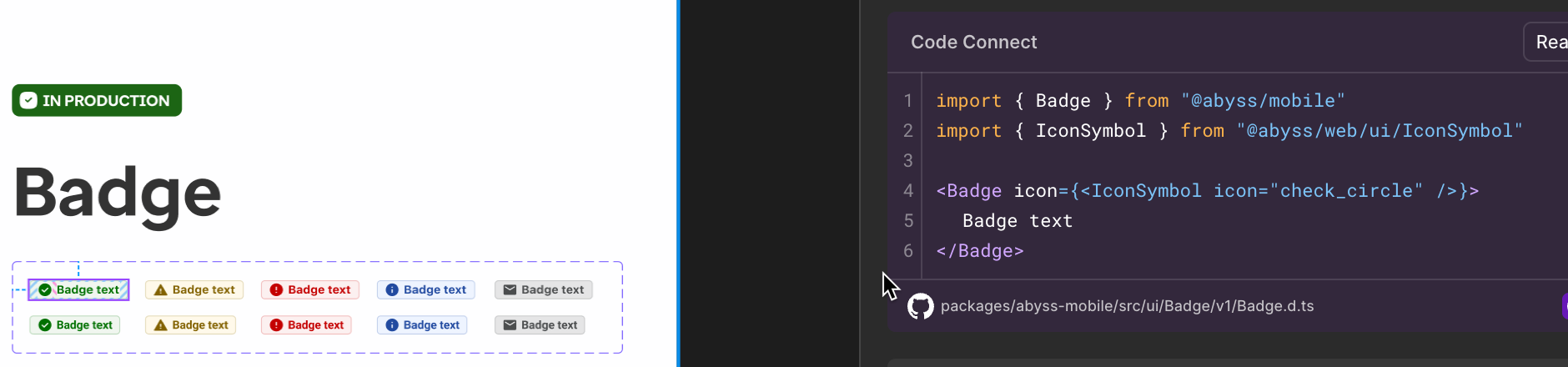 ```
#### Slot limitations
At this time, code connect does not support slots. If you need to use a slot, you will need to manually add it to the code after copying it from Code Connect.
The reccomended code section does not show the actual slot element's code.
```jsx render
```
#### Slot limitations
At this time, code connect does not support slots. If you need to use a slot, you will need to manually add it to the code after copying it from Code Connect.
The reccomended code section does not show the actual slot element's code.
```jsx render
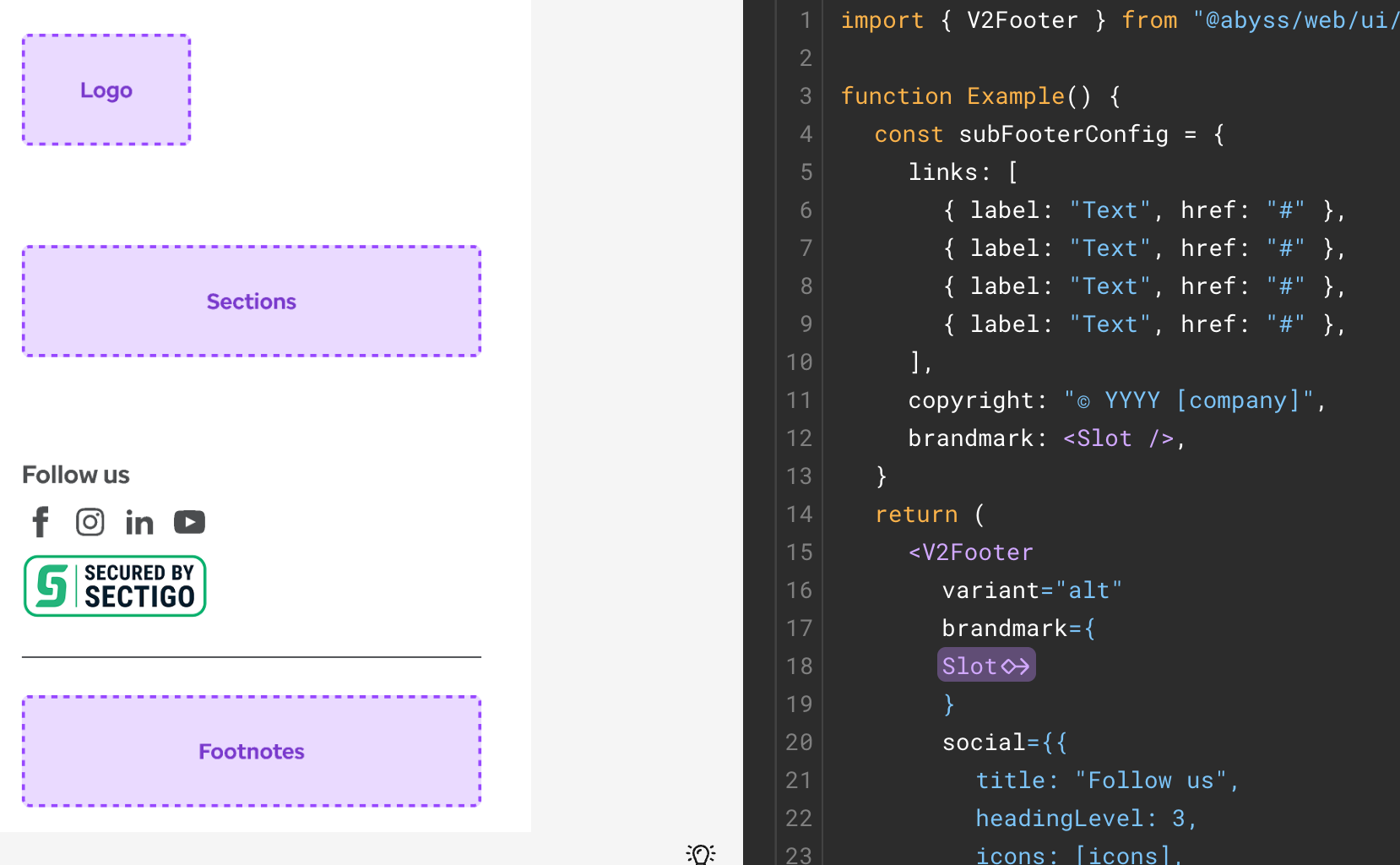 ```
### Supported components
```jsx render
```
### Supported components
```jsx render

 ```
### Detect deprecated imports - Codemod
To help with identifying deprecated components, we provide a script that scans your codebase for deprecated Abyss imports. This script will help you identify which components need to be replaced before migrating to v2.
**Note:** Abyss imports show deprecation warnings. This tool is used scan your codebase for all deprecated imports at once.
```jsx render
```
### Detect deprecated imports - Codemod
To help with identifying deprecated components, we provide a script that scans your codebase for deprecated Abyss imports. This script will help you identify which components need to be replaced before migrating to v2.
**Note:** Abyss imports show deprecation warnings. This tool is used scan your codebase for all deprecated imports at once.
```jsx render
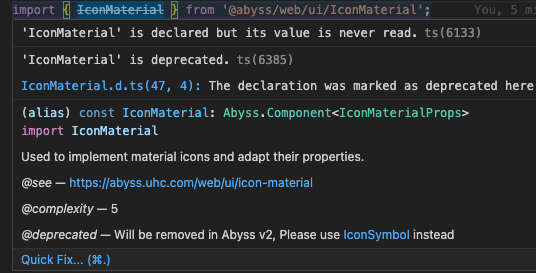 ```
#### How to use the script
- [Download this zip folder](/migration/detect-deprecated-imports.zip)
- Move the folder to your project root directory. The structure should look like this:
```
your-project-root/
├── abyss-migration-tools/
│ ├── scan-imports.sh
│ ├── detect-deprecated-imports.js
| └── deprecated-imports.json
├── package.json
└── src/
└── ... (your project files)
```
- Run the following commands to make the script executable and scan your codebase:
```bash
# Make the script executable
chmod +x abyss-migration-tools/scan-imports.sh
# Run the script to scan your entire codebase
./abyss-migration-tools/scan-imports.sh
# Or specify a specific directory to scan
./abyss-migration-tools/scan-imports.sh src/components
```
The script will scan your codebase for deprecated Abyss imports and report any findings. For example, running the script might show output like this:
```jsx render
```
#### How to use the script
- [Download this zip folder](/migration/detect-deprecated-imports.zip)
- Move the folder to your project root directory. The structure should look like this:
```
your-project-root/
├── abyss-migration-tools/
│ ├── scan-imports.sh
│ ├── detect-deprecated-imports.js
| └── deprecated-imports.json
├── package.json
└── src/
└── ... (your project files)
```
- Run the following commands to make the script executable and scan your codebase:
```bash
# Make the script executable
chmod +x abyss-migration-tools/scan-imports.sh
# Run the script to scan your entire codebase
./abyss-migration-tools/scan-imports.sh
# Or specify a specific directory to scan
./abyss-migration-tools/scan-imports.sh src/components
```
The script will scan your codebase for deprecated Abyss imports and report any findings. For example, running the script might show output like this:
```jsx render
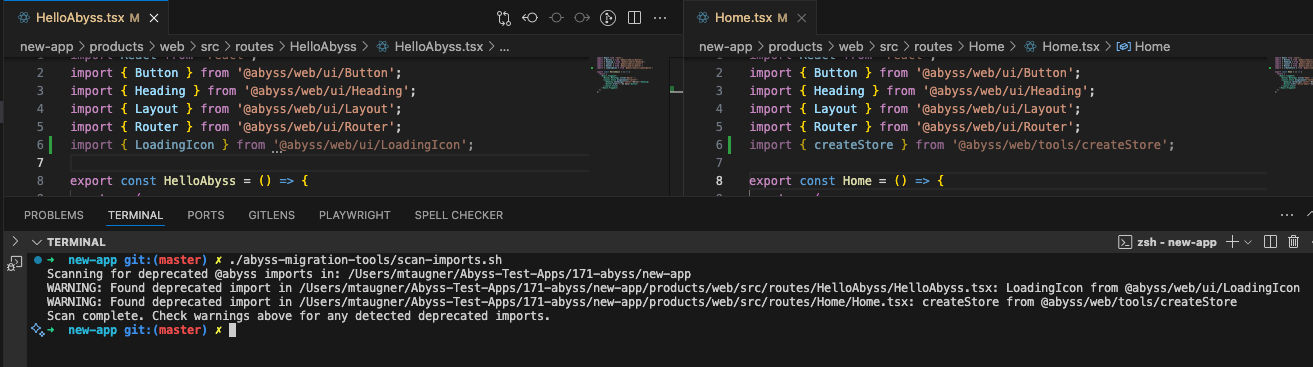 ```
After identifying deprecated imports, refer to the [Deprecation Table](#component-deprecations) above for specific migration advice for each component or utility. For example, the table shows that `createStore` should be replaced with Zustand directly.
---
id: v1-to-v2-guide
title: V1 to V2 Guide
isHidden: true
---
```jsx render
```
After identifying deprecated imports, refer to the [Deprecation Table](#component-deprecations) above for specific migration advice for each component or utility. For example, the table shows that `createStore` should be replaced with Zustand directly.
---
id: v1-to-v2-guide
title: V1 to V2 Guide
isHidden: true
---
```jsx render
 {' '}
{' '}
 {' '}
{' '}
 {' '}
{' '}
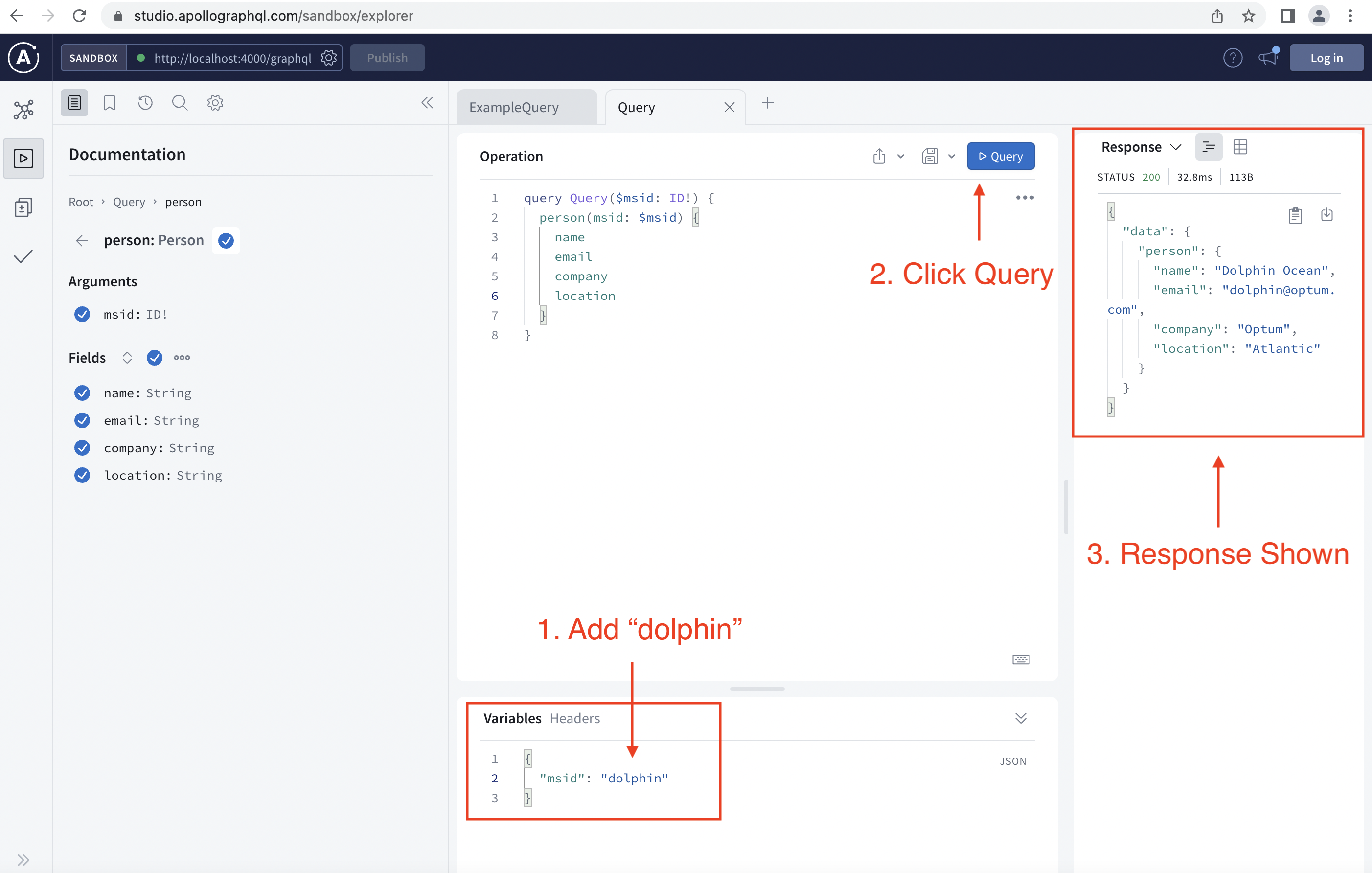 {' '}
{' '}
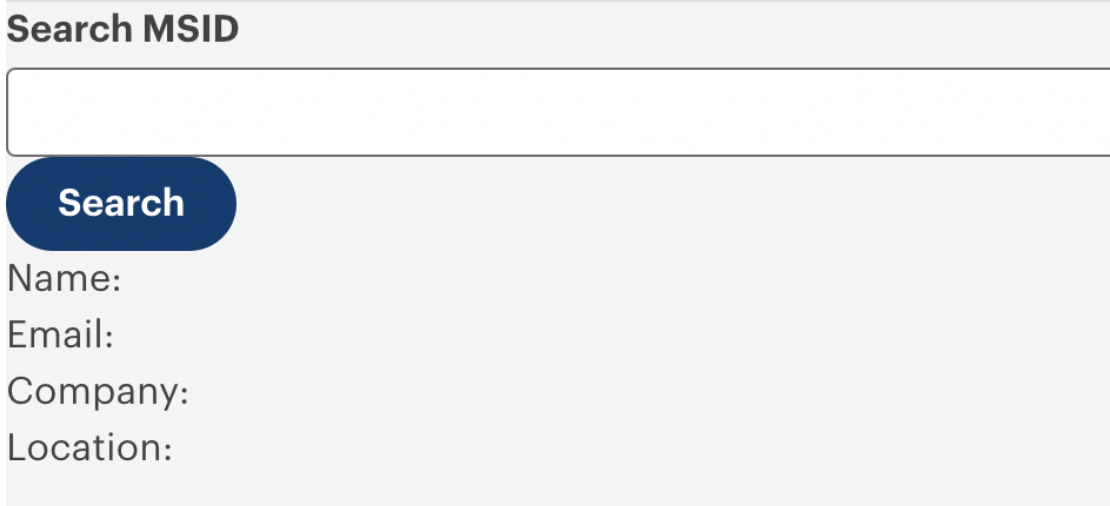 {' '}
{' '}
 - Grow vertically in ways that cover significant portions of a mobile screen
 #### Avoid using for primary navigation, especially top
- When used for navigation, assumptions about FloatingSection "always being available" assumes users can see and click the options in it.
- This is most applicable to FloatingSection set to top where keyboard users will have to press Shift-Tab repeatedly to return to the options at the top.
#### Avoid using for primary navigation, especially top
- When used for navigation, assumptions about FloatingSection "always being available" assumes users can see and click the options in it.
- This is most applicable to FloatingSection set to top where keyboard users will have to press Shift-Tab repeatedly to return to the options at the top.