Overview
Welcome to Abyss! If you’re just starting out designing with Abyss, you’re in the right place. Here’s a checklist of everything you need to get up and running. Abyss design kit is available in Figma through our enterprise account (Optum/UHG)
Create Figma account

If you do not have a Figma account, visit Figma.com to sign up using your UnitedHealth Group email (e.g. first.last@optum.com, firstlast@uhc.com).
Sign in using UnitedHealth Group email
If you already have a Figma account set up with your UnitedHeath Group email and belong to the Optum/UHG Organization, visit Figma.com and sign in.
Contact us if you encounter an issue
Once your account is established you do not need to request edit access in order to join a Figma team or view the Abyss design system.
Working with components libraries
Edit access is only needed if you are a designer working with our teams and components.
Using the designer toolkit
When you are in the design file, you can access Abyss components through the Assets panel. The Assets panel is where you can find all of the Abyss Components. You can drag any Component from the Assets panel into the canvas to create an Instance. To open the Assets panel, click on the Assets heading in the Layers panel.
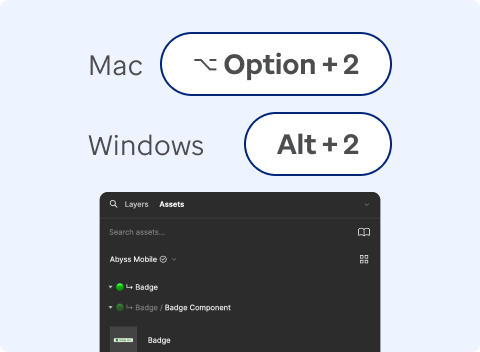
Once you've opened the Assets panel, you can use the Search field to find a specific component. Figma looks for components in the current file, as well as any libraries you can access.
You can search the Abyss Design System or any other library available in the UHG/Optum organization. Visit Figma’s library management documentation to learn more about working with libraries.
Learn more about working with Figma libraries
Once you have found the component that you need just drag it to your working board.
Review updates
Designers and collaborators will see a notification that prompts you to review or dismiss updates to components and styles, making sure they're always using the latest version. Carefully review the updates before accepting them. Some updates may break your layout or design. Once updates are accepted, they cannot be undone. Select "Review" from the notification and choose the updates you would like to apply or select update all. Visit Figma’s review updates documentation to learn how to review and accept updates from libraries.